log in with google
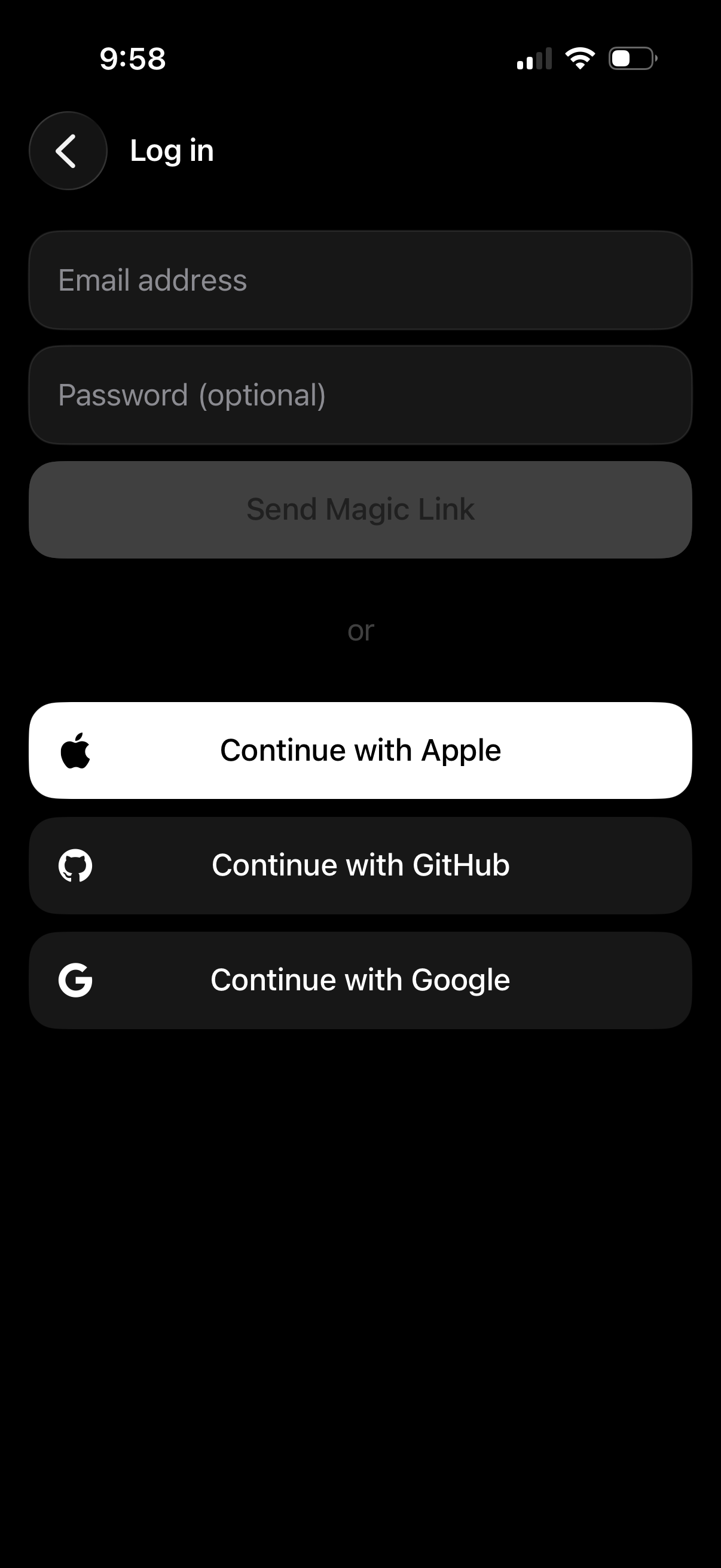
Dark-mode login screen with email address and optional password fields and a primary “Send Magic Link” button for passwordless sign-in. Provides alternative authentication options via social SSO buttons to continue with Apple, GitHub, or Google, plus a back navigation control.
In-app browser webview loading the Google Accounts (accounts. google.
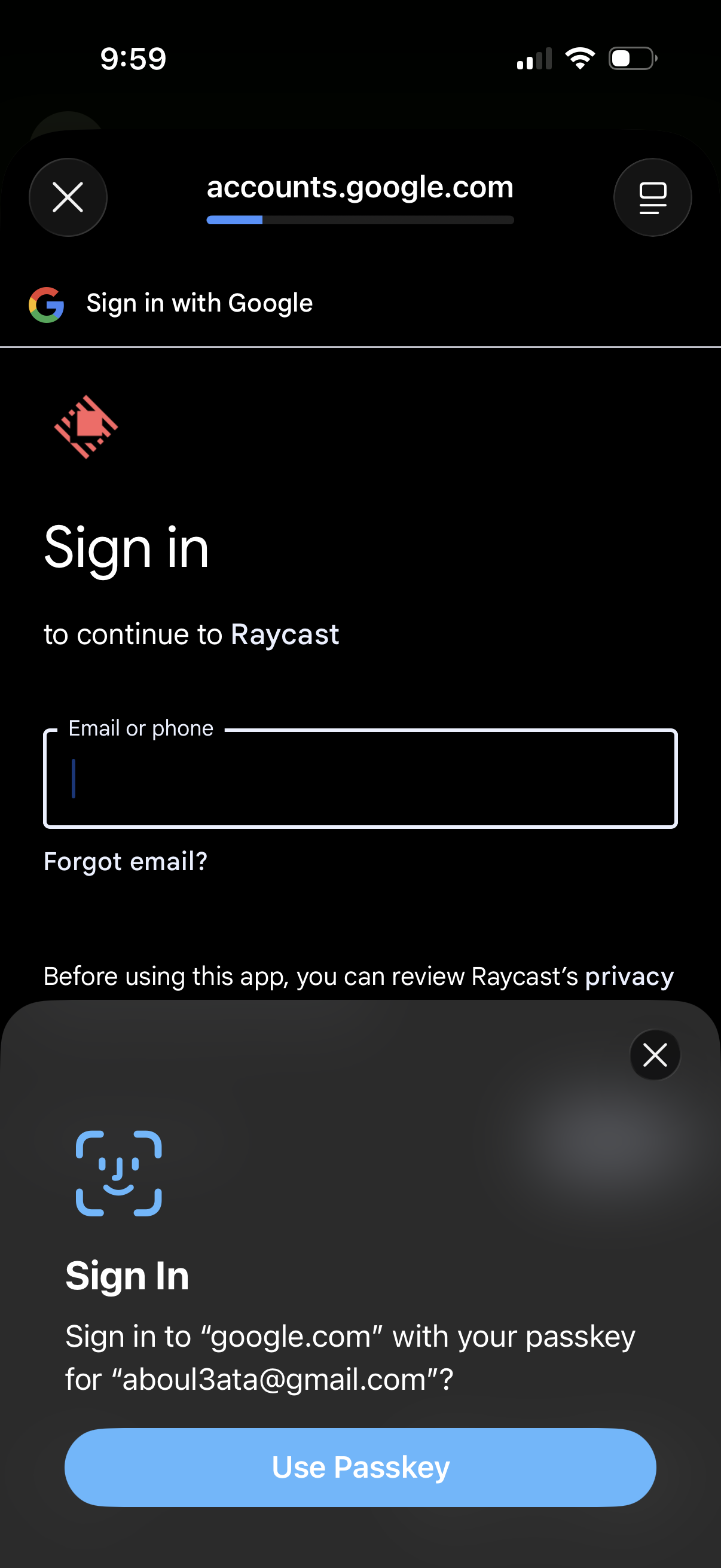
Google OAuth sign-in screen in a mobile webview prompting the user to sign in to continue to the app, with an email/phone input field and “Forgot email? ” link.
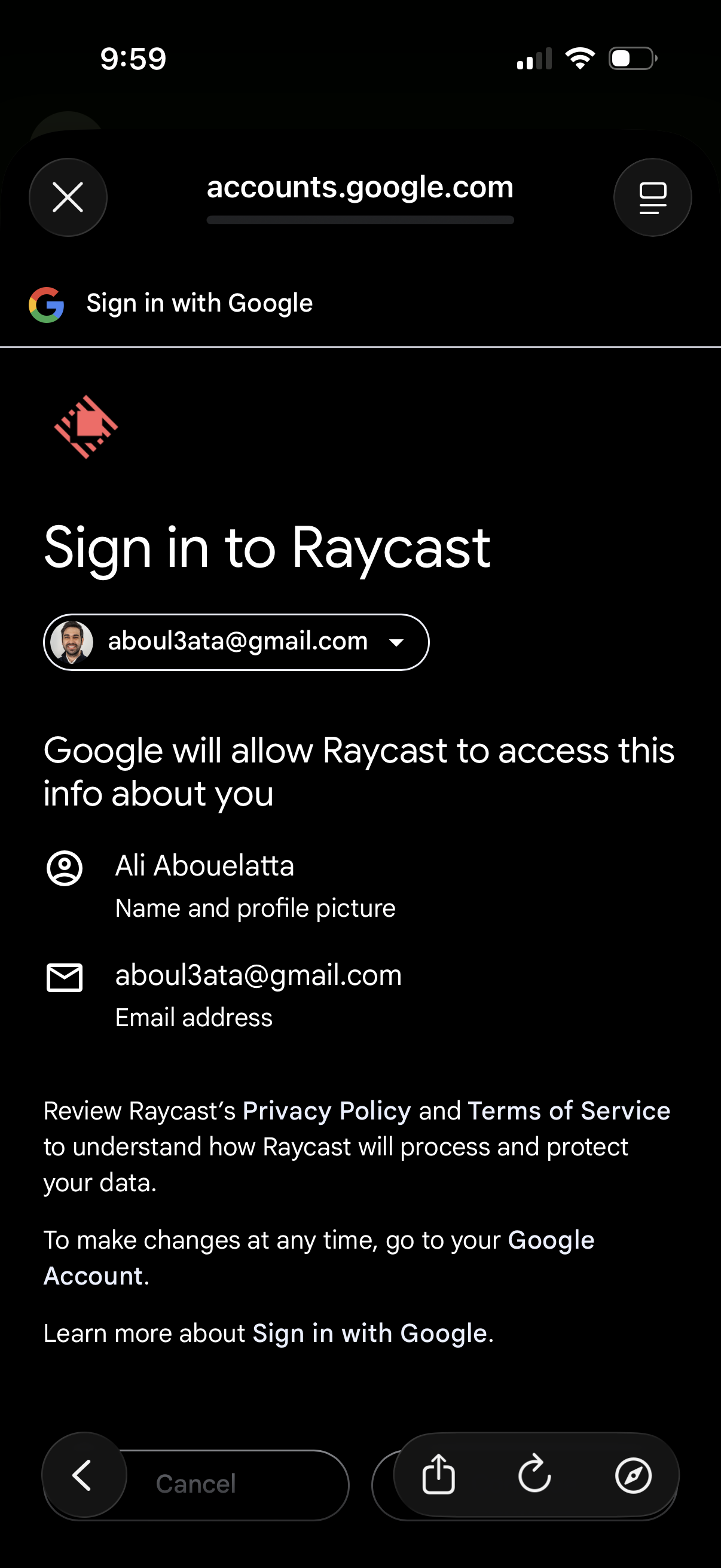
Google OAuth “Sign in with Google” consent screen for signing into an app, showing the selected Google account picker and the permissions/data the app will access (name, profile photo, email). Includes links to the app’s privacy policy and terms plus a cancel/back action.
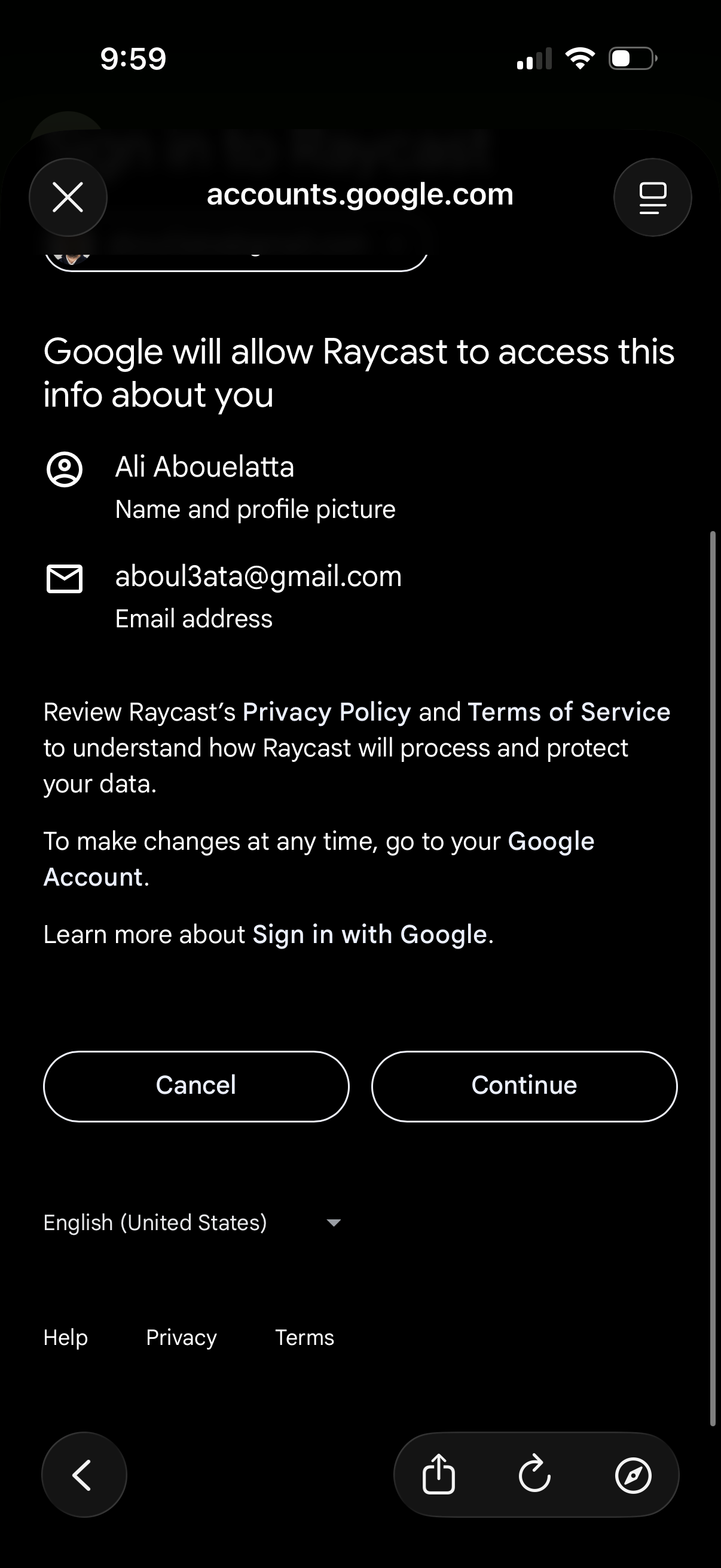
Google OAuth consent screen prompting the user to approve a third-party app’s access to basic account information, showing requested permissions like name/profile photo and email address. Primary actions are Cancel or Continue, with links to privacy policy, terms, and “Sign in with Google” help.
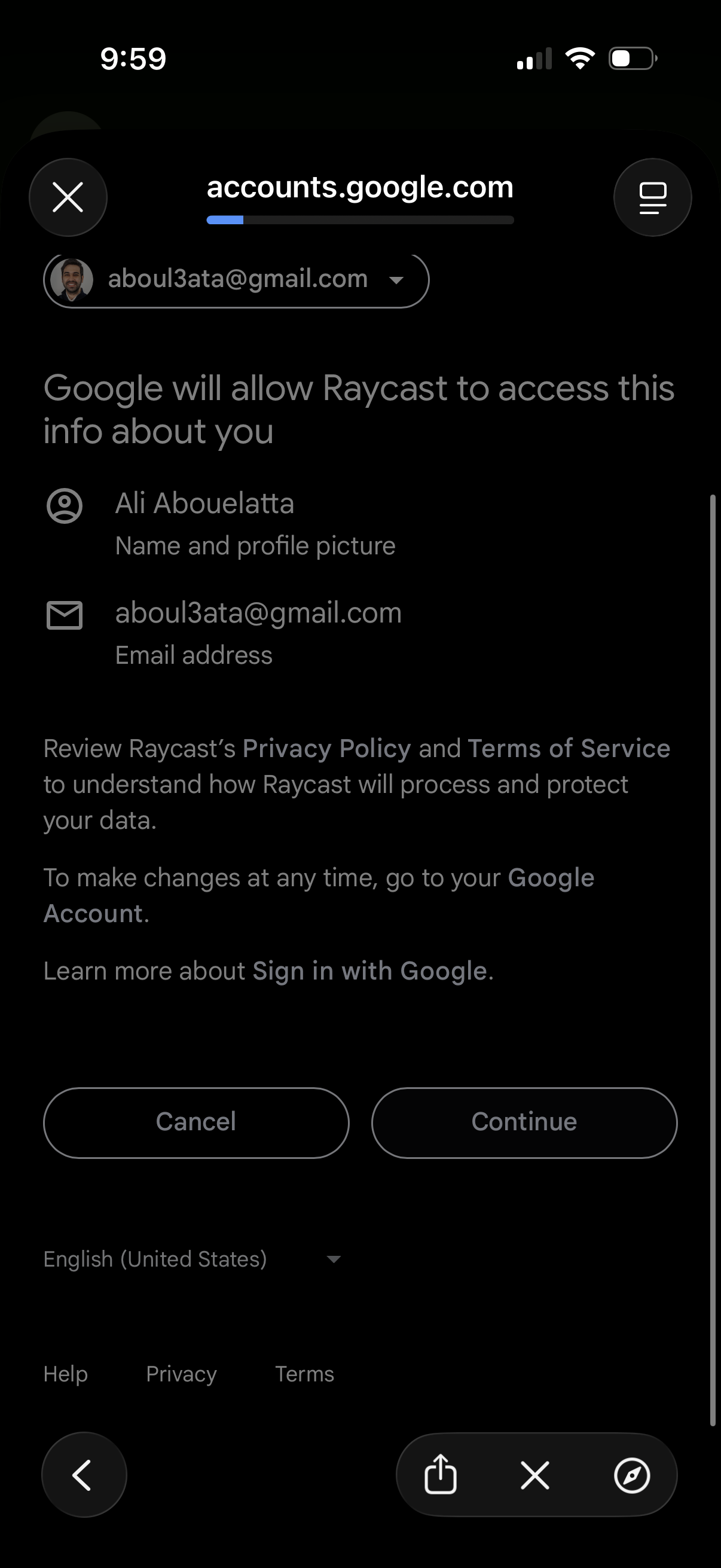
Google OAuth consent screen in an in-app browser showing what account information (name/profile photo and email address) an app will access, with options to switch Google accounts and buttons to Cancel or Continue to complete “Sign in with Google.
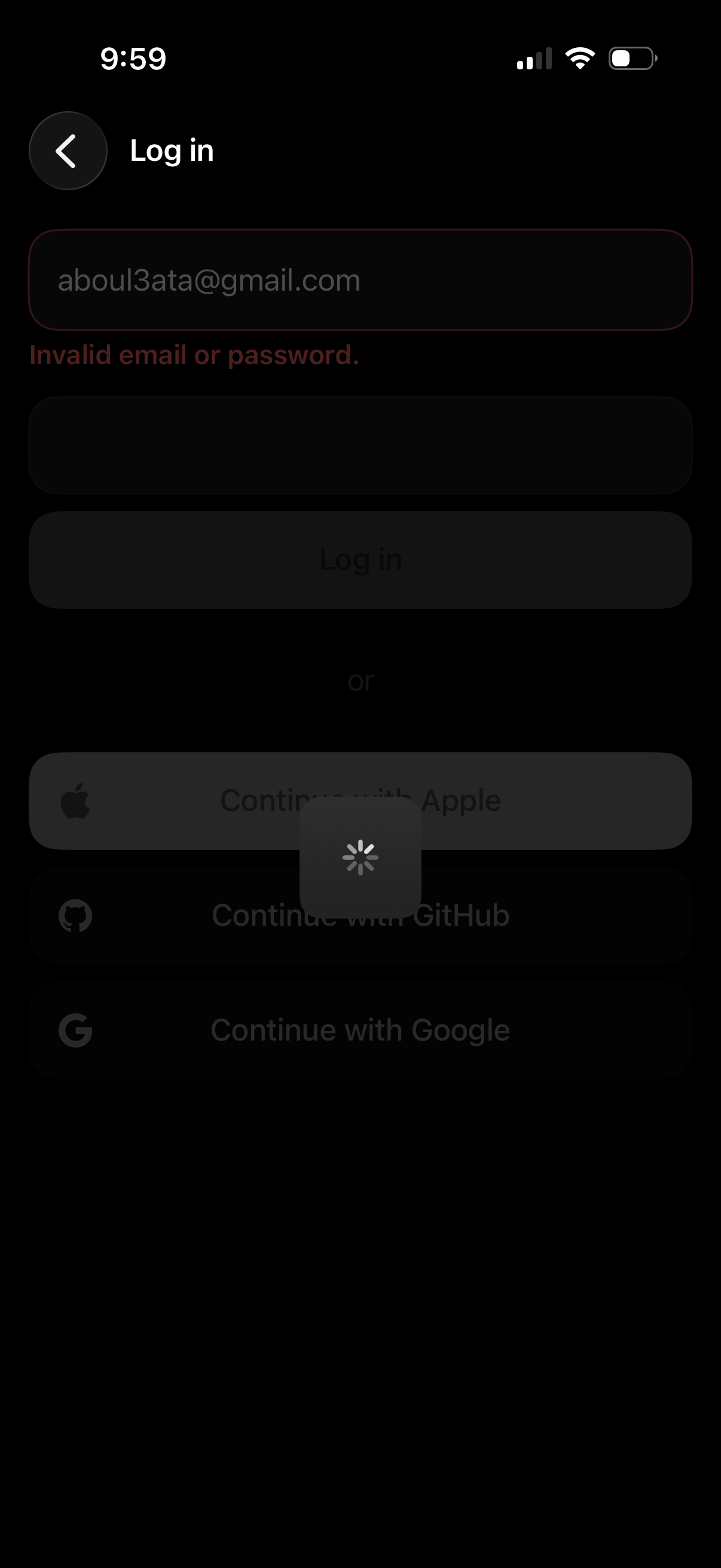
Dark mode login screen with email and password fields showing an inline validation error message “Invalid email or password” and a disabled Log in button while loading. Includes alternative sign-in options via Apple, GitHub, and Google, plus a back navigation control.