ask ai and switch
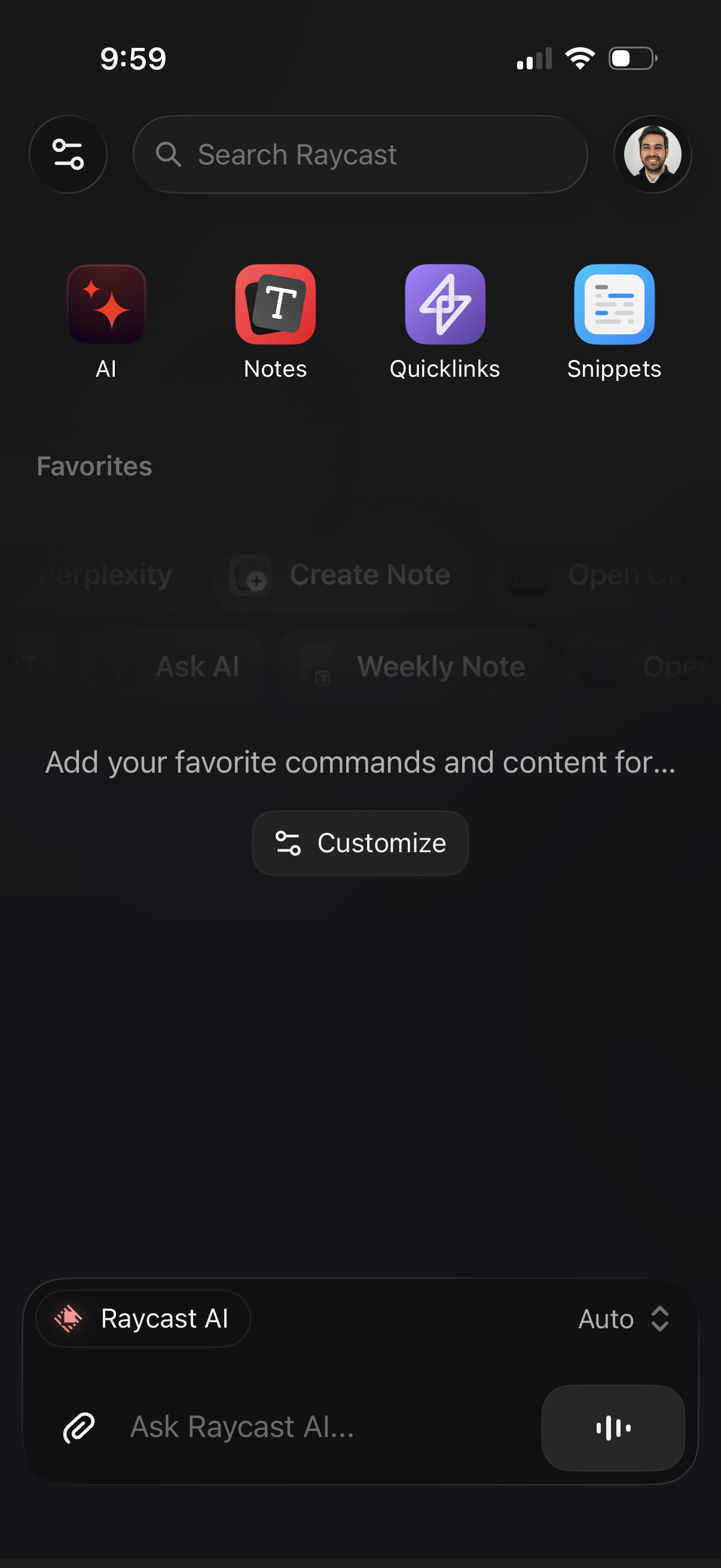
Home/dashboard screen for a productivity launcher app with a global search bar and quick-access tiles for AI, Notes, Quicklinks, and Snippets, plus a profile button and settings/filter icon. Includes an empty Favorites section with a “Customize” action and a bottom AI chat input (“Ask Raycast AI”) with attachment and voice controls.
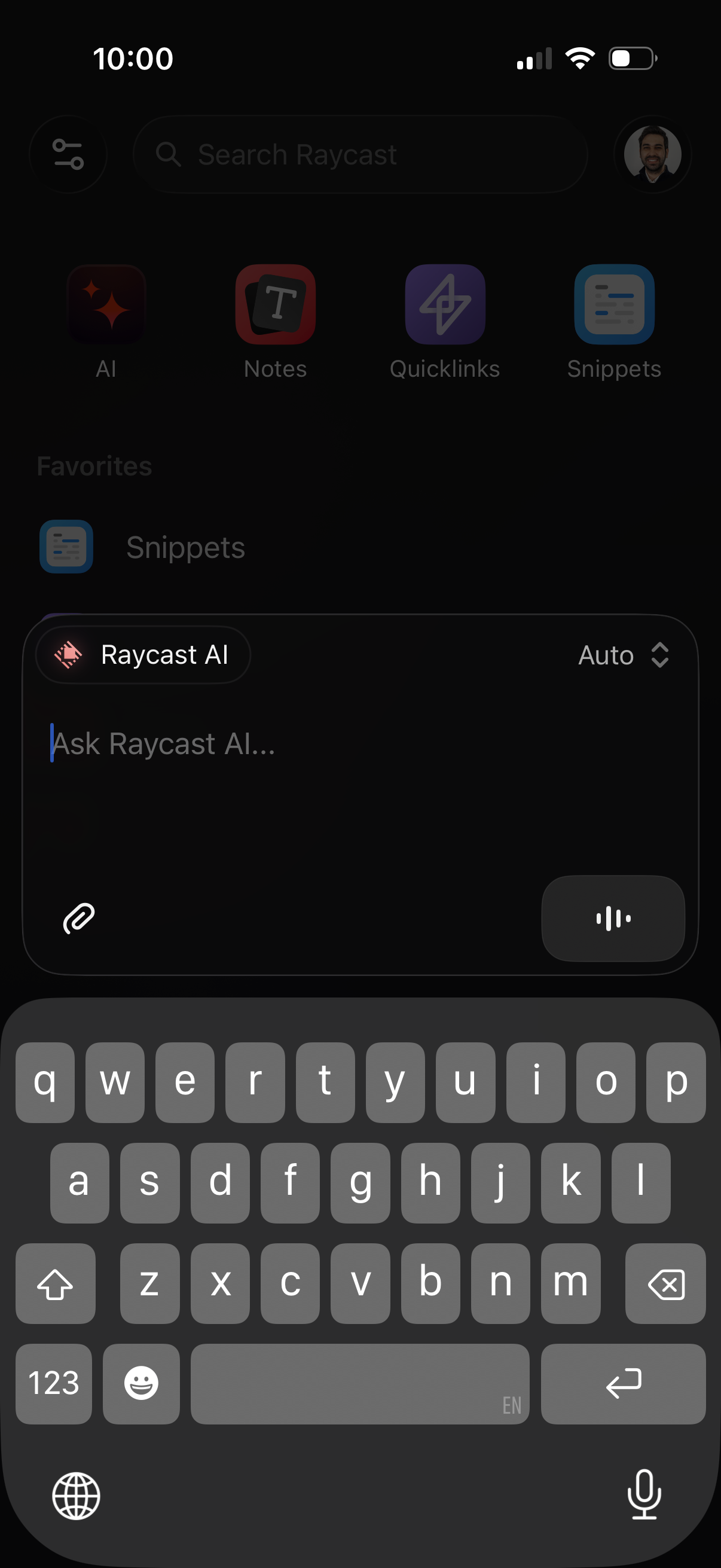
AI assistant chat input screen within a productivity app, featuring an “Ask Raycast AI” text field with attachment option and a voice dictation button plus model/mode selector. Background shows a global search bar and shortcuts to AI, Notes, Quicklinks, and Snippets for quick navigation.
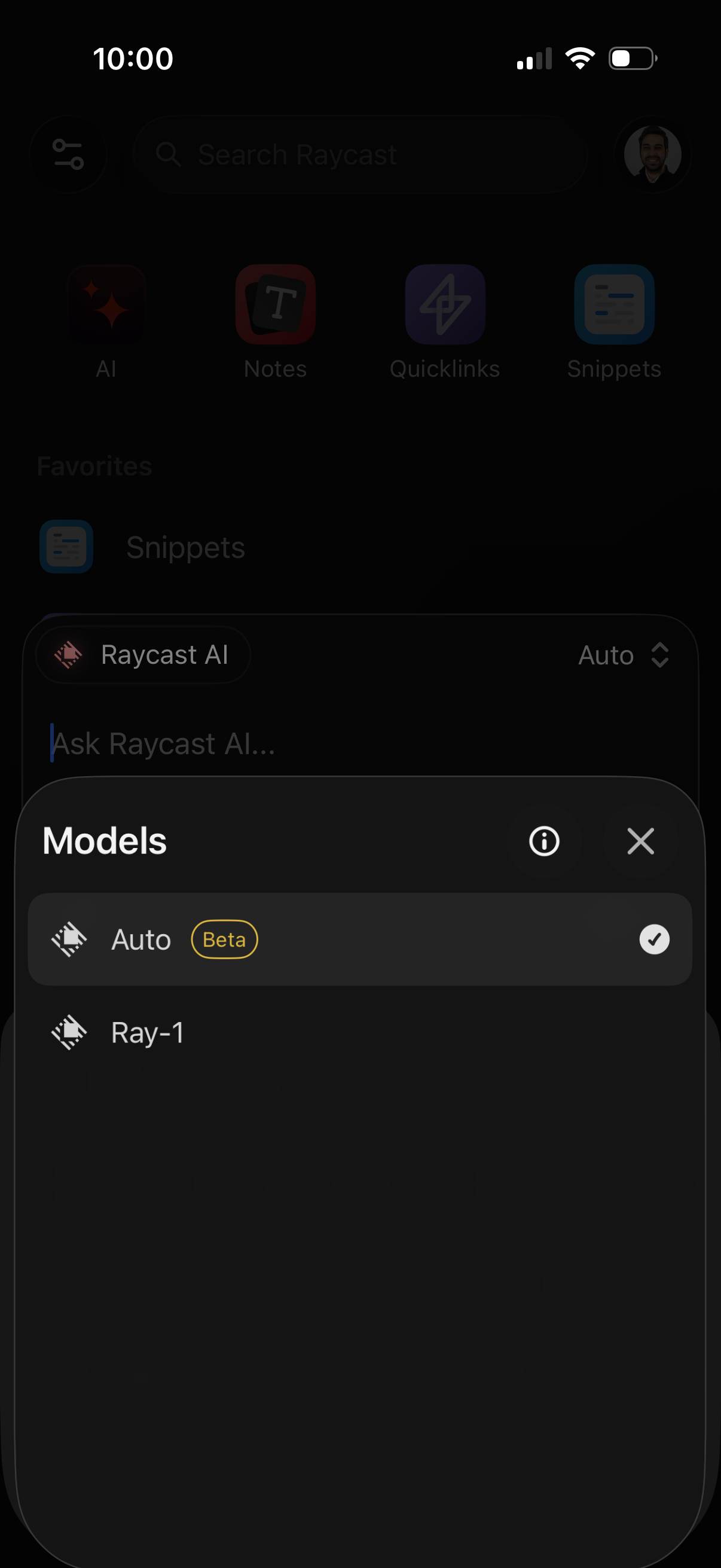
Bottom sheet modal for selecting an AI model within an assistant/chat interface, showing a list of available models (e. g.
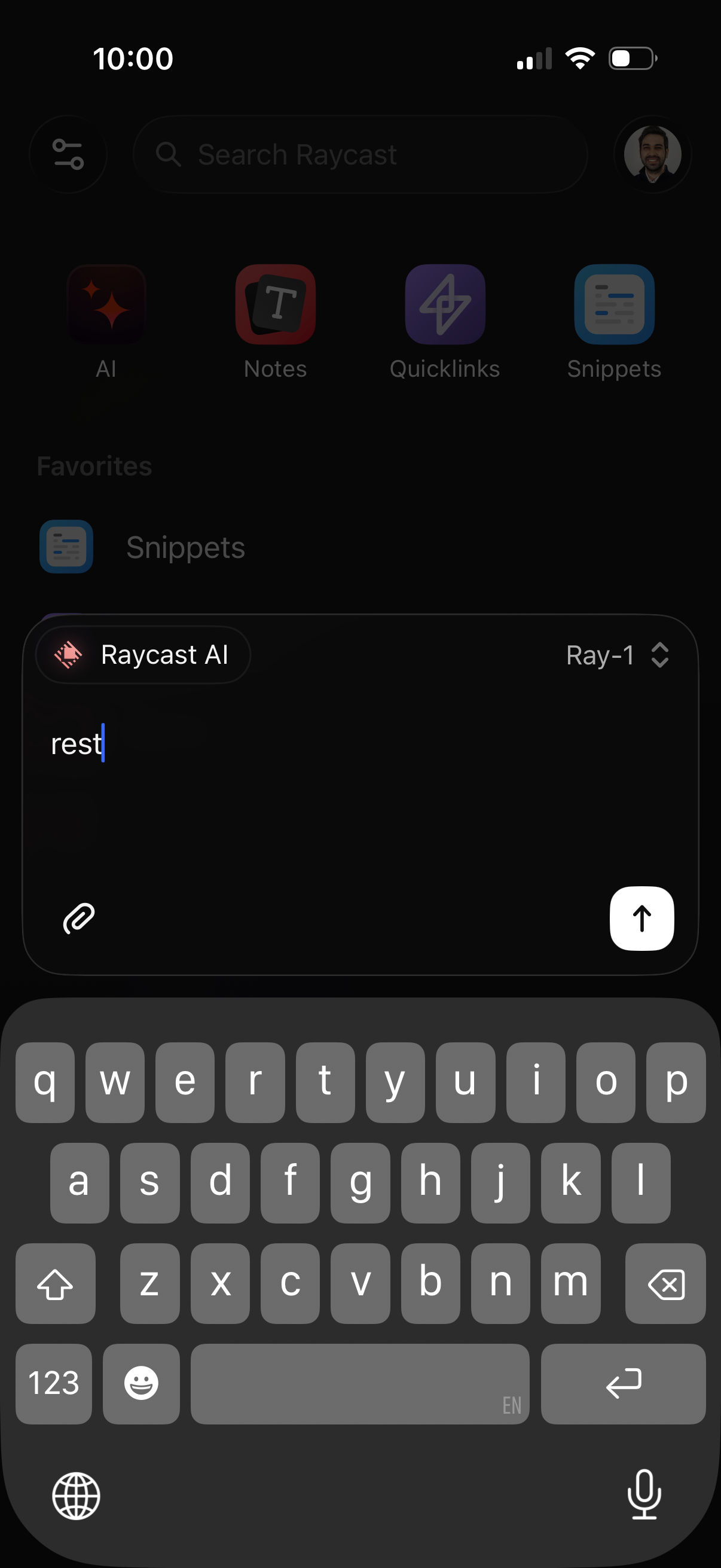
A mobile assistant screen for composing a prompt to “Raycast AI,” with a multiline text input, attachment button, and send action plus a model selector (Ray-1). The background shows the Raycast home dashboard with a global search bar and shortcuts like AI, Notes, Quicklinks, and Snippets.
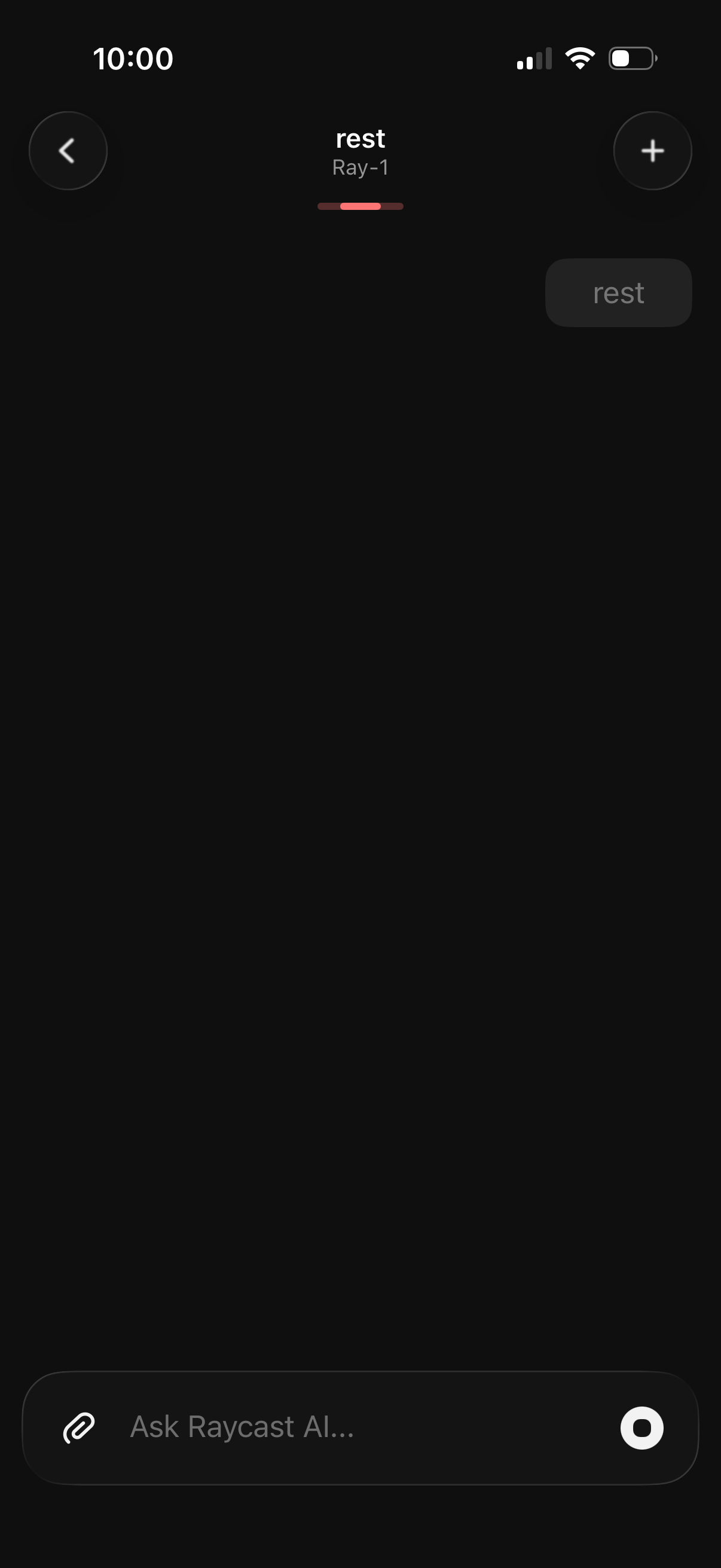
Dark-themed voice chat or walkie-talkie screen for a channel/room labeled “rest,” showing current stream status and controls to go back, add members, and toggle the “rest” state. A bottom input bar lets users ask an AI assistant, attach media, and start recording/sending an audio message.
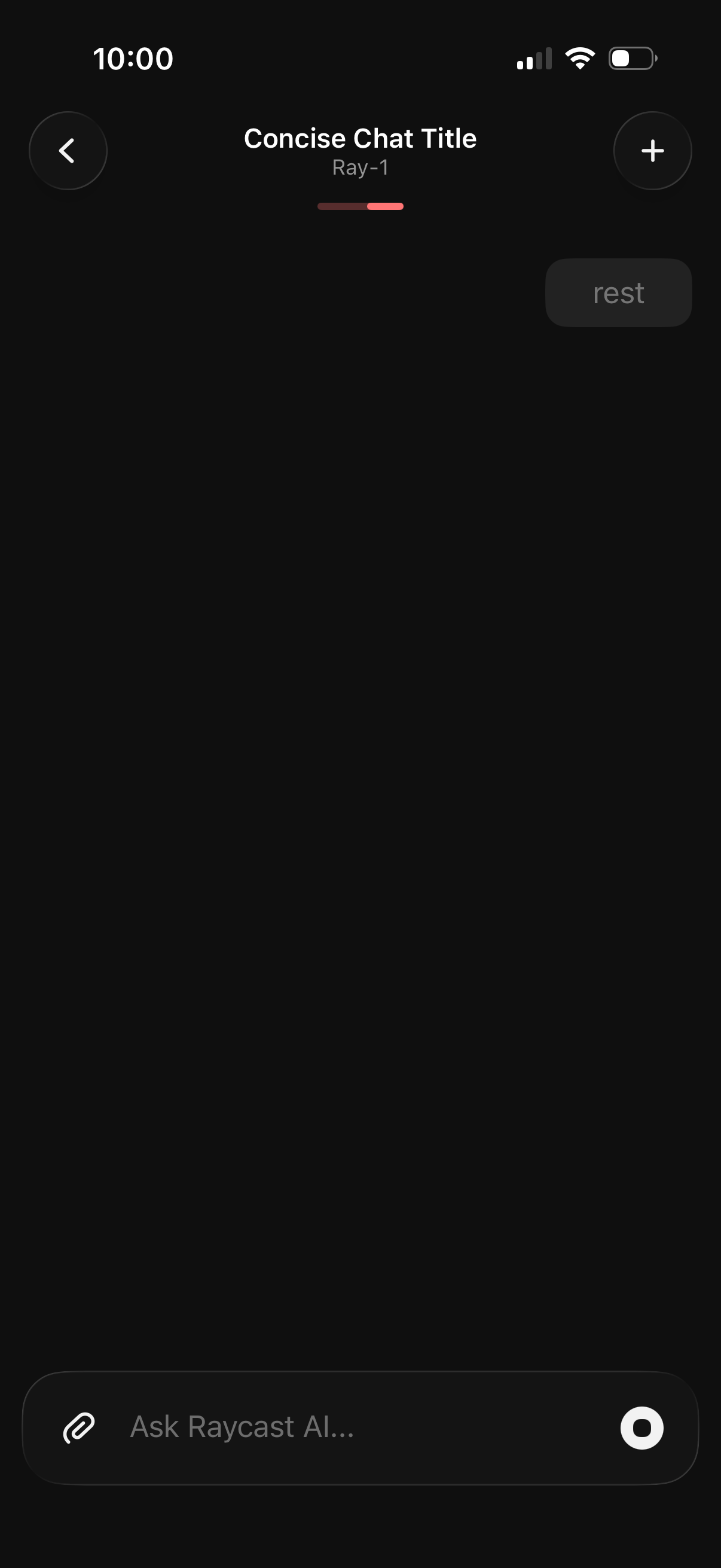
Dark-mode AI chat conversation screen with a header showing the chat title and a back button plus a “+” action to start or add a new thread. The bottom message composer includes an attachment button, a text field prompt to ask the AI, and a send/voice button, with an inline quick suggestion chip in the chat area.
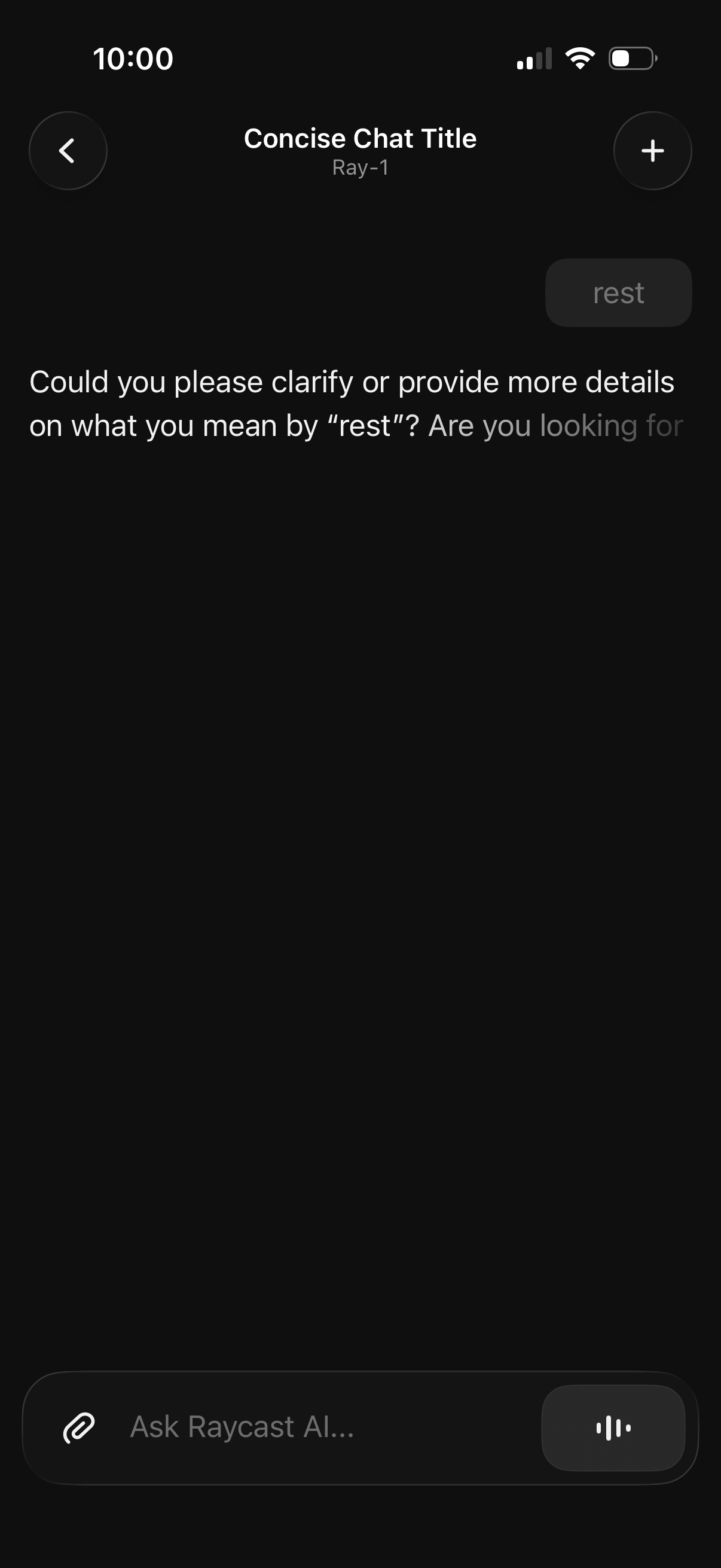
Dark-mode AI chat conversation screen showing an assistant message asking the user to clarify their request, with a chat header (back button, chat title, add/new action) and a bottom input bar to type a prompt, attach files, or use voice input.
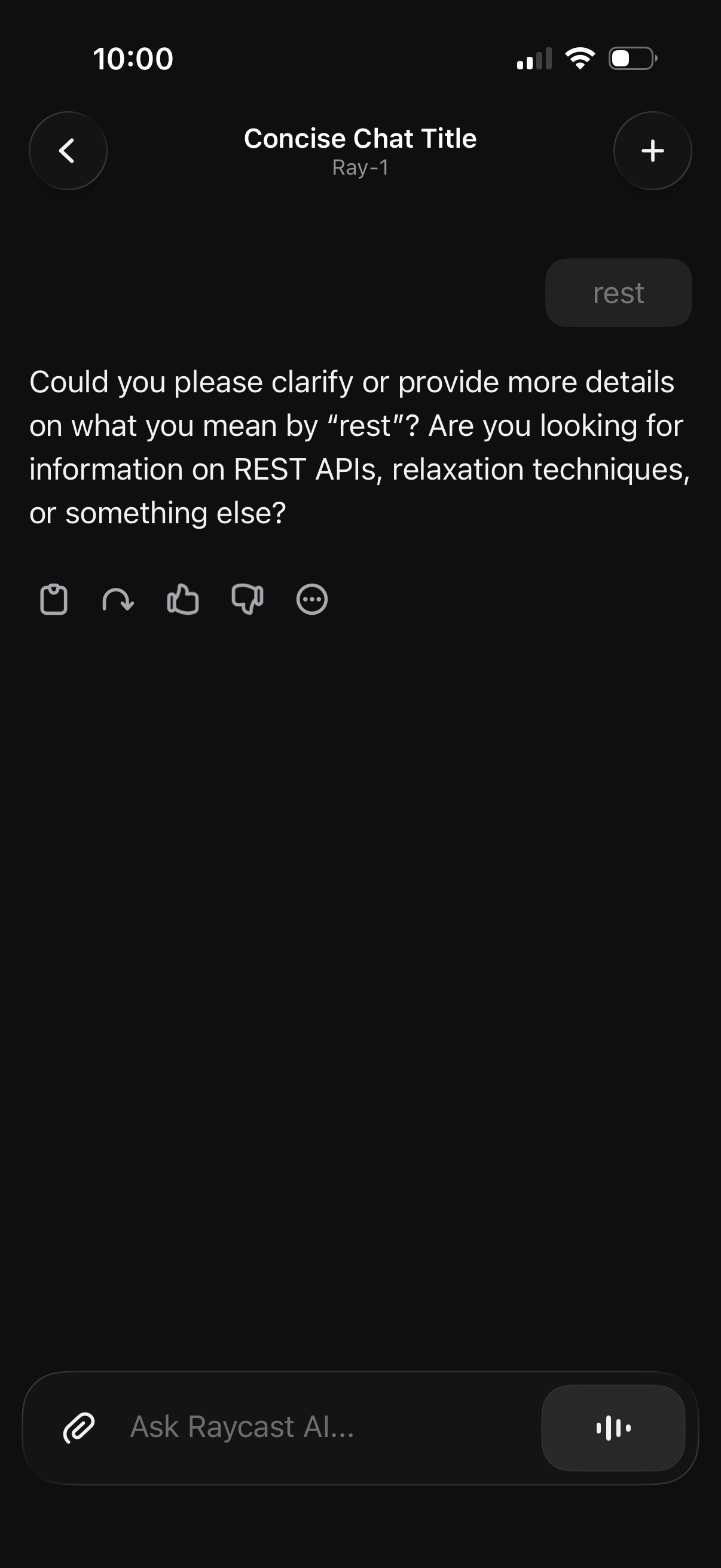
Dark-mode AI chat conversation screen showing a bot response asking the user to clarify an ambiguous query, with reaction and share controls on the message. The header includes back navigation, chat title, and a new chat/add button, while the bottom has an input field with attachment and voice/microphone actions for sending prompts.