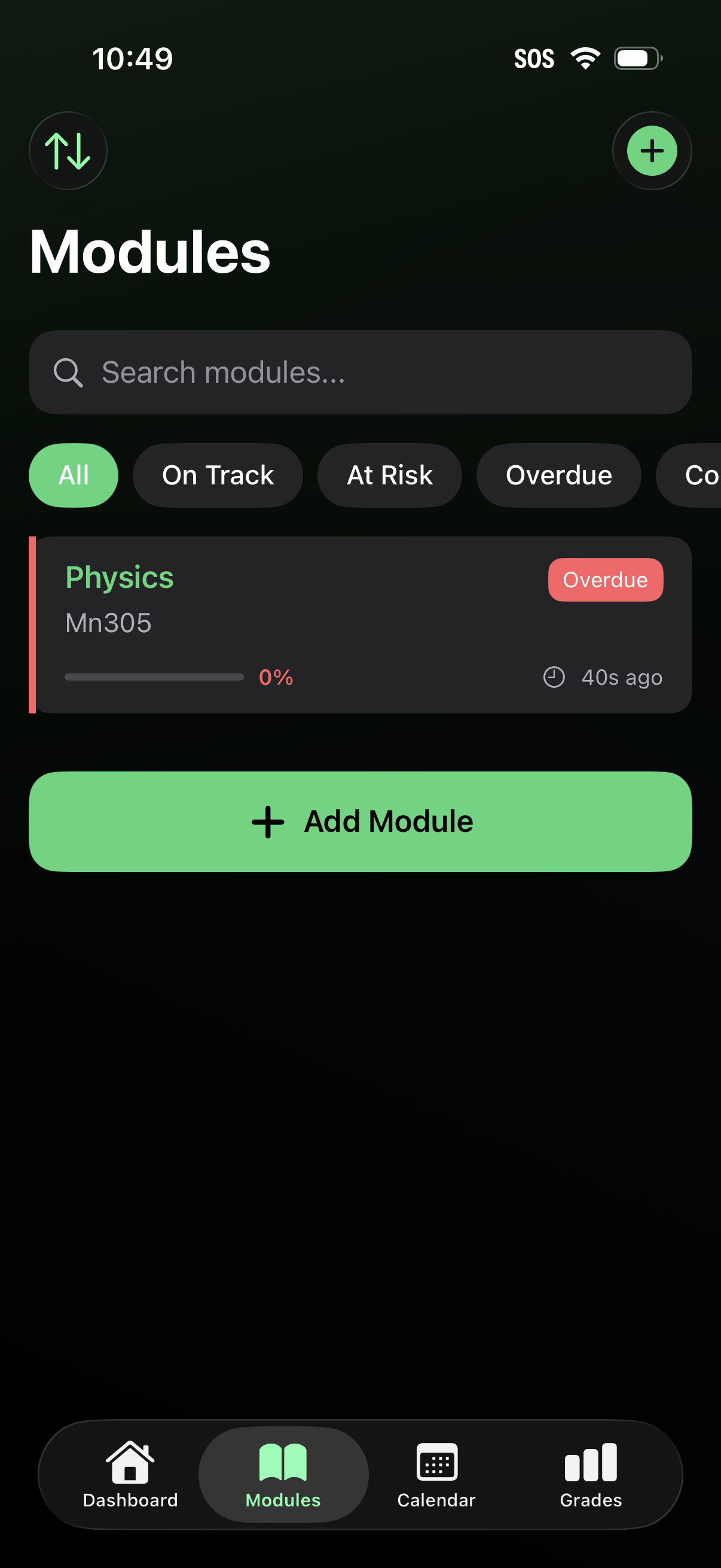
Modules list screen for a student/course tracking app with a search bar and status filters (All, On Track, At Risk, Overdue) to browse classes. Each module card shows course name/code, progress percentage, last updated time, and an overdue tag, with prominent actions to add a new module via a plus button or “Add Module” CTA and bottom navigation to Dashboard, Modules, Calendar, and Grades.
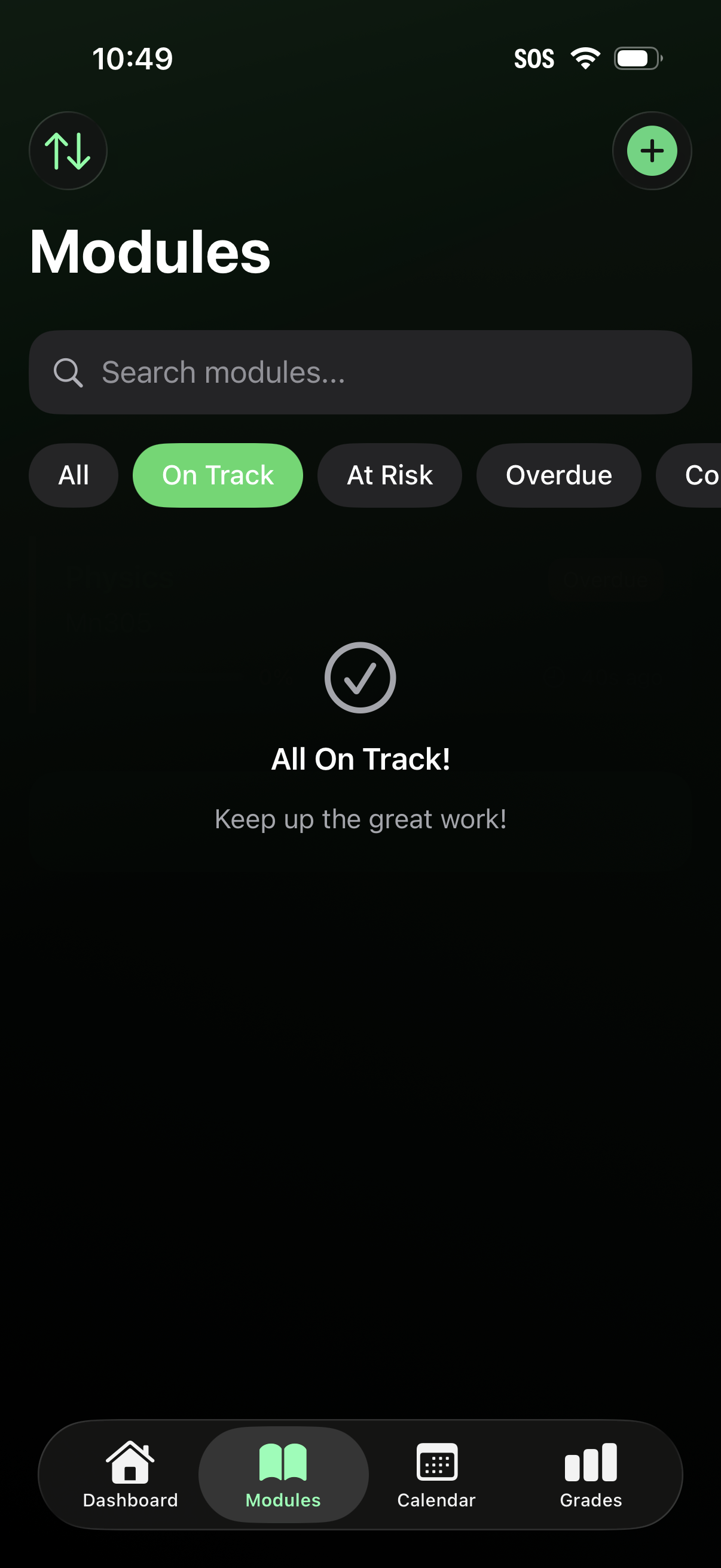
Modules overview screen for a student/course tracking app with a search bar and status filter chips (All, On Track, At Risk, Overdue) to browse module progress, plus a floating add button to create a new module. Shows an empty state message indicating everything is on track and includes bottom navigation to Dashboard, Modules, Calendar, and Grades.
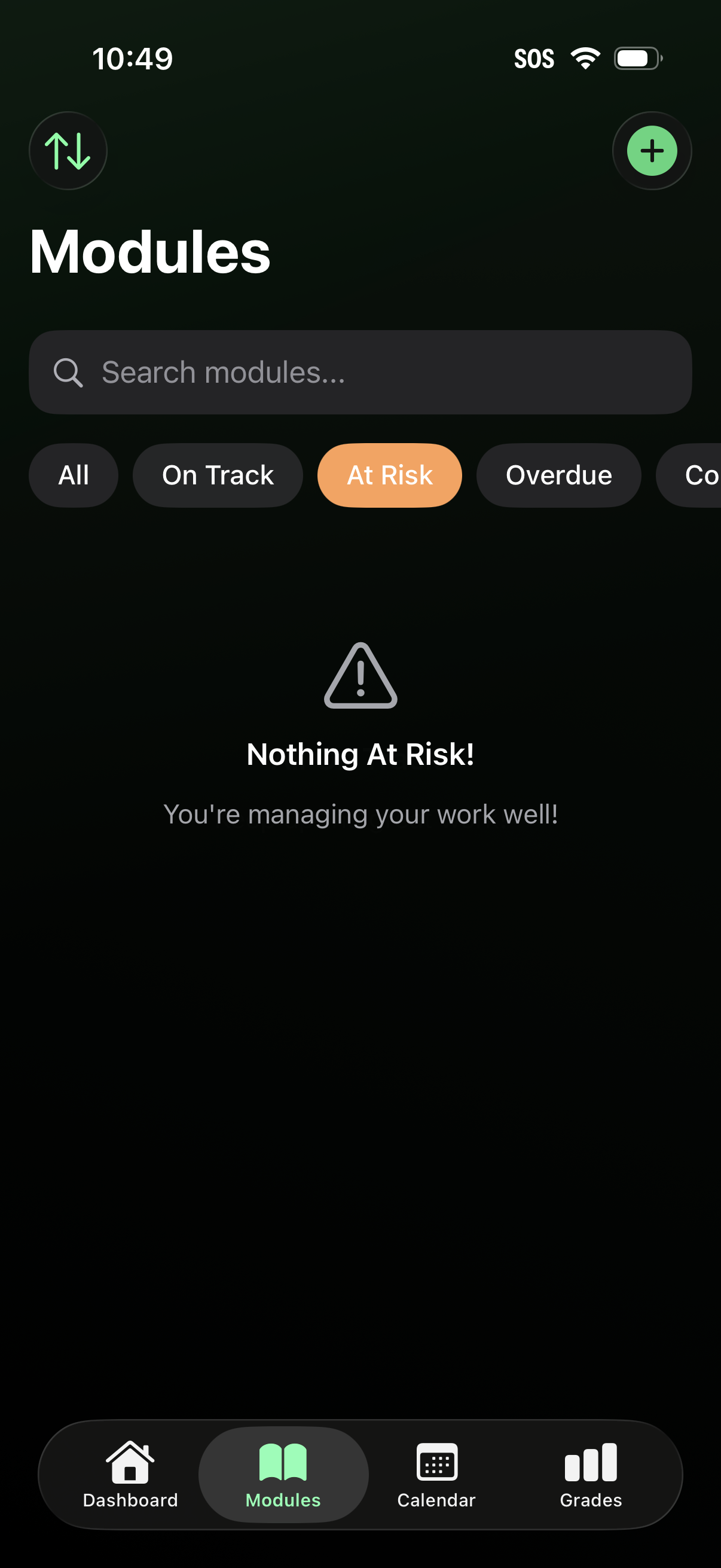
Modules overview screen for tracking coursework or tasks, featuring a search bar and status filter chips (All, On Track, At Risk, Overdue) with an empty-state message when no items match. Includes a floating add button to create a new module and bottom navigation to Dashboard, Modules, Calendar, and Grades.
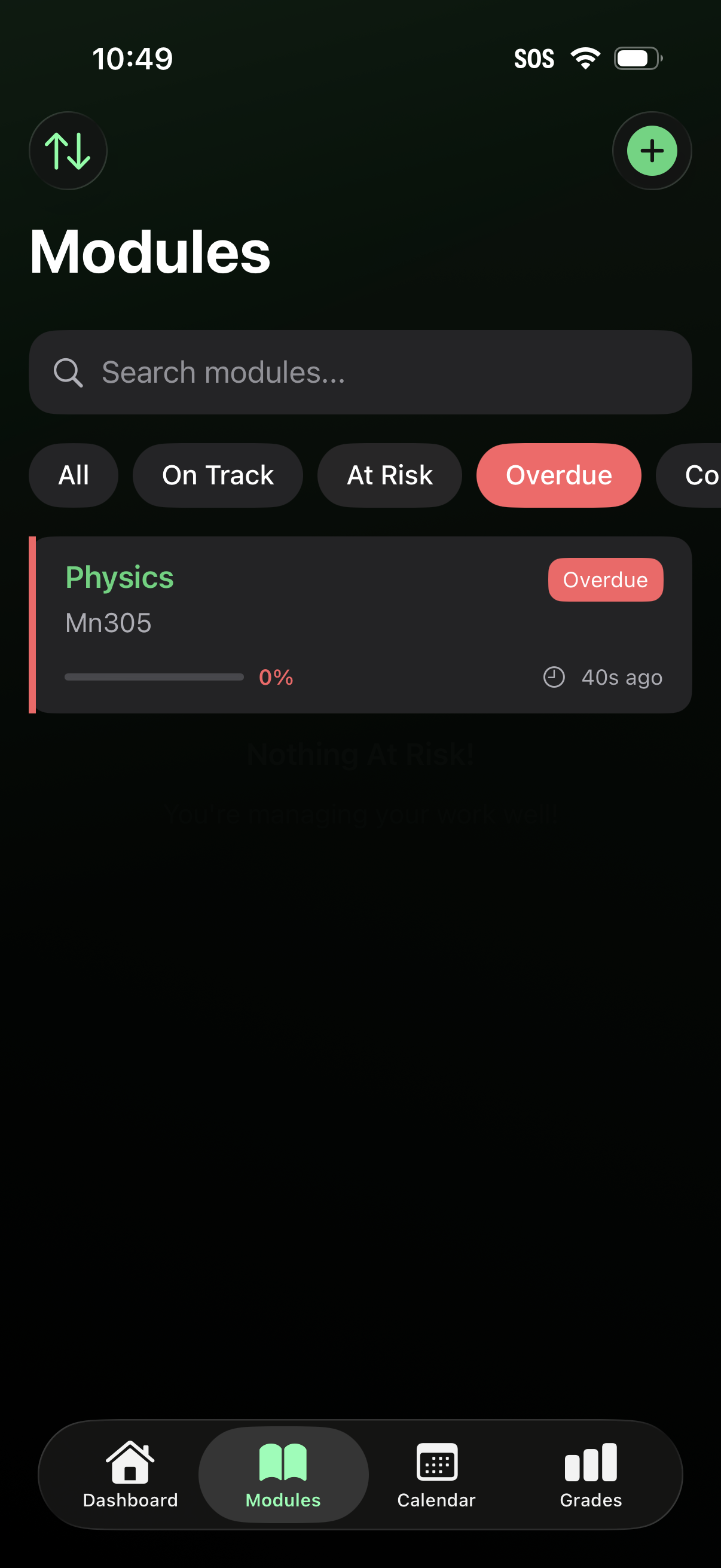
Modules list screen for a student/course tracker showing a searchable list of modules with status filter chips (All, On Track, At Risk, Overdue) and a prominent add button to create a new module. Each module card displays the module name and code, progress percentage with a progress bar, an Overdue badge, and a last-updated timestamp, with bottom navigation to Dashboard, Modules, Calendar, and Grades.
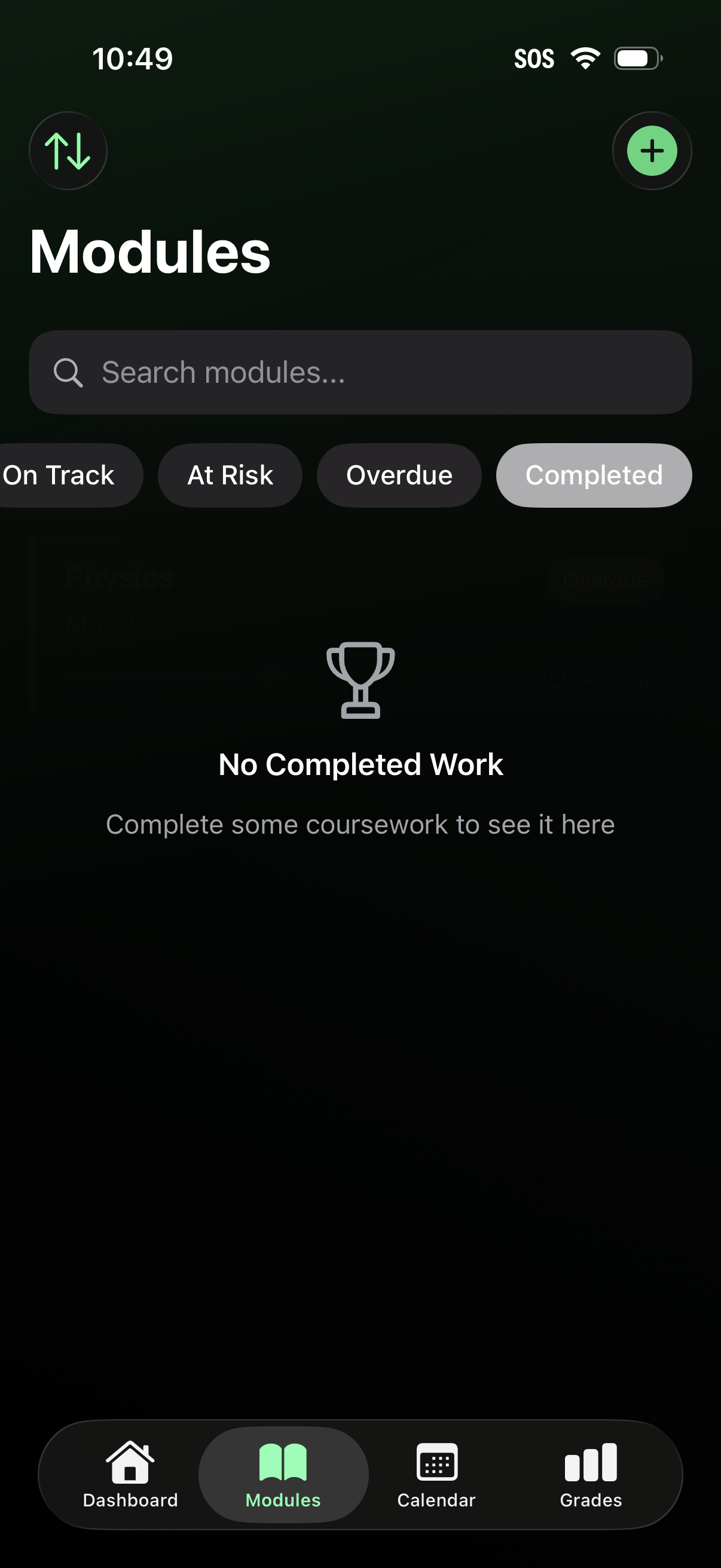
Course modules hub screen with a search bar and status filter chips (On Track, At Risk, Overdue, Completed) to browse and track coursework progress. Includes an empty state for no completed work, a plus button to add a module, and bottom navigation for Dashboard, Modules, Calendar, and Grades.