manage preferences
1
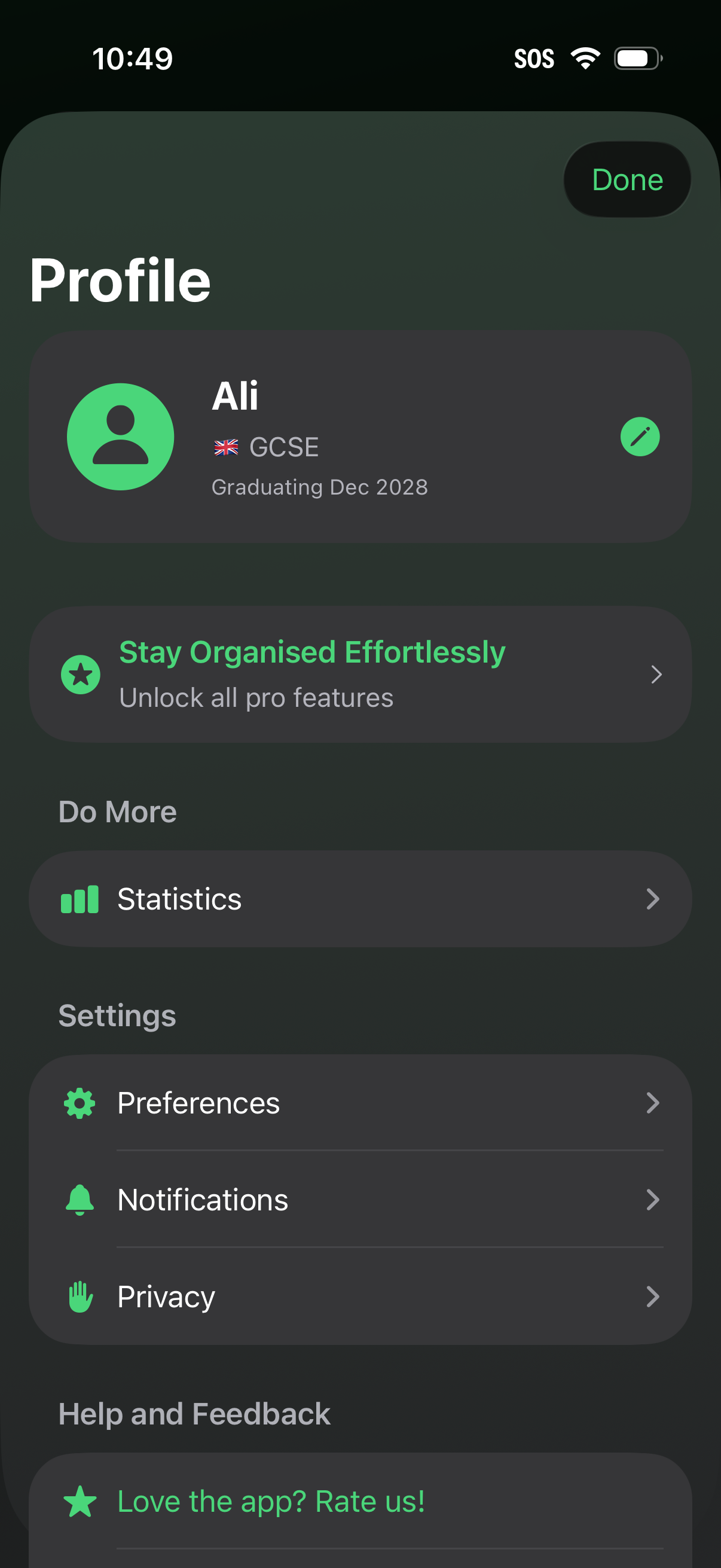
User profile and settings screen showing account details with an edit profile action, plus a CTA to upgrade to pro features. Provides navigation to statistics, preferences, notifications, privacy controls, and a help/feedback option to rate the app, with a Done button to exit.
2
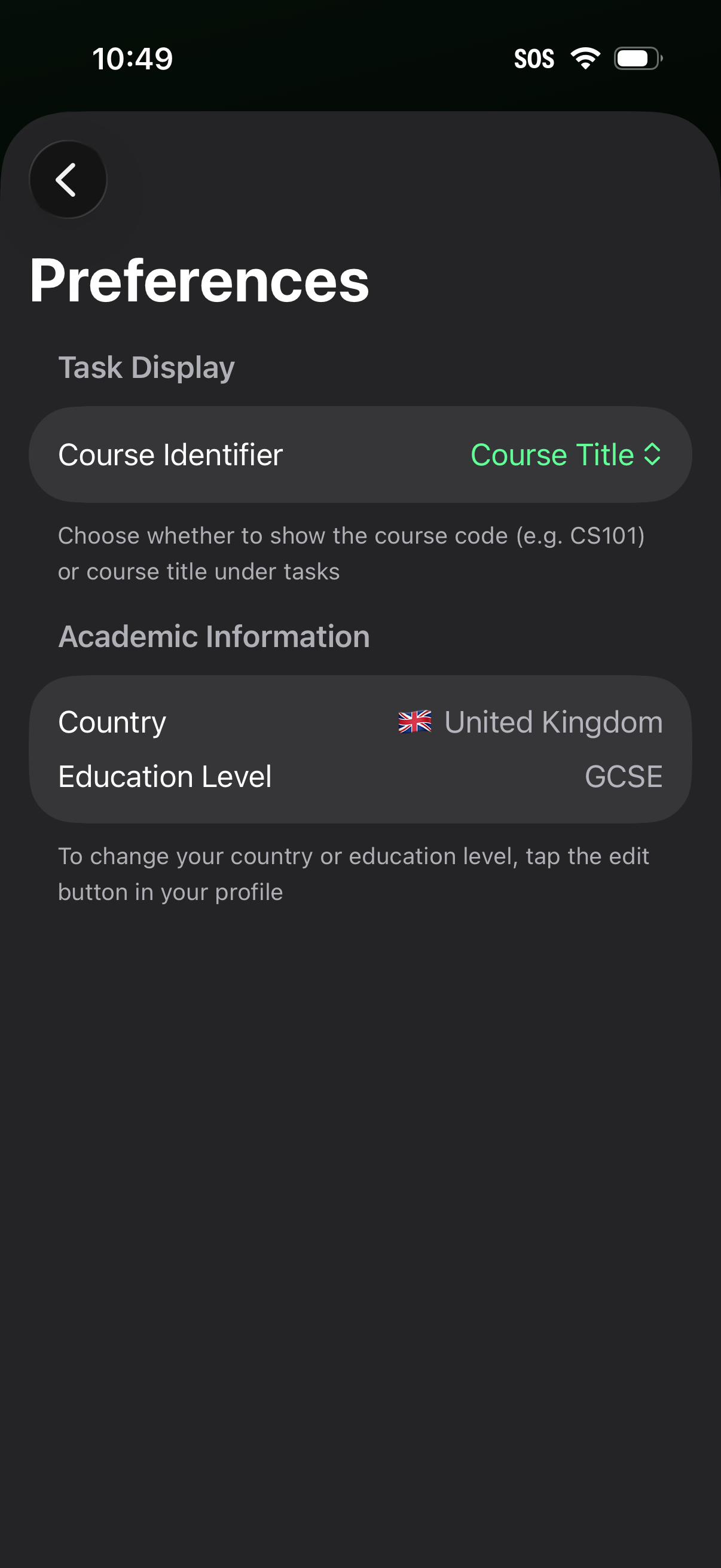
Preferences settings screen for a study or course planner app, letting users choose how tasks display the course identifier (course code vs course title) via a dropdown selector. Also shows read-only academic information fields for country and education level with guidance to edit these details from the profile.