complete onboarding
Onboarding welcome screen for an academic assistant app introducing the product and prompting the user to begin setup for personalized academic needs. Features a simple hero icon and a primary next/continue arrow button to proceed.
Onboarding sign-up screen asking the user for their name with a single text input field and a next arrow button to continue, plus a progress indicator showing the setup step.
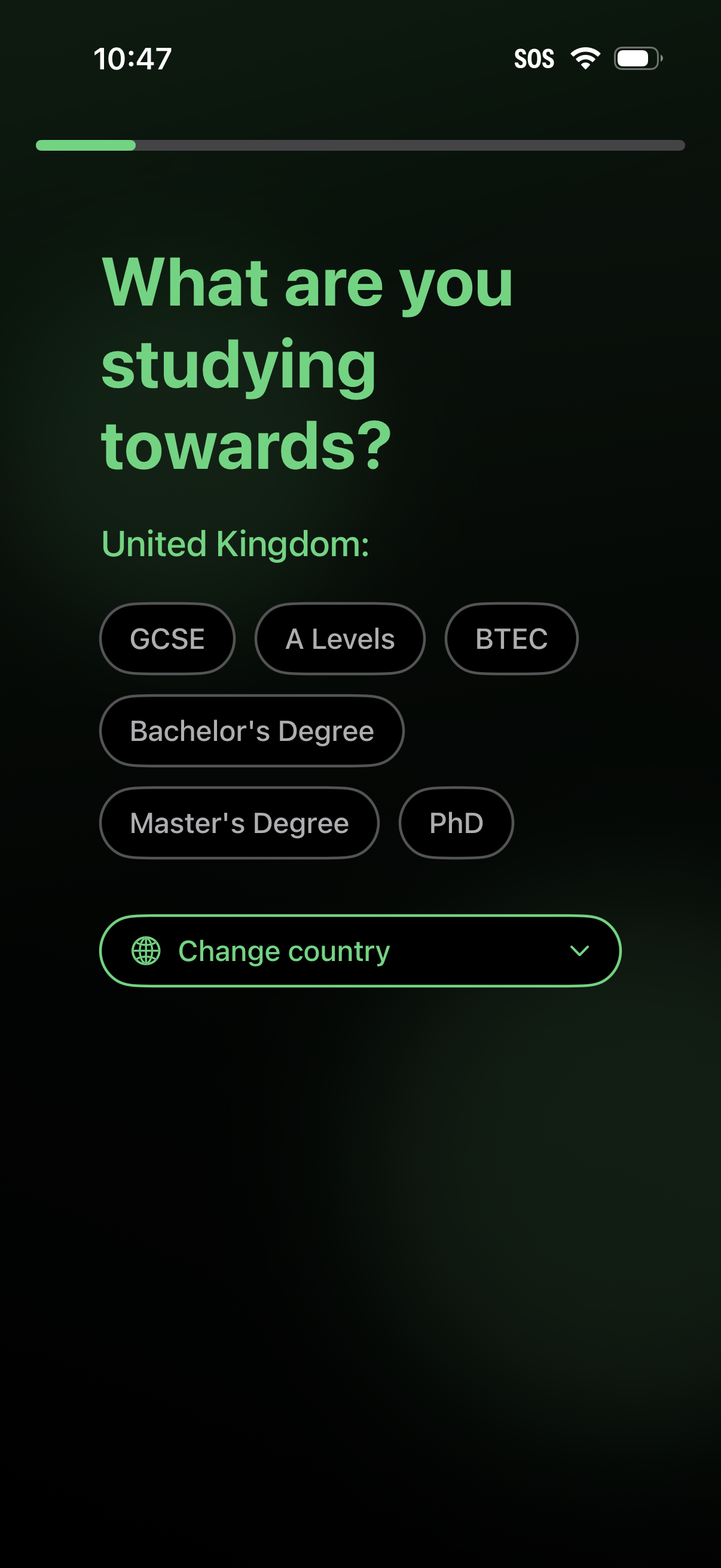
Onboarding question screen for an education app asking what qualification the user is studying towards, with selectable chips for GCSE, A Levels, BTEC, Bachelor’s, Master’s, and PhD. Includes a country selector dropdown to change the region (e.
Onboarding form screen asking the user when they expect to graduate, using a wheel-style date picker to choose month/day/year. Includes a progress indicator at the top and a primary next arrow button to continue.
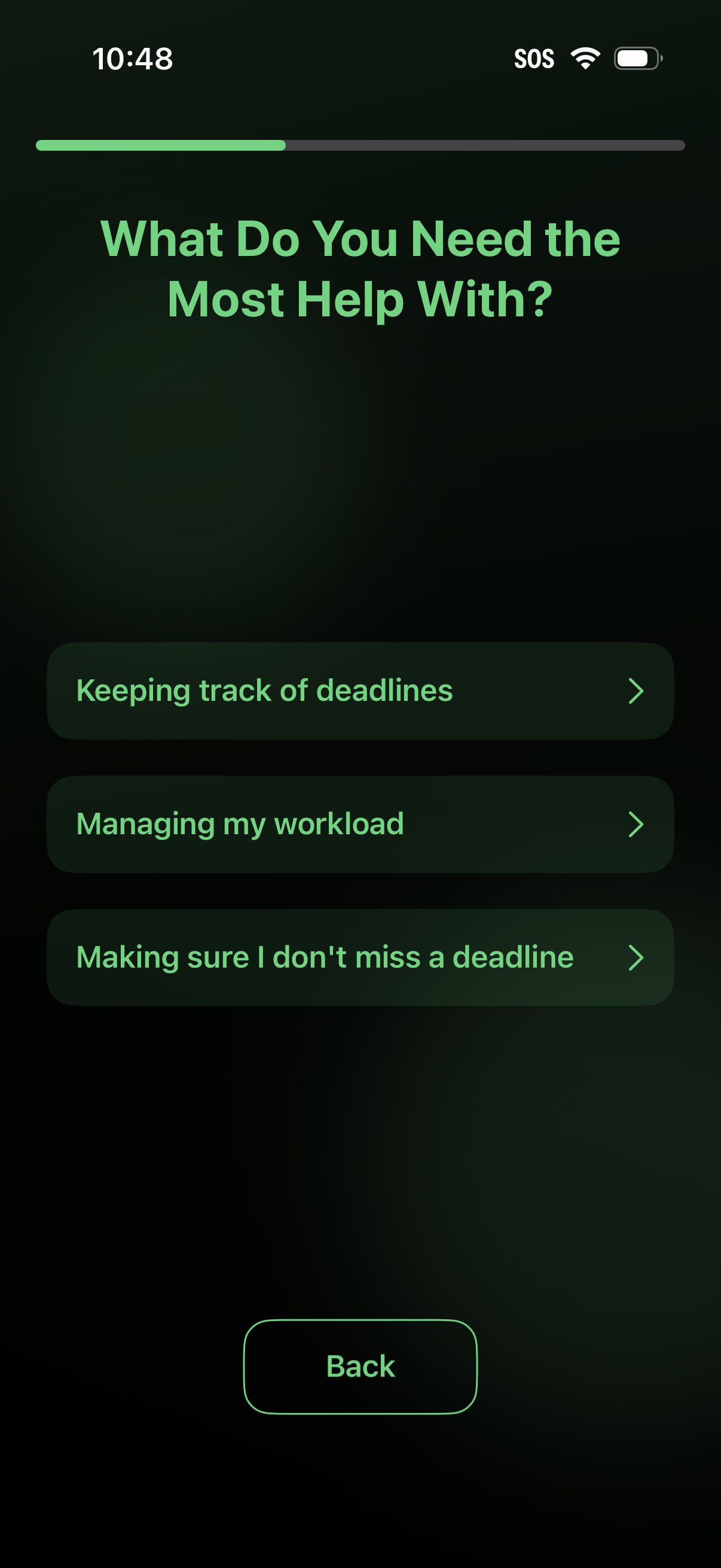
An onboarding questionnaire screen asking users what they need the most help with in a productivity or task management app, shown with a progress indicator. Users select one of several help topics like tracking deadlines, managing workload, or not missing deadlines, with a back button for navigation.
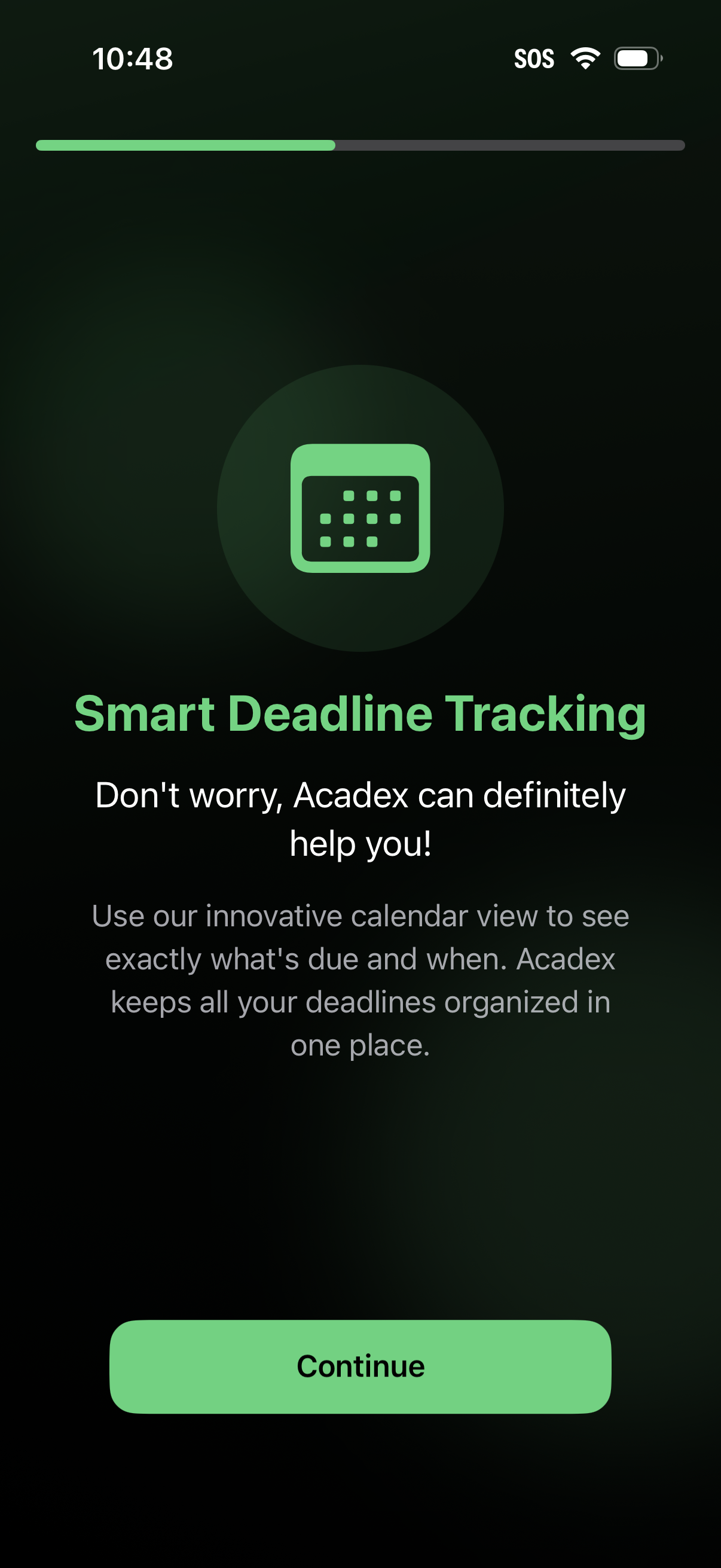
Onboarding feature introduction screen for a student or productivity app highlighting Smart Deadline Tracking with a calendar-based view to organize and track due dates in one place. Includes a progress indicator and a primary Continue button to advance through the onboarding flow.
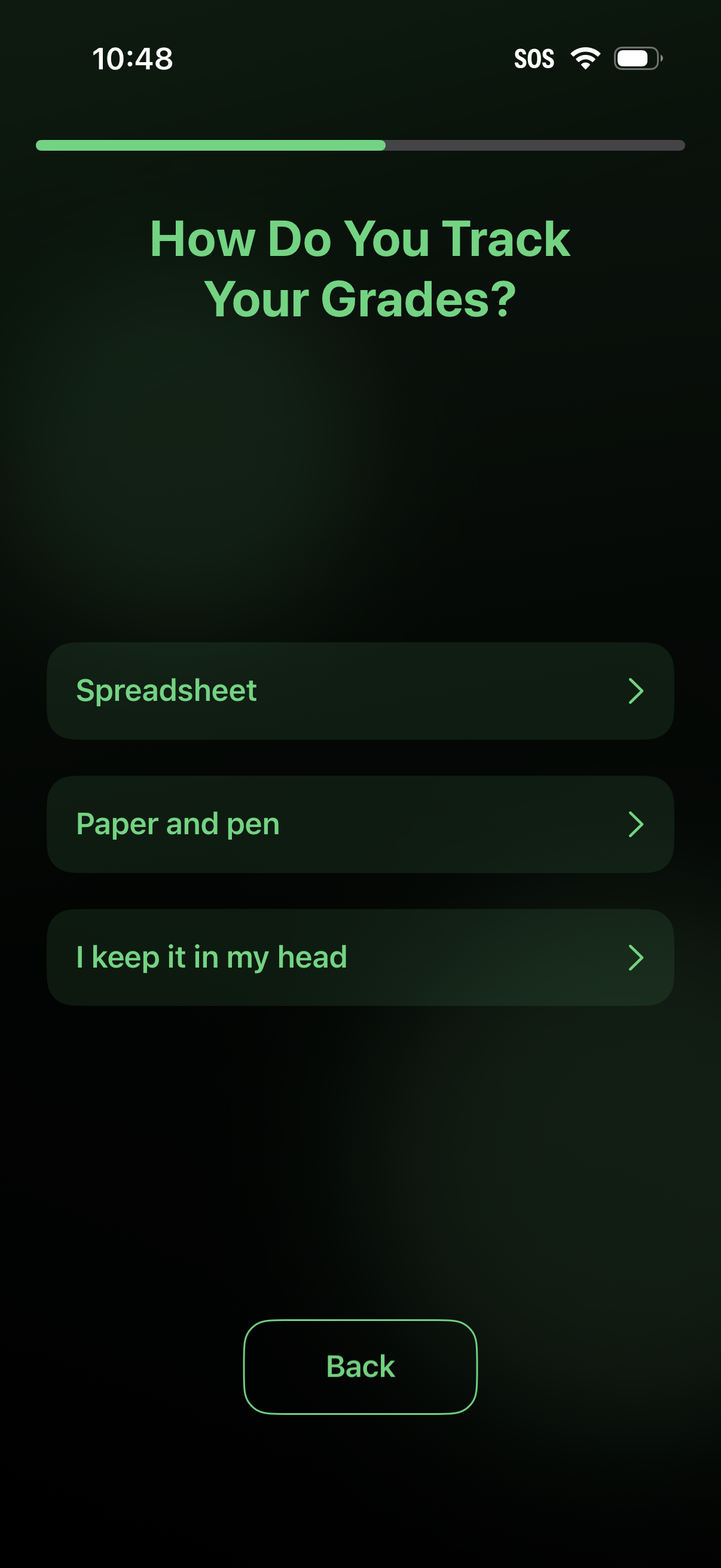
Onboarding survey question screen asking how the user tracks their grades, with a progress indicator at the top. Provides selectable list options (Spreadsheet, Paper and pen, I keep it in my head) and a Back button for navigation.
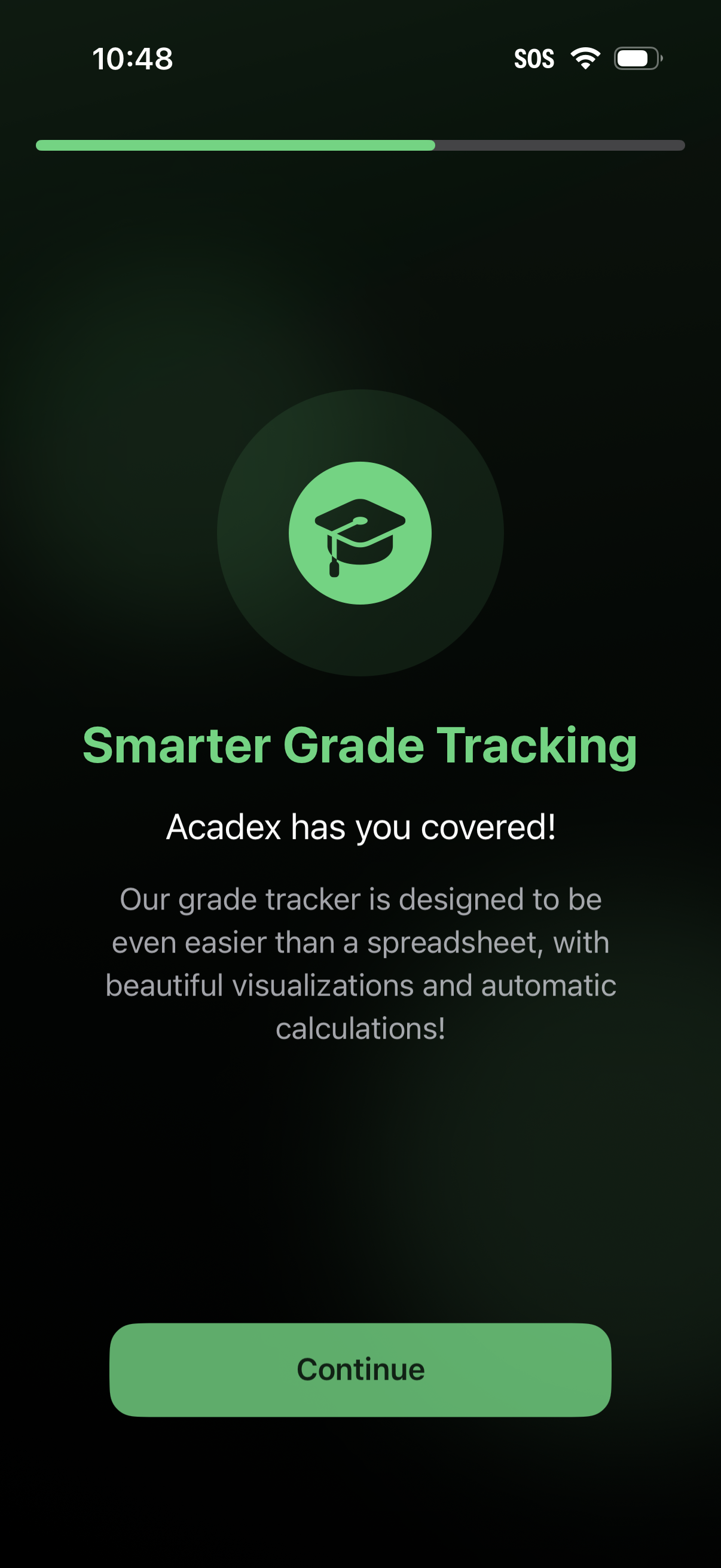
Onboarding feature introduction screen for a student grade tracking app, highlighting “Smarter Grade Tracking” with a brief explanation of automatic calculations and visualizations. Includes a progress indicator at the top and a primary “Continue” button to advance to the next onboarding step.
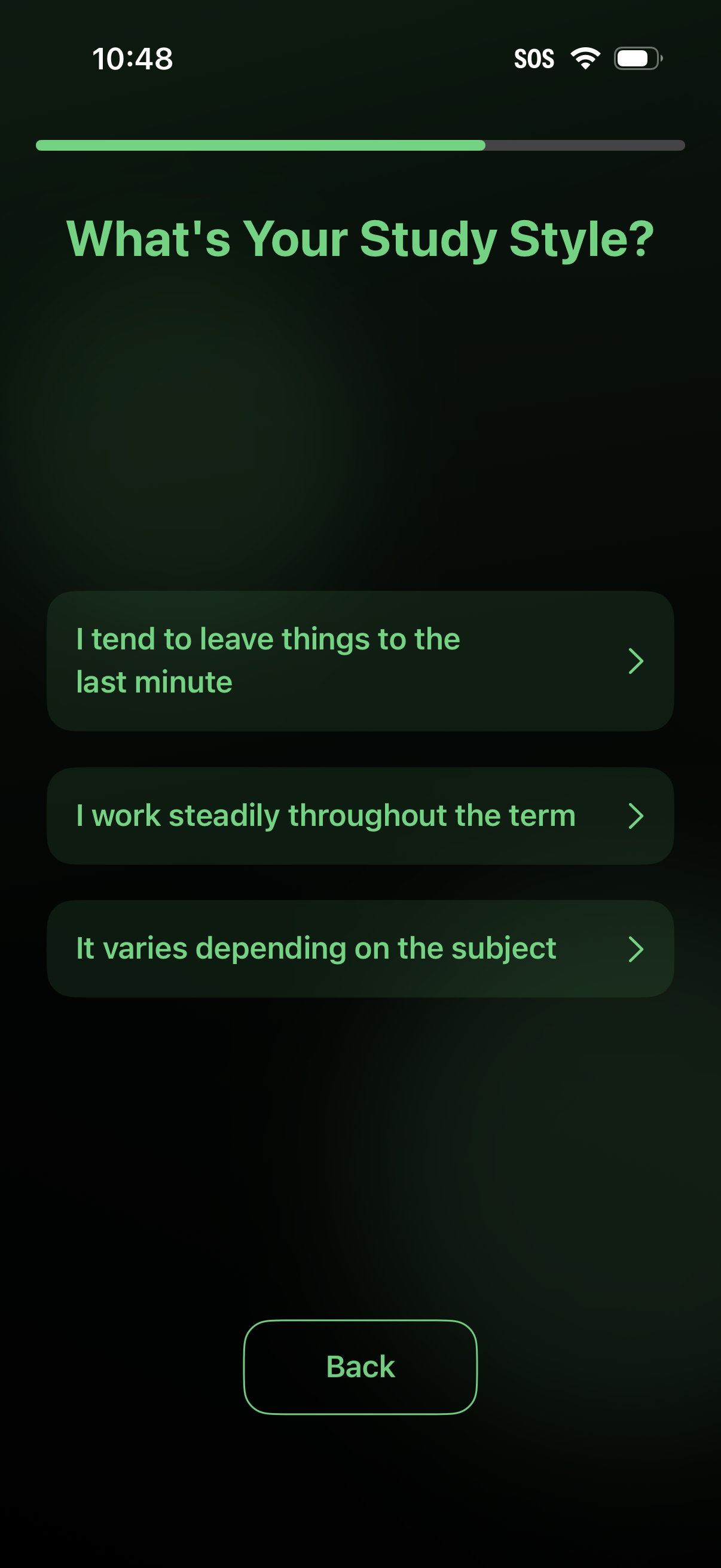
Onboarding questionnaire screen asking the user to choose their study style, with a progress indicator at the top and multiple choice options (last-minute, steady throughout the term, varies by subject) that navigate to the next step. Includes a Back button to return to the previous question.
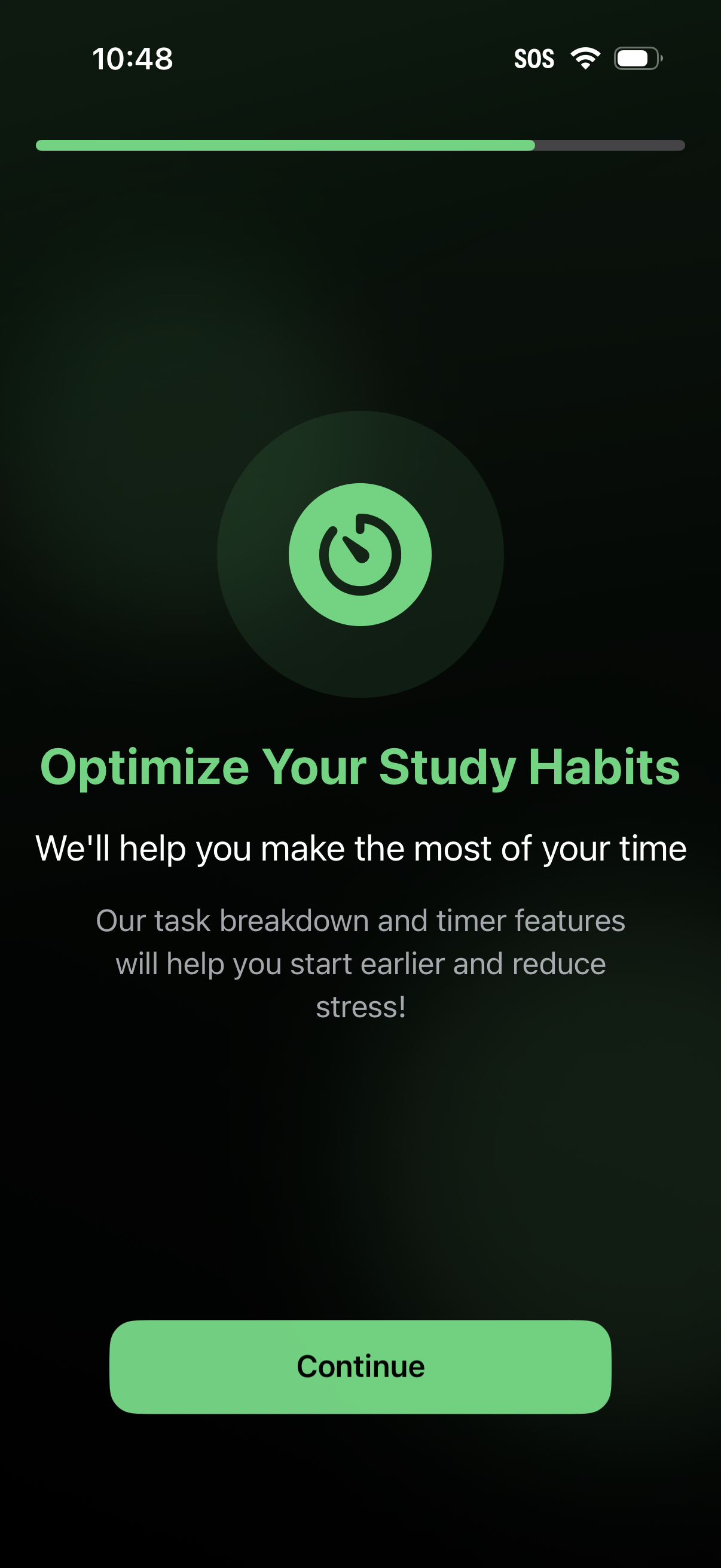
Onboarding feature highlight screen for a study or productivity app introducing task breakdown and timer tools to optimize study habits and reduce stress. Includes a progress indicator, an icon illustration, descriptive text, and a primary “Continue” call-to-action button.
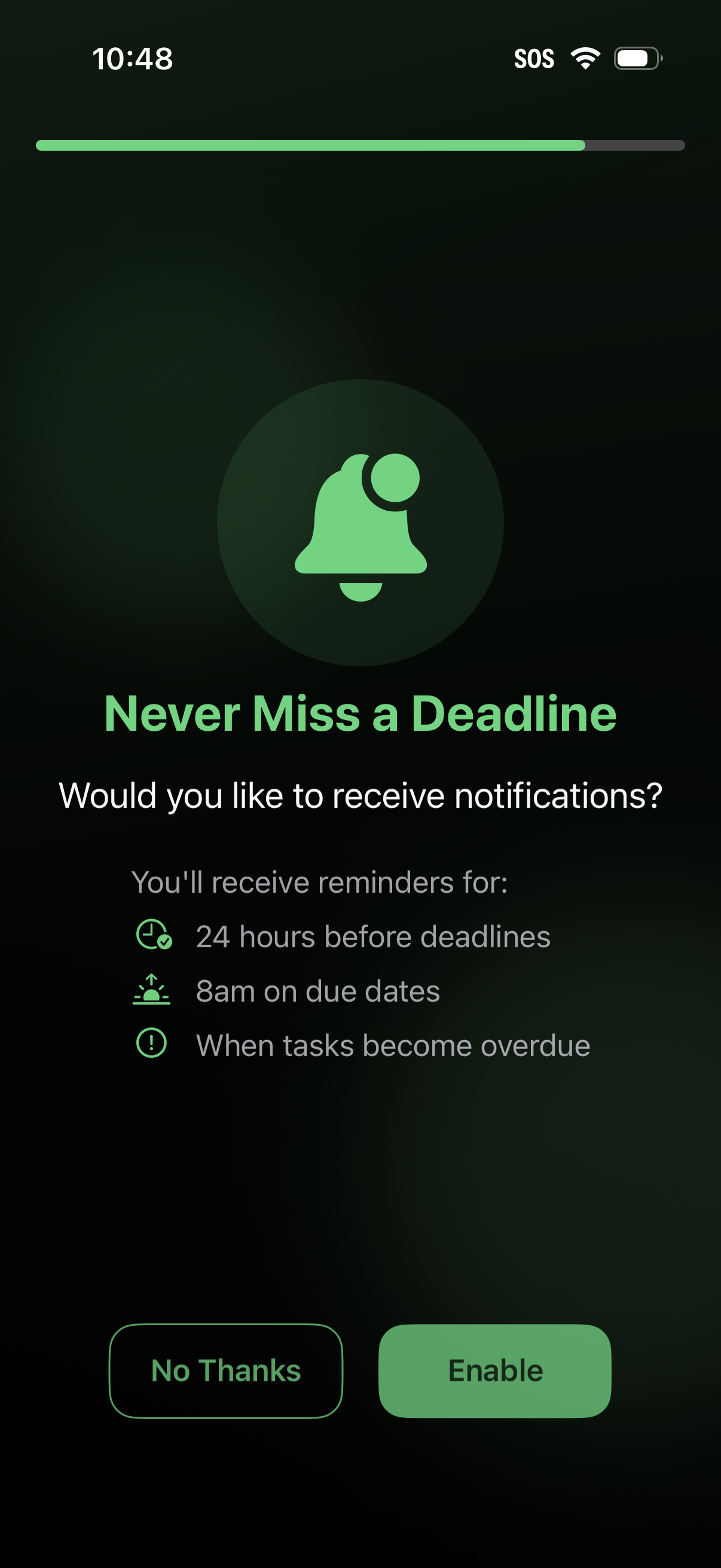
Onboarding prompt asking users to enable push notifications for a task or deadline tracker, explaining reminder timing (24 hours before due, morning of due date, and when tasks become overdue). Provides primary and secondary actions with “Enable” and “No Thanks” buttons.
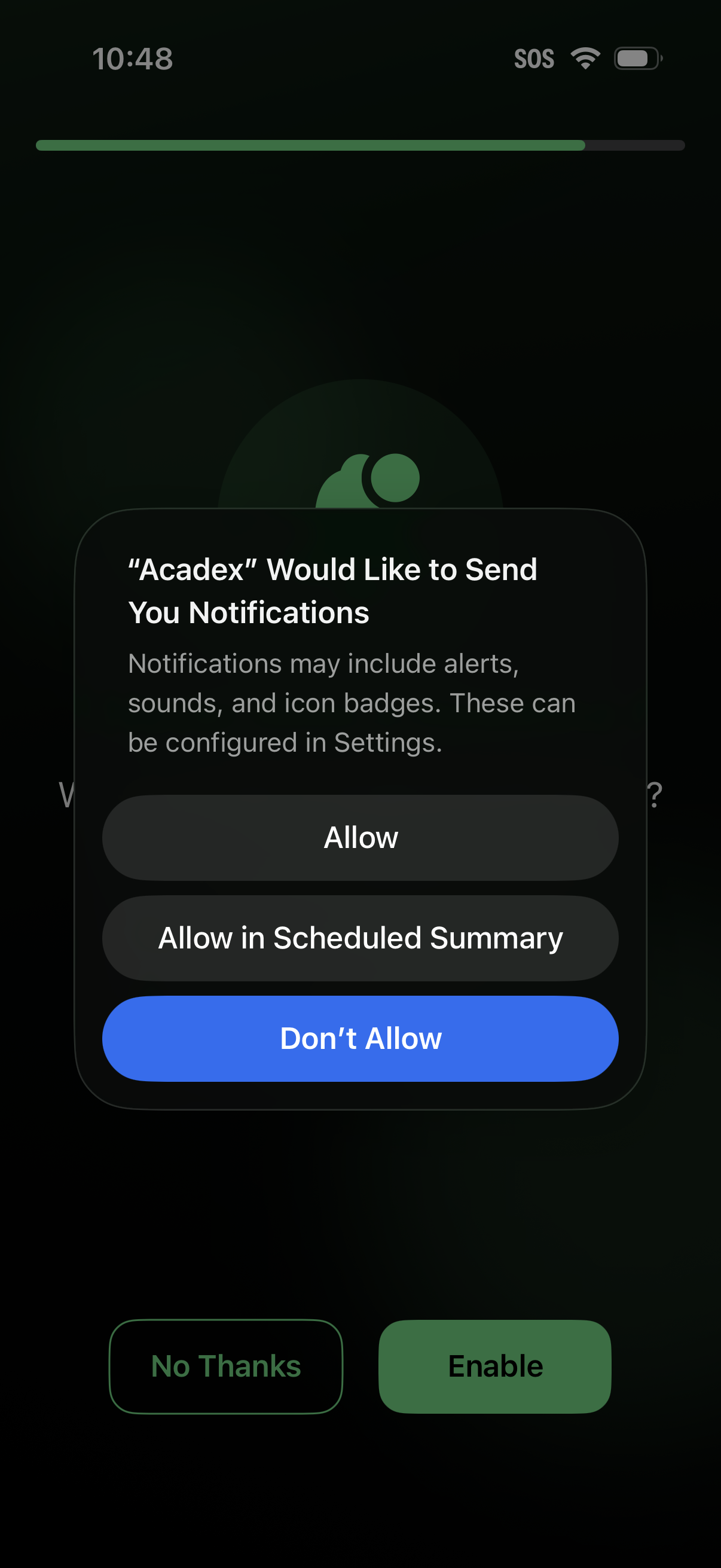
iOS system permission modal asking to allow an app to send push notifications, explaining alerts/sounds/badges and offering actions to Allow, Allow in Scheduled Summary, or Don’t Allow, over an in-app prompt with Enable and No Thanks buttons.
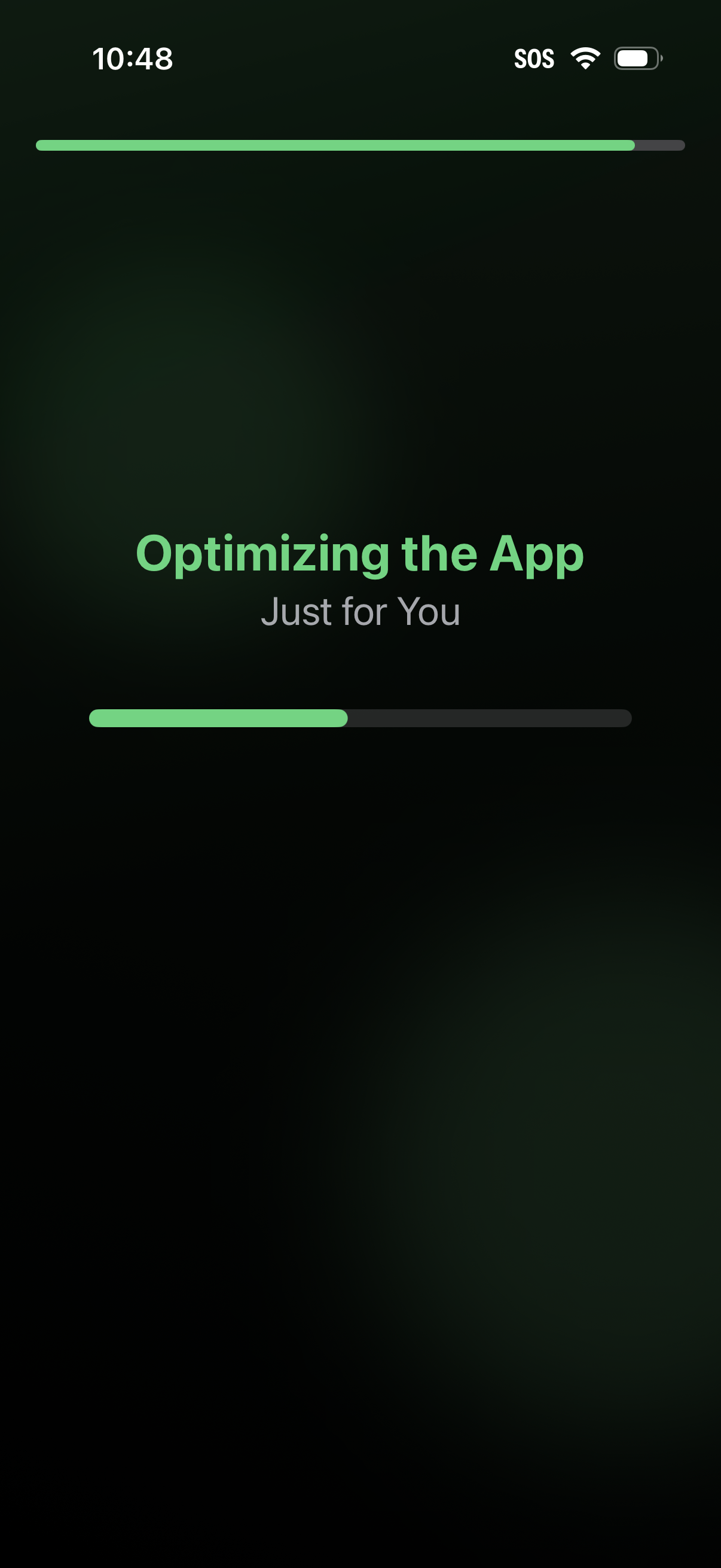
An in-app loading/processing screen showing the message “Optimizing the App Just for You” with a progress bar indicating setup or personalization is in progress during onboarding or first launch. The UI is minimal and focuses on communicating optimization status and completion progress.

Full-screen loading/initialization screen showing an “Optimizing the App” message with a “Just for You” subtitle and progress bars, indicating the app is preparing or personalizing settings before allowing access.
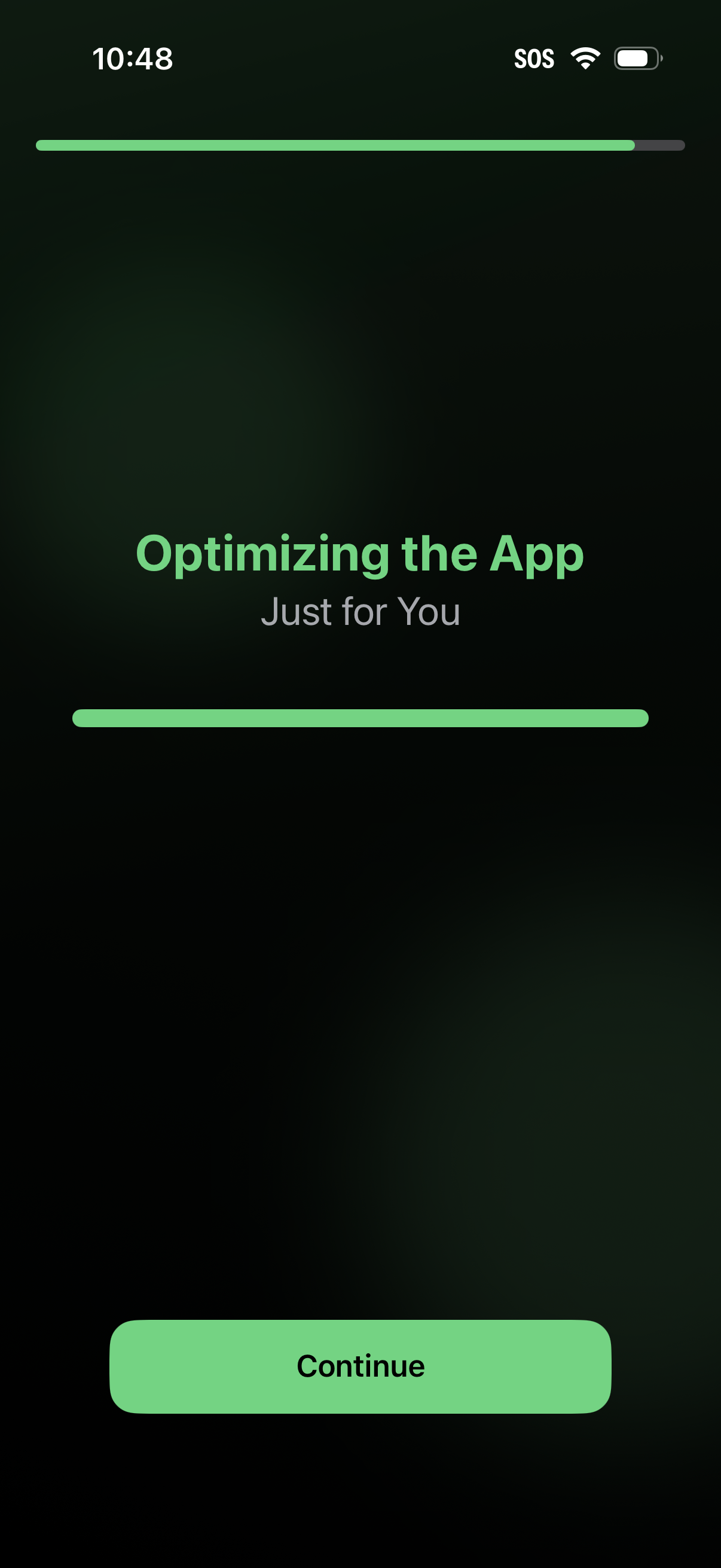
App setup/loading screen showing an “Optimizing the App” personalization step with progress indicators and a primary Continue button to proceed after optimization completes.
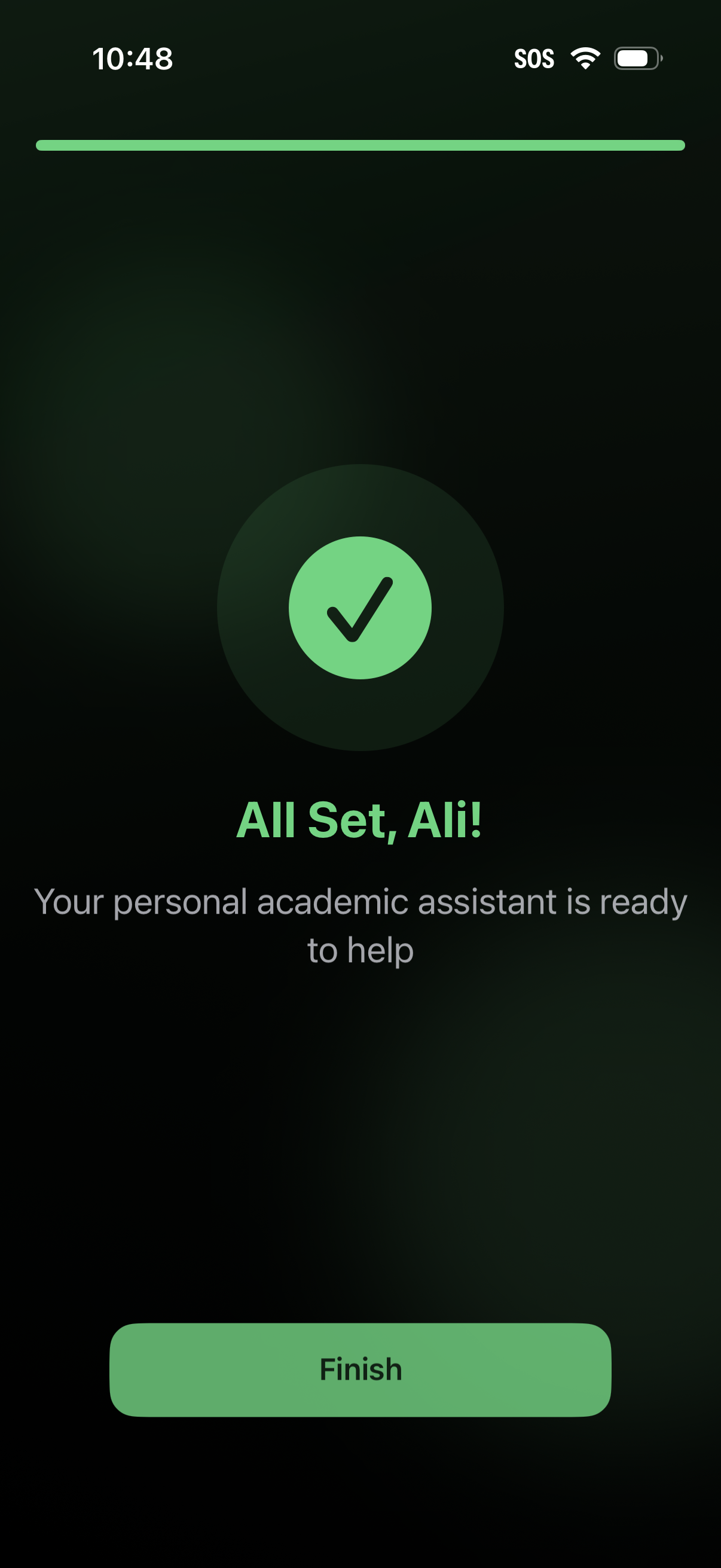
Onboarding completion confirmation screen for an academic assistant app, showing a checkmark success state and message that the personal assistant is ready. Provides a single primary CTA button to finish and proceed into the app.
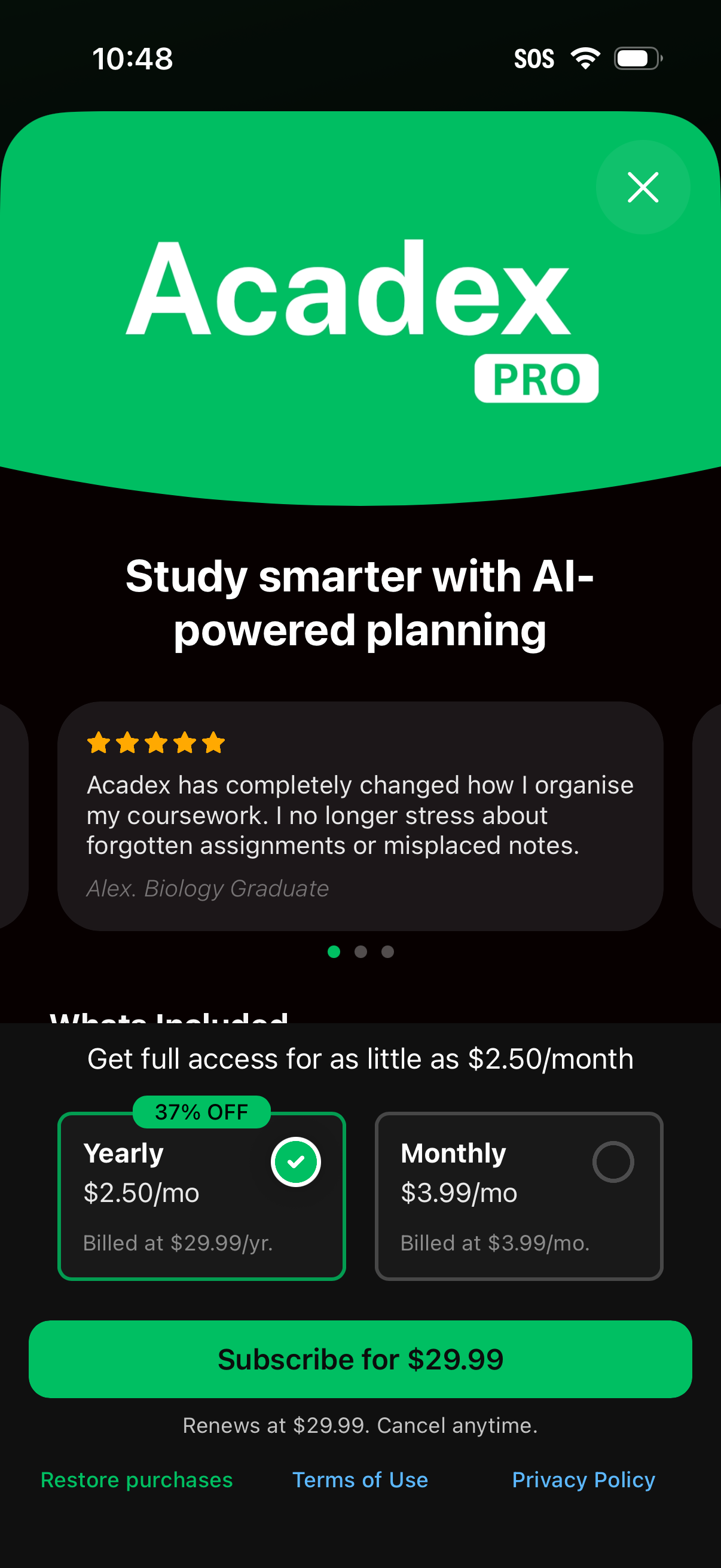
Premium subscription paywall for an AI-powered study planning app, highlighting benefits and a testimonial carousel. Users can choose between yearly (discounted) or monthly plans, view pricing and renewal details, restore purchases, and tap a primary CTA to subscribe, with an option to close the paywall.
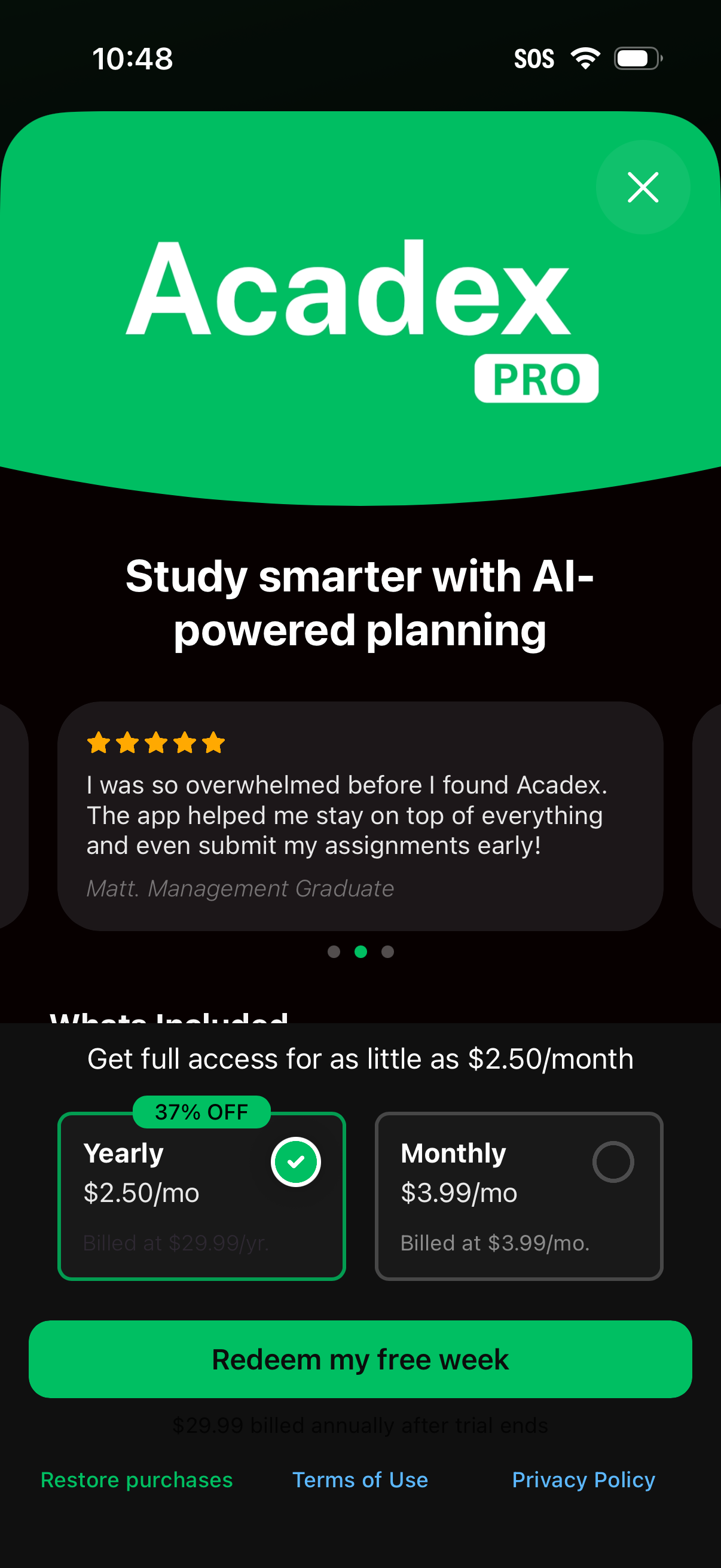
Subscription paywall screen for an AI-powered study planning app promoting a Pro upgrade, featuring a testimonial carousel and pricing options to choose yearly (discounted) or monthly billing. Primary actions include redeeming a free-week trial, closing the paywall, and accessing restore purchases plus terms and privacy links.
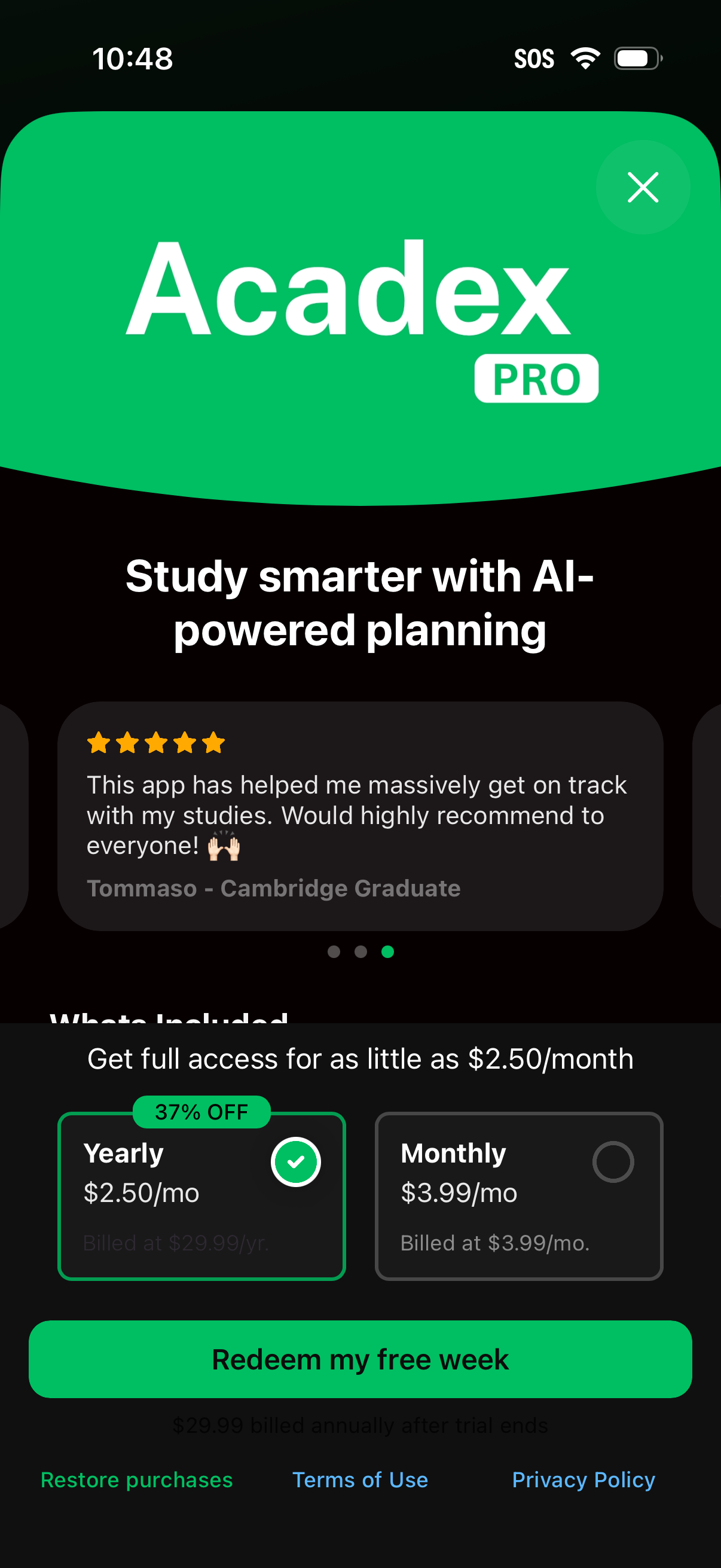
Subscription paywall for an AI-powered study planning app promoting “Acadex Pro,” featuring a testimonial carousel and plan selection between discounted yearly and monthly pricing. Includes a primary CTA to start a free week trial, with close button, restore purchases, and links to terms and privacy policy.
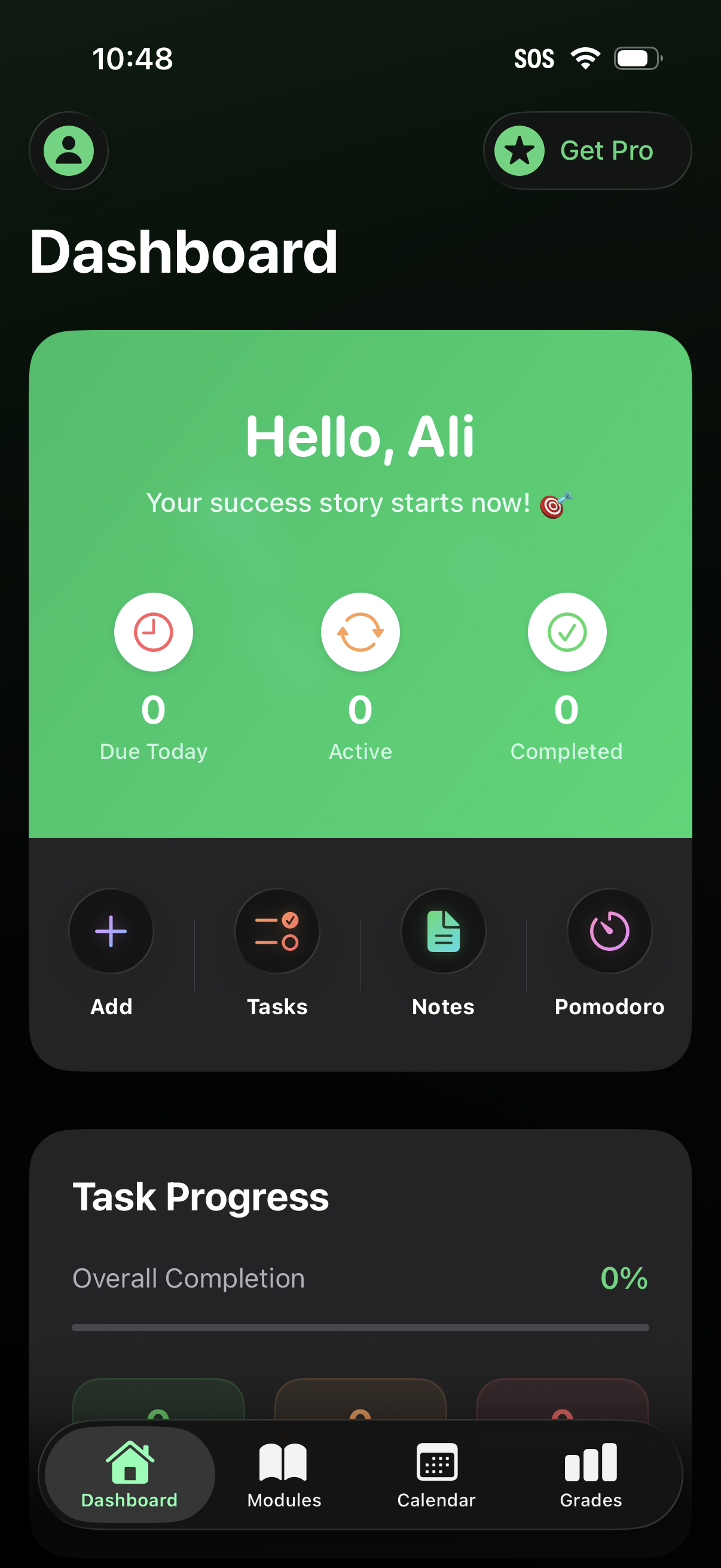
Productivity dashboard home screen showing a greeting card with task stats (due today, active, completed) and quick actions to add items, view tasks, take notes, and start a Pomodoro timer, plus a task progress section and bottom navigation for dashboard, modules, calendar, and grades with an upsell to Get Pro.