log in with google
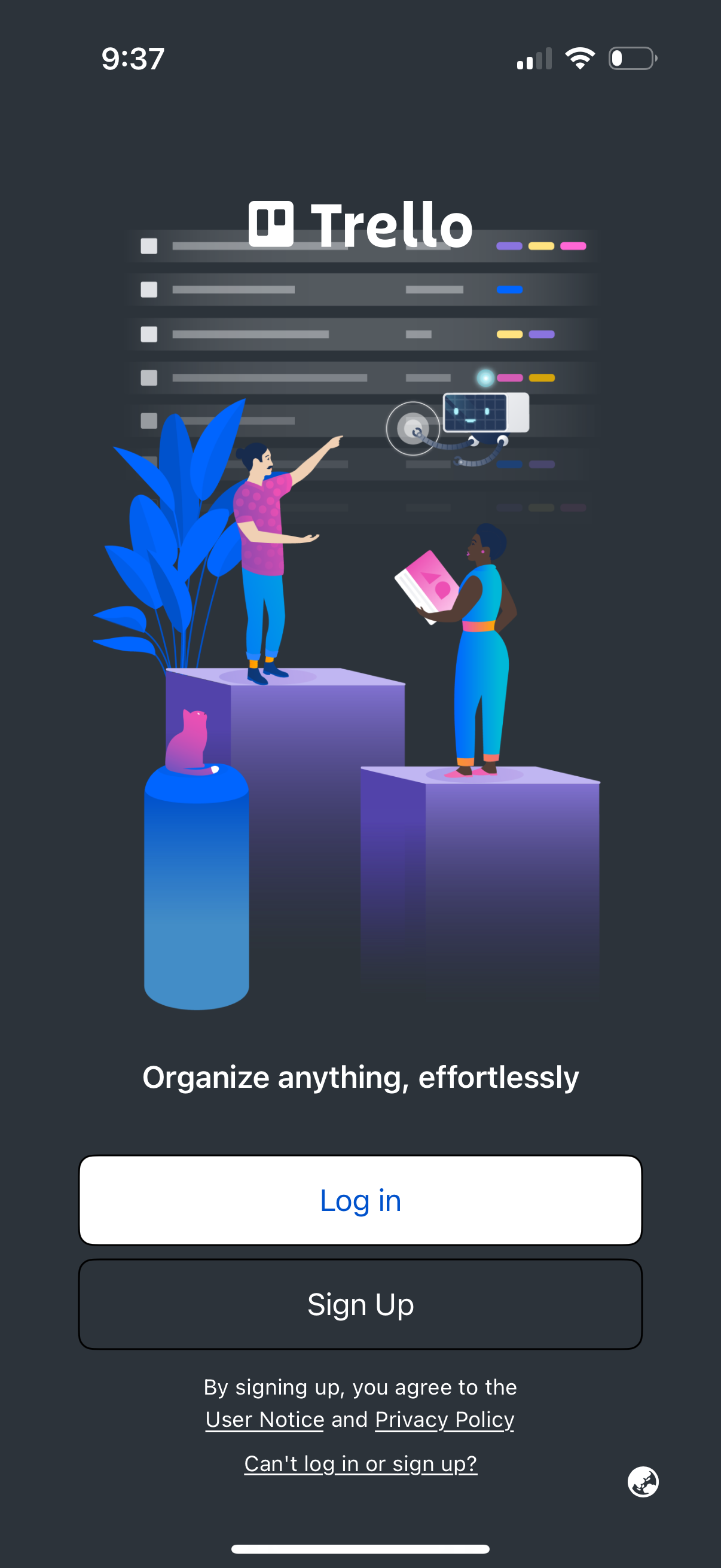
Trello welcome/authentication screen with an illustration and tagline promoting organization, offering primary actions to Log in or Sign Up. Includes legal links to user notice and privacy policy plus a “Can’t log in or sign up?
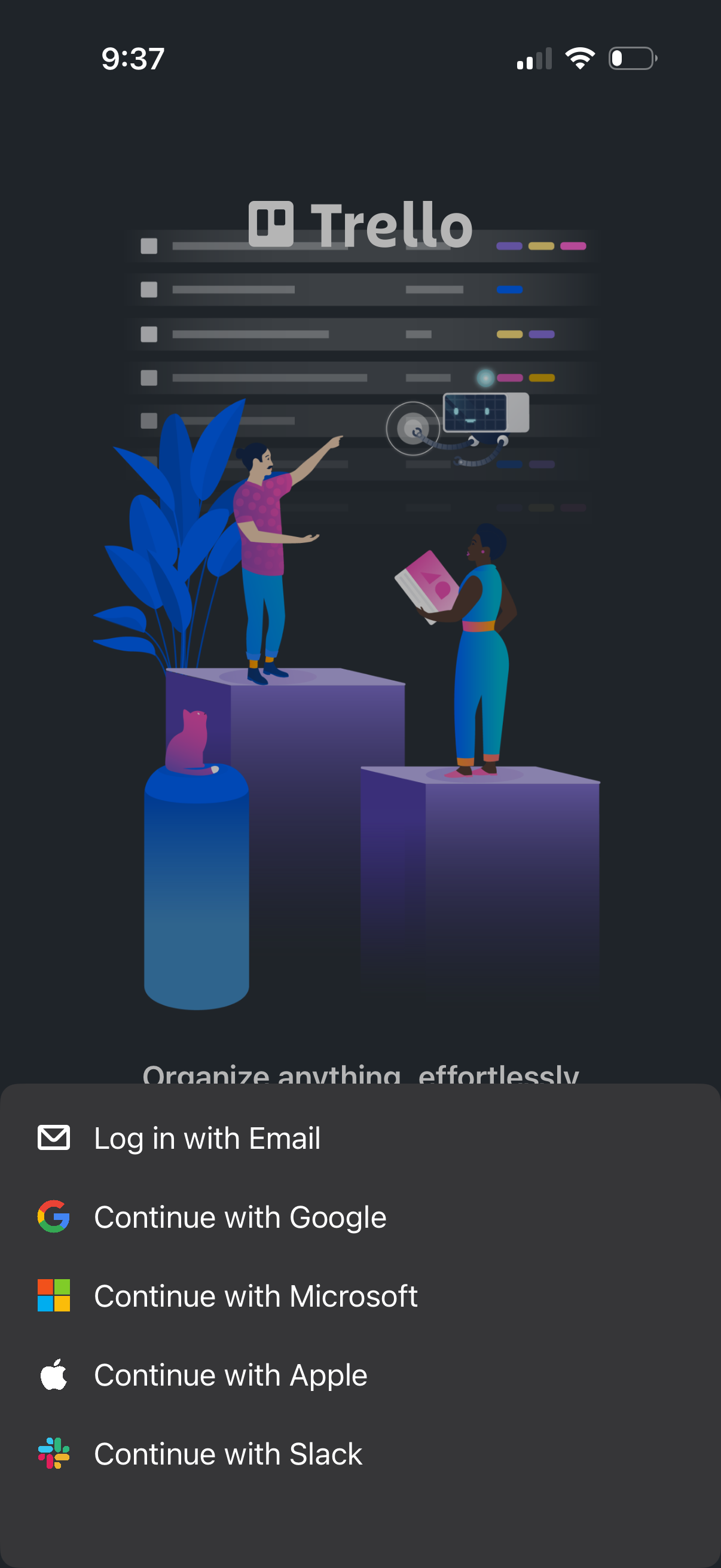
Trello welcome/login screen with a dark-themed illustration and headline, prompting users to sign in or create an account. Provides authentication options including log in with email and single sign-on via Google, Microsoft, Apple, and Slack.
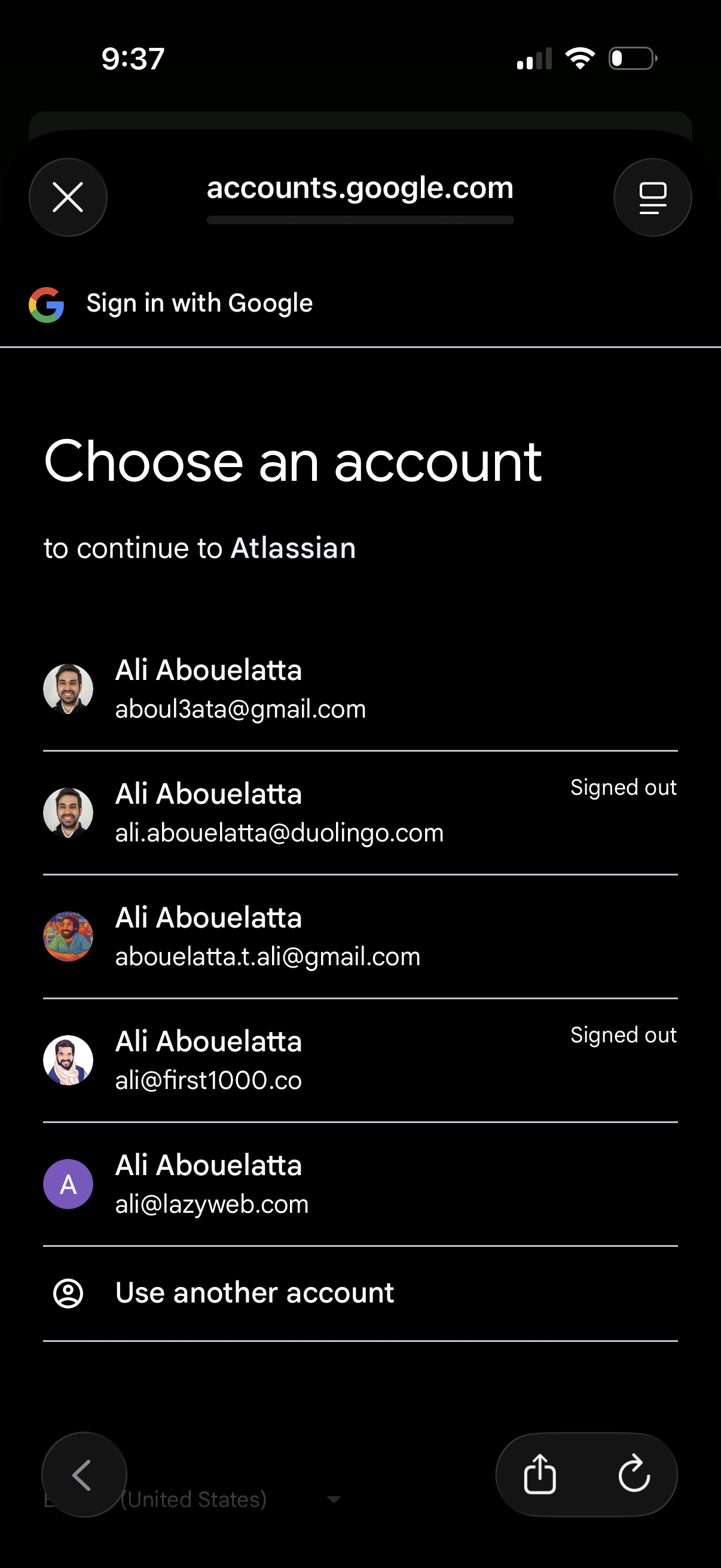
Google OAuth “Sign in with Google” account chooser screen for continuing to a third‑party app, showing a list of saved Google accounts with avatars, emails, and signed-out status. Users can tap an account to authenticate or choose “Use another account” to sign in with a different Google login.
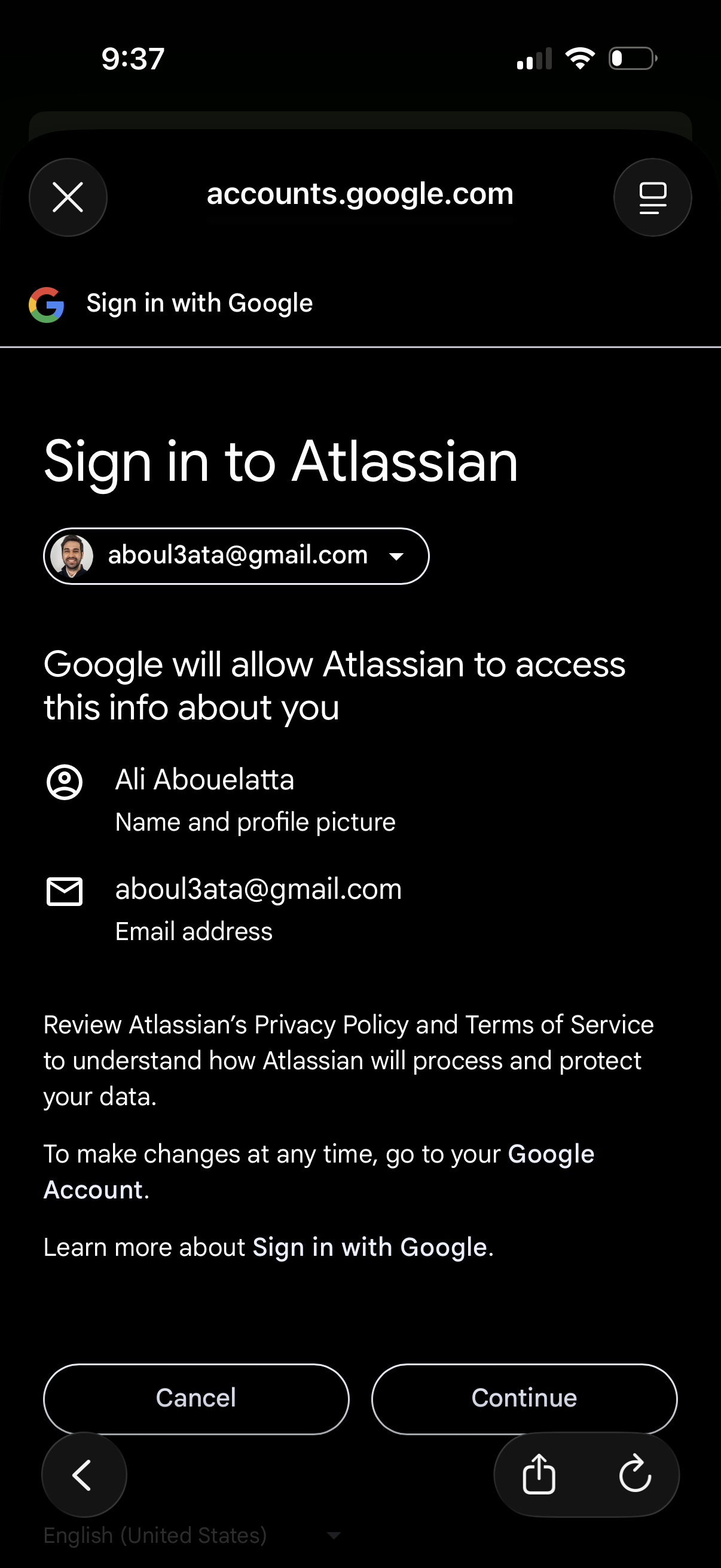
Google OAuth consent screen for signing in to Atlassian, showing the selected Google account and the personal info (name/profile photo and email) that will be shared. Provides primary actions to cancel or continue the authorization and links to privacy policy/terms and account settings.
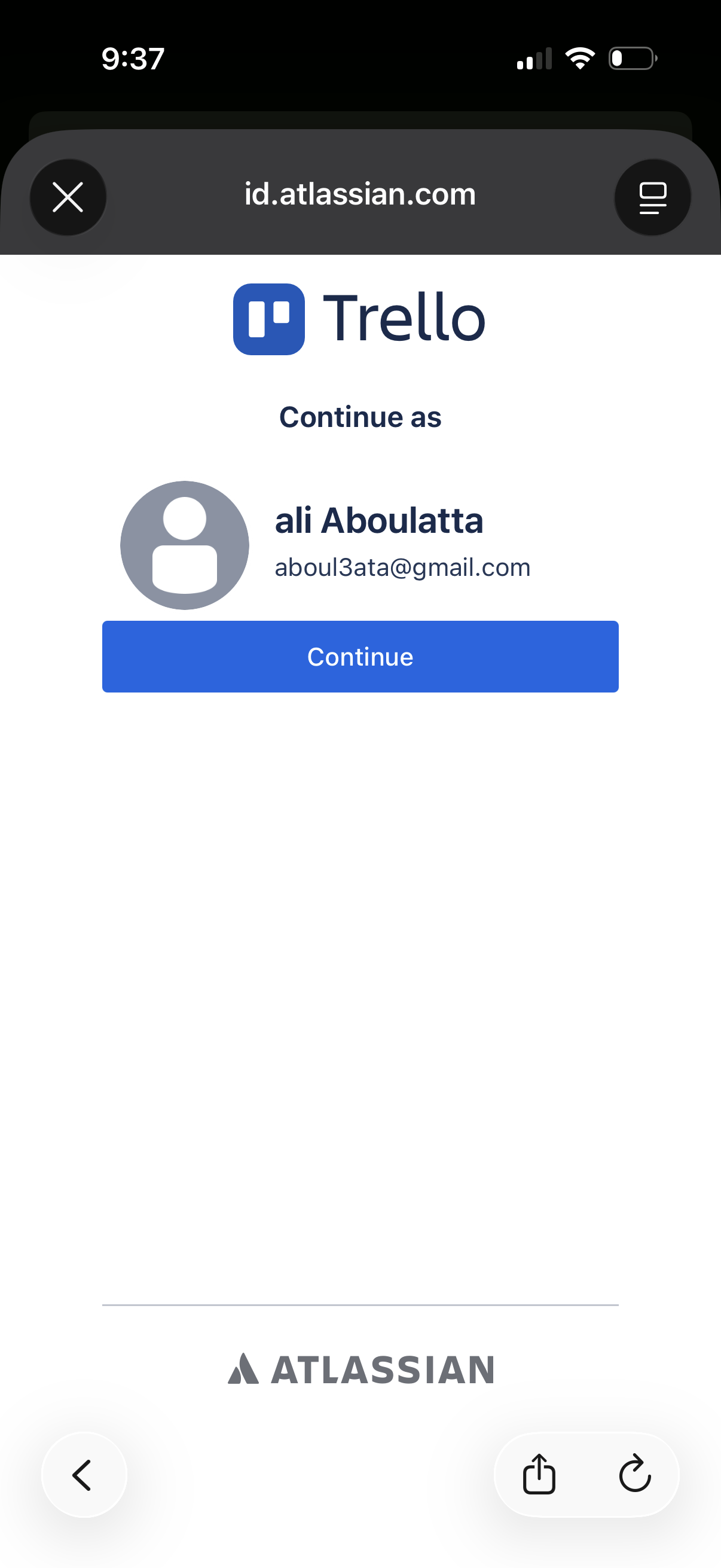
Single sign-on login screen for Trello via Atlassian ID that lets the user continue as a detected account, showing profile avatar, name/email, and a primary Continue button to authenticate.
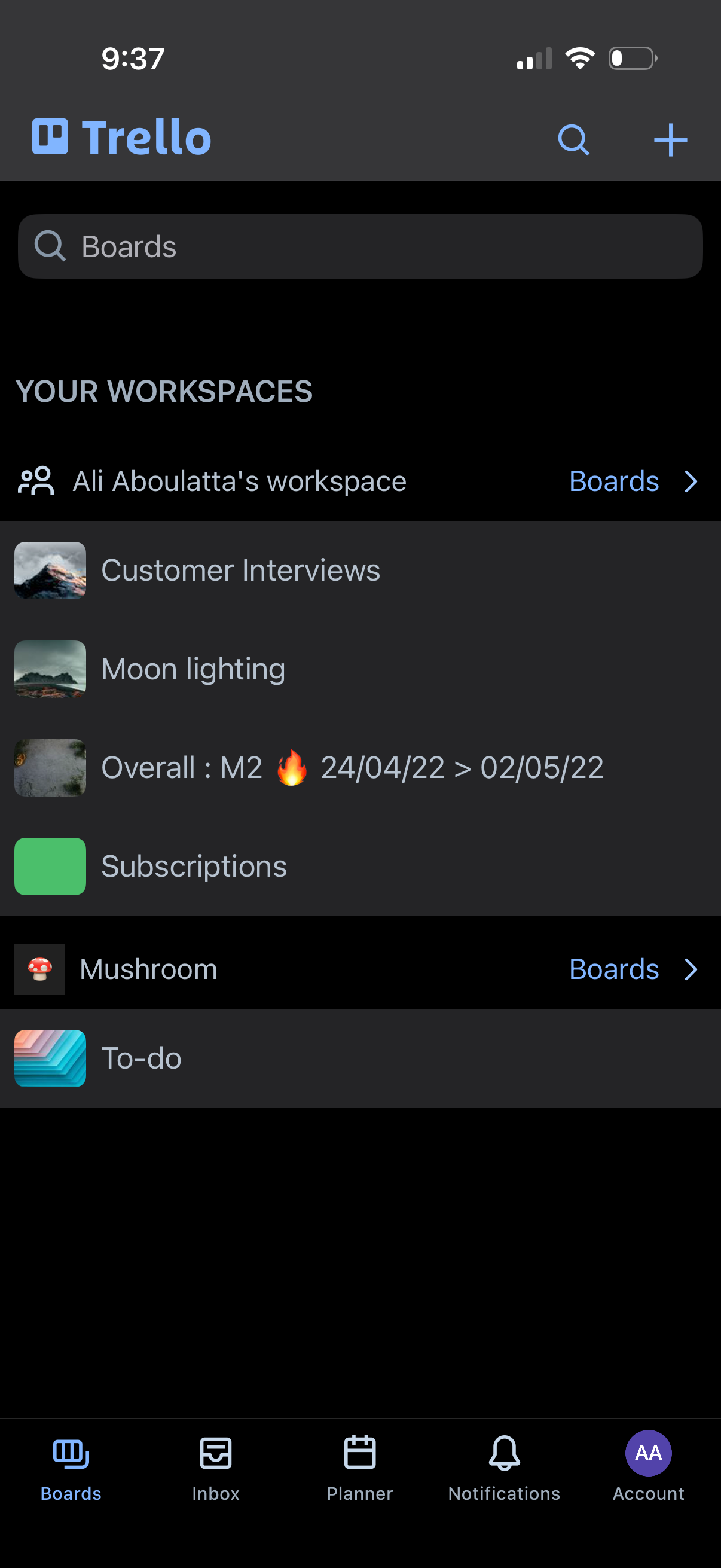
Trello boards home screen showing a search bar to find boards, a list of workspaces and their boards, and quick access to view all boards within a workspace. Top actions include search and create/add a new board, with a bottom tab bar for navigating between Boards, Inbox, Planner, Notifications, and Account.