Enable Raycast Keyboard
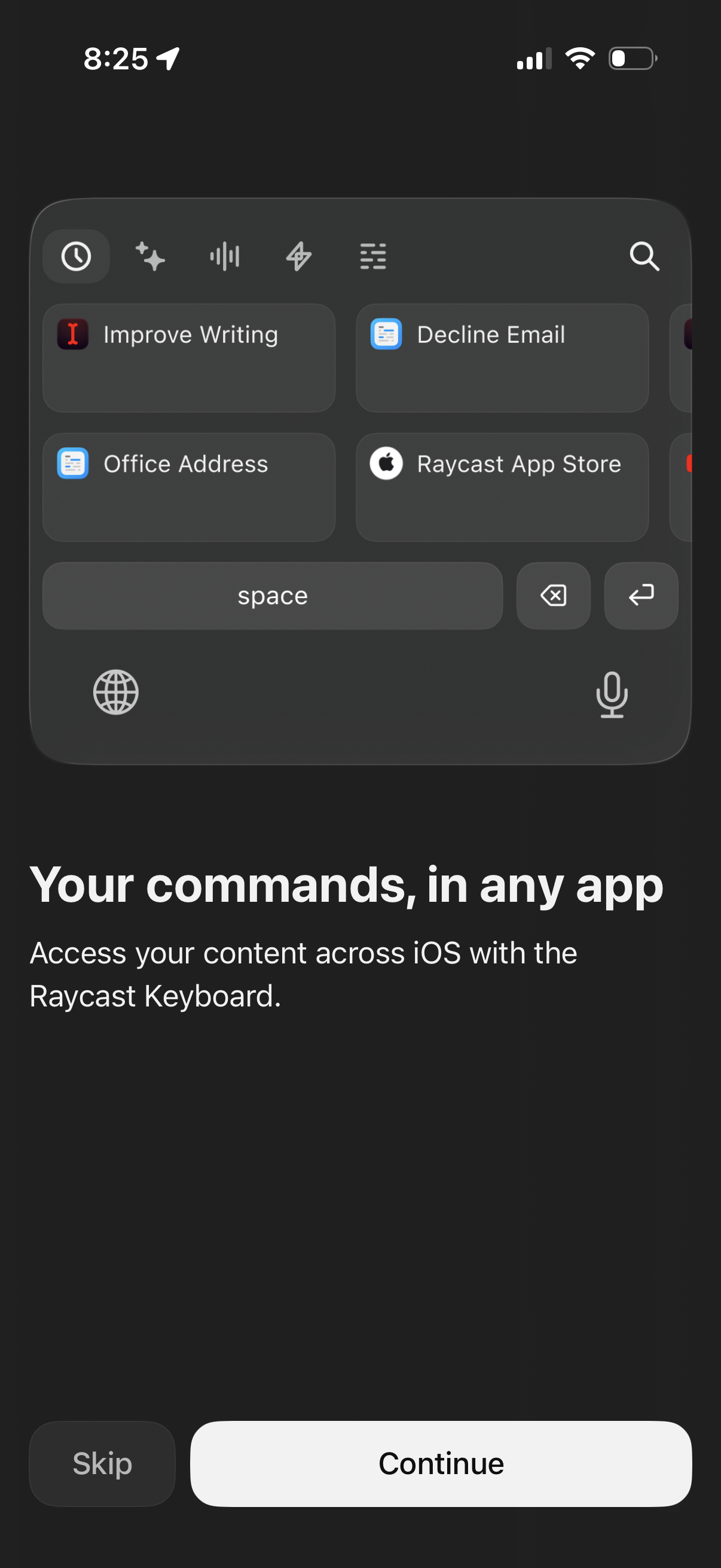
Onboarding screen introducing a custom iOS keyboard that lets users run saved commands and snippets in any app, with quick-access tiles and a search option for commands. Includes primary “Continue” and secondary “Skip” actions to proceed through setup.
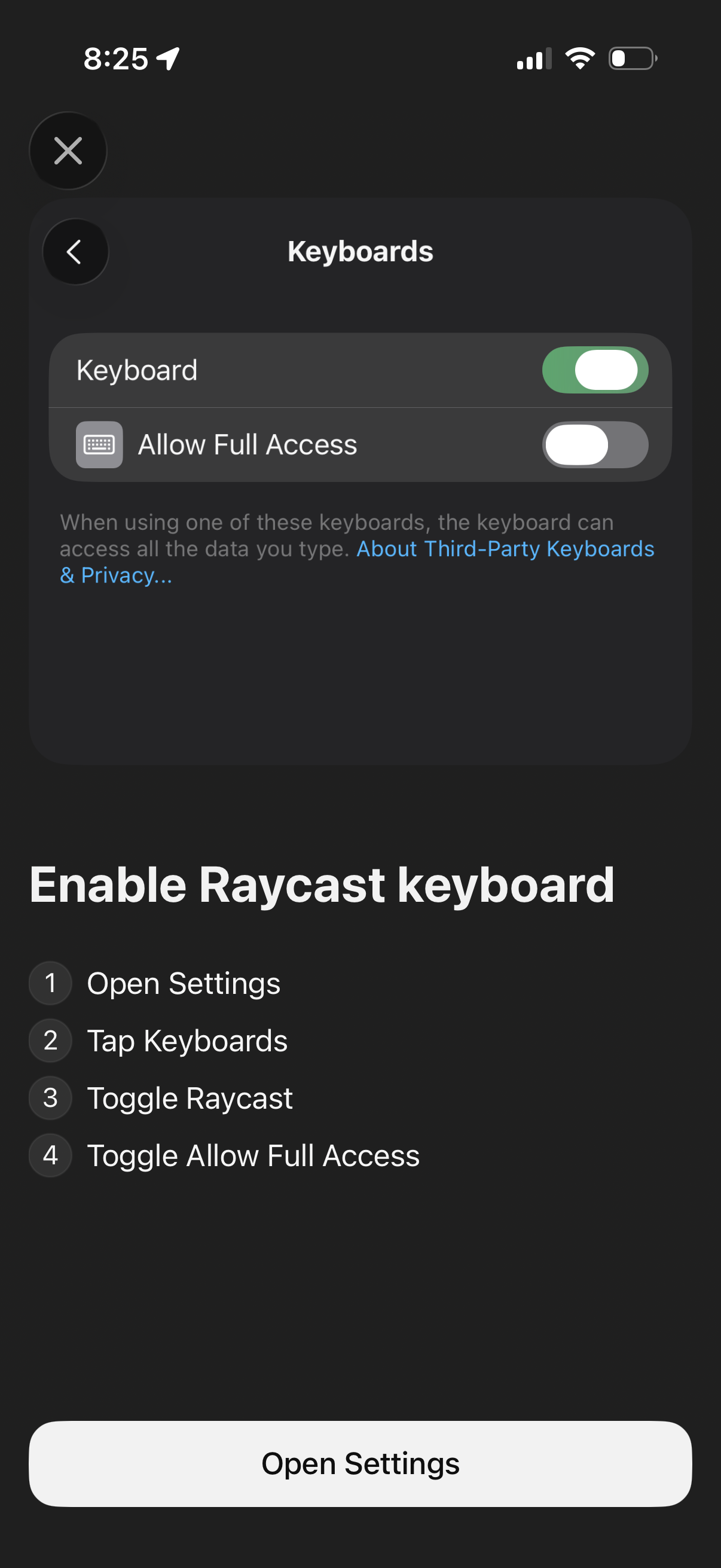
Onboarding/setup screen prompting the user to enable a third-party keyboard in iOS Settings, showing the Keyboards page with toggles for the keyboard and “Allow Full Access. ” Provides step-by-step instructions (open Settings, tap Keyboards, toggle keyboard, toggle full access) and a primary “Open Settings” button to deep link to system settings.
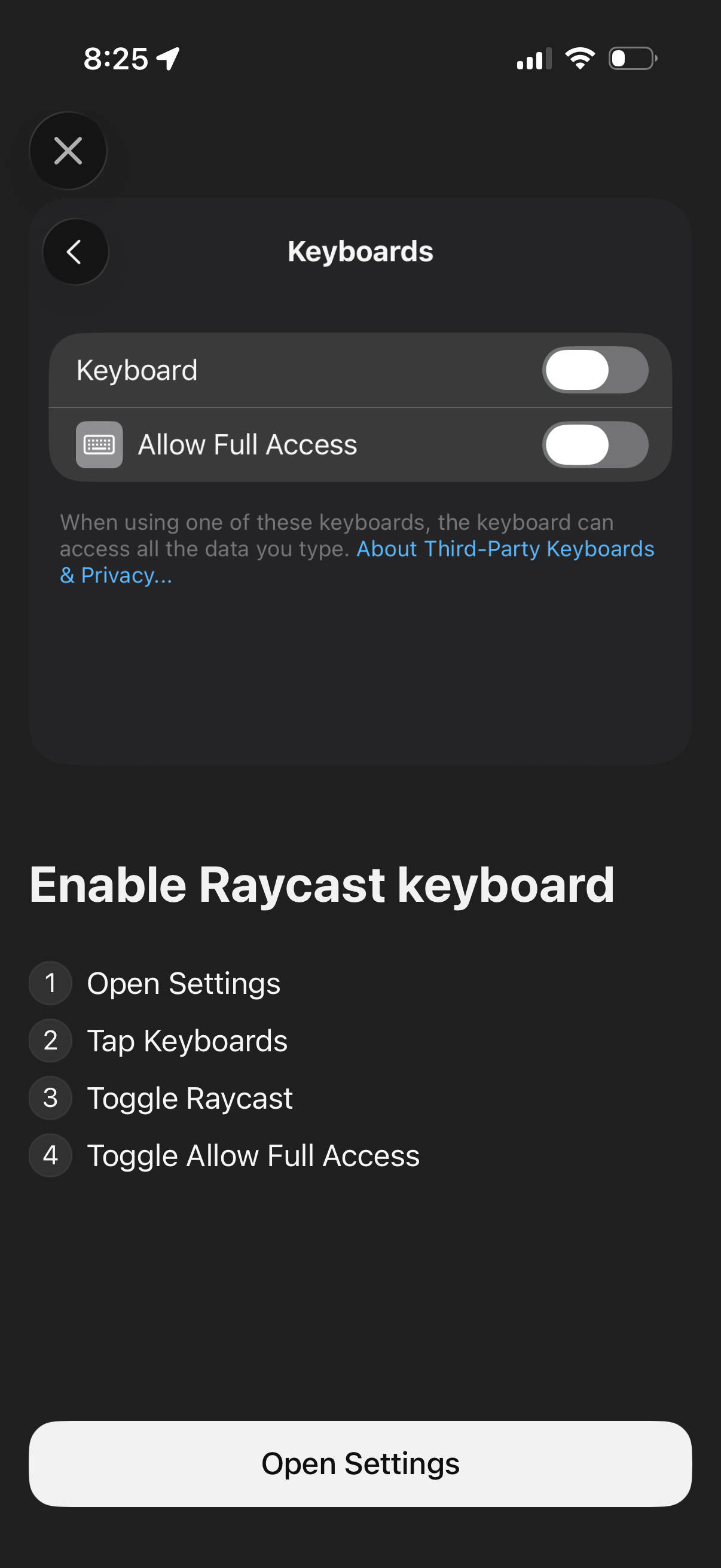
Onboarding permission screen prompting users to enable a third-party iOS keyboard by opening Settings and turning on the keyboard plus “Allow Full Access. ” Shows a preview of the iOS Keyboards settings toggles, step-by-step instructions, and a primary CTA button to open Settings.
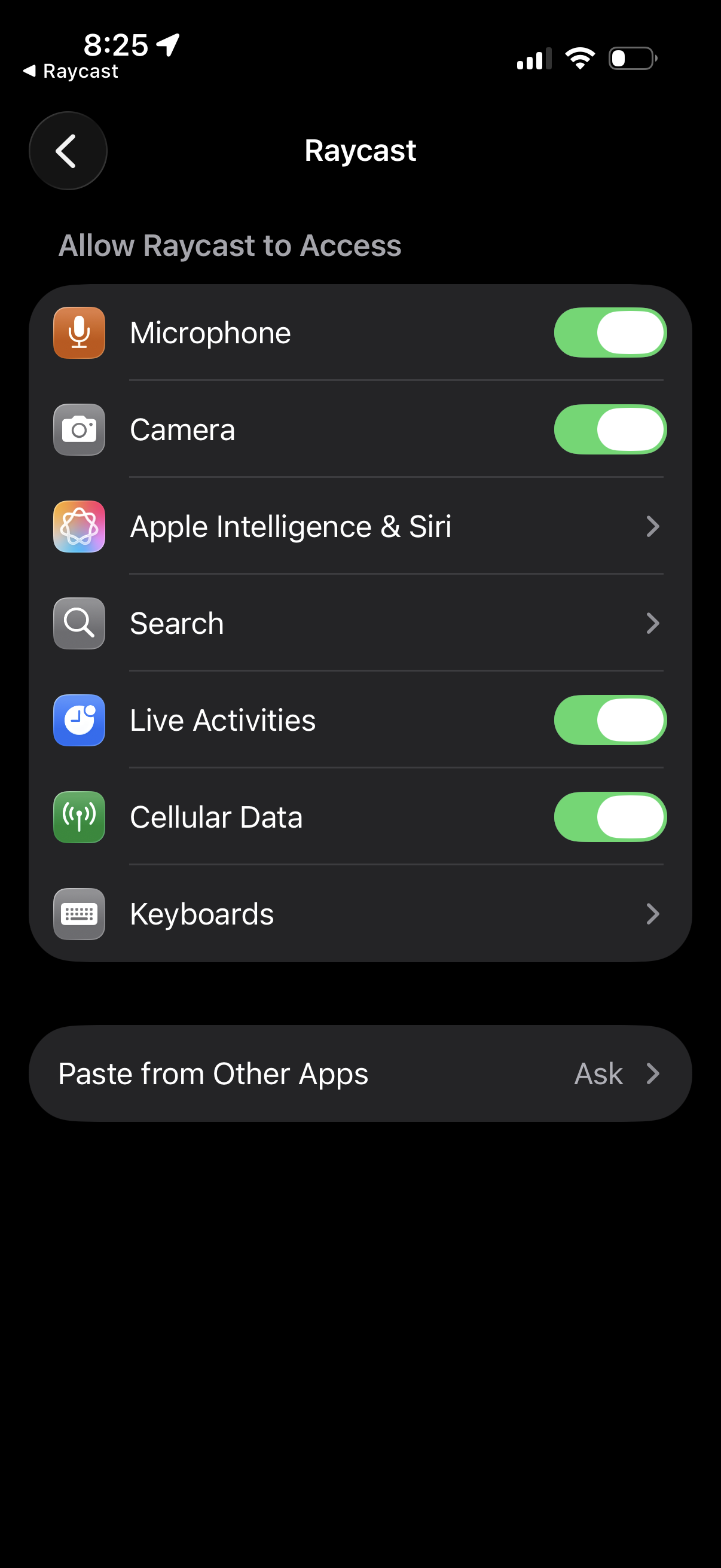
iOS app settings permissions screen for an app, showing “Allow [app] to Access” with toggles and links to manage privacy and system access such as Microphone, Camera, Apple Intelligence & Siri, Search, Live Activities, Cellular Data, Keyboards, and paste from other apps. Users can enable/disable permissions via switches or open sub-settings for specific features.
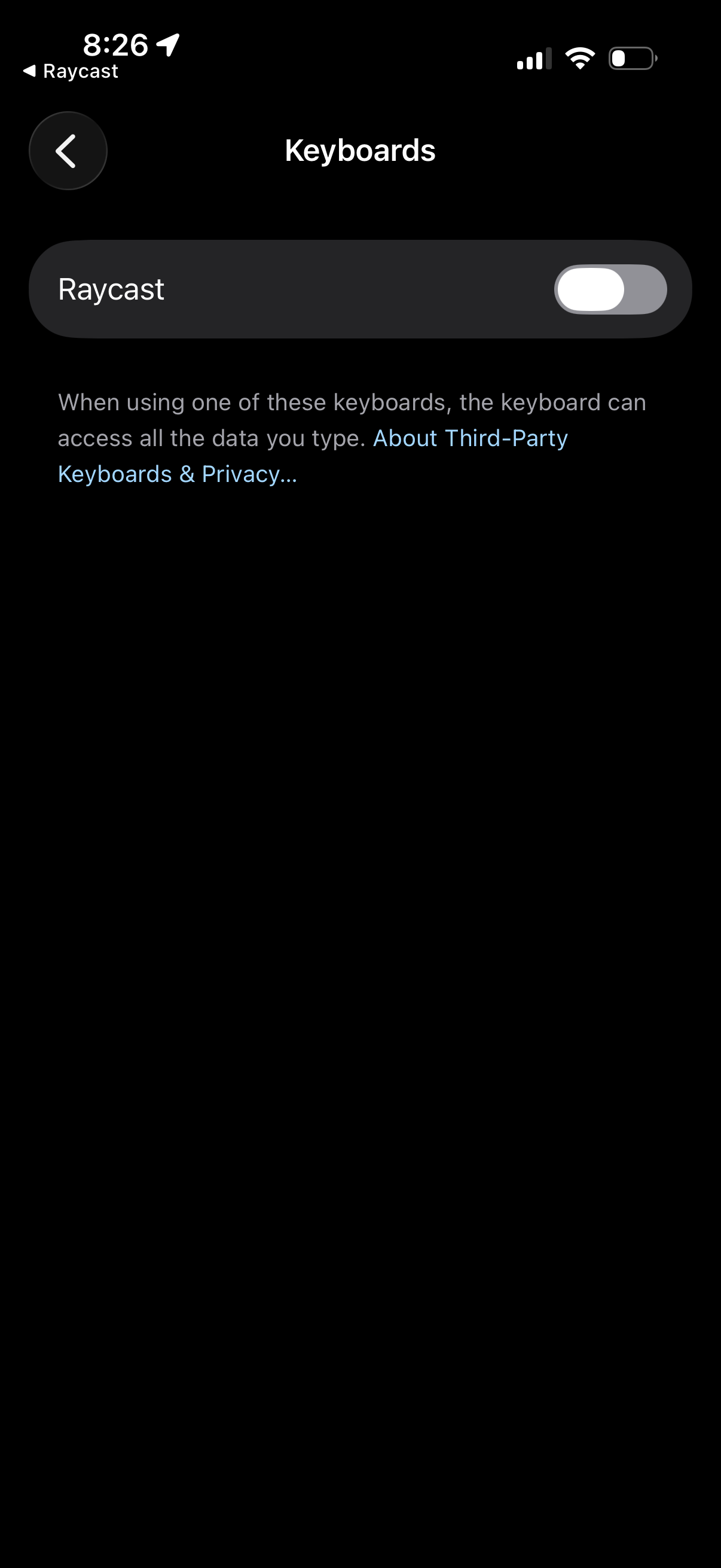
iOS Settings screen for managing third-party keyboards, showing a keyboard entry with a toggle to enable or disable it and a privacy notice/link about third-party keyboards accessing typed data. Includes a back button to return to the previous settings page.
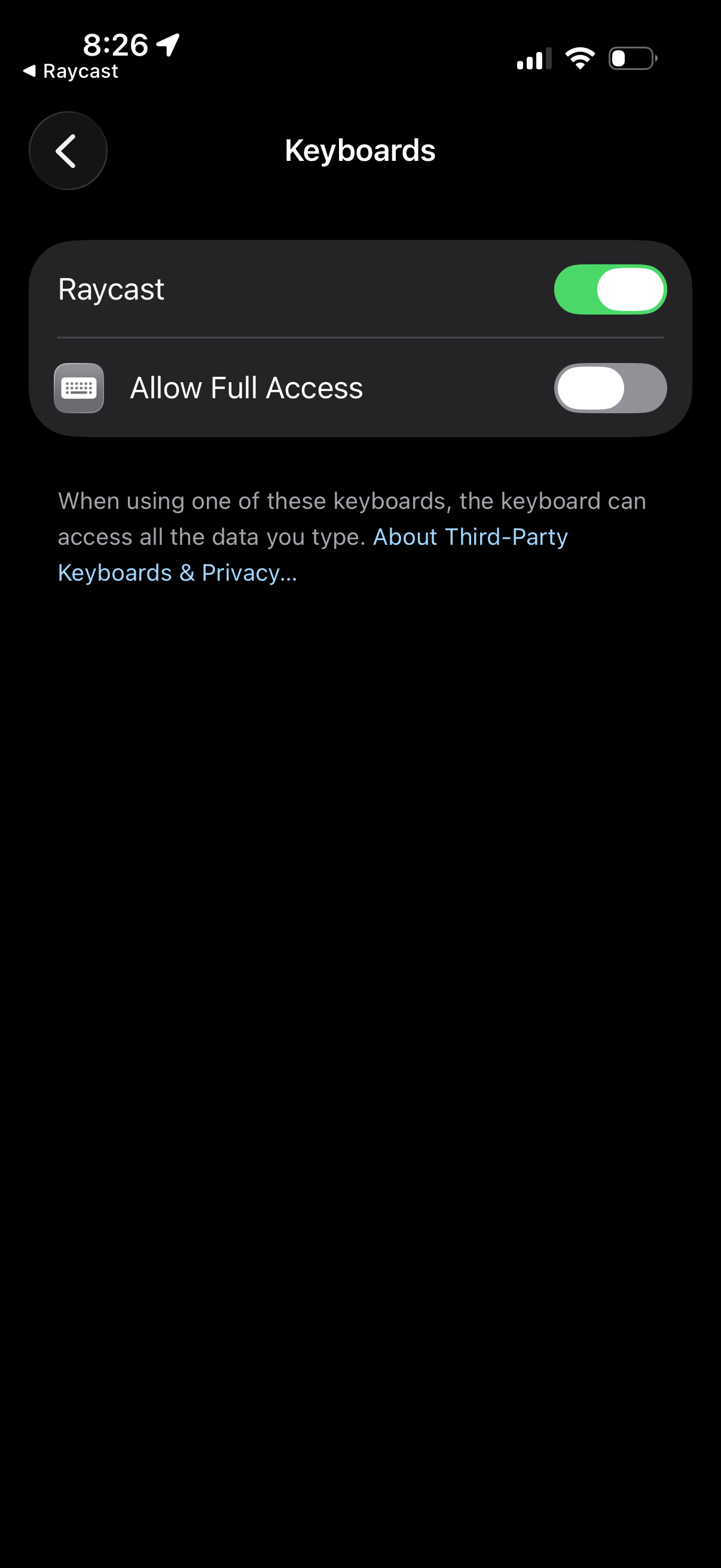
iOS Settings third-party keyboard management screen where the user can enable or disable a custom keyboard and toggle “Allow Full Access” permissions, with privacy information about third-party keyboards.
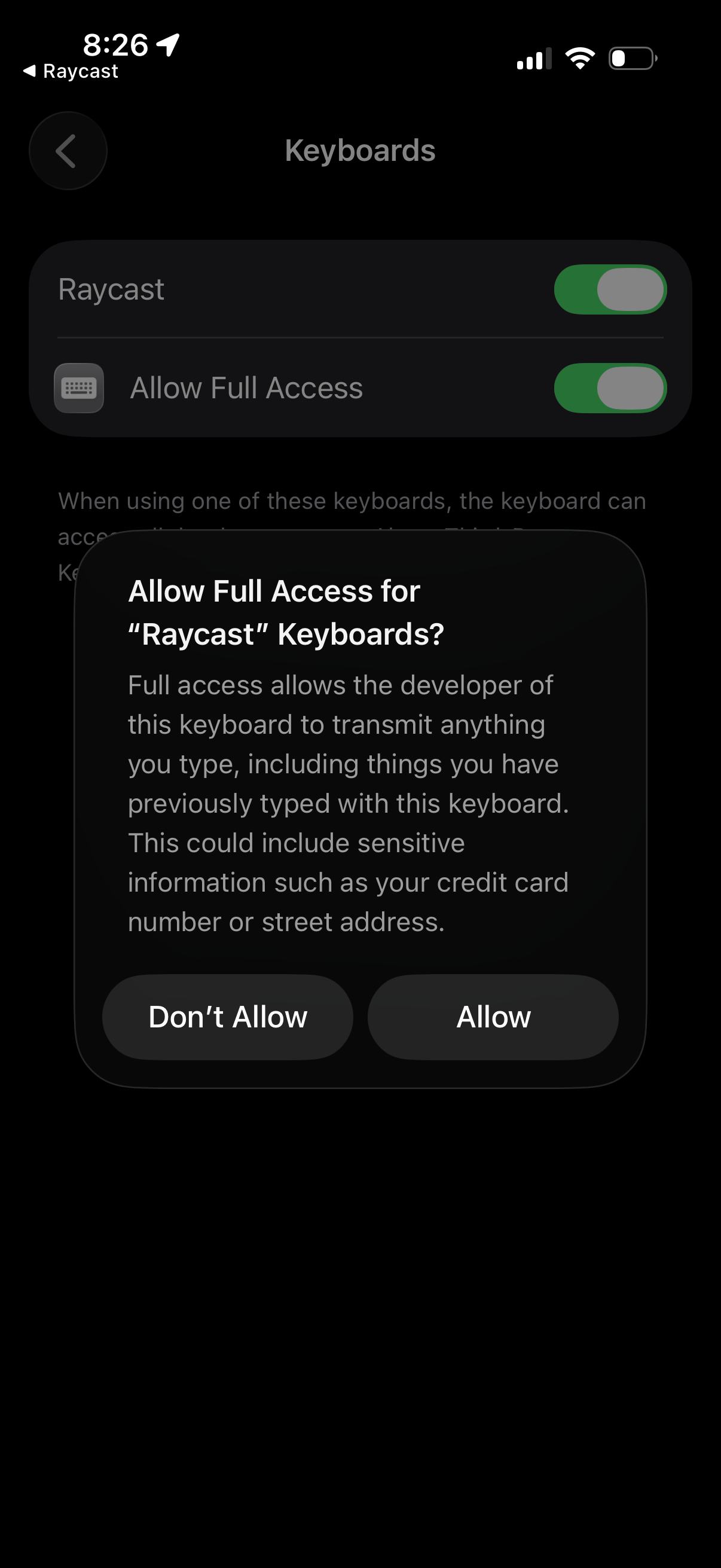
iOS Settings > Keyboards screen for a third-party keyboard, showing toggles to enable the keyboard and “Allow Full Access. ” A system confirmation dialog explains privacy risks of full access and prompts the user to Allow or Don’t Allow.
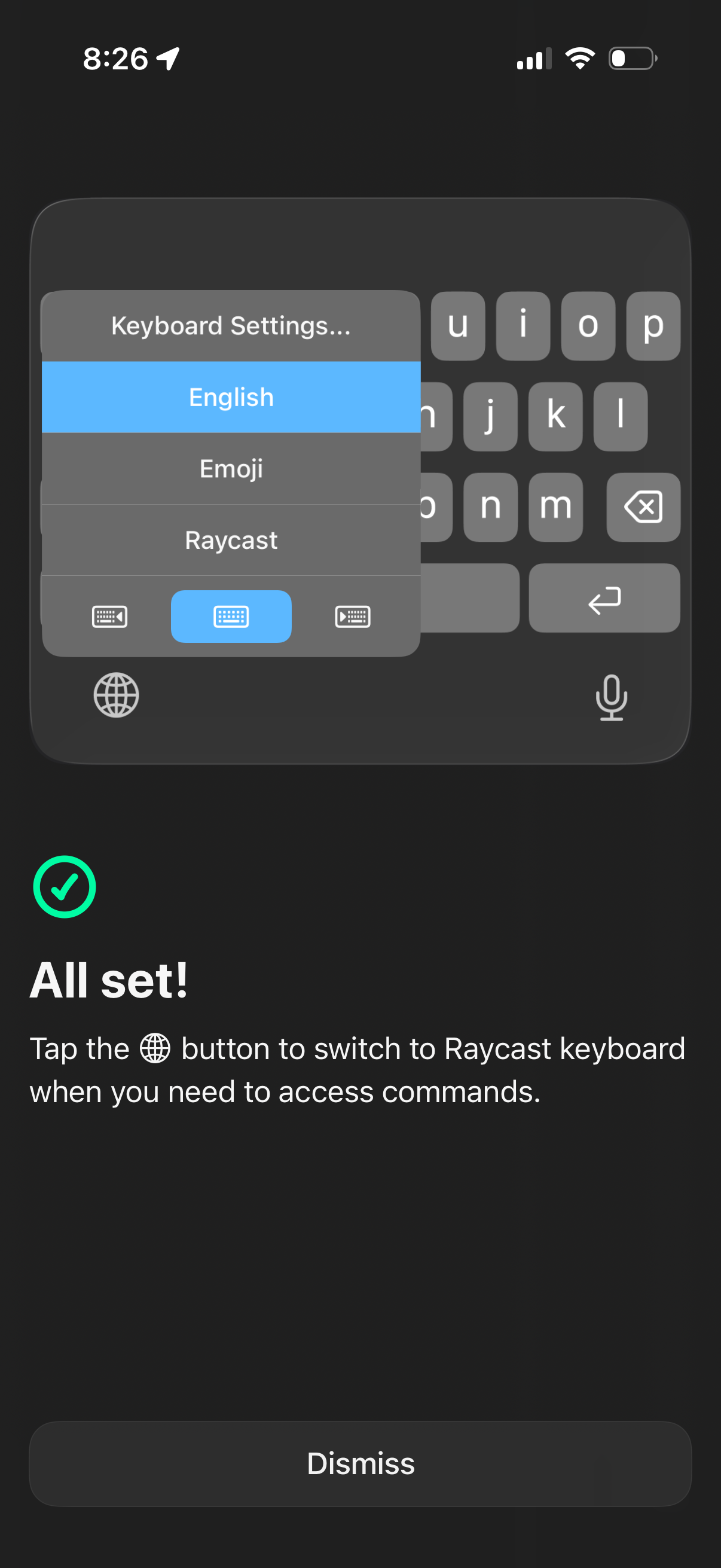
Confirmation screen for setting up a custom iOS keyboard extension, showing the keyboard language switcher menu (English, Emoji, Raycast) and instructions to tap the globe icon to switch to the Raycast keyboard for commands, with a Dismiss button to exit.