browse templates by category
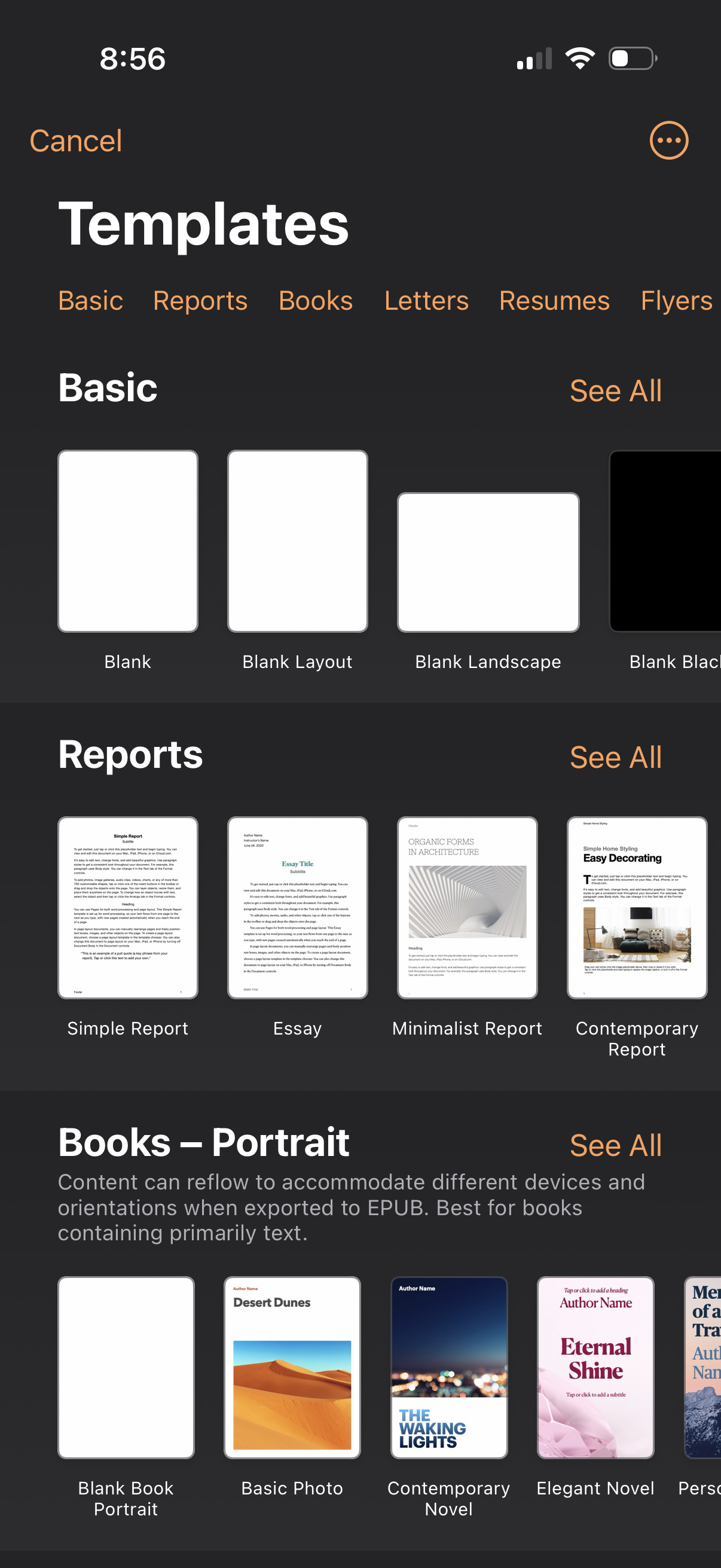
Document creation template picker showing category tabs (Basic, Reports, Books, Letters, Resumes, Flyers) and horizontal thumbnail carousels for each section with options like blank pages, report styles, and book covers. Users can browse templates, tap “See All” to view more in a category, or cancel out of the flow.
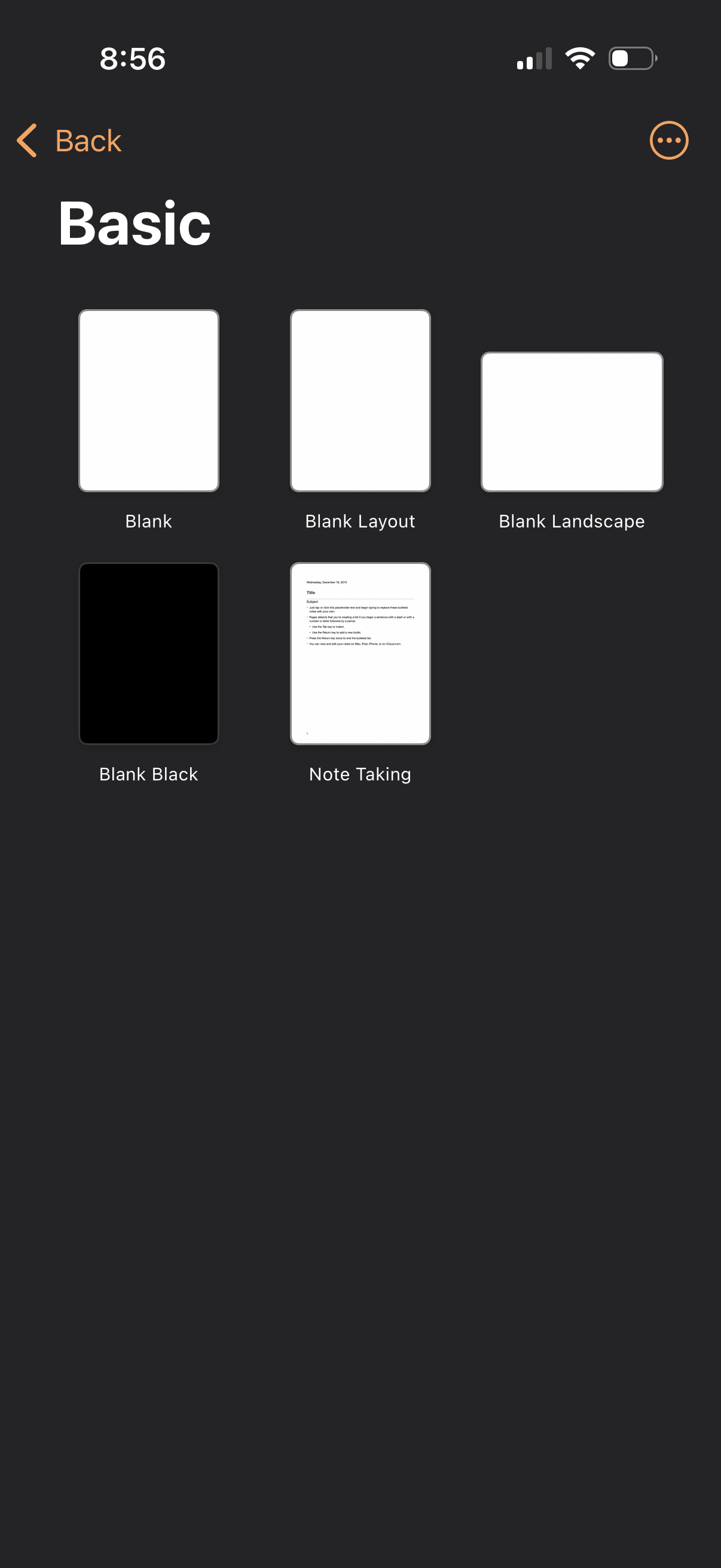
Template selection screen for creating a new document or note, showing a grid of basic starter templates such as Blank, Blank Layout, Blank Landscape, Blank Black, and Note Taking. Includes back navigation and an overflow menu for additional options.
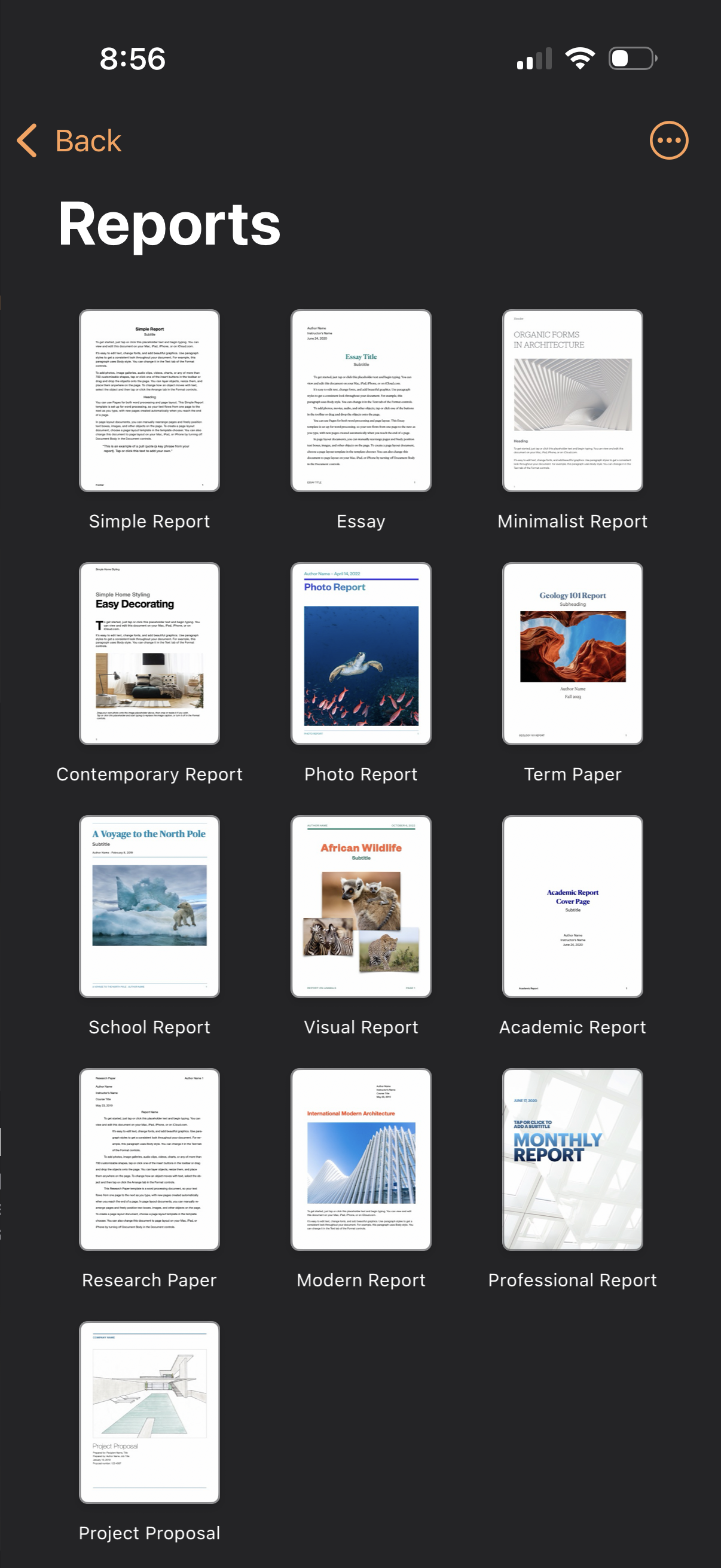
Template selection screen for creating a new report, showing a grid of report document templates with thumbnail previews and labels (e. g.
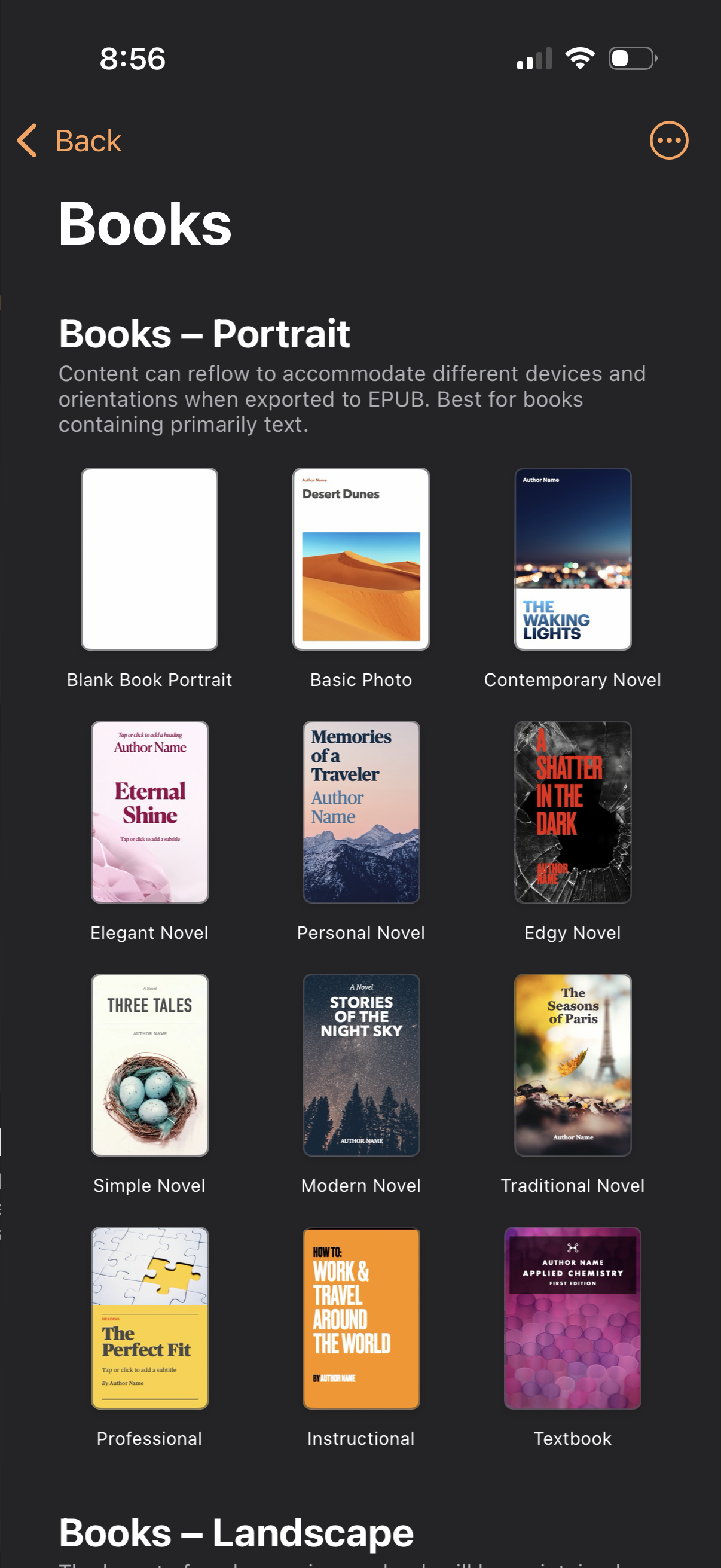
Template selection screen for creating a portrait-format book, showing a grid of book cover and layout templates (e. g.
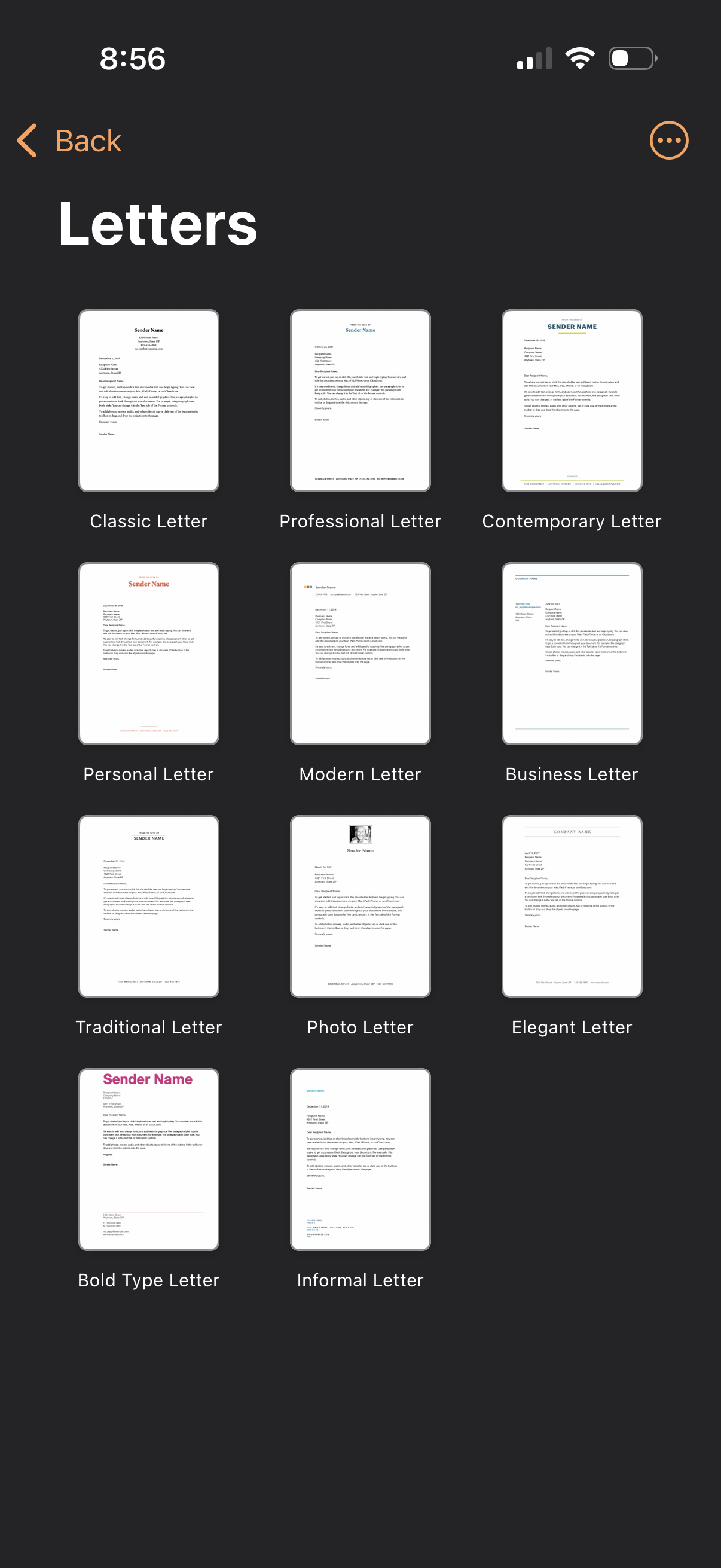
Template selection screen for creating a letter, showing a grid of letterhead style previews with names like Classic, Professional, Contemporary, Business, Modern, and Photo. Users can tap a template to start drafting, with back navigation and an overflow menu for more options.
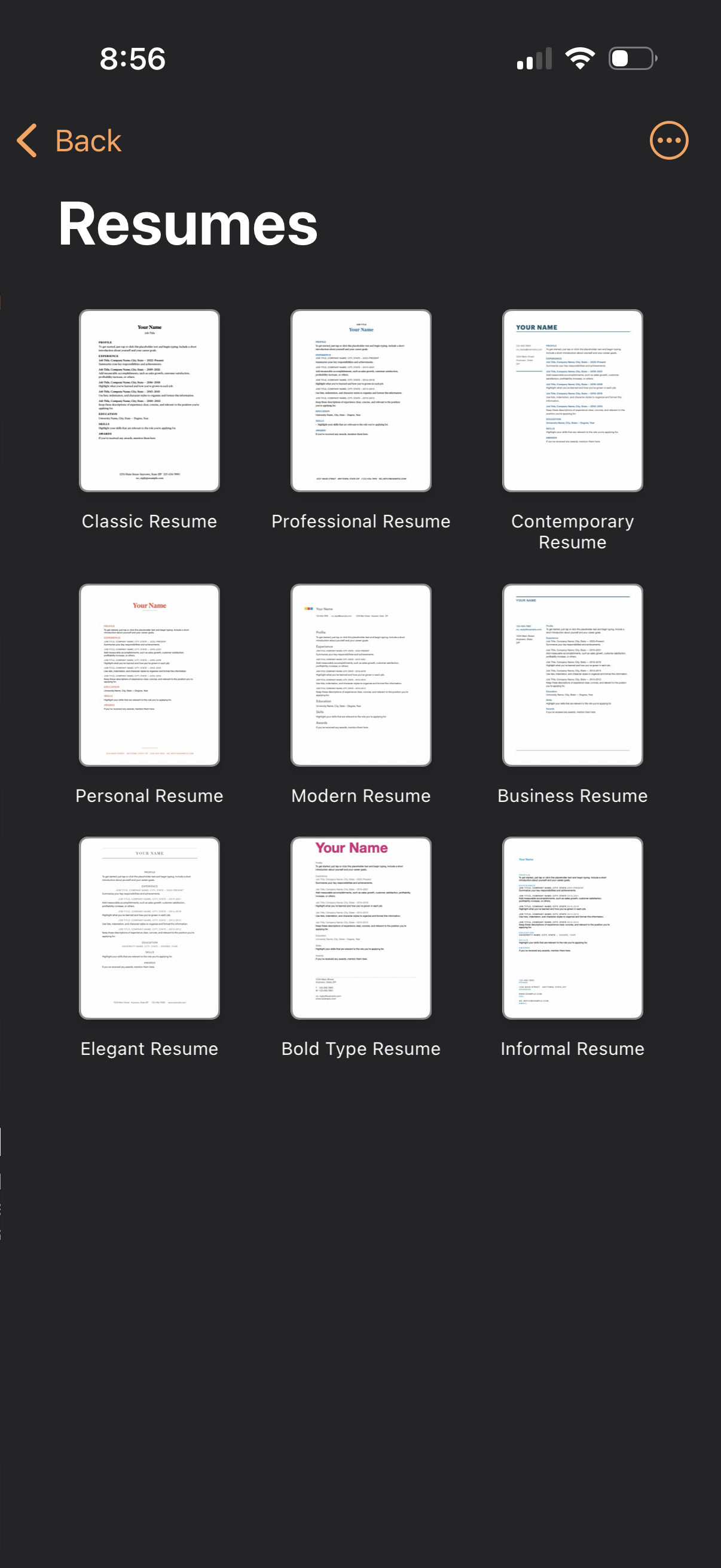
Resume template selection screen showing a grid of thumbnail previews with labeled styles (e. g.
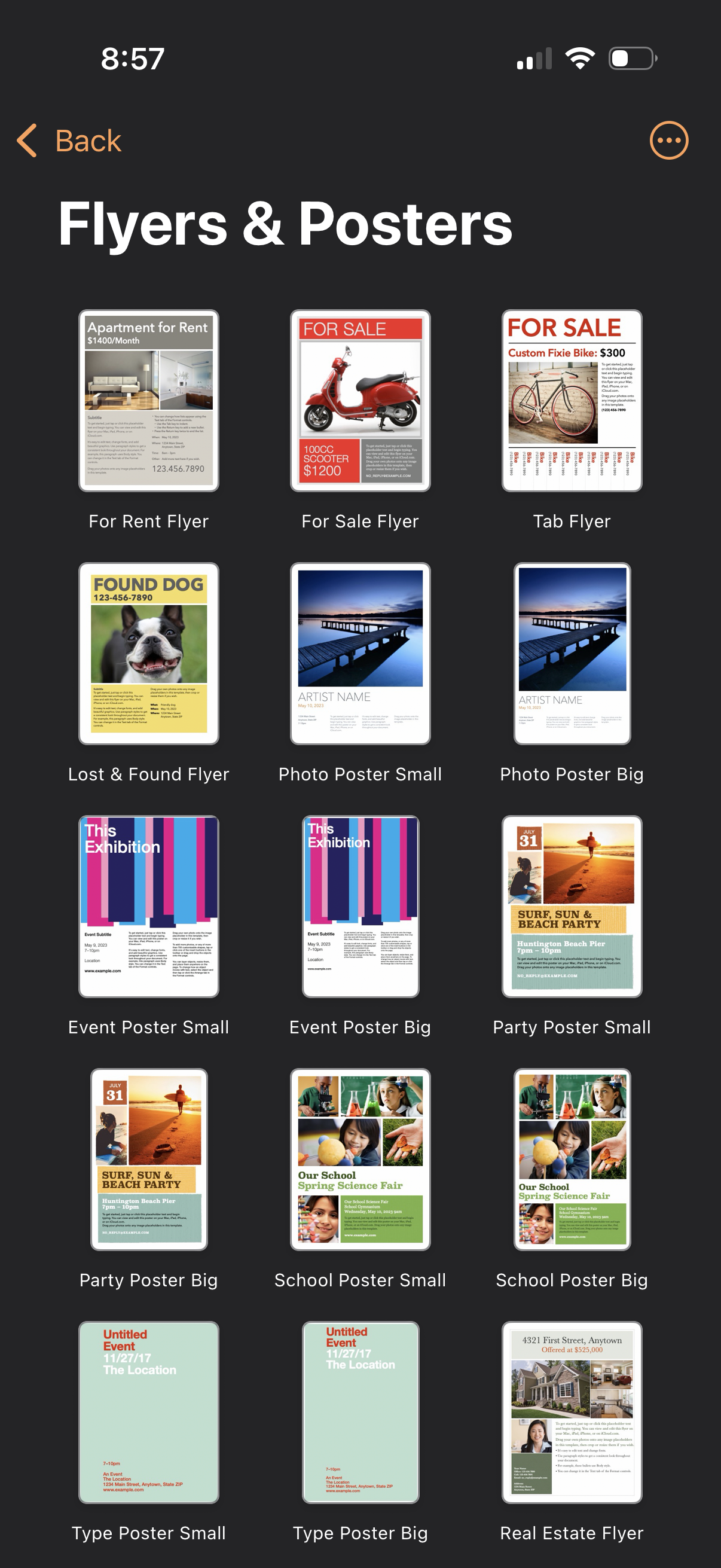
Template selection screen for creating flyers and posters, showing a grid of categorized design presets (for rent, for sale, tab flyer, lost & found, photo poster small/big, event poster small/big, party poster small/big, school poster small/big, type poster, real estate flyer). Users can tap a template to start a new design, with back navigation and an overflow menu for additional options.
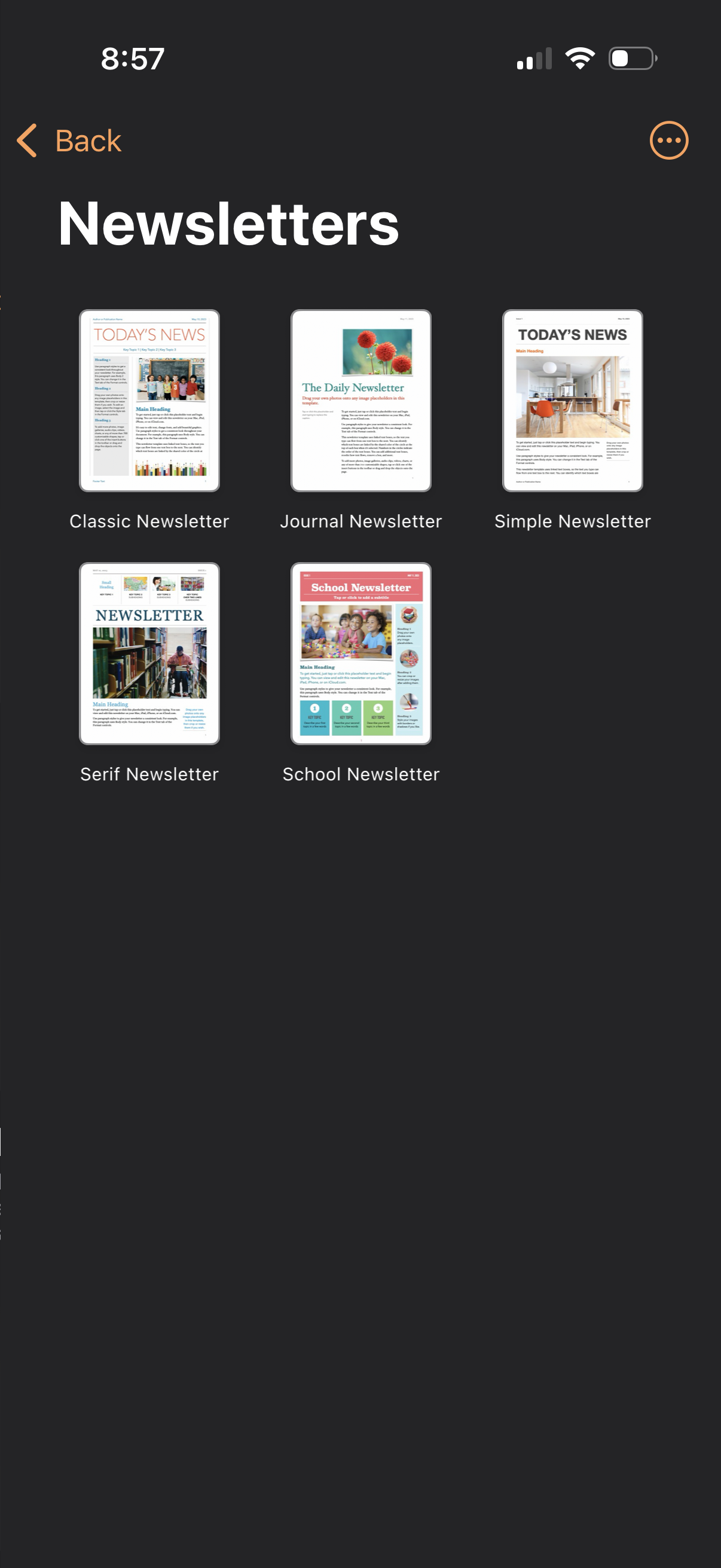
Newsletter template selection screen showing a grid of preview thumbnails (Classic, Journal, Simple, Serif, School) to start a new document from a chosen layout, with back navigation and an overflow menu for more options.
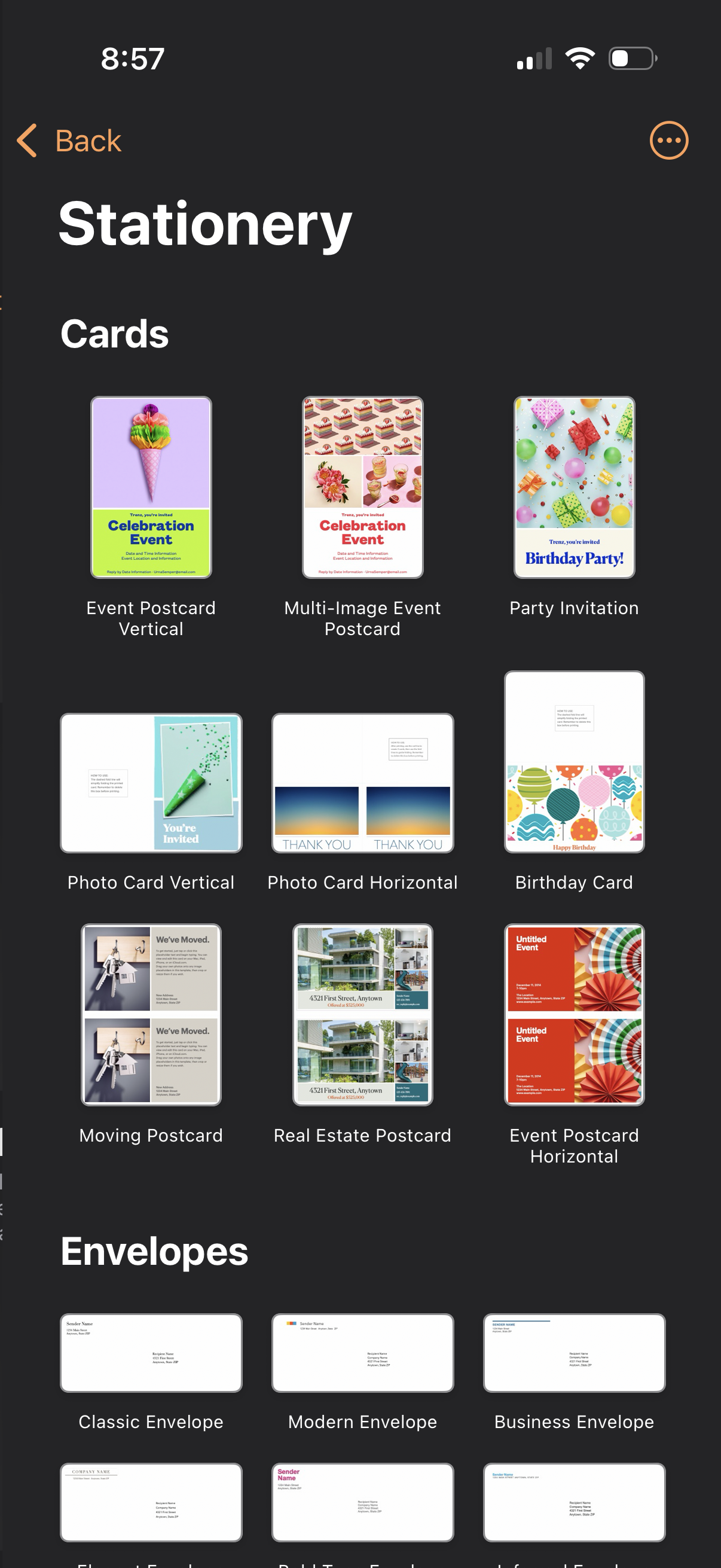
Template gallery screen for selecting stationery designs, showing a grid of card templates (event postcards, party invitations, photo cards, birthday cards, real estate and moving postcards) and an envelopes section with classic, modern, and business envelope options. Includes navigation back and an overflow menu for additional actions.
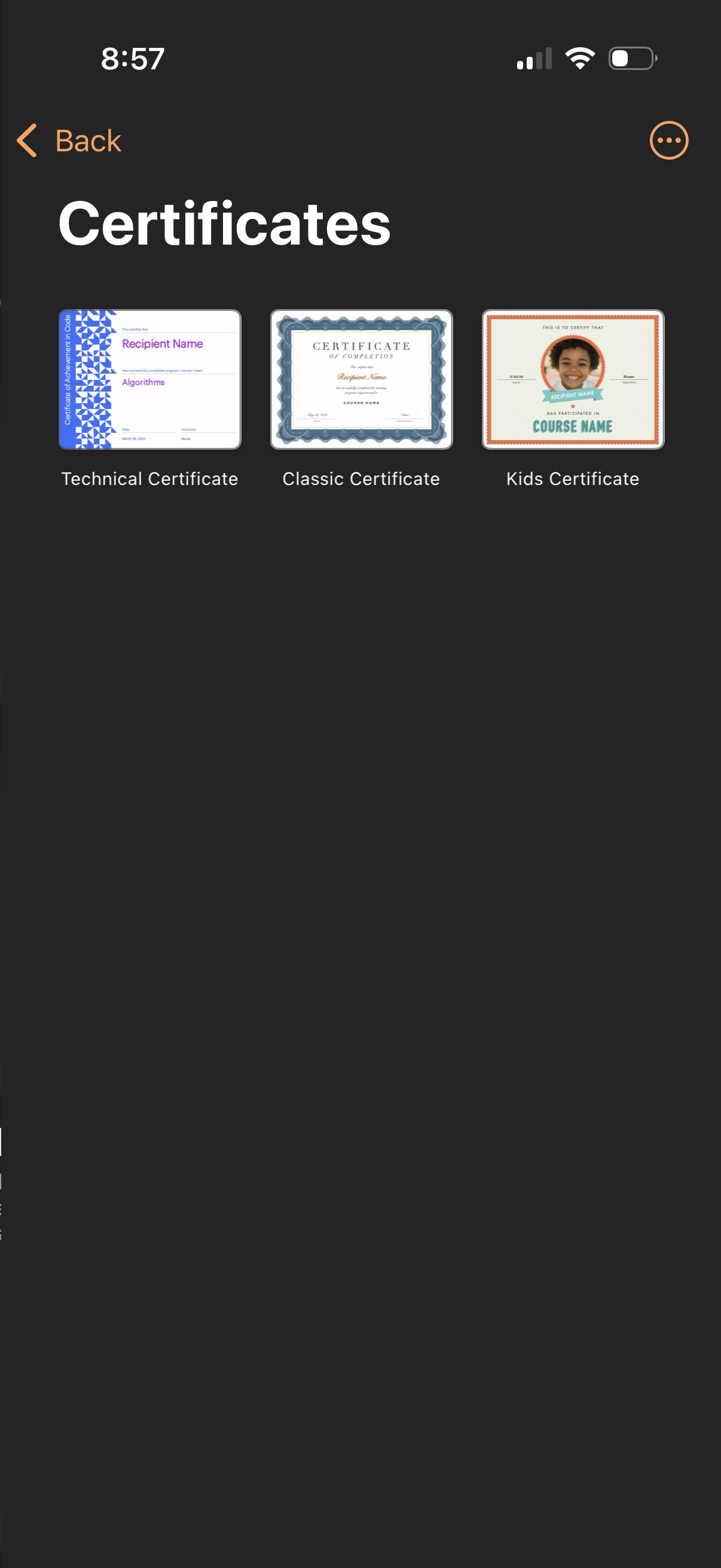
Certificate template selection screen showing three preview cards to choose a certificate style (Technical, Classic, or Kids) for generating a course completion certificate, with back navigation and an overflow menu for additional options.
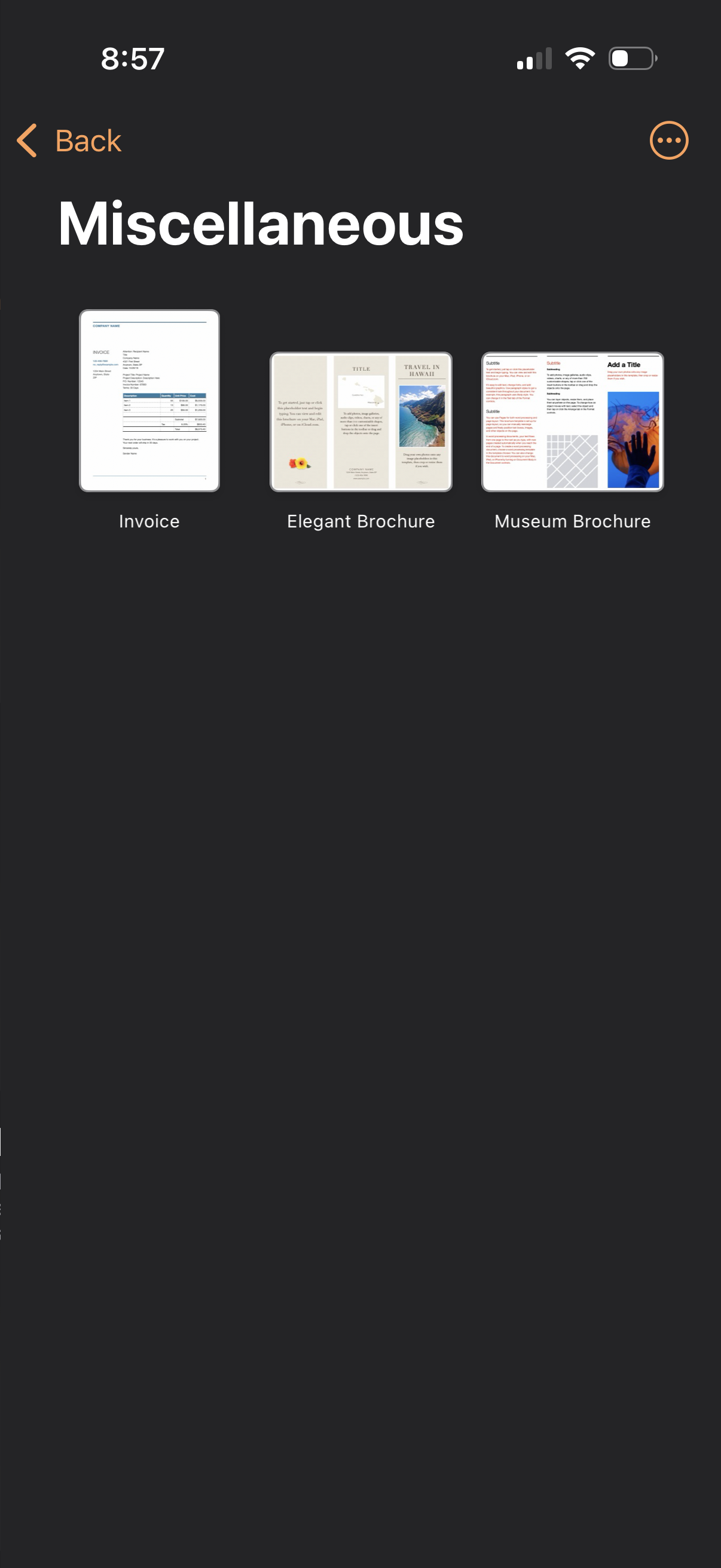
Document template category screen labeled “Miscellaneous” showing a gallery of selectable templates (e. g.
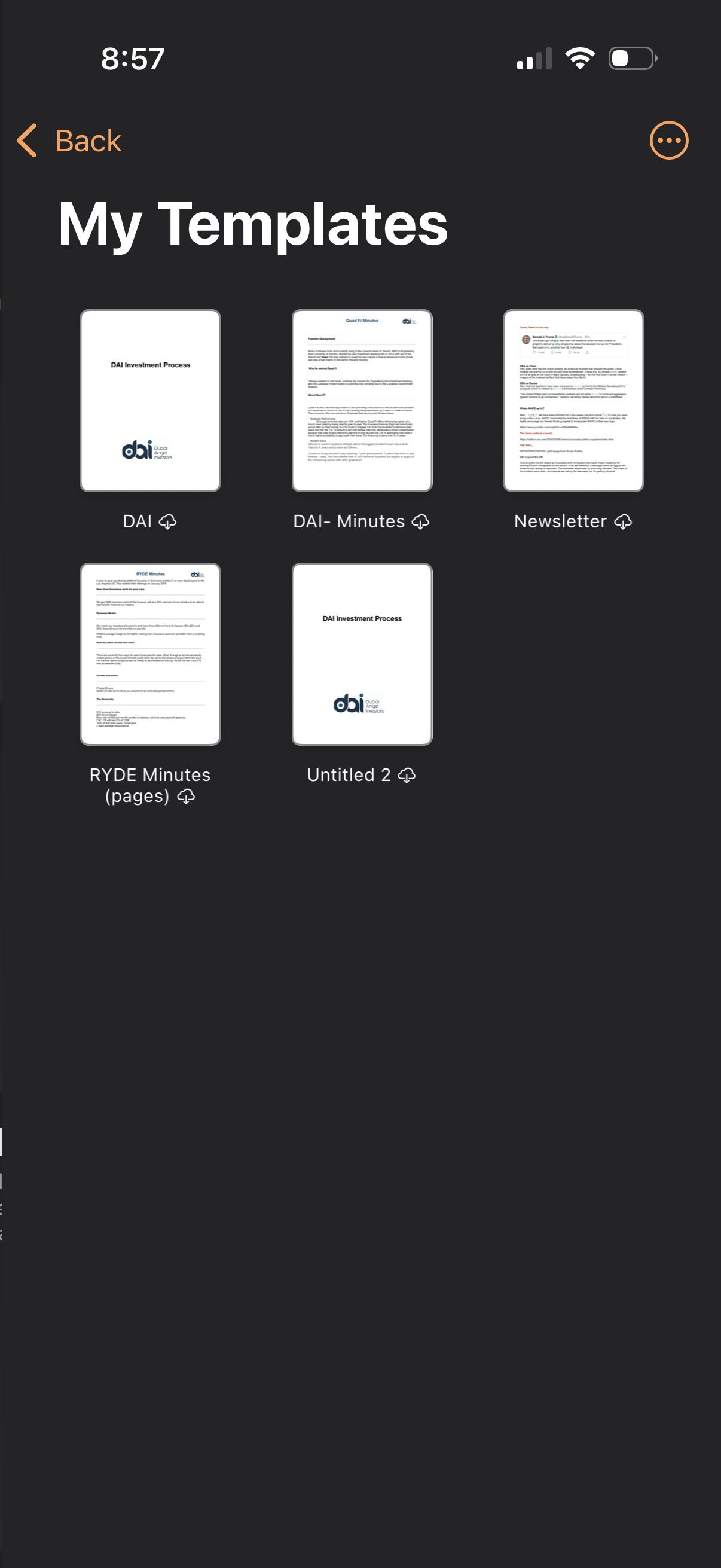
Document templates library screen showing “My Templates” in a grid of template thumbnails with names (e. g.