open editor settings
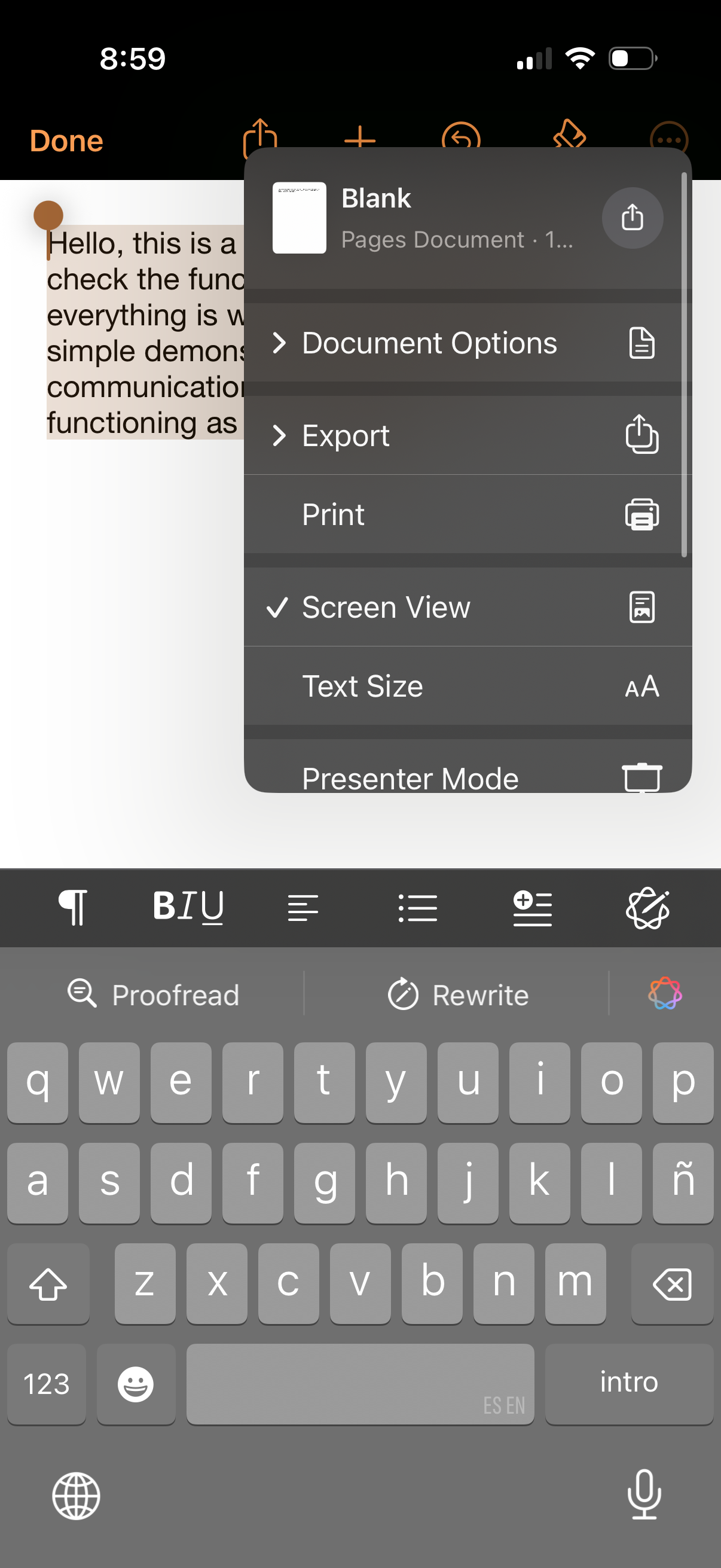
Mobile document editor screen with a text document open and an overflow options menu showing document options, export, print, screen view, text size, and presenter mode. The on-screen keyboard and formatting toolbar (bold/italic/underline, lists, alignment) are visible for editing.
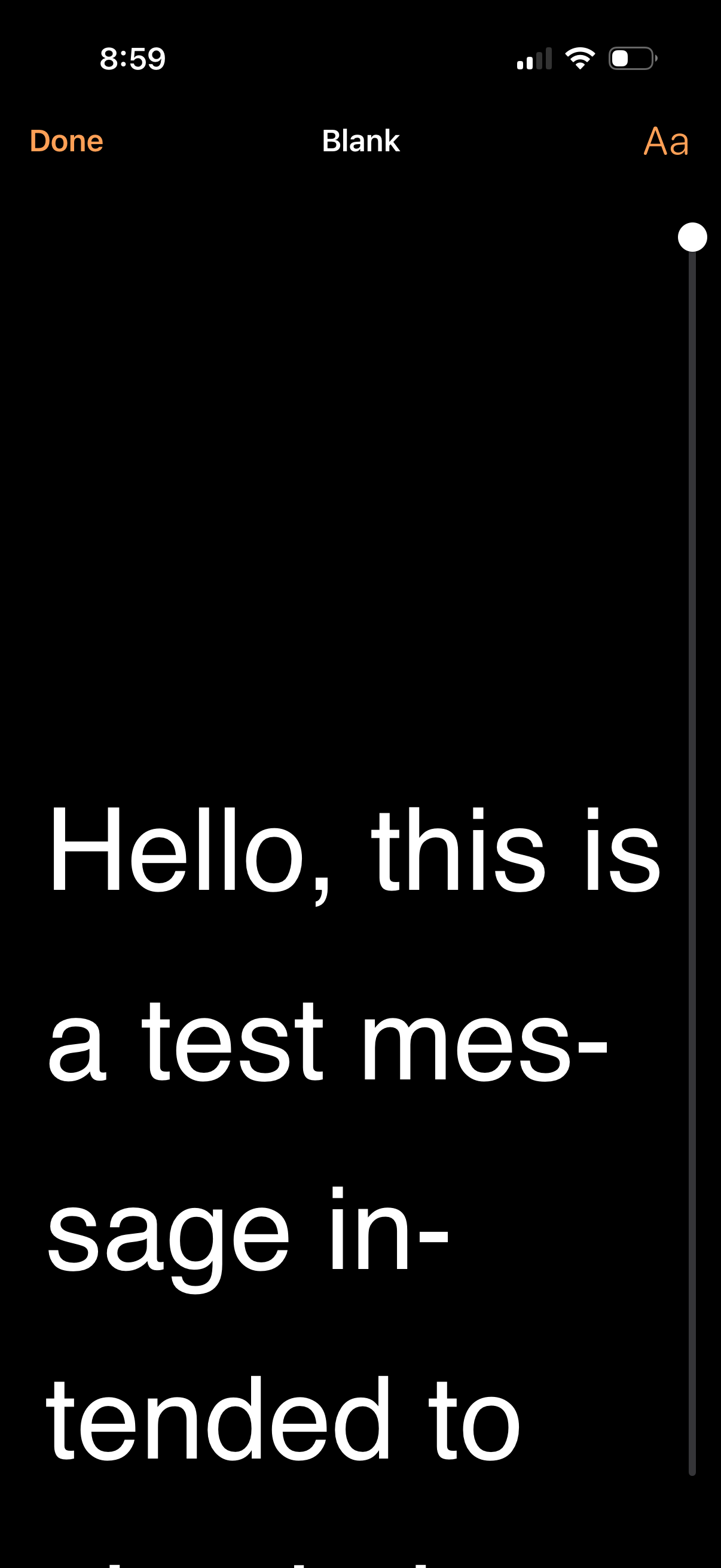
Text editing screen in a dark theme showing a blank document with large body text being typed. Top bar includes Done and a typography (Aa) control, with a vertical scroll indicator for navigating longer content.
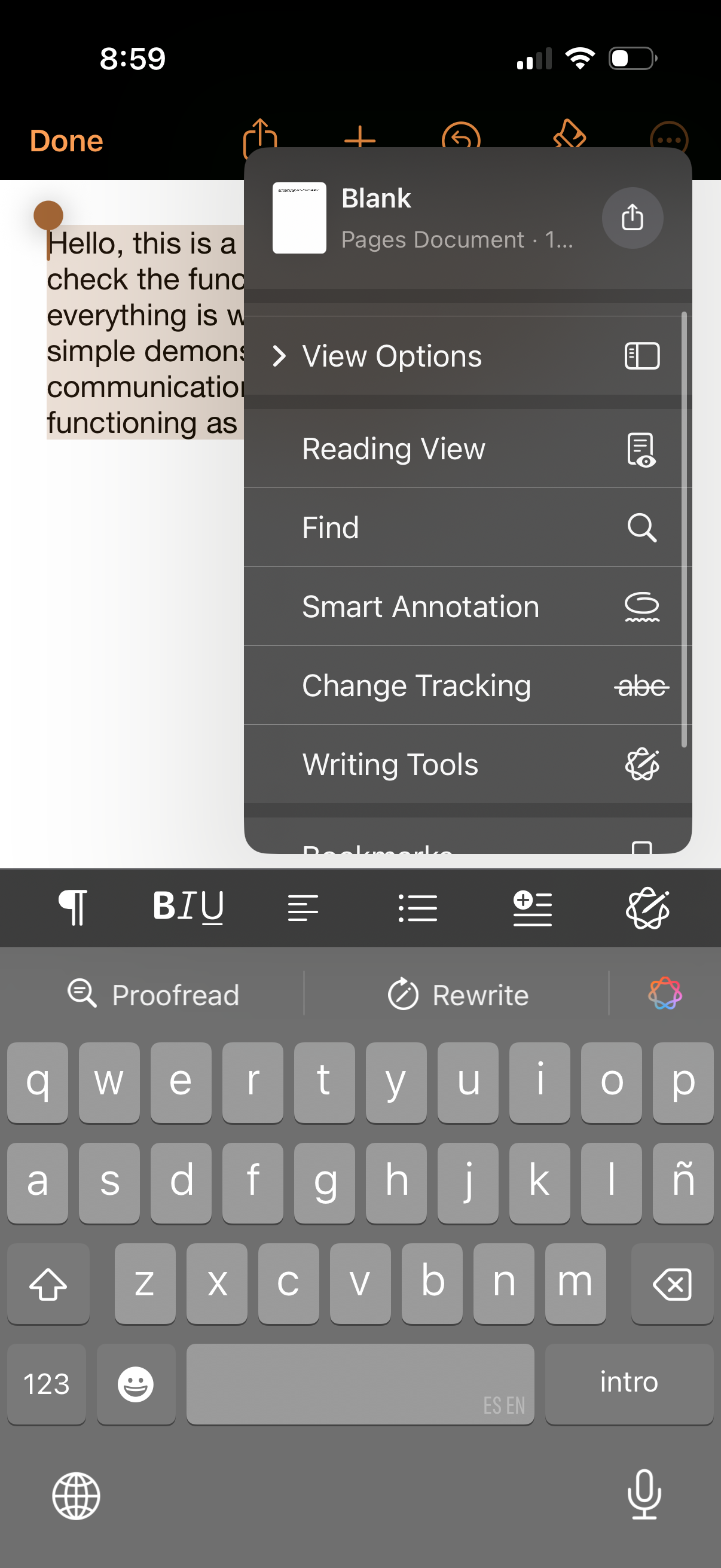
Mobile document editor screen showing a Pages document with an overflow menu opened to view and editing options such as reading view, find, smart annotation, change tracking, and writing tools. The keyboard and formatting toolbar are visible for typing and applying text styles while editing the document.
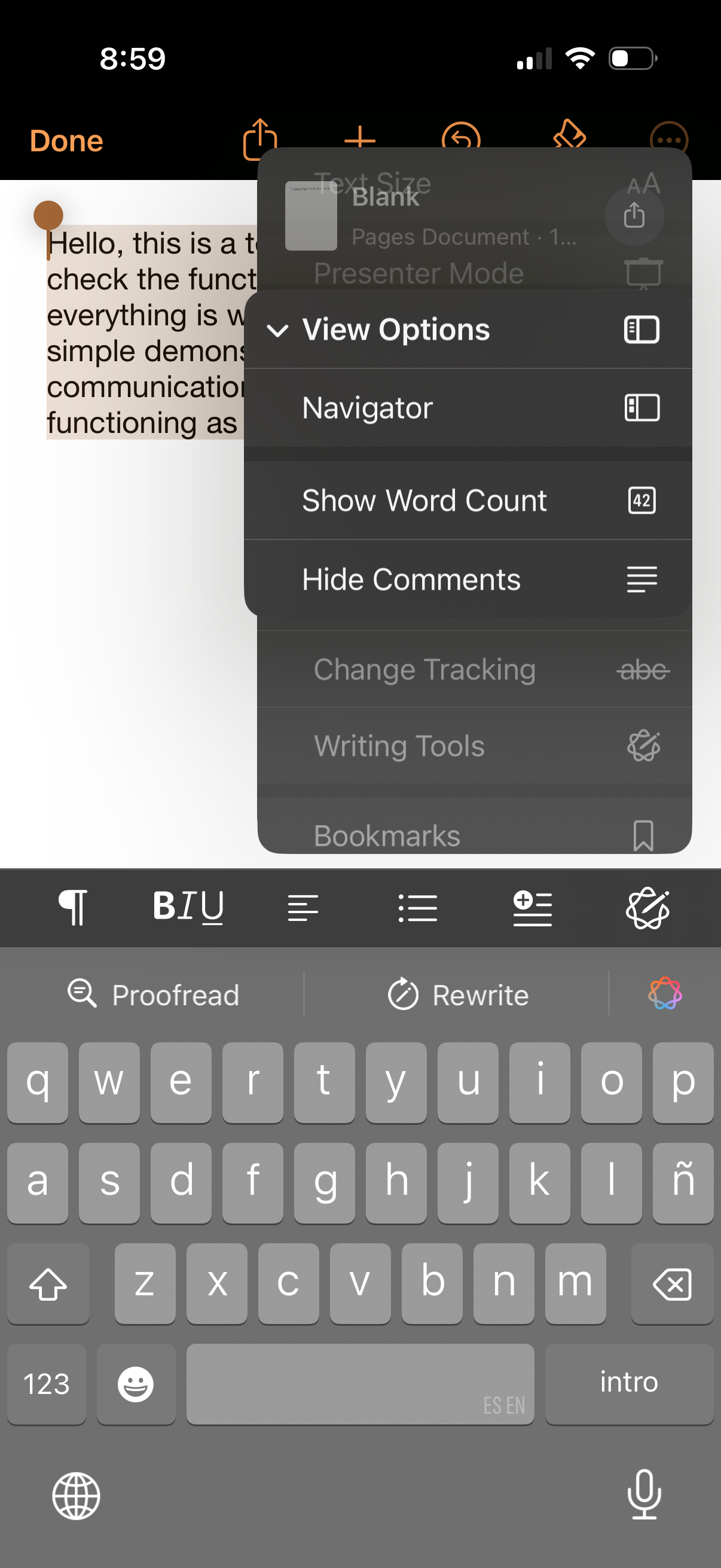
Mobile document editor with a text page and formatting toolbar open, showing an overflow “View Options” menu. The menu lets users toggle navigator/sidebar view, show word count, and hide comments while typing with the on-screen keyboard.
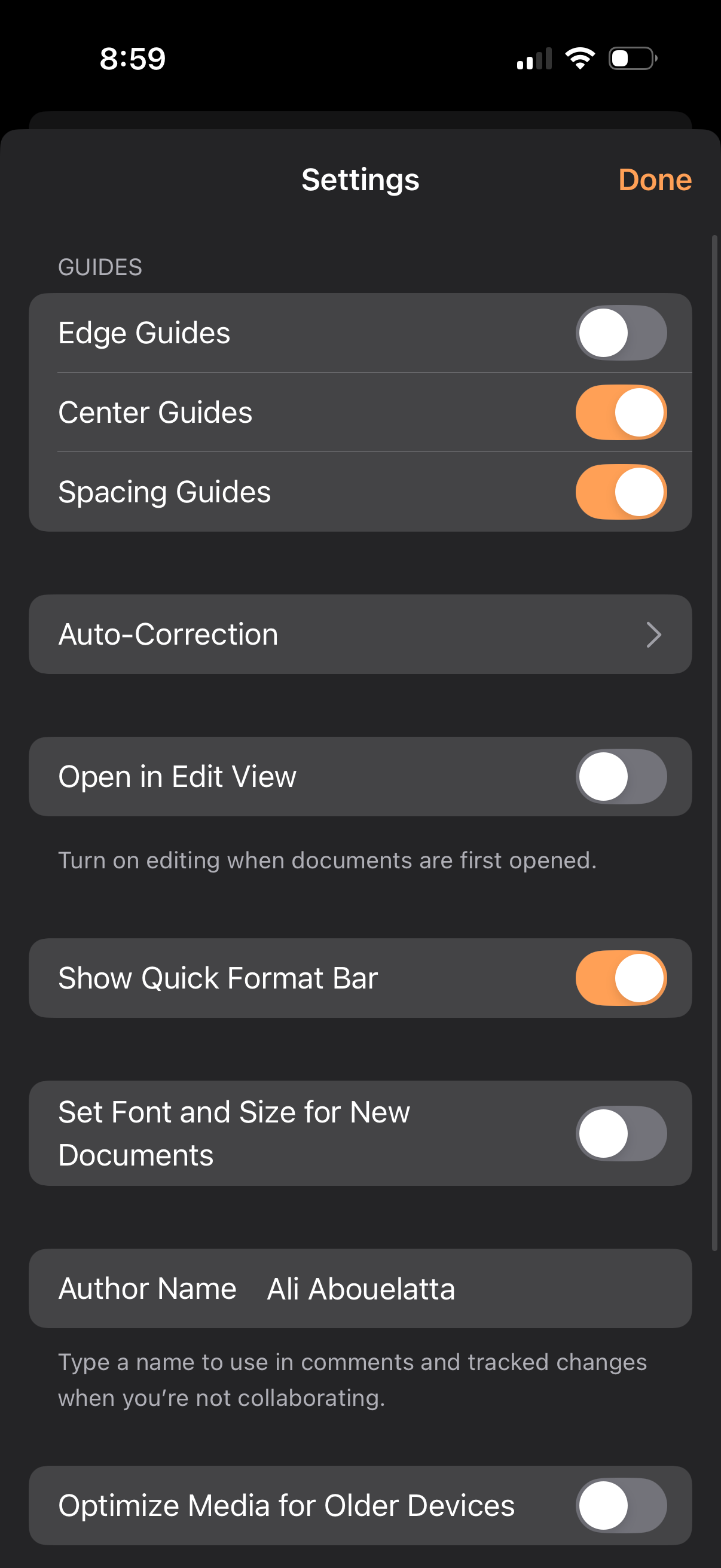
A document editor settings screen with toggles and options to customize editing guides (edge, center, spacing), auto-correction, open in edit view, show quick format bar, and set default font/size for new documents. Includes an author name field and a toggle to optimize media for older devices, with a Done button to close settings.
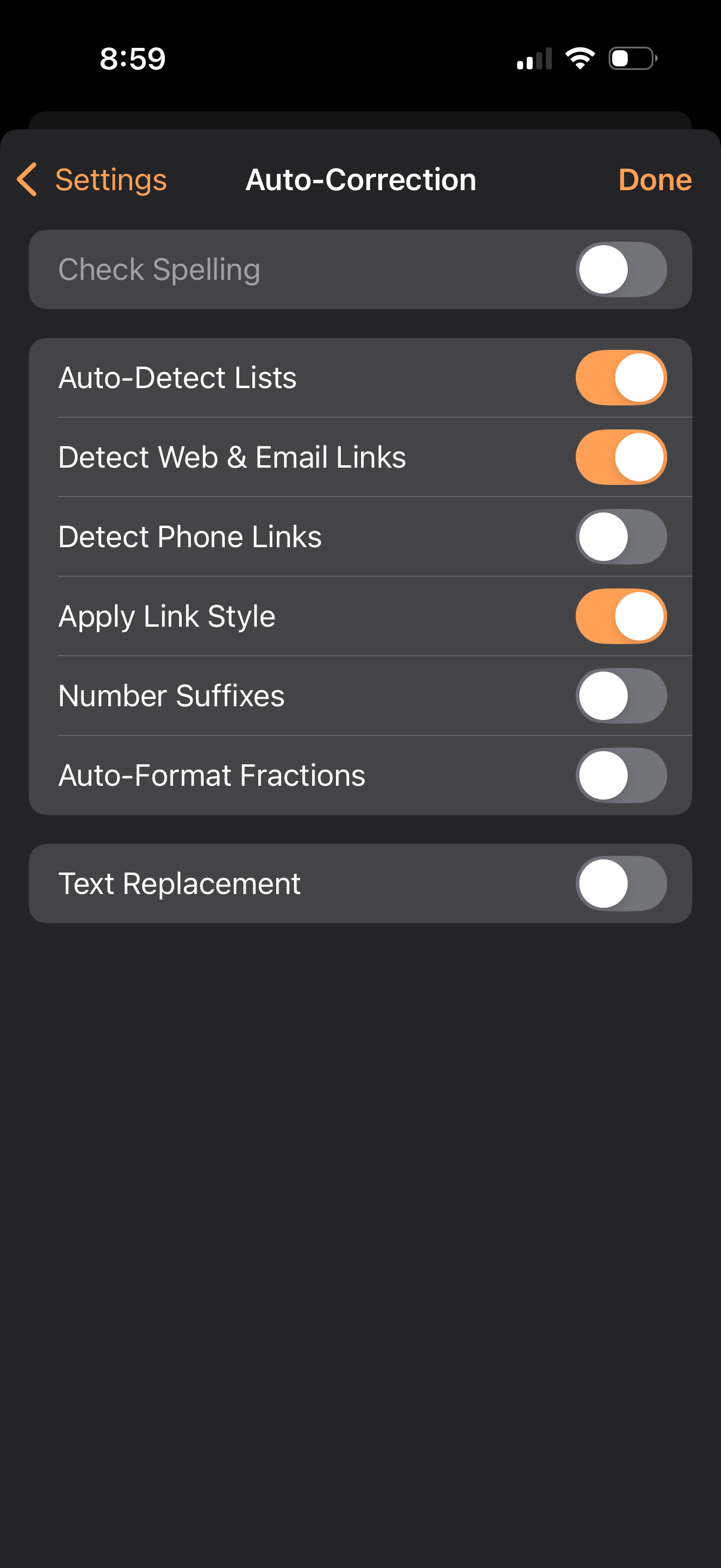
Auto-Correction settings screen for a text editor showing toggle switches to enable or disable writing assist features like check spelling, auto-detect lists, detect web/email/phone links, apply link style, number suffixes, auto-format fractions, and text replacement, with back and Done navigation.