change theme style
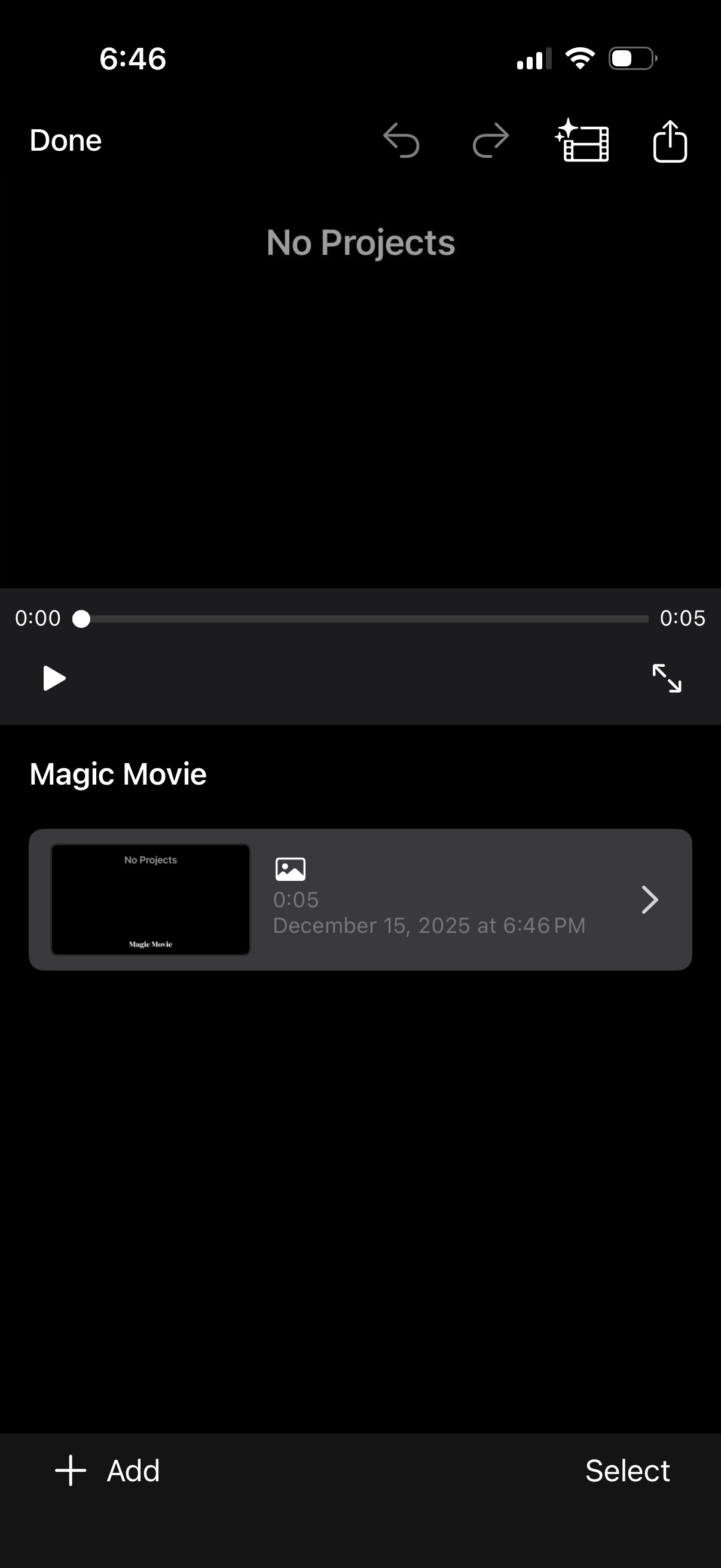
Video editor project library screen showing an empty state (“No Projects”) with a preview player and timeline scrubber, plus actions for undo/redo, effects, share/export, and play/fullscreen. Below is a “Magic Movie” section listing an existing clip/project with thumbnail and duration, with bottom controls to Add a new project or Select items for management.
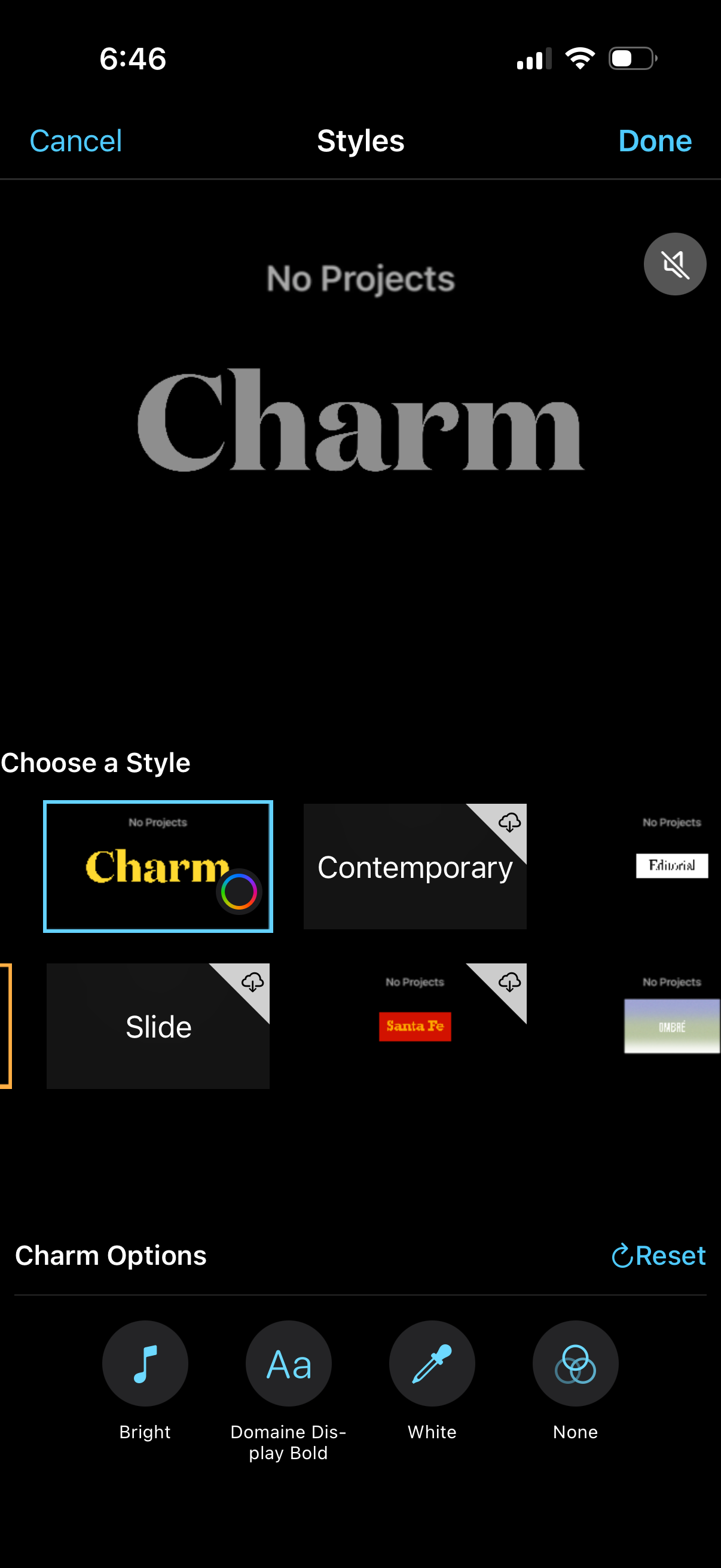
Style selection screen for a video or photo editing app where users preview and choose a title template/theme (e. g.
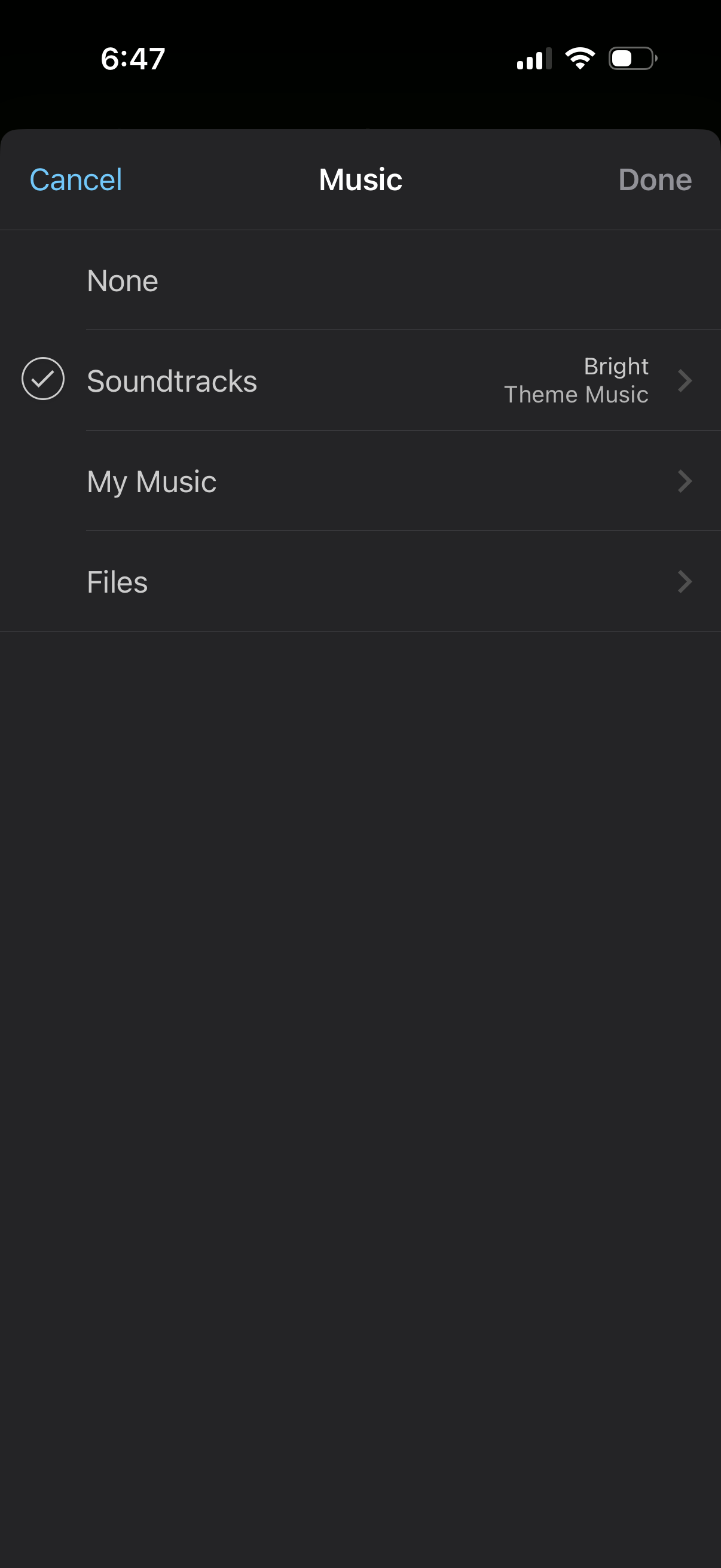
A music selection settings screen for choosing background audio, with options for None, Soundtracks (currently selected with a theme), My Music, and Files. Users can tap an option to navigate to pick a track and use Cancel or Done to dismiss and save the choice.
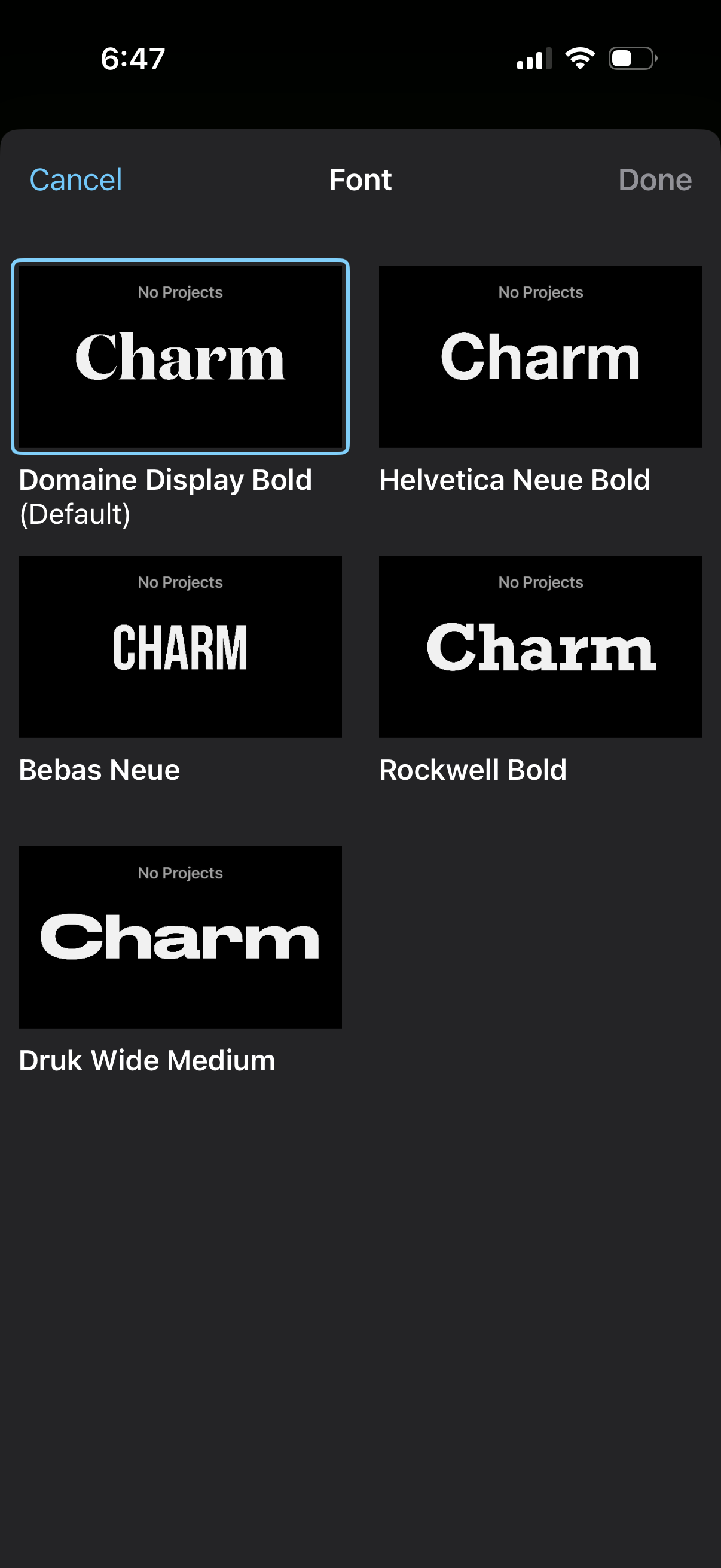
Font selection screen for choosing a typography style, showing a grid of font options with preview thumbnails and names (including a default font) and highlighting the selected font. Users can cancel or confirm the font choice using Cancel and Done actions.
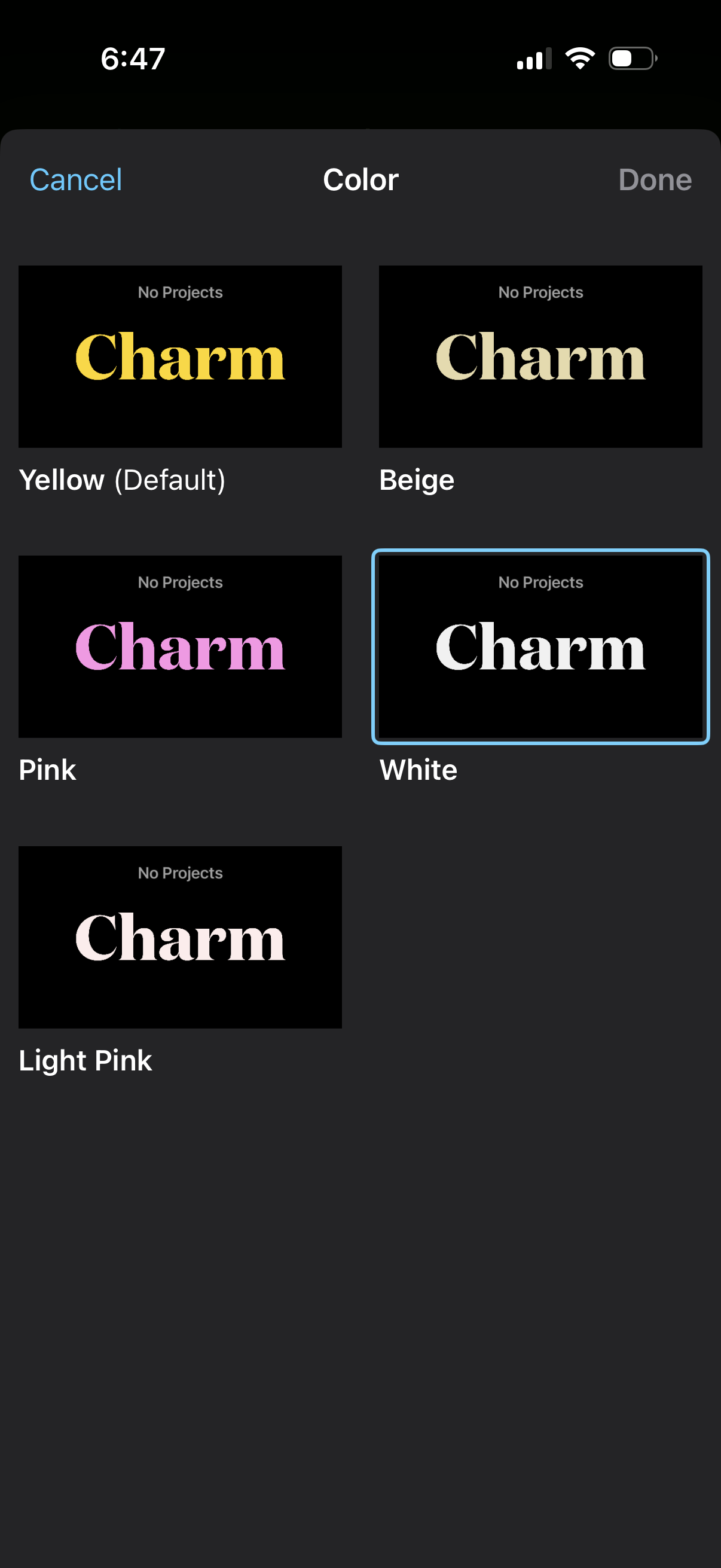
A modal color picker screen for customizing an app theme or logo text color, showing a grid of preview tiles with options like Yellow (default), Beige, Pink, White, and Light Pink. Users can tap a swatch to select it (highlighted state) and confirm or dismiss changes with Done or Cancel.
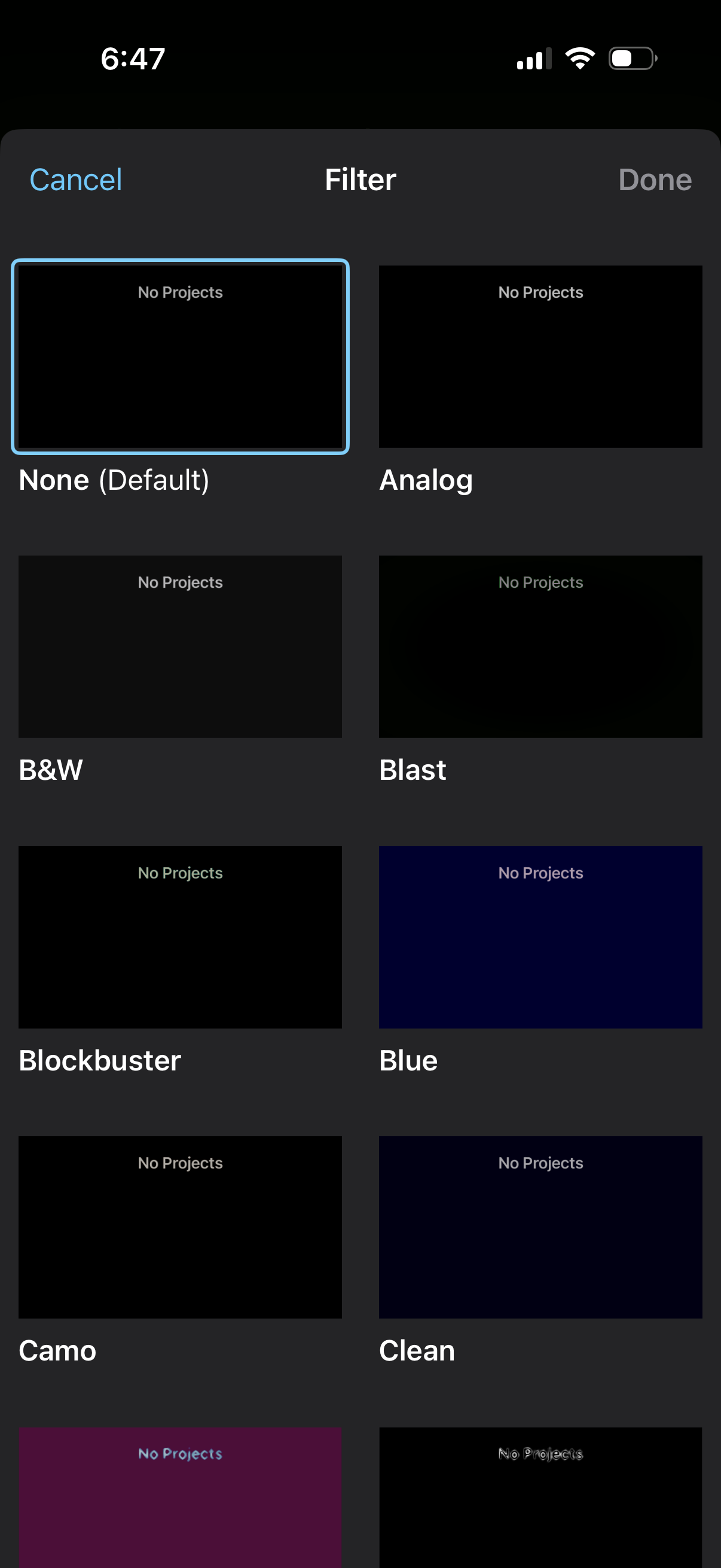
Filter selection screen showing a grid of visual effect presets with preview thumbnails (e. g.
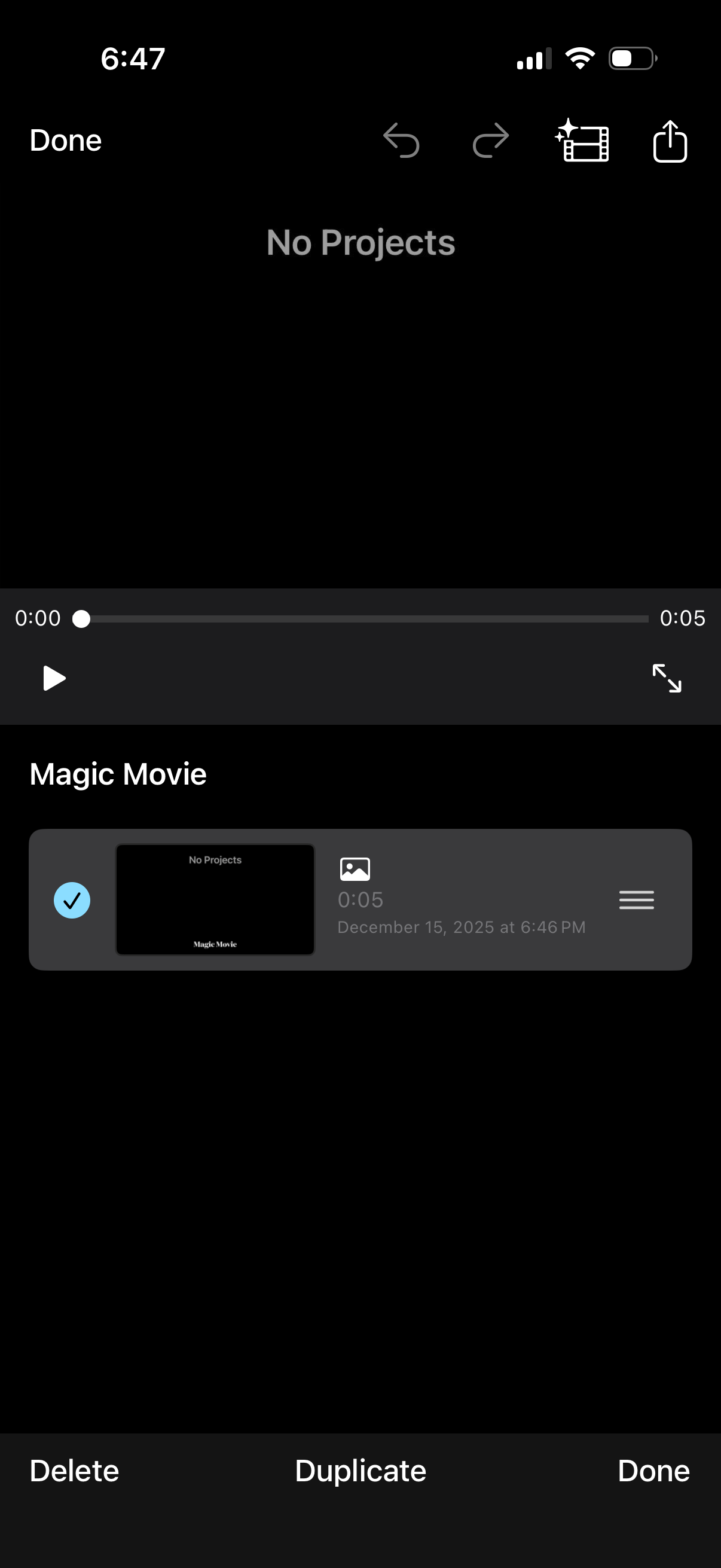
Video preview and project manager screen for a “Magic Movie” creation, showing a playback scrubber, play button, and selected clip thumbnail with duration/date. Users can edit with undo/redo and enhancement tools, share/export, and manage the project with delete, duplicate, and done actions.