transfer between accounts

Mobile banking checking account overview screen showing available and current balance with an info tooltip, plus quick actions to pay bills, transfer funds, send money with Zelle, deposit, lock card, and view statements. Includes a promotional banner, an upcoming transactions section with “view all,” and a bottom tab bar for Home, Pay/Move, Help, Offers, and Profile.

Money transfer flow showing a bottom-sheet account picker to choose the “Transfer from” source account, listing internal checking/savings accounts with available balances and eligible external linked banks. Users can select an account, close the modal, or add a new external account.

Money transfer flow showing a “Transfer to” account picker where users choose the destination account from a list of internal accounts and eligible external linked bank accounts, each displaying masked account numbers and available balances. Includes an option to add a new external account from the selector modal.
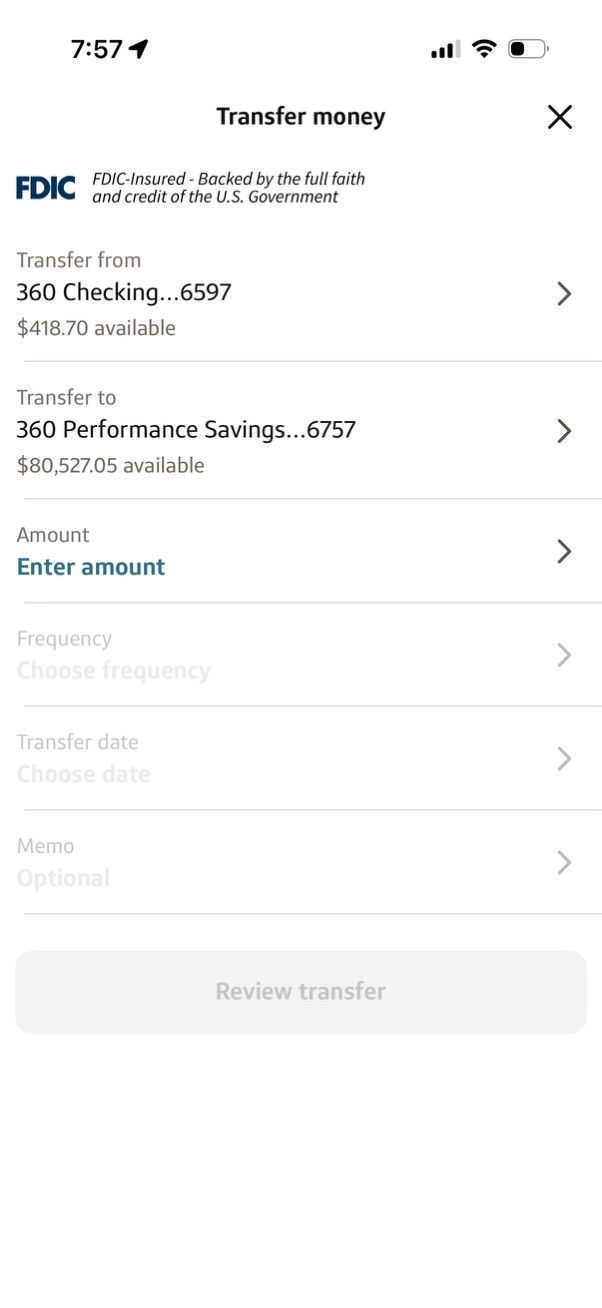
Banking “Transfer money” form for moving funds between accounts, showing selectable “transfer from” and “transfer to” accounts with available balances. Users enter the transfer amount and can optionally choose frequency, transfer date, and add a memo before proceeding to review the transfer.

Banking app “Transfer money” screen for moving funds between accounts, showing selectable “transfer from” and “transfer to” accounts with available balances and FDIC notice. A bottom sheet prompts the user to enter a dollar amount via numeric keypad with Cancel and Submit actions.
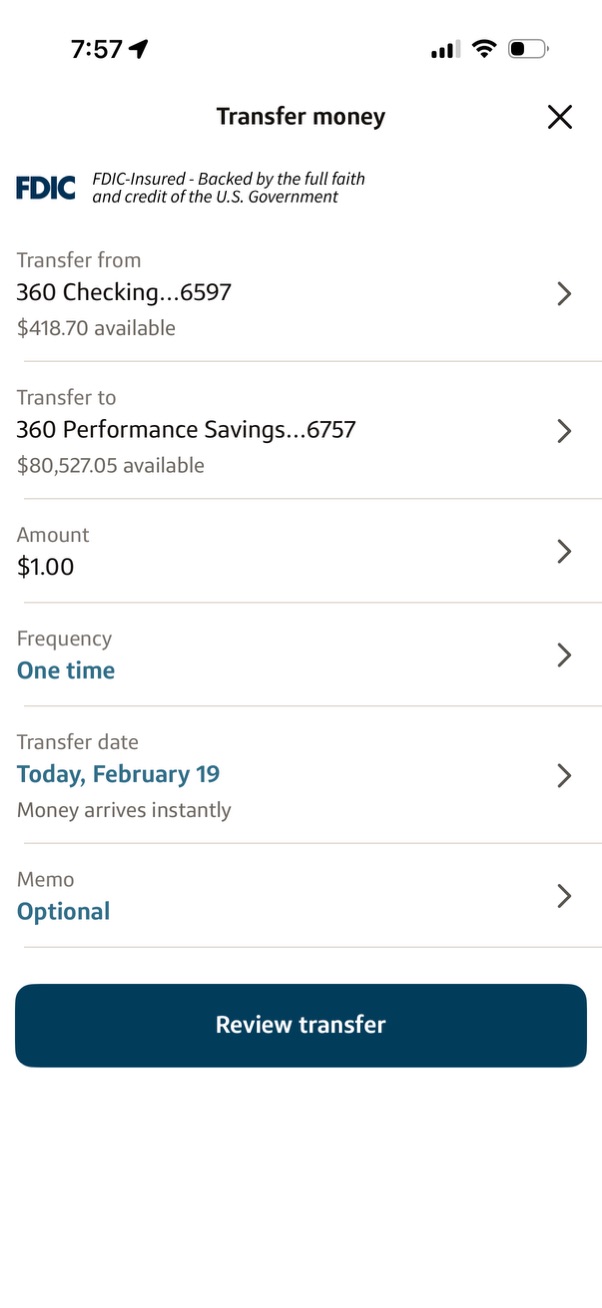
Banking app “Transfer money” form to set up an internal transfer between accounts, showing selectable “transfer from” and “transfer to” accounts with available balances. User can enter amount, choose frequency (one-time), pick transfer date with instant arrival note, add an optional memo, and proceed via a “Review transfer” button.
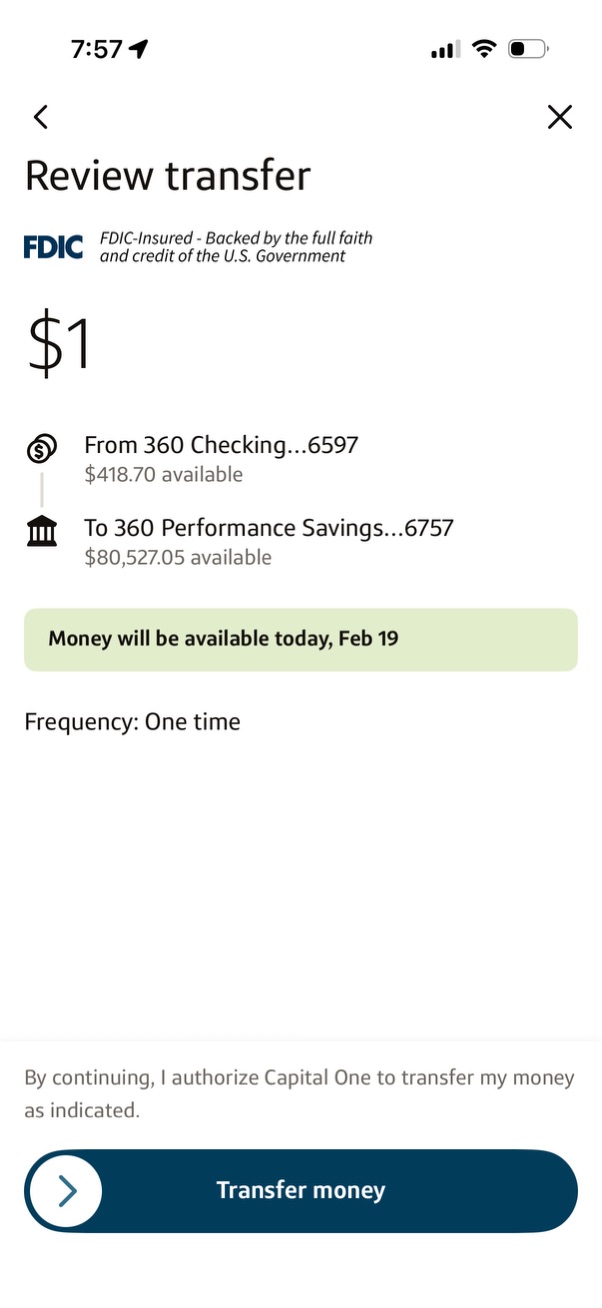
Banking app “Review transfer” confirmation screen showing a $1 internal transfer with the source and destination accounts plus available balances, expected availability date, and transfer frequency (one-time). Includes authorization text and a primary “Transfer money” button to submit the transfer with back/cancel navigation.

Banking app “Review transfer” confirmation screen showing the transfer amount, source and destination accounts with available balances, expected availability date, and frequency (one-time). Includes a primary “Transfer money” action button plus back and close controls.
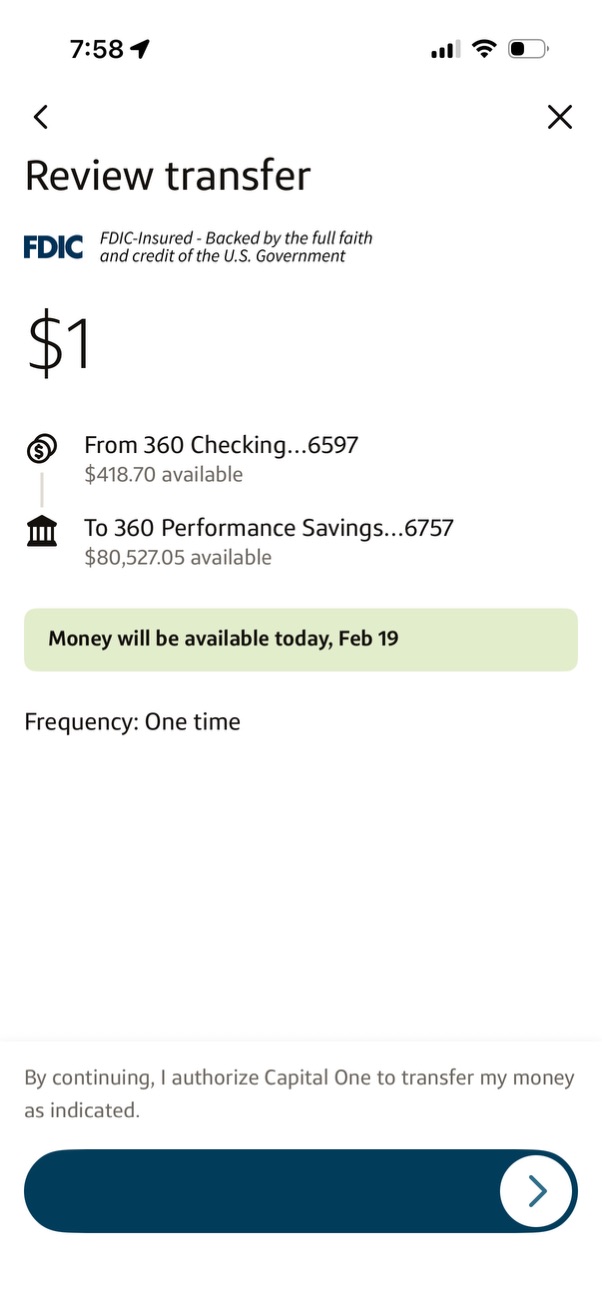
Banking app “Review transfer” confirmation screen showing the transfer amount and source/destination accounts with available balances, plus availability date and frequency (one-time). Includes authorization text and a primary button to submit/continue the transfer, with back and close controls.
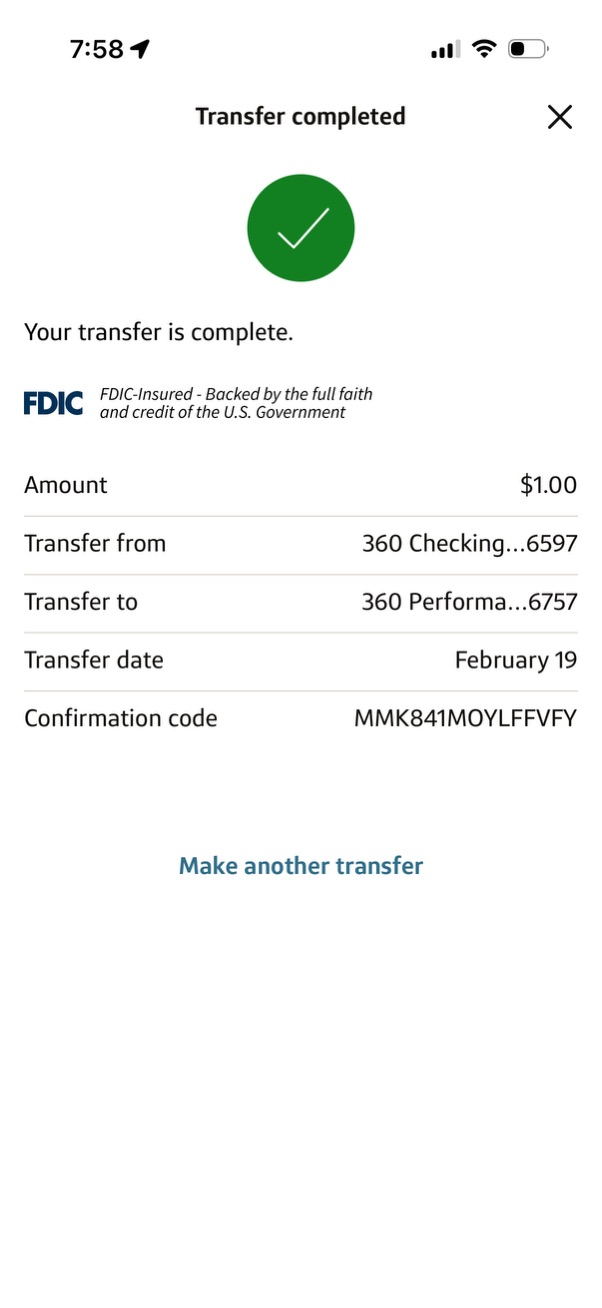
Confirmation screen for a completed bank account transfer showing a success checkmark and transfer details including amount, source and destination accounts, transfer date, and confirmation code. Includes actions to close the screen or initiate “Make another transfer.