enroll in money transfer

Mobile banking checking account overview screen showing available and current balance with an info tooltip, plus quick actions to pay bills, transfer funds, send money with Zelle, deposit, lock card, and view statements. Includes a promotional banner, an upcoming transactions section with “view all,” and a bottom tab bar for Home, Pay/Move, Help, Offers, and Profile.

Onboarding info screen for “Send Money with Zelle” explaining benefits like zero fees, instant access via linked checking account, and quick enrollment with email or phone number. Includes a primary “Get Started” call-to-action and a close button to exit.
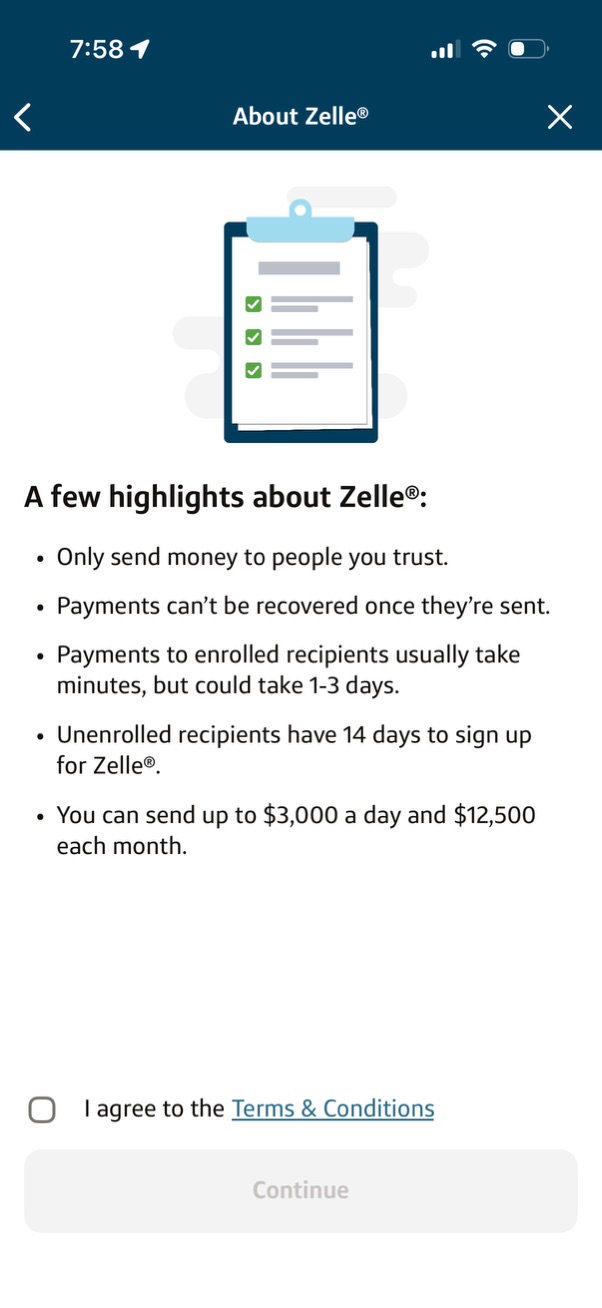
An “About Zelle” informational screen that lists key safety and usage highlights like sending only to trusted people, irreversibility of payments, transfer timing, unenrolled recipient signup window, and daily/monthly send limits. Includes a Terms & Conditions link with an “I agree” checkbox that enables the Continue button, plus back and close navigation.

Informational onboarding/consent screen for Zelle explaining key payment highlights and limits (trust reminders, irreversibility, transfer timing, unenrolled recipient signup window, daily/monthly send caps). Includes a Terms & Conditions agreement checkbox and a primary Continue button to proceed.
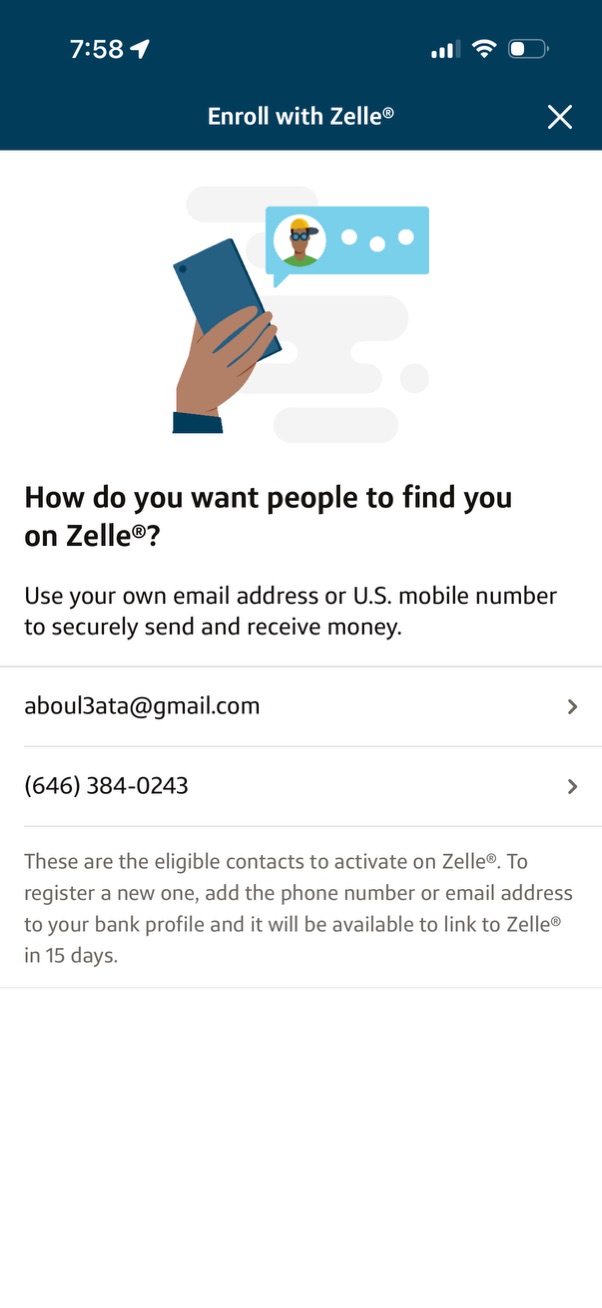
Zelle enrollment screen asking how others should find you, prompting the user to choose an identifier (email address or U. S.
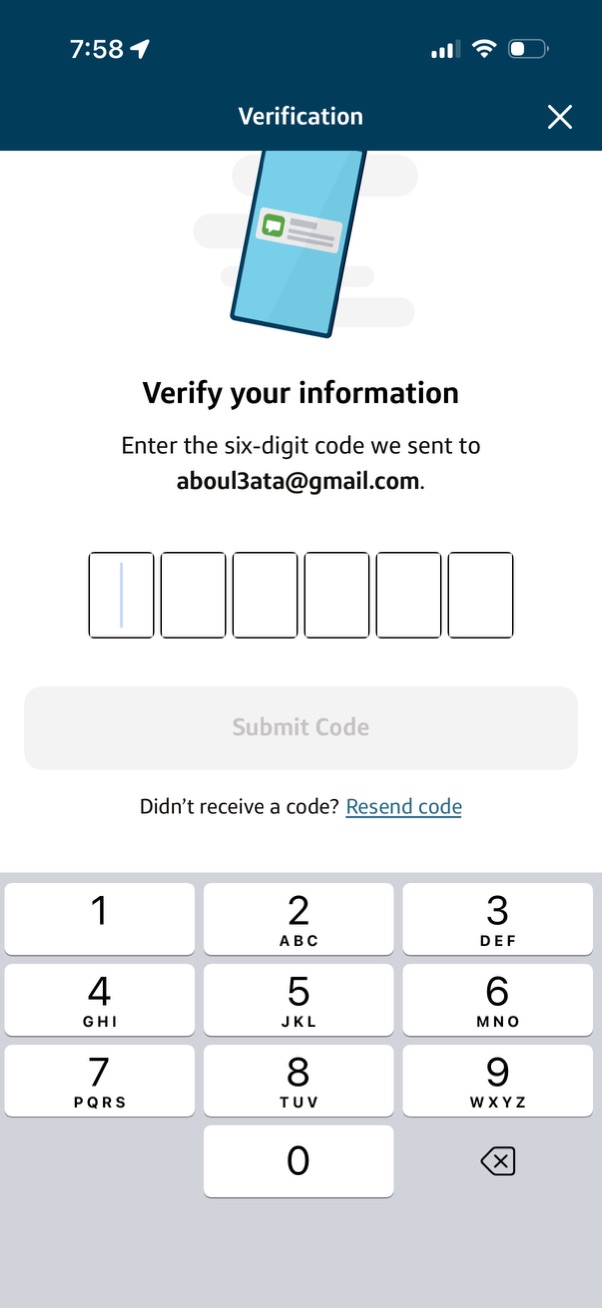
Email verification screen prompting the user to enter a six-digit one-time passcode sent to their email address, with six separate code input fields. Includes a disabled/enabled “Submit Code” button, a “Resend code” link for not receiving the code, and a close icon to exit the verification flow.

Confirmation success screen for enabling Zelle, showing a green checkmark with confetti and messaging that the user is ready to send and receive money using their email address. Includes a security reminder about not sharing login credentials and a primary “Continue” button with a close icon.
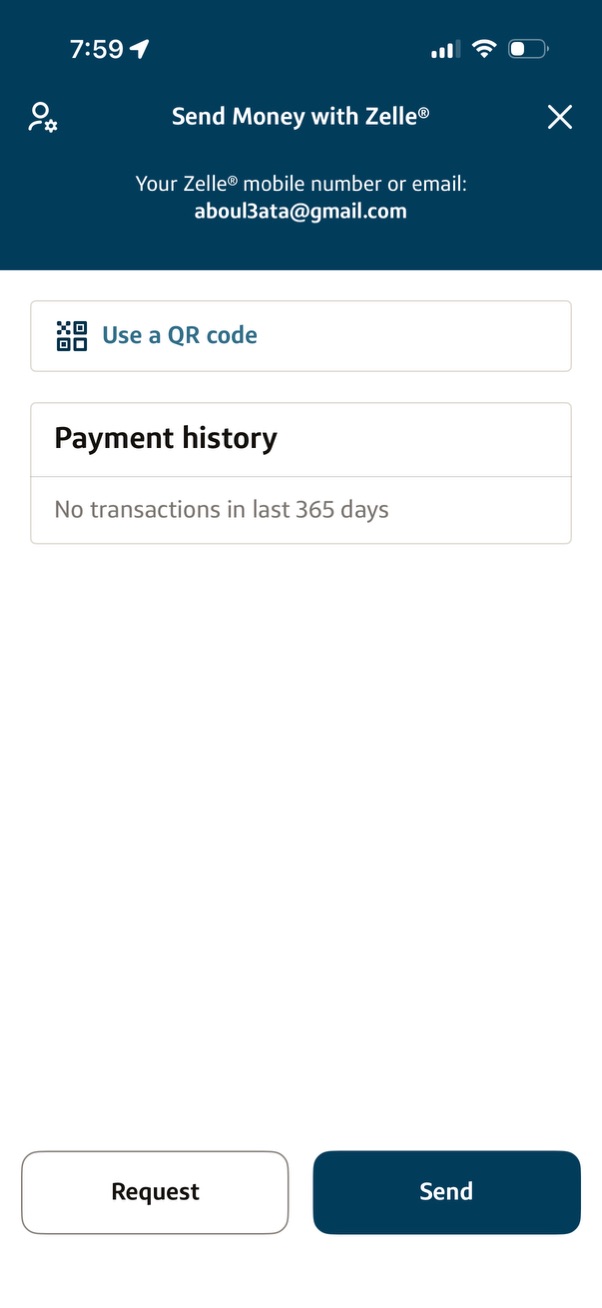
Peer-to-peer money transfer hub for Zelle showing the user’s registered email/phone, a “Use a QR code” option, and a payment history section. Bottom action buttons let the user request money or send money.