
Dashboard screen for managing your websites, showing a grid of site tiles and a prominent “Create New Site” card with a plus button to start building a new site. Users can select an existing site tile to open and manage it.
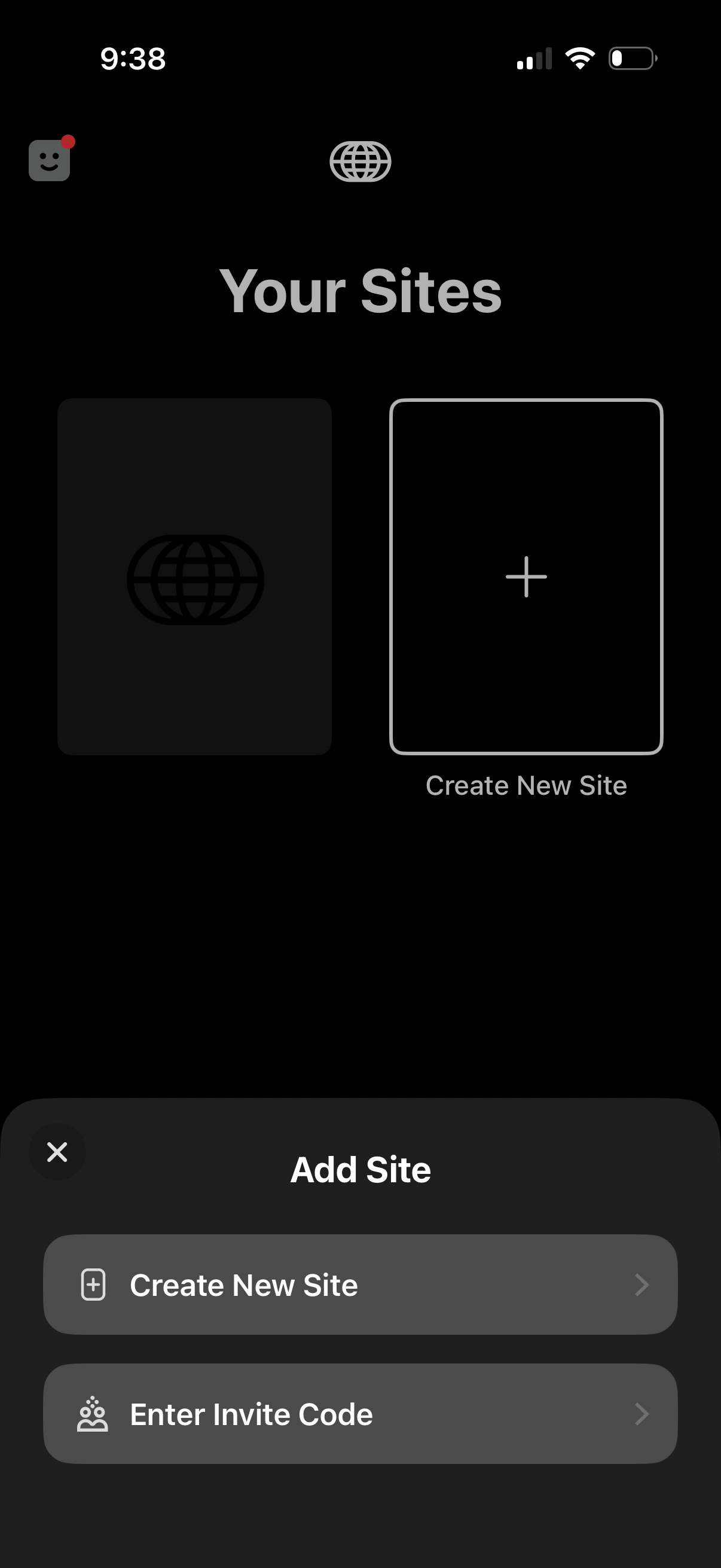
A “Your Sites” dashboard showing a grid of existing sites with a tile to create a new site. A bottom-sheet “Add Site” modal offers primary actions to Create New Site or Enter Invite Code to join an existing site.
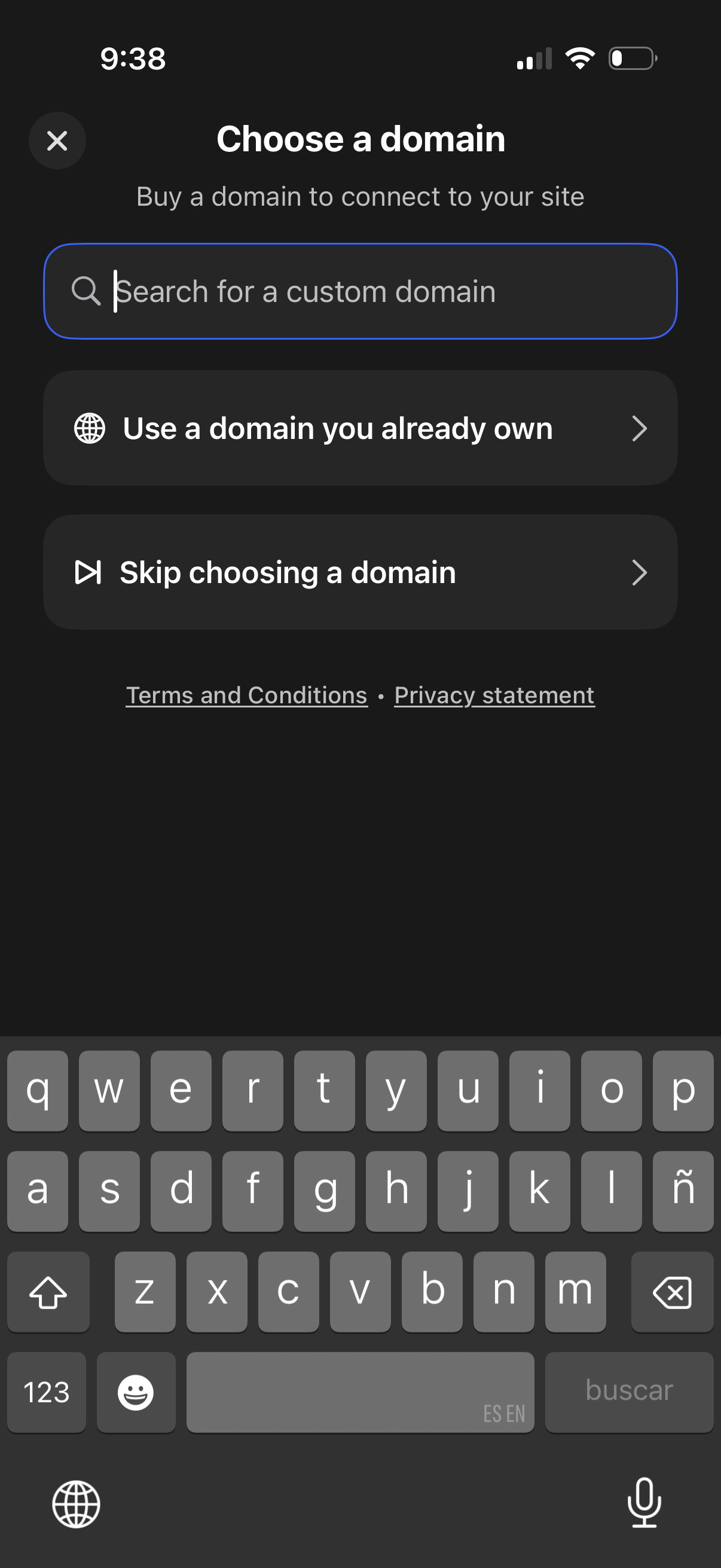
Domain setup screen for a website builder where users can search and buy a custom domain to connect to their site, or choose options to use an existing domain or skip domain selection. Includes a close button and links to terms and privacy.
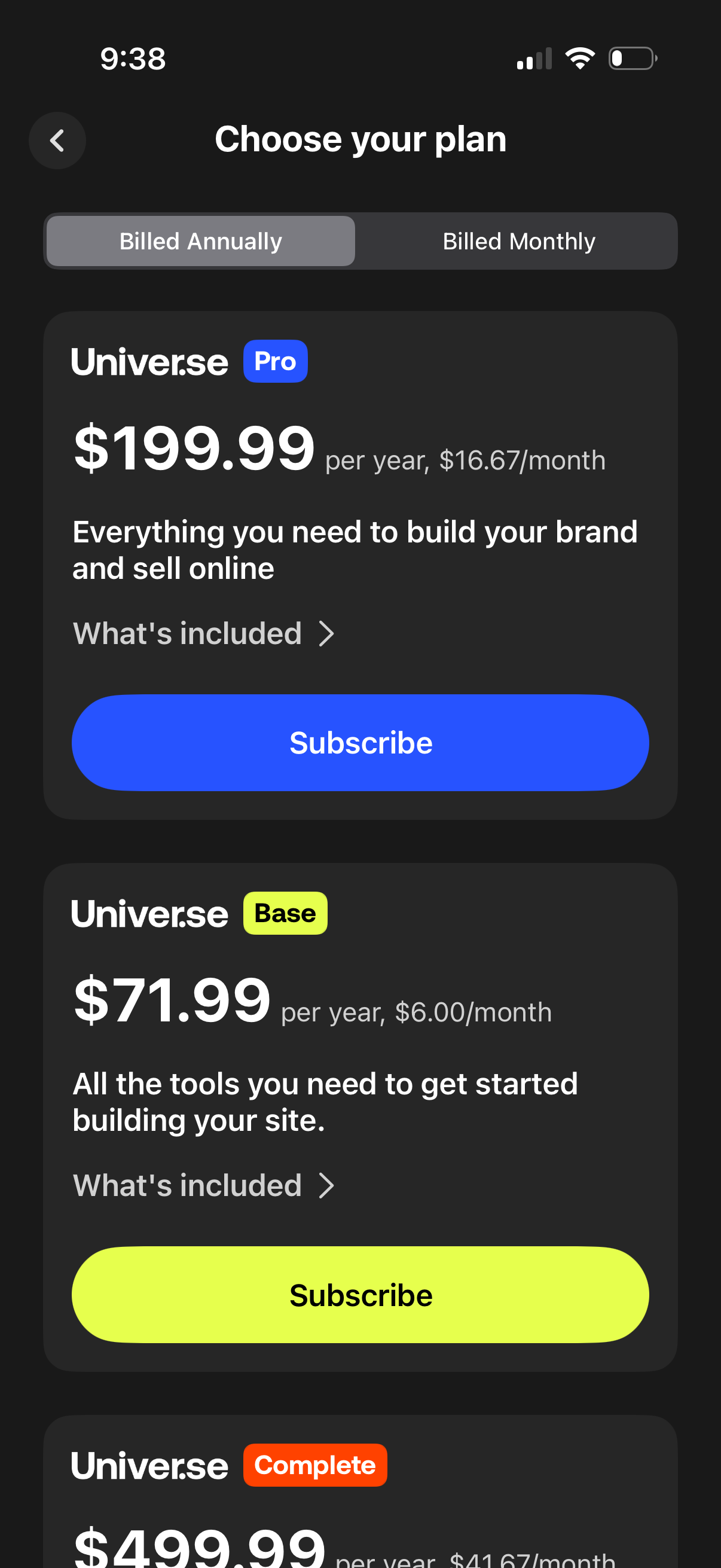
Subscription paywall screen for choosing a plan, with a toggle to switch between billed annually and billed monthly. Displays tiered pricing cards (e.
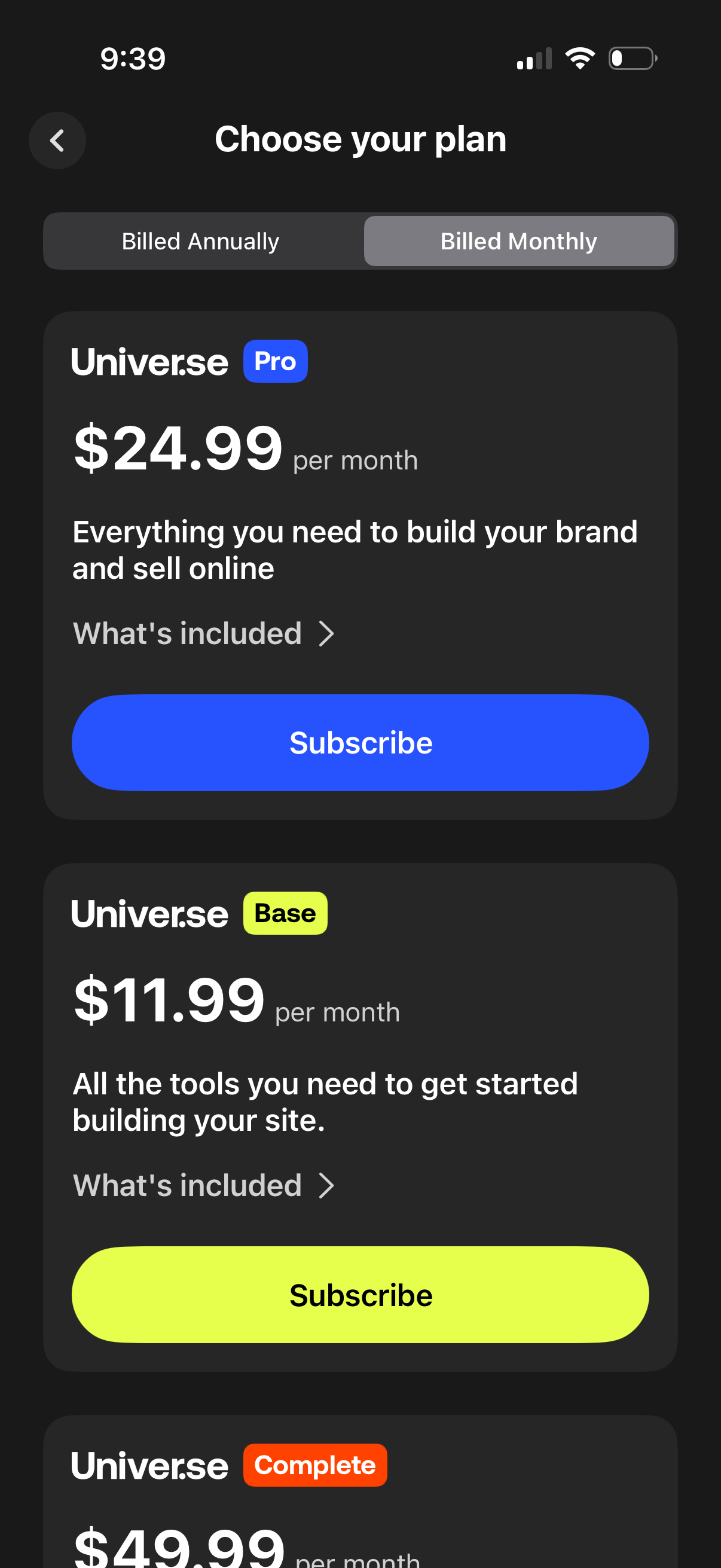
Subscription pricing screen where users choose a plan with a toggle for billed annually vs billed monthly and compare tiered options (Pro, Base, Complete) showing monthly price, brief benefits, and a “What’s included” link. Each plan card has a prominent Subscribe CTA to start the in-app purchase.
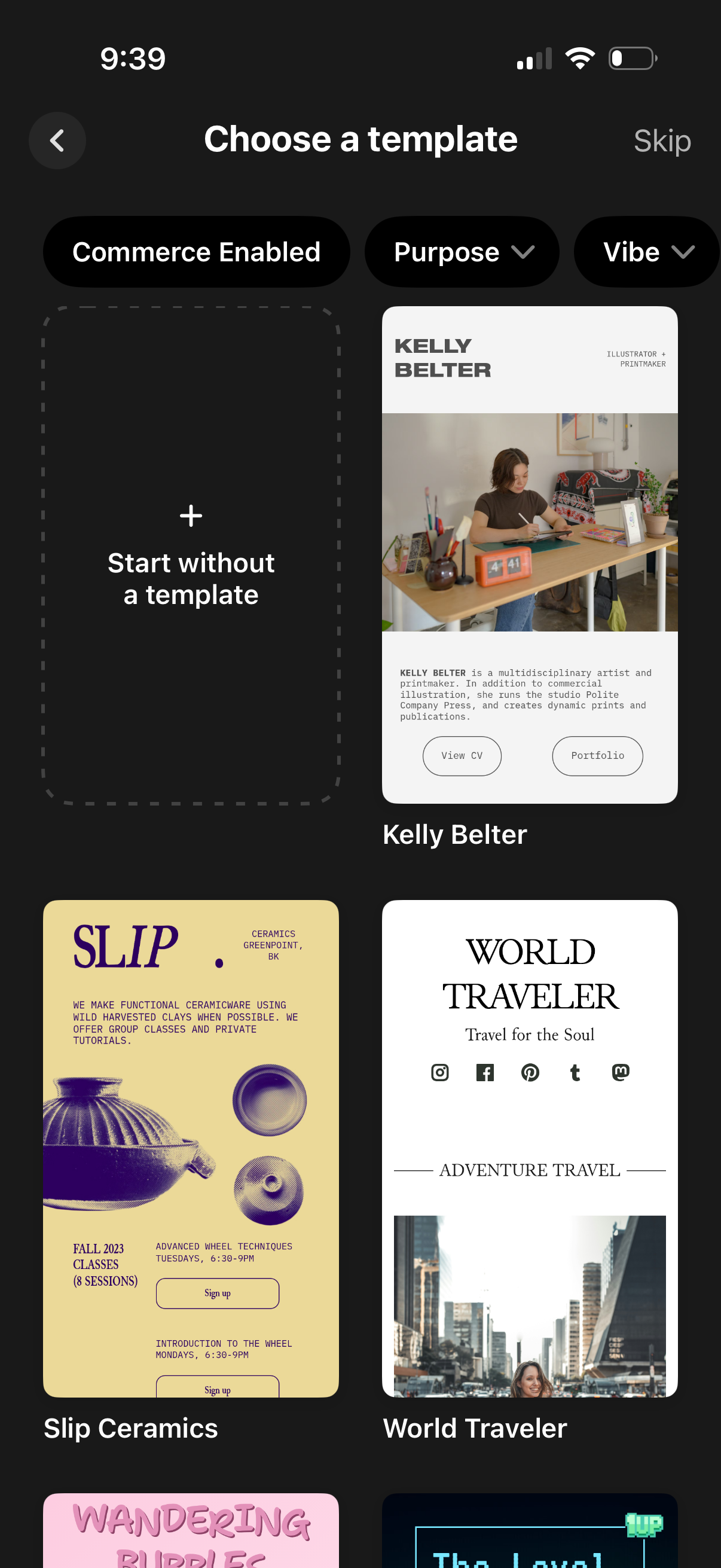
Template selection screen for creating a website or page, showing a grid of preview cards and an option to start without a template. Users can filter templates by commerce enabled, purpose, and vibe, and can skip or go back.
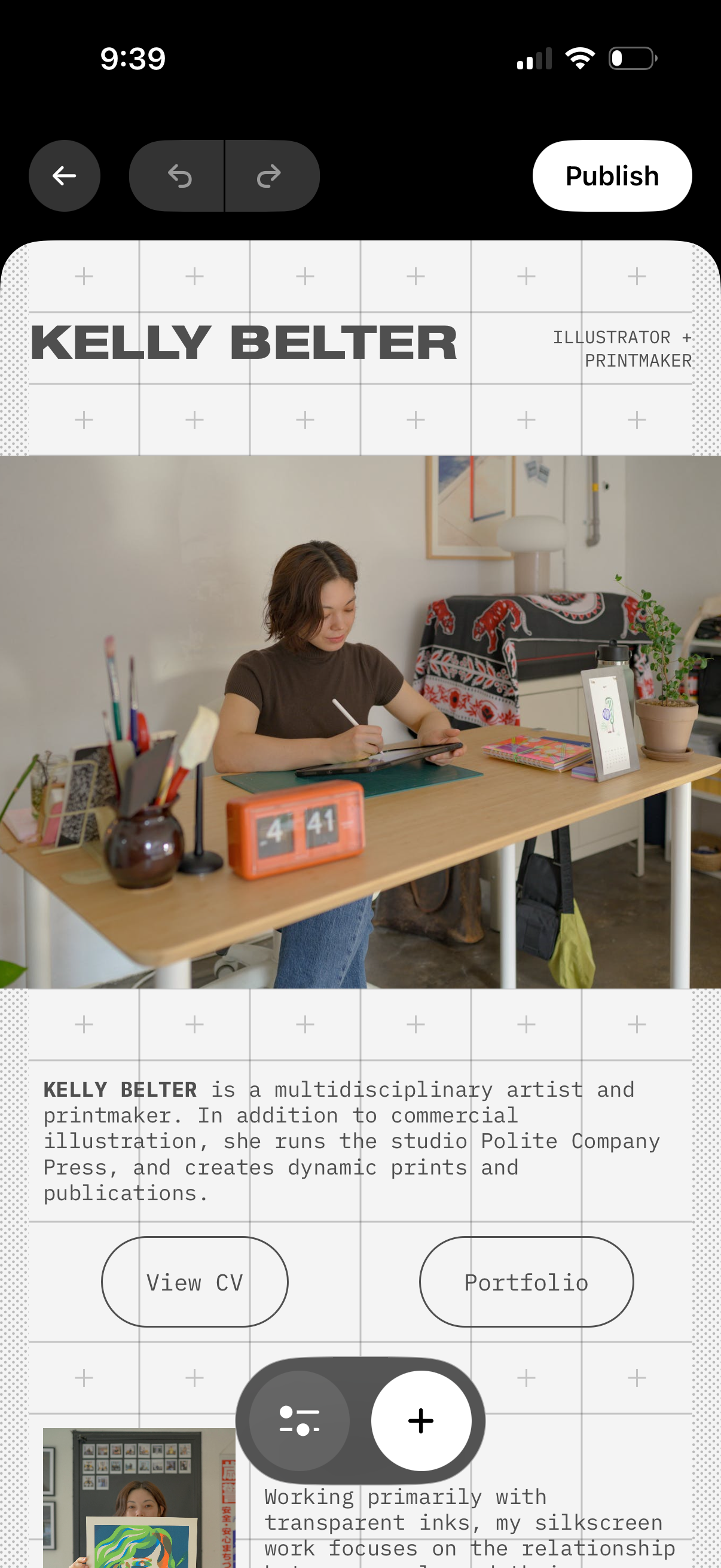
Mobile portfolio website editor showing a hero section with creator name/title, profile photo, and bio text with call-to-action buttons like View CV and Portfolio. Top controls include back navigation, undo/redo, and a Publish button, plus floating add (+) and settings actions to insert or adjust content blocks on the page.
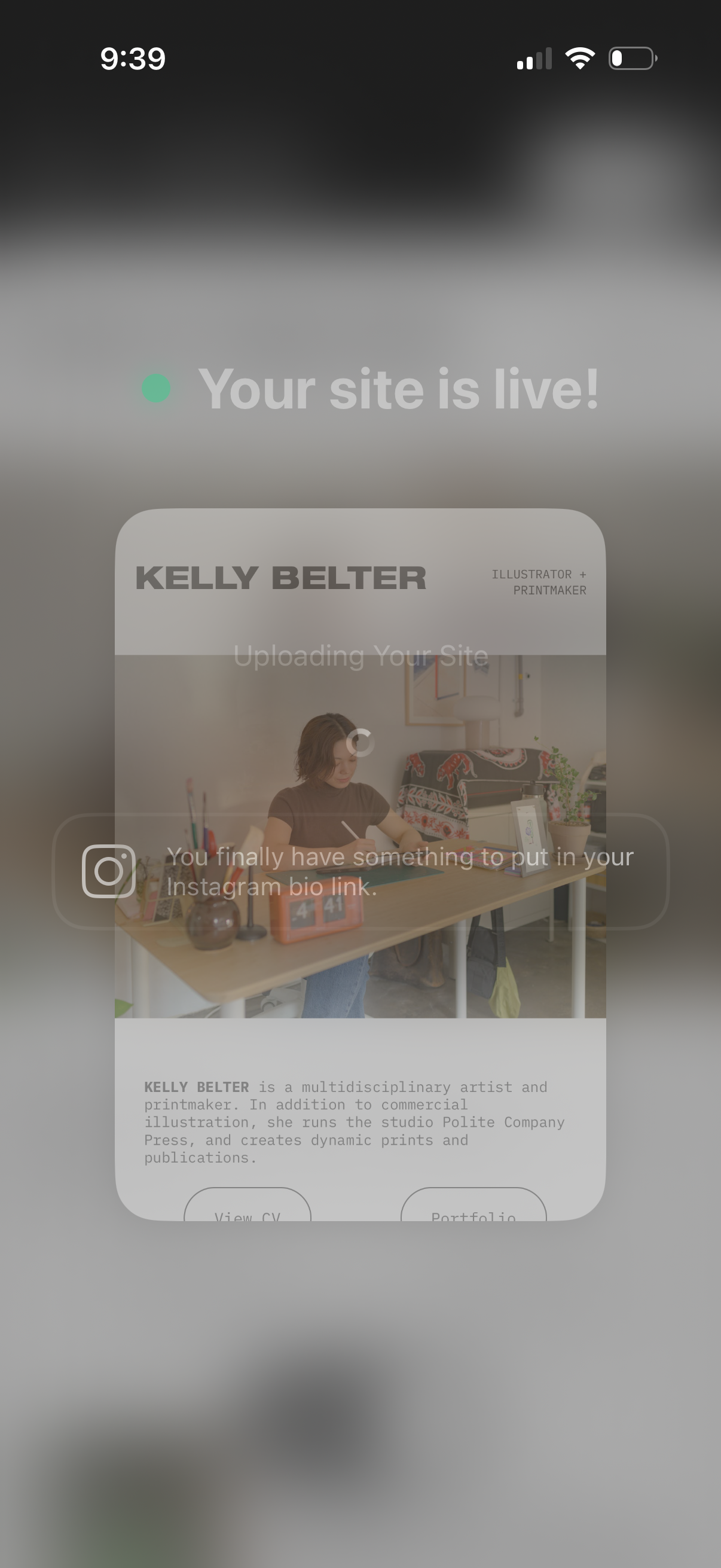
Confirmation/status screen for publishing a website, showing a “Your site is live! ” success message with an uploading/loading indicator and a preview of the live site.
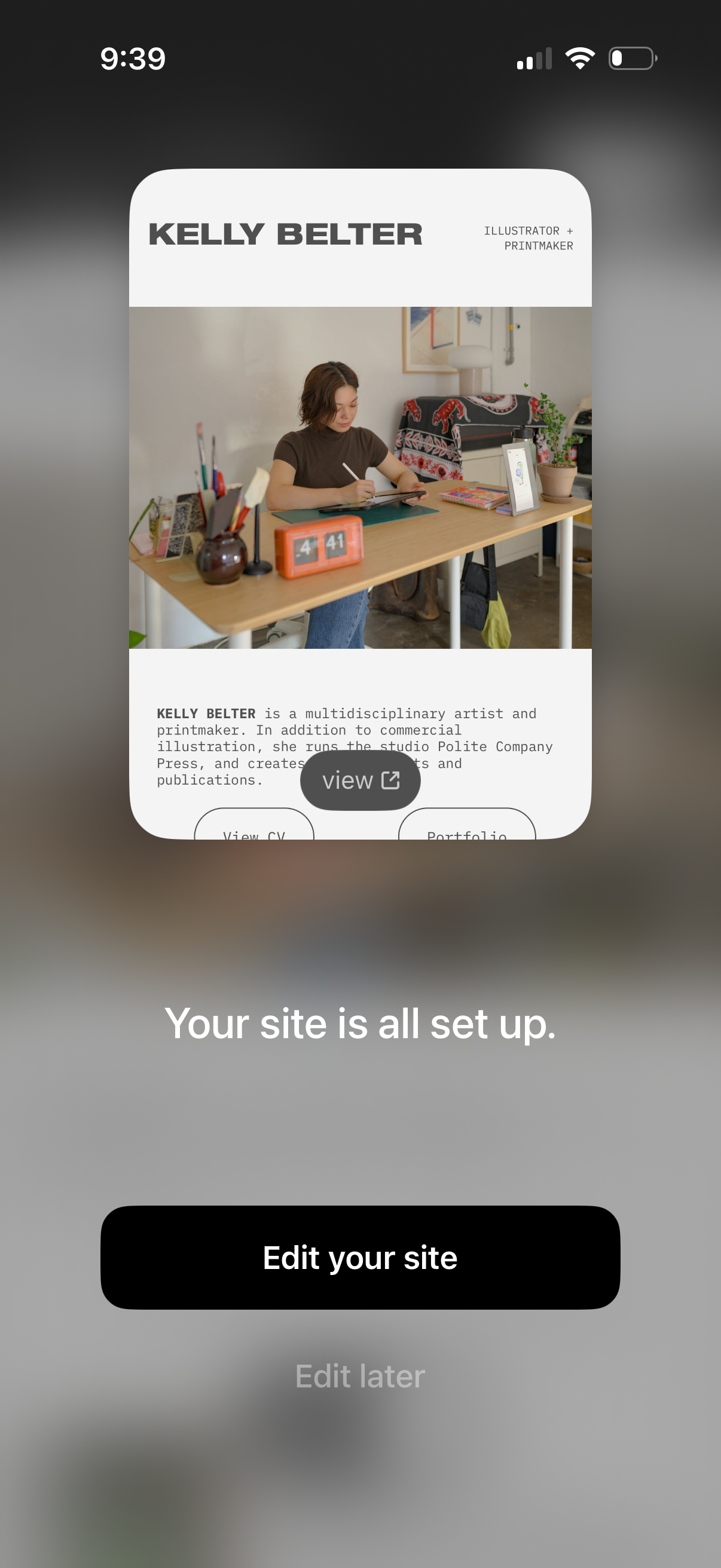
Confirmation screen indicating a newly created personal portfolio website is set up, showing a preview of the site’s homepage. Primary action is a CTA button to “Edit your site,” with an option to edit later.