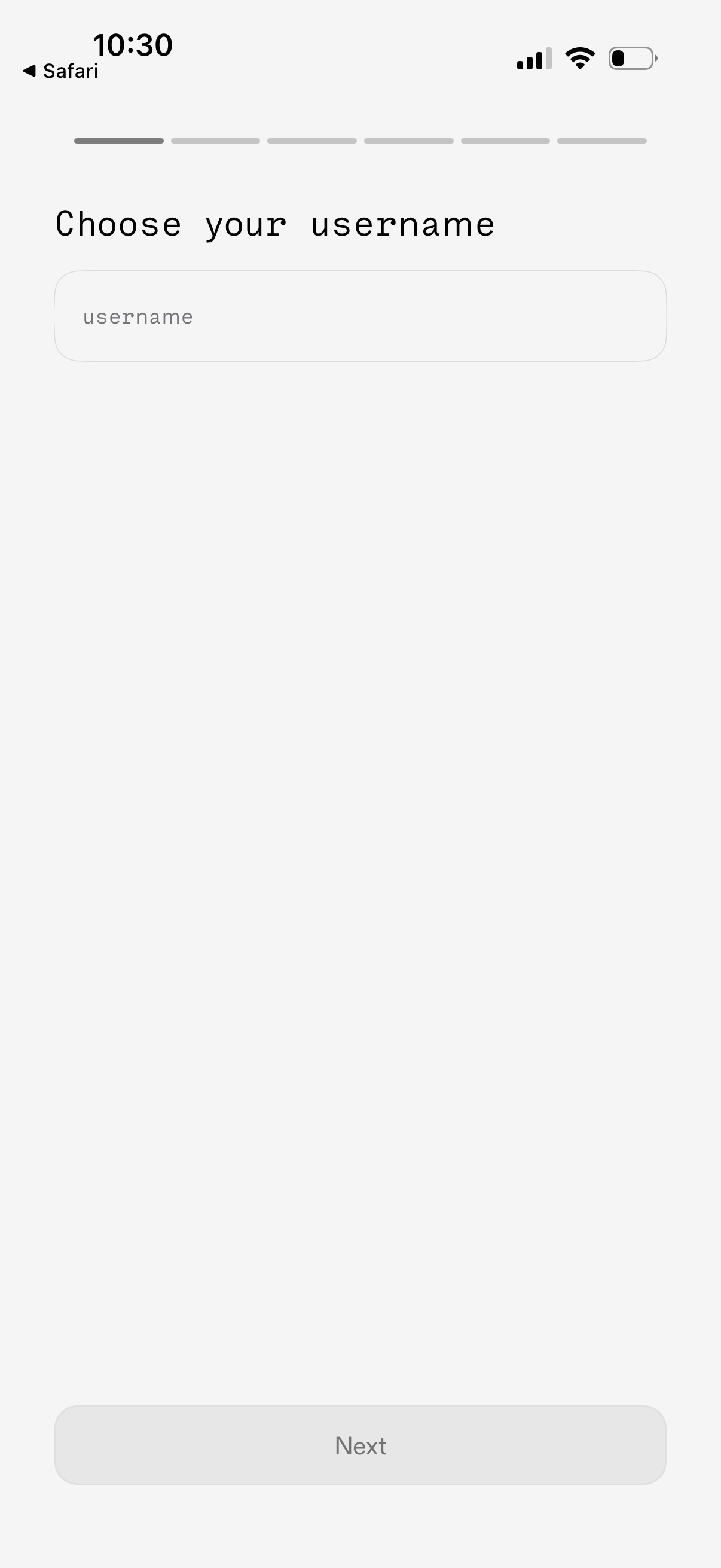
Onboarding sign-up screen prompting the user to choose a username, with a single text input field and a disabled “Next” button that becomes available after entering a valid username. A progress indicator at the top shows this is one step in a multi-step registration flow.
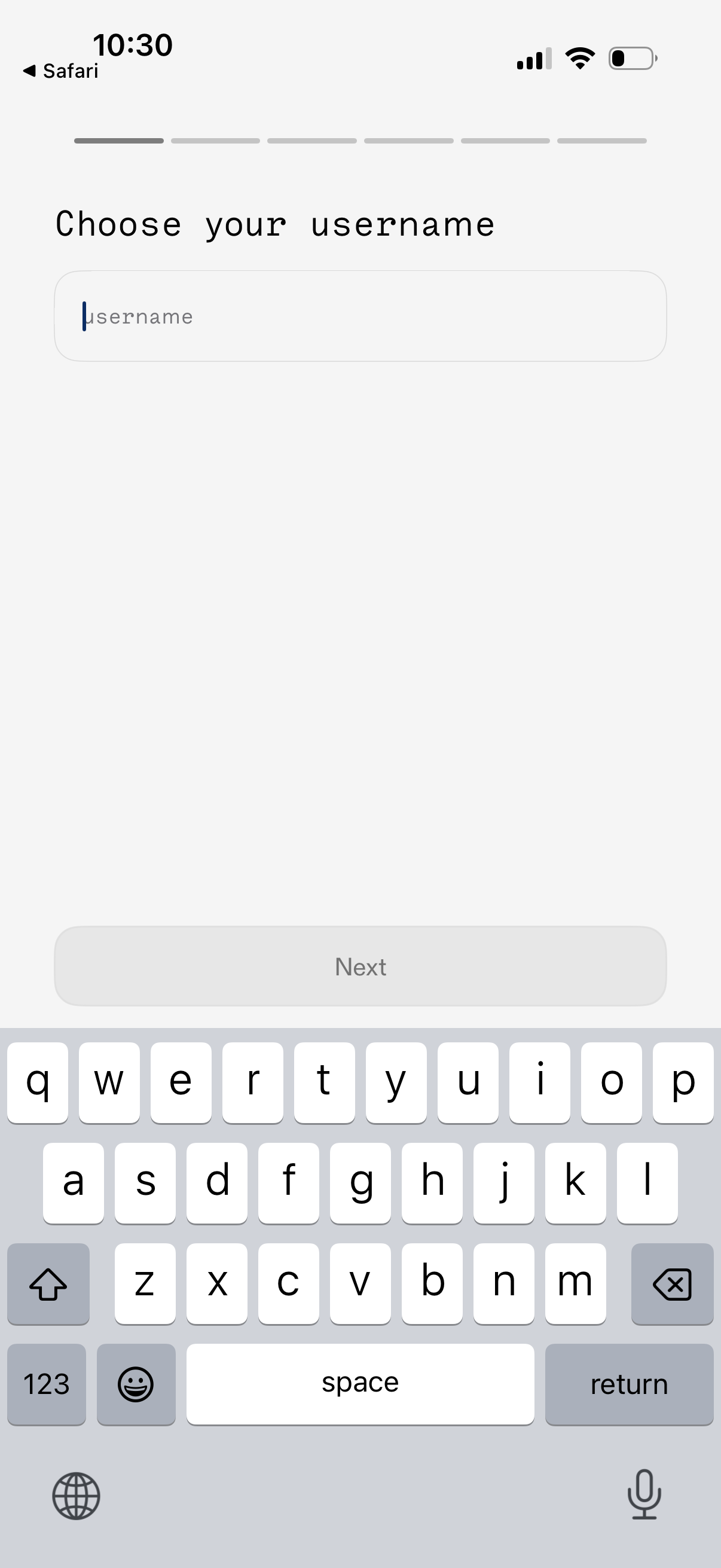
Onboarding sign-up step prompting the user to choose a username with a single text input field and a disabled Next button that becomes available after entering a valid username, with a progress indicator showing multiple steps in the flow.
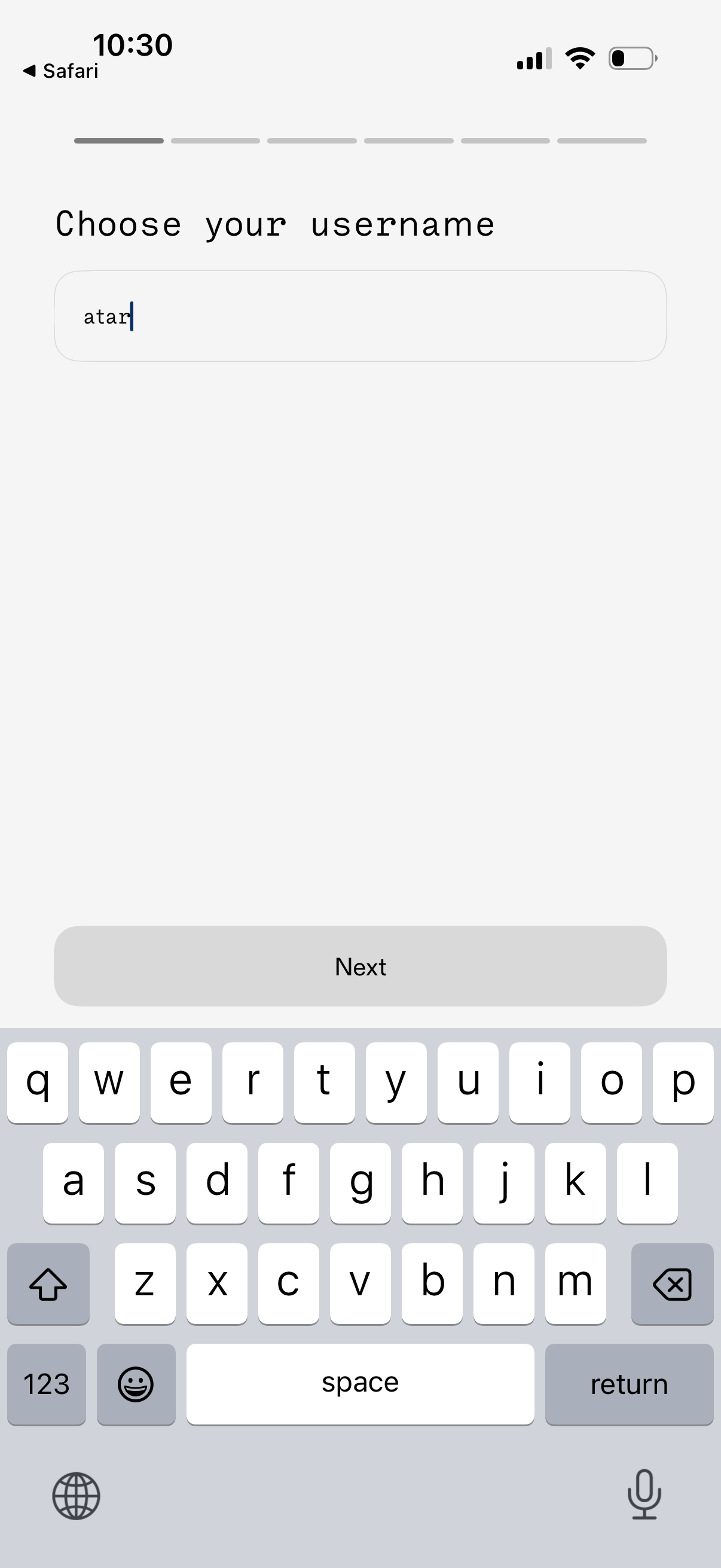
Onboarding sign-up screen prompting the user to choose a username with a single text input field and a disabled/enabled “Next” button to proceed to the next step. A progress indicator at the top shows this is part of a multi-step registration flow.
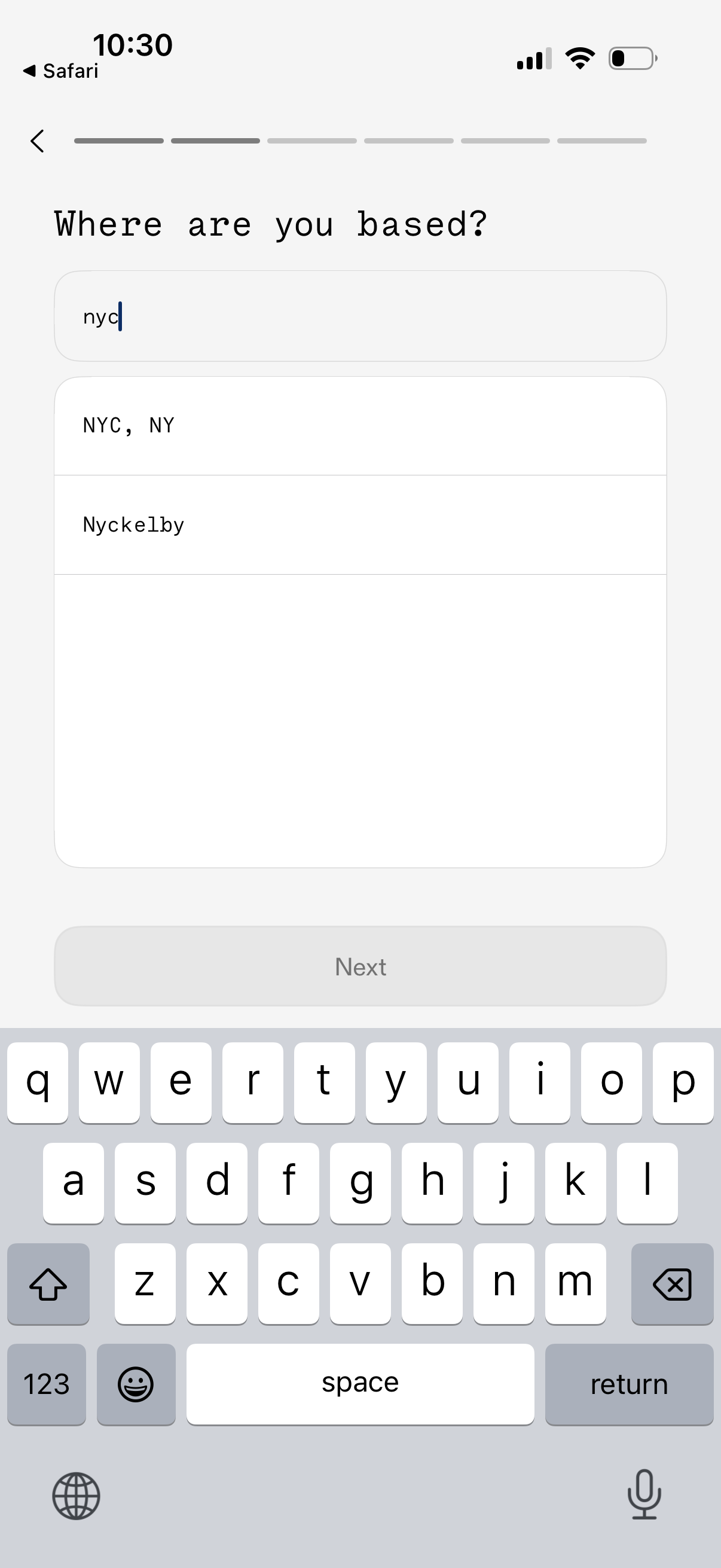
Onboarding profile screen asking “Where are you based? ” with a location search input and autocomplete suggestions list for city/state selection, plus a back arrow, progress indicator, and a disabled Next button until a valid location is chosen.
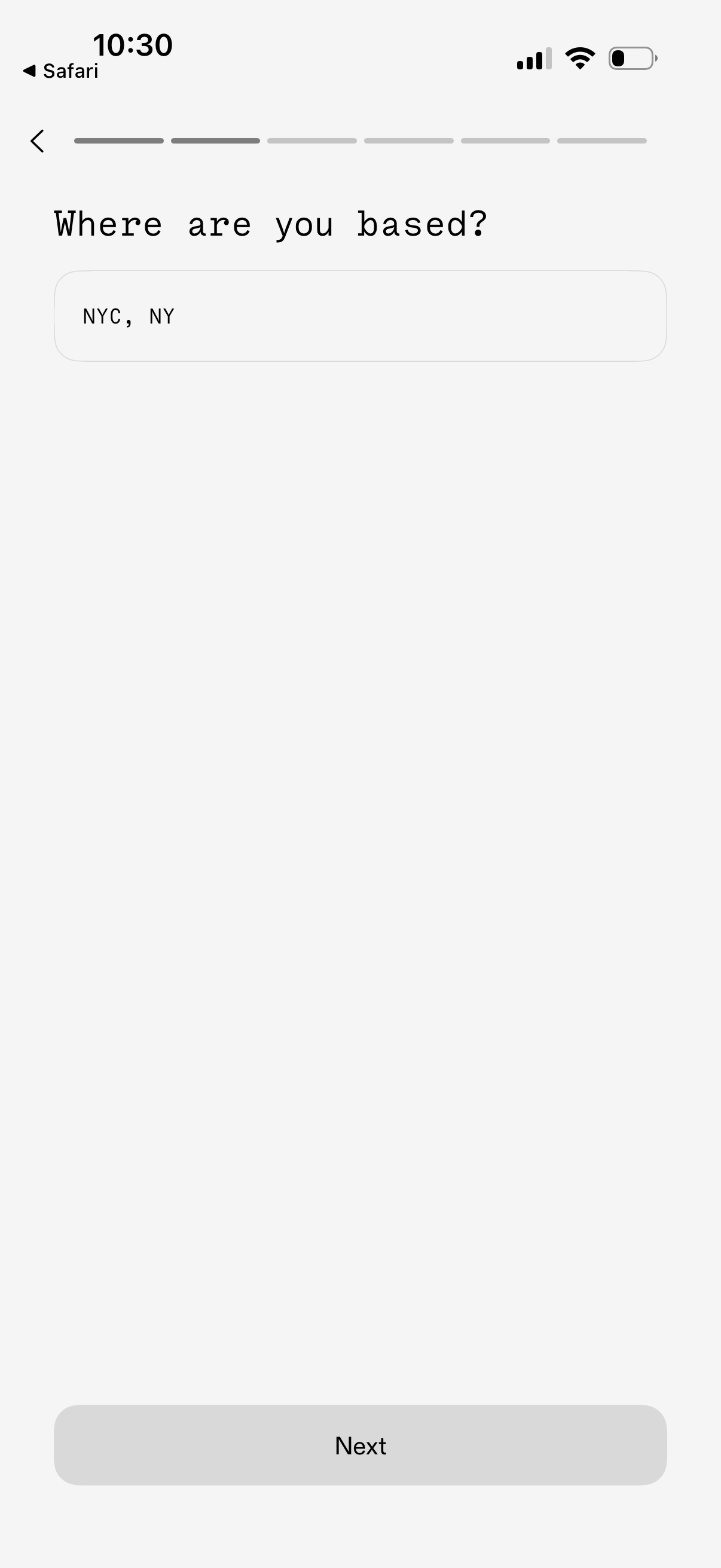
Onboarding form screen asking the user to enter their location or city where they are based, with a single text input field and a primary “Next” button to continue to the next step. A progress indicator and back navigation show this is part of a multi-step signup flow.
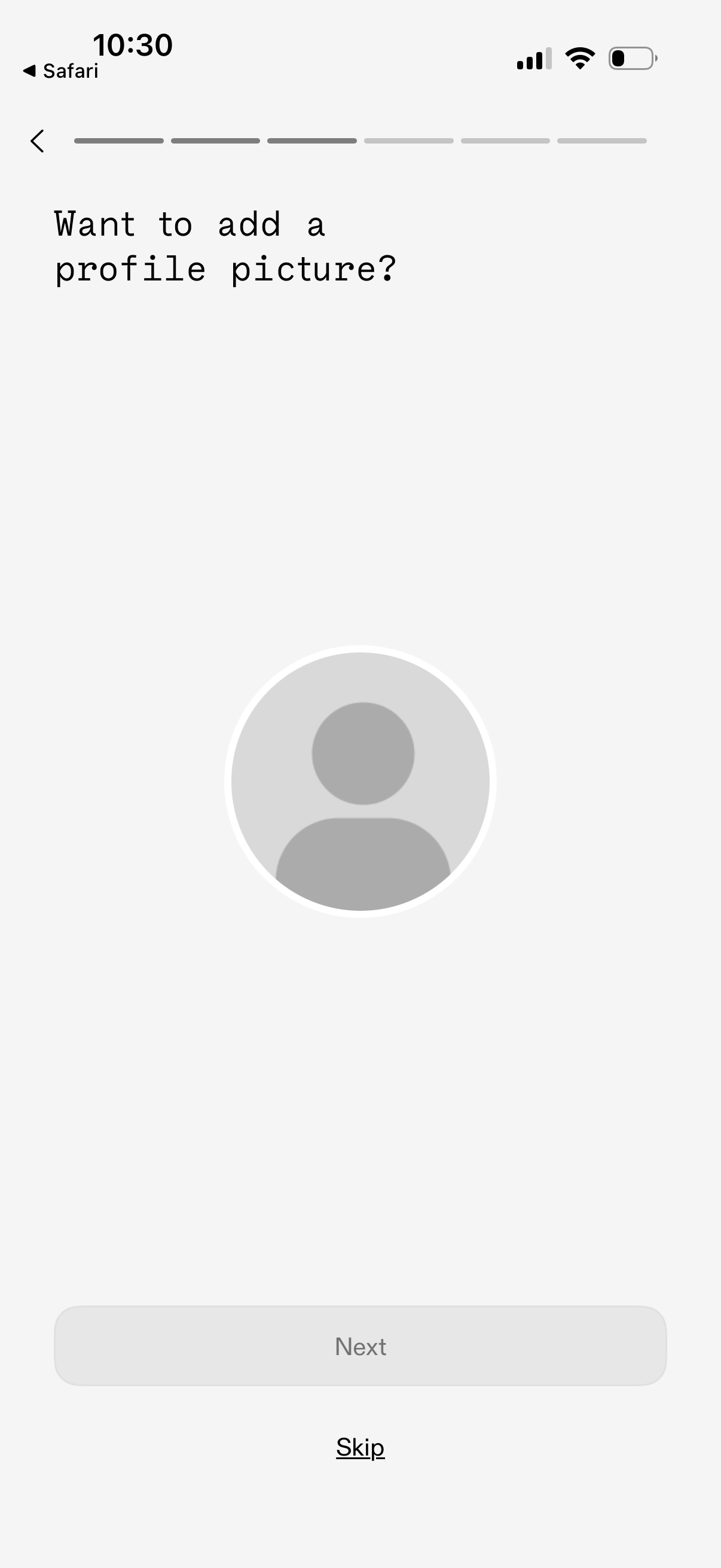
Onboarding step prompting the user to add a profile picture, showing a default avatar placeholder with a progress indicator and back navigation. Primary actions allow continuing with a disabled “Next” button until a photo is added, or skipping the step.
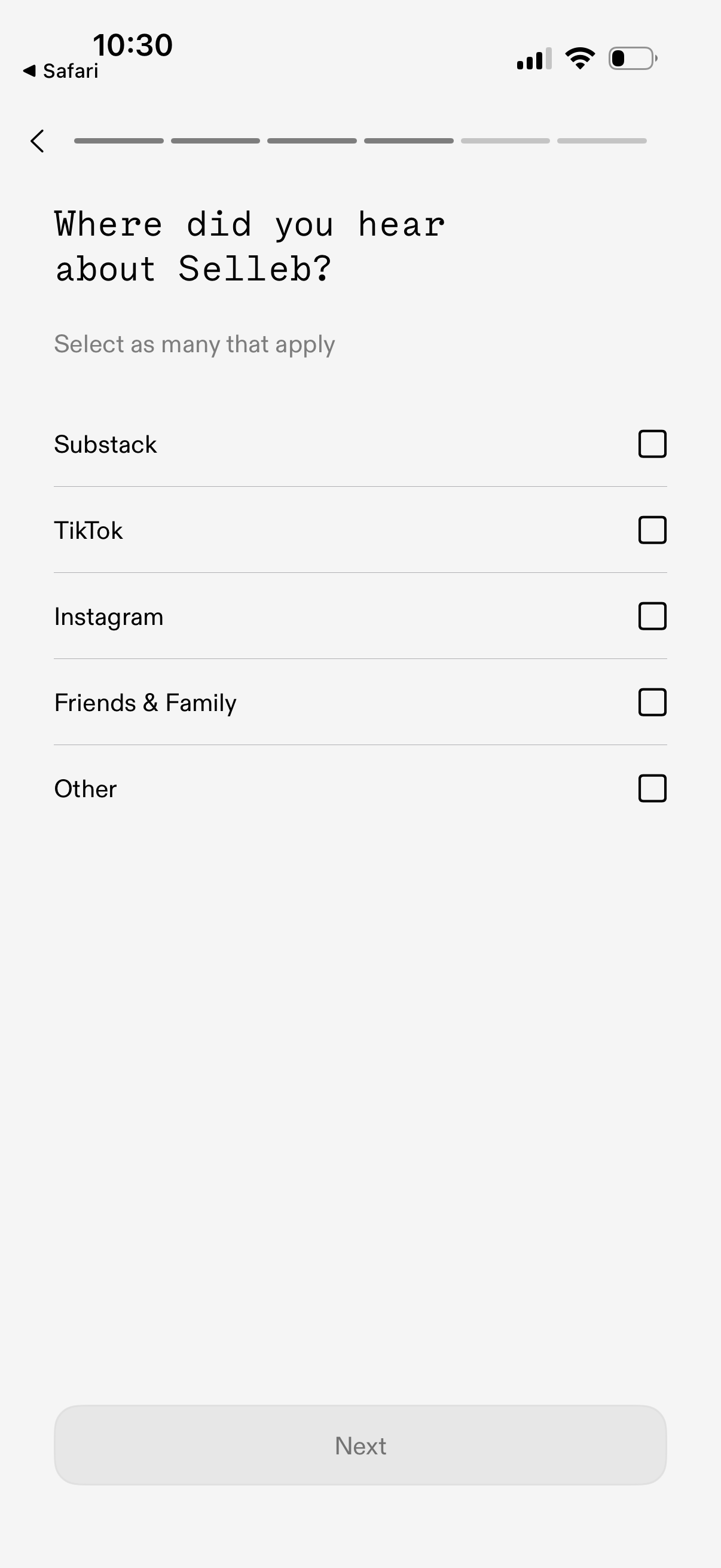
Onboarding survey screen asking “Where did you hear about [app]? ” with a multi-select checklist of acquisition sources (e.
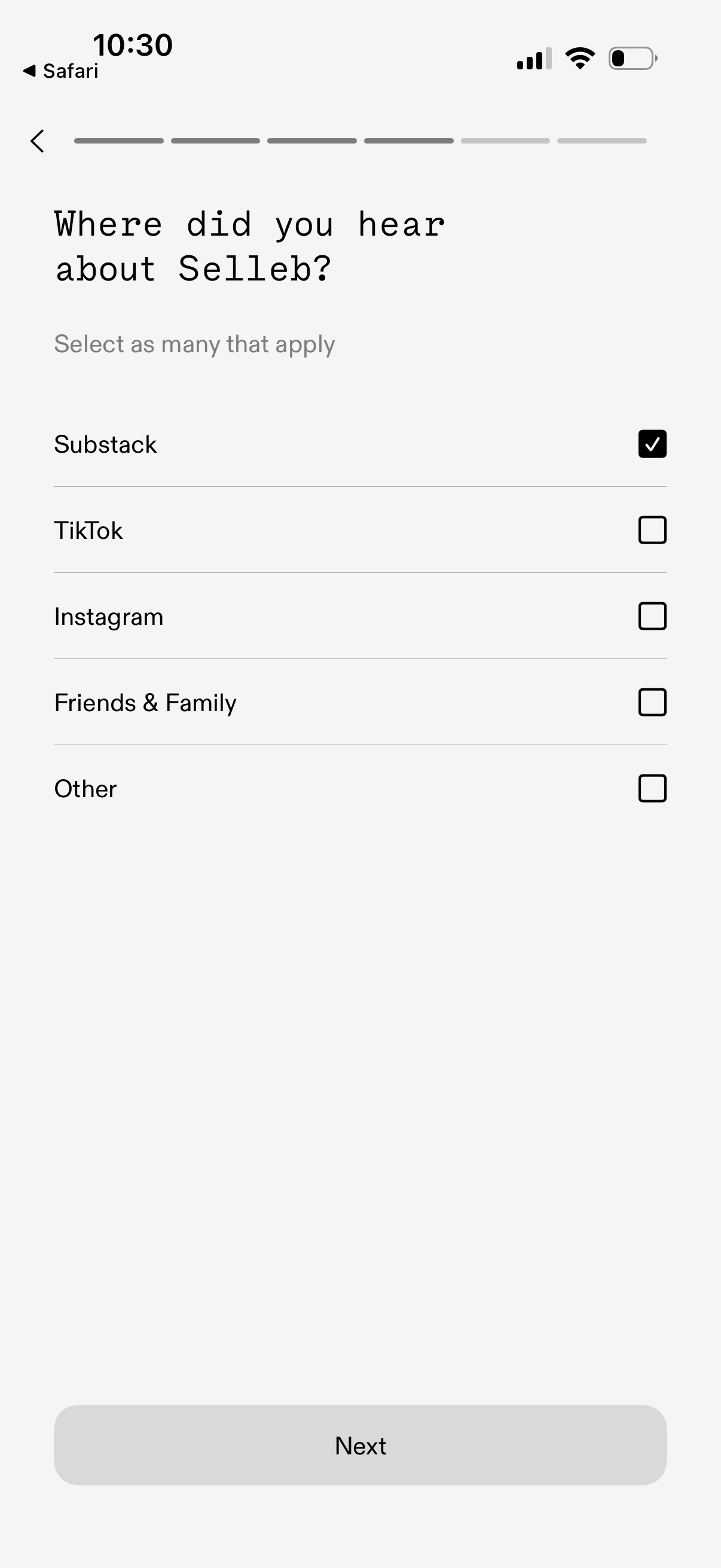
Onboarding survey screen asking “Where did you hear about [app]? ” with a multi-select checklist of marketing referral sources (e.
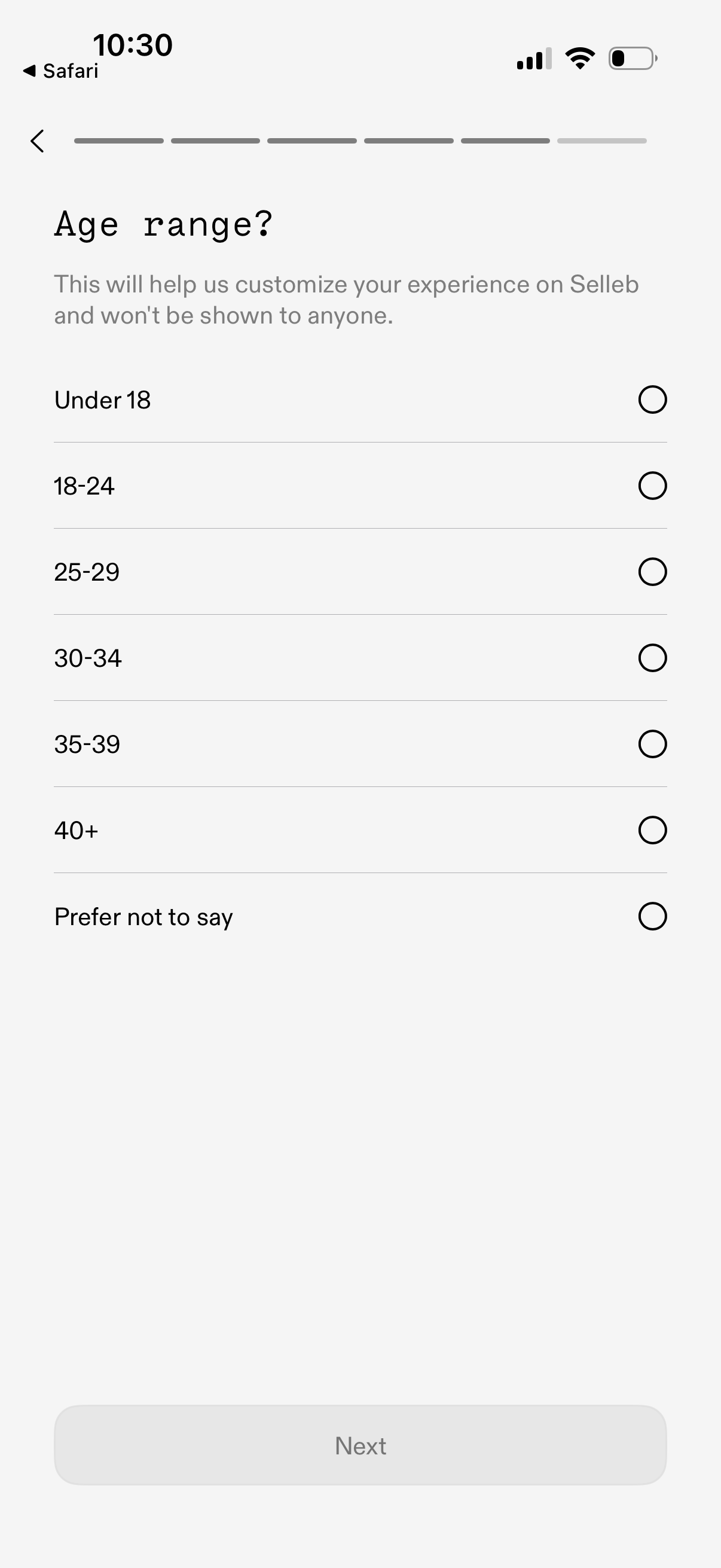
Onboarding demographic question screen asking the user to select their age range to personalize the experience, using single-select radio options (Under 18 through 40+ and Prefer not to say). Includes a progress indicator, back navigation, and a disabled “Next” button that becomes available after making a selection.
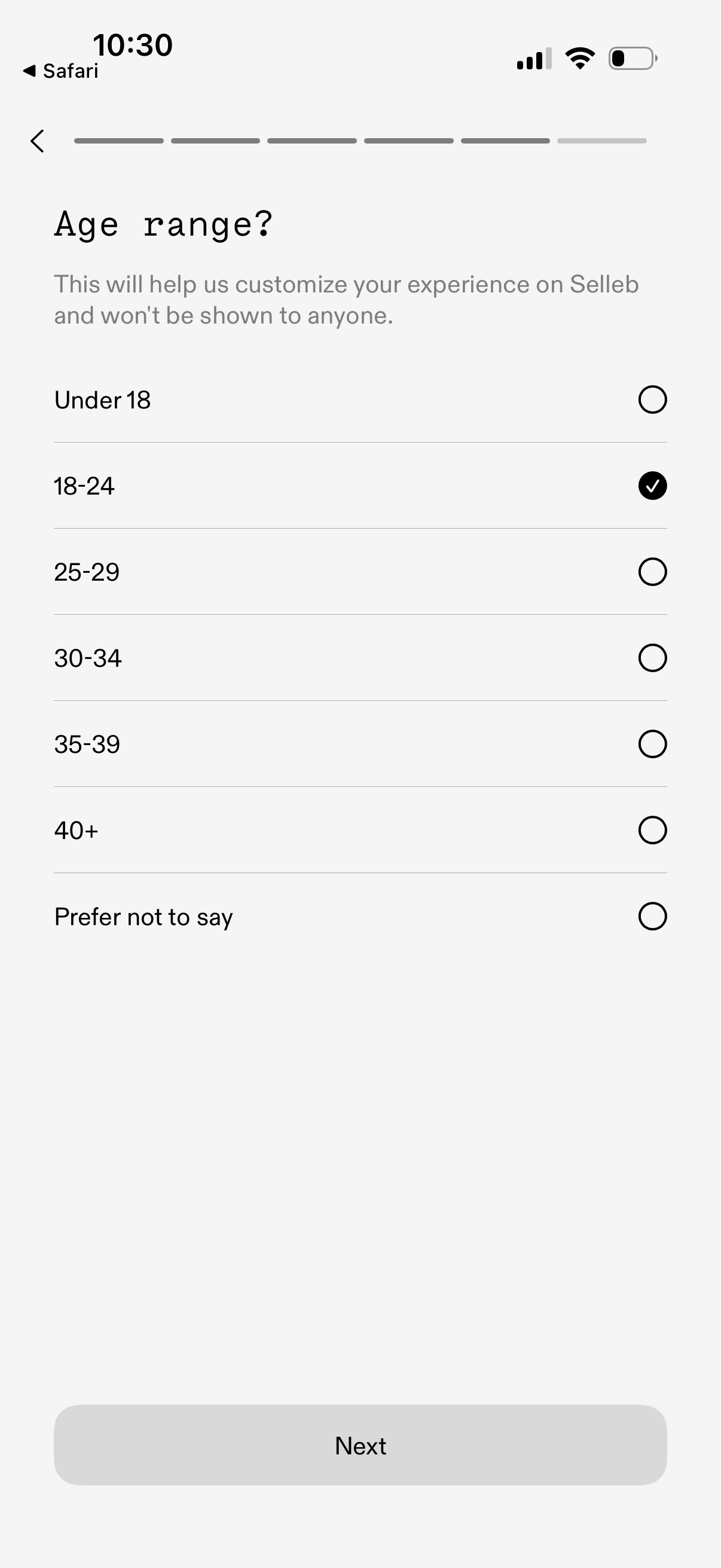
Onboarding profile setup screen asking the user to select their age range via single-choice radio buttons (under 18 through 40+ or prefer not to say), with a progress indicator and a Next button to continue. The selection is described as private and used to customize the app experience.
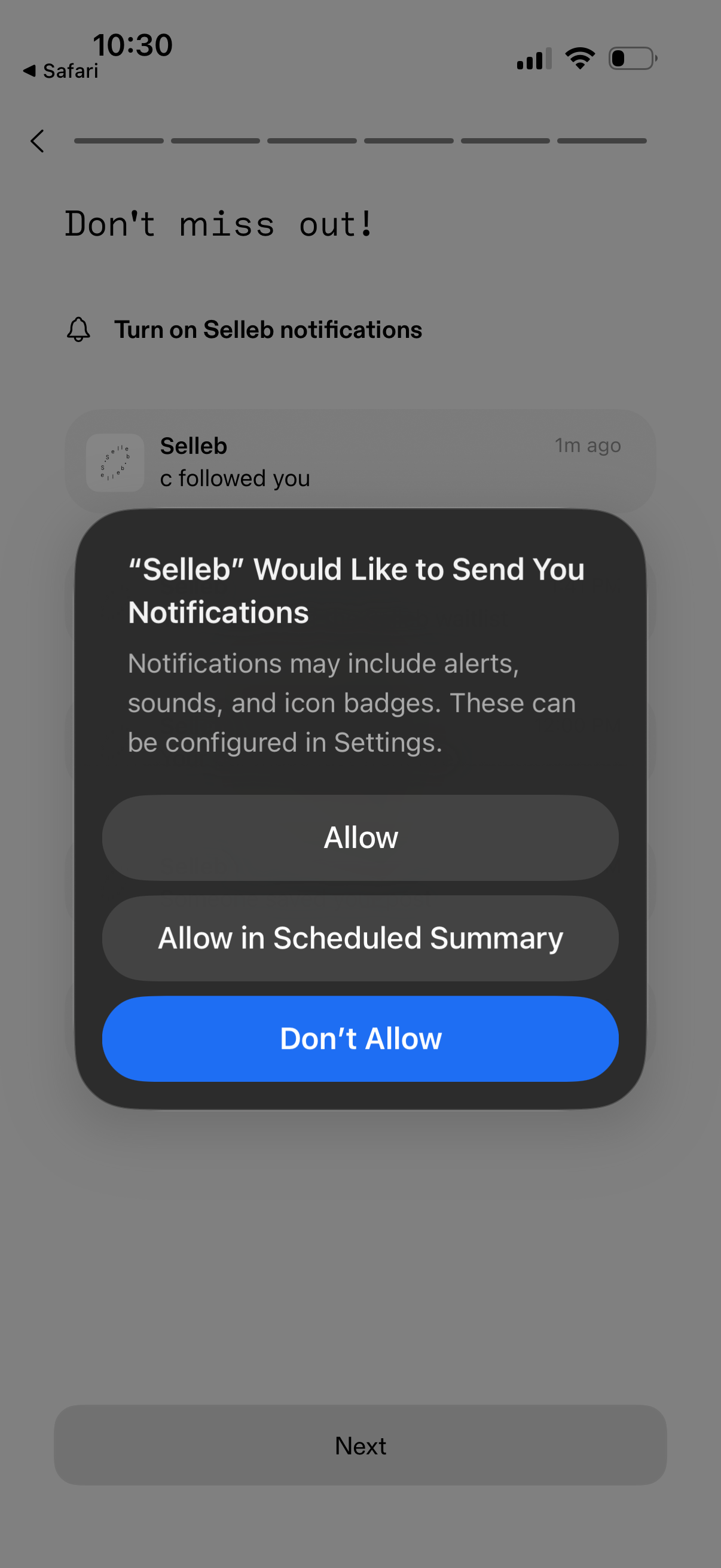
Onboarding screen prompting the user to enable app push notifications, showing the iOS system permission modal with options to Allow, Allow in Scheduled Summary, or Don’t Allow. The background includes a “Don’t miss out” message and a Next button to continue setup.
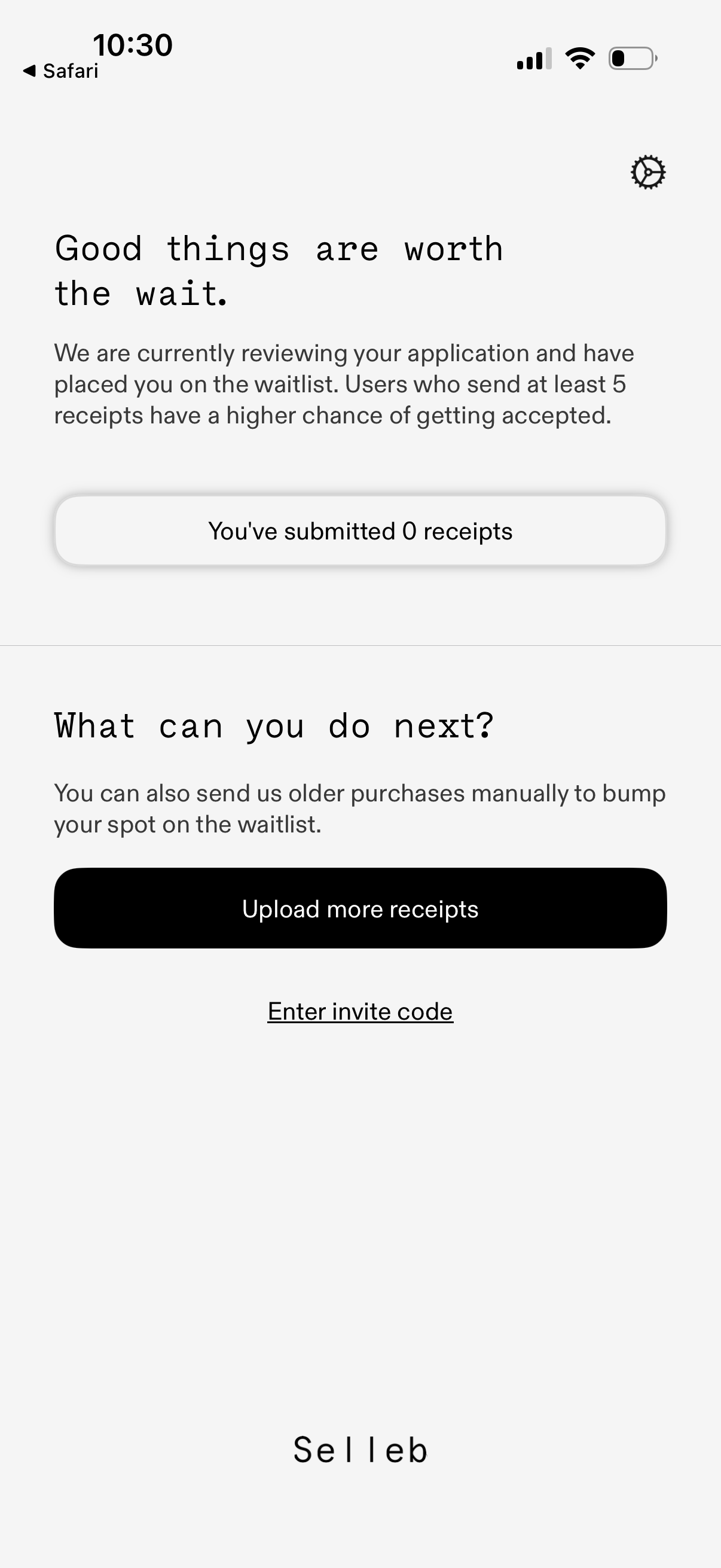
Waitlist status screen informing the user their application is under review and showing how many receipts they’ve submitted to improve acceptance odds. Provides primary actions to upload more receipts and an option to enter an invite code to gain access.