create account with phone
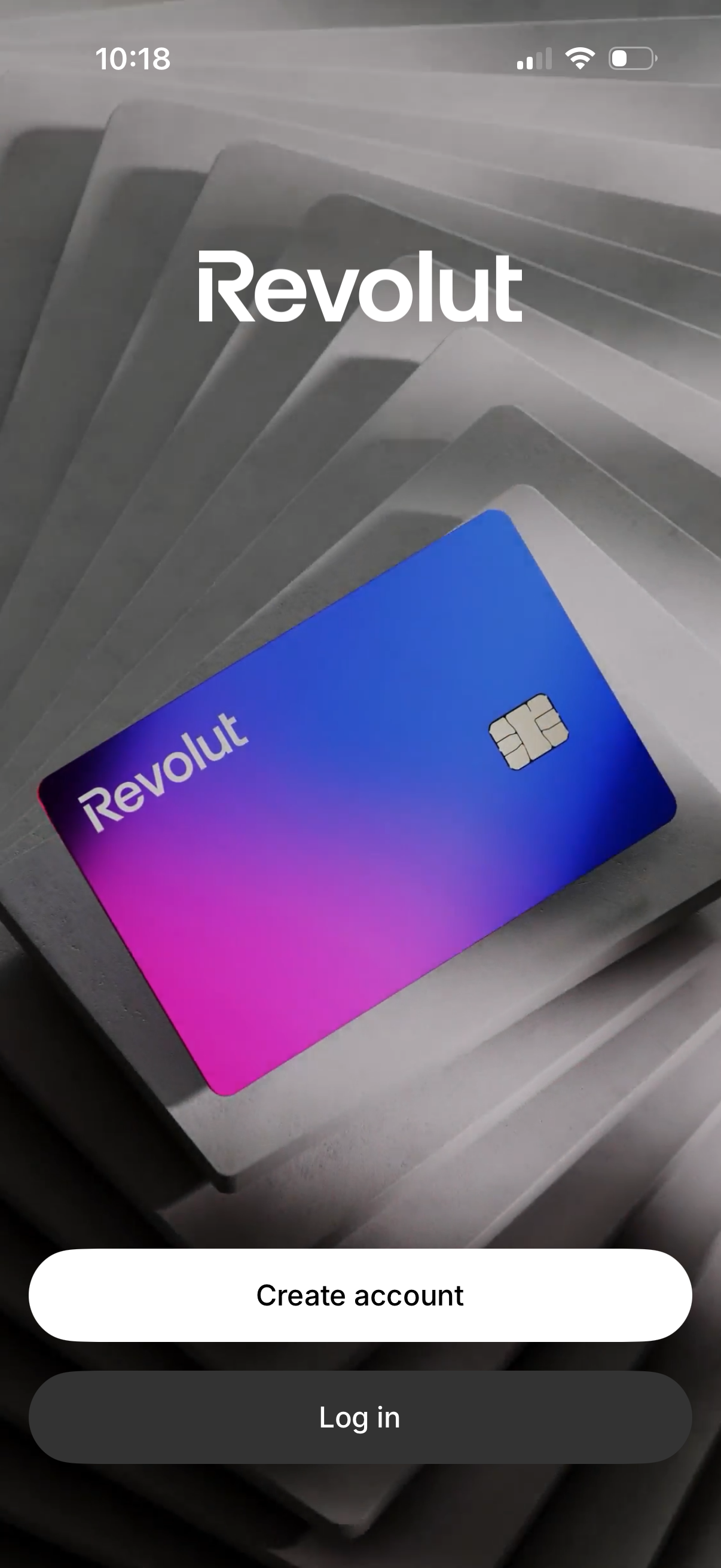
Welcome screen for a digital banking/finance app showing branded card imagery and the app logo, with primary calls to action to Create account or Log in for onboarding and authentication.
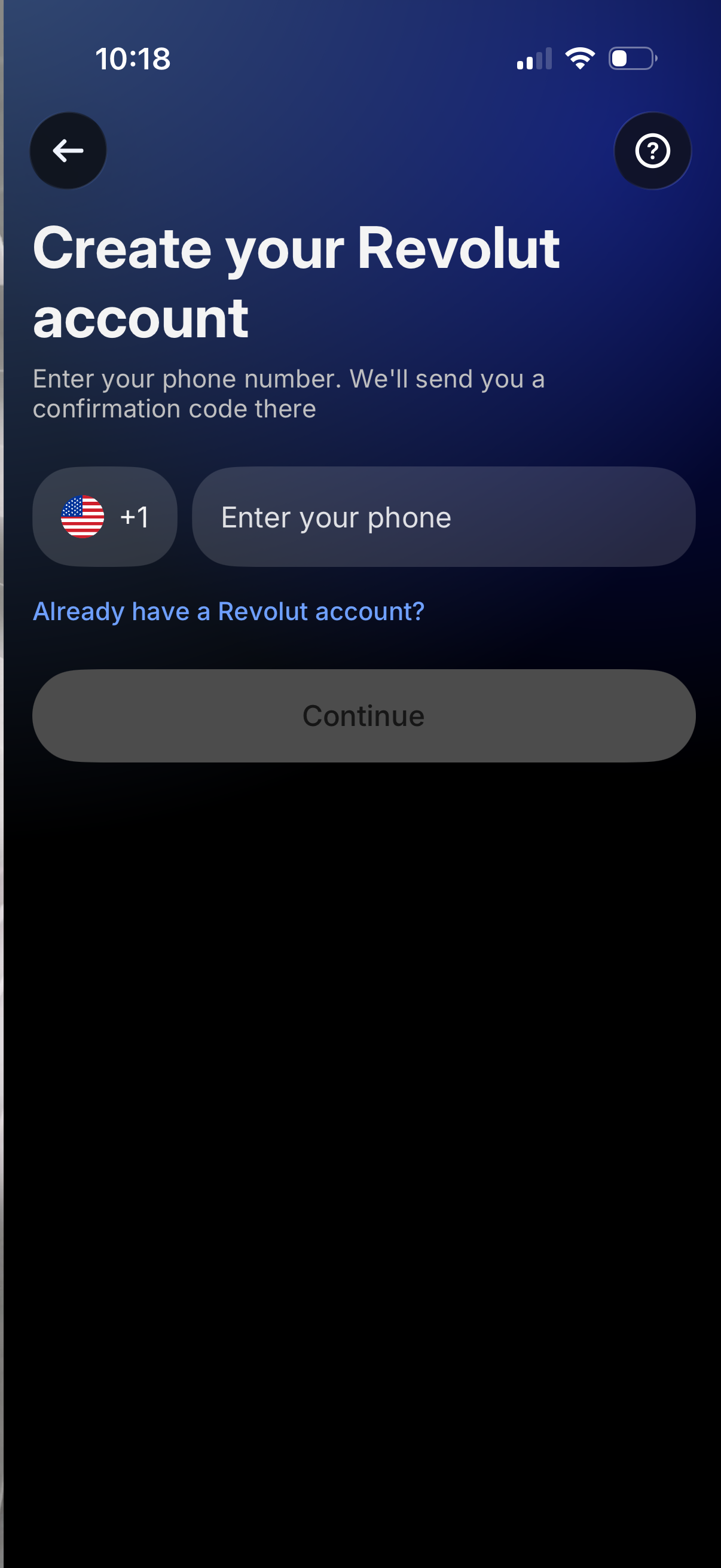
Account creation sign-up screen prompting the user to enter a mobile phone number with country code selection to receive an SMS verification code. Includes a “Continue” call to action, link for existing account holders, plus back and help icons.
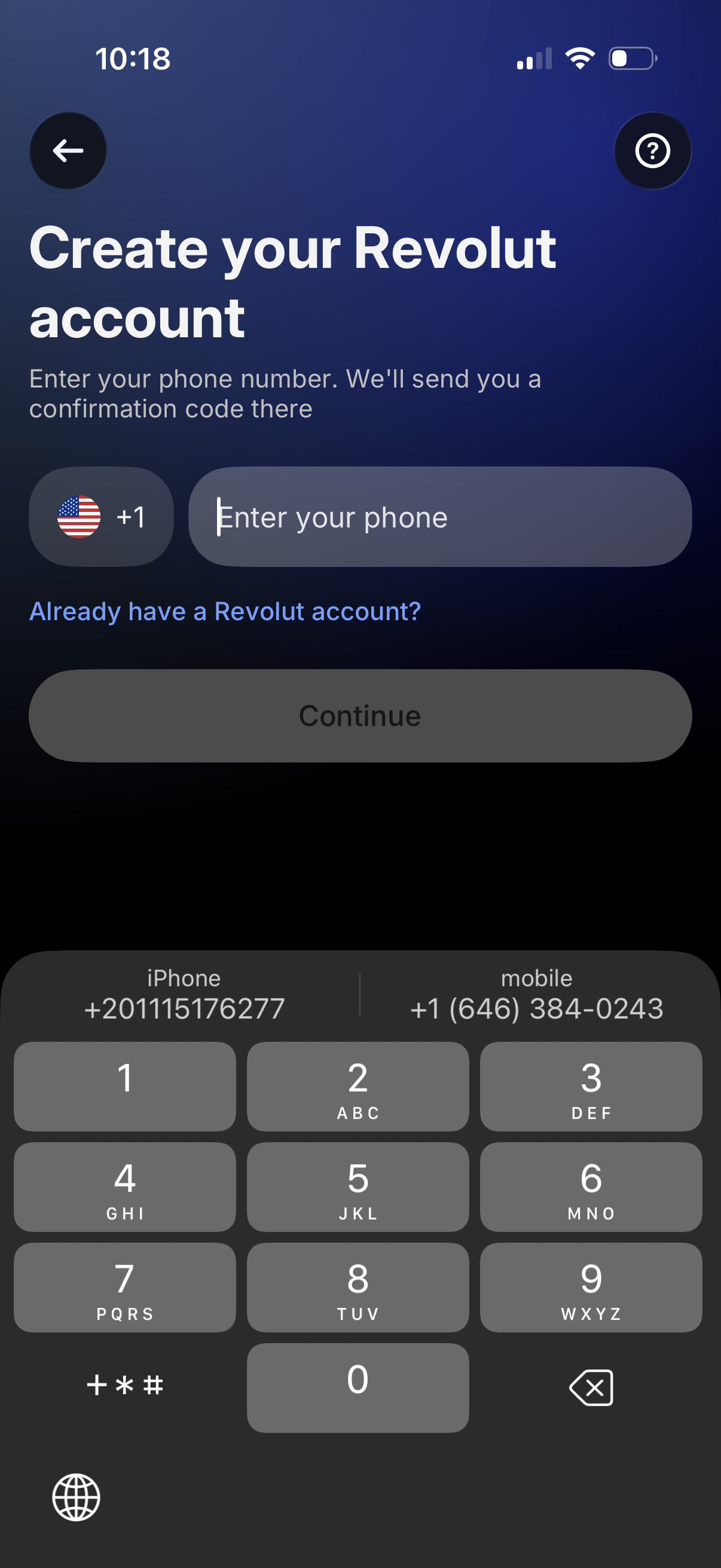
Account sign-up screen prompting the user to create an account by entering a phone number with a selectable country code, indicating a verification code will be sent via SMS. Includes a Continue CTA, link for existing users to log in, and back/help icons.
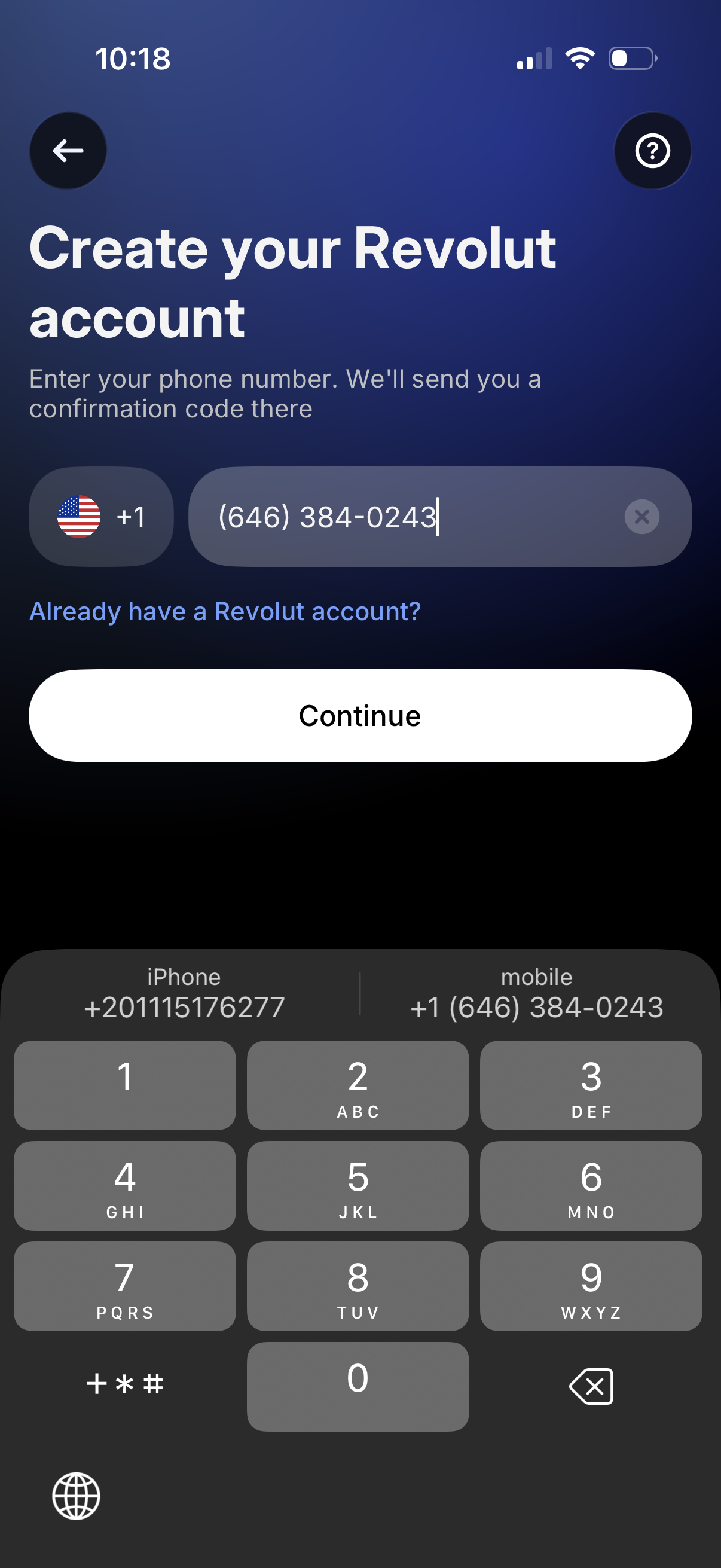
Account signup screen prompting the user to create an account by entering a phone number with country code selector and explanation that a confirmation code will be sent via SMS. Includes a “Continue” primary button, a link for users who already have an account, plus back and help icons.
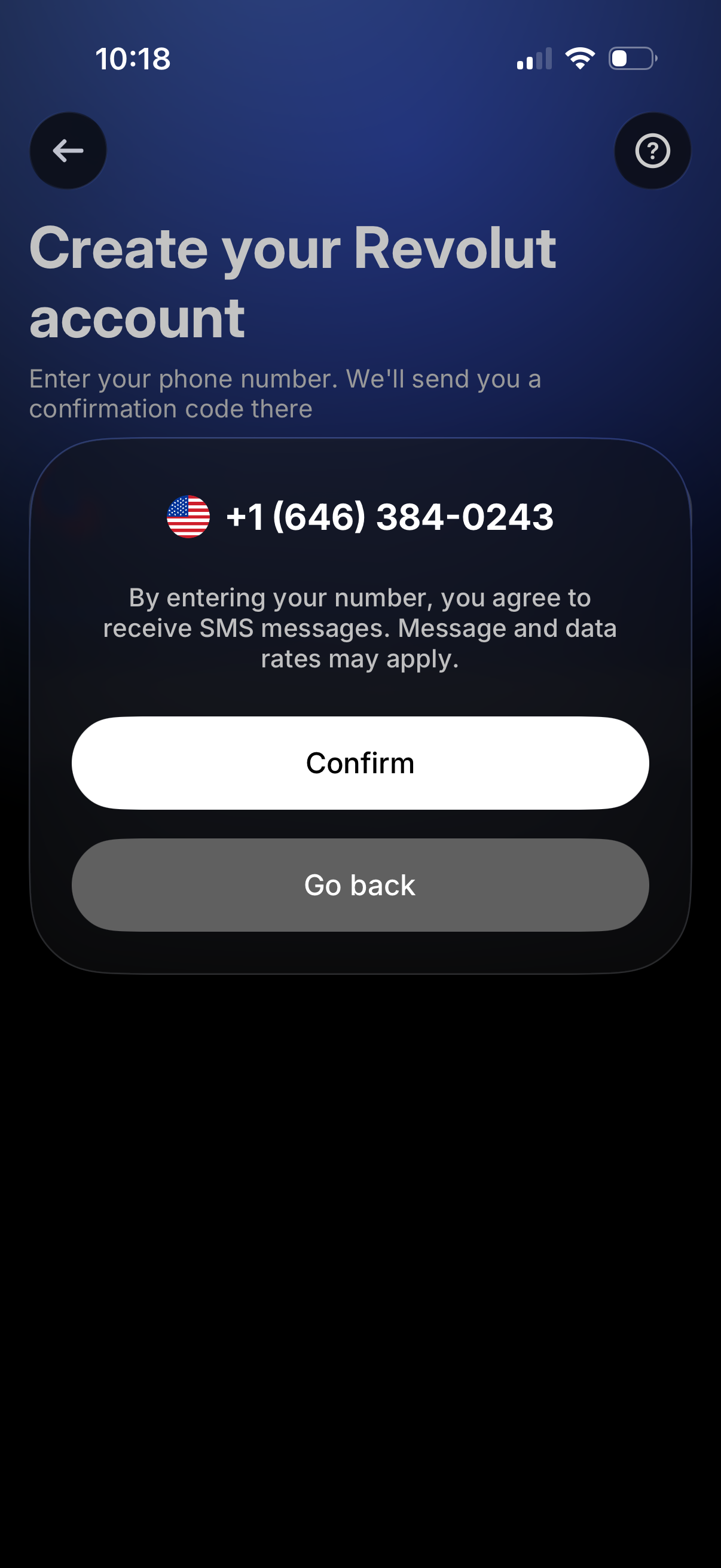
Account creation sign-up screen prompting the user to enter a phone number to receive an SMS verification code, showing a country flag and formatted number. A confirmation modal asks to confirm the number with primary “Confirm” and secondary “Go back” actions, plus back and help icons.
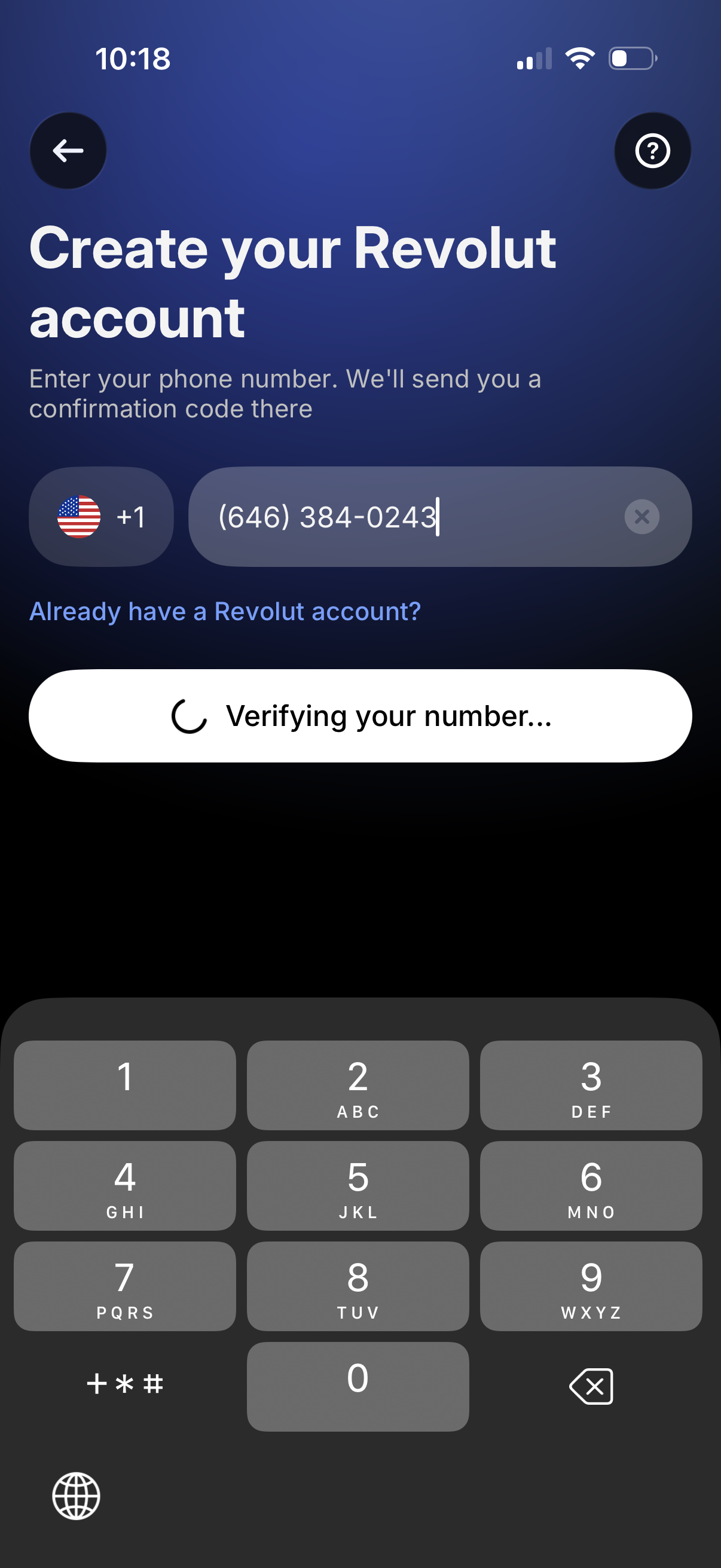
Account creation sign-up screen prompting the user to enter a phone number with country code selector to receive an SMS verification code. Shows an in-progress state “Verifying your number…” with back and help icons and a link for users who already have an account.
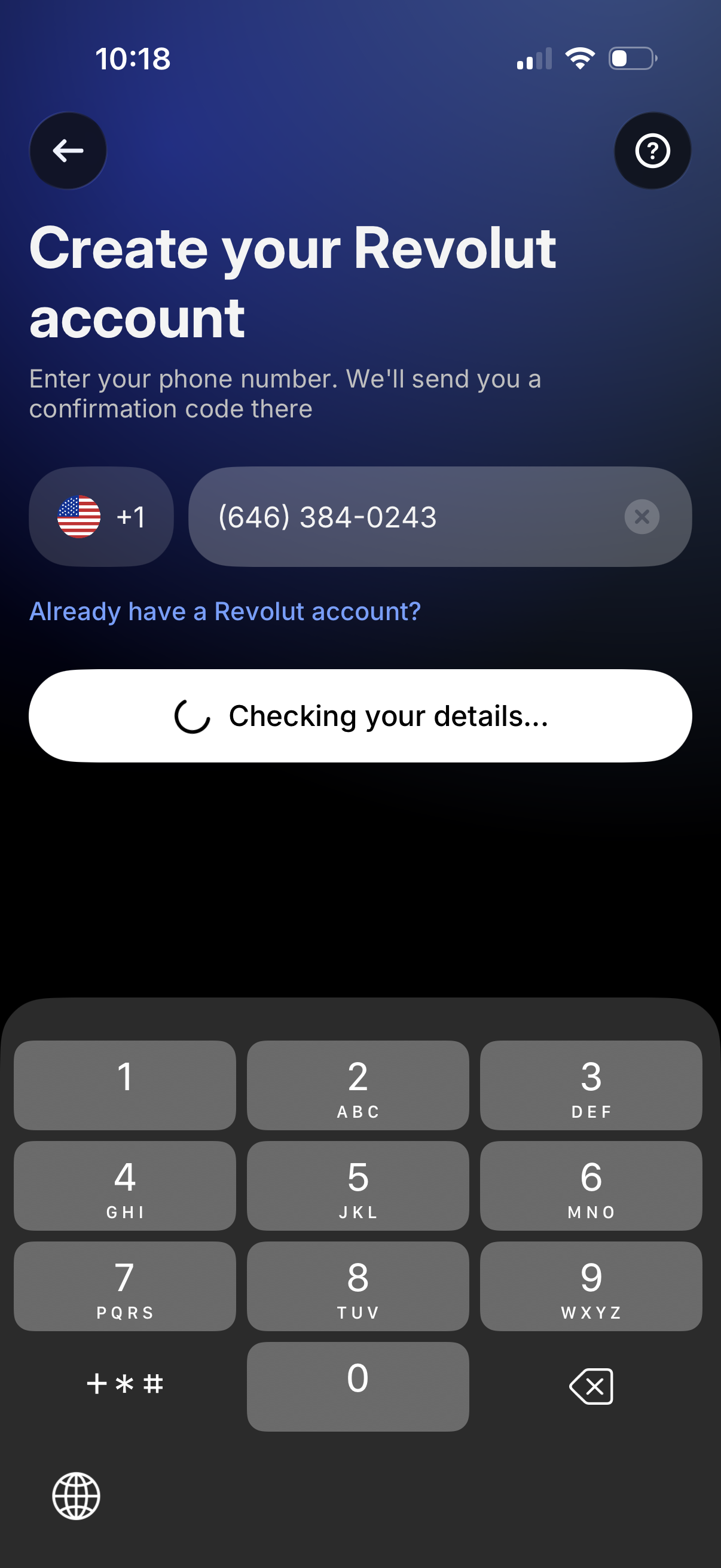
Account sign-up screen prompting the user to create an account by entering a phone number with country code selector, with a link for existing users. Shows a loading state (“Checking your details…”) while validating the phone number and preparing to send a confirmation code, with back and help icons.
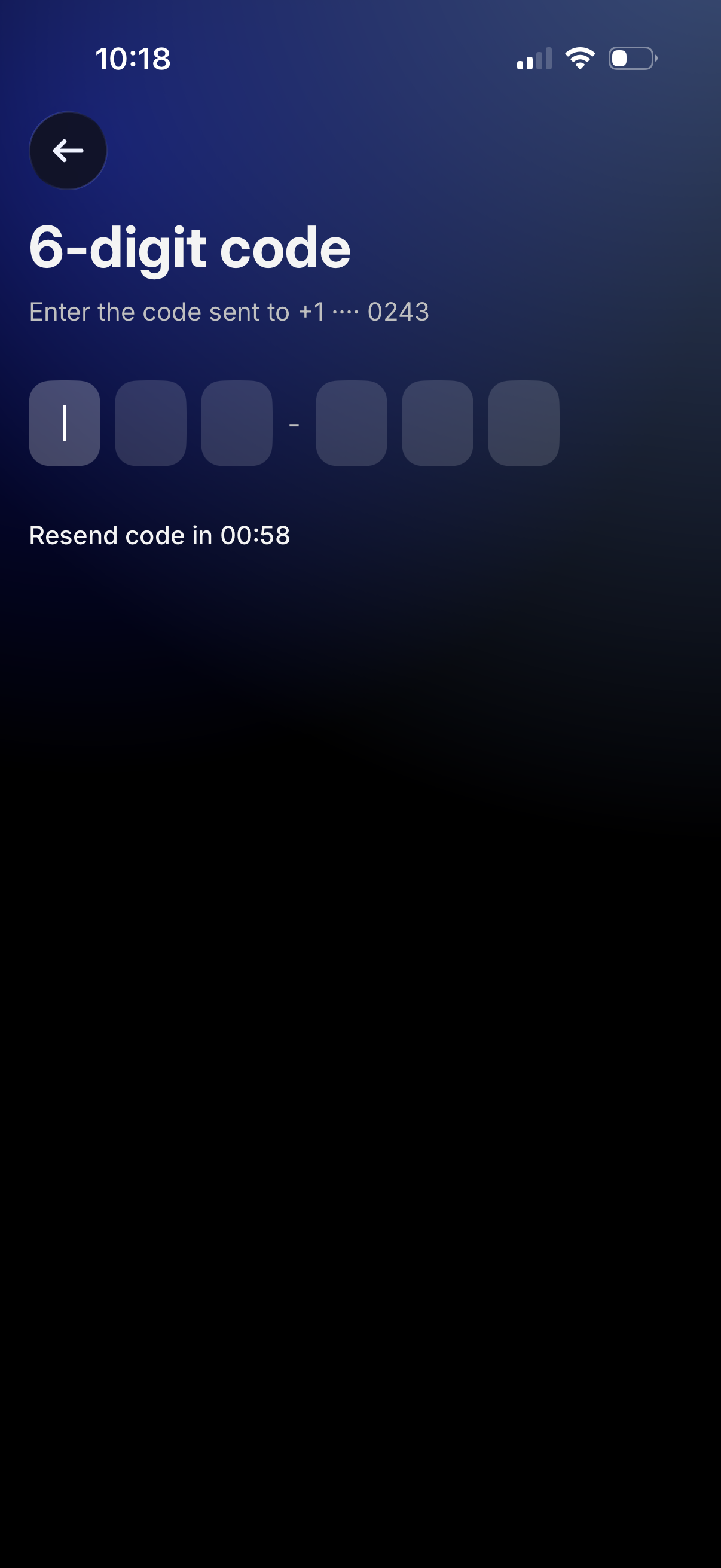
Phone number verification screen prompting the user to enter a 6-digit SMS one-time passcode (OTP) in segmented input fields, with a back button to return. Includes a countdown timer indicating when the user can resend the code.
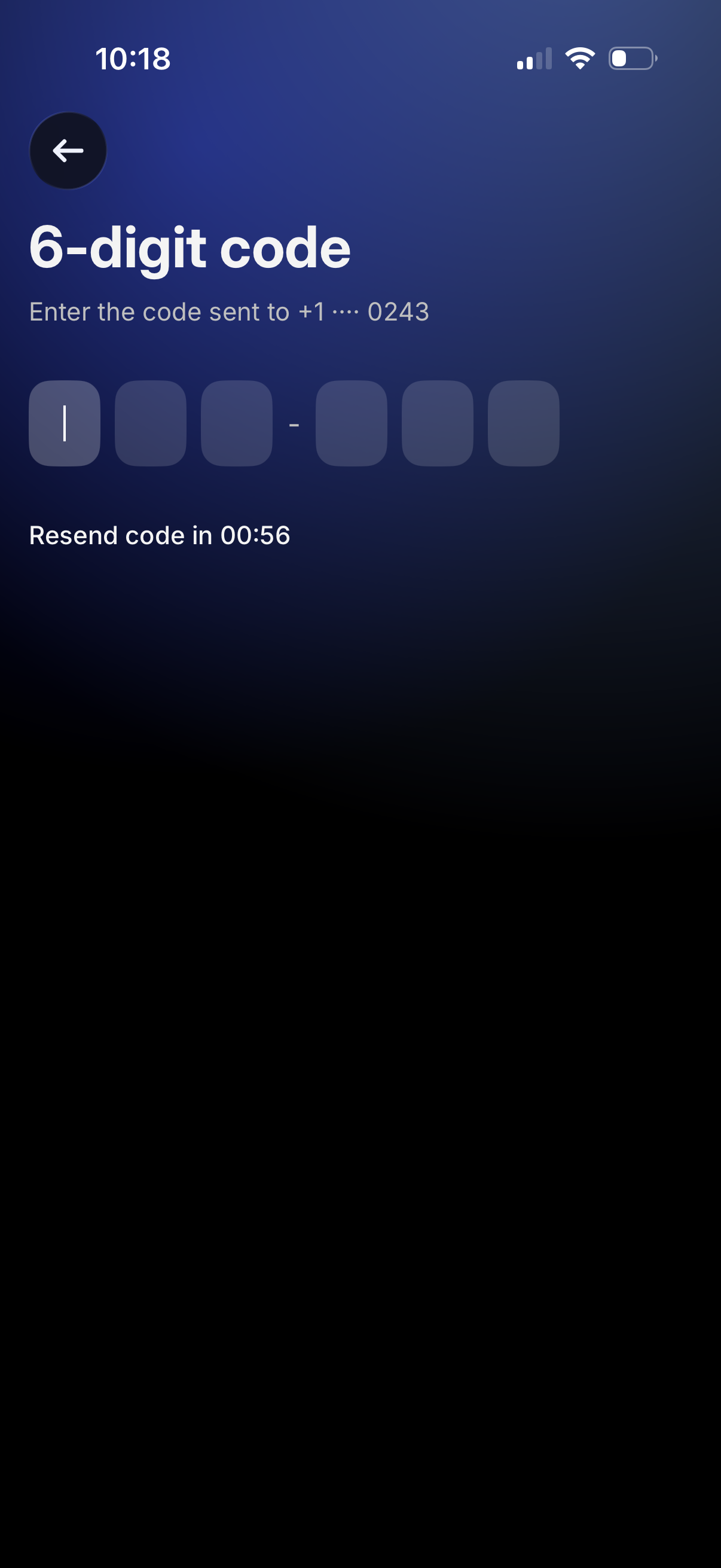
SMS verification screen prompting the user to enter a 6-digit one-time passcode sent to their phone number, with segmented code input fields. Includes a back button and a resend code option with a countdown timer.
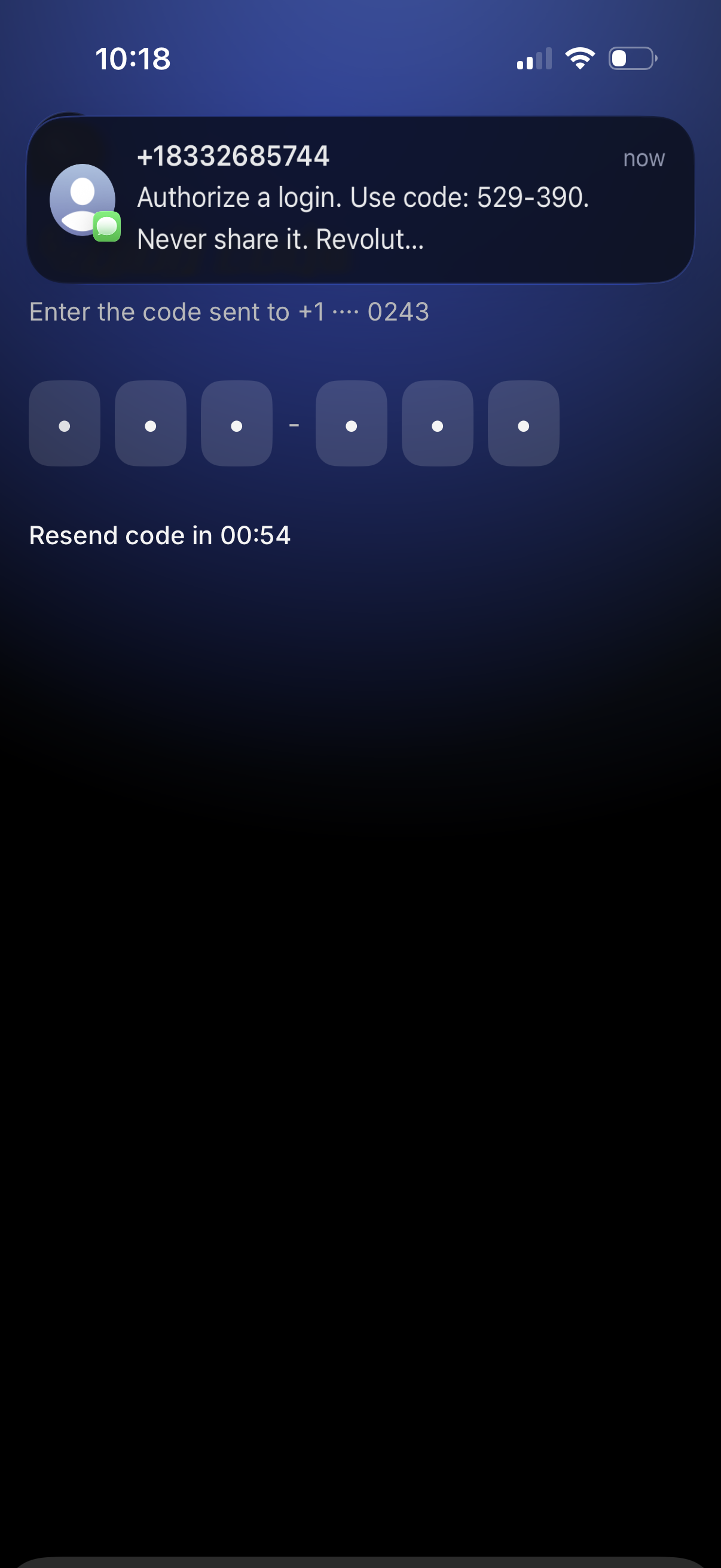
Two-factor authentication code entry screen for login verification, prompting the user to enter the SMS/OTP code sent to a masked phone number. Includes a countdown timer and a “resend code” option once the timer completes.
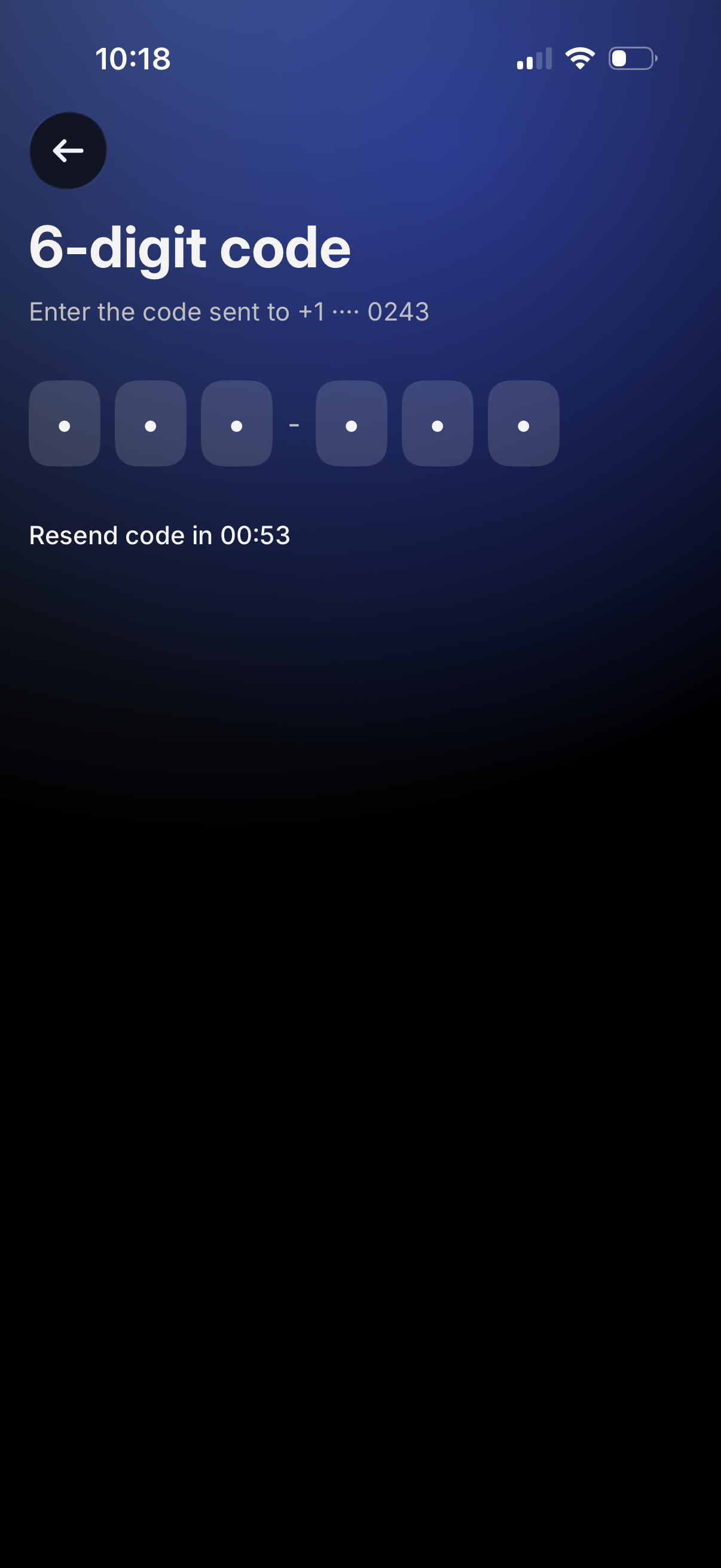
Phone number verification OTP screen prompting the user to enter a 6-digit code sent via SMS, with segmented code input fields and a back button. Includes a resend-code countdown timer indicating when the user can request a new verification code.