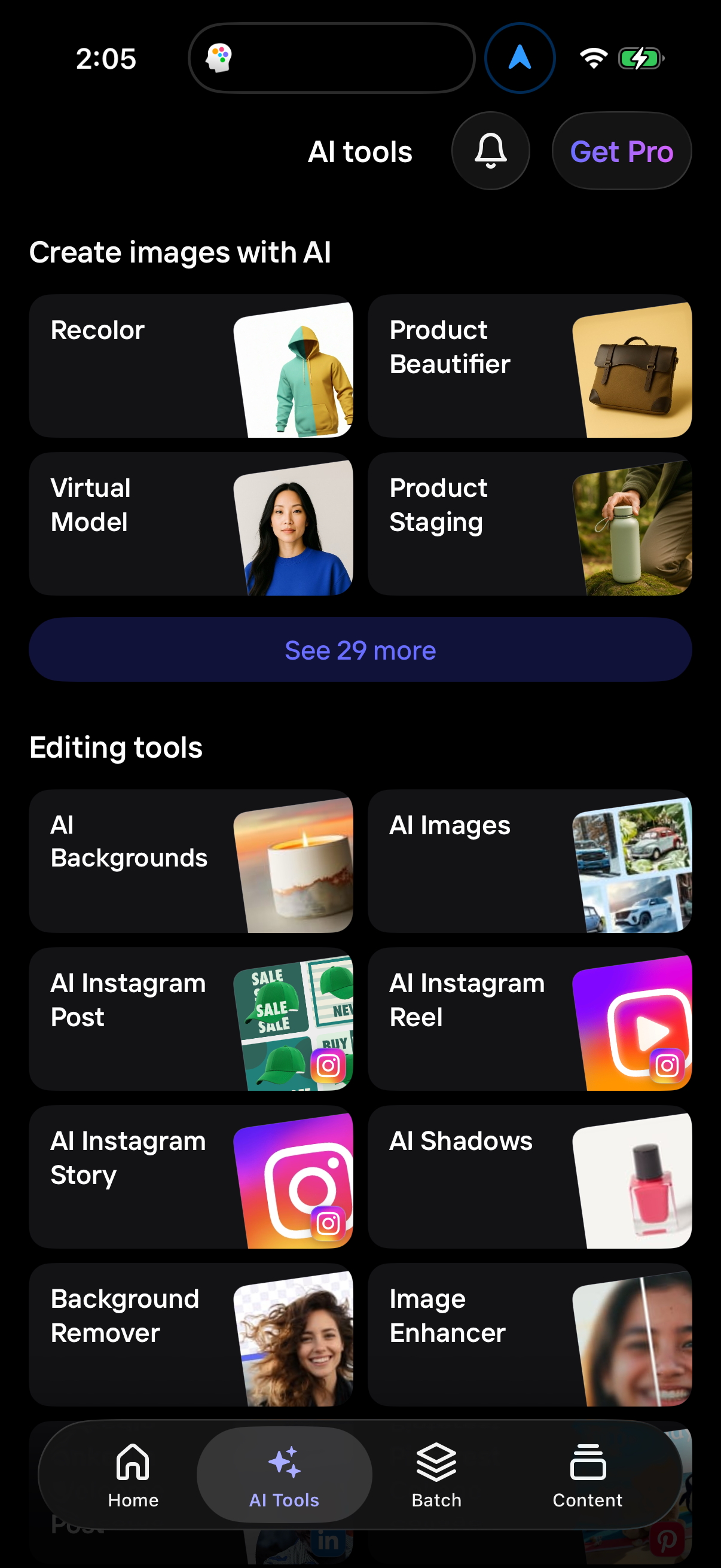
use product beautifier

Bottom sheet “Insert” menu for adding an image, offering options to pick from camera roll, take a photo with the camera, choose from files, or generate an image with AI. Below, a grid preview shows the latest camera roll thumbnails for quick selection, with a close button to dismiss.
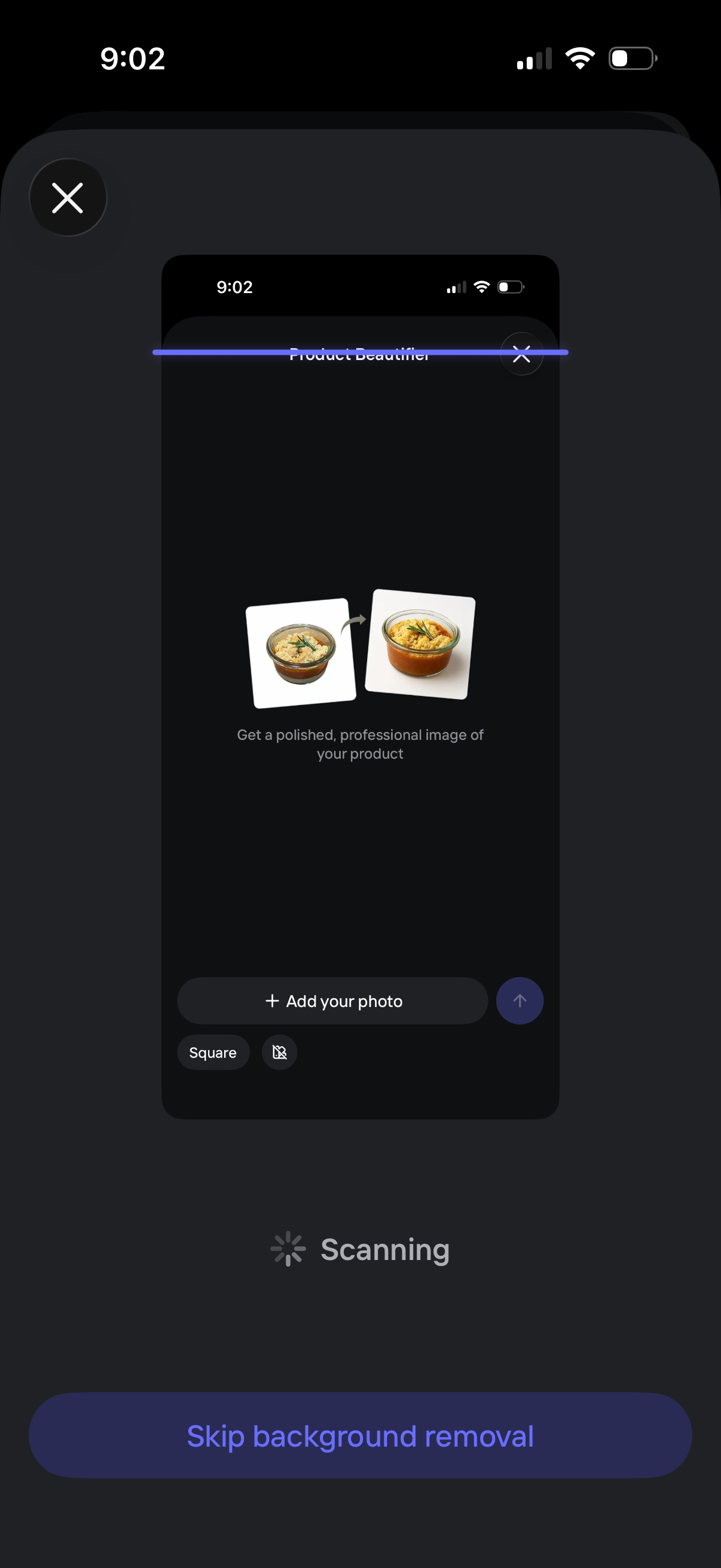
Photo editing onboarding screen for a “Product Beautifier” tool that polishes a product image and removes the background, showing a before/after preview and a primary “Add your photo” action with aspect ratio selector. Includes a scanning/loading state and an option to skip background removal, plus a close button to exit.
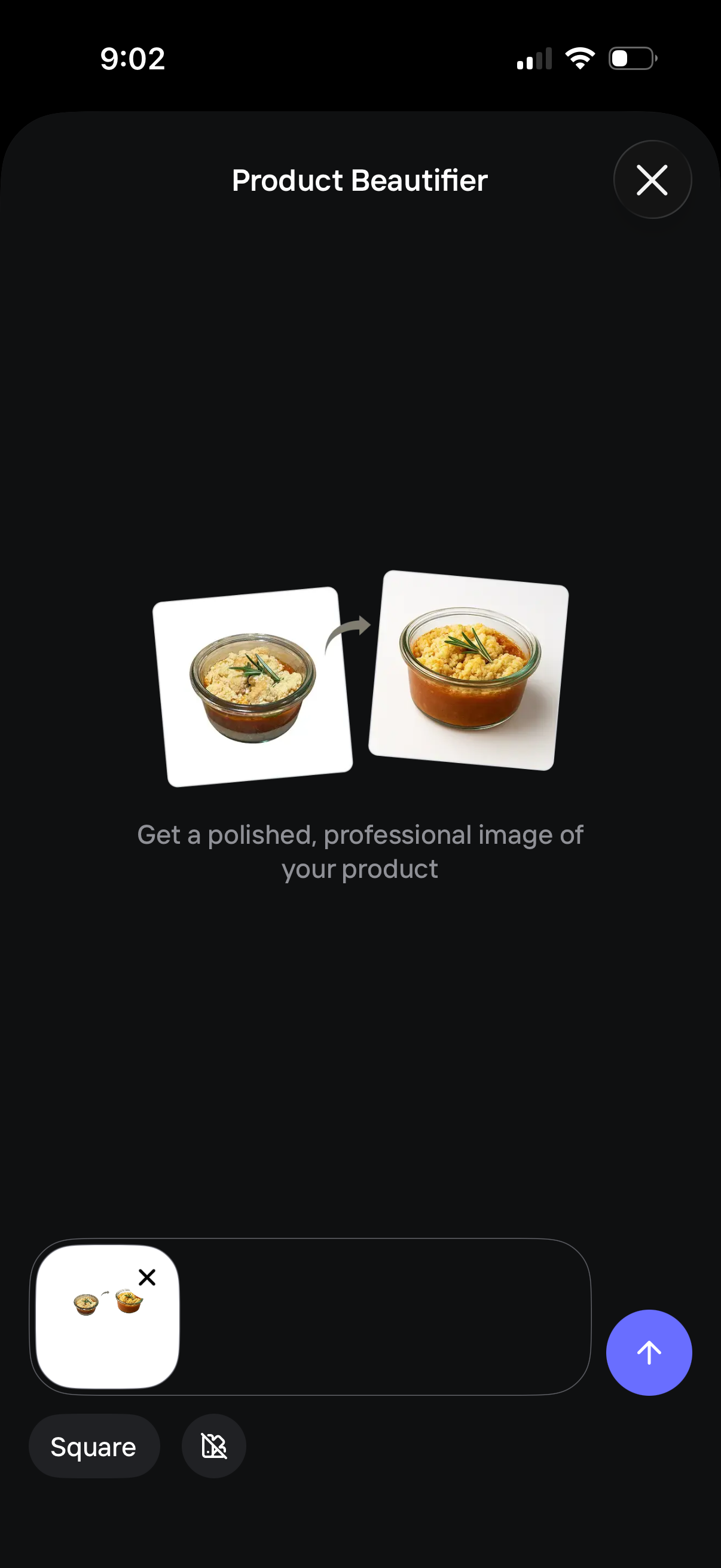
Full-screen “Product Beautifier” tool for enhancing a product photo into a polished, professional image, shown with a before-and-after preview. Includes an image upload field with thumbnail/remove control, aspect ratio selection (Square), a toggle/option control, a submit/continue button, and a close (X) to exit.