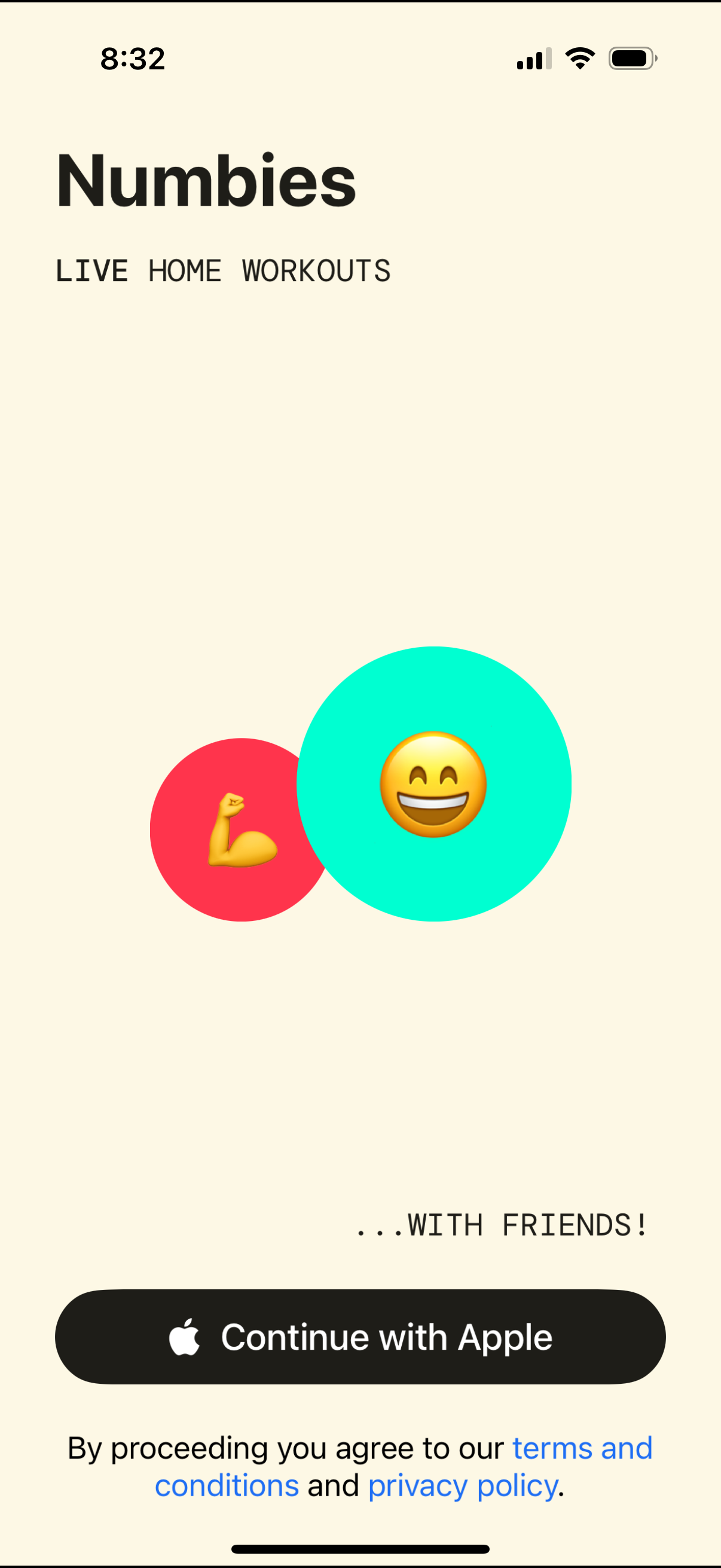
Welcome/login screen for a fitness app promoting live home workouts with friends, featuring a primary “Continue with Apple” social sign-in button. Includes terms and conditions and privacy policy consent text at the bottom.
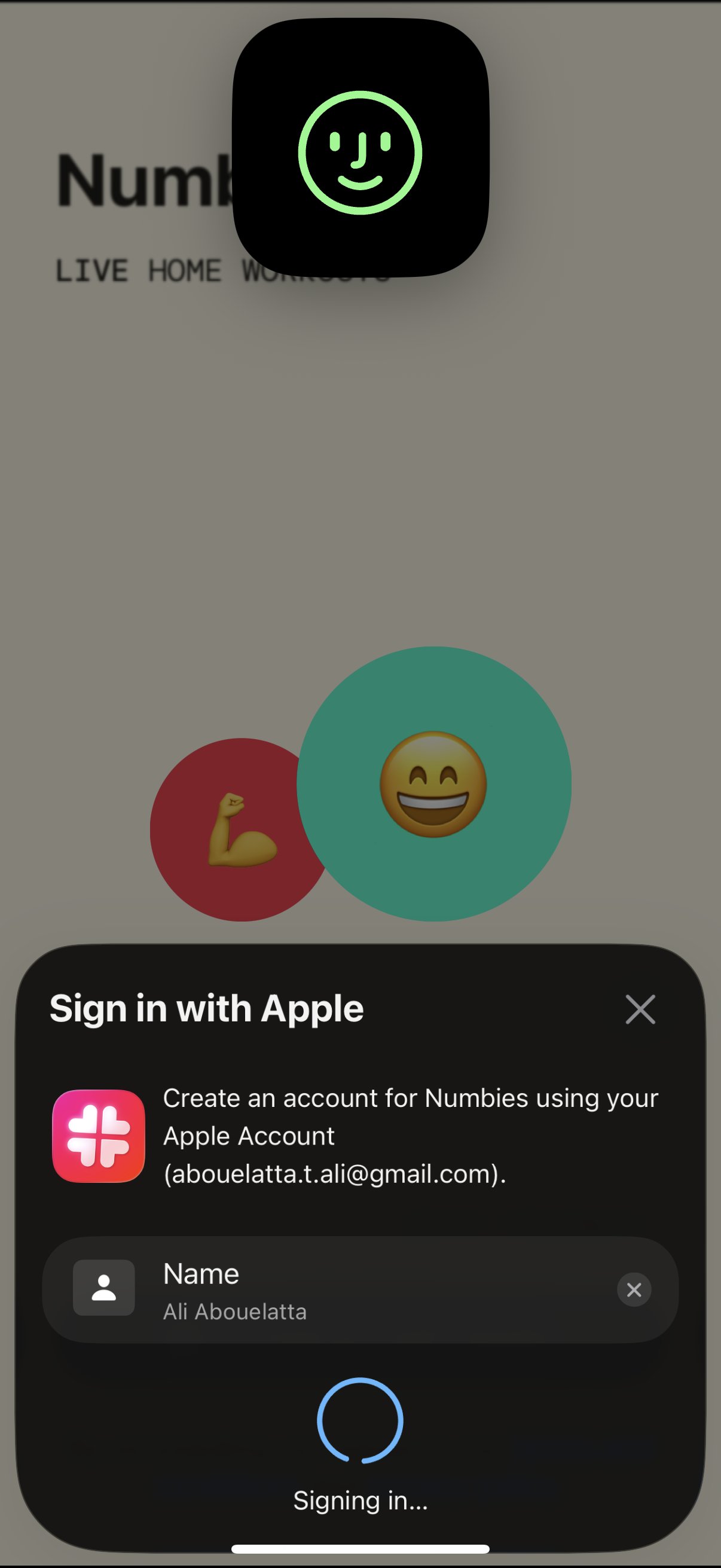
Sign in with Apple authentication modal used to create a new account, showing the selected Apple ID, a prefilled name field, and a loading state while signing in, with an option to dismiss/close the sheet.
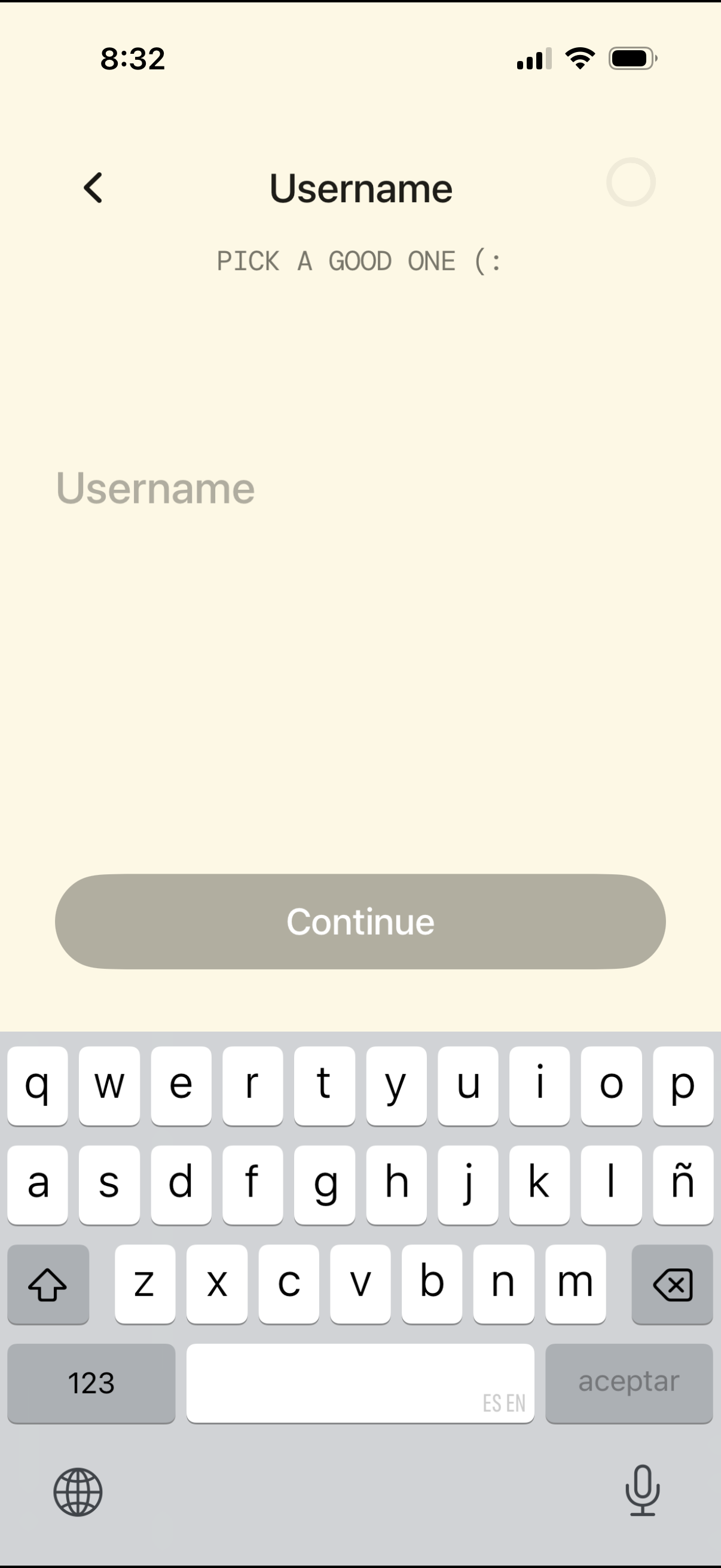
Account creation screen for choosing a username, featuring a single text input field and a “Continue” primary button (initially disabled) with a back navigation arrow. The keyboard is open for entering the username and the page provides brief guidance to pick a good one.
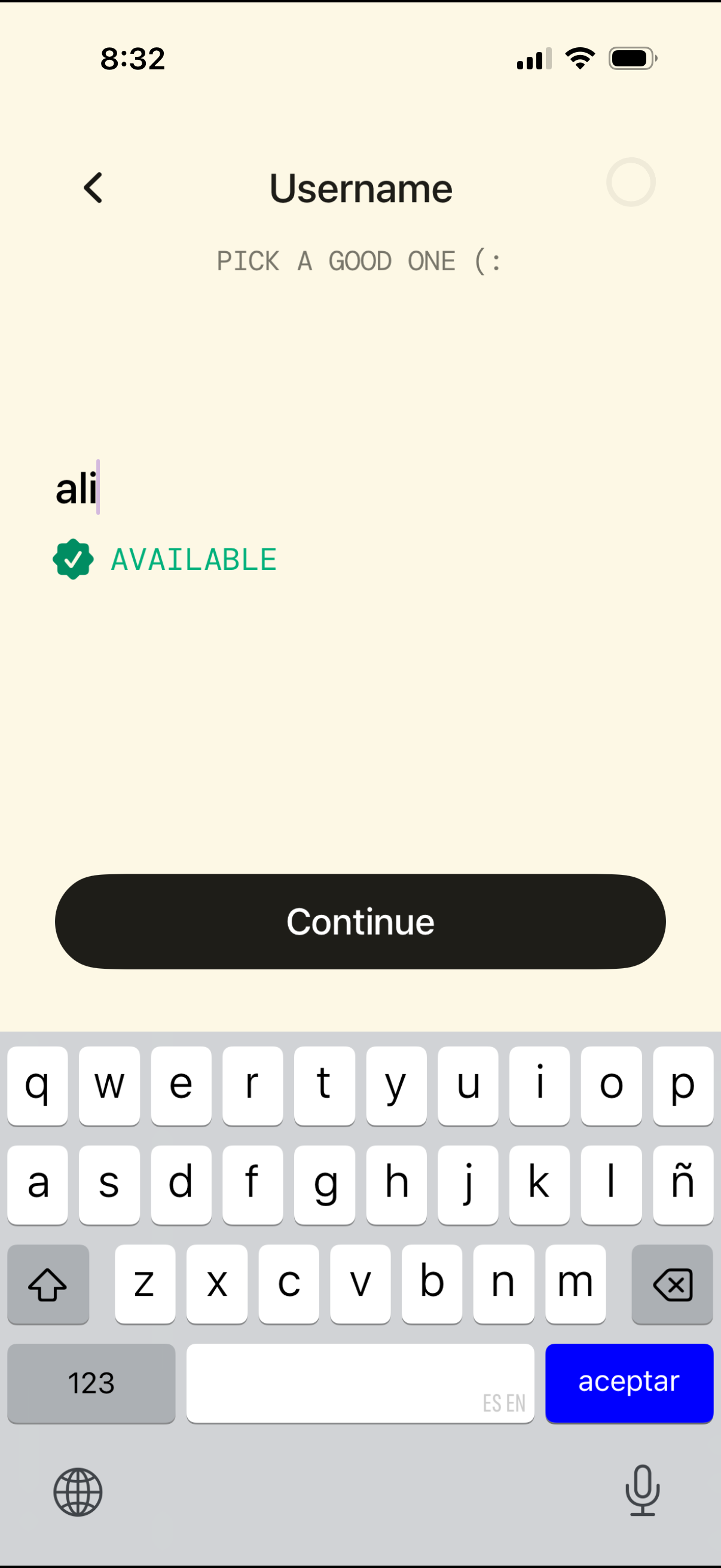
Username selection screen in an onboarding/signup flow where the user types a desired handle and receives real-time availability validation with a checkmark and “Available” status. A large primary “Continue” button advances to the next step, with a back arrow for navigation.
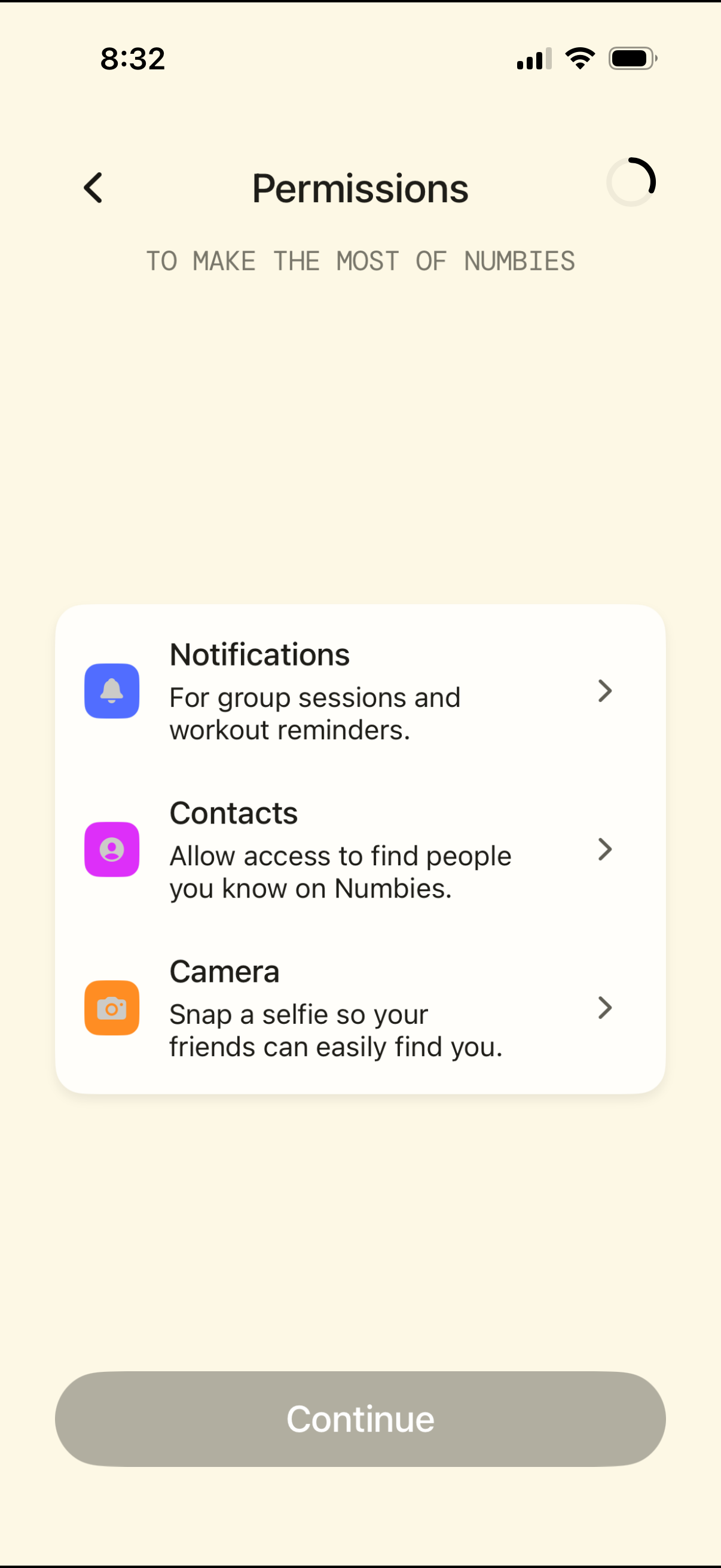
Permissions setup screen prompting the user to grant app access, with list items for Notifications (group sessions and workout reminders), Contacts (find friends), and Camera (take a profile selfie), each opening a detail page. Includes a back button and a primary Continue button to proceed after configuring permissions.
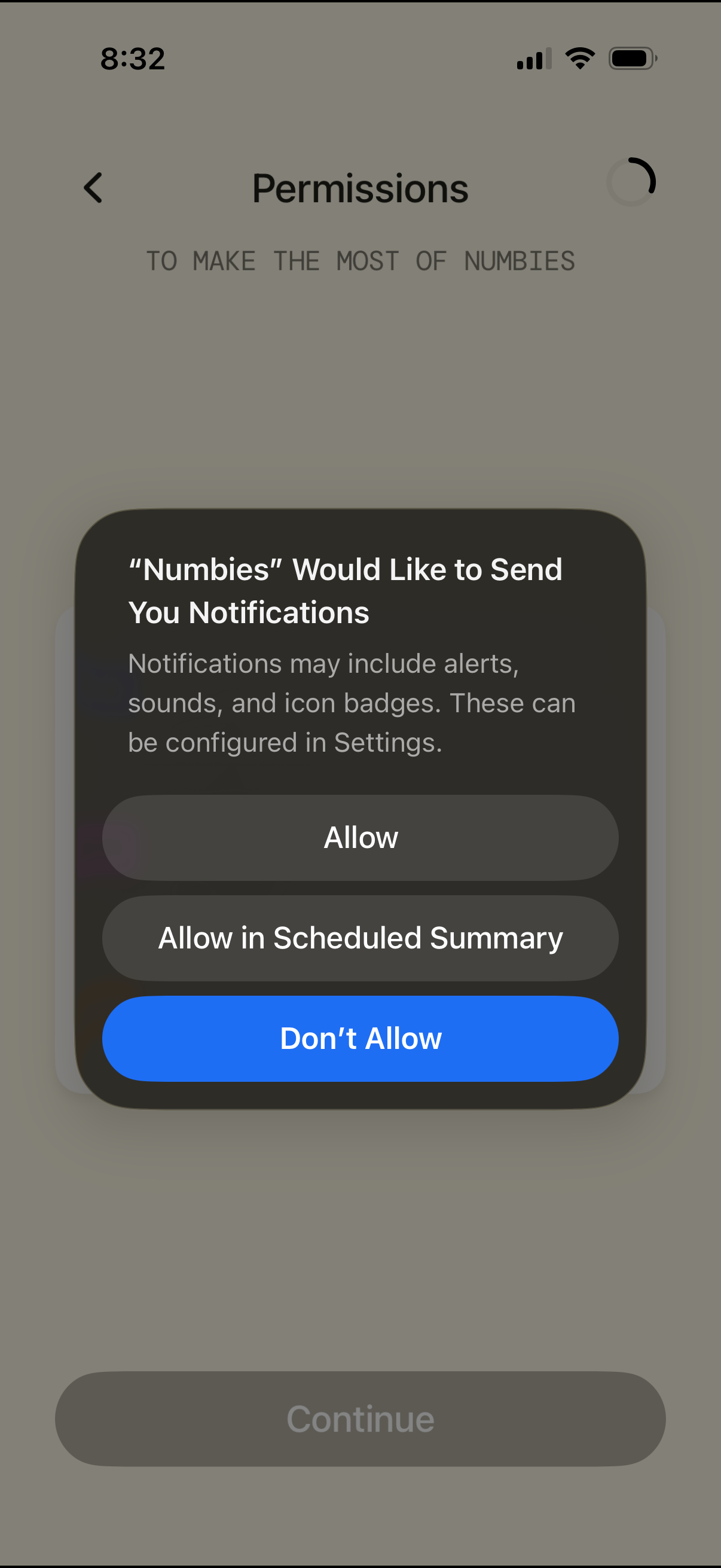
iOS permissions screen showing a system modal requesting notification access for an app, with options to Allow, Allow in Scheduled Summary, or Don’t Allow. The underlying onboarding permissions page includes a back button and a disabled Continue CTA.
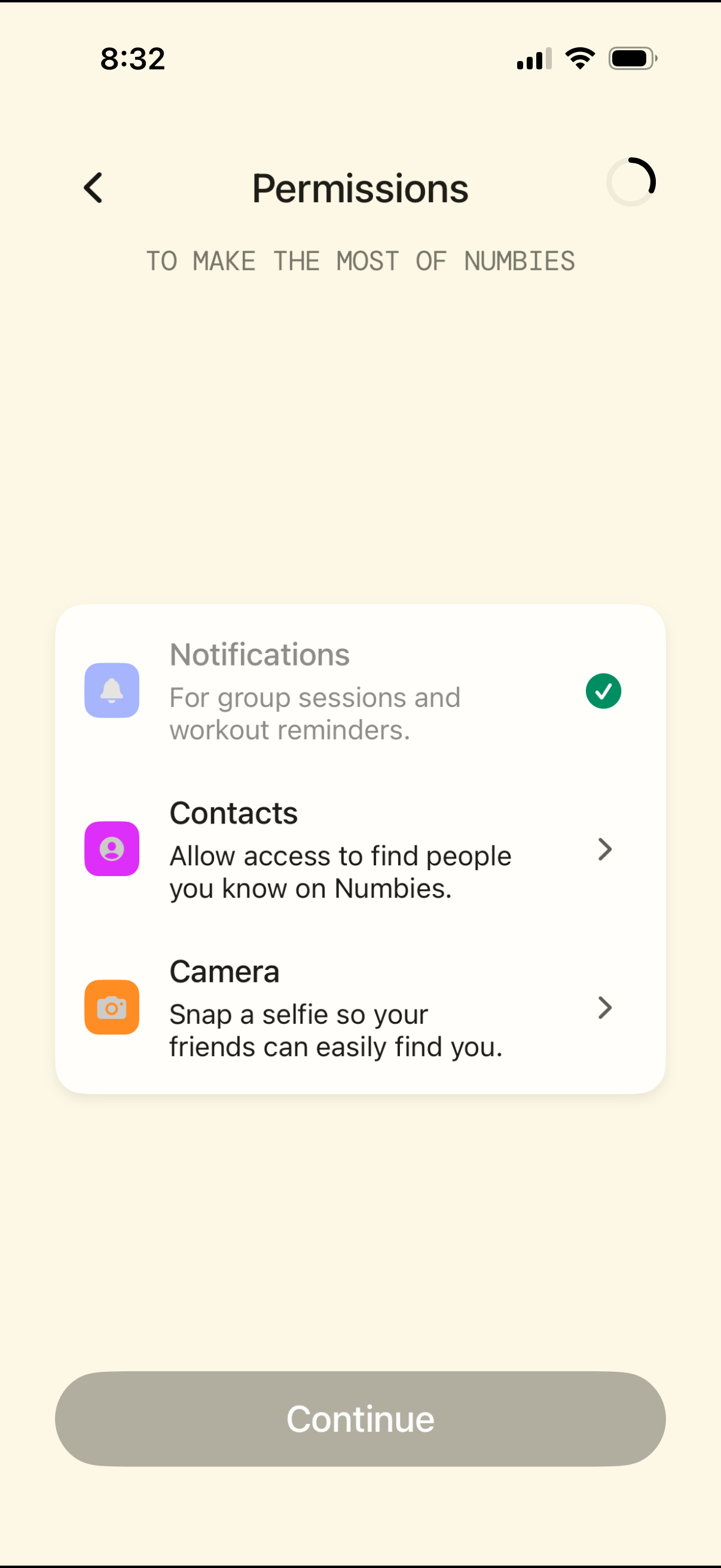
Onboarding permissions screen prompting the user to enable app access for Notifications, Contacts, and Camera, with brief explanations for each and a checkmark indicating granted status. Users can tap into individual permission items and proceed by tapping a primary Continue button, with a back arrow for navigation.
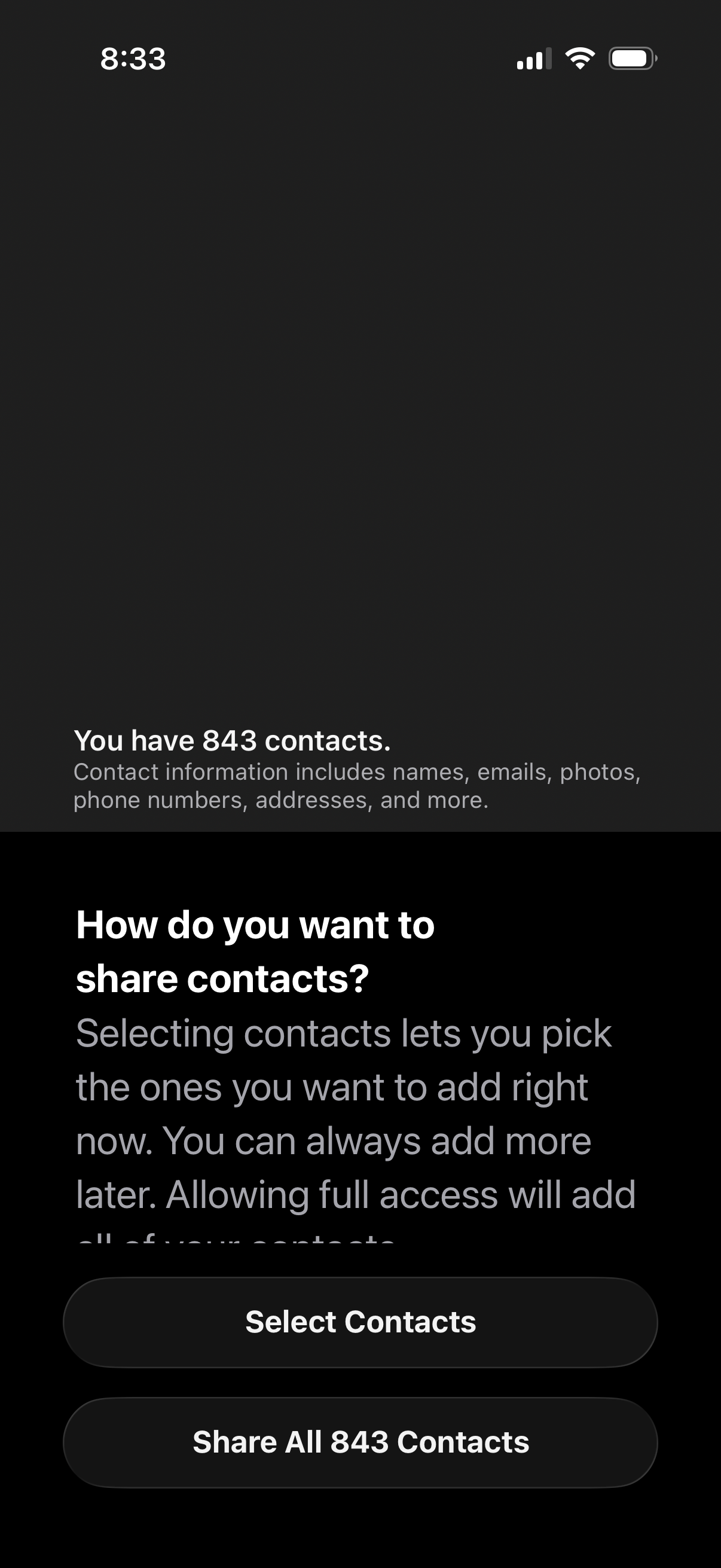
Permission prompt screen asking how the user wants to share their phone contacts with the app, showing the total number of contacts and what contact data includes. Primary actions let the user either select specific contacts to share now or grant full access by sharing all contacts.
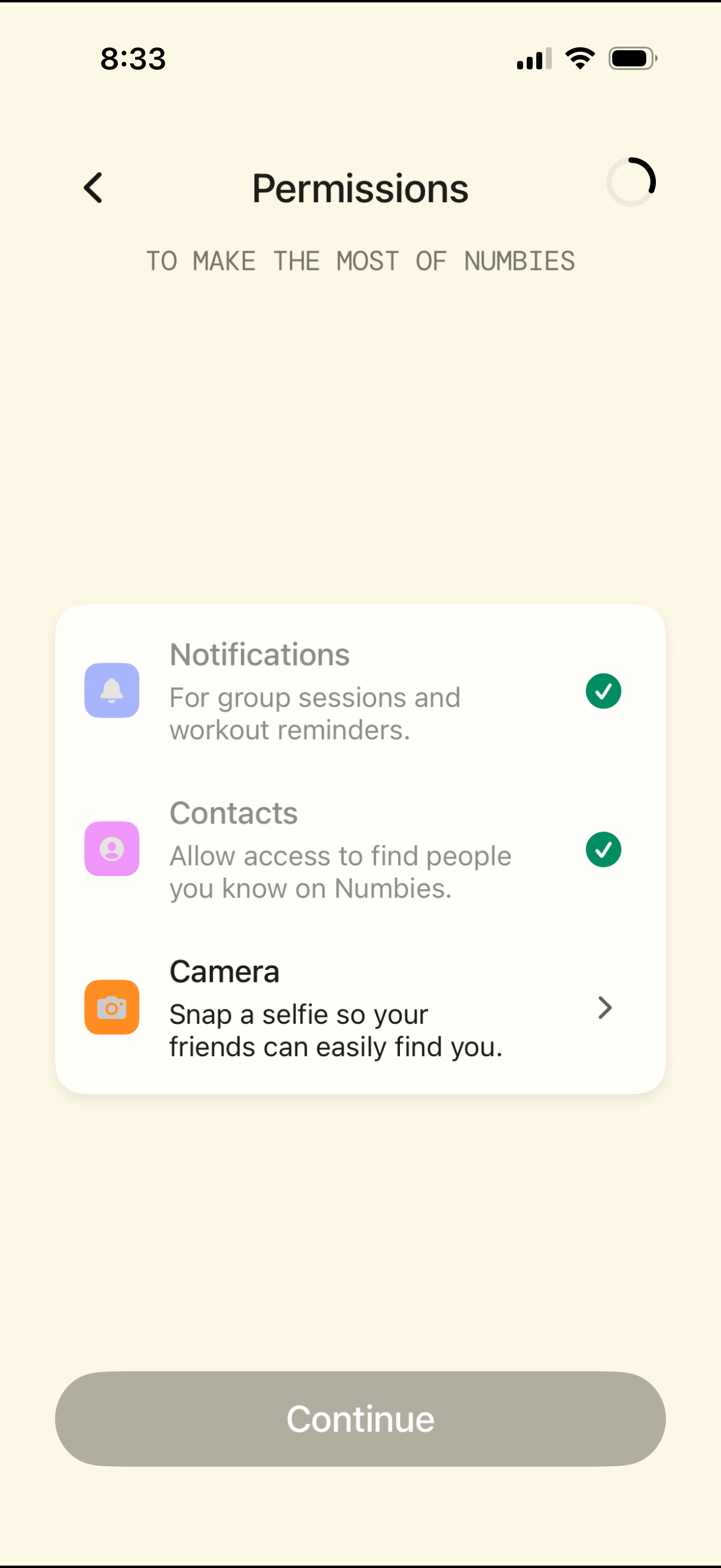
Permissions onboarding screen prompting the user to enable notifications for workout reminders, allow contacts access to find friends, and grant camera access to take a selfie, with a continue button to proceed and an option to review camera permission details.
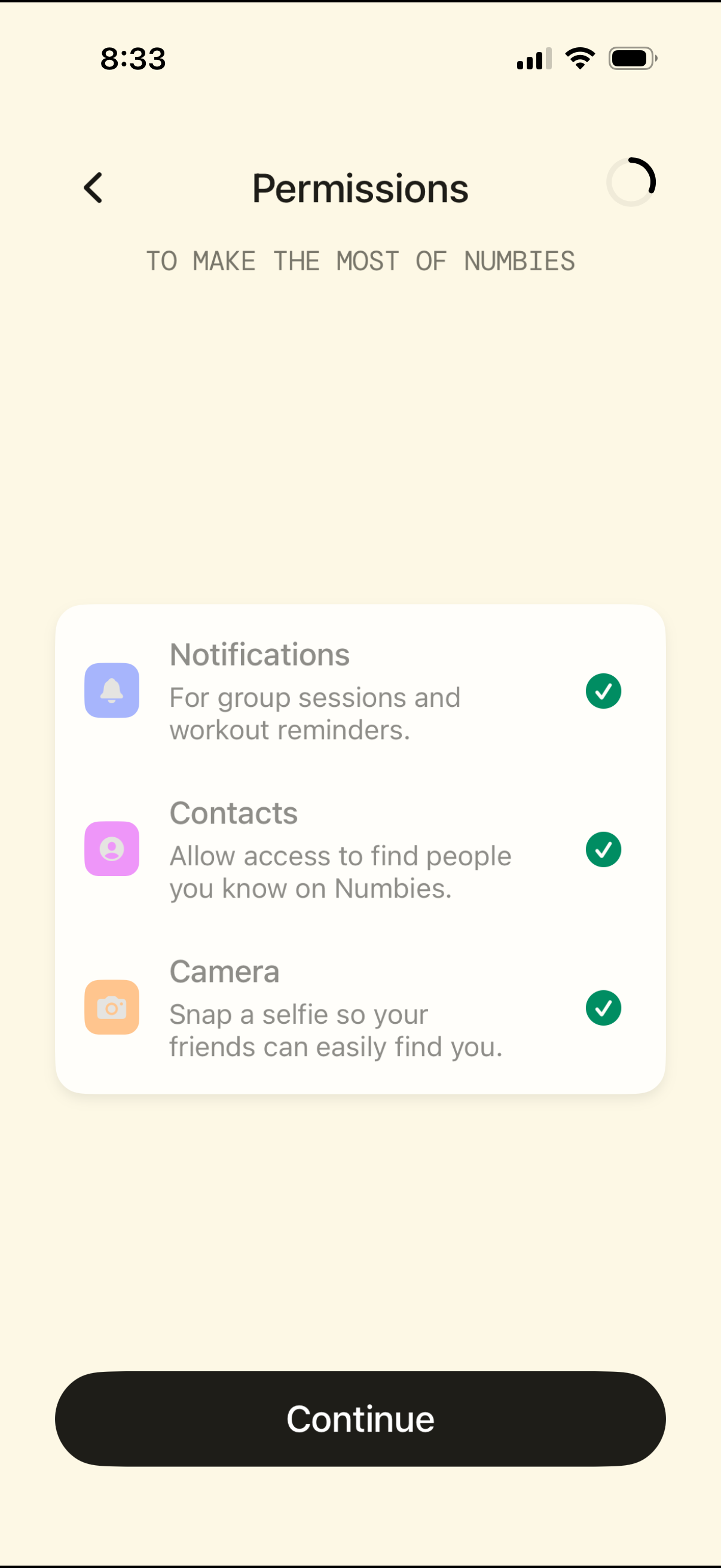
Permissions setup screen during onboarding that requests access to notifications, contacts, and camera, with brief explanations for each and checkmark indicators showing enabled permissions. Primary action is a large “Continue” button with a back navigation option.
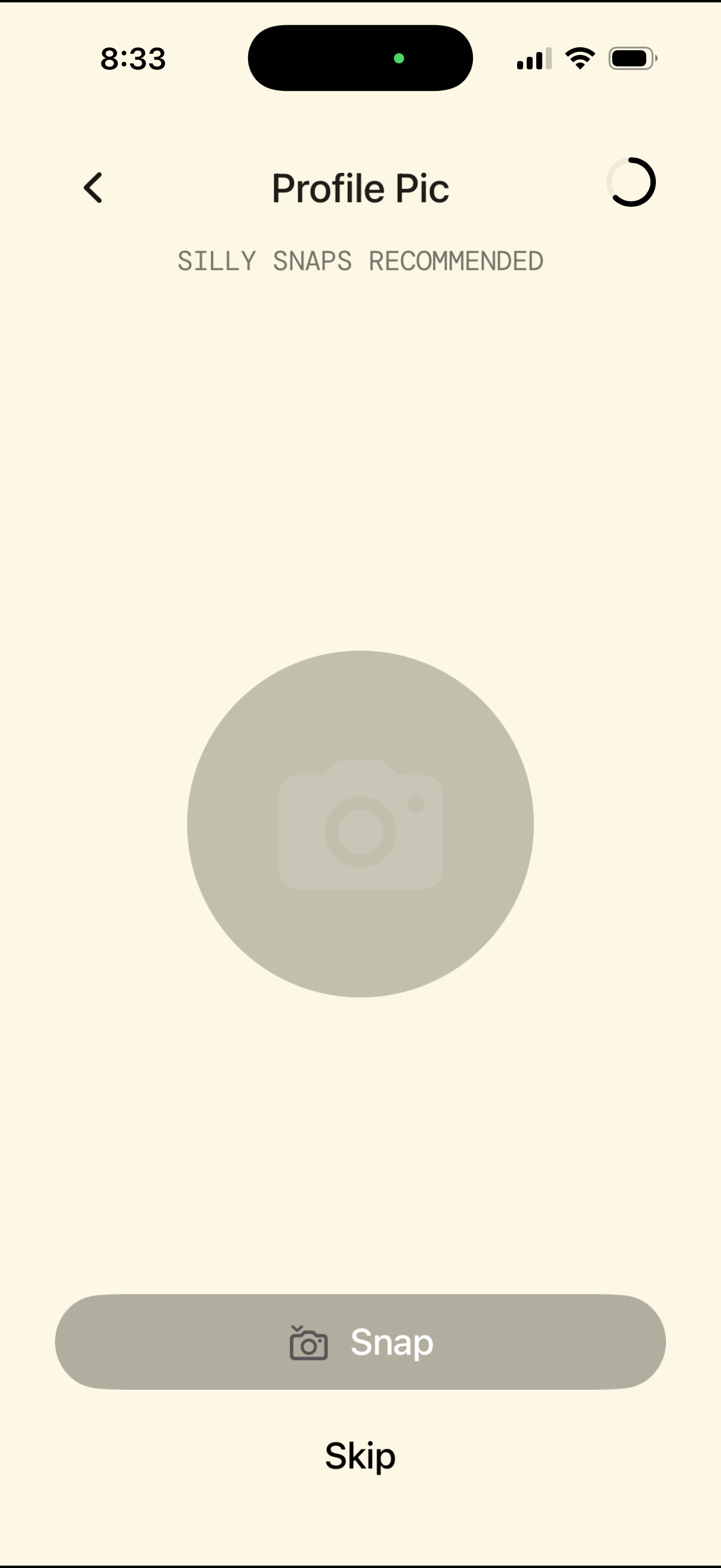
Profile picture setup screen prompting the user to take a photo, with category tabs for Silly, Snaps, and Recommended options. Primary actions include a large “Snap” camera button to capture the profile pic, plus back navigation and a “Skip” option.
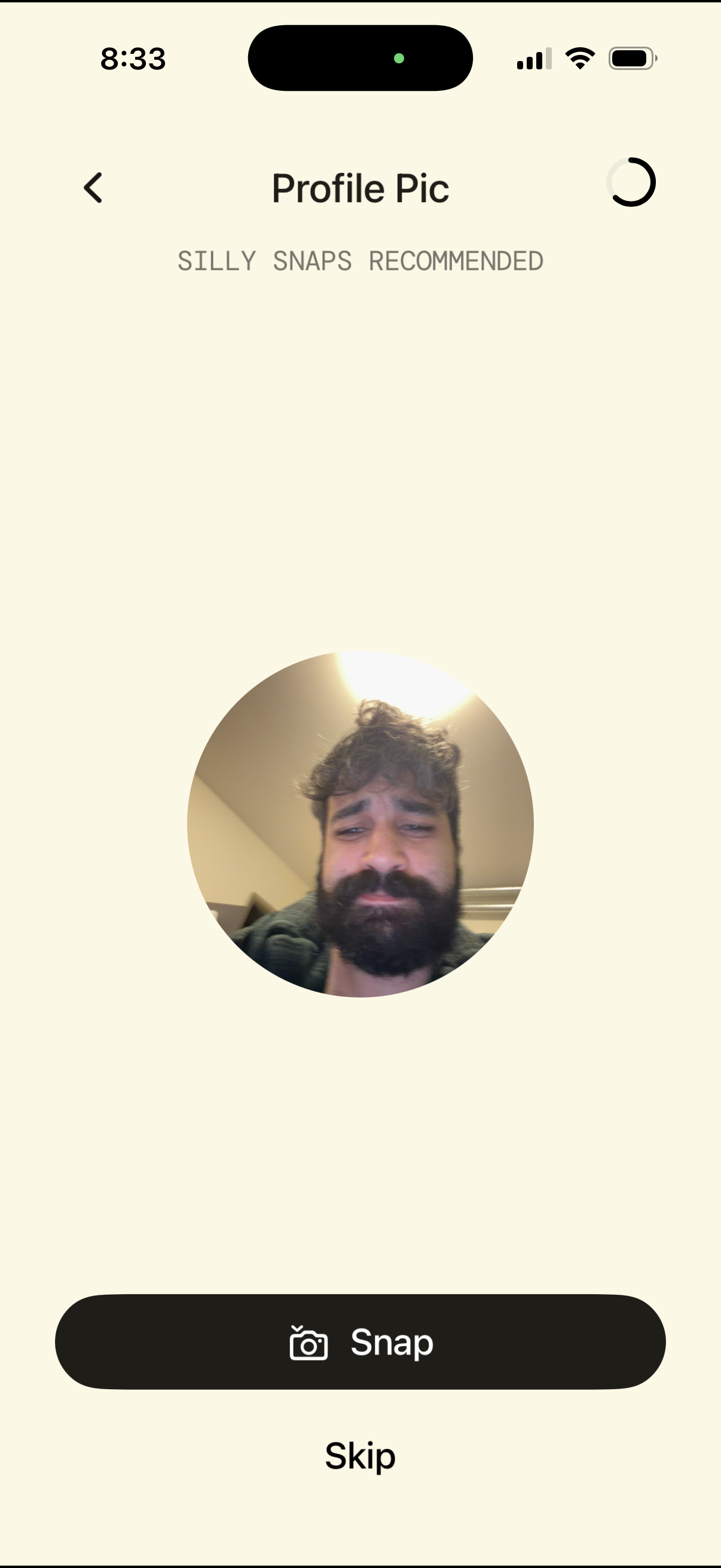
Profile picture setup screen that prompts the user to take a selfie, showing a circular photo preview and tabs to browse “Silly,” “Snaps,” and “Recommended” options. Primary actions are to capture a new photo via the Snap camera button, skip the step, or navigate back.
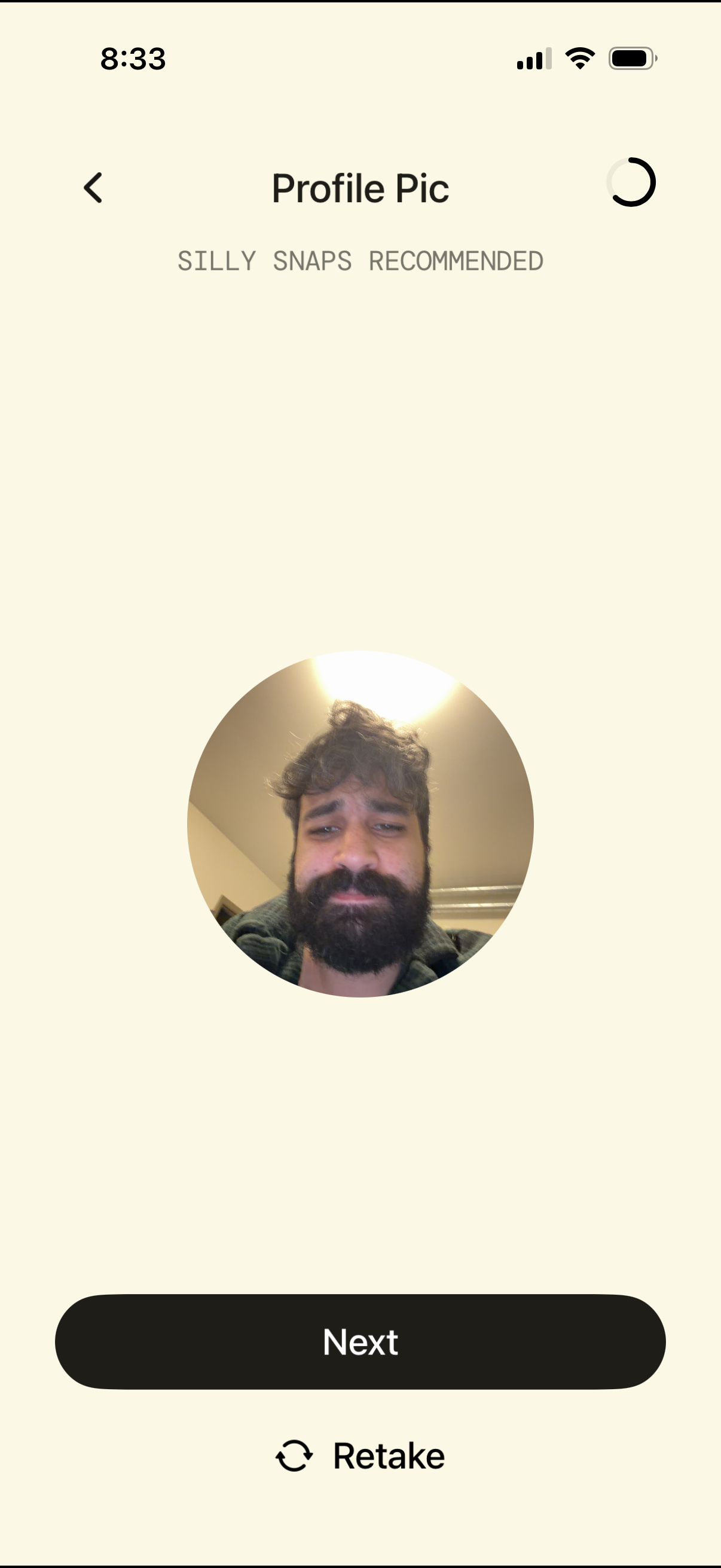
Profile picture selection screen showing a circular preview of the captured photo with category tabs (Silly, Snaps, Recommended). Users can retake the photo or proceed by tapping the Next button, with a back arrow for navigation.
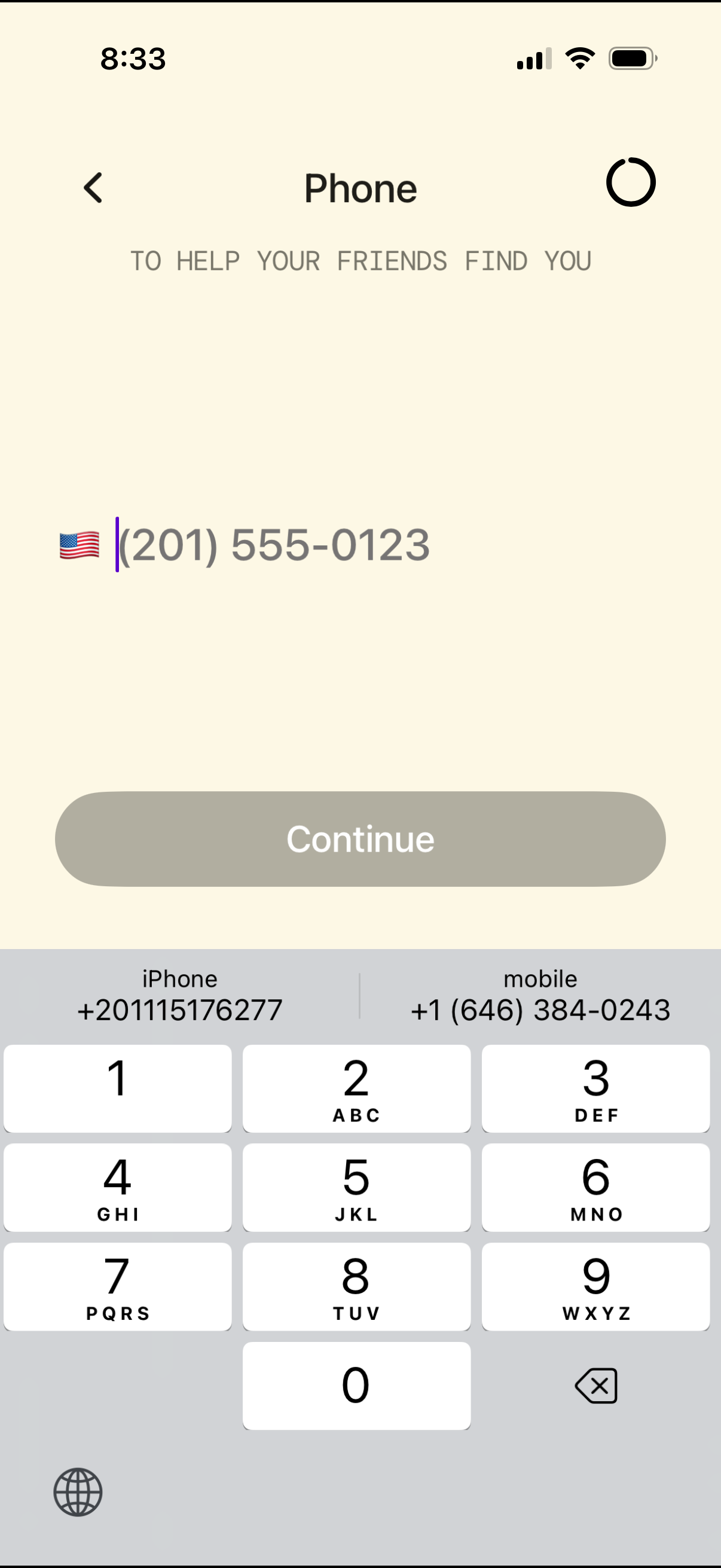
Phone number entry screen for onboarding or account setup, showing a country flag selector and numeric input field to add your phone so friends can find you. Includes a primary Continue button (disabled until valid input) and a back navigation control.
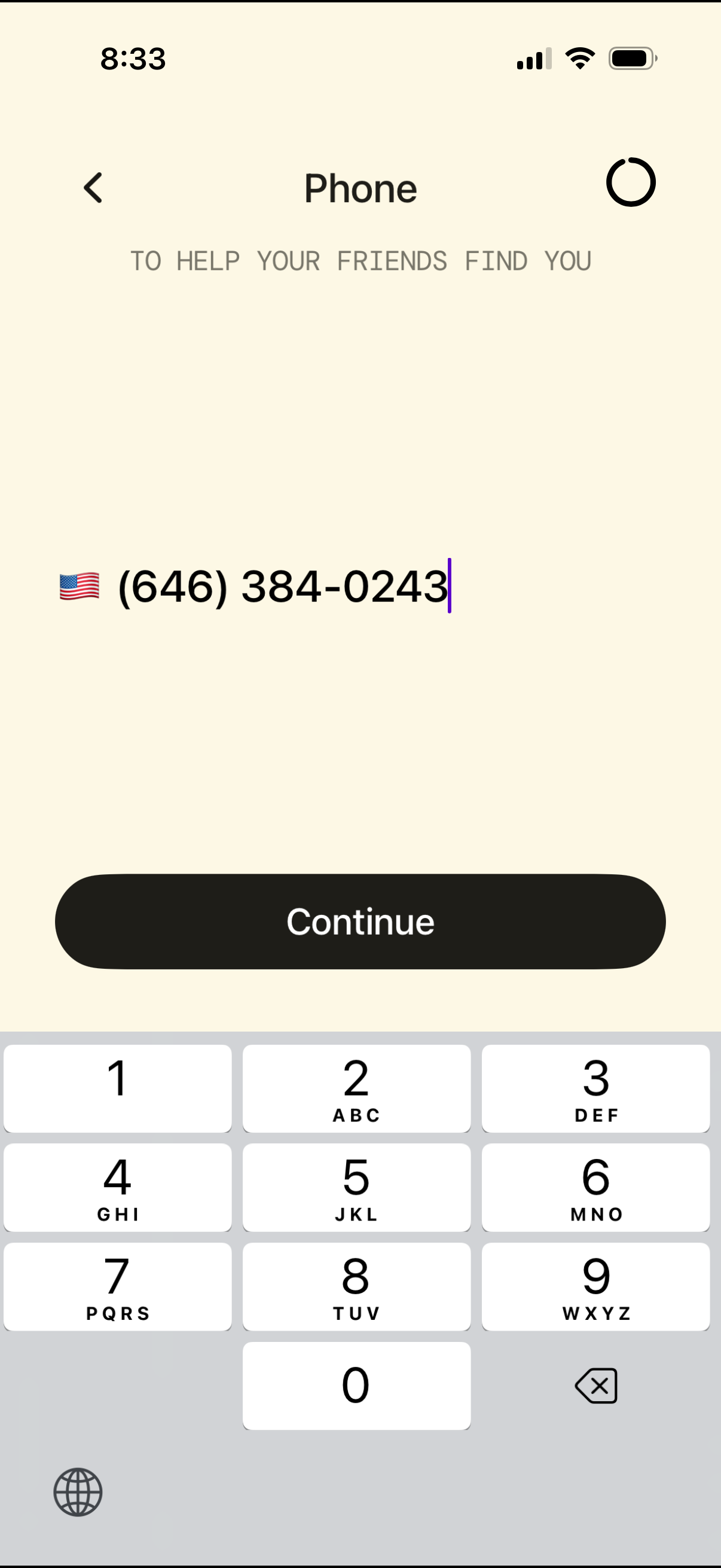
Phone number entry screen for onboarding or account verification, showing a country flag selector with formatted phone input to help friends find you. Primary action is a large Continue button with numeric keypad for entering the number.