complete initial setup
Welcome screen for a wellbeing or mood-tracking app onboarding flow, introducing a guided setup in a few simple steps with a progress indicator. Primary action is a large “Continue” button with an option to “Skip setup.
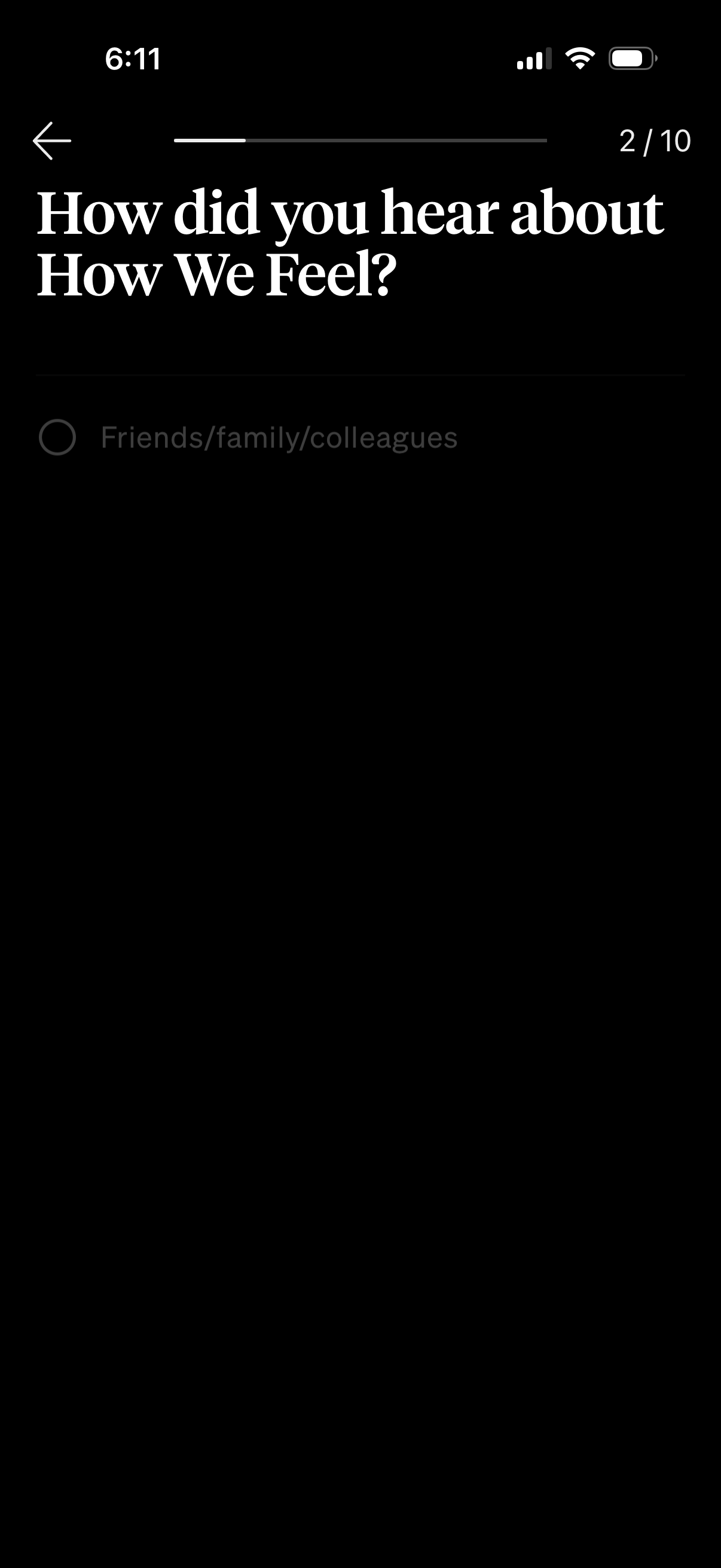
Onboarding survey screen asking “How did you hear about [app]? ” with single-select radio button options (e.

Onboarding survey screen asking users how they heard about the app, presented as a single-select list of referral sources (friends/family, therapist, partner, App Store, social media, other). Includes a progress indicator, back navigation, and a primary Continue button to proceed.

Onboarding questionnaire screen asking users to select their goals for using a mental health or self-improvement app, with multiple checkbox options like positivity, relationships, stress/anxiety, understanding emotions, or other. Includes a progress indicator, back navigation, and a disabled Continue button until a selection is made.
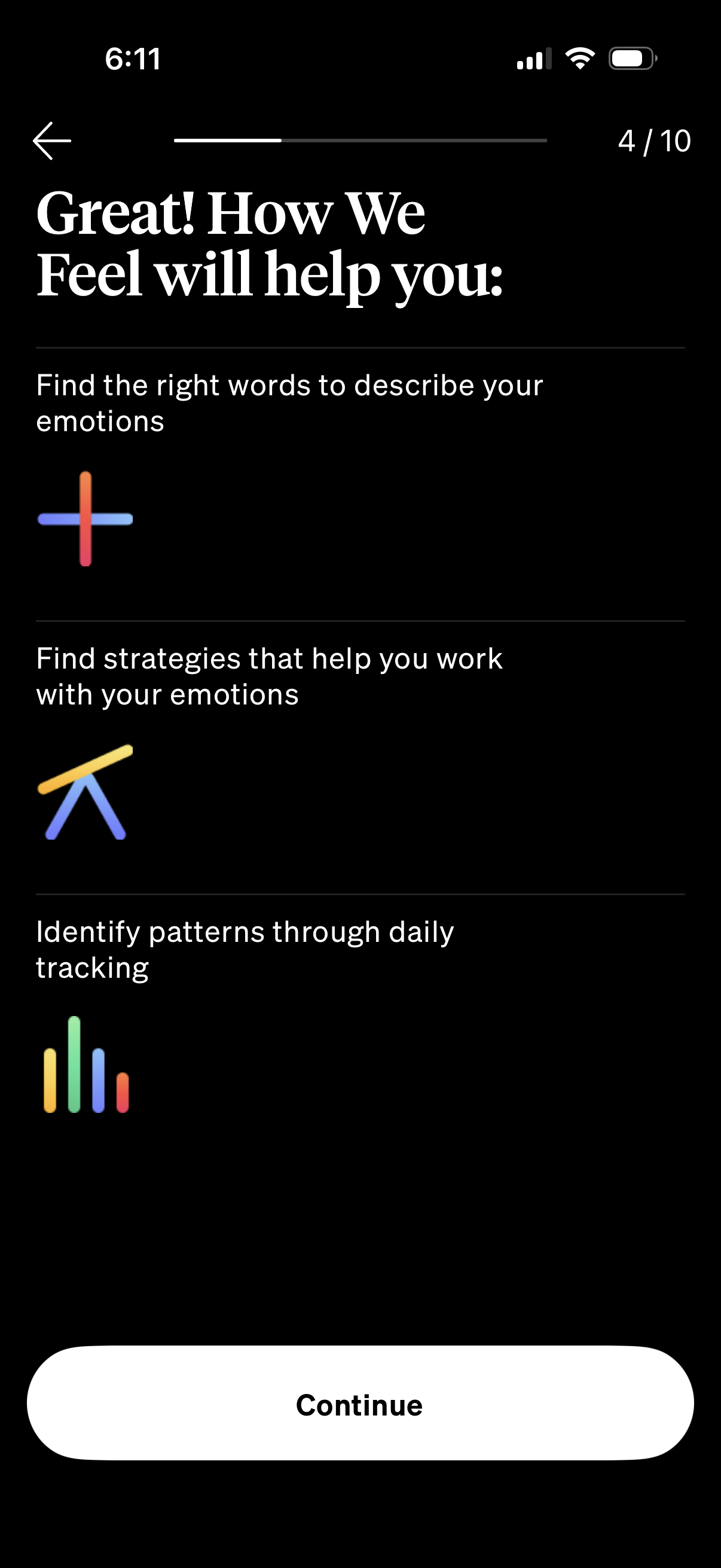
Onboarding explainer screen for a mental health or mood tracking app outlining benefits like labeling emotions, learning coping strategies, and identifying patterns through daily tracking. Includes a progress indicator, back navigation, and a primary “Continue” button to proceed to the next onboarding step.
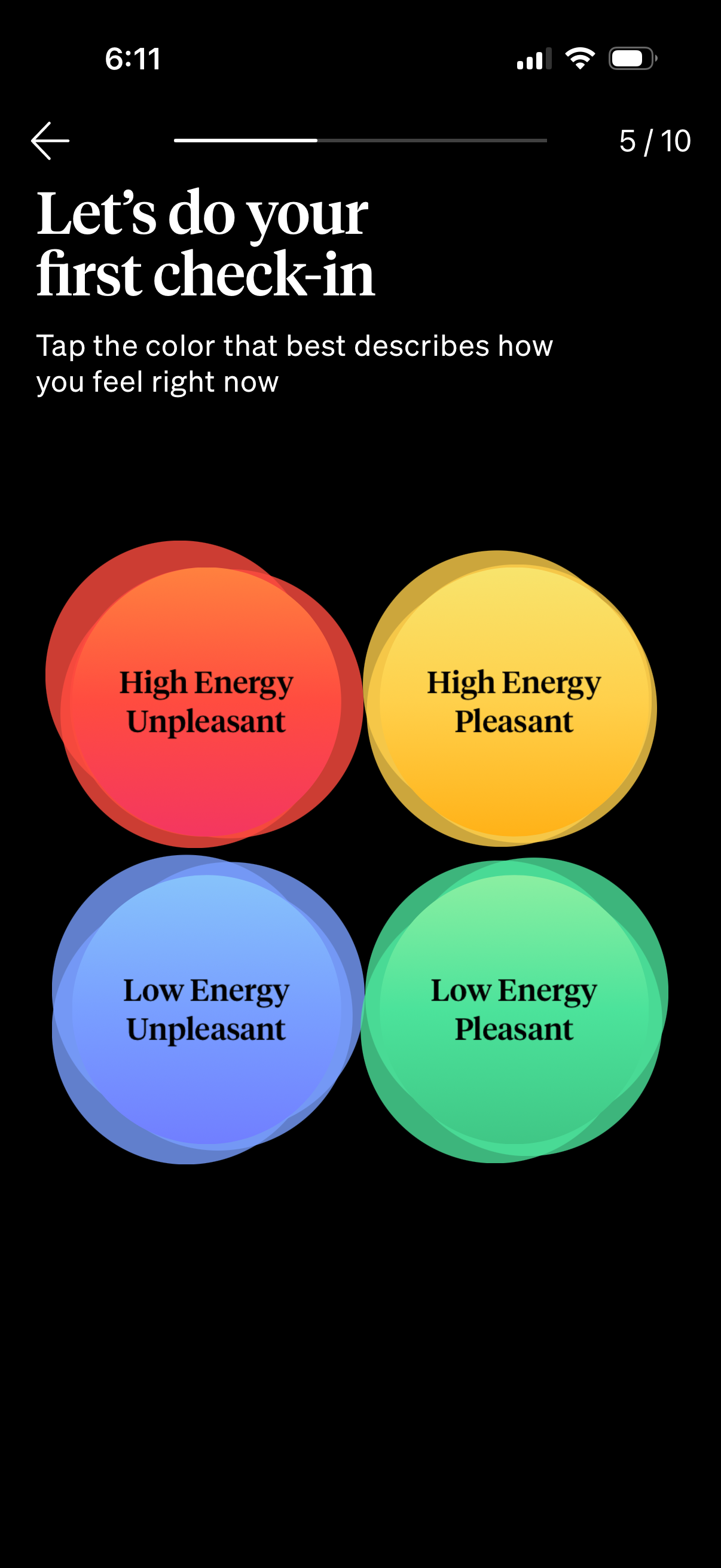
Onboarding mood check-in screen that asks the user to tap a color representing how they feel right now, using four large options: high energy pleasant, high energy unpleasant, low energy pleasant, and low energy unpleasant. Includes a back arrow and step progress indicator for a multi-step setup flow.
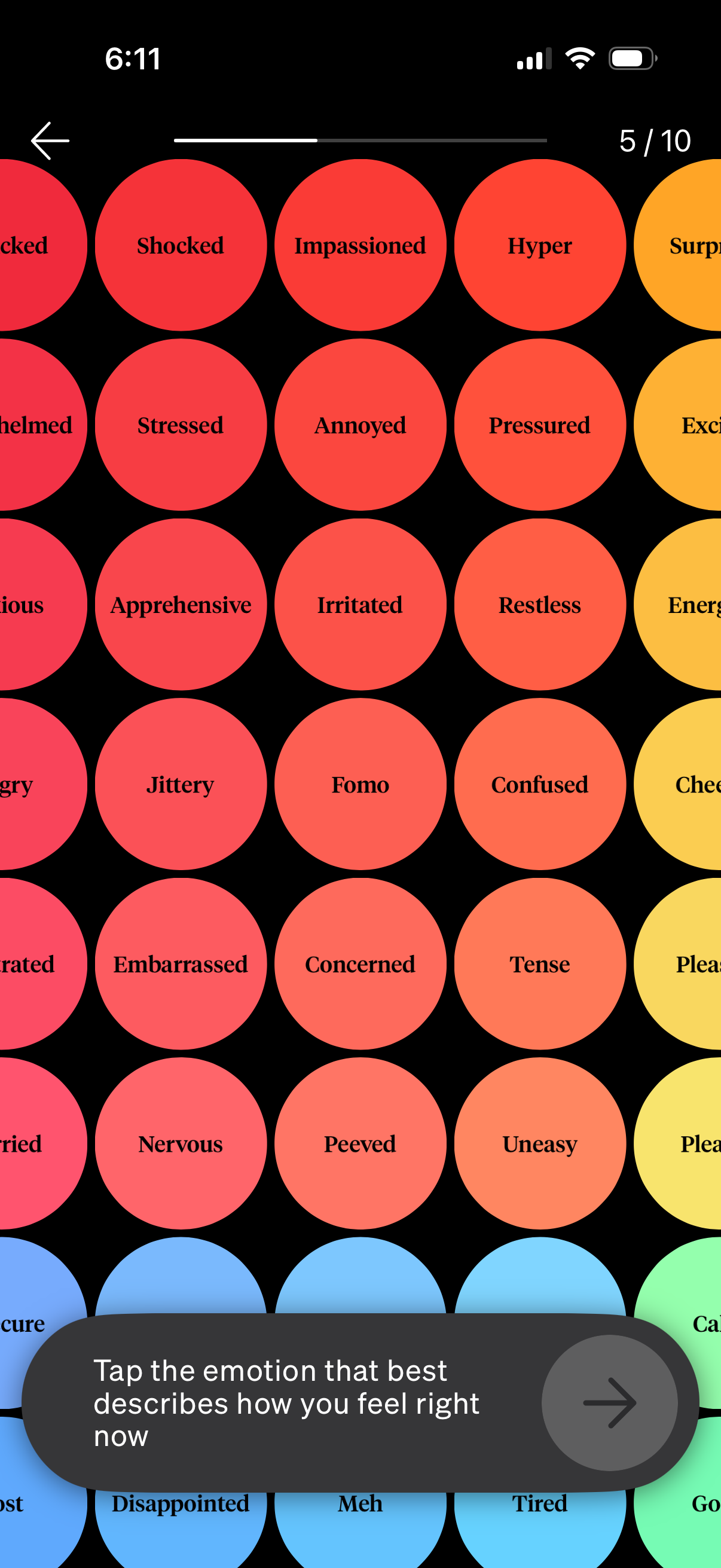
Mood check-in selection screen showing a grid of color-coded emotion buttons (e. g.
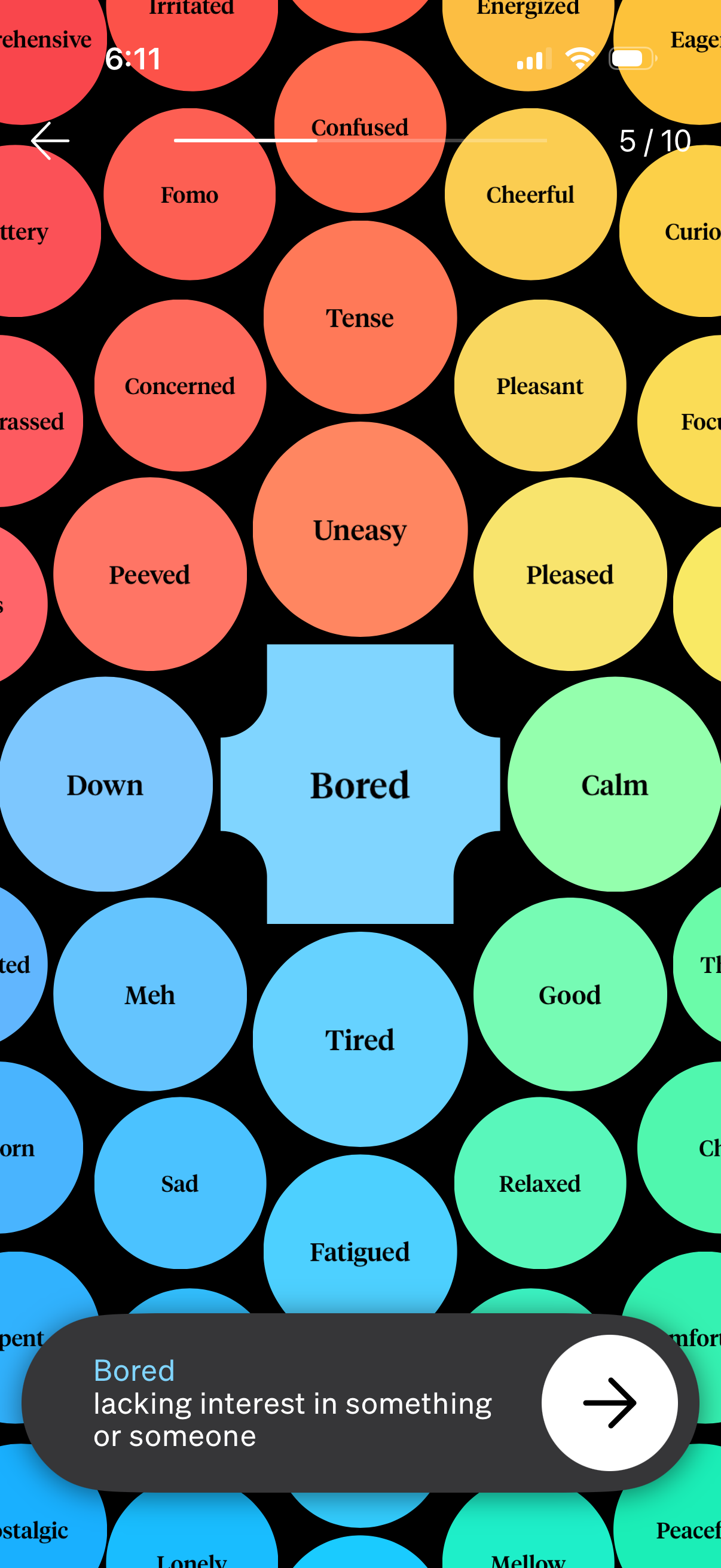
Mood selection screen for an emotion check-in showing a colorful grid of emotion bubbles (e. g.

Mood check-in screen in a journaling or mental health app showing the selected feeling (“I’m feeling bored”) with an option to add a journal entry via text, photo, or voice. Users can tag what they’re doing using activity chips (eating, hanging out, fitness, hobbies, resting, driving) and complete the check-in with a primary CTA button.
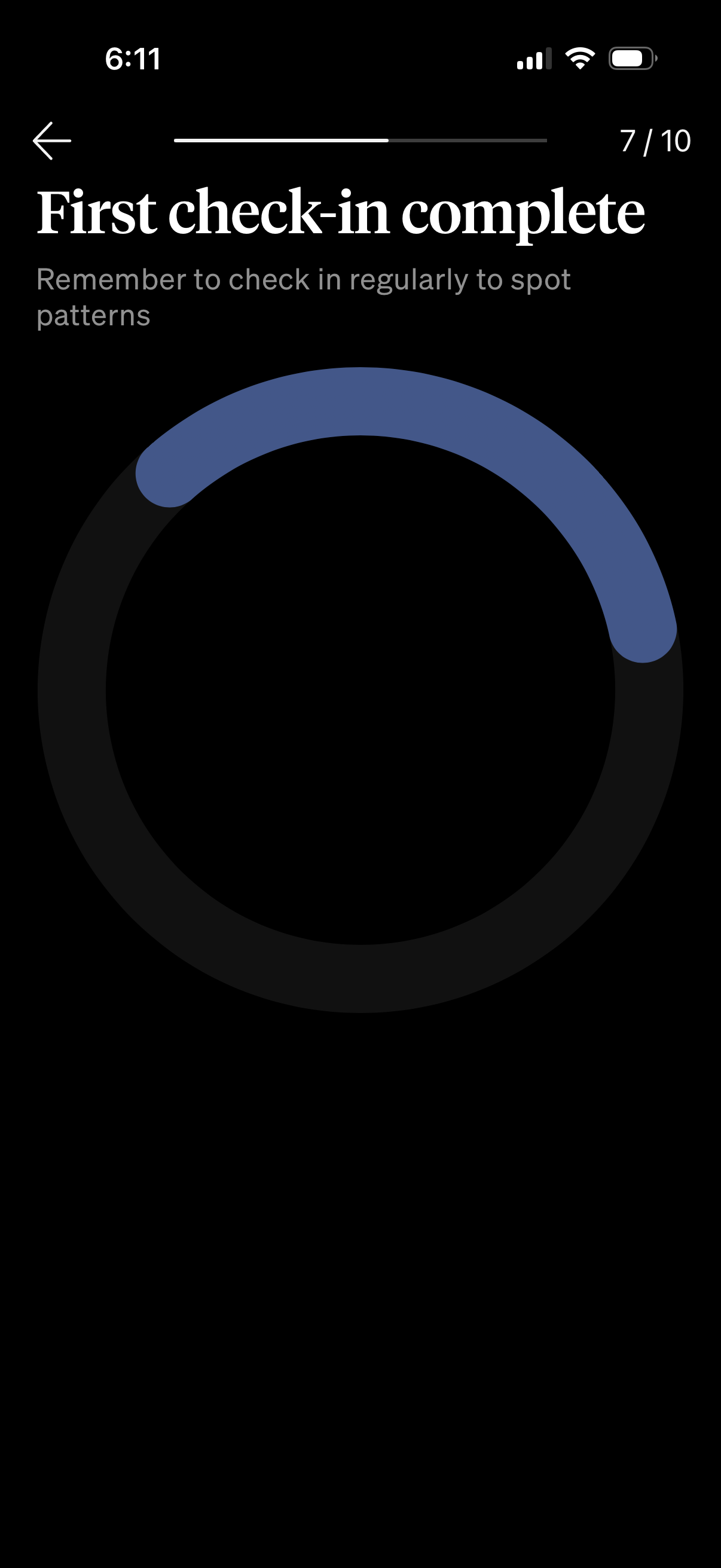
Completion confirmation screen in an onboarding or health tracking flow showing “First check-in complete” with a reminder to check in regularly to spot patterns. Includes a large circular progress indicator and a step progress bar (7/10) with a back navigation arrow.
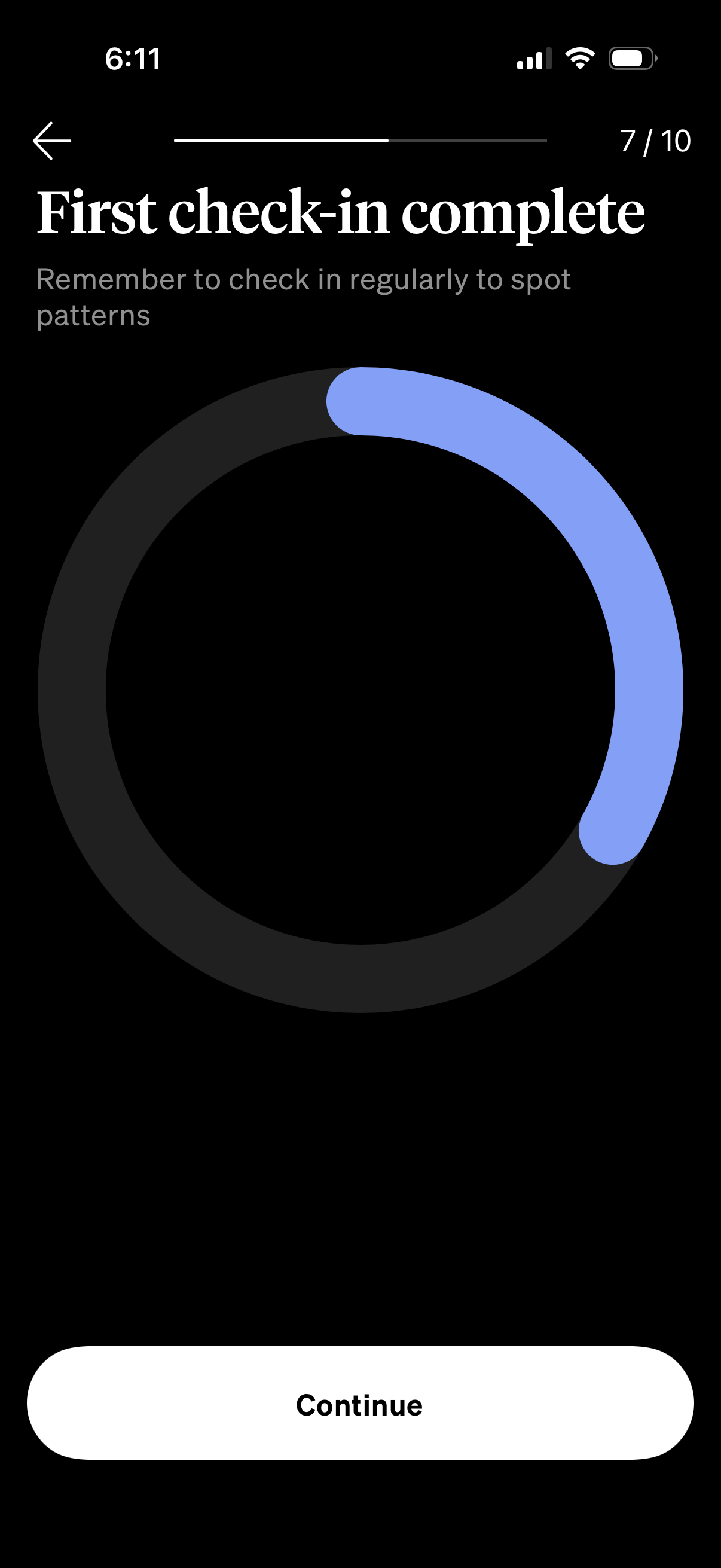
Confirmation screen indicating a user’s first check-in is complete, encouraging regular check-ins to spot patterns. Shows progress in a multi-step flow with a circular progress indicator and a primary “Continue” button to proceed.
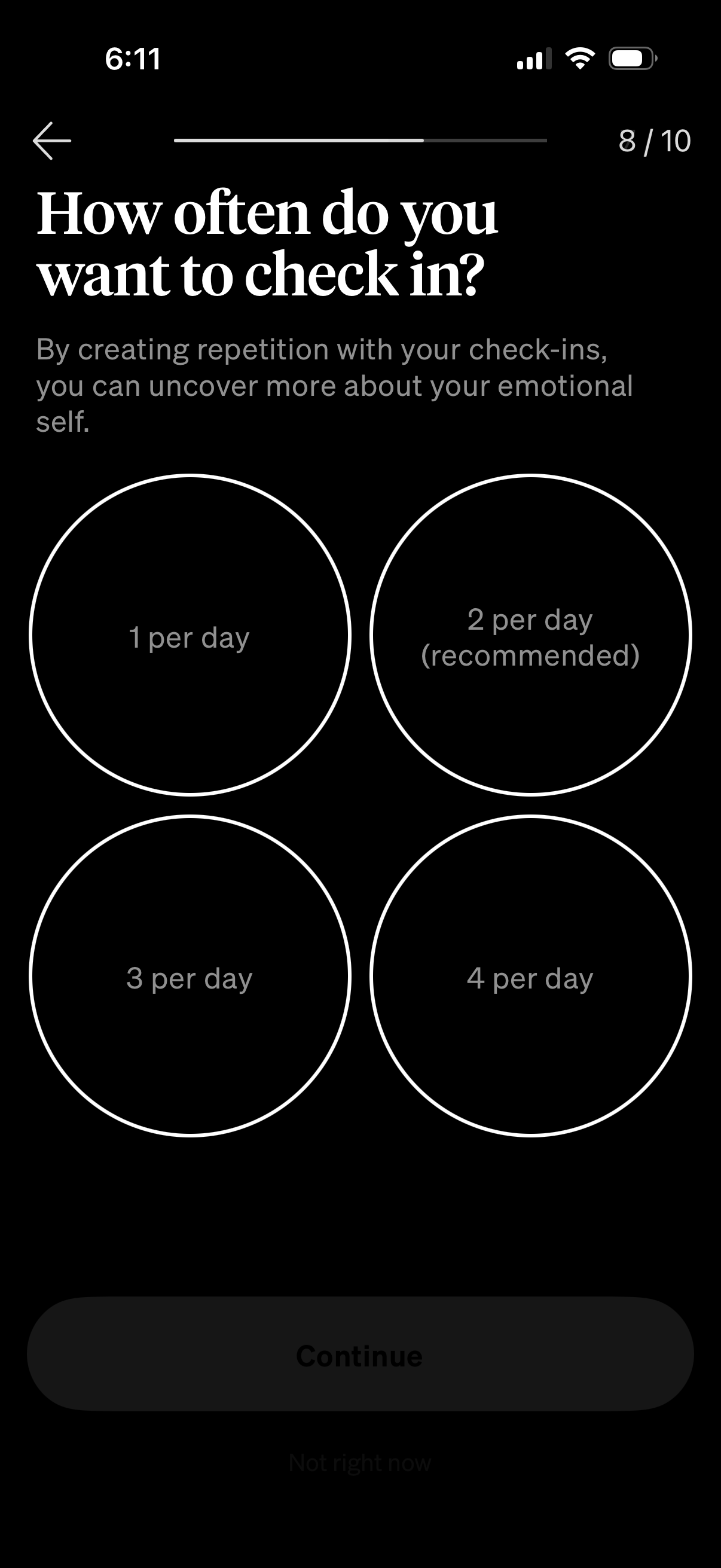
Onboarding preferences screen for a wellness or mood tracking app asking how often the user wants to check in each day. Users choose a daily check-in frequency from large selectable options (1, 2 recommended, 3, or 4 per day) and proceed with Continue or skip with Not right now.

Reminder scheduling screen asking the user what time they want to be reminded, showing preset notification times for Morning and Evening with the selected times displayed. Users can tap the pencil edit icons to customize each reminder time within a multi-step setup flow.
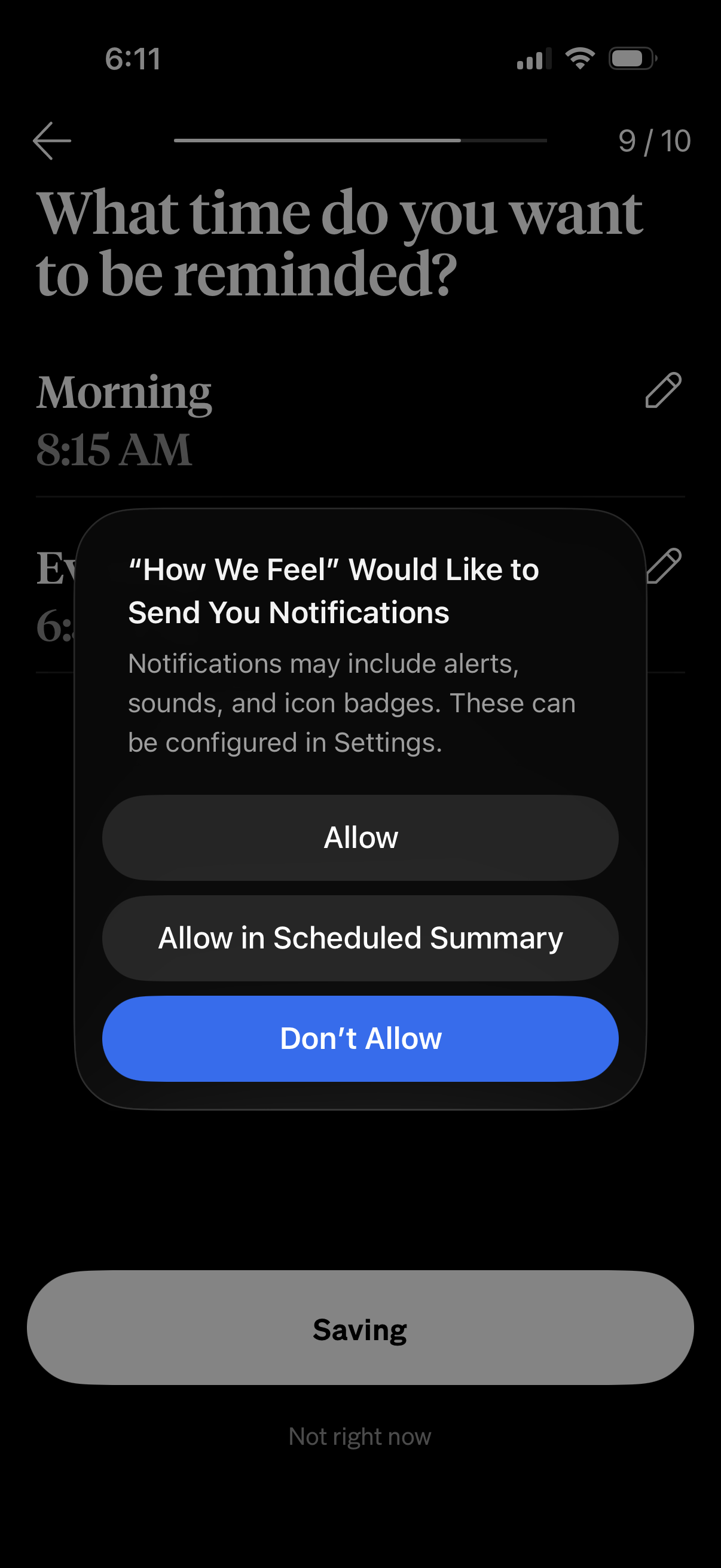
Reminder scheduling screen asking what time the user wants to be reminded, with editable morning and evening notification times and a save action. An iOS system permission modal overlays the page to request notification access with options to Allow, Allow in Scheduled Summary, or Don’t Allow.
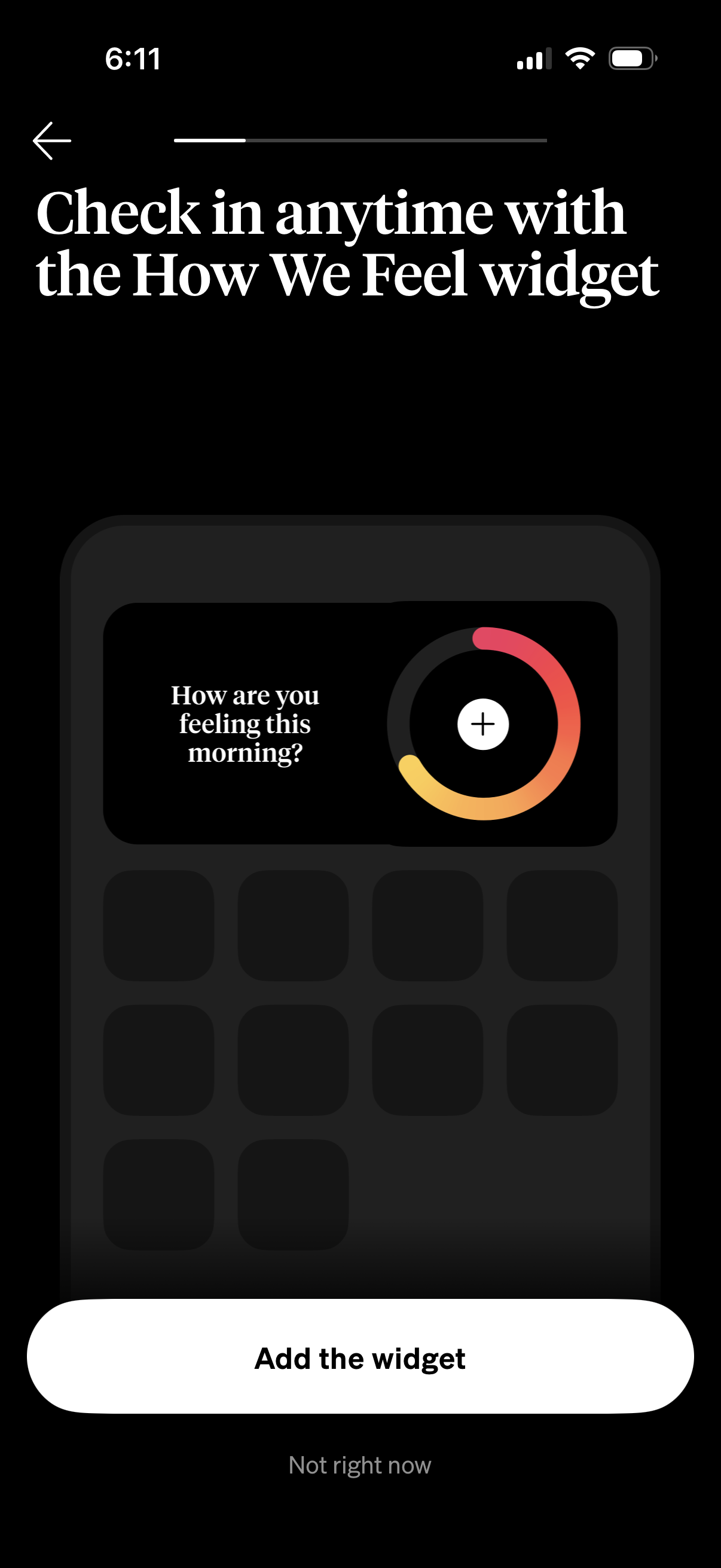
Onboarding prompt encouraging users to check in on their mood anytime via a “How We Feel” home screen widget, previewing the widget’s daily question and quick-add control. Primary actions are to add the widget or dismiss with “Not right now,” with a back navigation option.