start booking a stay
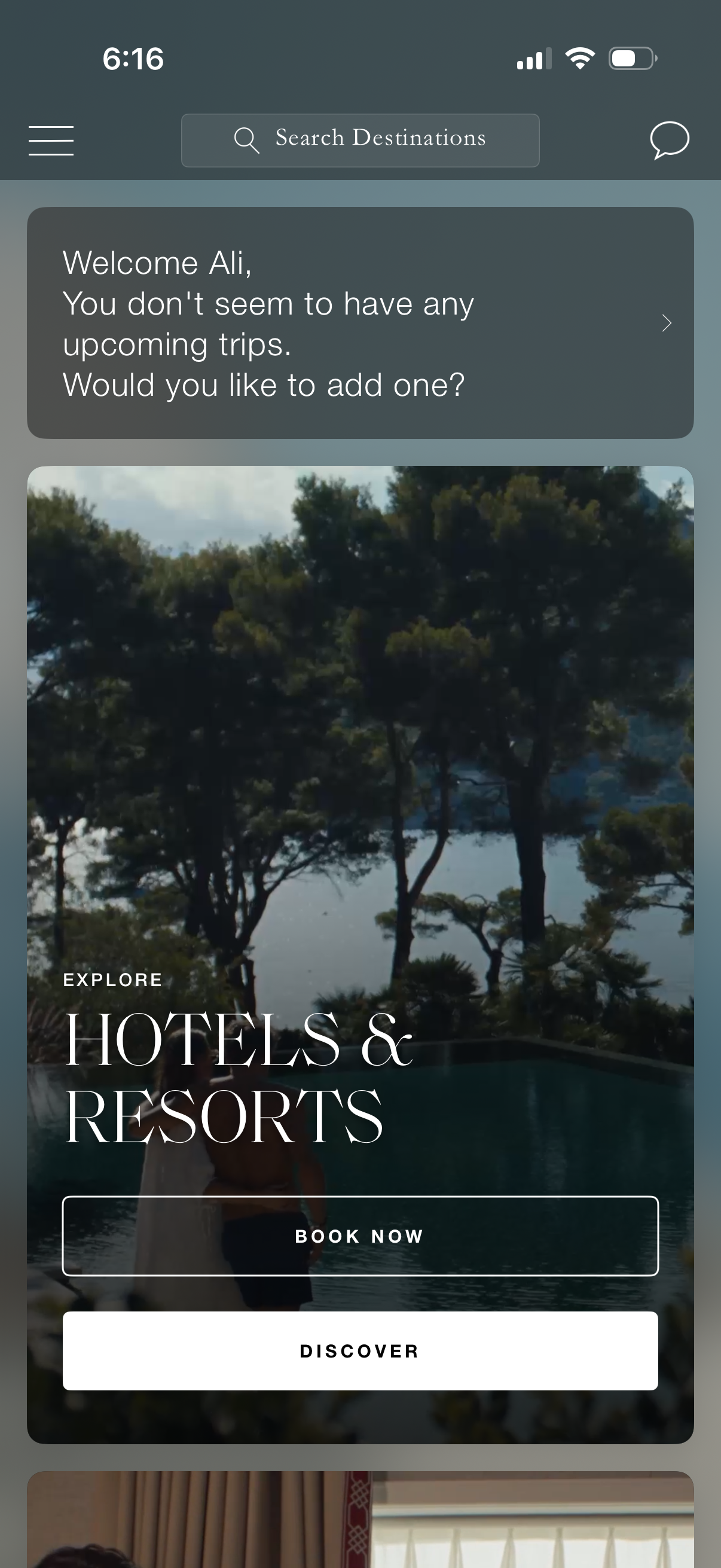
Travel app home dashboard with a top “Search Destinations” bar, hamburger menu, and messages icon, plus a welcome card prompting the user to add an upcoming trip. Below are promotional discovery cards for exploring hotels and resorts with primary actions like “Book Now” and “Discover.

Hotel discovery screen titled “Where to Stay” with a destination search bar (select destination) and a scrolling list of featured properties shown as large image cards labeled by city/region. Users can search for a location, browse featured stays, and tap a property card to view booking details.

Destination search screen for “Where to stay” with a text input and clear button, showing autocomplete search results for hotel locations in Tokyo (e. g.
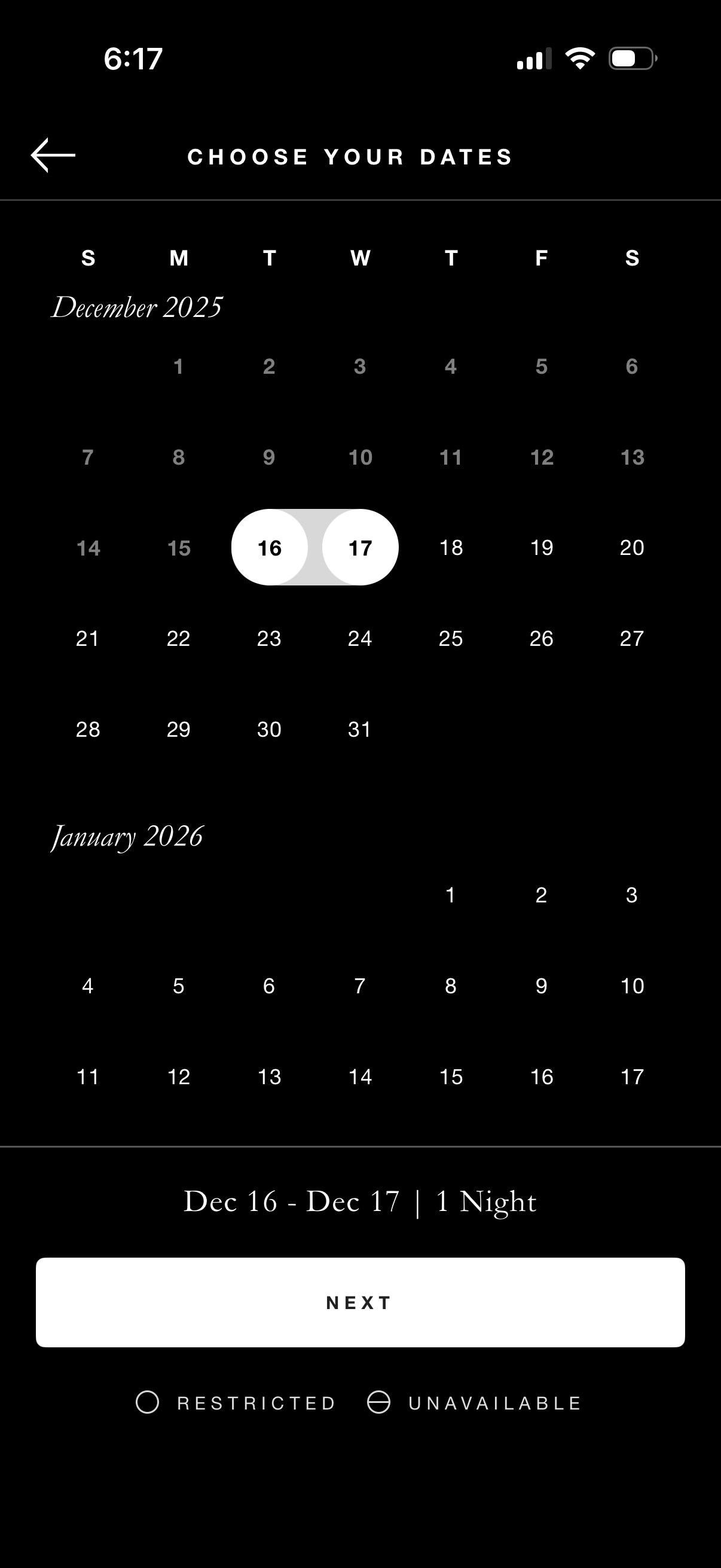
Date picker calendar screen for booking a stay, allowing users to select a check-in and check-out range across months with a highlighted selected period. Shows the chosen dates and total nights and includes a primary “Next” button, with indicators for restricted or unavailable dates.
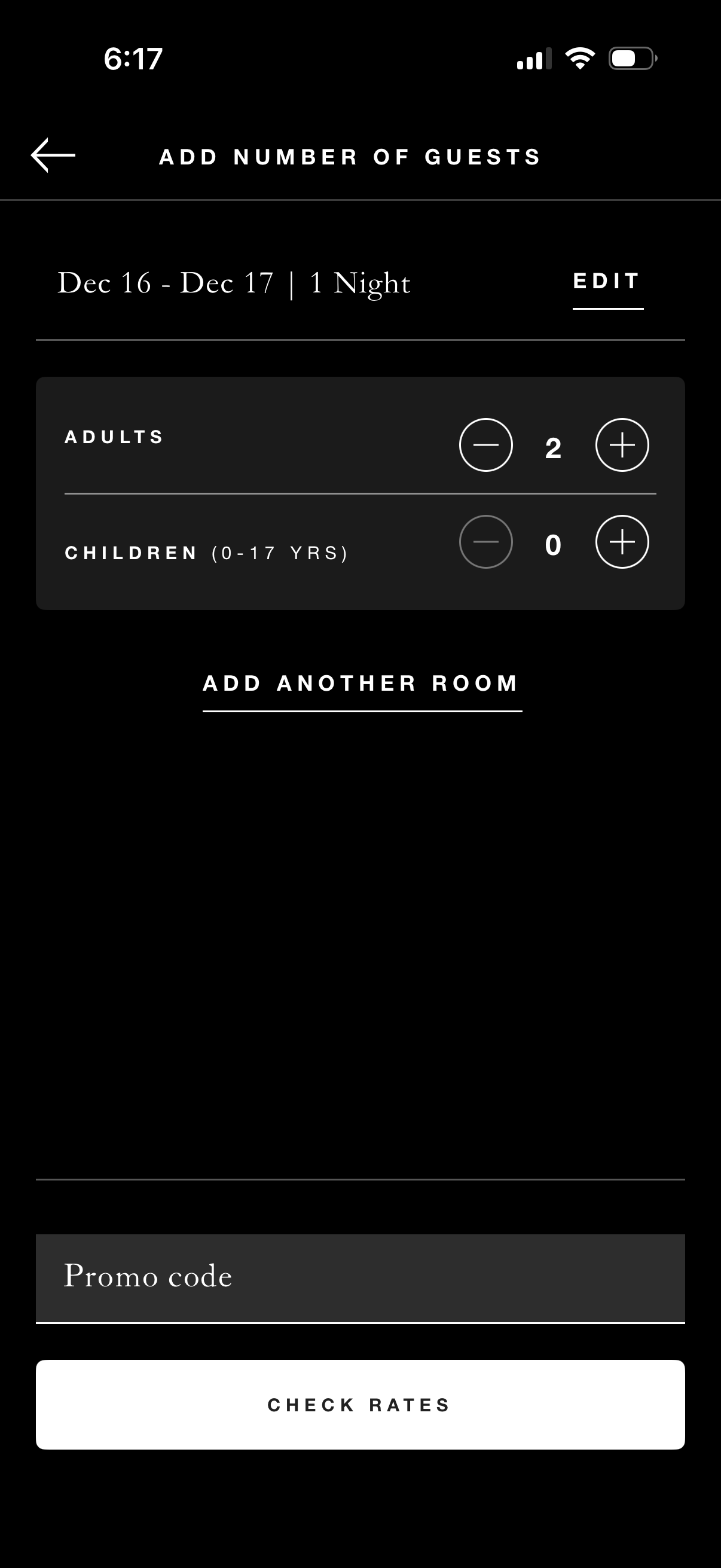
Hotel booking guest selection screen where users set the number of adults and children using plus/minus steppers, with an option to add another room and edit stay dates. Includes a promo code field and a primary “Check rates” call to action to search pricing.
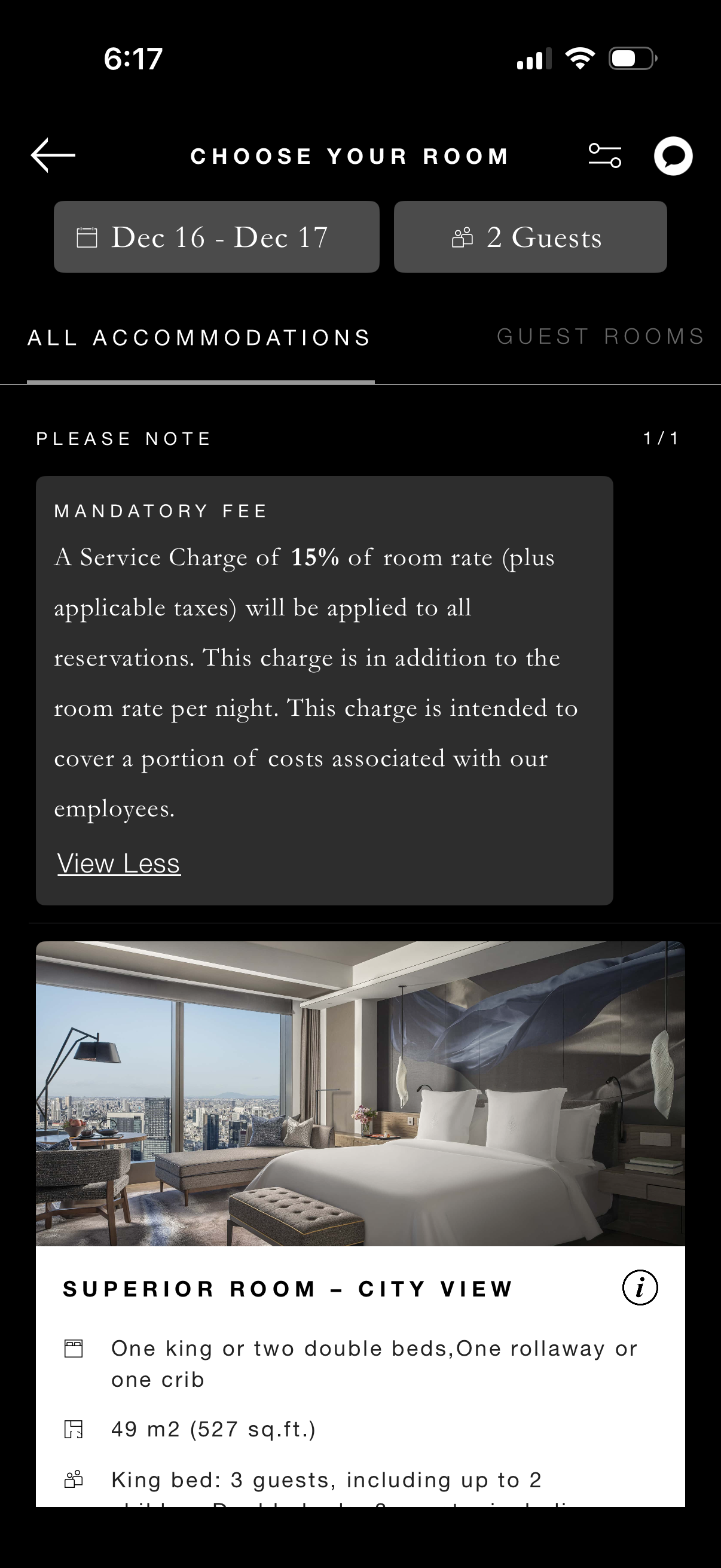
Hotel booking room selection screen where users choose stay dates and number of guests, browse accommodations via tabs, and view an expanded “please note” section about mandatory fees/service charges. A room listing card shows a large room photo and key details like room type, bed options, size, occupancy, with an info button plus back and filter controls.

Hotel booking room details screen for selecting a bed configuration, showing stay dates, guest count, room photo, room type, and per-night price with fees included. Users can choose between one king bed or two double beds, or change the room selection.
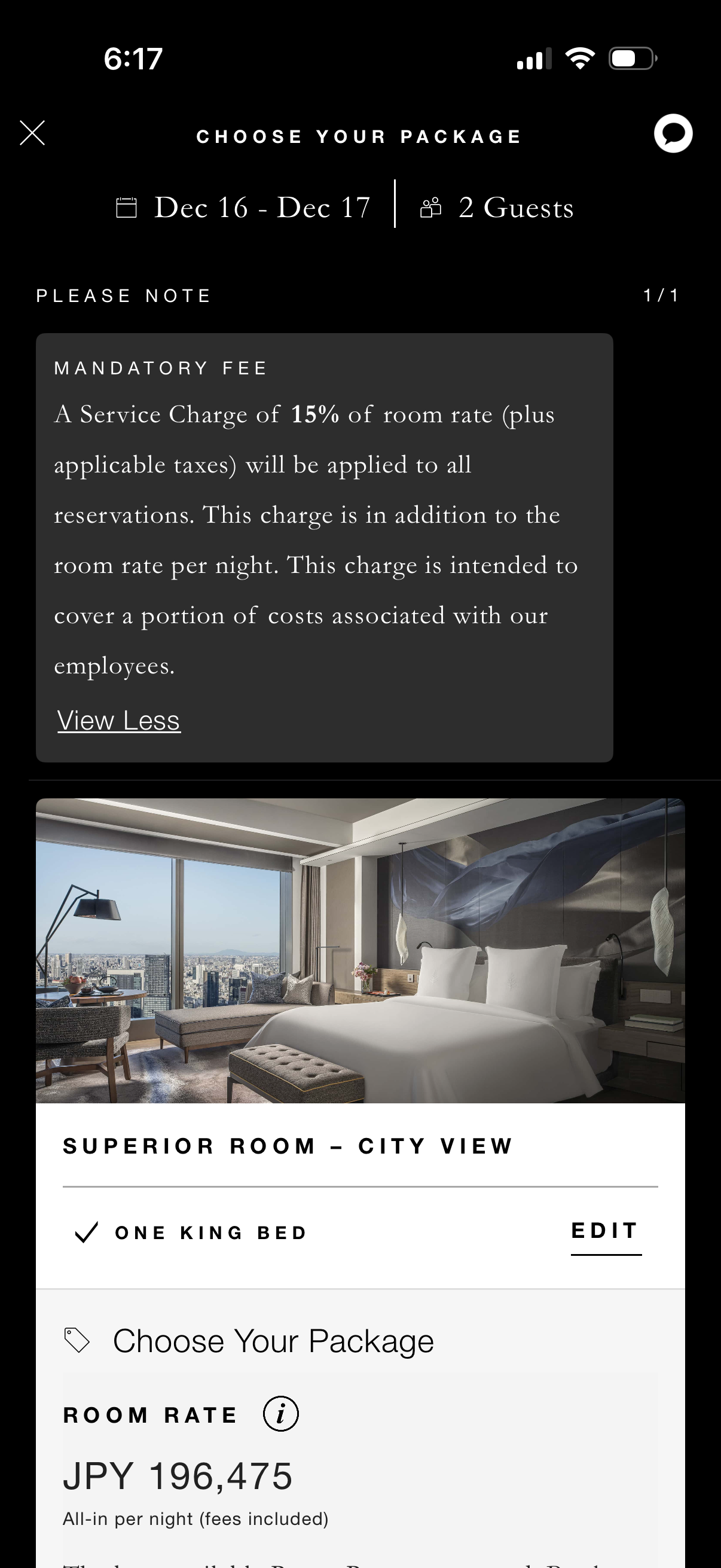
Hotel booking “Choose your package” screen showing selected stay dates and guest count, with a mandatory service fee notice that can be expanded/collapsed. Displays the chosen room type with photo, bed details and edit option, and shows the nightly room rate with an info icon indicating fees included.
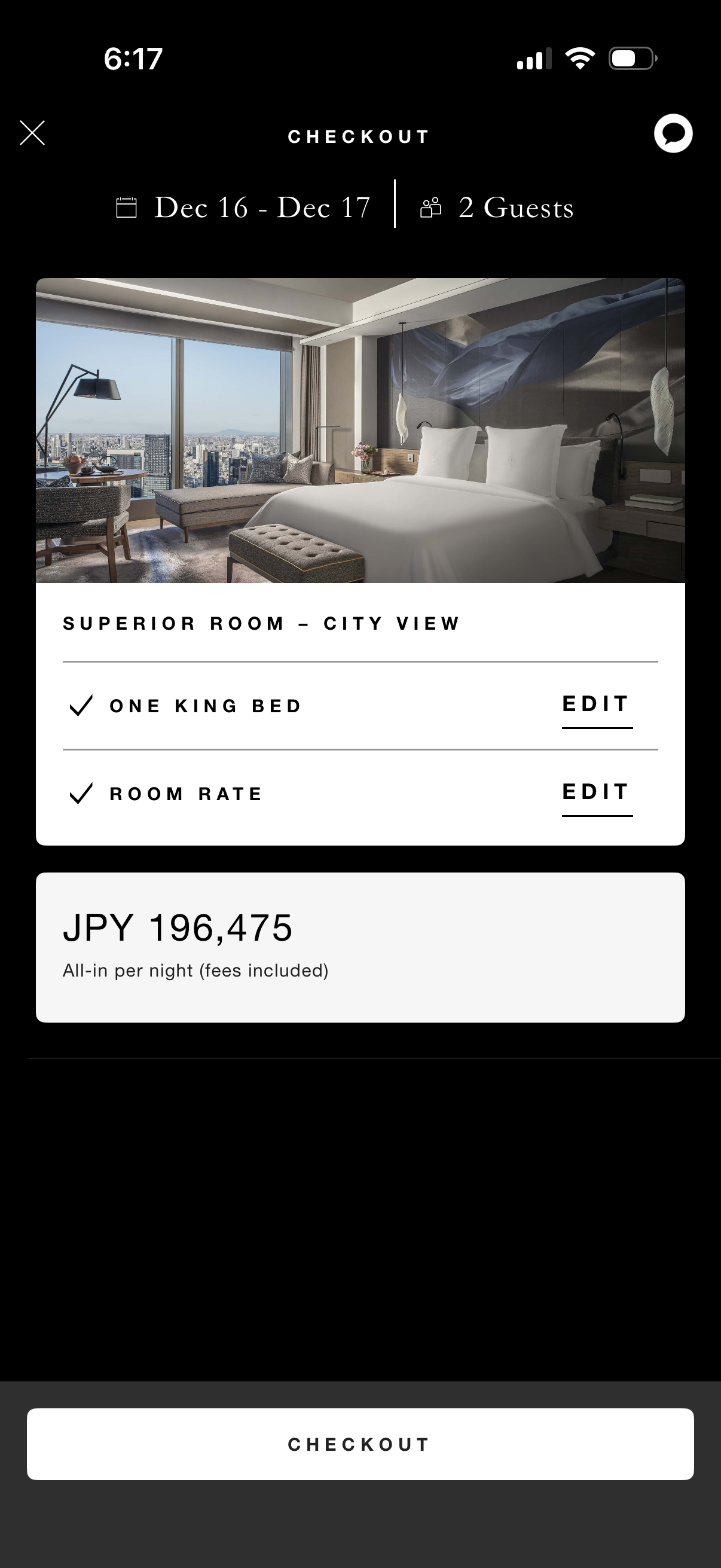
Hotel booking checkout screen showing selected stay dates and guest count, a room preview with room type and options (bed type and room rate) that can be edited. Displays the total nightly price including fees in JPY and a primary CTA button to proceed with checkout.

Hotel booking review screen showing reservation details (property, dates, rooms and guests) and a room summary card with room type, bed configuration, average nightly rate, fee breakdown, and expandable nightly rates. Includes a step progress indicator, back navigation, and a primary Continue button to proceed to the next checkout step.

Hotel booking checkout screen showing a multi-step “Complete booking” flow with property details, stay dates, guests, and an estimated total price. Users choose whether they’re booking for themselves or someone else, review/enter primary guest contact information, and confirm with a Book button.
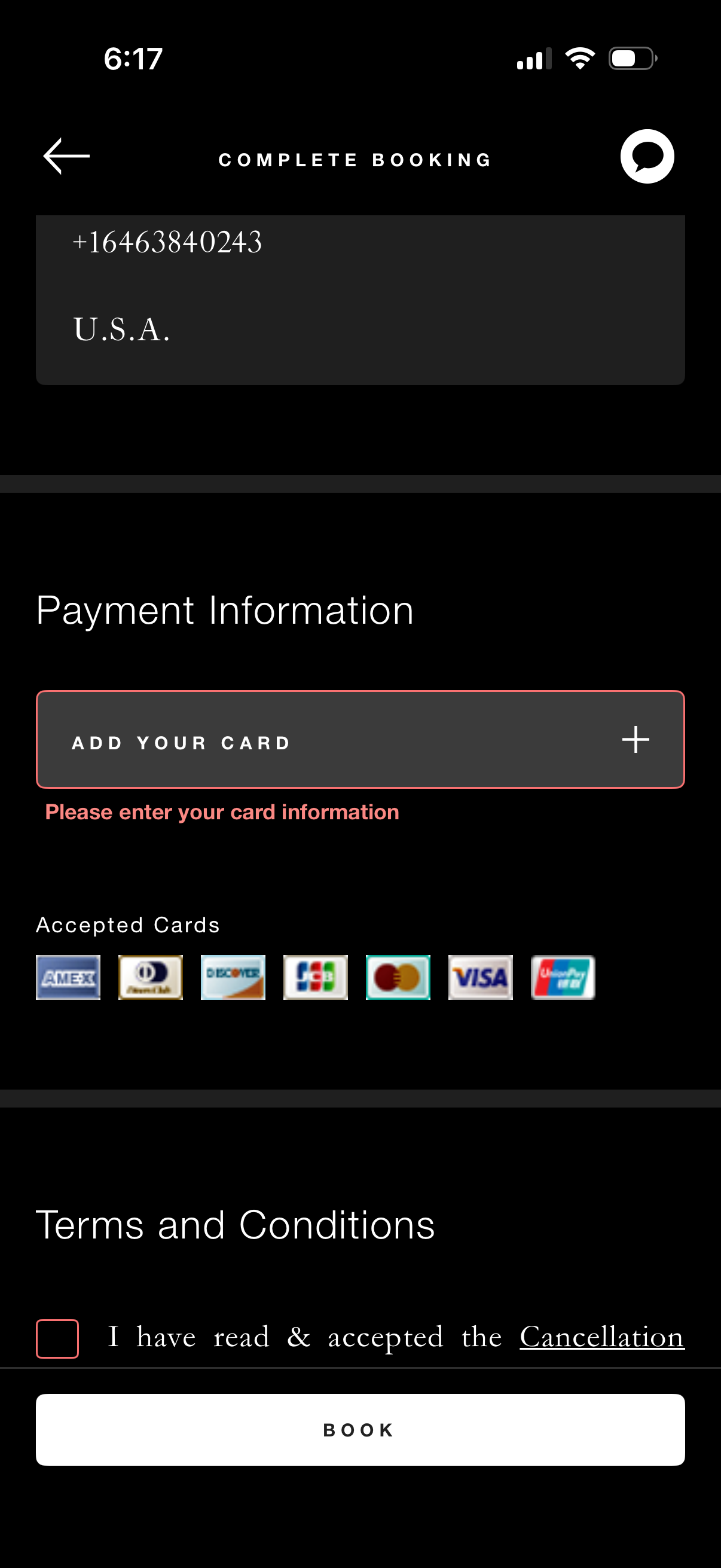
Checkout screen to complete a booking where the user must add credit/debit card payment information, with accepted card logos shown and an inline validation error prompting for card details. Includes a terms and conditions acceptance checkbox with a link to the cancellation policy and a primary “Book” button to submit the reservation.
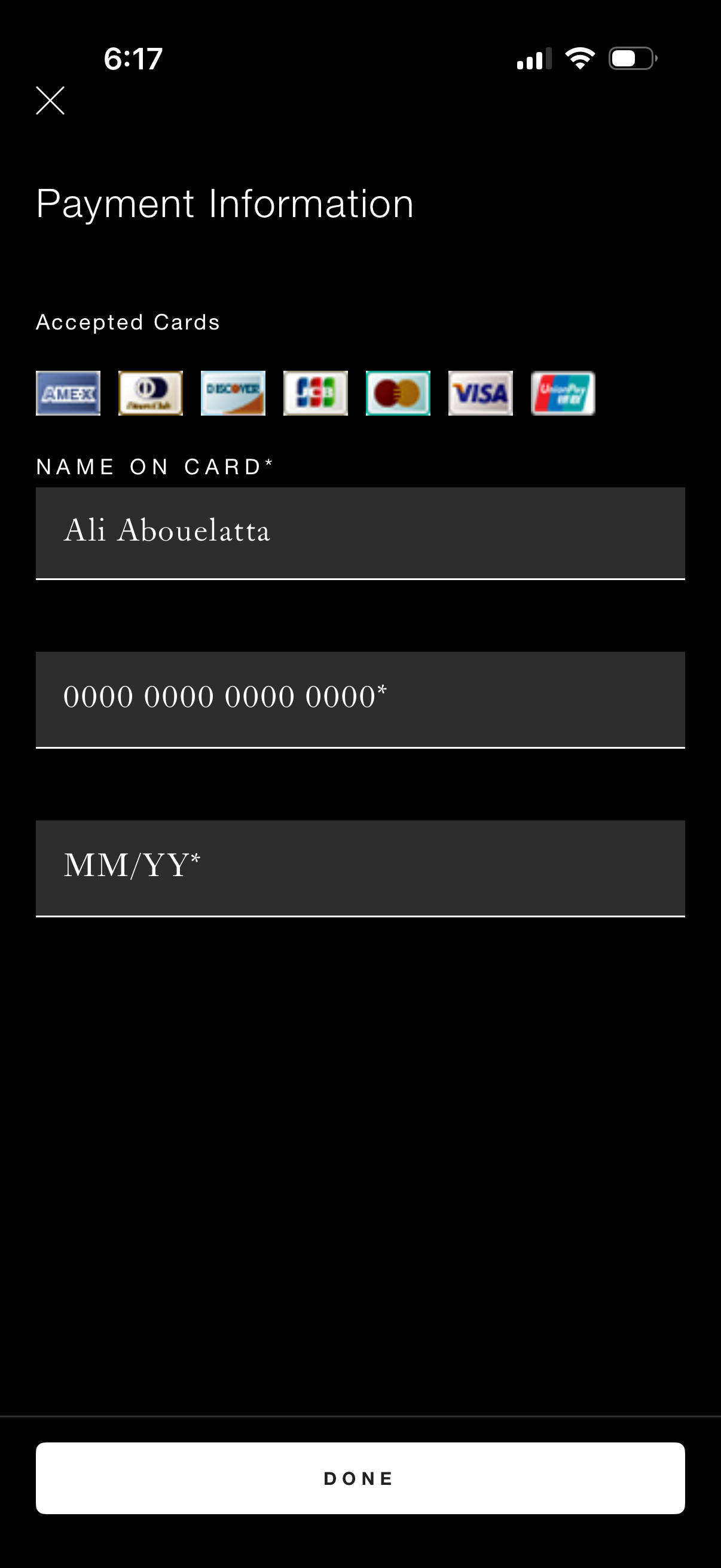
Payment information screen for adding a credit/debit card, showing accepted card brands and input fields for name on card, card number, and expiration date. Includes a close icon to dismiss and a primary “Done” button to save the payment method.