place a stock order
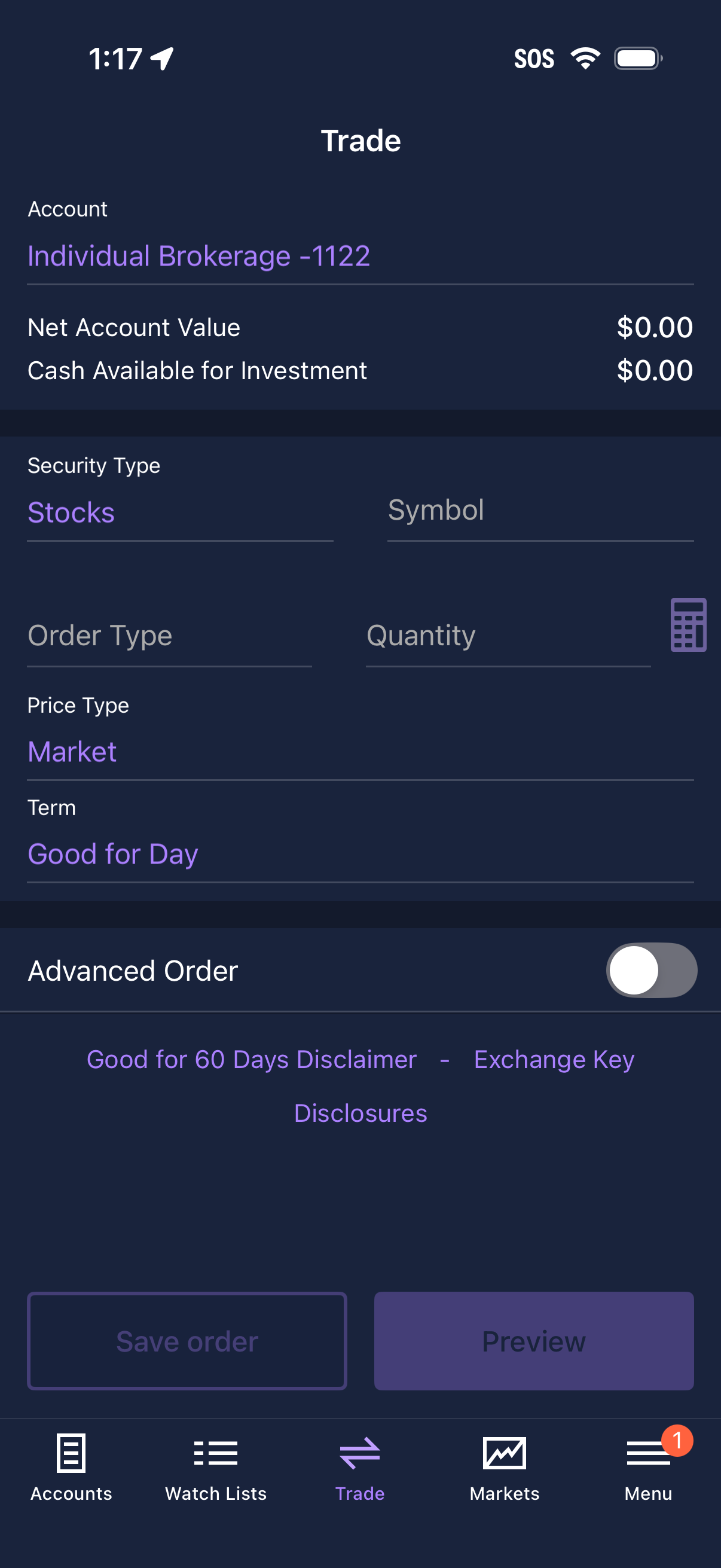
Brokerage trading order entry screen showing selected account with net account value and available cash, and fields to place a stock trade including symbol, order type, quantity, price type (market), and term (good for day). Includes an Advanced Order toggle, links to disclosures, and primary actions to save the order or preview before submitting.
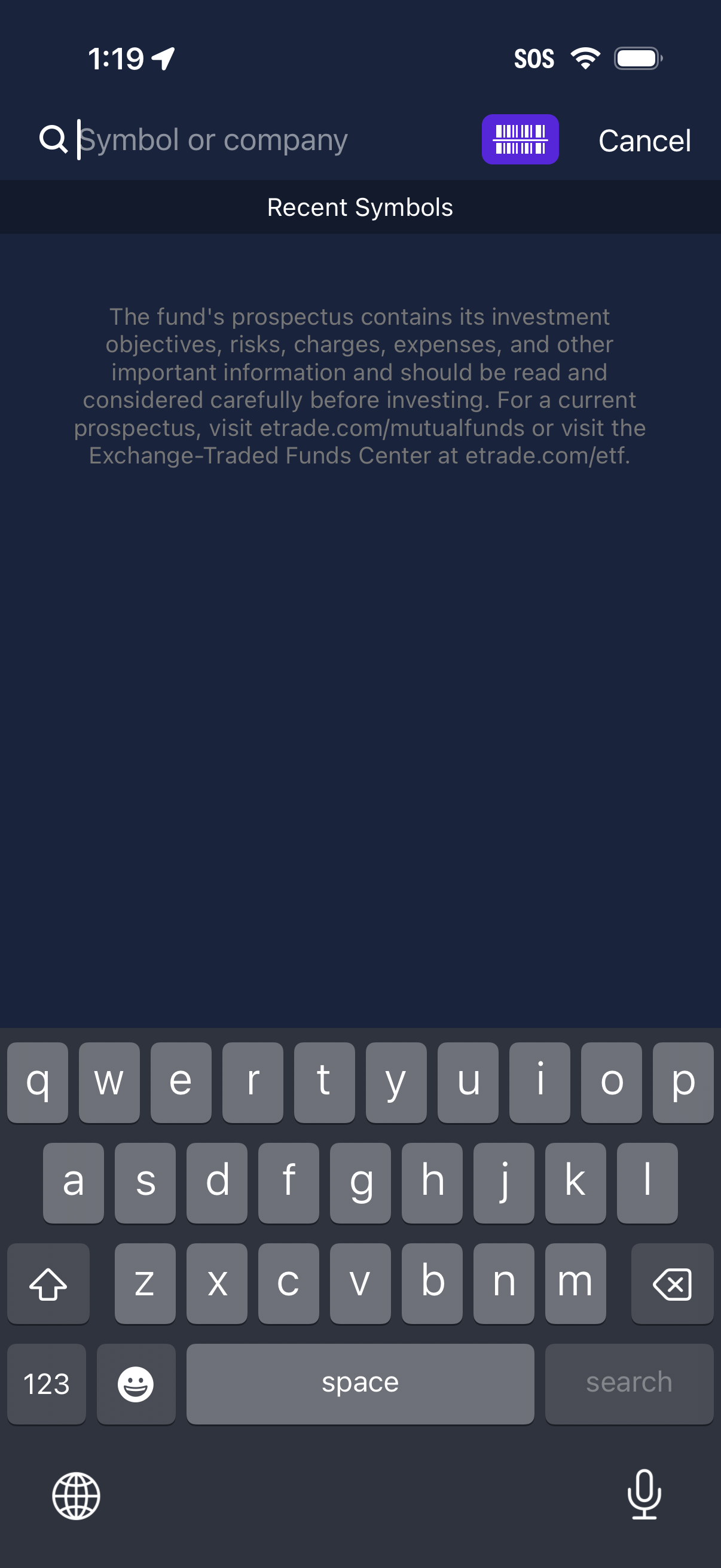
Stock trading app search screen for looking up a ticker symbol or company, with a search bar, barcode/scan shortcut, and a Cancel action. Shows a “Recent Symbols” section below the search field for quick access to recently viewed tickers.
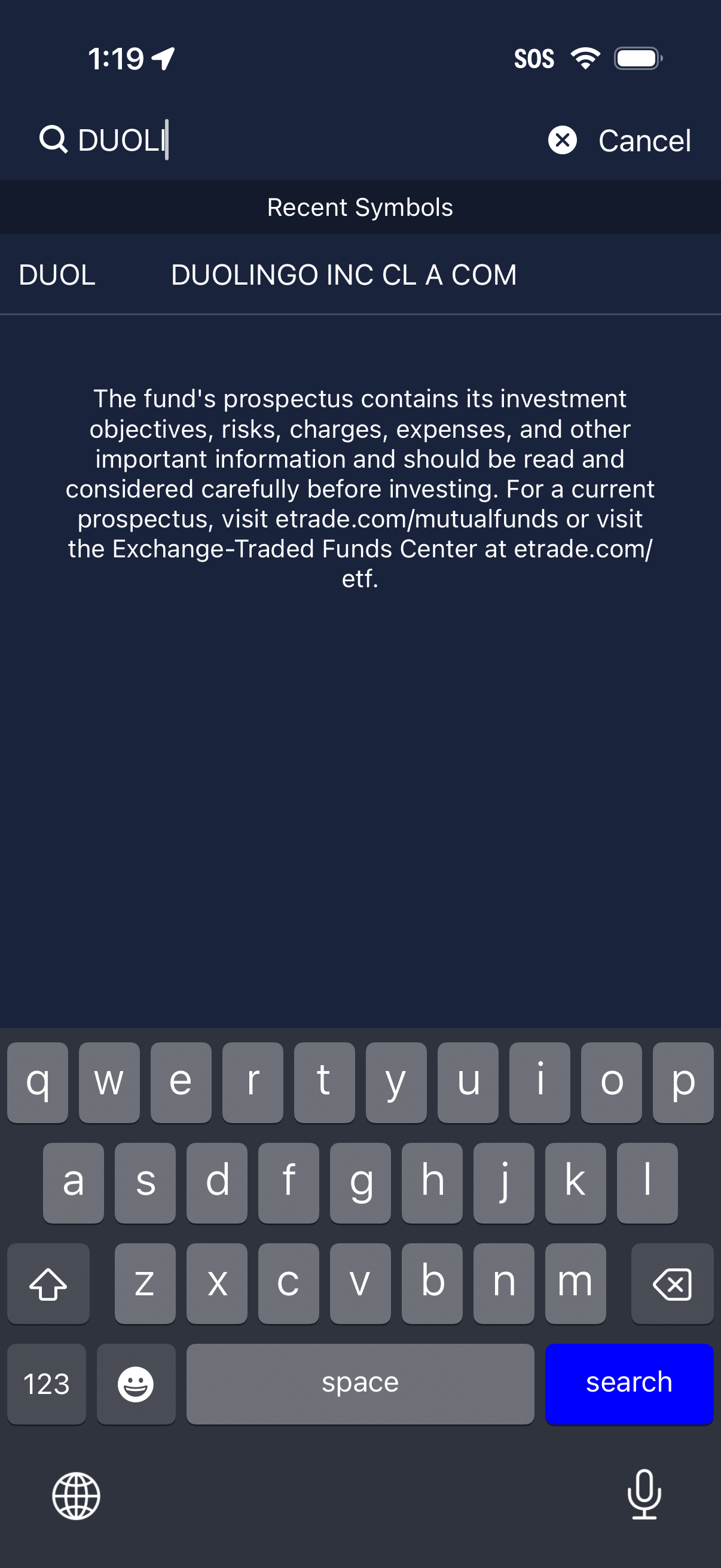
In-app stock symbol search screen with a search bar and cancel/clear controls, showing a “Recent Symbols” list of matching tickers for quick selection. Includes a mutual fund/ETF prospectus disclaimer message while the user types and submits the search.
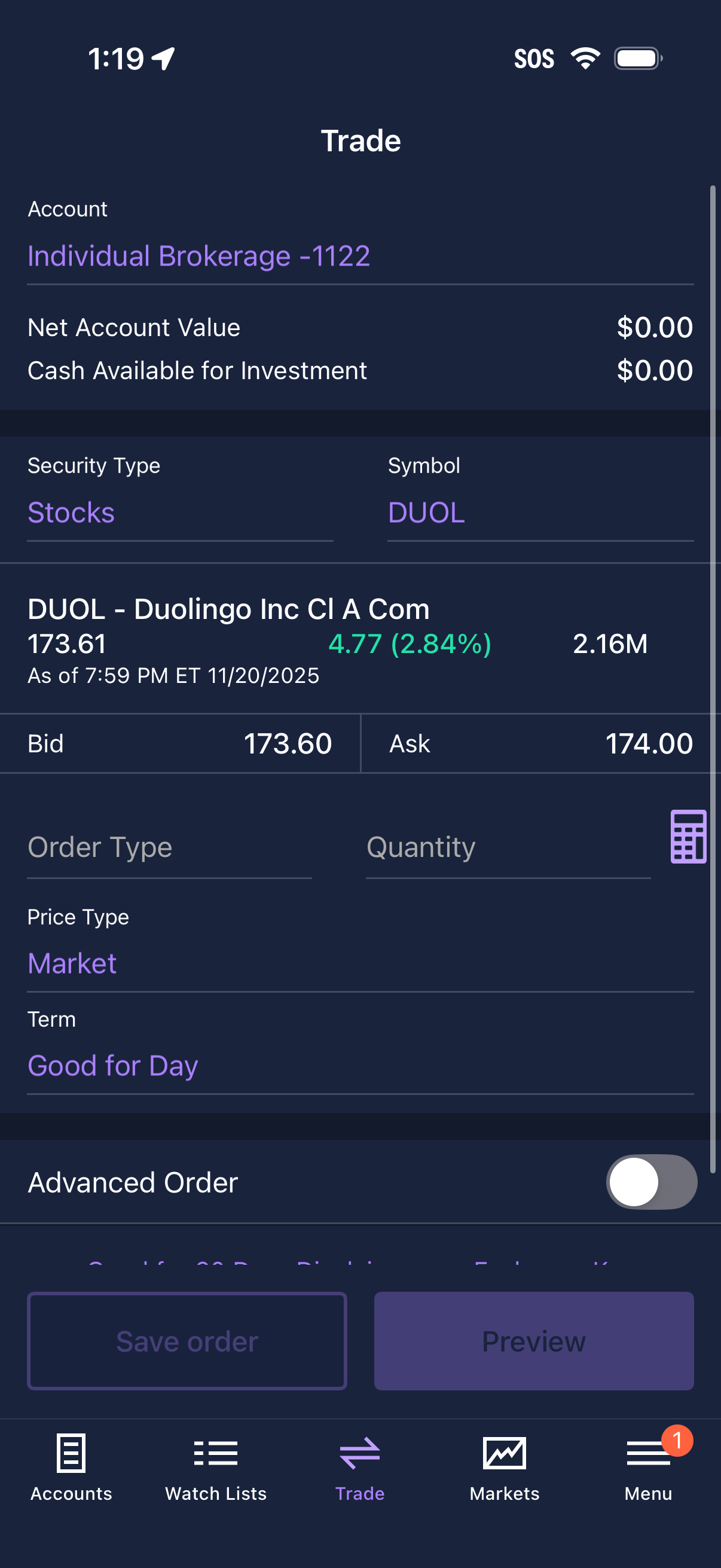
Mobile brokerage trade ticket screen for placing a stock order, showing selected account balances, security type and symbol lookup, real-time quote with bid/ask, and fields to set order type/quantity, price type (market), and time-in-force (good for day) with an advanced order toggle plus actions to save or preview the order.
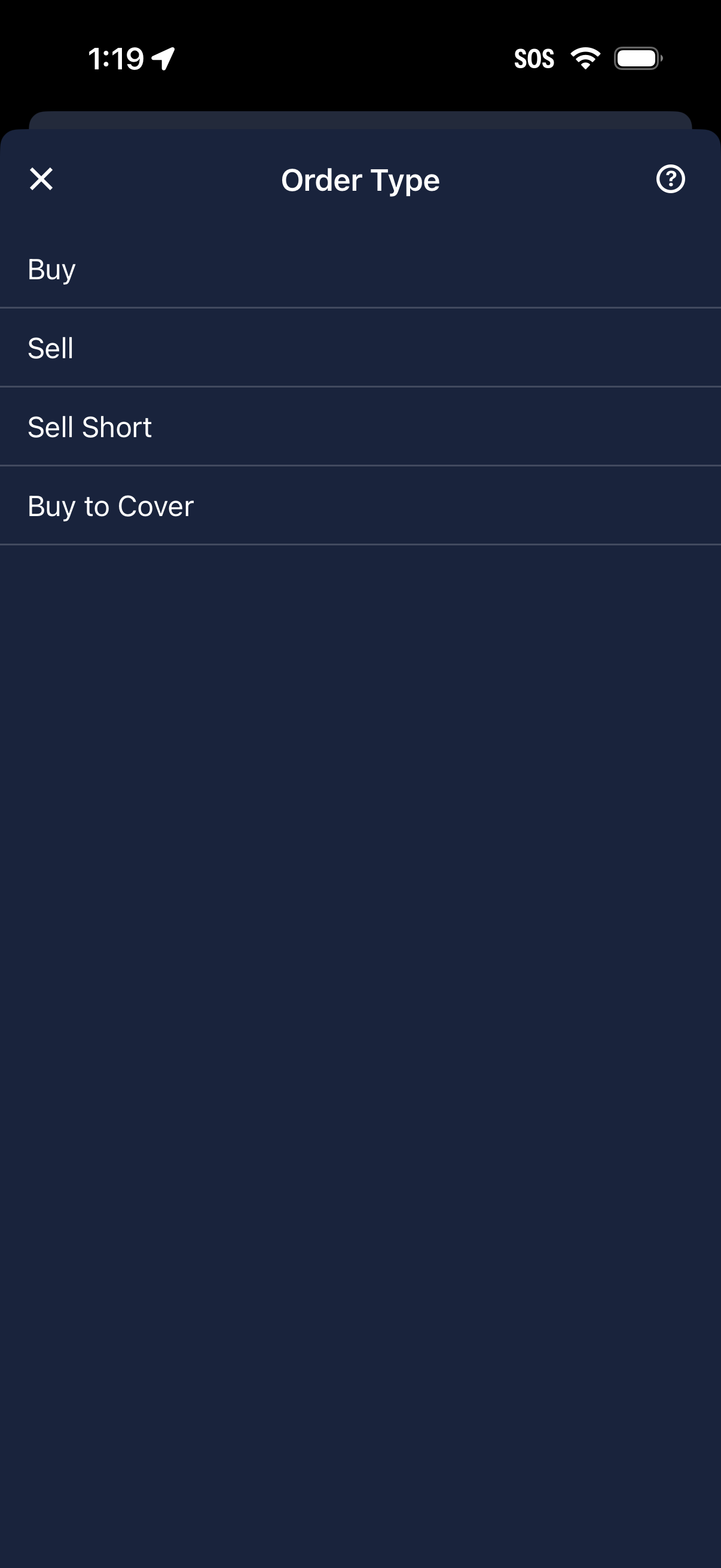
Trading app order type selection screen showing a list of actions to choose from: Buy, Sell, Sell Short, and Buy to Cover. Includes close (X) and help icons for dismissing or getting more information.
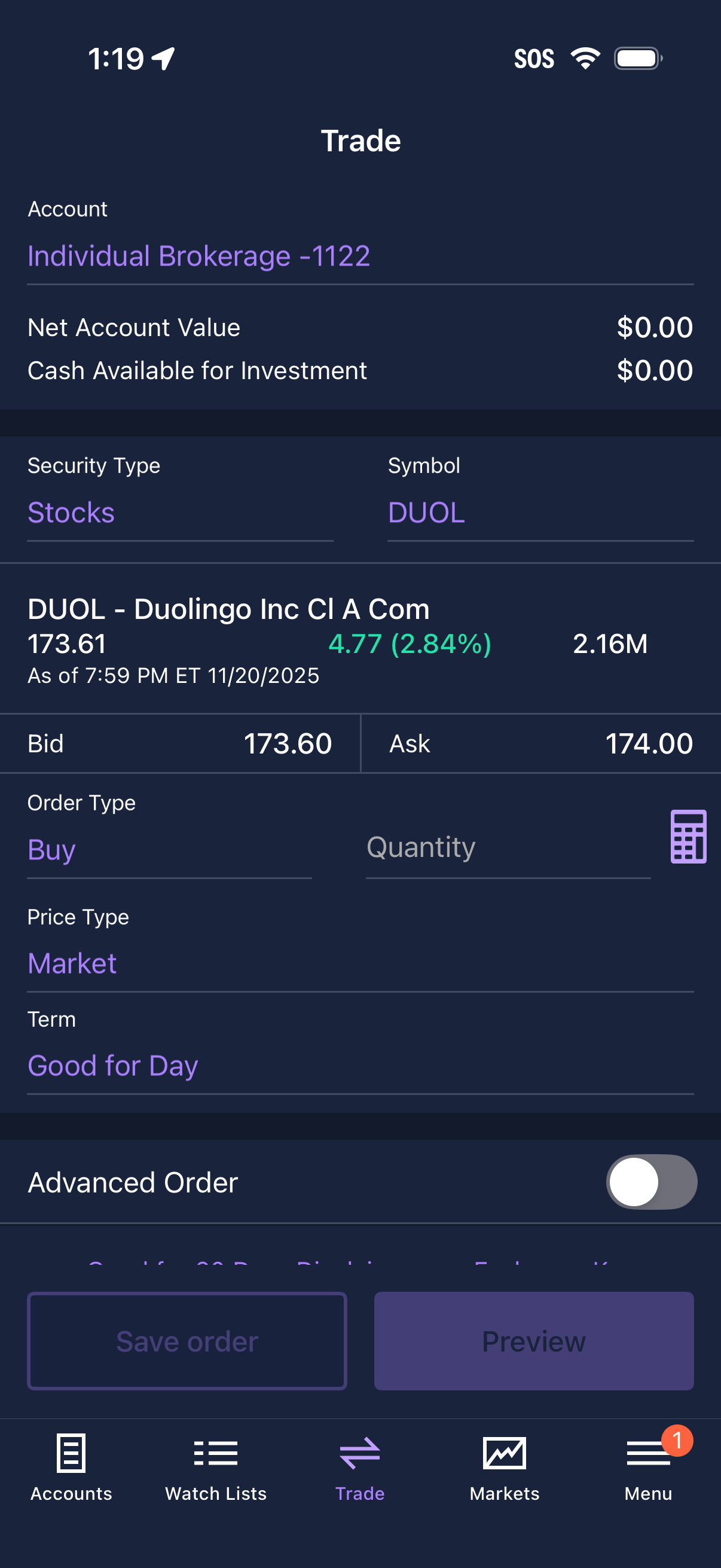
Stock trading order entry screen for a brokerage account showing net account value and cash available, with security type and symbol selected and real-time quote details including last price, change, volume, and bid/ask. Users can configure an order to buy or sell by setting order type, quantity, price type (market), and term (good for day), toggle advanced order options, and preview or save the order.
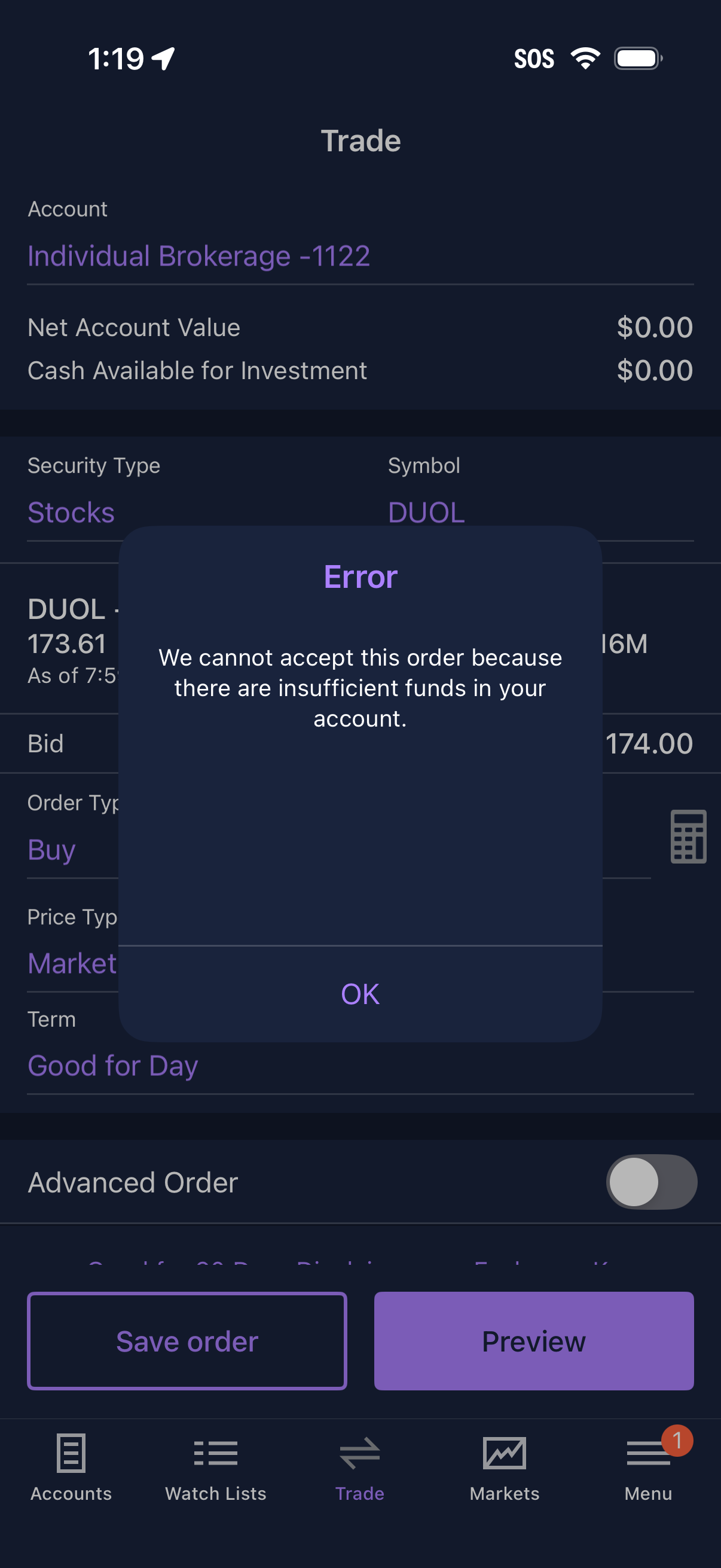
Mobile investing app trade ticket screen for placing a stock buy market order, showing account selection, net account value and available cash, order type/term options, and actions to save order or preview. A modal error alert appears stating the order can’t be accepted due to insufficient funds, with an OK button to dismiss.