claim lesson rewards
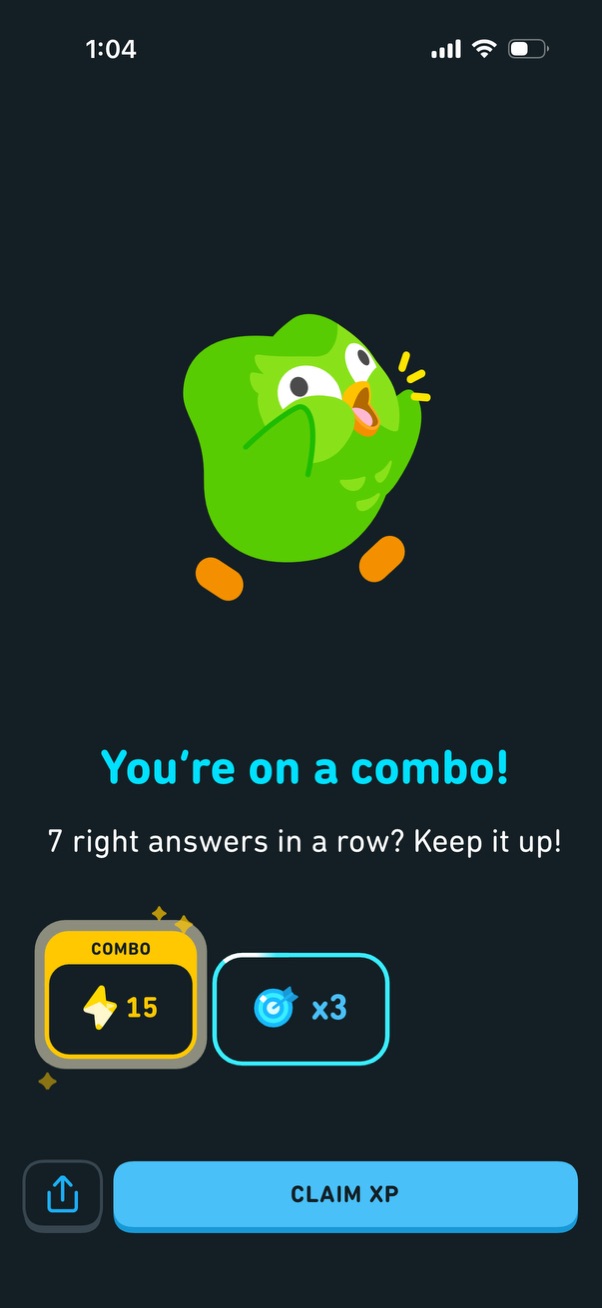
Gamified achievement popup celebrating a correct-answer streak combo, showing how many answers in a row and the rewards earned (XP points and a multiplier/boost). Main actions include a prominent “Claim XP” button to collect the reward and an option to share.
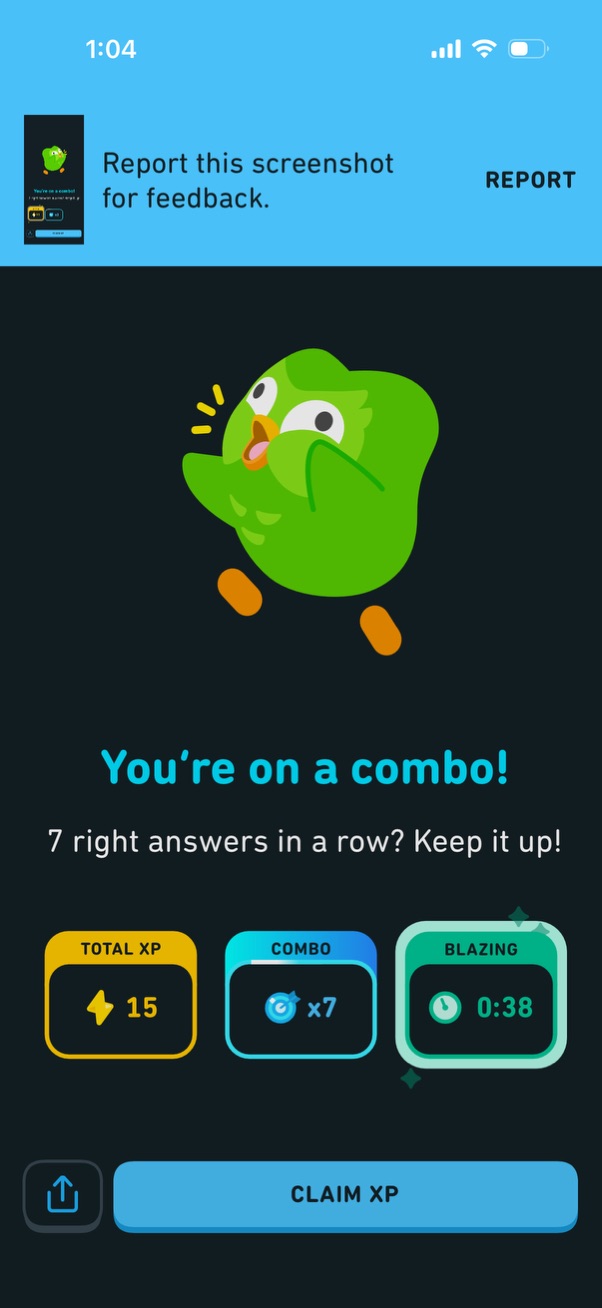
Gamified learning app achievement screen celebrating a correct-answer streak (“combo”) with an animated mascot and stats for total XP earned, combo multiplier, and a timed “blazing” streak. Primary action is a “Claim XP” button, with options to share and to report the screenshot for feedback.

Gamified engagement prompt screen with a flame icon encouraging the user to “Swipe up to ignite your streak,” indicating an interaction to start or maintain a daily streak. The primary action is a swipe-up gesture to activate the streak feature.

Full-screen celebratory animation with confetti and sparkles on a plain background, likely shown as a success or completion state. No text, controls, or actionable buttons are visible, indicating a transition/loading celebration screen.

Celebratory streak achievement screen confirming a newly started streak with a large “1 day streak” milestone and mascot illustration. Used to reinforce daily engagement habits in a learning or habit-tracking app after completing a day’s activity.

Streak celebration screen for a learning app showing a “1 day streak” achievement with motivational message encouraging daily practice. Includes a weekly calendar tracker with the current day checked to visualize streak progress.
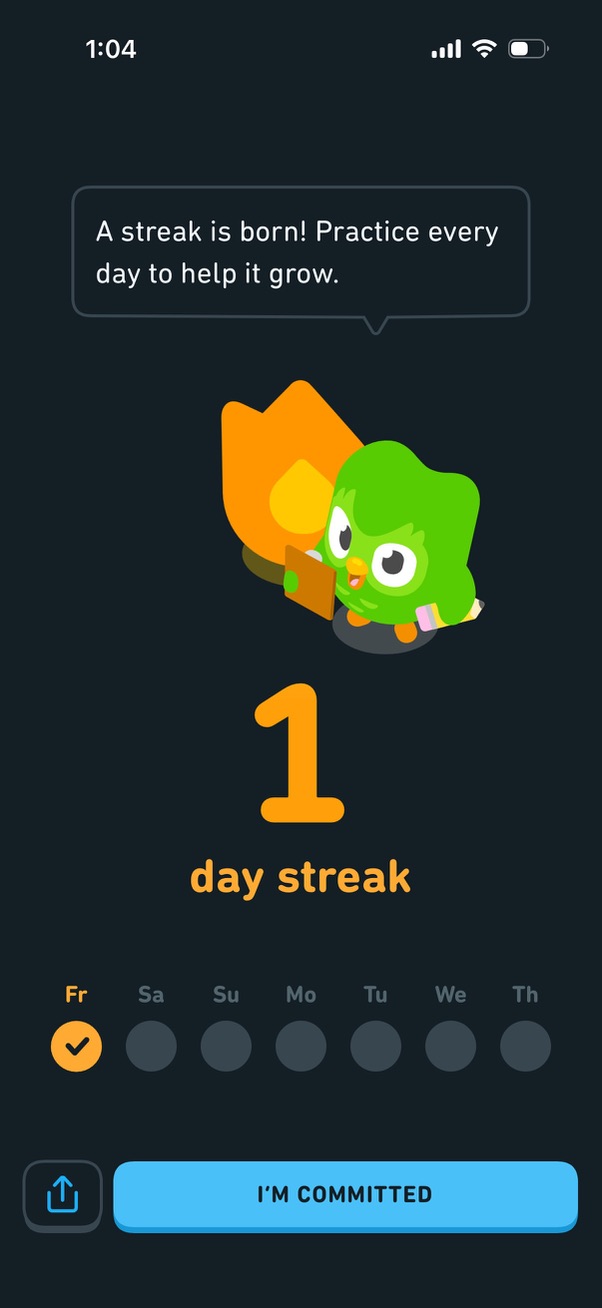
Streak celebration screen in a learning app showing a newly started “1 day streak” with a weekly progress row and motivational message encouraging daily practice. Primary action is a large “I’m committed” button with an option to share the streak.

Streak goal setup screen in a learning app prompting the user to commit to daily practice by selecting a goal duration (7, 14, 30, or 50 days) with reward incentives shown in gems. Includes a primary action button to confirm and commit to the selected streak goal.
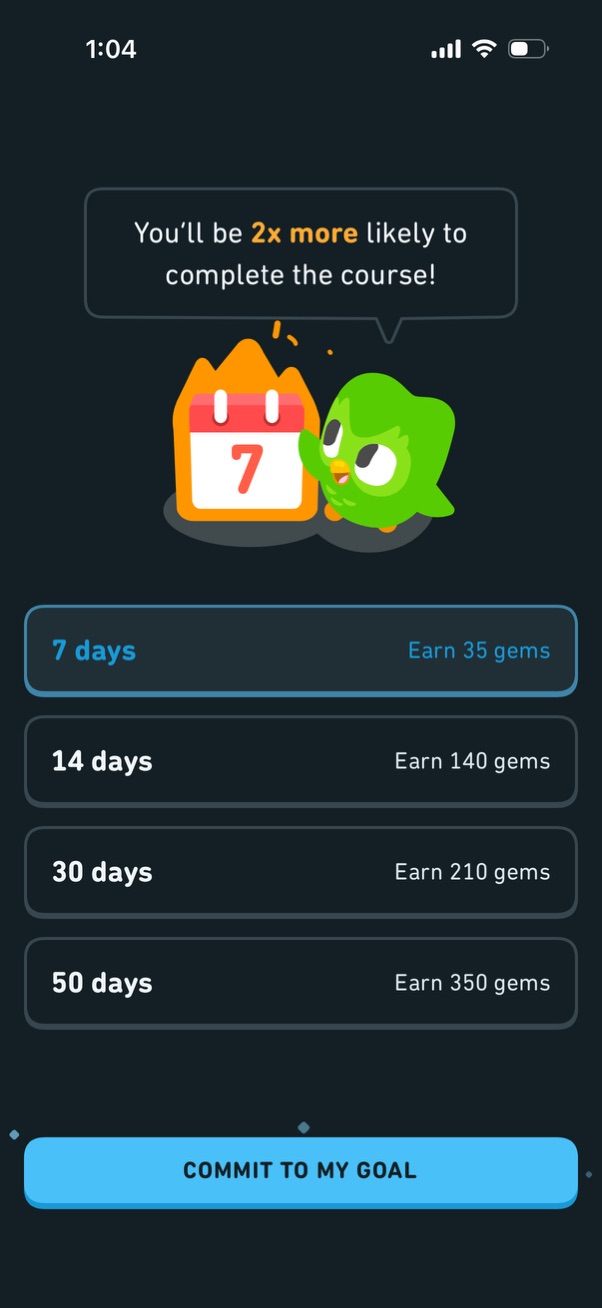
Goal commitment screen for a learning app prompting users to set a study streak duration (7, 14, 30, or 50 days) with promised reward amounts (gems) and motivation messaging about course completion. Users select a duration option and confirm with a primary “Commit to my goal” button.
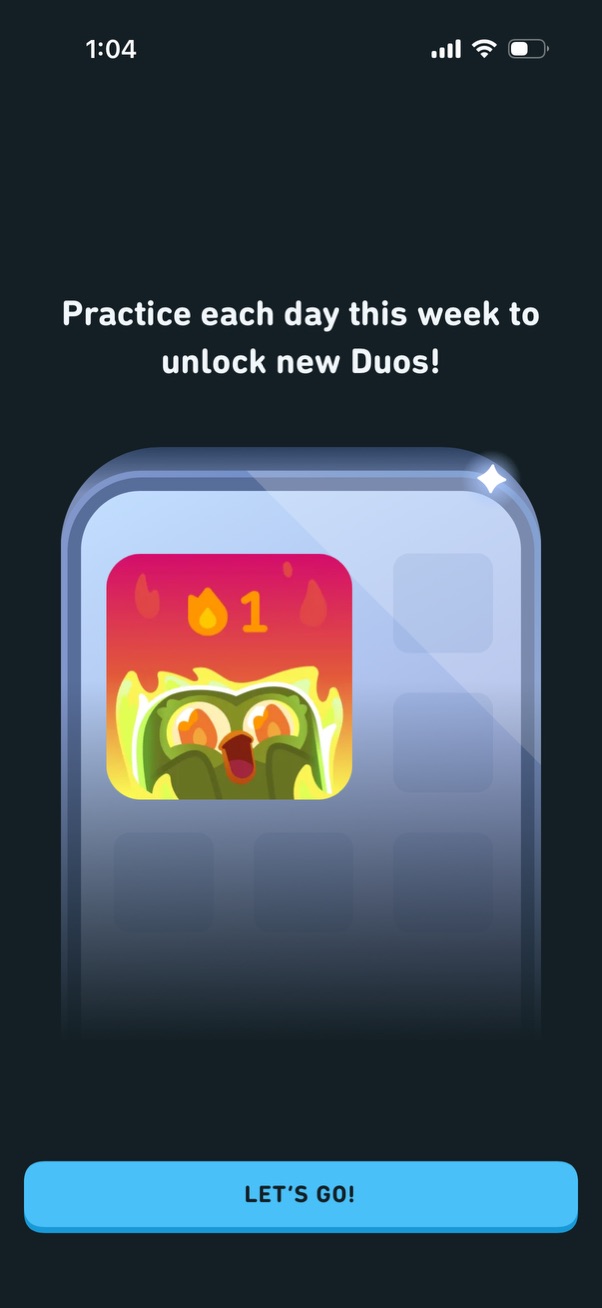
Motivational onboarding/interstitial screen encouraging users to practice daily for a week to unlock new “Duos,” showing a collectible/reward icon preview. Includes a primary call-to-action button “LET’S GO!

A minimalist splash/loading screen on a dark background featuring a centered leaf and droplet logo with no text or actions. Used as an app launch or startup screen while the app initializes.
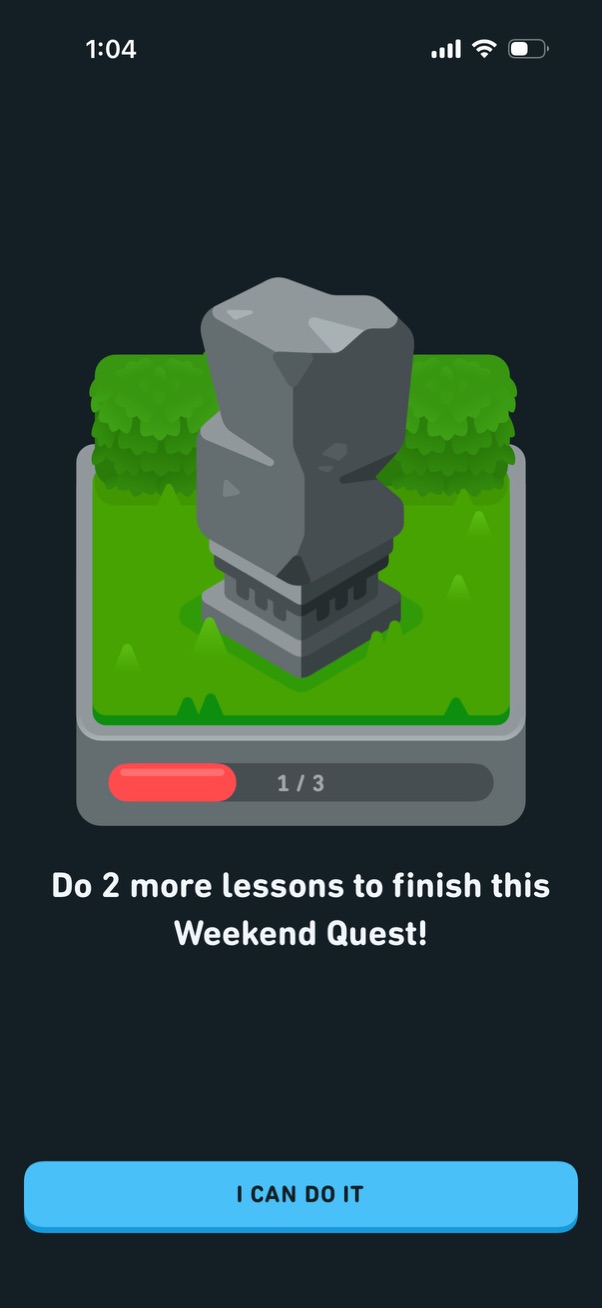
Motivational quest reminder screen showing a progress bar (1/3) and message prompting the user to complete two more lessons to finish a “Weekend Quest. ” Includes a single primary CTA button to continue/commit (“I can do it”).
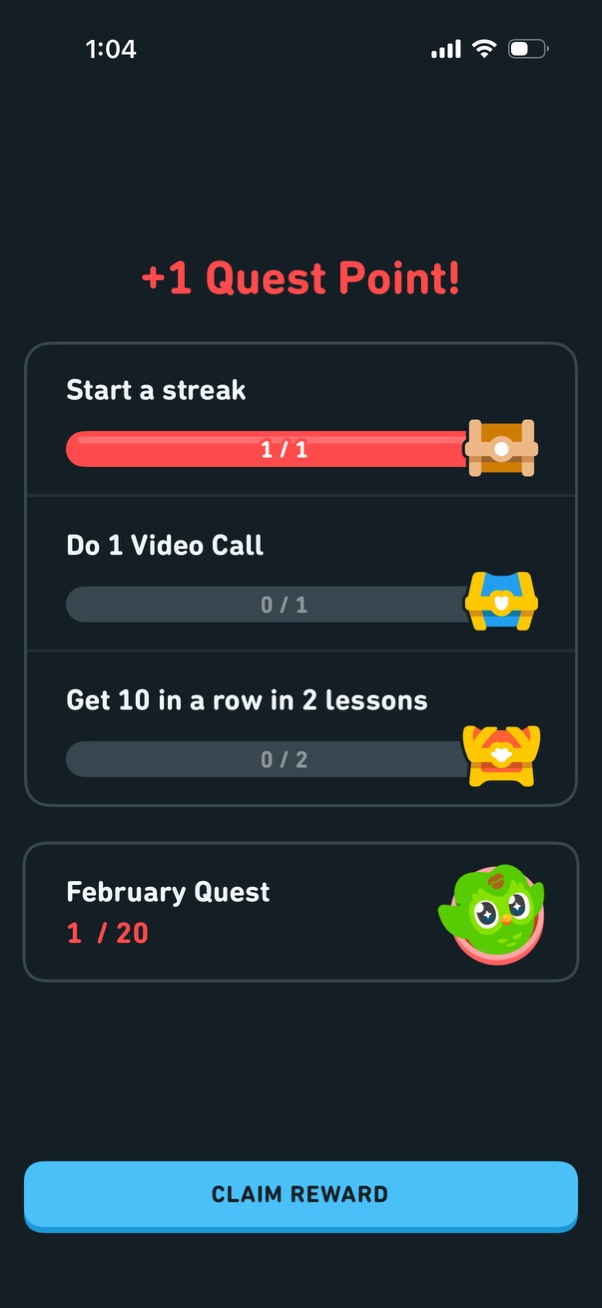
Gamified quest rewards screen showing progress toward multiple challenges with progress bars (e. g.

Game loot chest opening screen showing a “Common” reward, with an animated treasure chest and a prompt to tap for a chance to upgrade the item rarity. Includes upgrade indicators/icons suggesting tier progression.
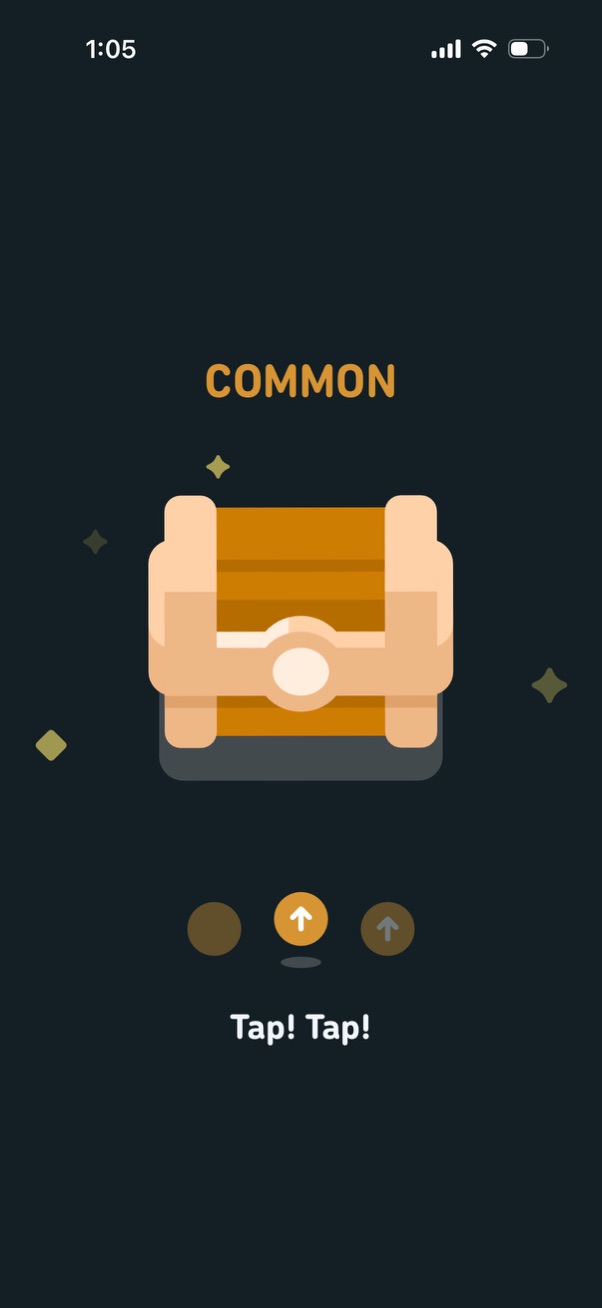
Reward chest opening screen showing a “Common” loot box with a prompt to tap repeatedly to reveal/unlock the contents, including a simple progress/step indicator for the opening animation.

Reward loot chest reveal screen showing a “Common” item with a chest illustration and a message indicating limited remaining attempts (“1 chance left”). Includes a primary action button to continue or claim/open the reward with progress indicators below the chest.
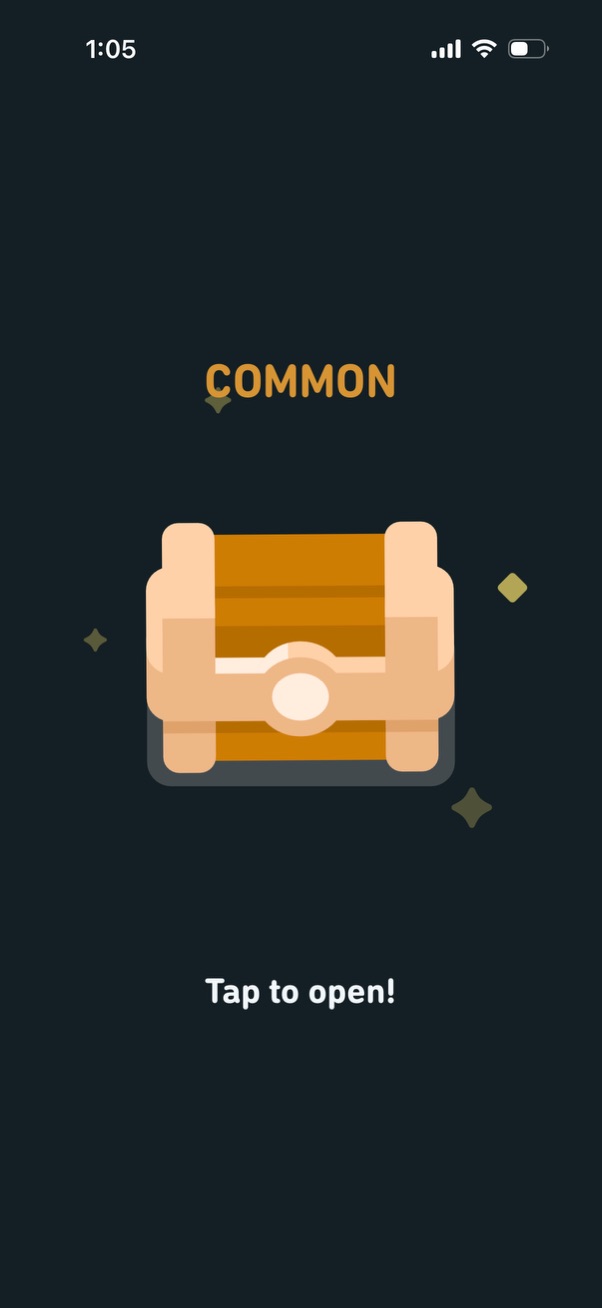
Reward loot chest reveal screen showing a “Common” rarity label and a closed treasure chest illustration, prompting the user to “Tap to open! ” to claim or reveal the reward.

Reward confirmation screen showing the user has earned +5 gems, displaying the updated gem balance and a single primary “Continue” button to proceed.
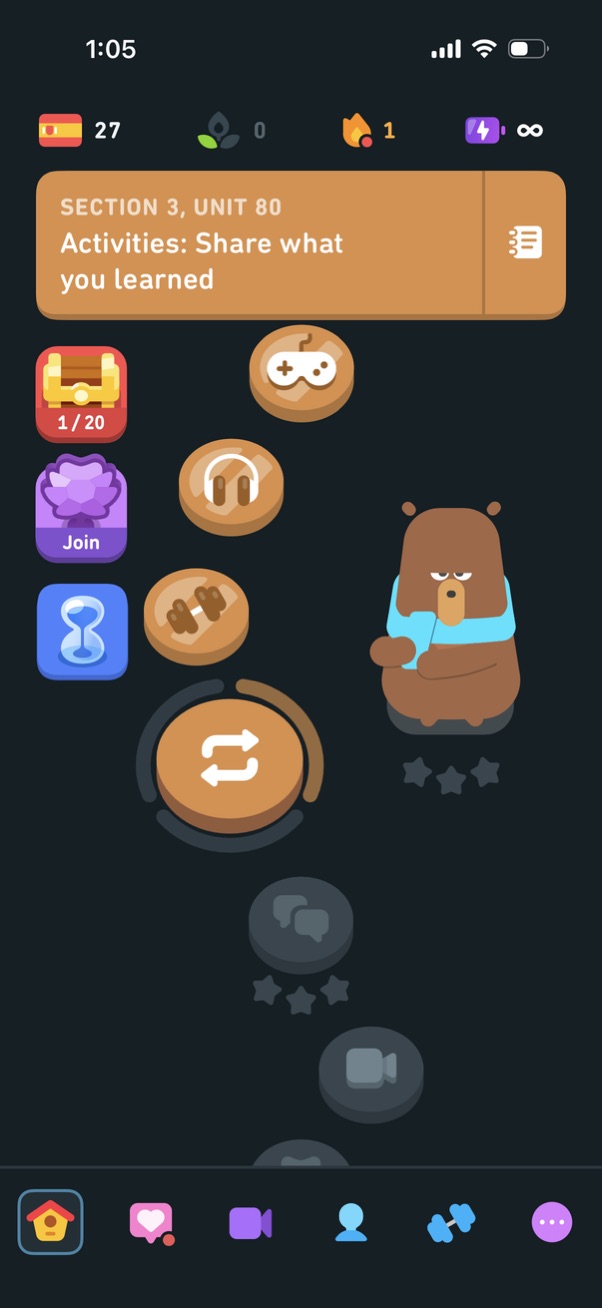
Gamified language-learning lesson hub showing the current section/unit title and a vertical path of activity nodes (games, listening, exercises) with progress indicators, rewards, and streak/energy counters. Users can tap to start the next activity, join a challenge, view lesson notes, and navigate via a bottom tab bar to home, social/feed, practice/video, profile, and more.