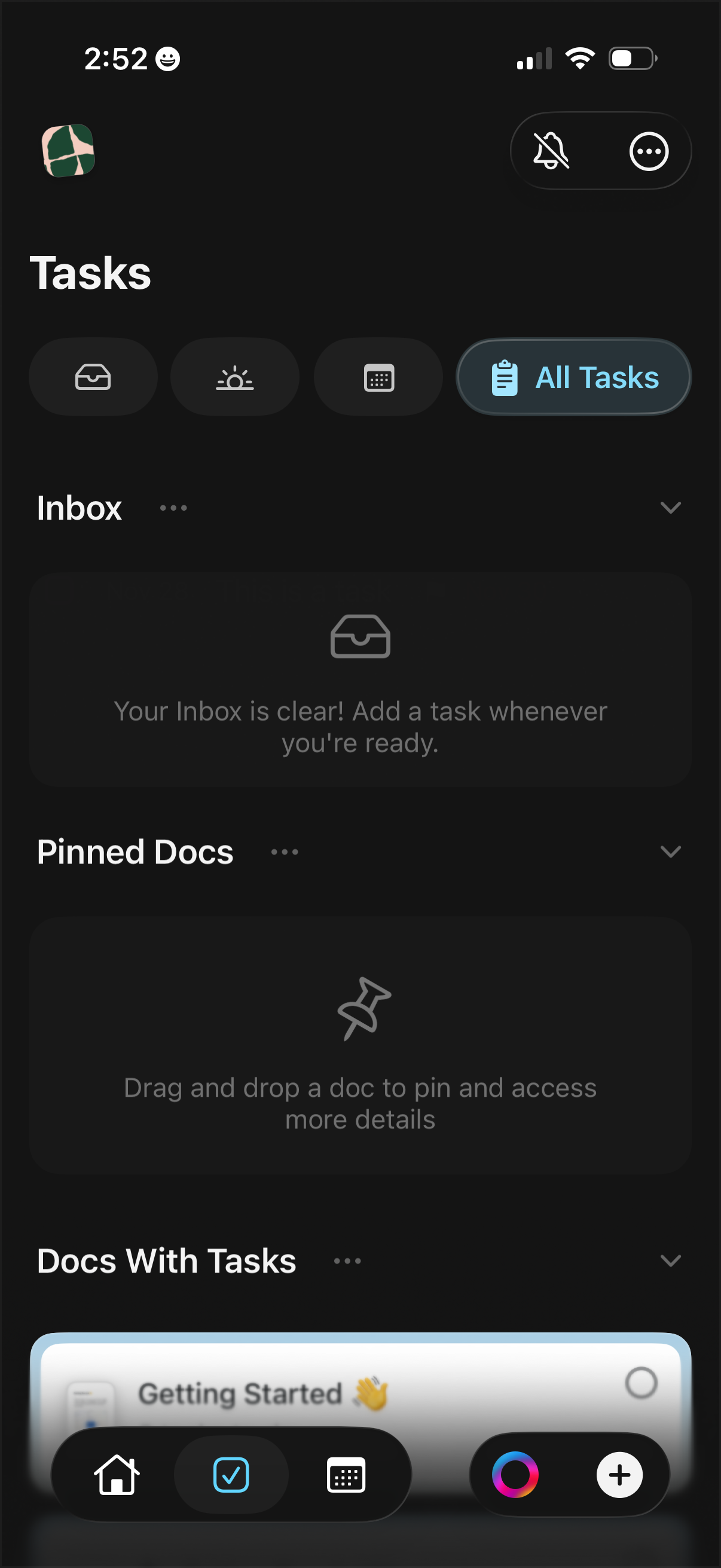
Task management home screen showing task filters and an “All Tasks” toggle, with sections for Inbox, Pinned Docs, and Docs With Tasks that can be expanded or managed via overflow menus. Includes empty states prompting the user to add tasks or drag and drop documents to pin for quick access.
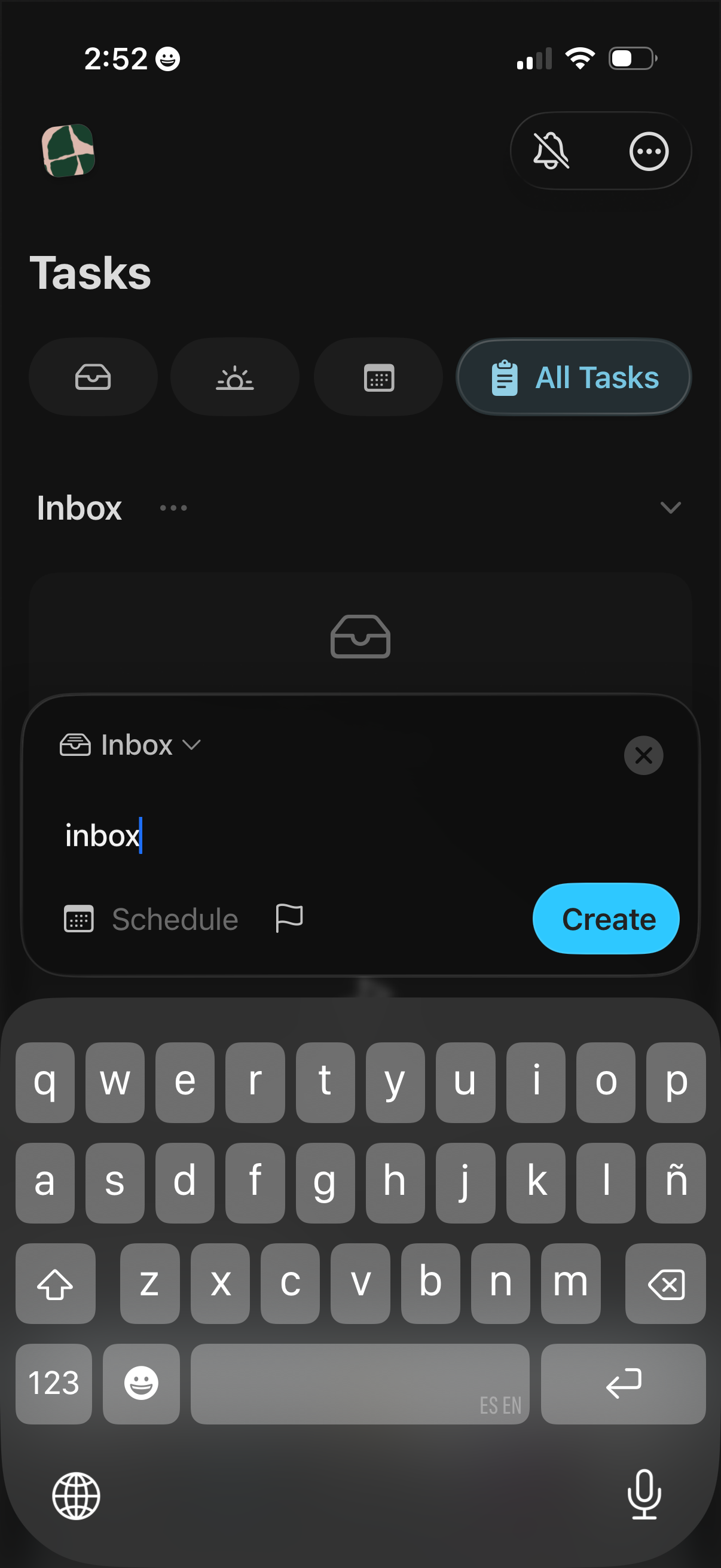
Task manager “Tasks” screen in dark mode showing an Inbox task list and filter chips including an “All Tasks” view. A bottom-sheet creation form lets the user type a new task, choose the list, set a schedule and flag/priority, then tap Create.
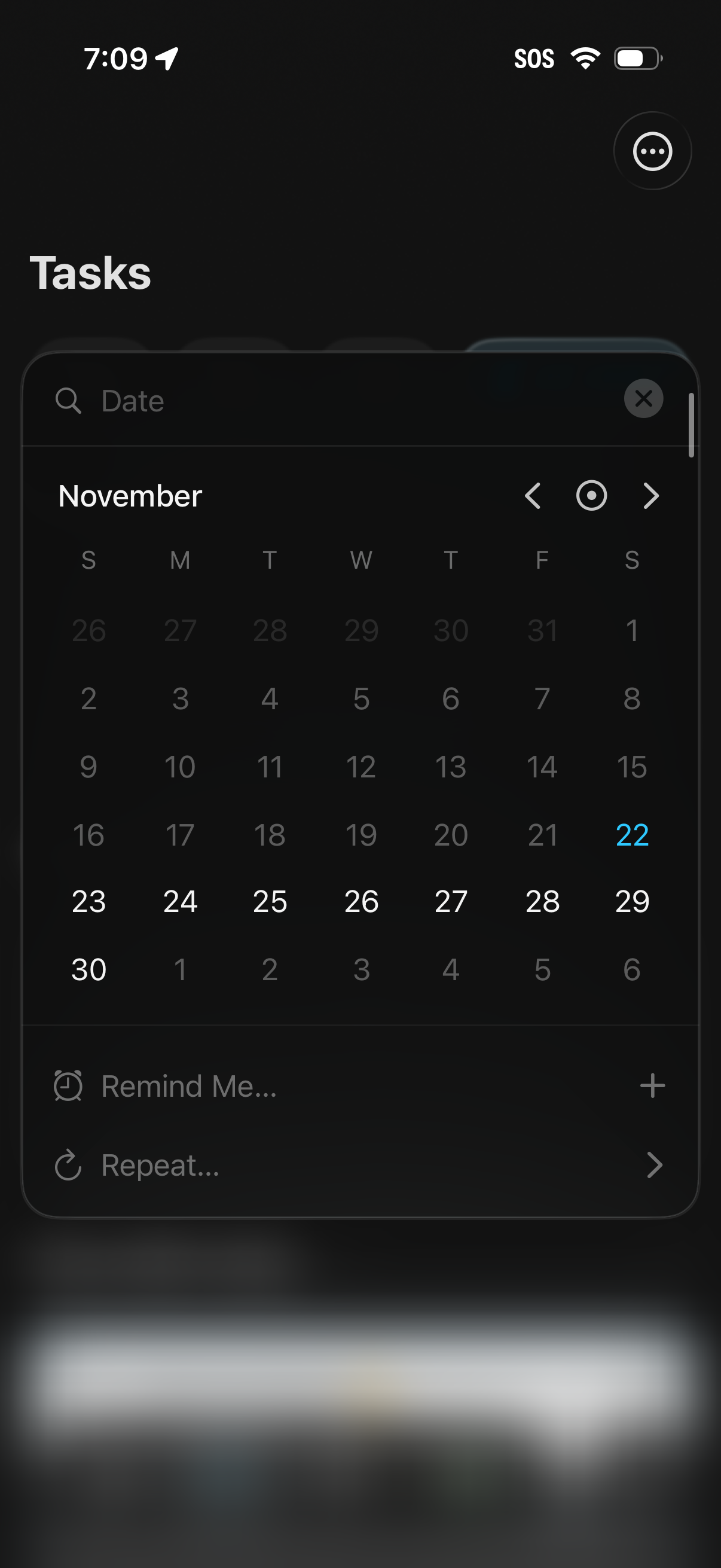
Task management screen showing a date picker calendar overlay to schedule tasks, with month navigation and a selected day highlight. Includes options to add a reminder (“Remind me”) and set repeat frequency, plus a search field and close button for the date selector.
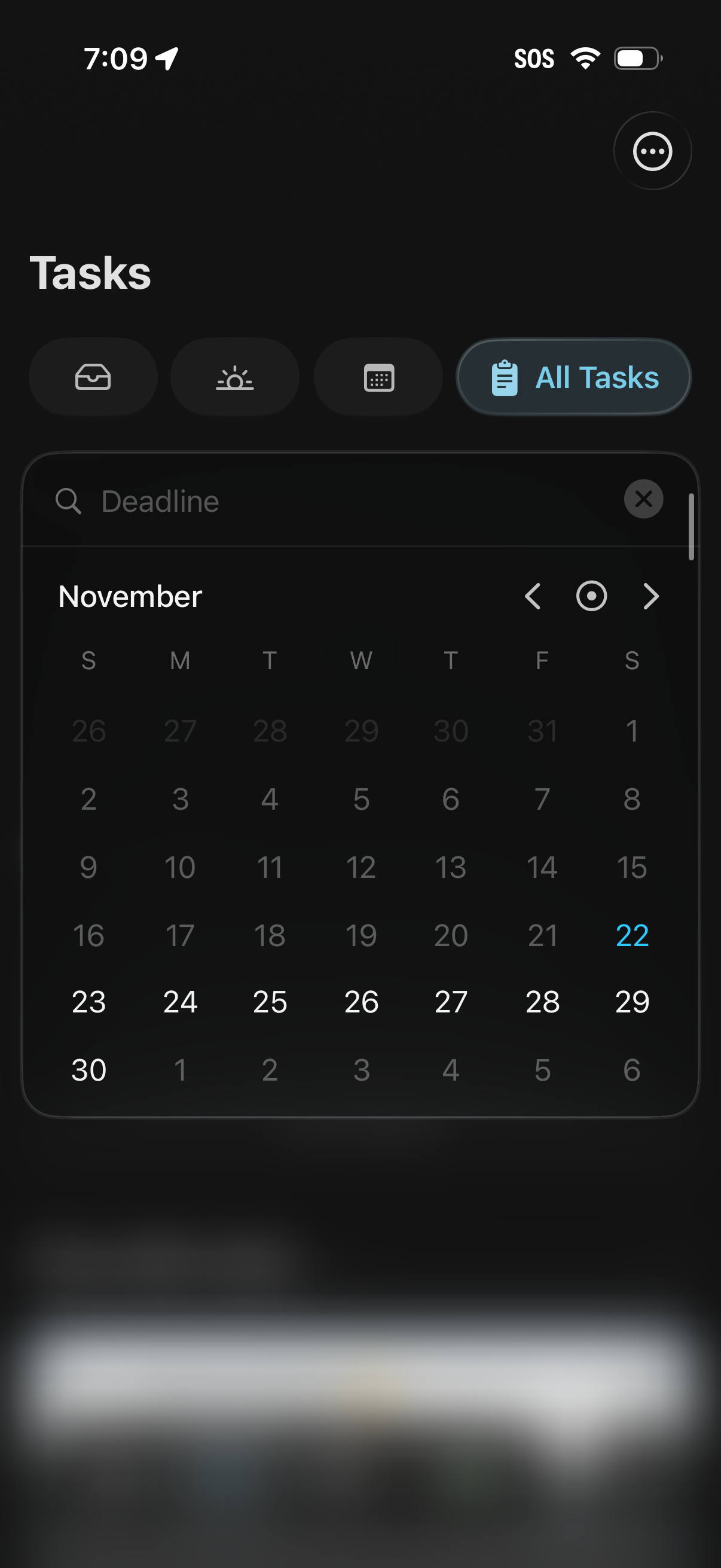
Tasks screen with filter tabs and an “All Tasks” view, showing a deadline date picker as a monthly calendar overlay. Users can search by deadline, navigate between months with arrows, select a specific due date, or clear the date filter.
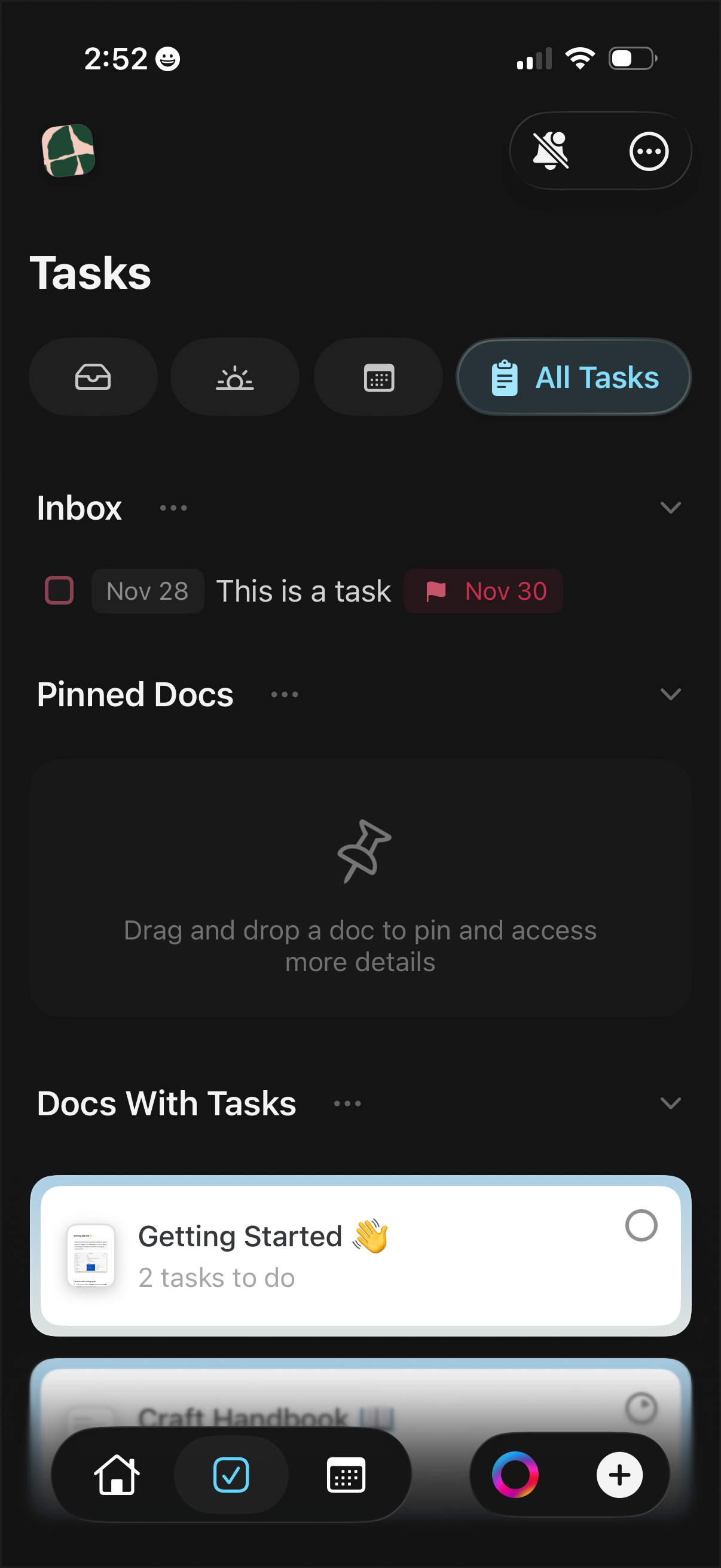
Task manager home screen showing an “All Tasks” view with sections for Inbox, Pinned Docs (drag and drop to pin), and Docs With Tasks, including task rows with checkbox completion and due date/flag indicators. Users can switch task filters via icon tabs, expand/collapse sections, and access navigation actions from the bottom bar.