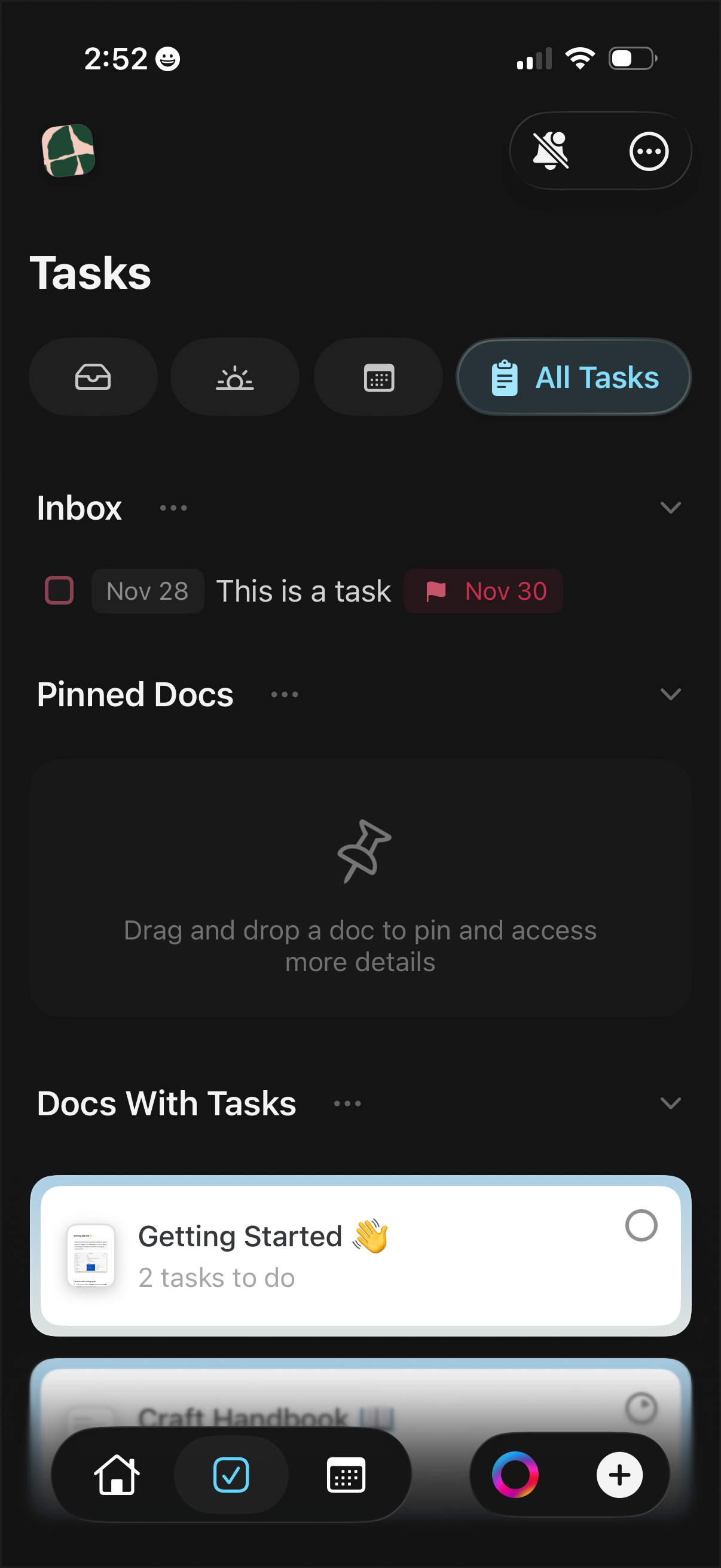
Task manager home screen showing an “All Tasks” view with sections for Inbox, Pinned Docs (drag and drop to pin), and Docs With Tasks, including task rows with checkbox completion and due date/flag indicators. Users can switch task filters via icon tabs, expand/collapse sections, and access navigation actions from the bottom bar.
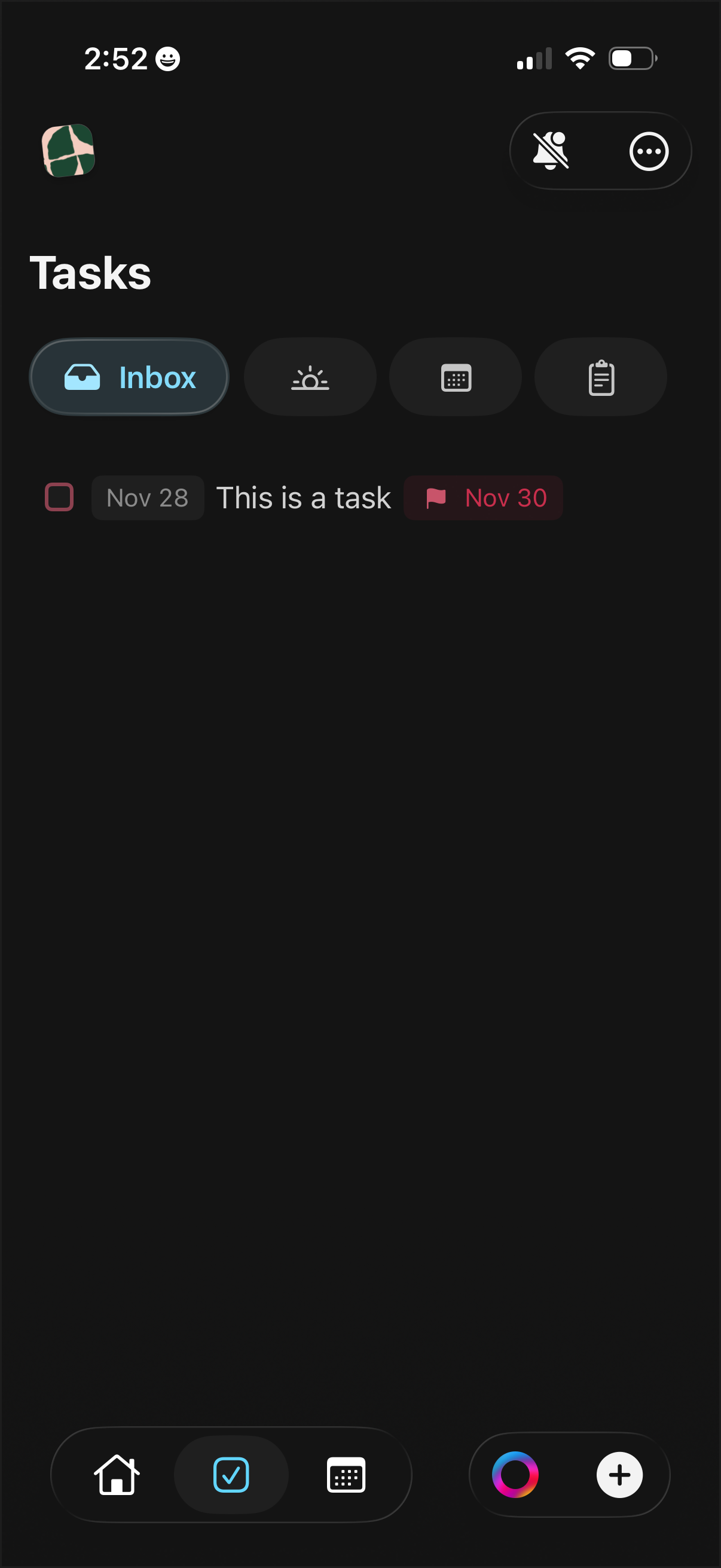
Dark-mode task manager “Tasks” inbox screen showing a list of to‑dos with checkboxes, start and due date pills/flags, and a sample task item. Includes segmented tabs to switch views (inbox/today/calendar/list) plus bottom navigation and quick action buttons for settings and adding a new task.
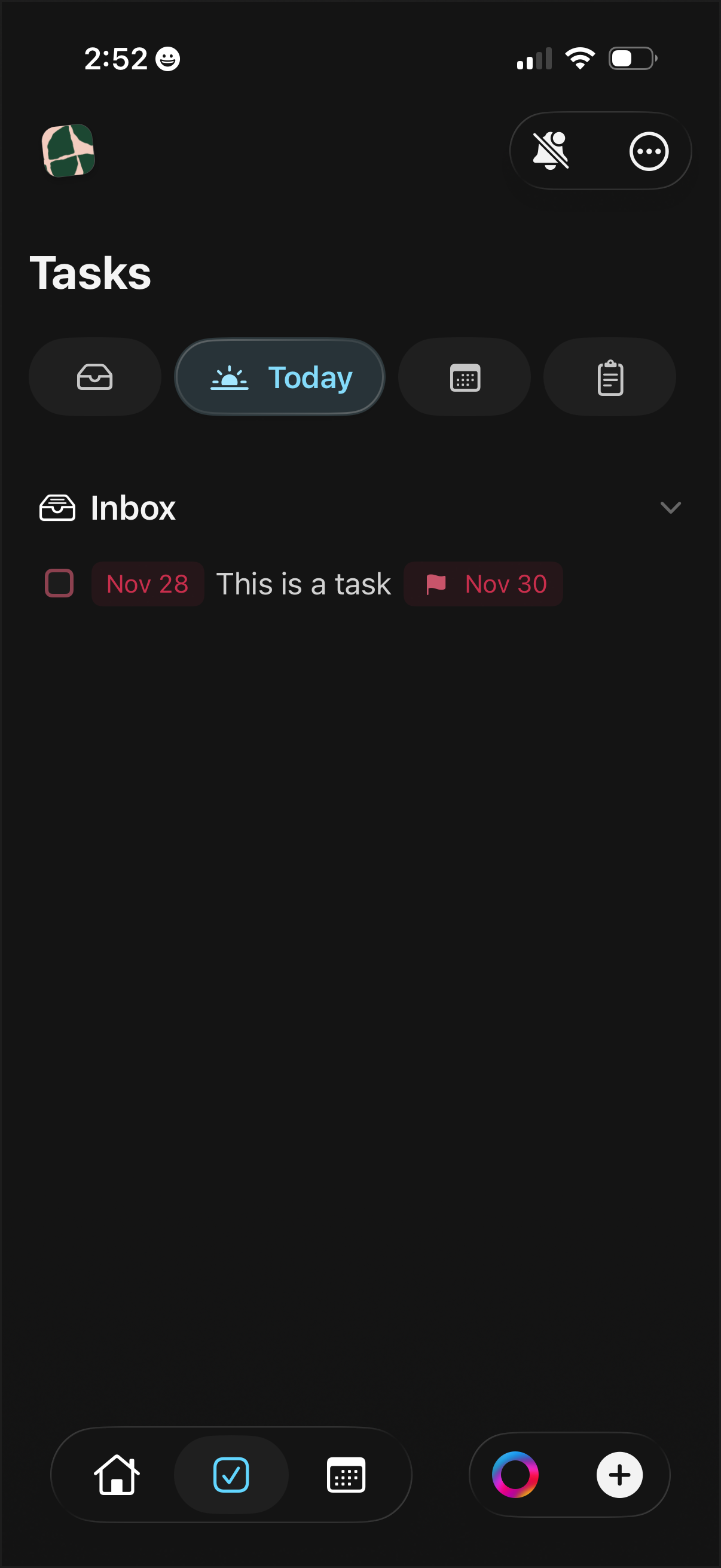
Dark-mode task manager “Tasks” home screen showing filter tabs (Inbox, Today, calendar, list) and an Inbox section with a single task row featuring a completion checkbox, due date and flag/tag indicators. Top-right includes notification mute and overflow menu, while a bottom navigation bar and floating plus button provide primary navigation and quick add task.
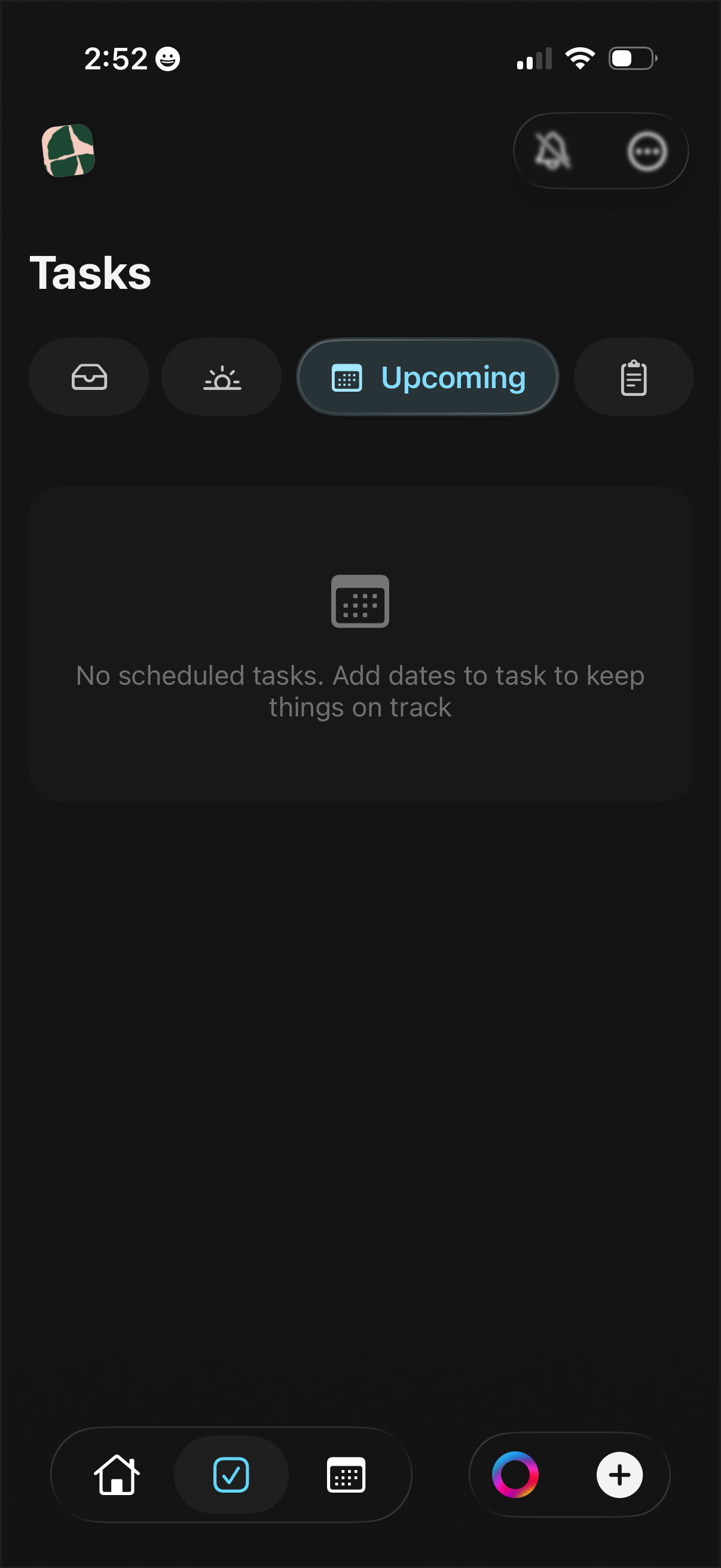
Dark-mode tasks dashboard showing the Upcoming (scheduled) view, with tab-like filters to switch between task categories and an empty state prompting the user to add dates to tasks. Bottom navigation provides quick access to home, tasks, calendar, appearance/theme, and a plus button to create a new item.
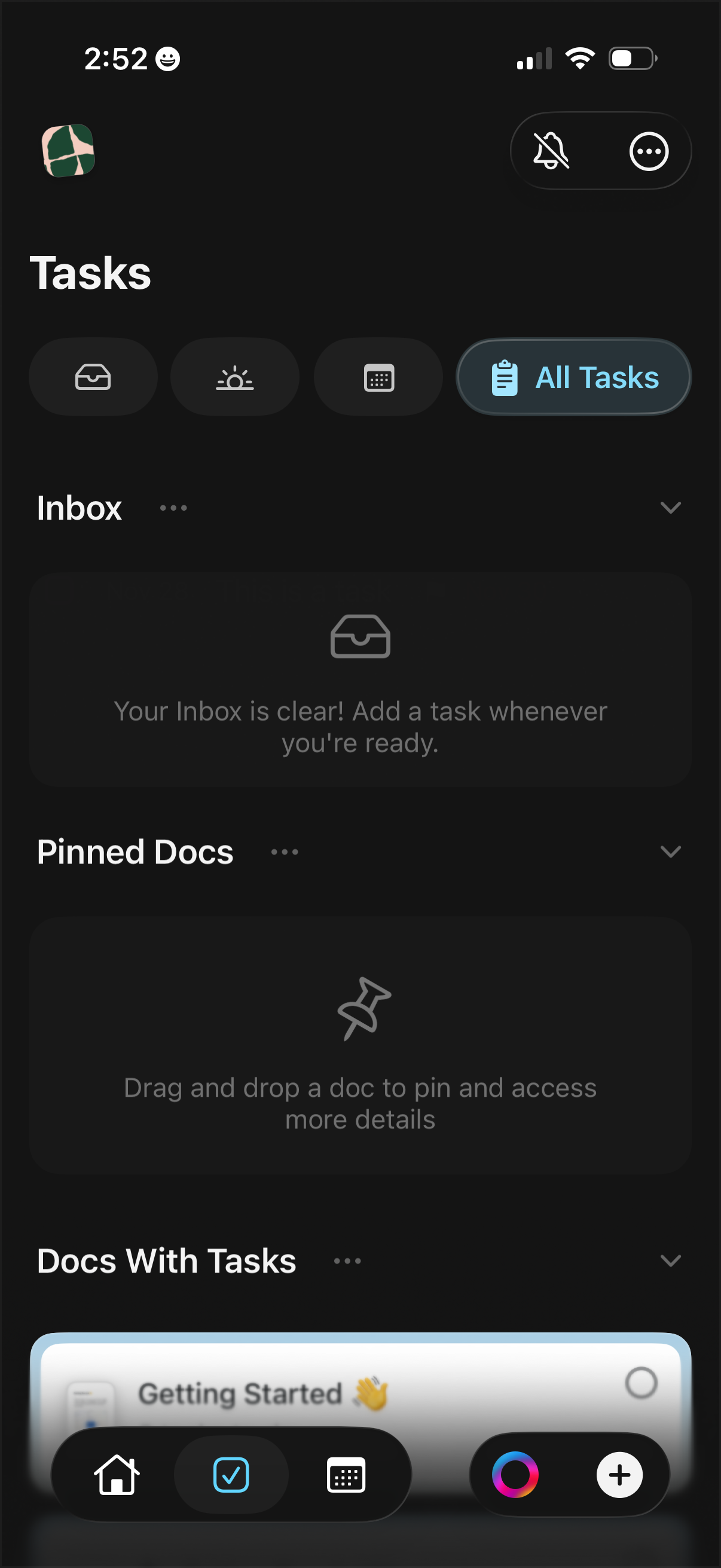
Task management home screen showing task filters and an “All Tasks” toggle, with sections for Inbox, Pinned Docs, and Docs With Tasks that can be expanded or managed via overflow menus. Includes empty states prompting the user to add tasks or drag and drop documents to pin for quick access.