Onboarding welcome screen for an art discovery app prompting users to build a personalized profile to tailor recommendations. Primary CTA button “Get Started” with a secondary “Skip” option to bypass setup.
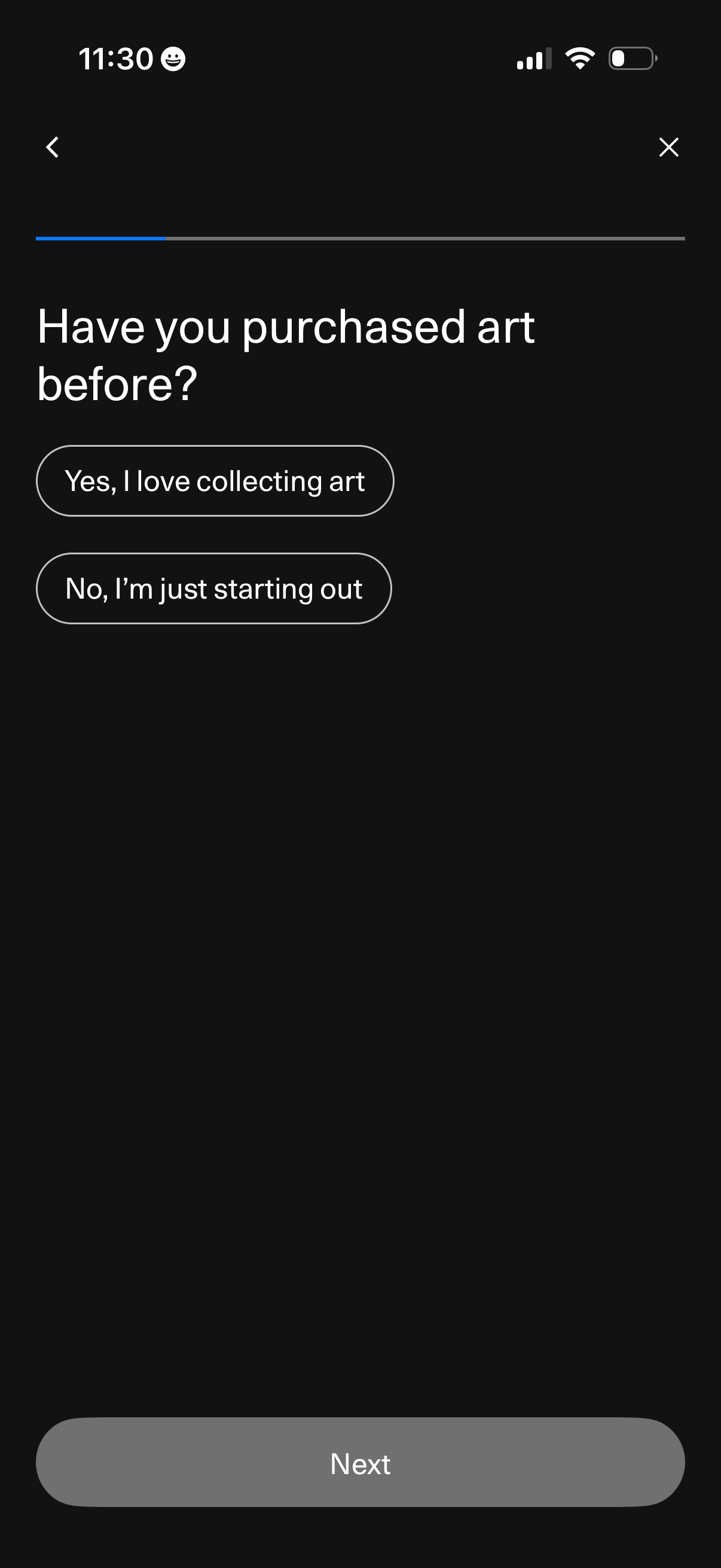
Onboarding survey screen for an art marketplace asking whether the user has purchased art before, with two selectable options (“Yes, I love collecting art” or “No, I’m just starting out”). Includes progress indicator, back/close controls, and a disabled/enabled “Next” button to continue.
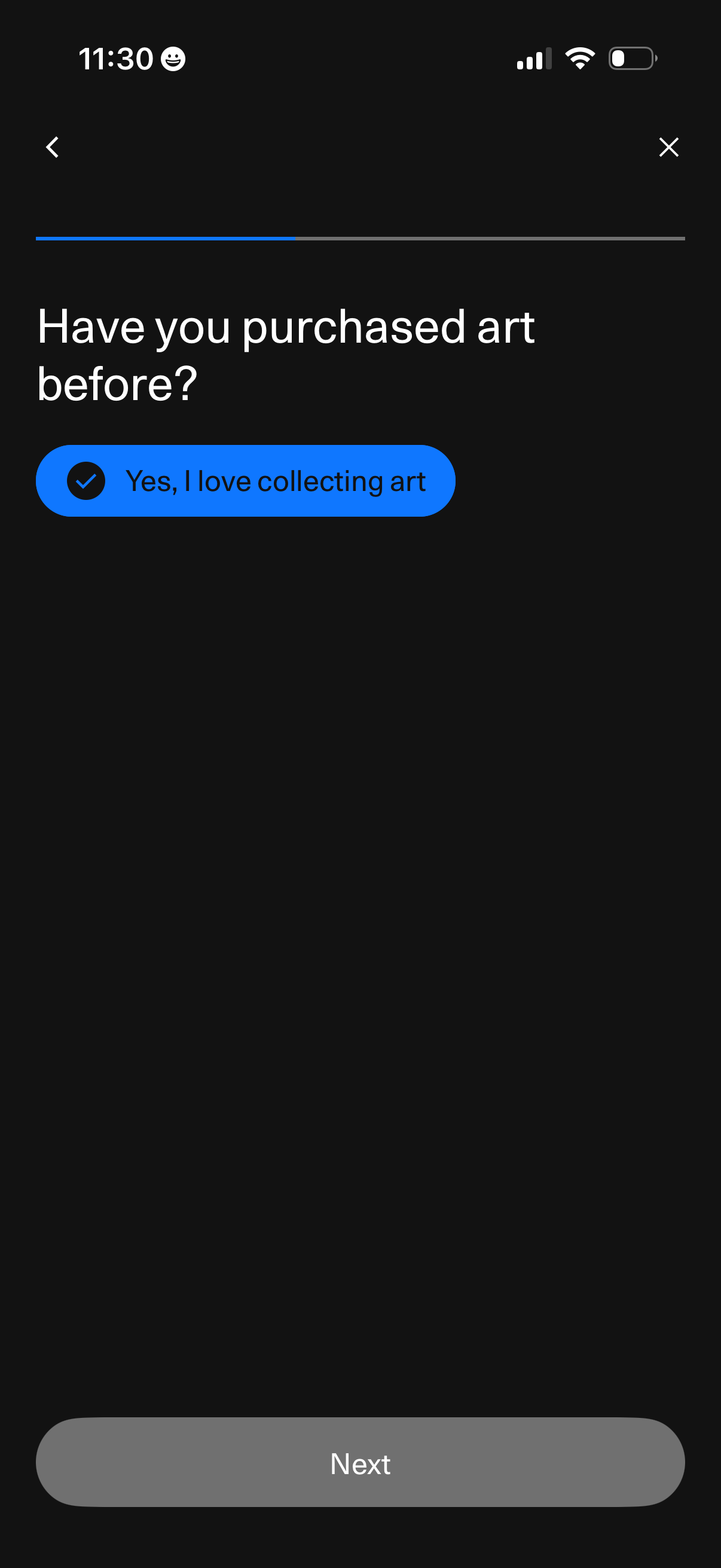
Onboarding questionnaire screen asking whether the user has purchased art before, with a selectable answer chip and a disabled Next button until a choice is made. Includes back and close controls and a progress indicator for the multi-step setup flow.
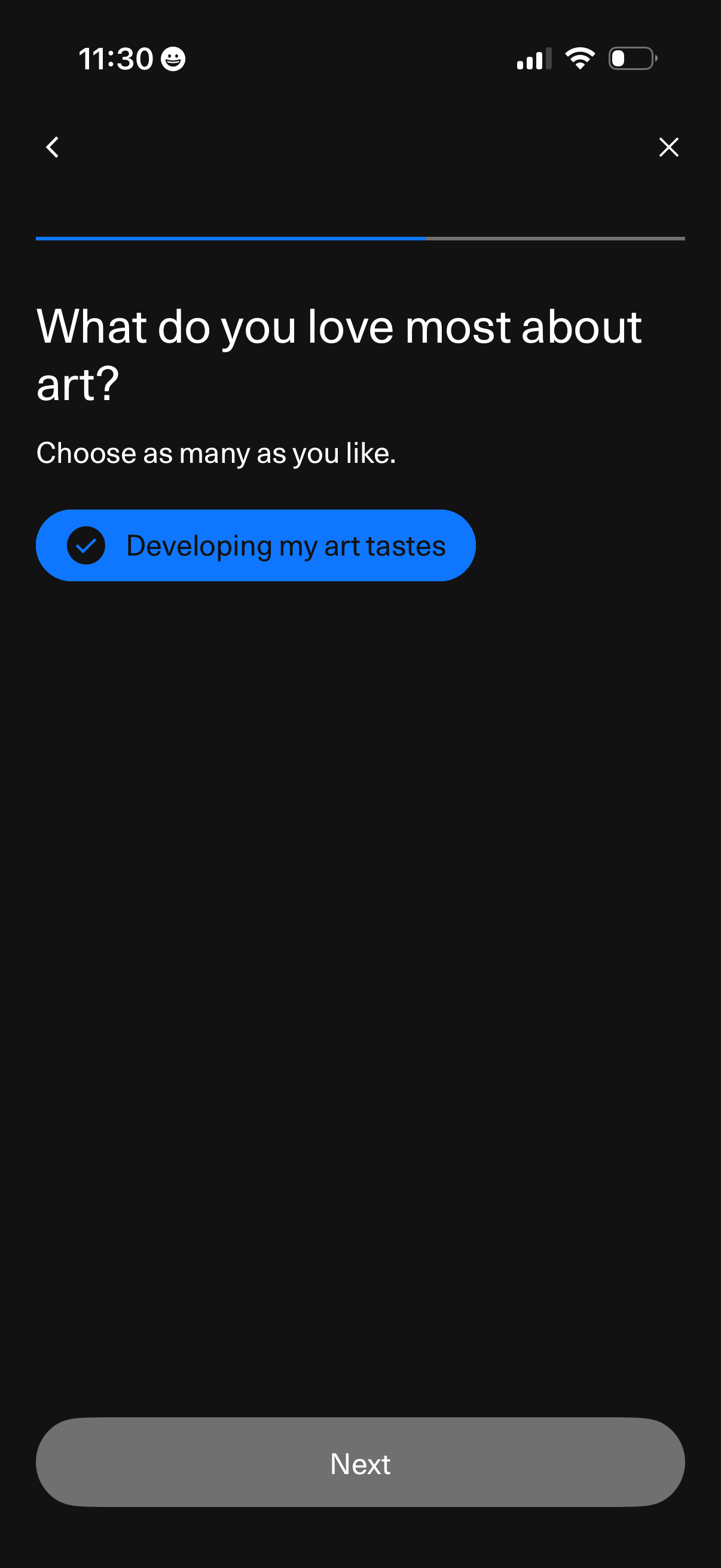
Onboarding preference question screen for an art app asking what the user loves most about art, allowing multi-select choices via selectable pill buttons. Includes progress indicator with back/close controls and a disabled “Next” button to continue after making selections.
Onboarding personalization screen prompting users to select artworks and artists to tailor the app to their tastes, offering an option to start with an “Art Taste Quiz. ” Includes back and close icons and a disabled “Next” button until a selection is made.
Onboarding preference selection screen prompting users to tailor an art discovery app by choosing artworks and artists, with an option to start via an “Art Taste Quiz. ” Includes back/close controls and a disabled Next button that becomes available after making a selection.
Onboarding prompt for an art discovery app asking users to take a personalized art taste quiz by rating artworks to receive tailored recommendations. Primary actions are “Start the Quiz” and “Skip.
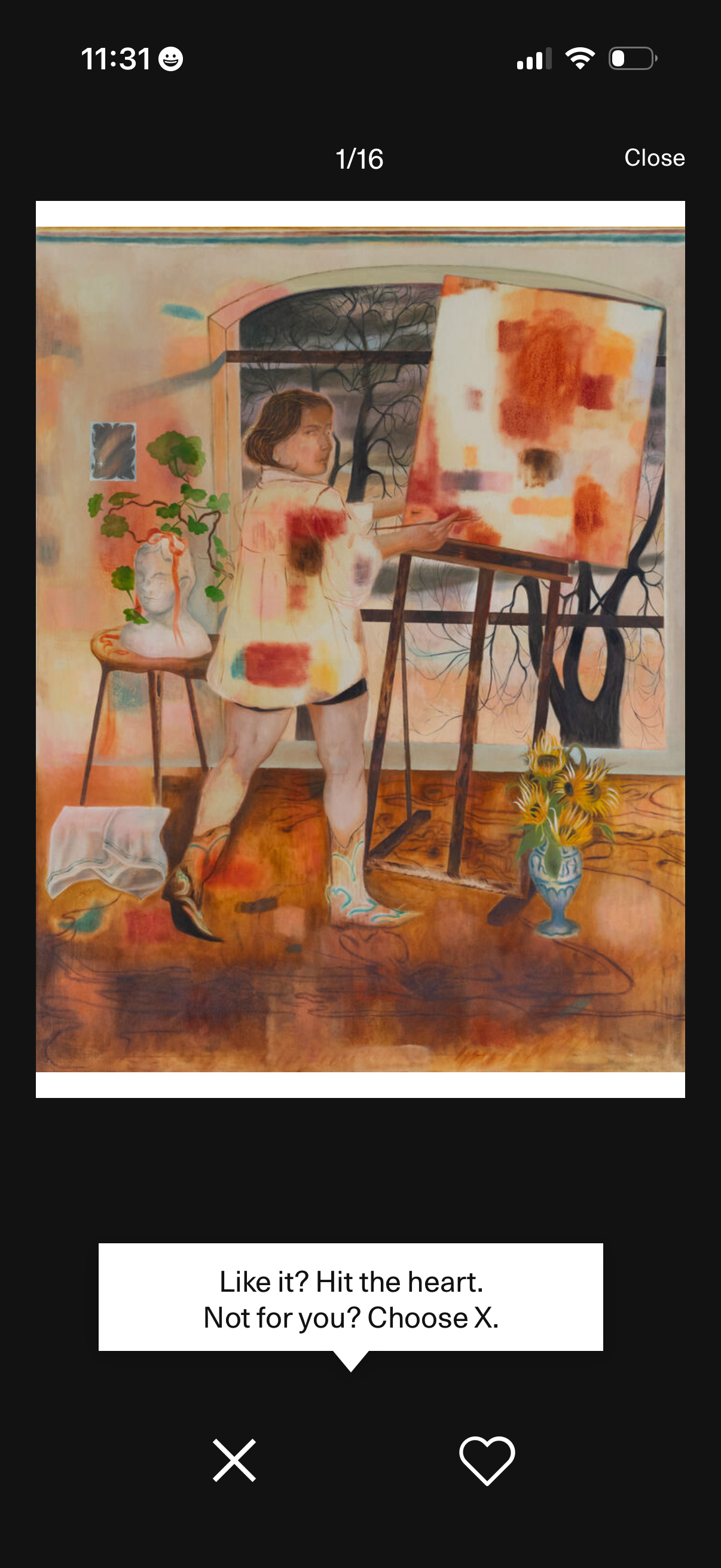
Fullscreen artwork discovery viewer showing an image with a progress indicator (1/16) and a Close button. Users can rate the item with large X (dislike/skip) and heart (like/favorite) actions, with an on-screen tip explaining the controls.
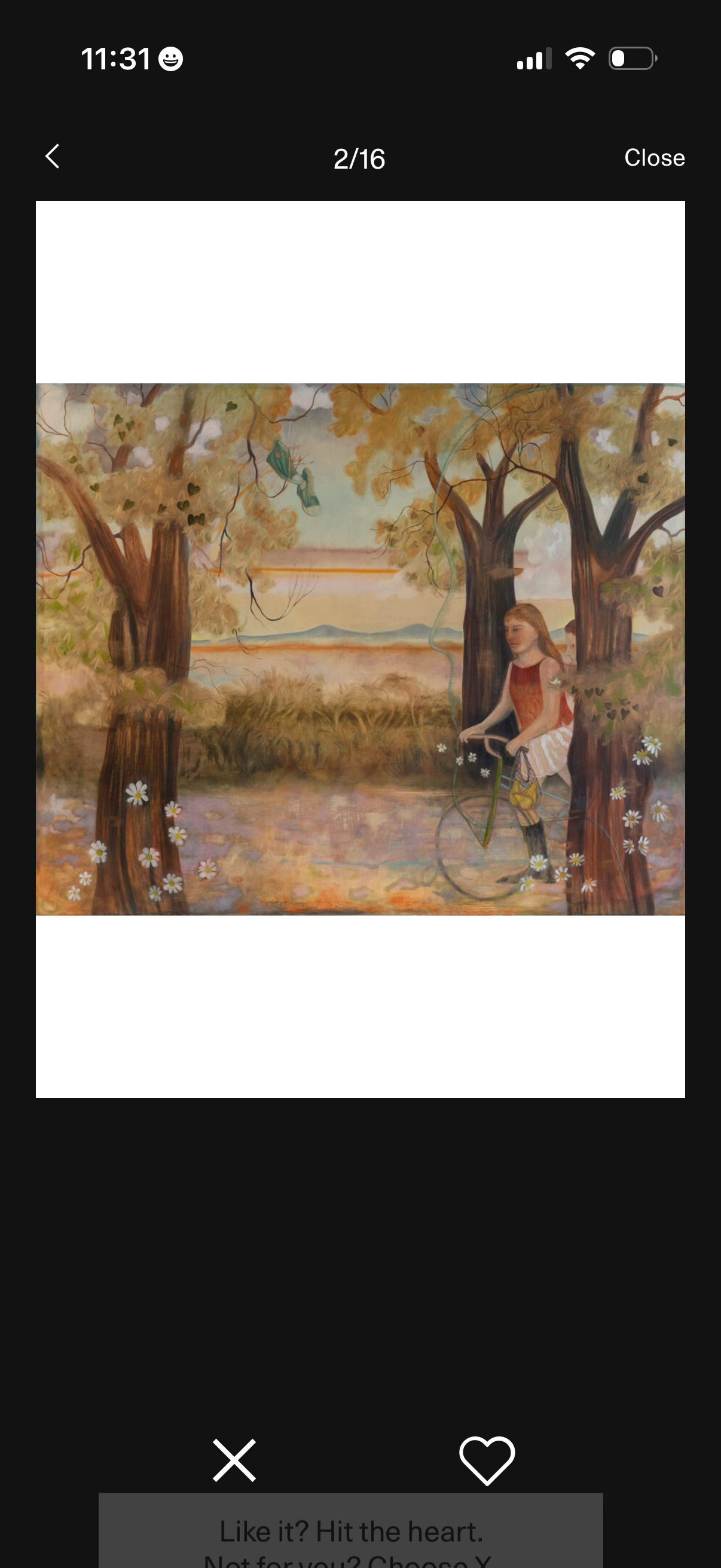
Full-screen artwork viewer in a gallery feed showing the current item index (2/16) with back and close controls. Bottom actions let users like/favorite the piece with a heart or dismiss it with an X for swipe-style preference selection.
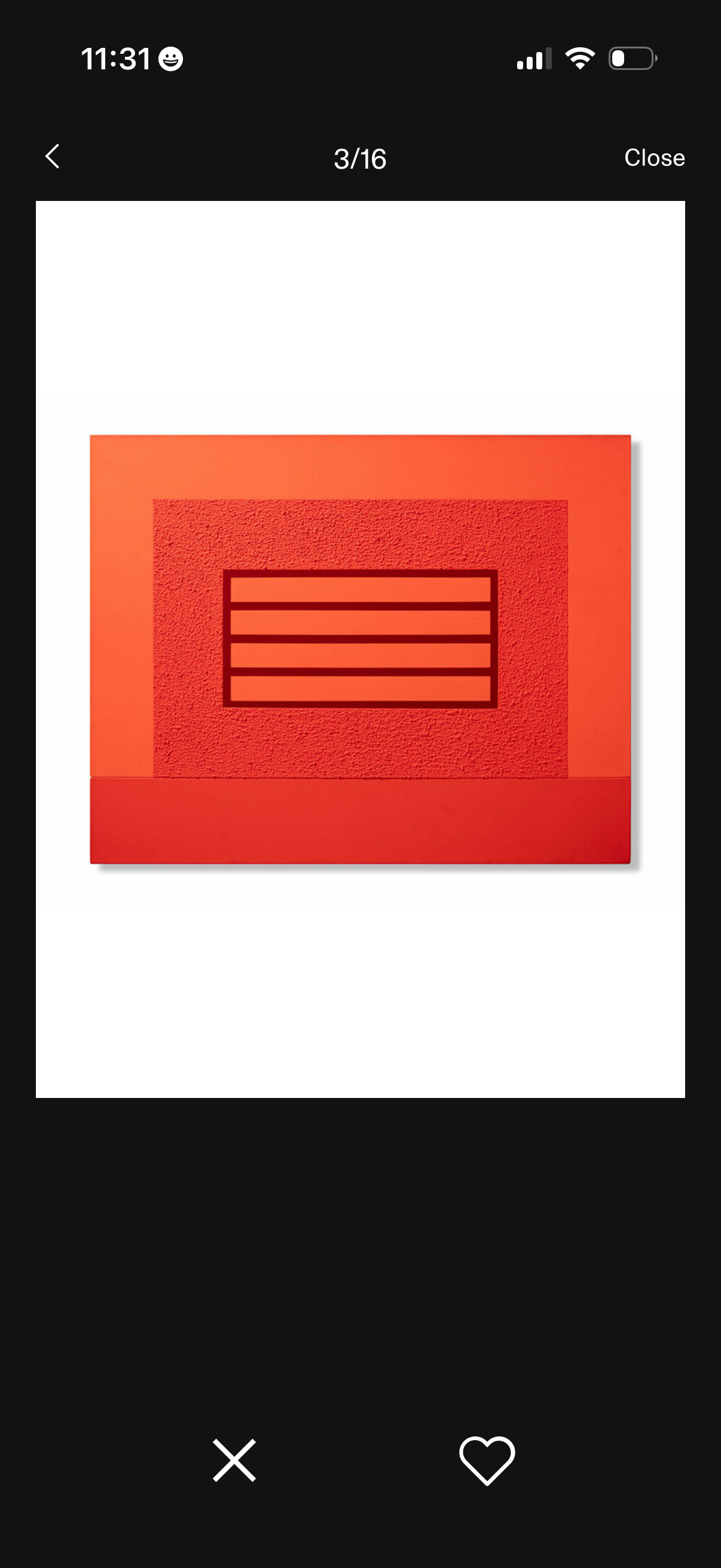
Full-screen image viewer for browsing a gallery item with pagination (3/16), back navigation, and a Close action. Bottom controls allow dismissing the viewer and liking/favoriting the image with a heart button.
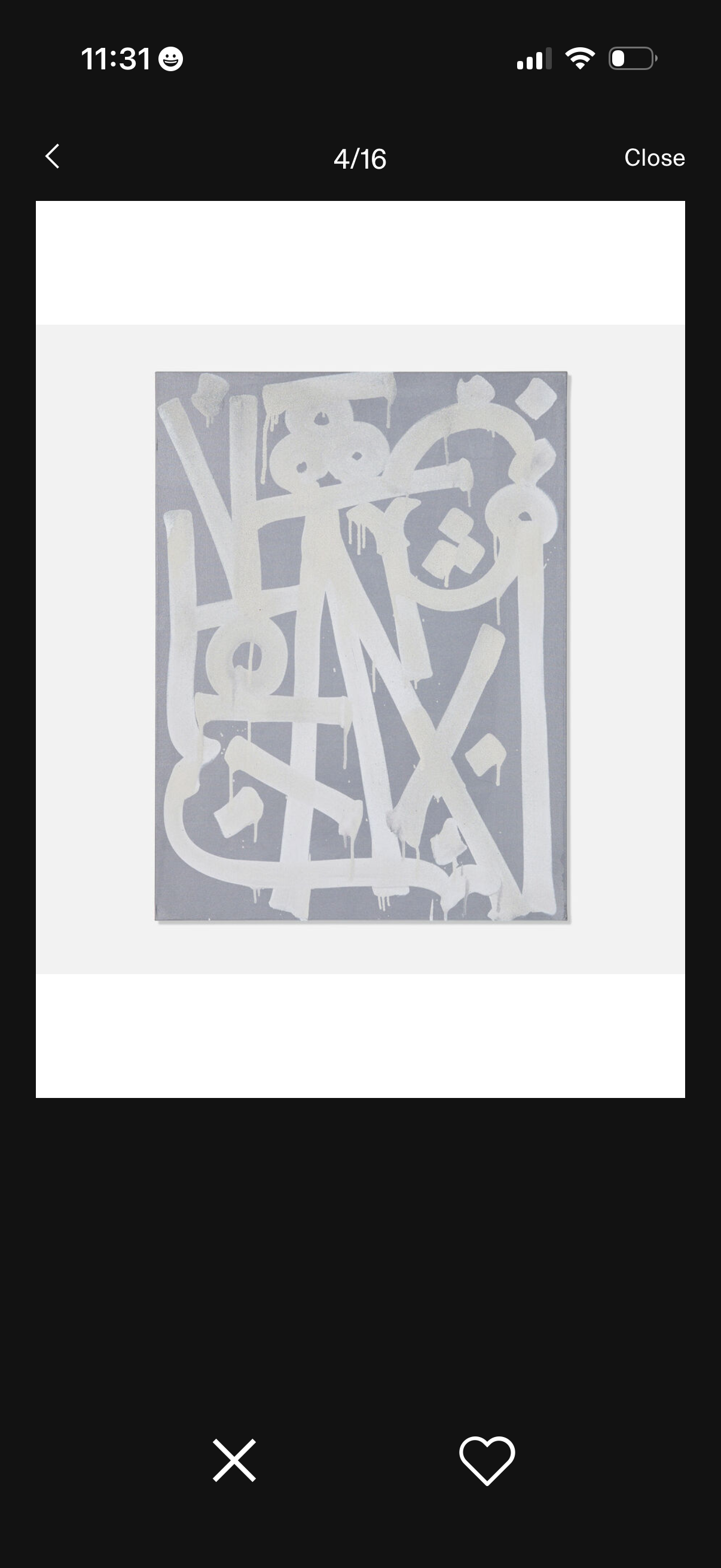
Fullscreen artwork image viewer in a gallery carousel, showing the current position (4/16) with back and close controls. Bottom actions include dismiss/close and a heart button to like or save the artwork to favorites.
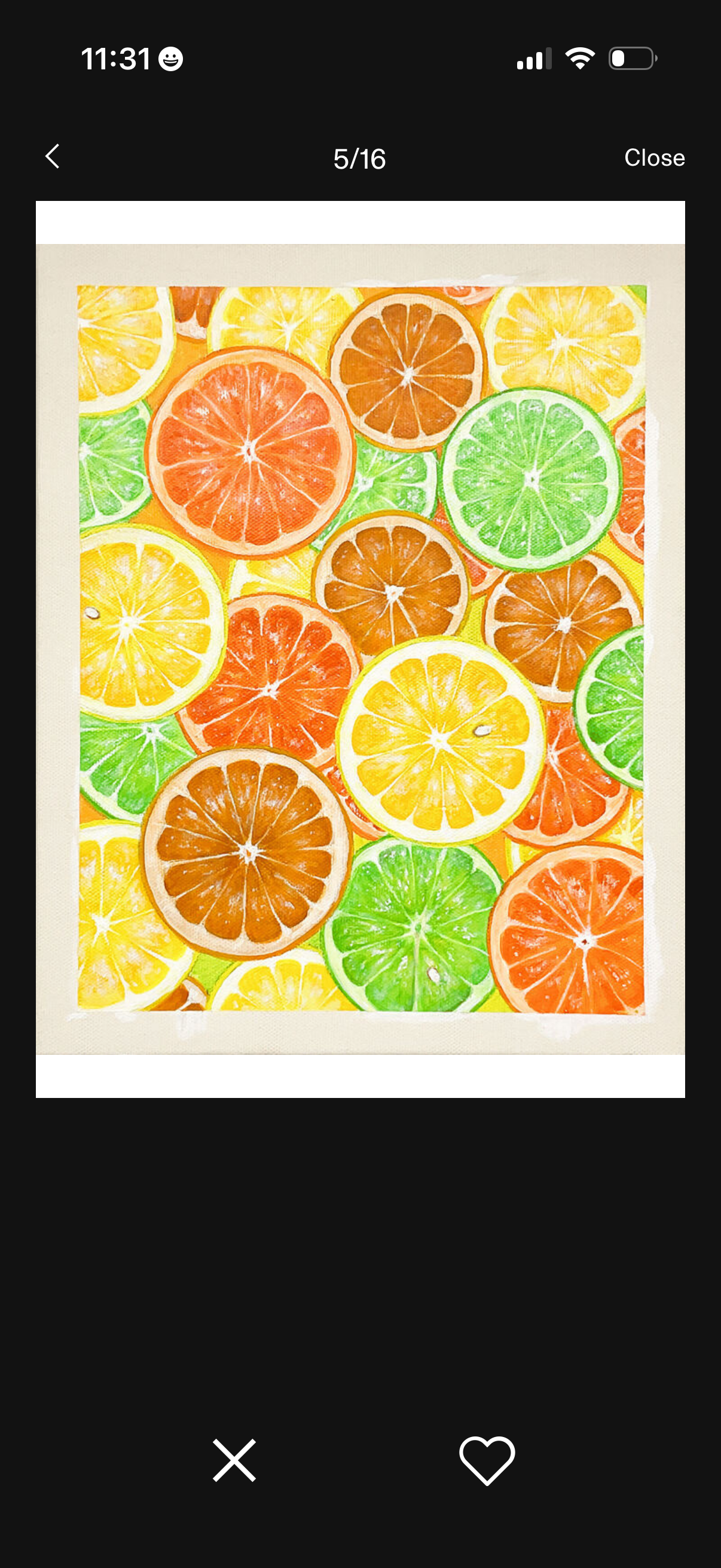
Full-screen image viewer showing an artwork photo within a swipeable gallery with a current index indicator, back and close navigation, and bottom actions to delete (X) or favorite/save (heart).
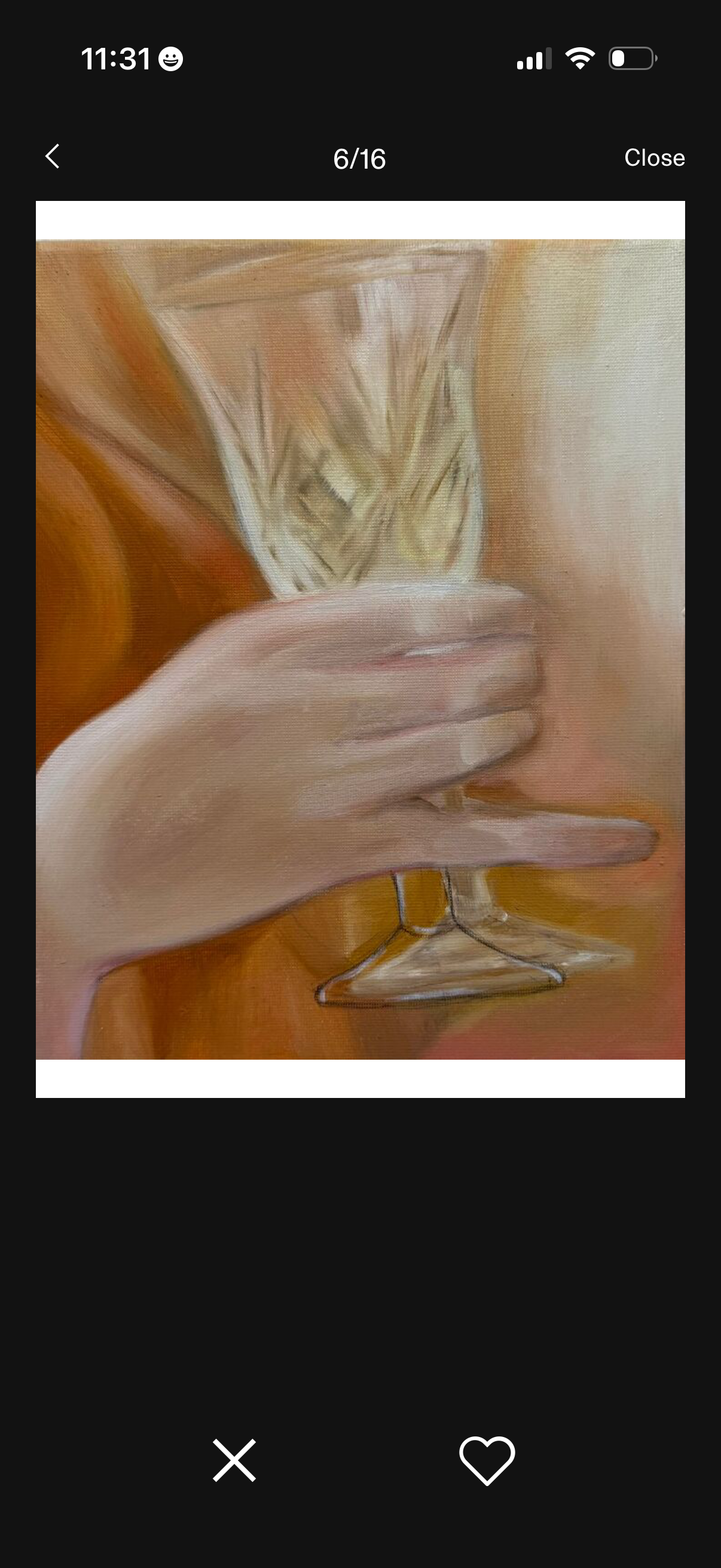
Full-screen image viewer for browsing a multi-photo gallery, showing the current position (6/16) with back and close navigation. Bottom actions include dismiss and a heart button to like or favorite the image.
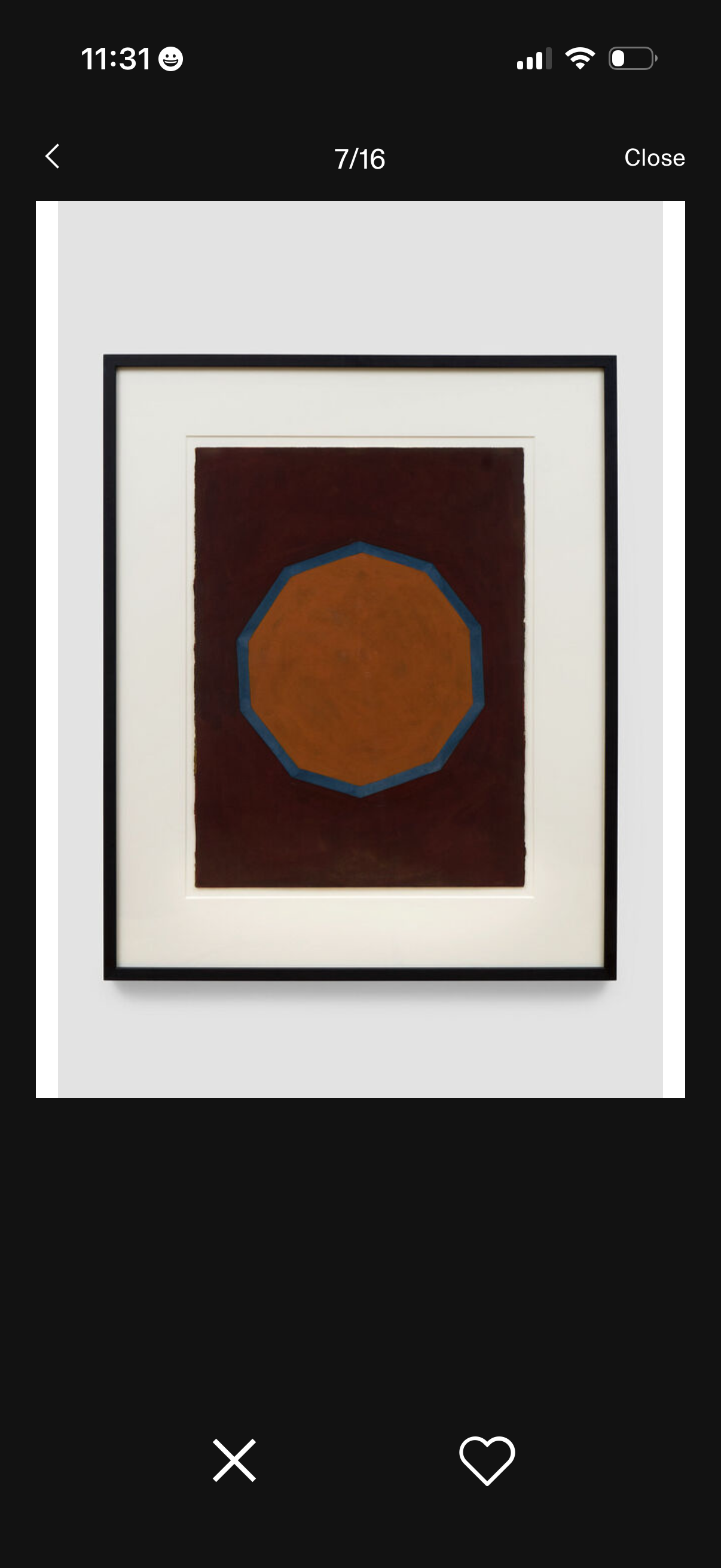
Full-screen artwork viewer in a gallery-style swipeable carousel showing the current image index, with back and close controls at the top. Bottom actions let users dismiss with an X or save/favorite the artwork with a heart icon.
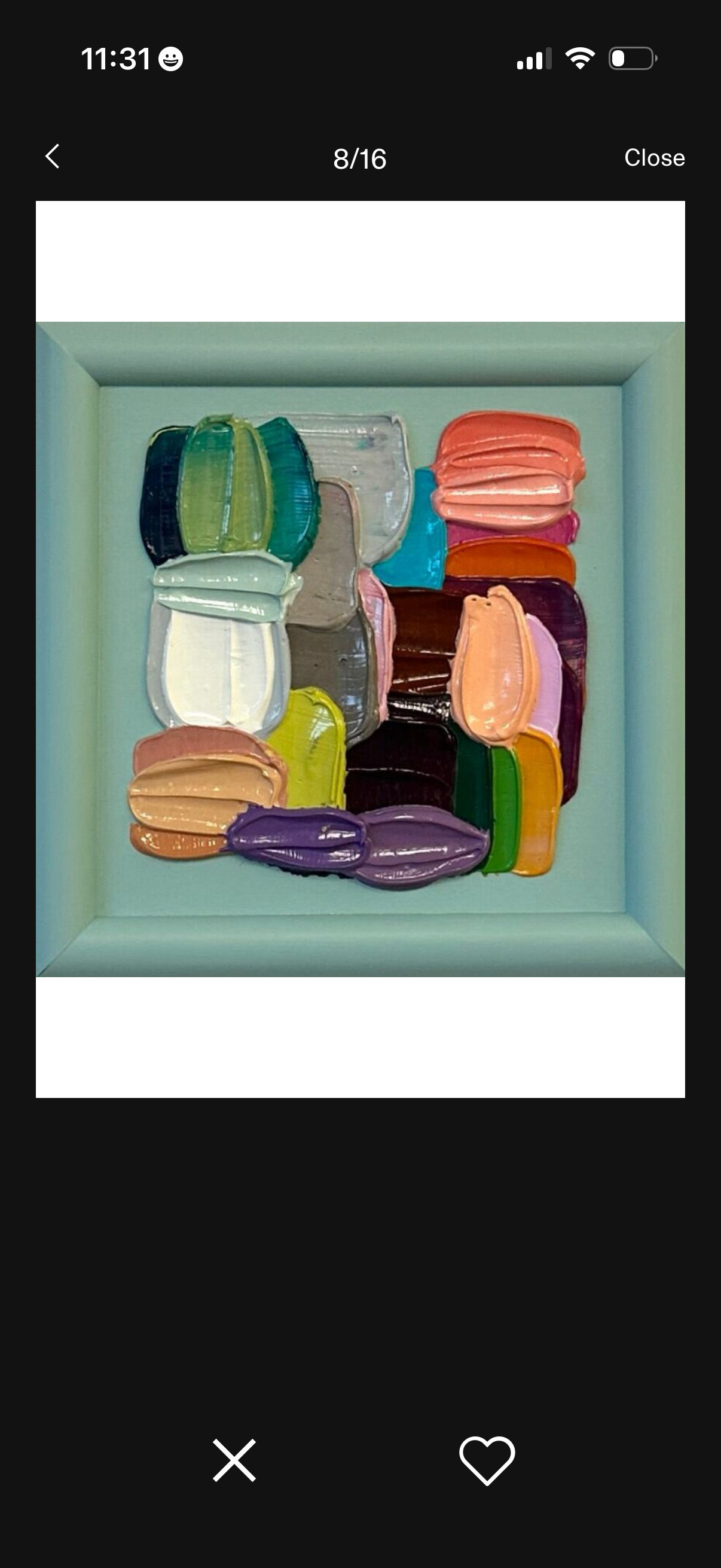
Fullscreen photo viewer for an image carousel showing the current position (8/16), with navigation controls to go back or close the viewer. Bottom actions include dismissing the image and liking/favoriting it.
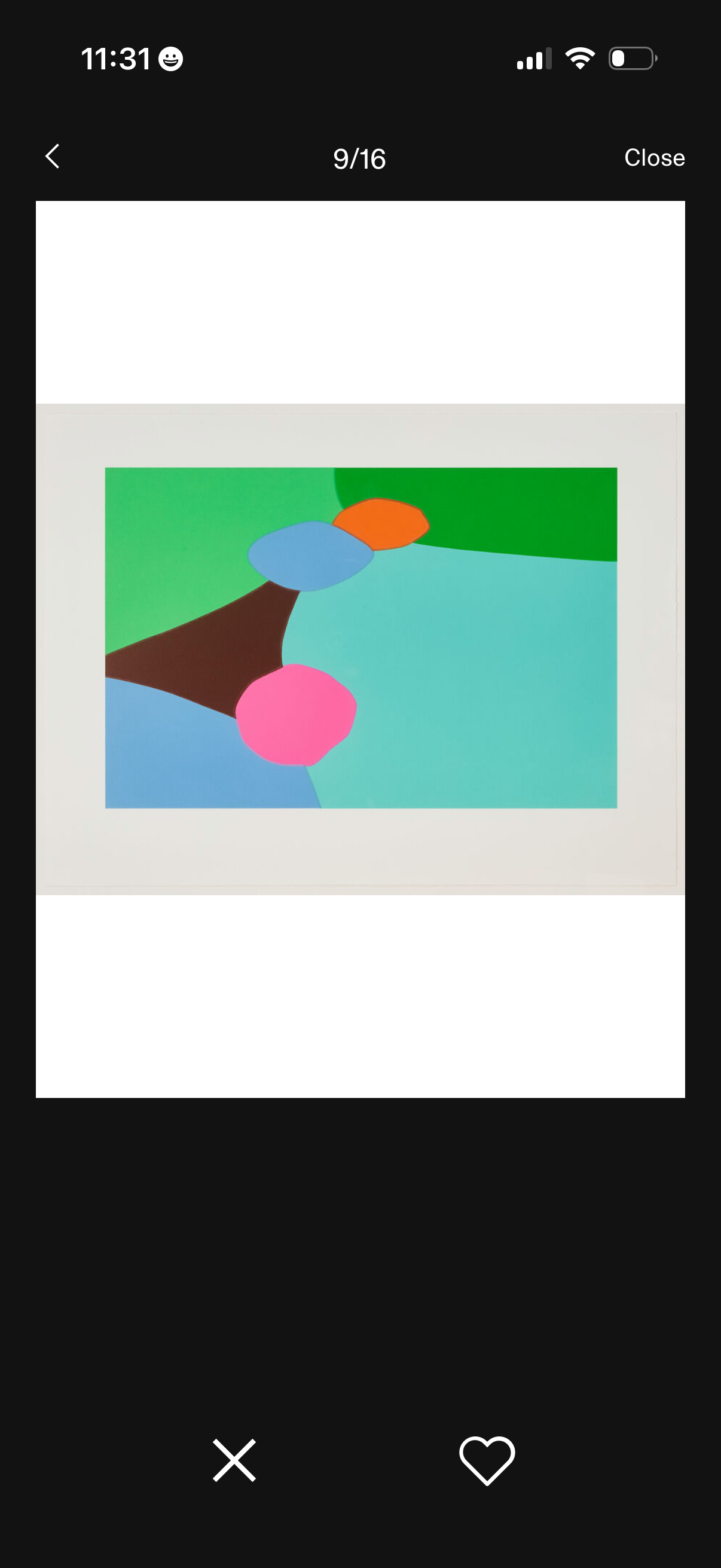
Full-screen artwork/image viewer in a gallery carousel showing the current position (9/16) with back and close controls. Bottom actions include dismiss/delete (X) and a heart button to like or favorite the image.
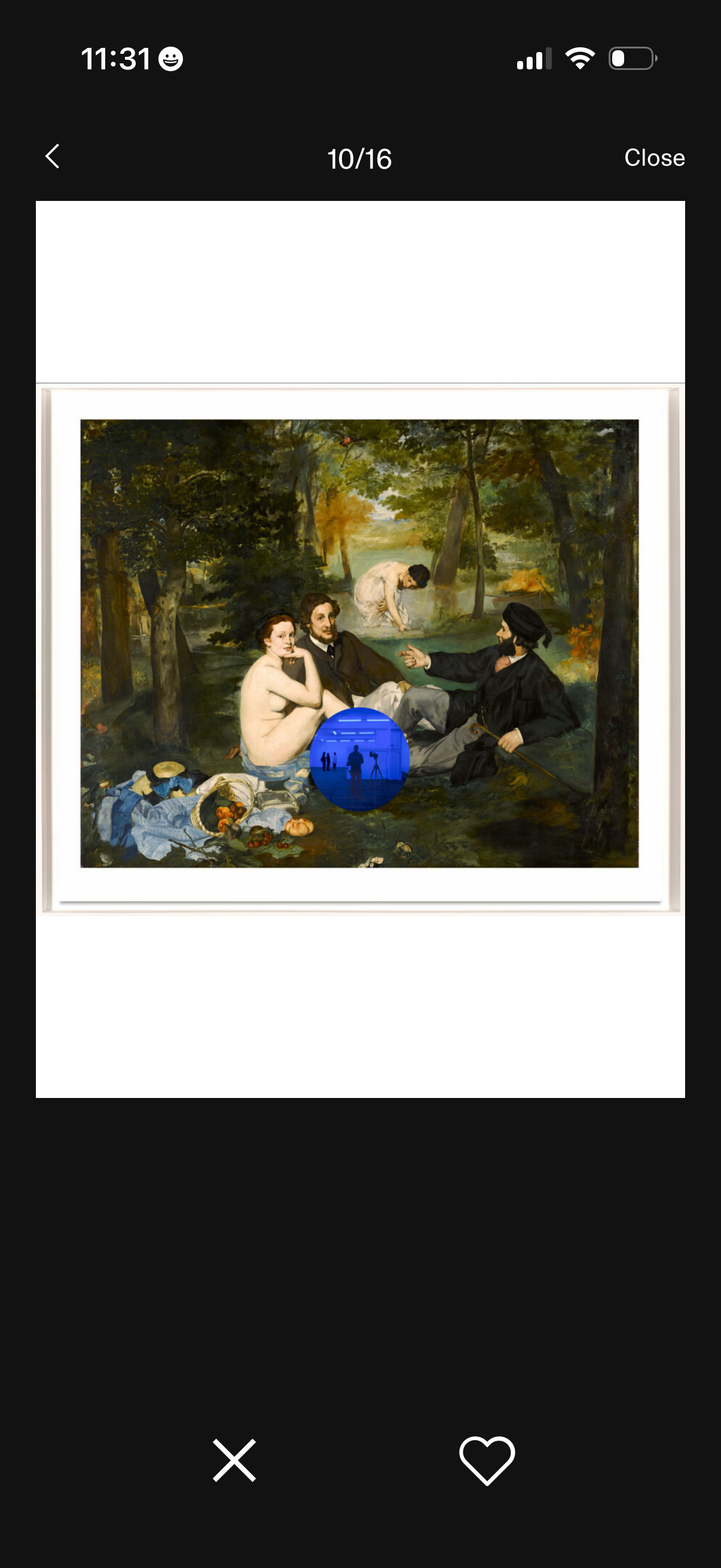
Full-screen artwork viewer showing a framed painting in a slideshow with a page indicator (10/16) and top navigation to go back or close. Bottom actions allow dismissing the viewer or saving/liking the artwork with a heart icon.
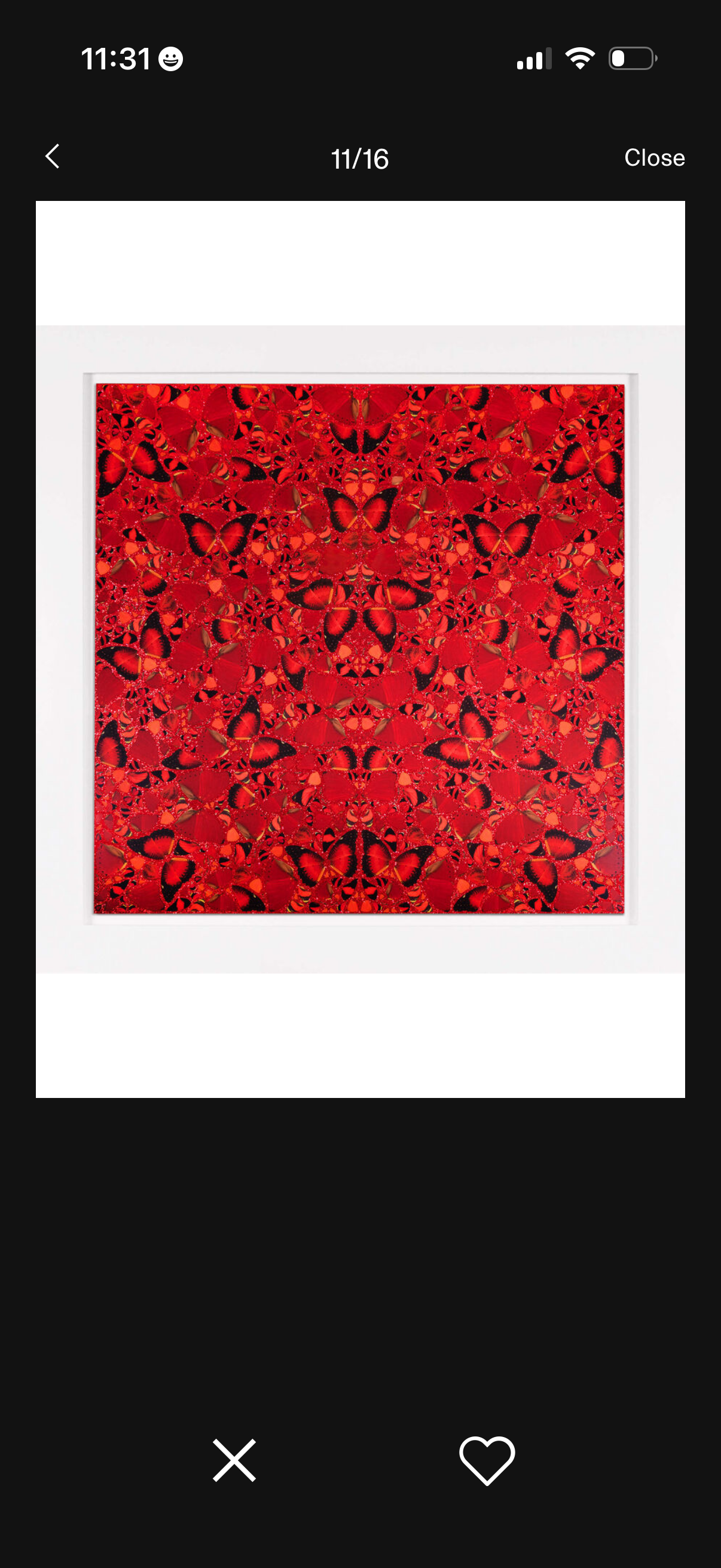
Fullscreen artwork/image viewer showing a single piece in a gallery-style carousel with a slide count indicator and close/back navigation. Bottom actions let the user dismiss (X) or favorite/save the image with a heart icon.
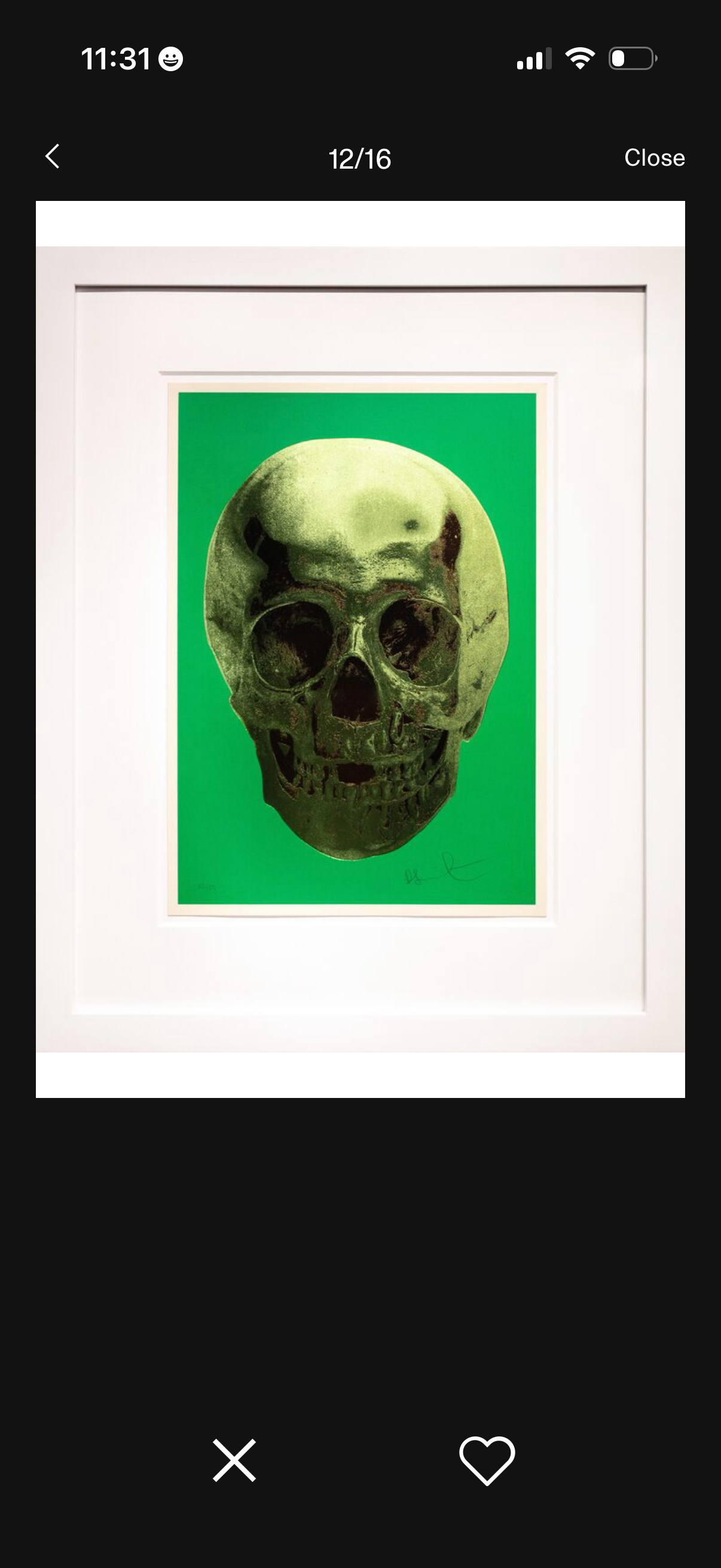
Full-screen artwork viewer showing a framed image with a pagination indicator (12/16) for browsing through a gallery. Navigation includes a back arrow, a Close button, and bottom actions to dismiss or save/like the artwork.
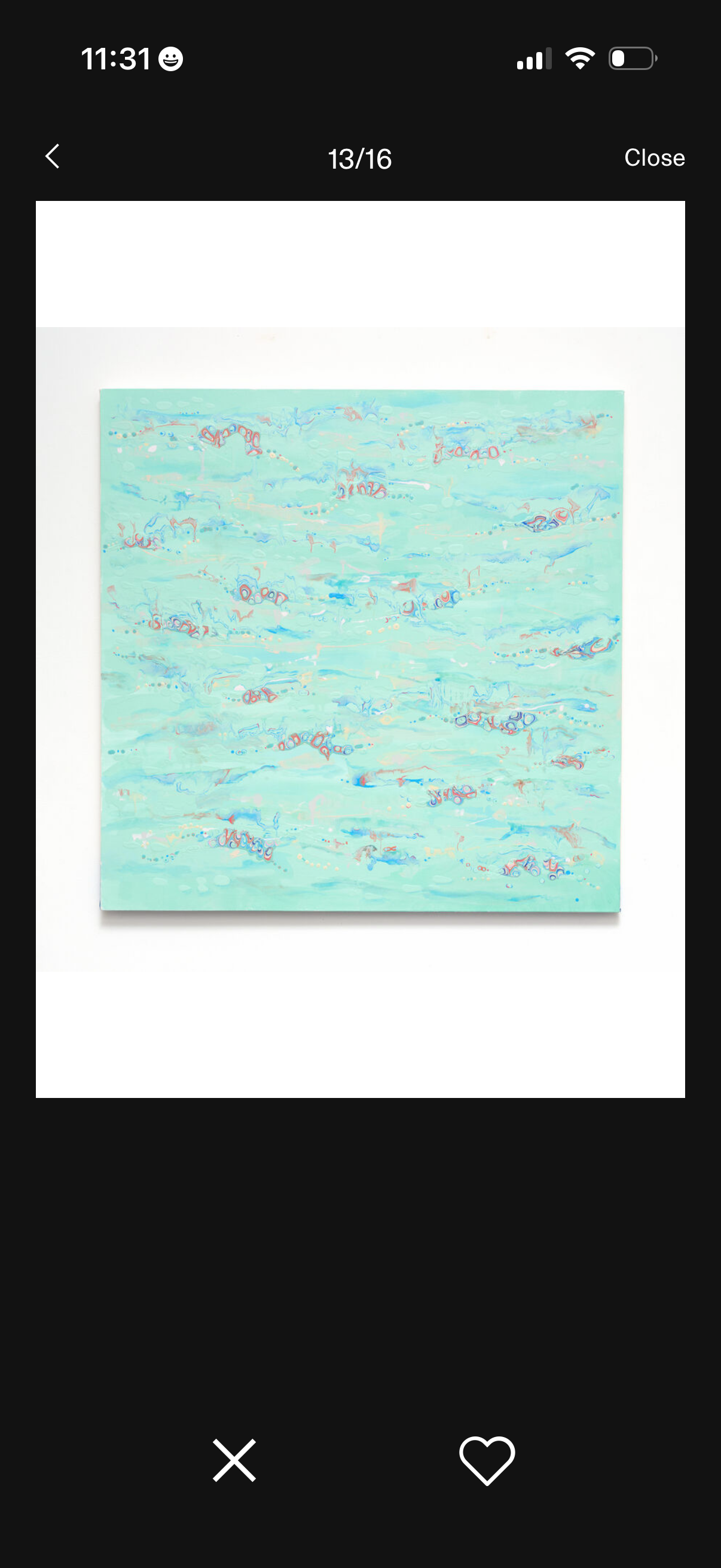
Full-screen image viewer for an artwork/photo with swipeable gallery navigation showing the current position (13/16) and actions to go back or close. Bottom toolbar includes a dismiss button and a heart icon to favorite/like the item.
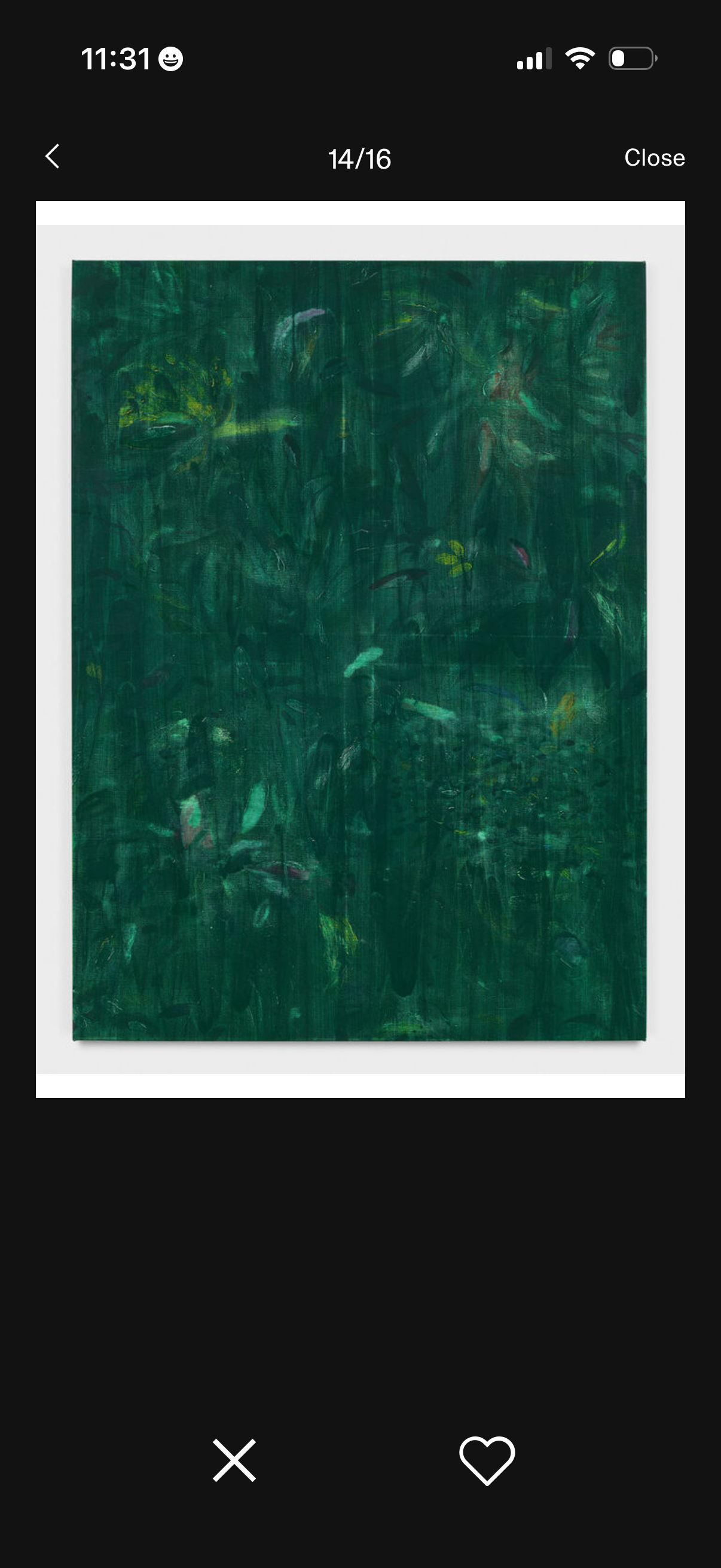
Fullscreen artwork image viewer in a gallery carousel, showing the current item count with back and close navigation. Bottom action bar allows dismissing and favoriting/liking the artwork.
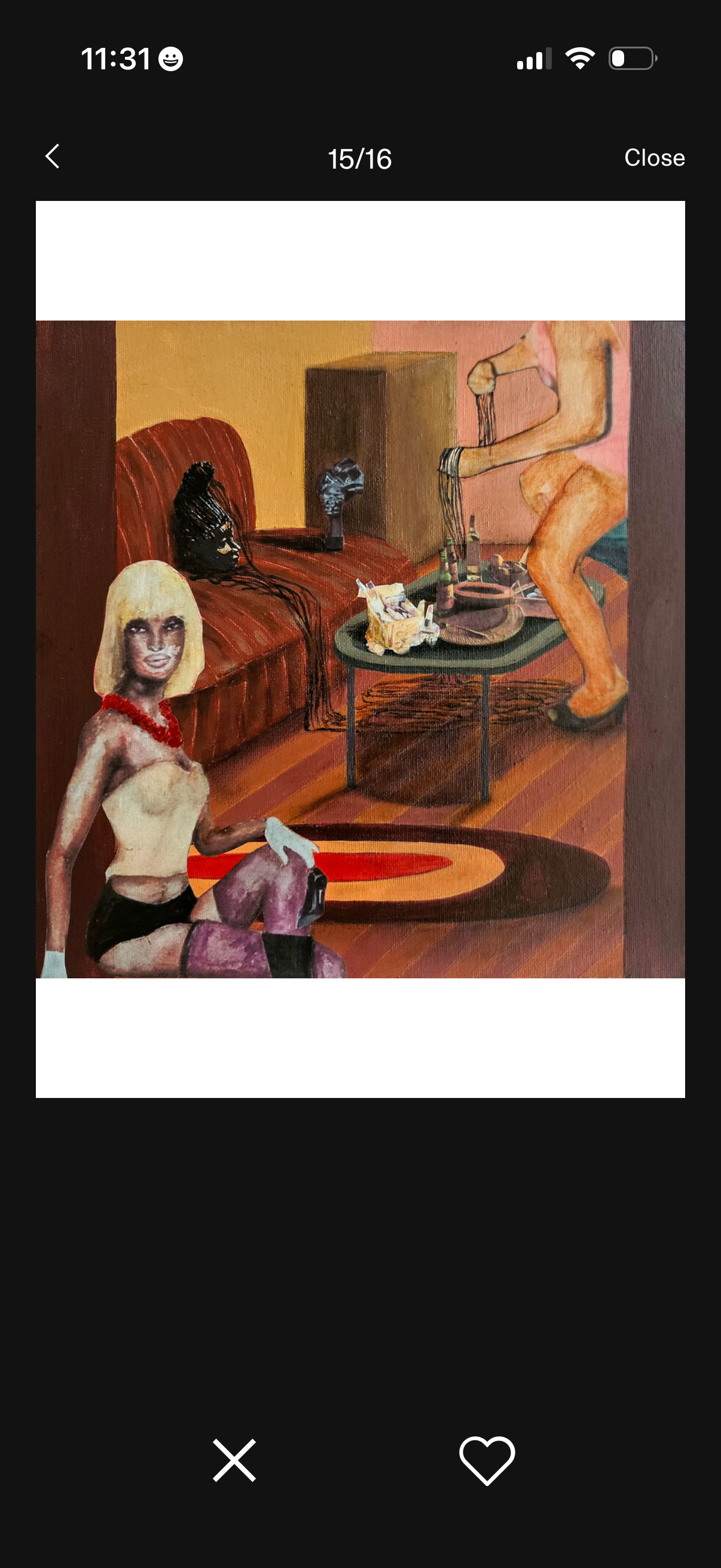
Full-screen artwork viewer in a gallery carousel showing an image with pagination (15/16), back and close controls, and bottom actions to dismiss or favorite/like the artwork. Designed for browsing multiple images in sequence while saving favorites.
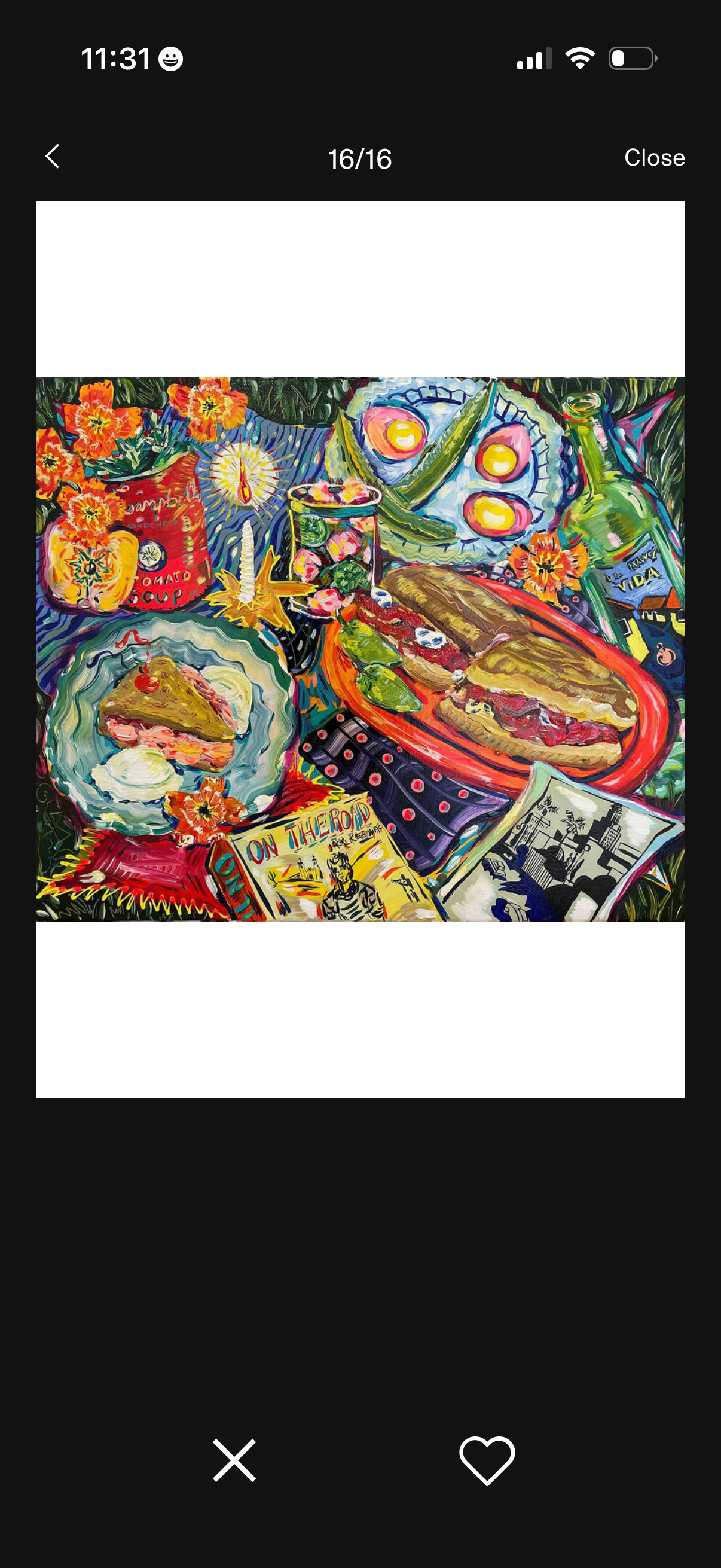
Fullscreen artwork viewer showing an image in a swipeable gallery with a progress indicator (e. g.

Loading screen for an art discovery app showing a spinner and status text “Finding art for you… Calculating Results…” while personalized recommendations are generated, with a bottom tab bar for For you, Search, Inbox, Favorites, and Profile navigation.
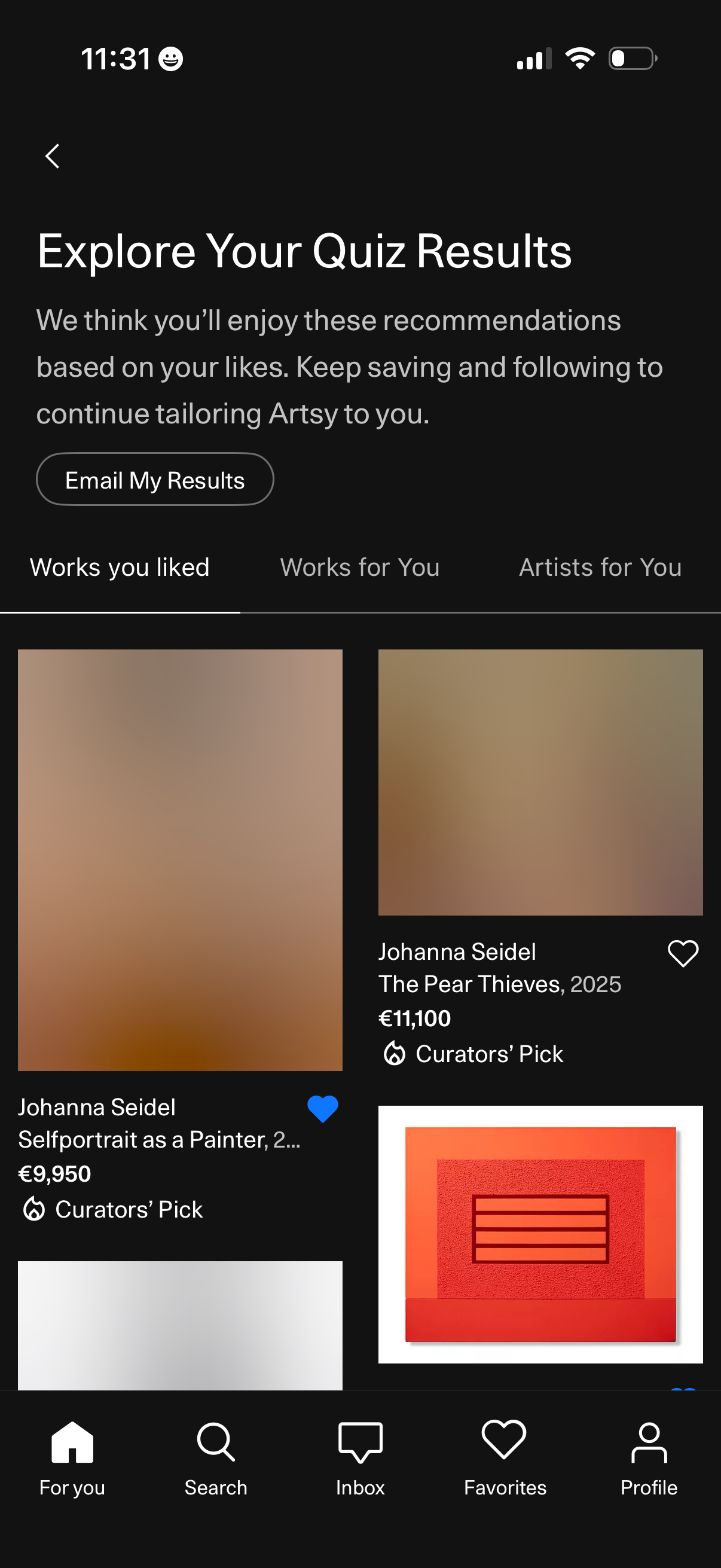
Personalized quiz results screen in an art marketplace showing recommended artworks and artists based on the user’s likes, with tabs to switch between “Works you liked,” “Works for You,” and “Artists for You. ” Includes an “Email My Results” action and a grid of artwork cards displaying artist name, title/year, price, curator pick badge, and like/favorite heart.