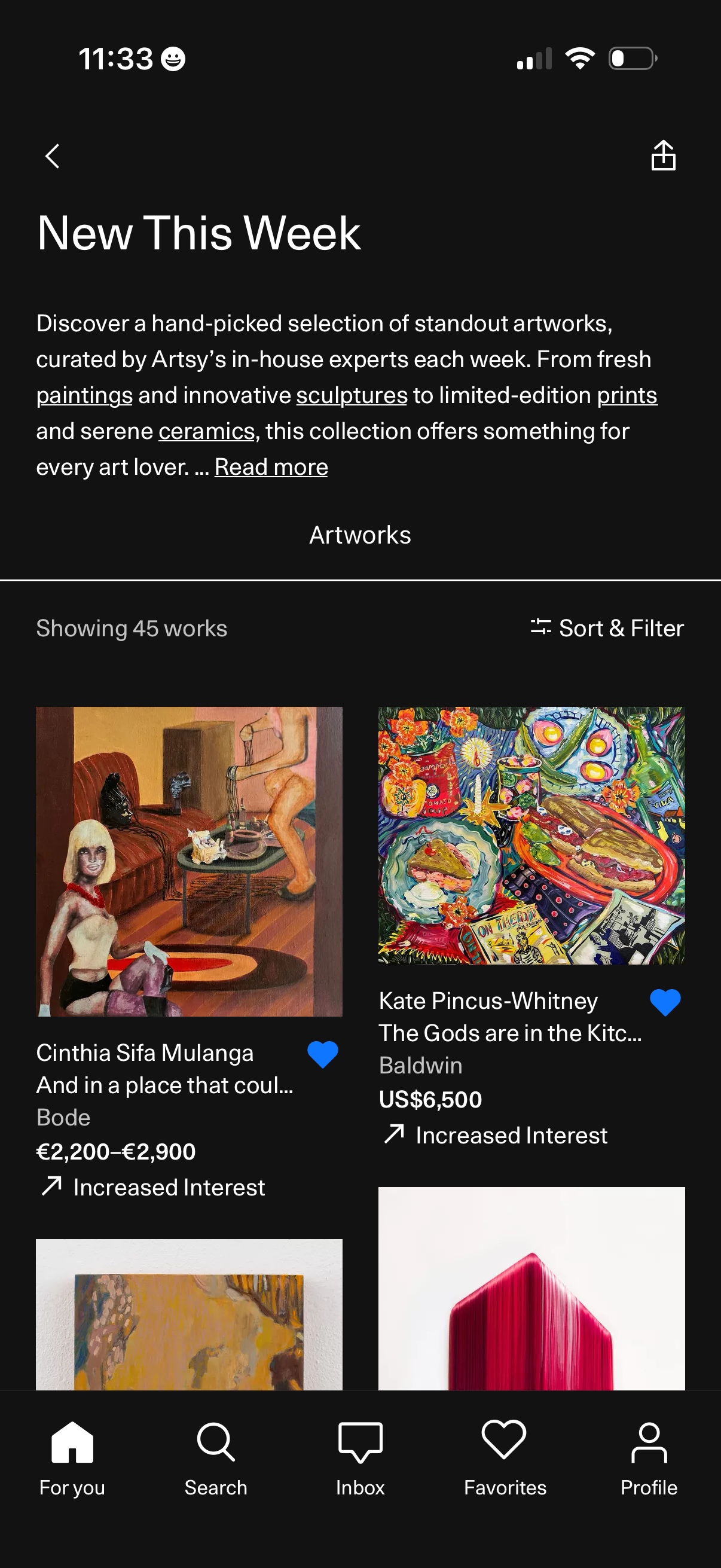
Curated collection landing screen for “New This Week” featuring a weekly hand-picked selection of artworks with an intro description and “Read more” link. Displays a grid of artwork cards with thumbnail, artist/title, price, trend indicator, and a heart to favorite, plus a “Sort & Filter” control to refine the list.
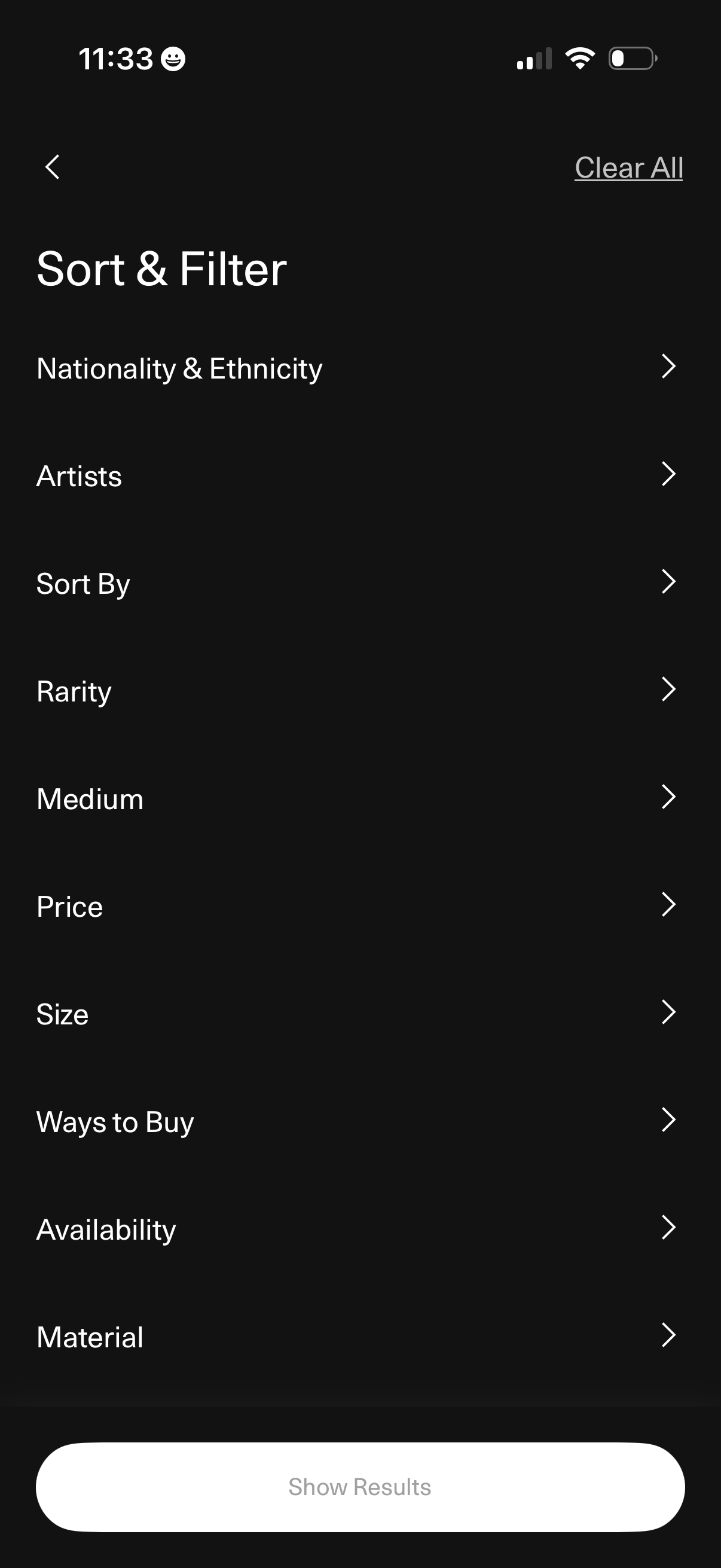
Sort and filter menu for browsing artworks, with categories like nationality/ethnicity, artist, sort by, rarity, medium, price, size, ways to buy, availability, and material. Includes back navigation, a Clear All reset, and a bottom “Show Results” button to apply filters.
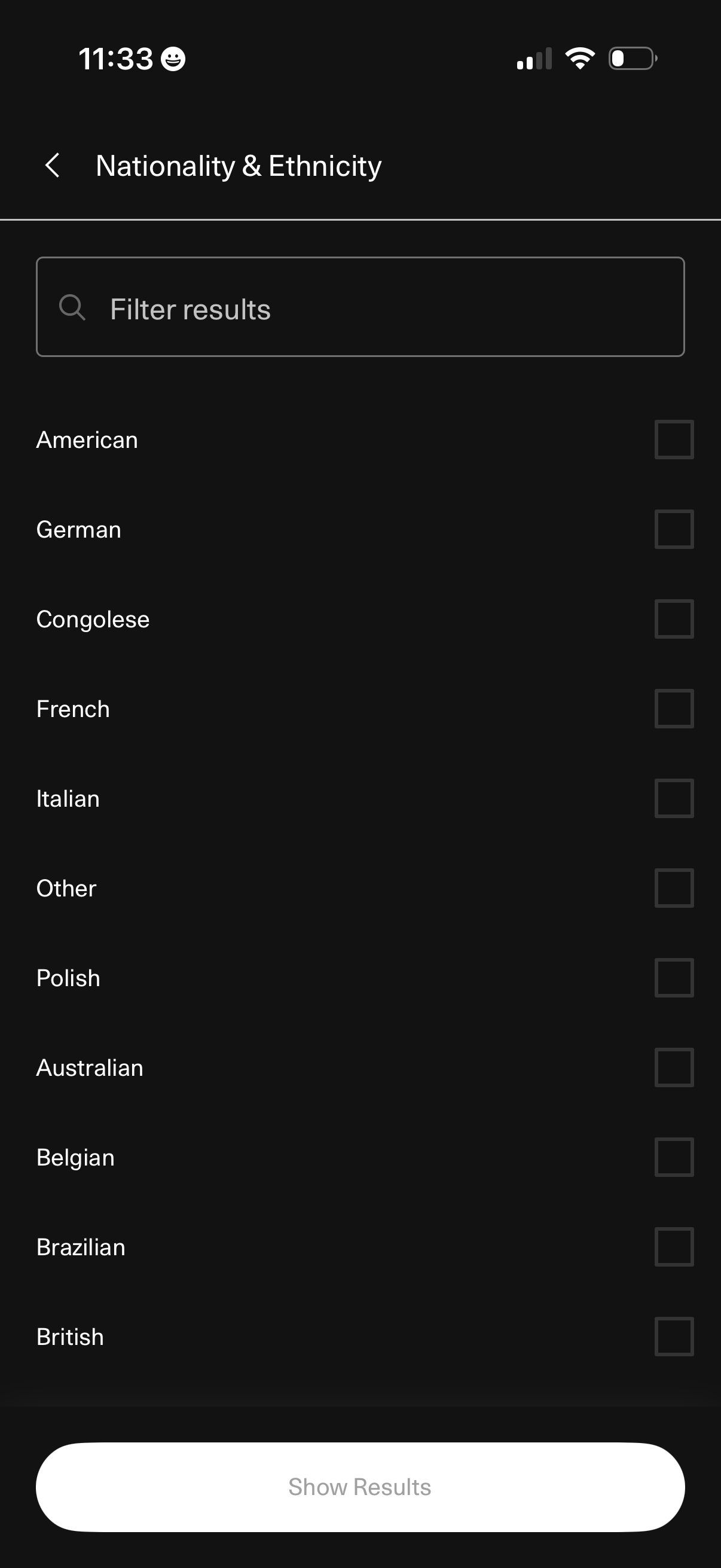
Filter selection screen for “Nationality & Ethnicity” with a search bar to filter results and a scrollable checklist of nationality options for multi-select. Users choose one or more items via checkboxes and tap “Show Results” to apply the filter and view matching results.
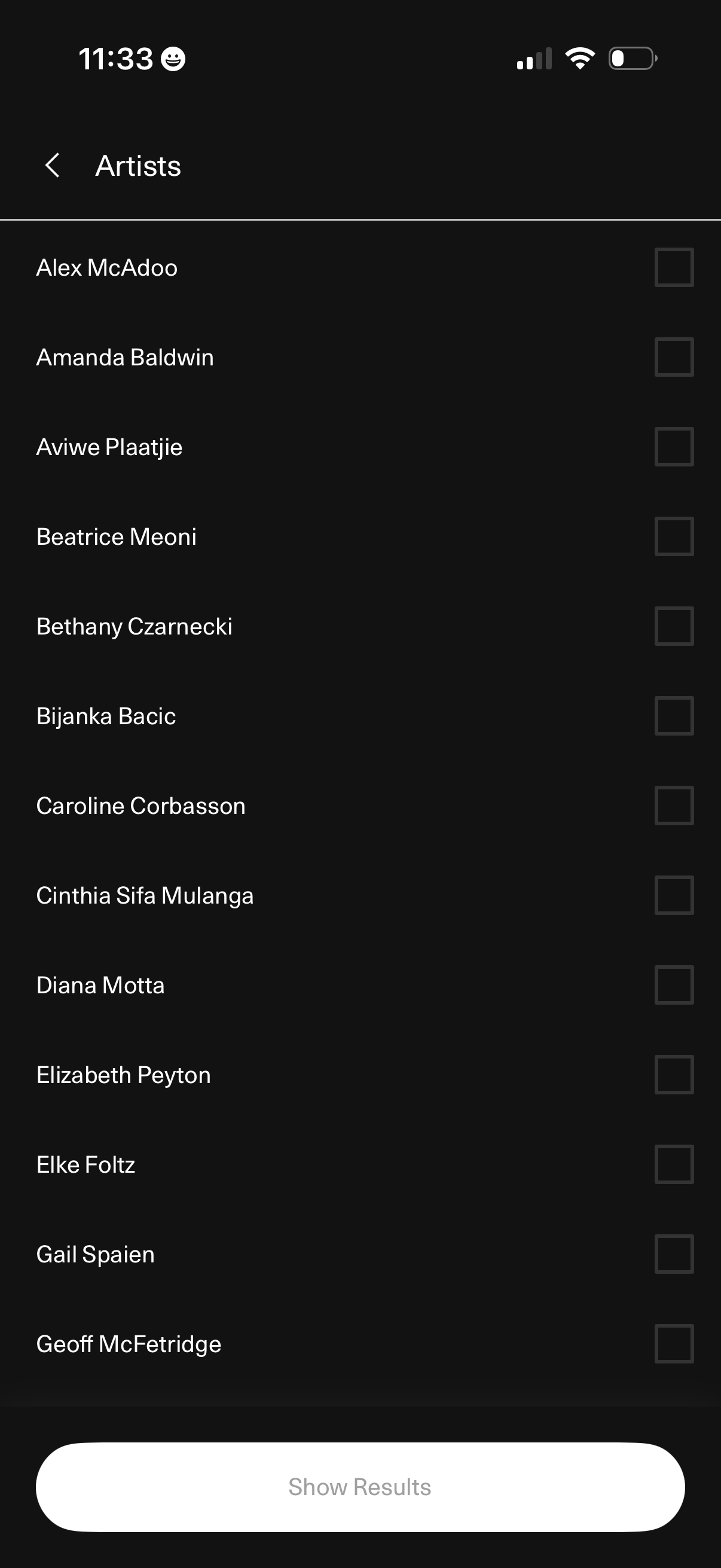
Artist filter selection screen showing a scrollable list of artists with checkboxes to select multiple options, a back navigation in the header, and a disabled “Show Results” button at the bottom to apply the selected filters.
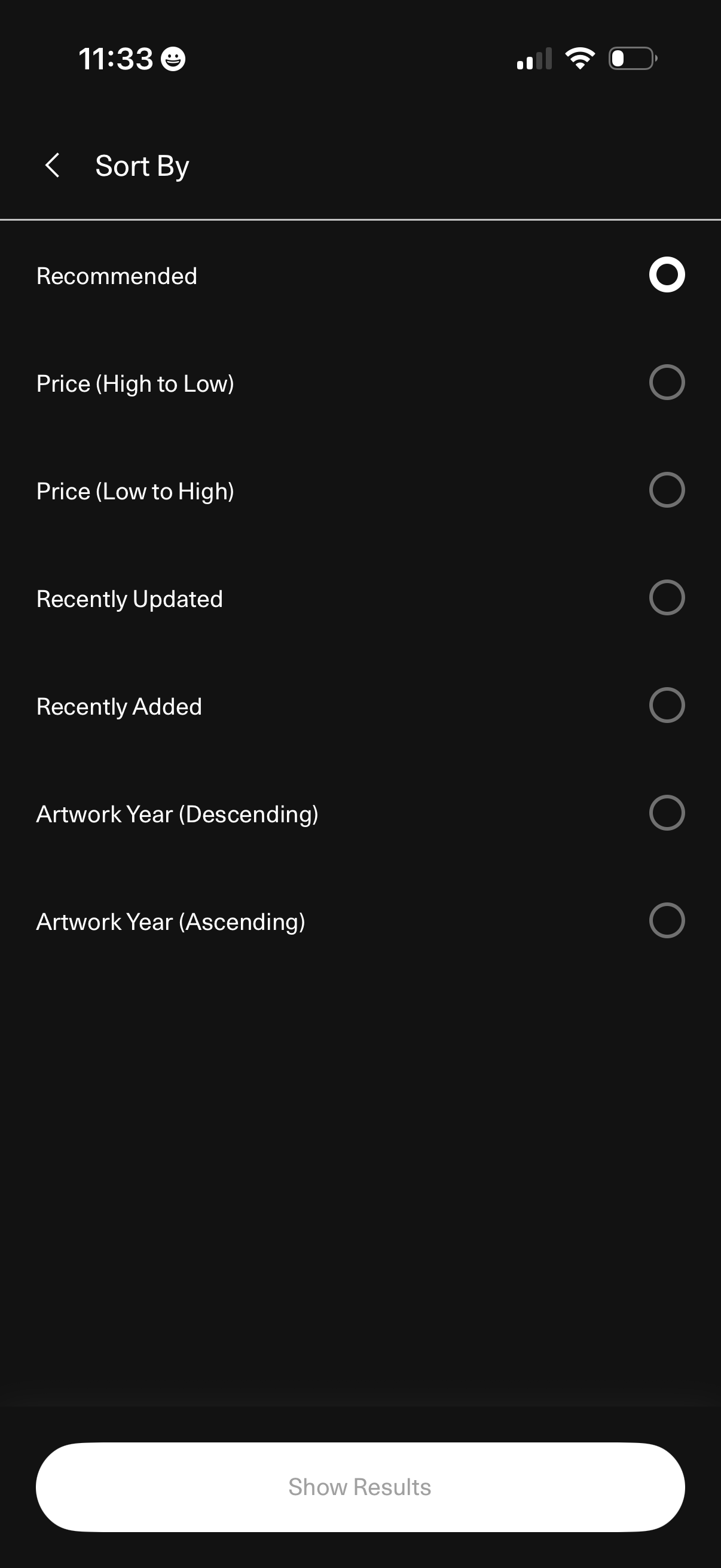
Sort options screen for browsing a catalog, letting users choose a single radio-button criterion such as Recommended, price high-to-low or low-to-high, recently updated/added, or artwork year ascending/descending. Includes a back navigation and a bottom “Show Results” button to apply the selected sort.
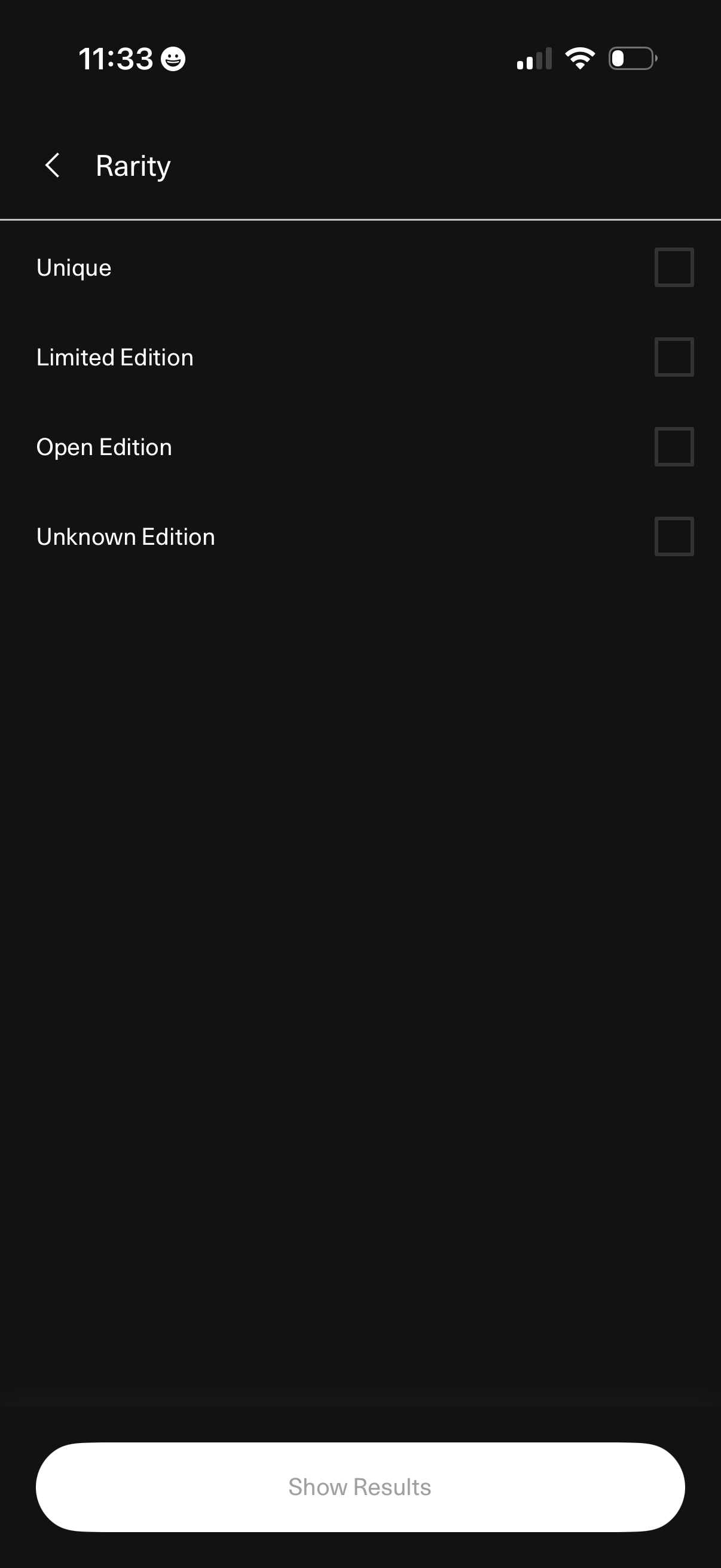
Filter selection screen for item rarity, showing a checklist of options like Unique, Limited Edition, Open Edition, and Unknown Edition. Users can select one or more rarity filters and tap “Show Results” to apply and view filtered results.
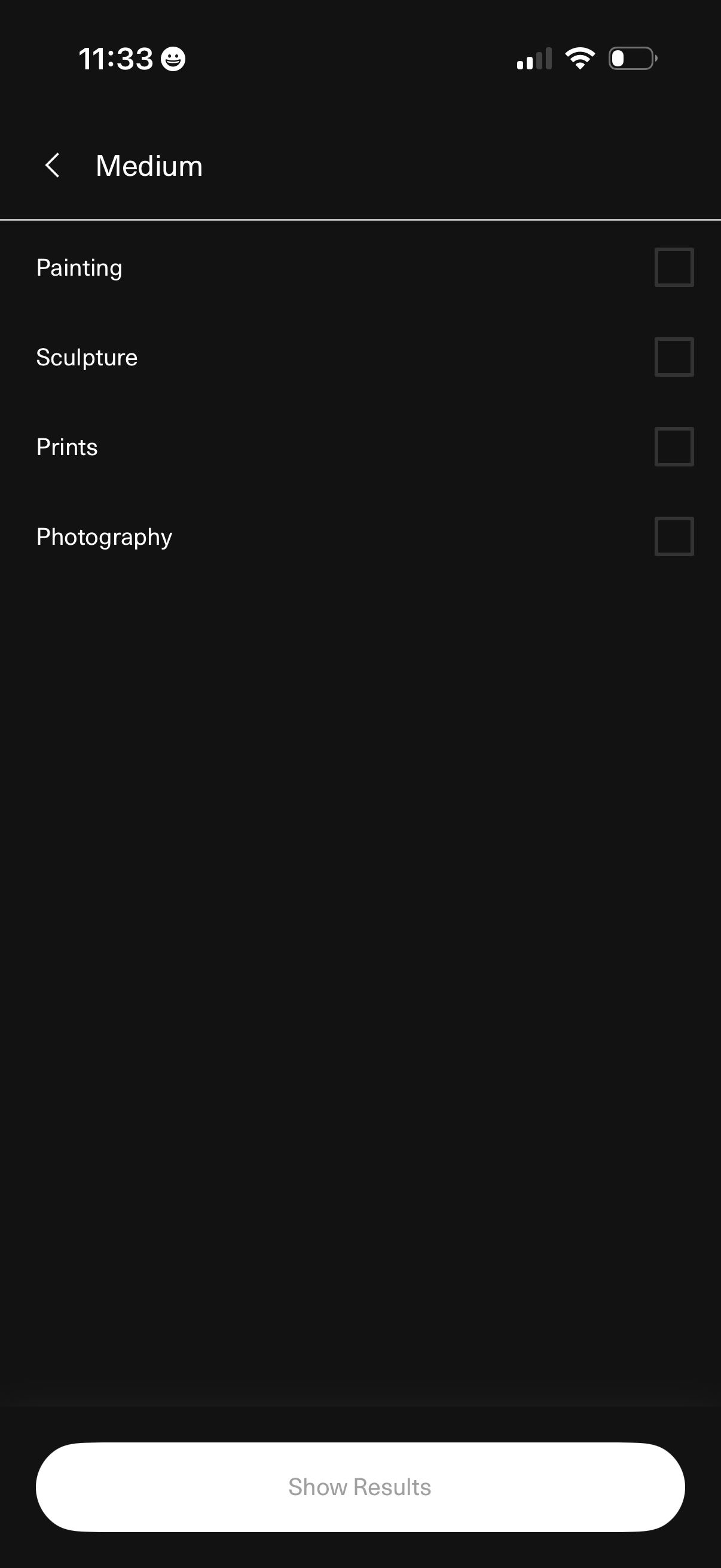
Filter selection screen for browsing art by medium, offering checkbox options like Painting, Sculpture, Prints, and Photography. Includes a back button and a primary “Show Results” action to apply the selected filters and view matching items.
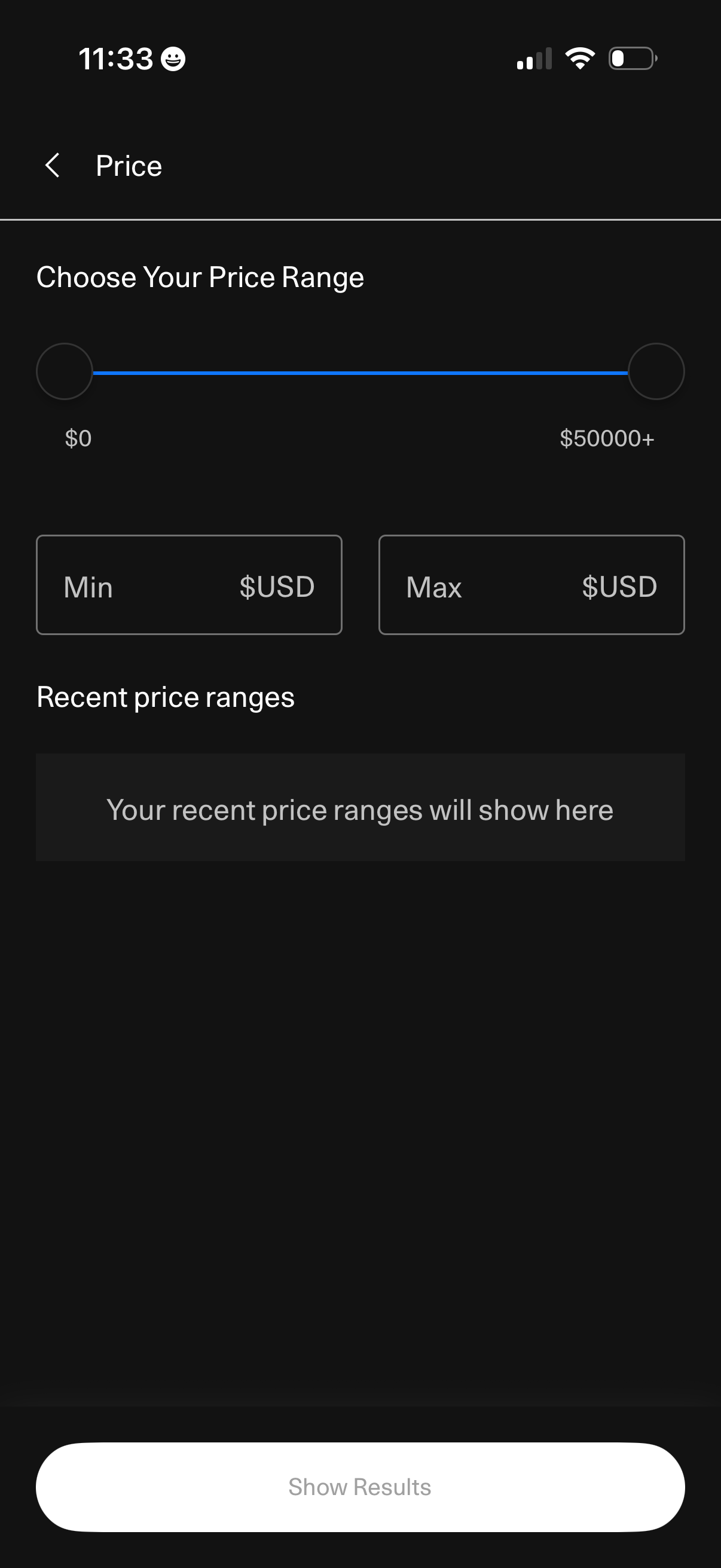
Price filter screen for setting a minimum and maximum budget using a dual-handle range slider and manual Min/Max USD input fields. Includes a section for recent price ranges and a primary “Show Results” button to apply the filter.
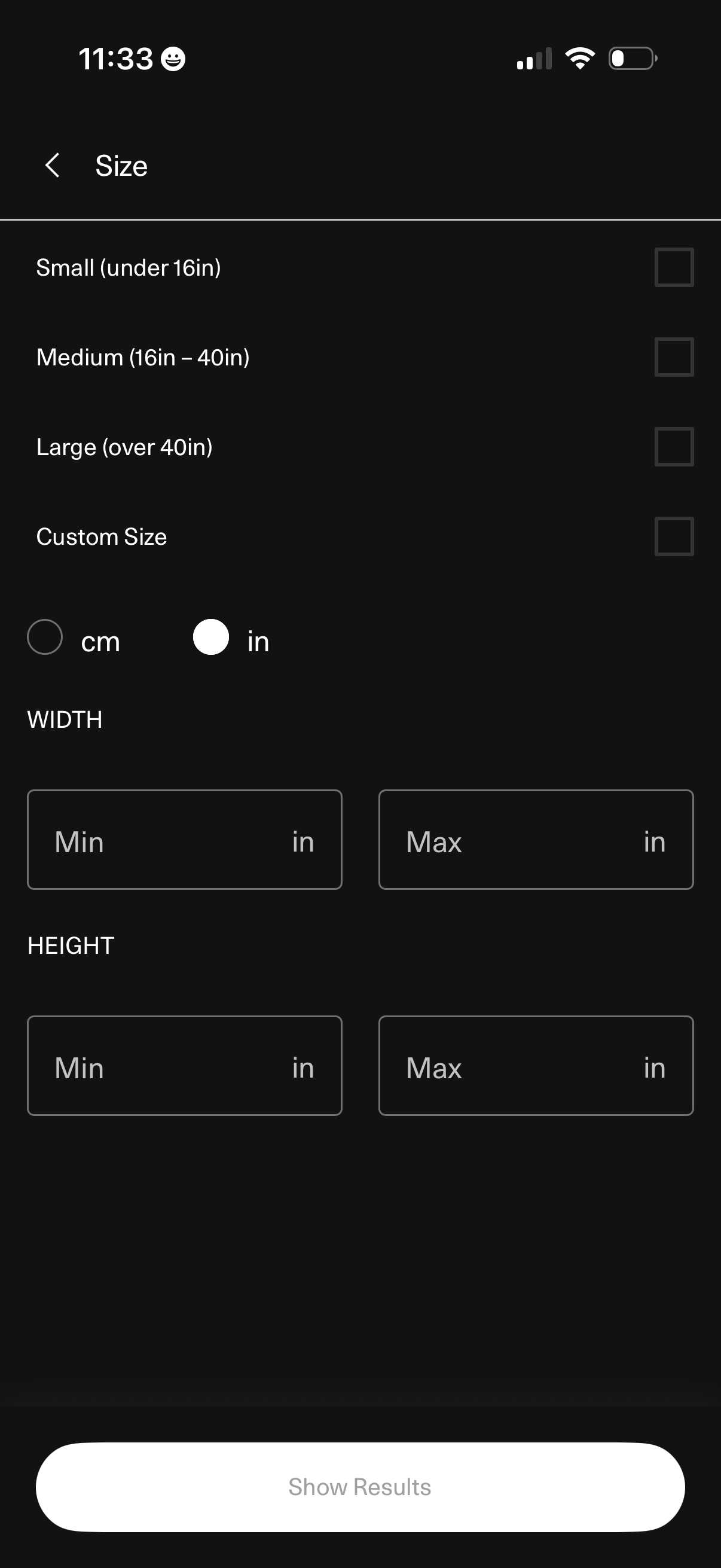
Filter settings screen for selecting an item size, offering preset options (small, medium, large) or a custom size with unit toggle (cm/in) and min/max width and height input fields. A bottom “Show Results” button applies the size filters to update search results.
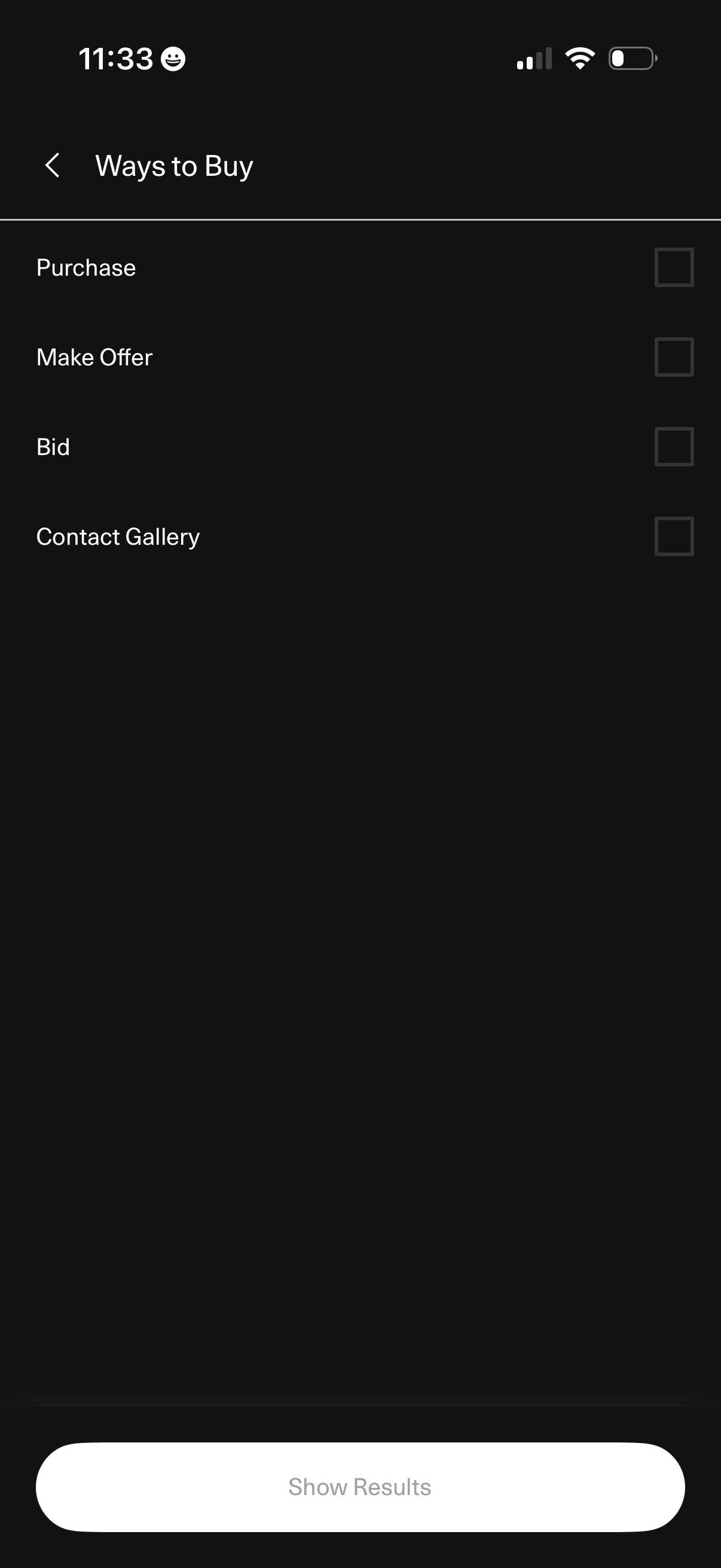
Filter selection screen titled “Ways to Buy” letting users choose purchase options via checkboxes, including Purchase, Make Offer, Bid, and Contact Gallery. A bottom “Show Results” button applies the selected filters and updates the listing results.
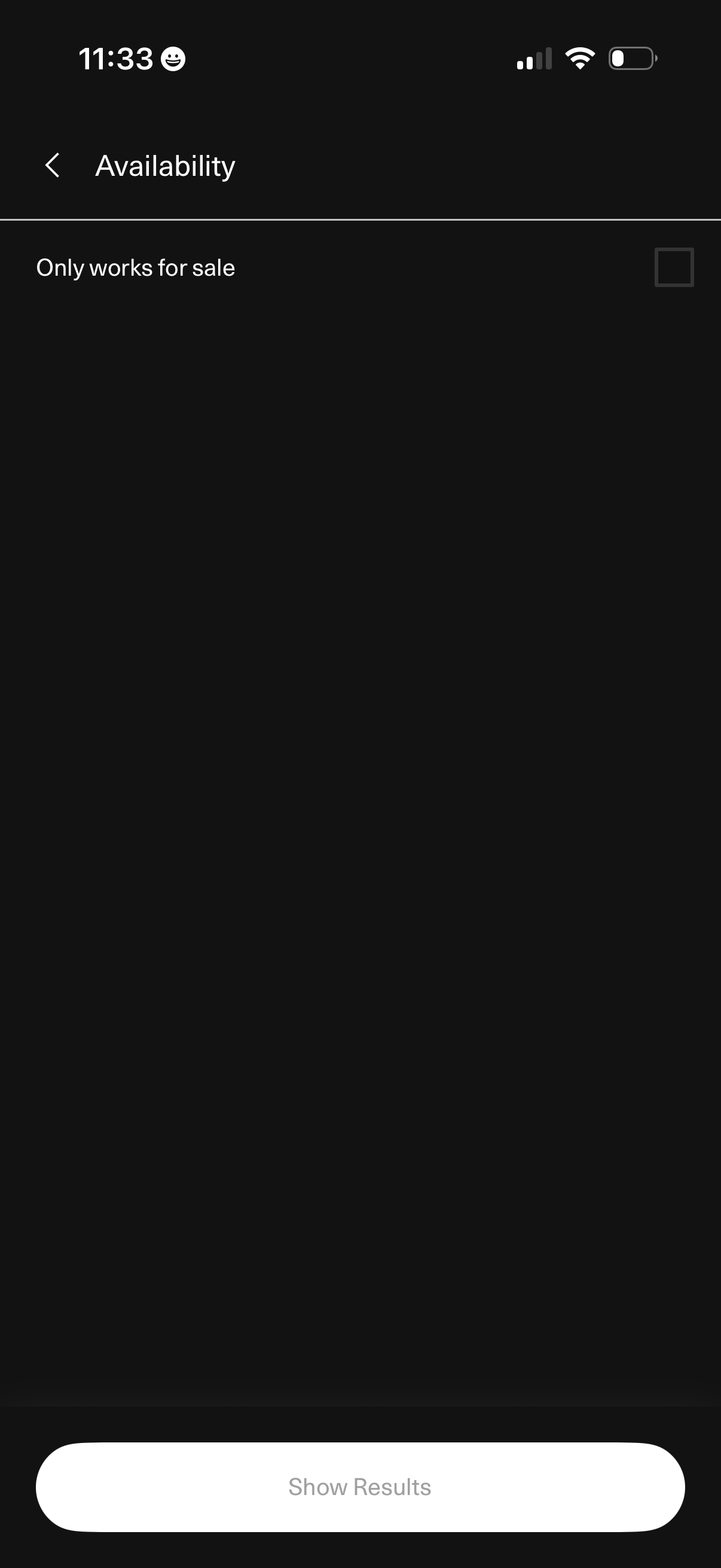
Availability filter screen for a marketplace or gallery, letting users restrict results to “Only works for sale” via a checkbox toggle. Includes back navigation and a primary “Show Results” button to apply the filter and view updated listings.
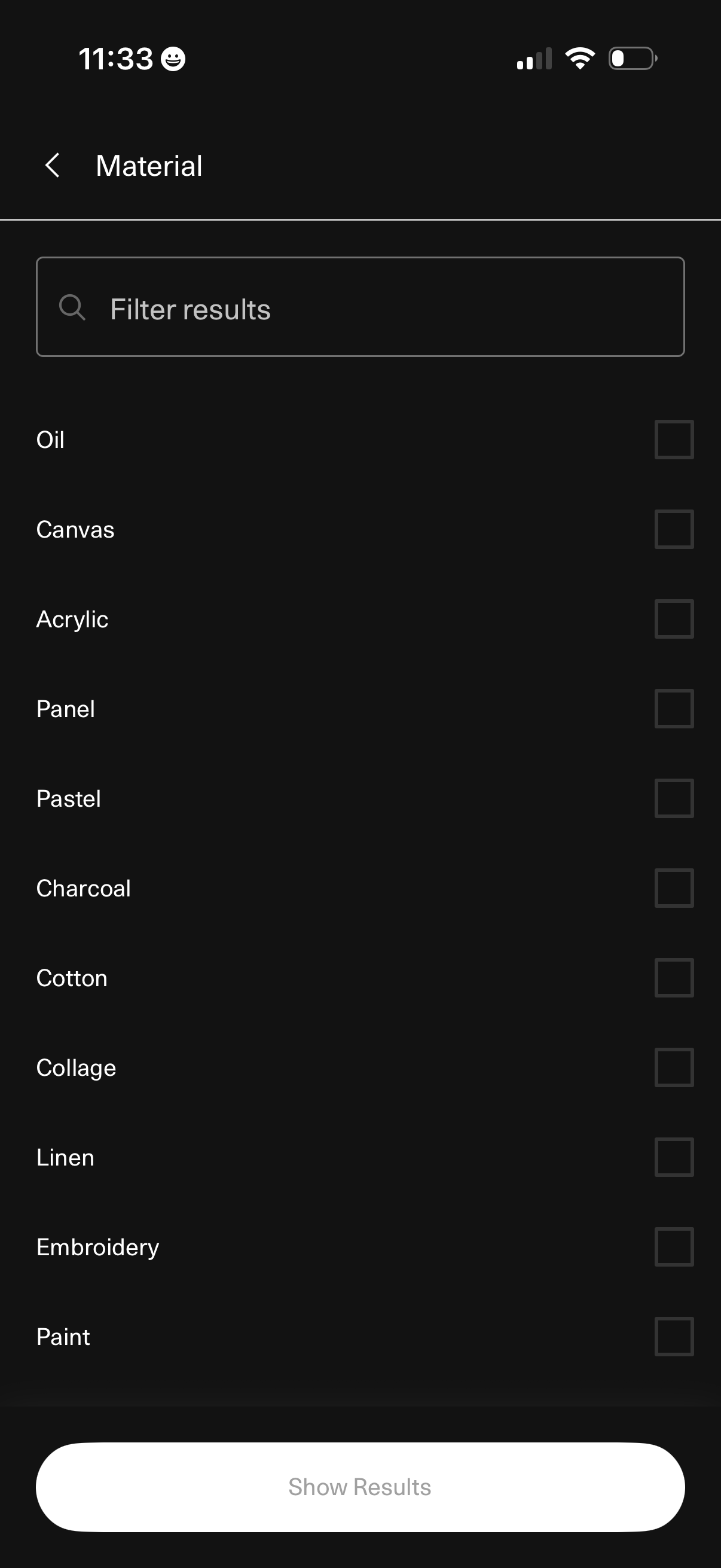
Material filter screen for browsing art or products, featuring a search bar to filter results and a checklist of material options (e. g.
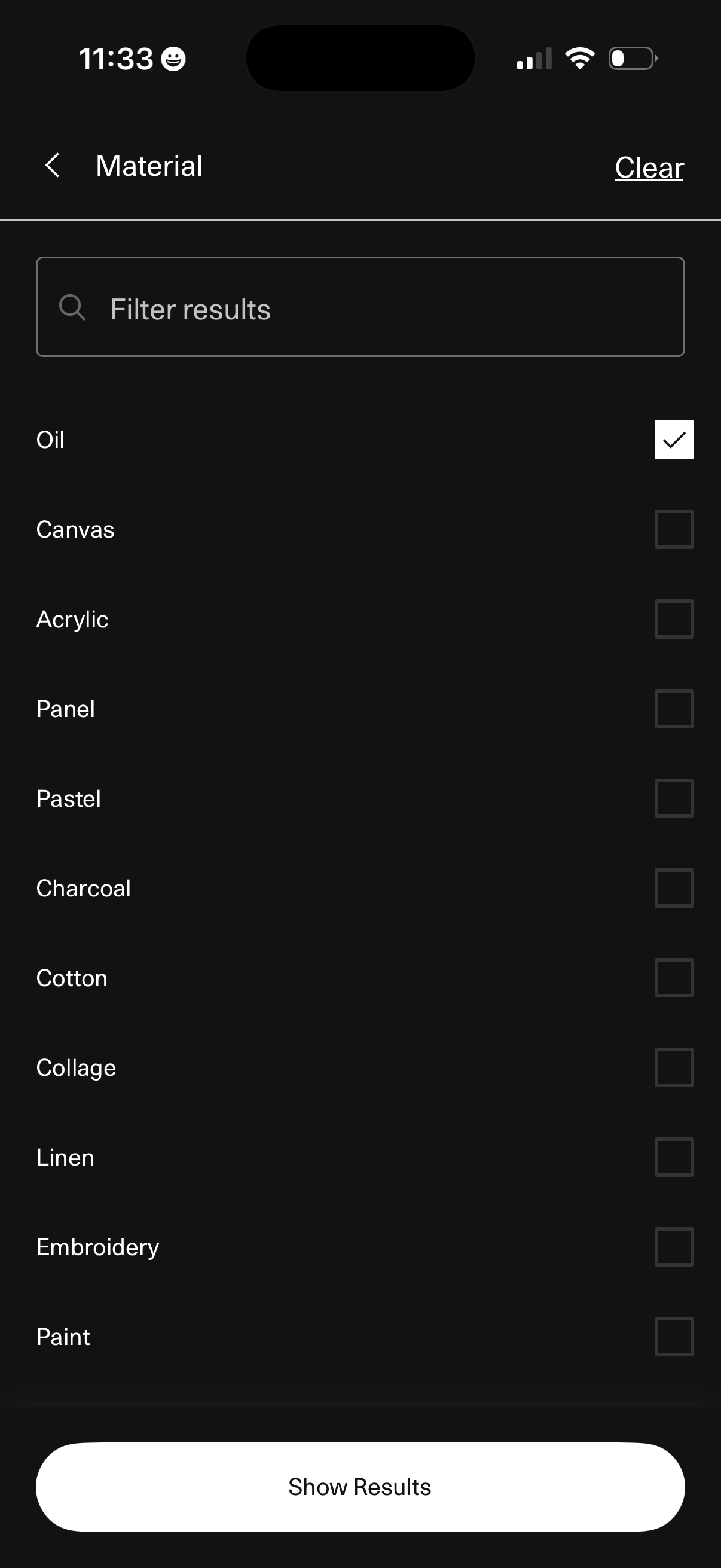
Filter selection screen for browsing items by material, featuring a search field to filter the list and a set of checkbox options (e. g.
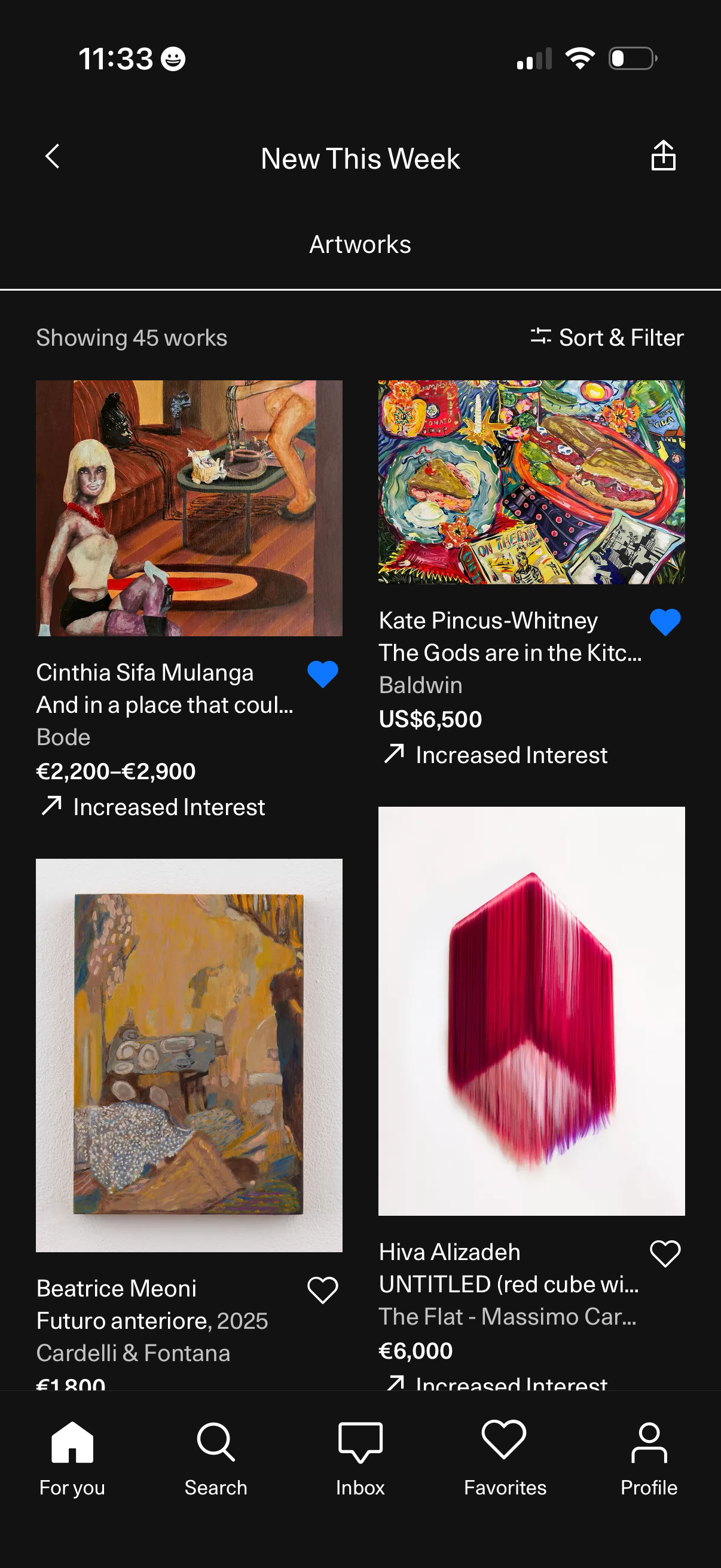
A “New This Week” artworks discovery feed showing a grid of newly listed art pieces with thumbnail images, artist and artwork titles, gallery/brand, price, and an “increased interest” indicator. Users can sort and filter results, favorite items with a heart icon, and navigate via bottom tabs (For you, Search, Inbox, Favorites, Profile) or share the page.