1
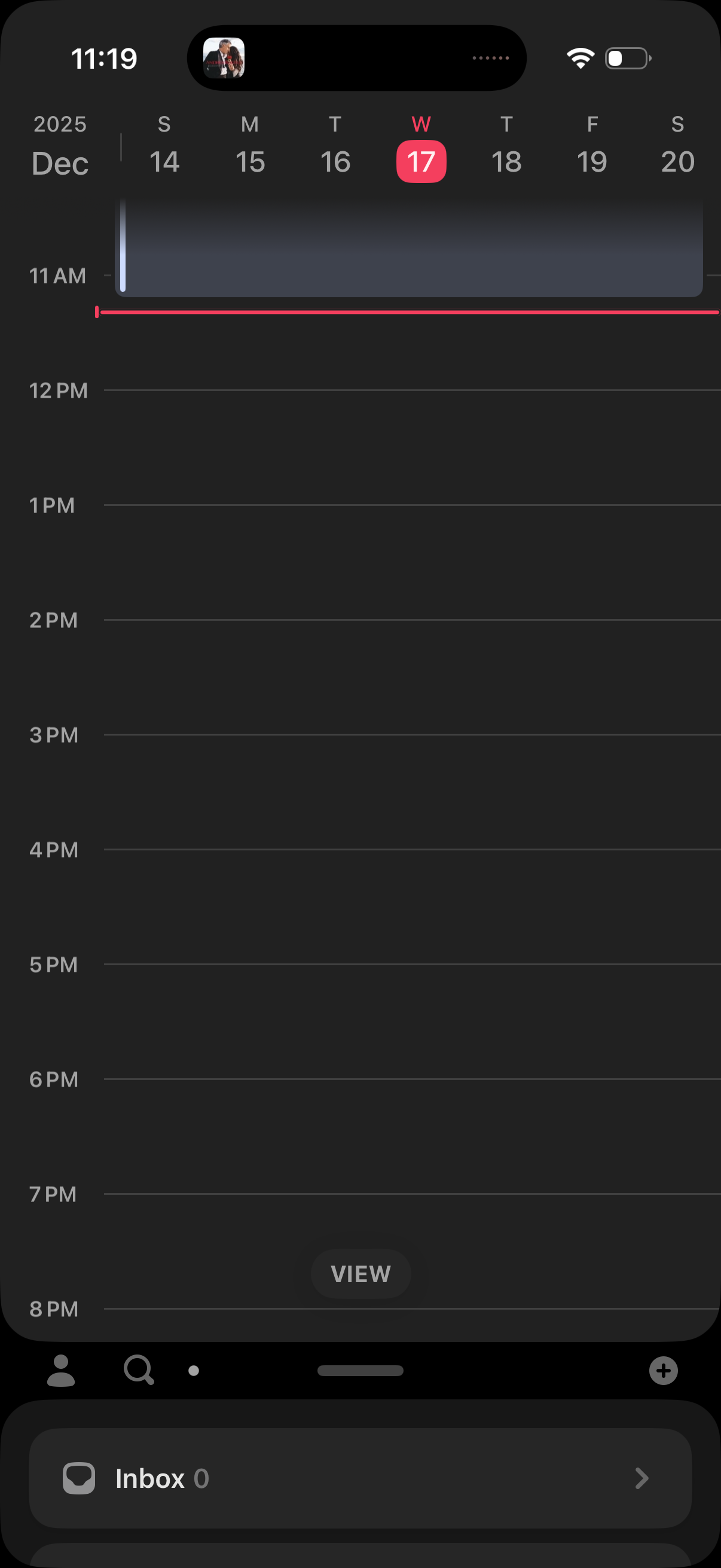
Day view calendar screen with a horizontal date picker at the top and an hourly timeline for the selected day, showing a current-time indicator. Includes a bottom action to switch “View” modes and an inbox shortcut for notifications/messages.
2
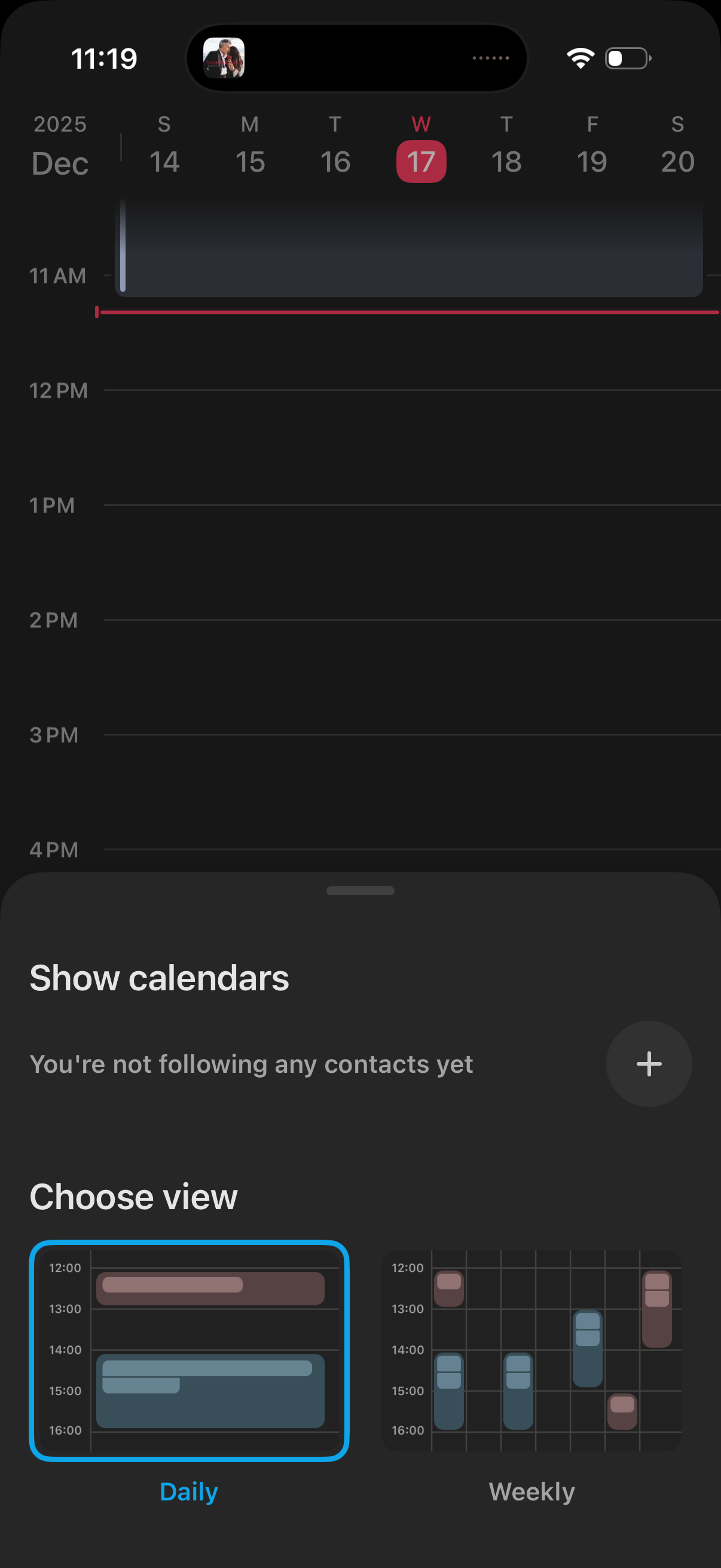
Calendar app day timeline view with a date strip at the top and hourly schedule grid, showing a bottom sheet settings panel. The panel lets users show/hide subscribed calendars and choose the calendar view mode (daily or weekly), with an option to add calendars/contacts.
3
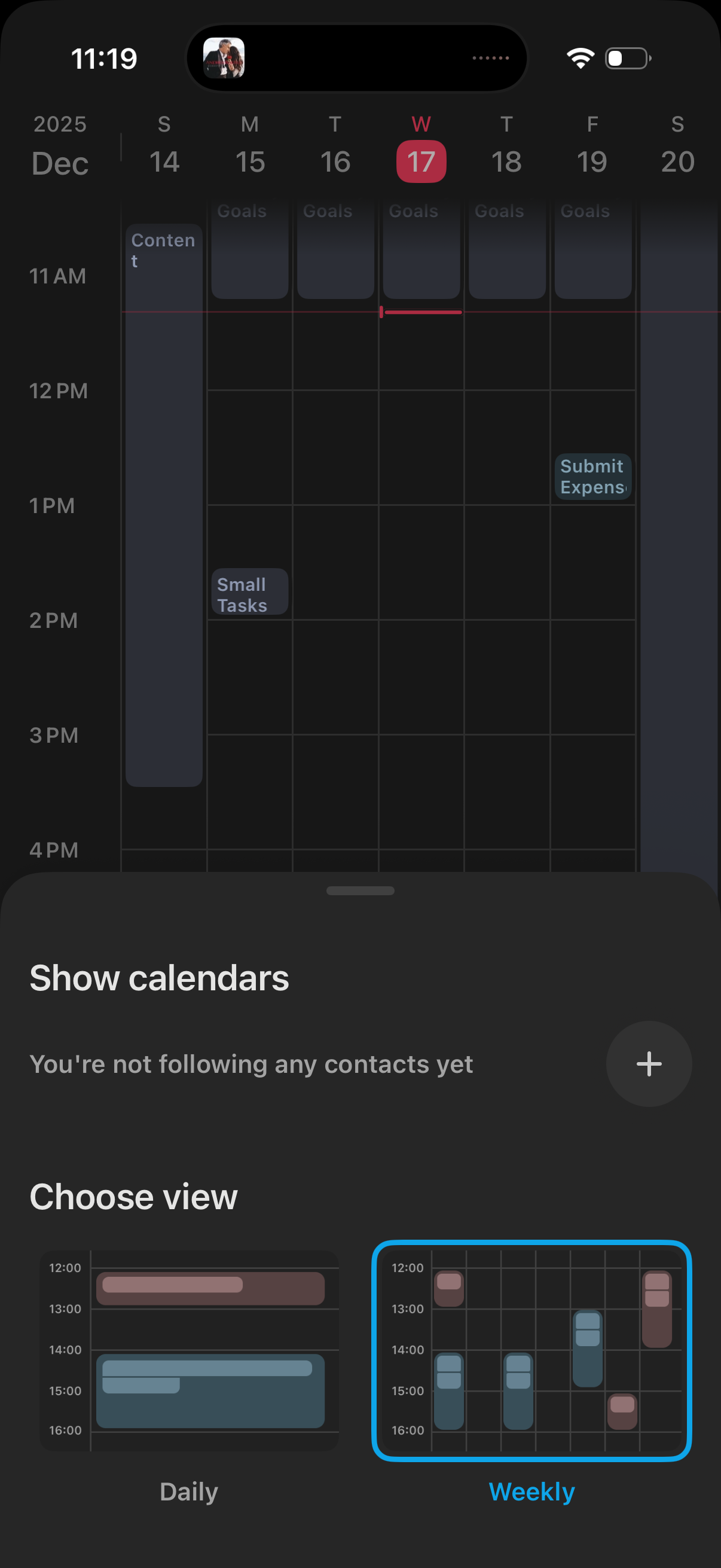
Weekly calendar schedule screen showing a time-grid with events and a bottom sheet for settings. The sheet lets users show calendars (with an add/follow option) and choose the calendar view layout, switching between Daily and Weekly.