Onboarding

Minimal app launch/splash screen on iOS showing a centered moon-and-night icon on a black background while the app loads. No navigation, copy, or actions are available besides waiting for startup.

Onboarding survey screen asking the user how much sleep they usually get at night. Provides multiple-choice options in large selectable cards (6 hours or less, 6–8 hours, 8–10 hours, 10 hours or more) with a progress indicator for the questionnaire.
Sleep tracking app survey screen asking “How satisfied are you with your sleep? ” with a back button and four large emoji-based options to select a satisfaction level: Very satisfied, Neutral, Unsatisfied, and Very unsatisfied.

Onboarding/education screen for a CBT-I sleep improvement program introducing the “Thoughts” module with brief scientific credibility messaging and outcomes. Includes a back button and a prominent next/continue arrow button to progress through the program intro.

Sleep tracking onboarding question screen asking how long it takes to fall asleep after getting into bed. Presents multiple-choice options as large tappable cards (several minutes, 10–15 minutes, 20–40 minutes, hard to fall asleep) with a back arrow for navigation.

A sleep health onboarding questionnaire screen asking about snoring and whether anyone has observed breathing pauses during sleep (sleep apnea risk). Users choose one of several large multiple-choice options such as “I don’t know,” “No,” “Yes, I snore,” or “My partner has witnessed me stop breathing,” with a back button and progress indicator.
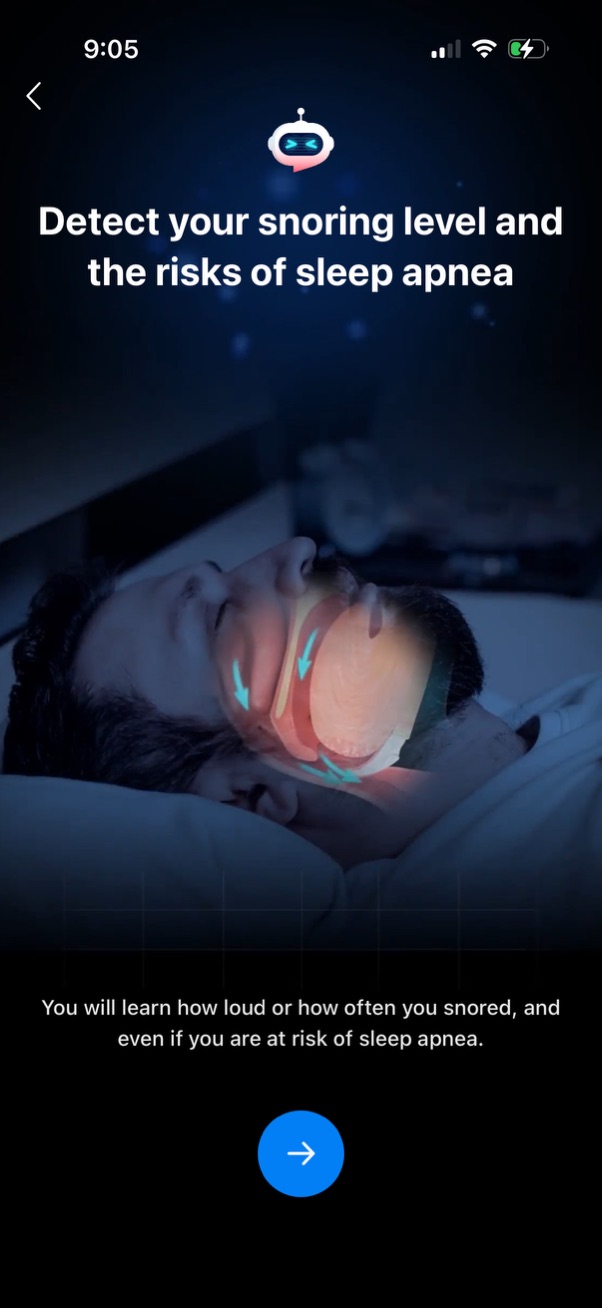
Onboarding/feature intro screen for a sleep health app that explains detecting snoring level and assessing risk of sleep apnea, with supporting illustration and brief description. Includes a back button and a primary next/continue arrow button to proceed through the onboarding flow.
Sleep wellness onboarding survey screen asking how often the user wakes up at night and has trouble falling back asleep. Provides multiple-choice frequency options (Never, Every once in a while, Pretty often, Most nights) with a back navigation button.
Dark-mode onboarding survey screen asking “How often do you wake up tired in the morning? ” with multiple-choice frequency options (Always, Usually, Sometimes, Rarely) presented as tappable cards with emoji icons, plus a back button and progress indicator.
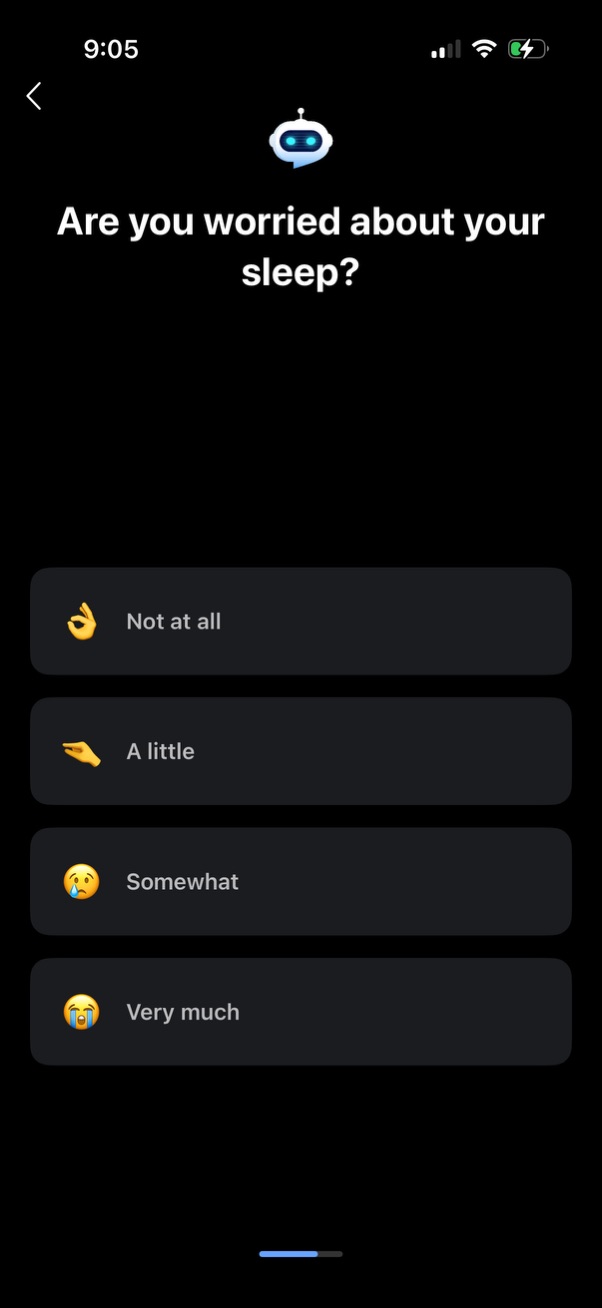
Dark-mode onboarding survey screen for a sleep or wellness app asking “Are you worried about your sleep? ” with four selectable response options (Not at all, A little, Somewhat, Very much) and a back navigation arrow.
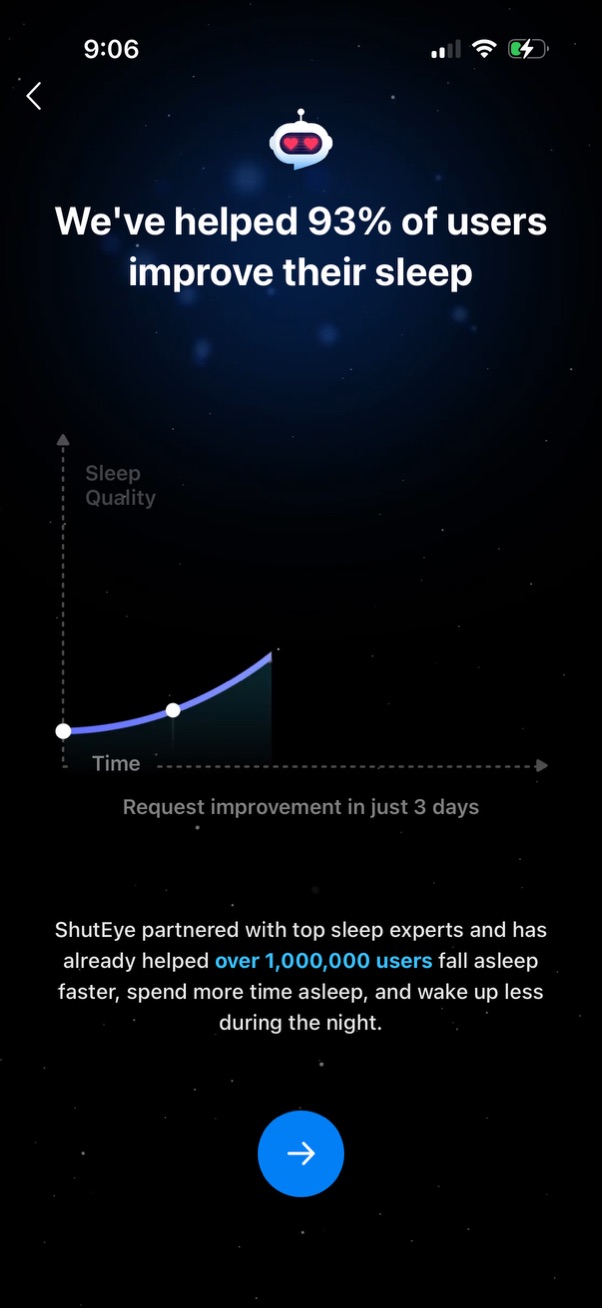
Onboarding/marketing screen for a sleep improvement app highlighting social proof (“93% of users improve their sleep”) with a simple sleep quality vs time chart and supporting copy about expert partnership and user count. Includes a back button and a prominent circular next/continue arrow to proceed.
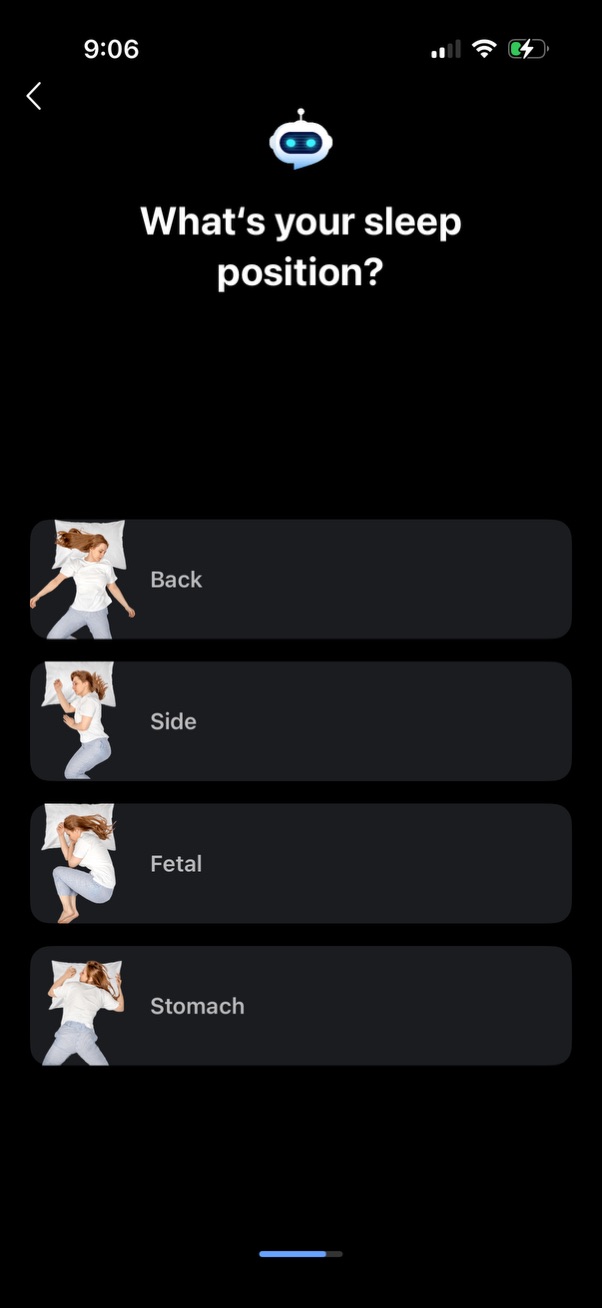
Sleep tracking onboarding question screen asking the user to select their typical sleep position, with large tappable option cards showing illustrations for Back, Side, Fetal, and Stomach, plus a back navigation arrow.
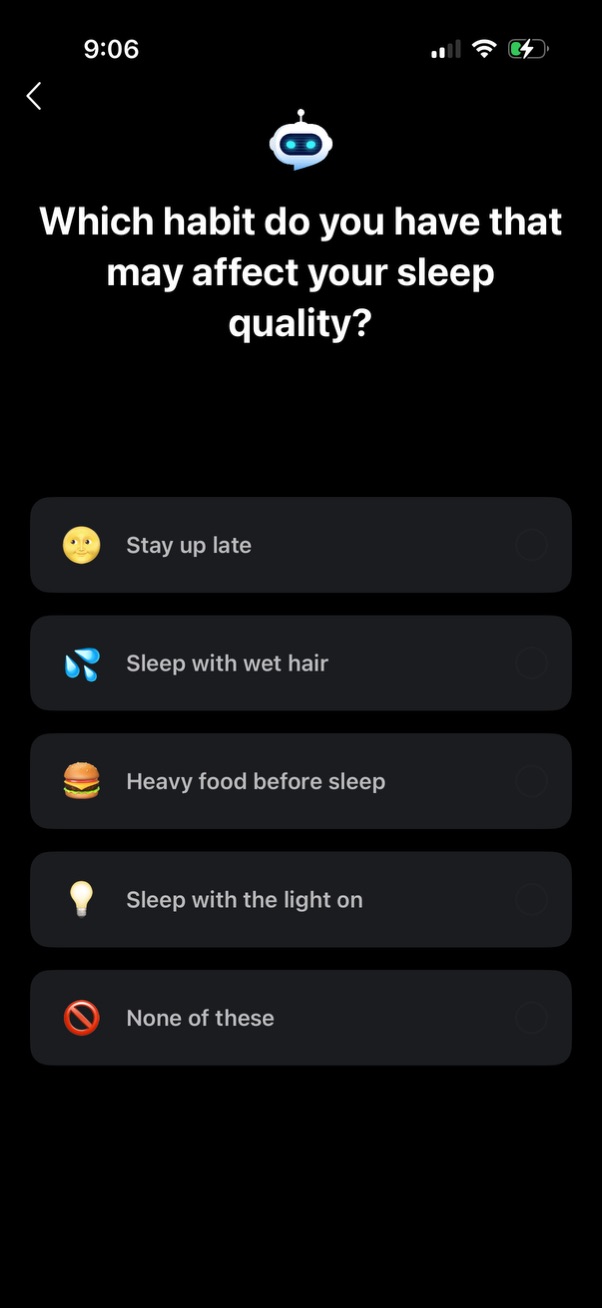
Sleep wellness onboarding question screen asking which habit may affect sleep quality, with a list of selectable options (stay up late, sleep with wet hair, heavy food before sleep, sleep with the light on, none of these) presented as tap-to-select rows with icons and back navigation.
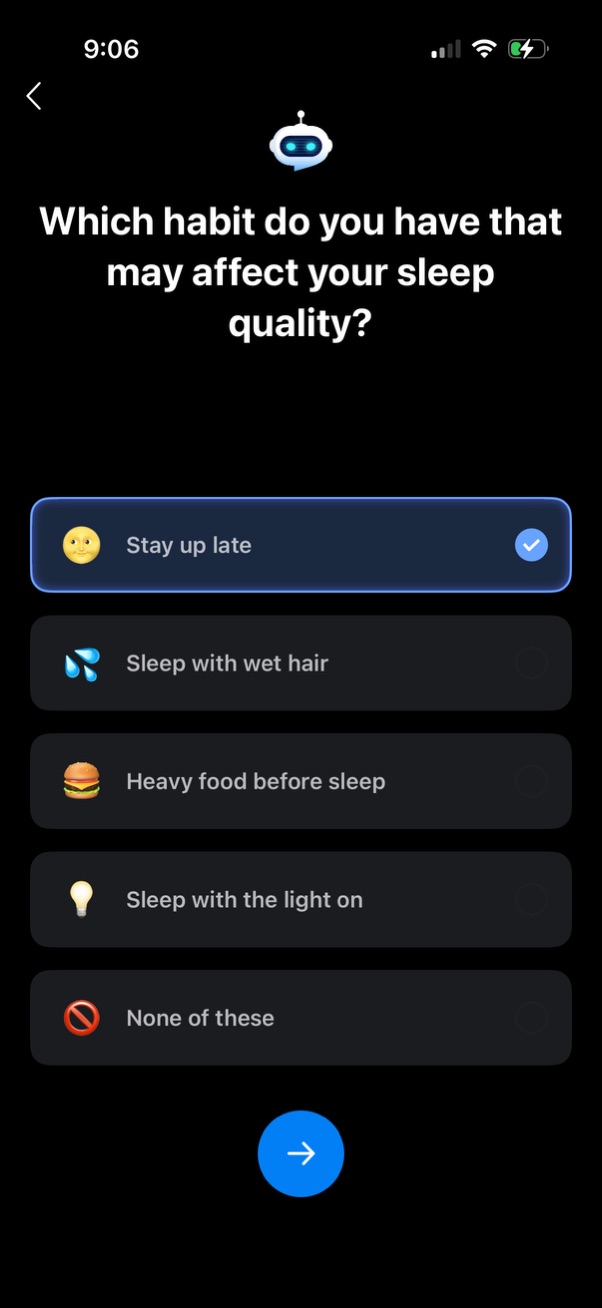
Sleep health onboarding survey screen asking which habit may affect sleep quality, presenting multiple-choice options (e. g.

Onboarding/intro screen for a sleep habit app encouraging better sleep with good habits, showing a comparison of “No” bad bedtime behaviors vs “Yes” recommended routines. Includes a back button and a primary next/continue arrow to proceed.

Sleep and wellness onboarding survey screen asking “Does lack of sleep affect your daily life? ” with an emoji-based multiple-choice scale (Not at all, A little, Somewhat, Very much) and a back navigation option.
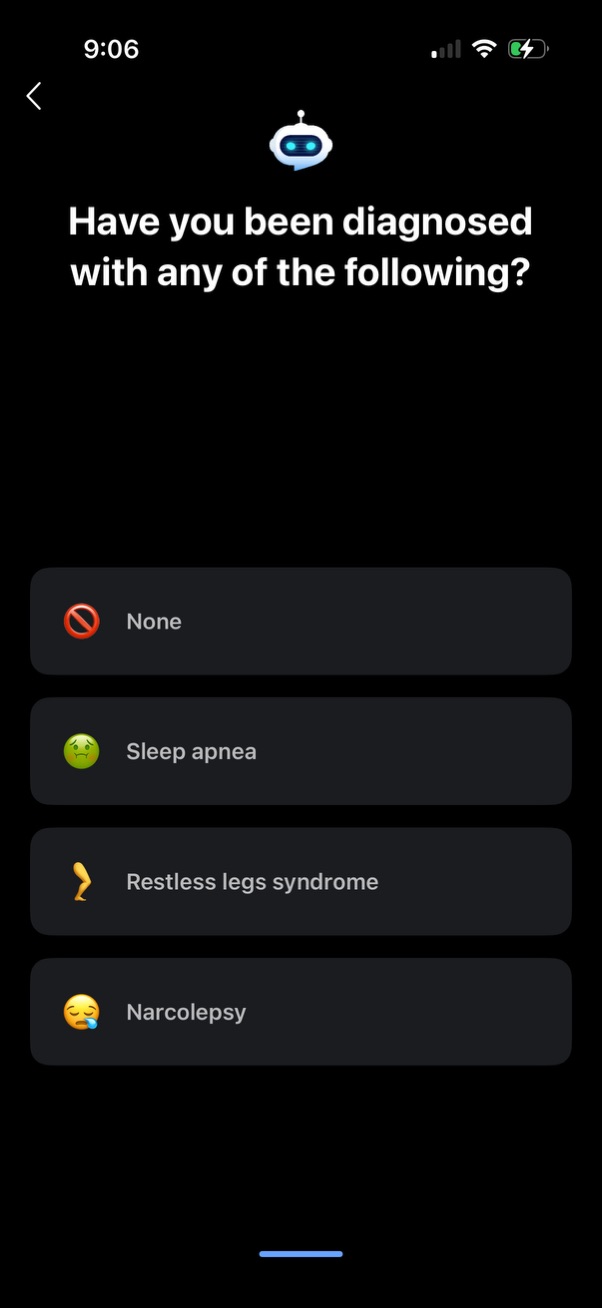
Health onboarding questionnaire screen asking if the user has been diagnosed with any sleep-related conditions. Presents selectable list options such as None, Sleep apnea, Restless legs syndrome, and Narcolepsy with a back navigation control.

Onboarding/intro screen for a sleep tracking health app promoting identifying health risks and hidden sleep problems through professional sleep tracking. Includes a back button and a primary circular next/continue arrow button to proceed.
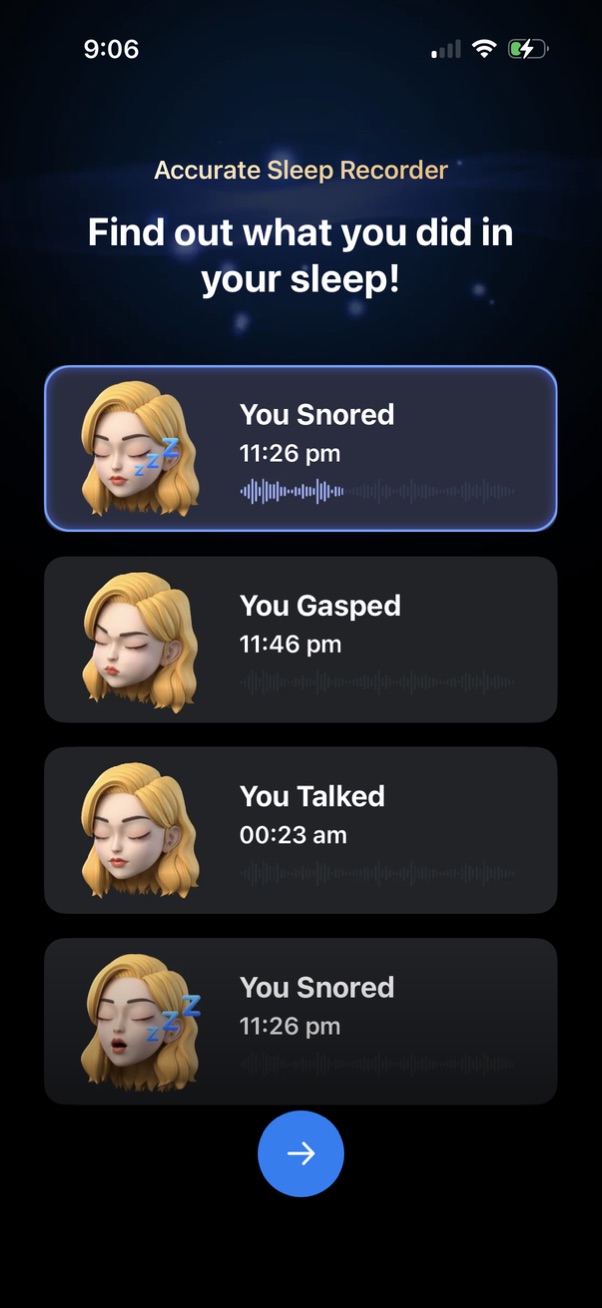
Sleep recorder results screen showing a list of detected sleep sounds with timestamps and audio waveform previews, such as snoring, gasping, and talking. Includes a prominent next/continue button to proceed after reviewing recorded events.

Onboarding feature overview screen for a sleep tracking app highlighting key capabilities like apnea risk detection, sleep stage monitoring, snoring analysis, and sleep trends with chart preview cards. A prominent floating arrow button lets users continue to the next step.

Sleep sound machine app screen promoting customized white noise, showing a “White Noise” library with category filters (All, New, Rain, ASMR, Nature) and a grid of selectable ambient sounds like rain, fan, campfire, ocean waves, wind, and colored noises. Includes a prominent floating action button to proceed or start mixing/playing selected sounds.

Onboarding/intro screen for a sleep and wellness app highlighting social proof with a “Millions of Users’ Choice” headline, a 4. 8-star rating award badge, and a featured user review card.

Subscription paywall teaser screen with a minimalist black background displaying the message “Start 7 days for free! ” to prompt users to begin a free trial.

Premium subscription paywall for a sleep tracking app promoting access to features like unlimited sleep sounds and a sleep recorder, with a carousel preview card (e. g.
Onboarding intro screen that confirms progress and explains the app will guide the user through a few simple steps to complete basic setup. Includes a primary “Continue” button to proceed to the next onboarding step.

Privacy onboarding screen explaining that the app can be used anonymously without registration and that user data is protected, with a “Learn More” link for details. A prominent “Continue” button advances past the privacy notice.

Onboarding permission prompt for a sleep tracking app asking to enable microphone access to analyze sleep using sounds. Explains why access is needed and provides primary “Grant access” and secondary “Not now” actions.

iOS system permission prompt requesting microphone access for a sleep tracking app to record sounds overnight and analyze sleep, with primary actions to Allow or Don’t Allow. The underlying in-app permission screen also offers “Grant access” or “Not now” to continue without enabling the microphone.
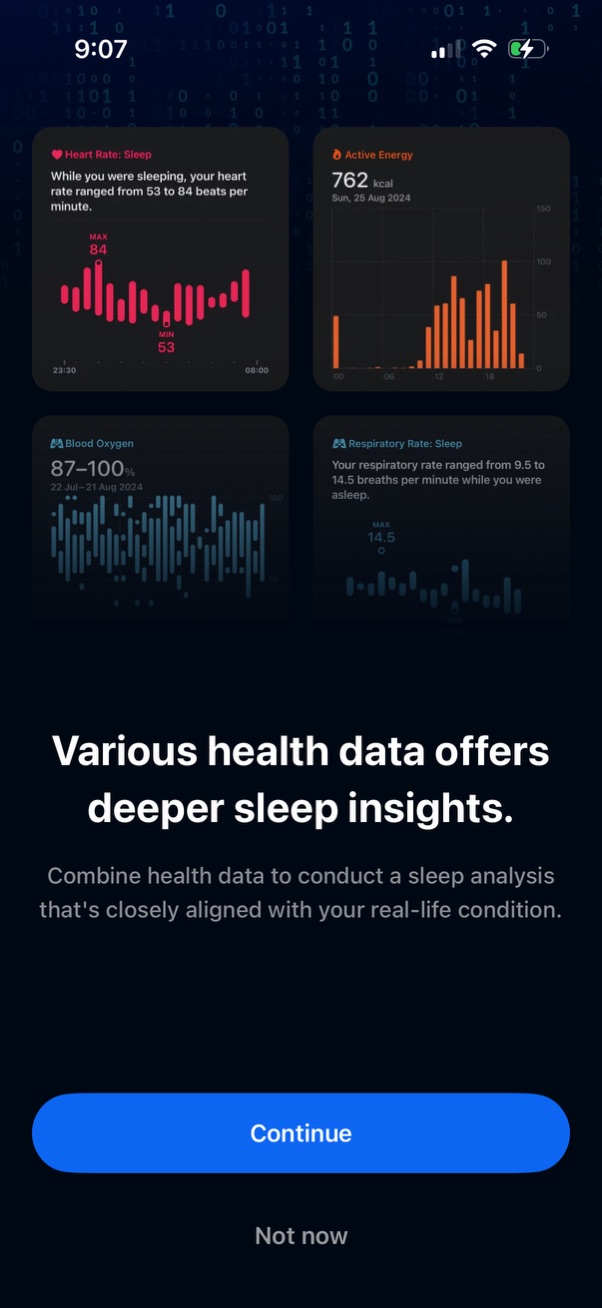
Onboarding prompt for a sleep tracking/health app explaining that combining multiple health metrics provides deeper sleep insights, with preview cards for sleep heart rate, active energy, blood oxygen, and respiratory rate charts. Primary actions are a prominent Continue button and a secondary Not now option to skip.
Onboarding prompt asking whether the user has an Apple Health–compatible wearable device, with supporting text noting the app can be used without one. Provides two primary actions to continue: “Yes, I do” or “No, I don’t.
Permission prompt screen asking users to connect the app to Apple Health to improve sleep tracker accuracy and display detailed metrics like heart rate and respiratory rate. Primary action is a “Continue” button with a secondary “Not now” option to skip.
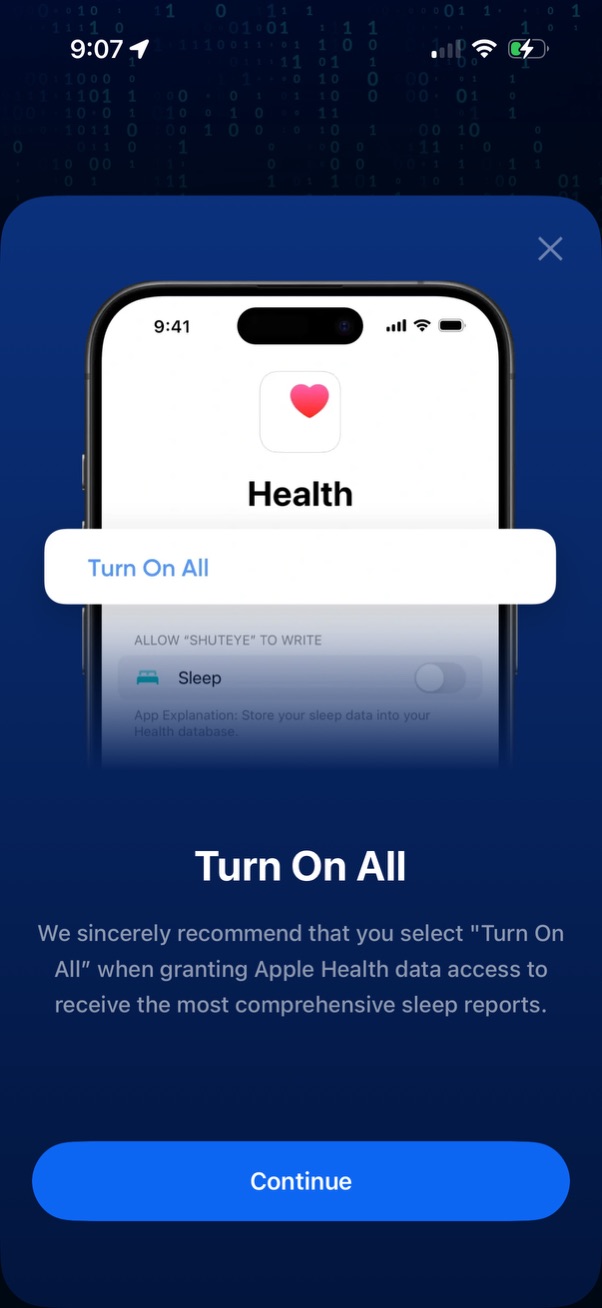
Permission onboarding screen prompting users to grant Apple Health access by selecting “Turn On All” for writing sleep data to get comprehensive sleep reports. Includes a short explanation, a close icon, and a primary “Continue” button to proceed.
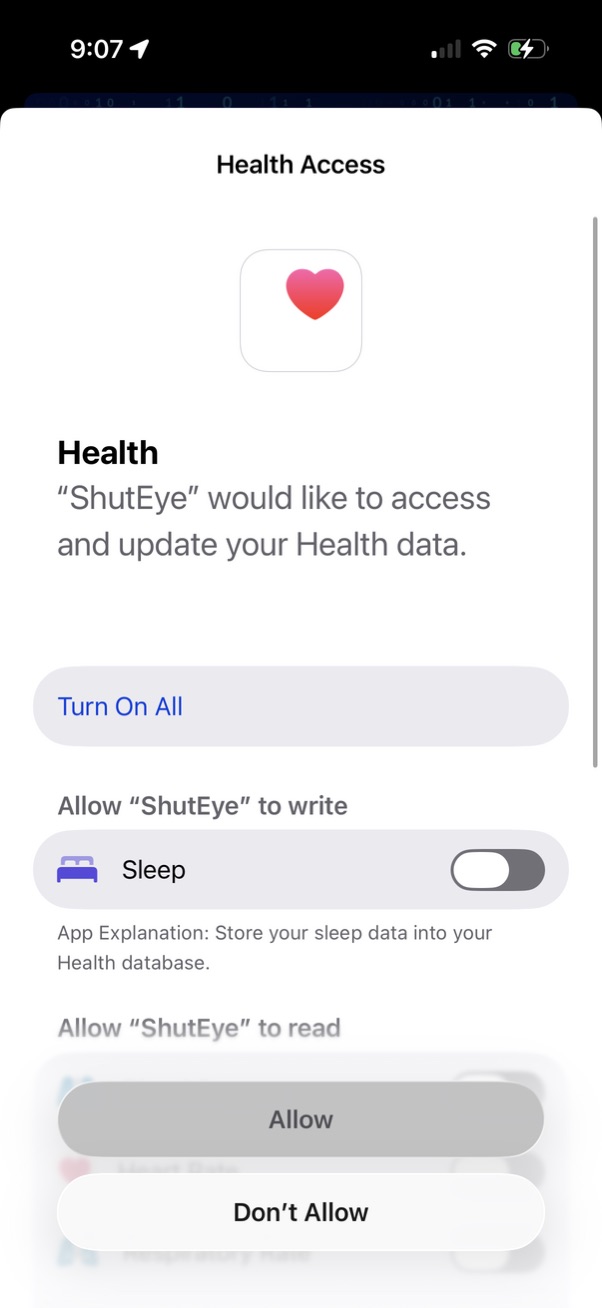
iOS Health Access permission screen requesting an app to access and update Apple Health data, with options to allow or deny. Includes a “Turn On All” action and individual toggles for specific data types such as writing Sleep data, plus an Allow/Don’t Allow confirmation sheet.

Completion screen in a sleep-tracking onboarding flow confirming setup is finished and explaining that completing three simple daily steps will generate a personalized sleep report. Includes a primary “Continue” button to proceed to the app.
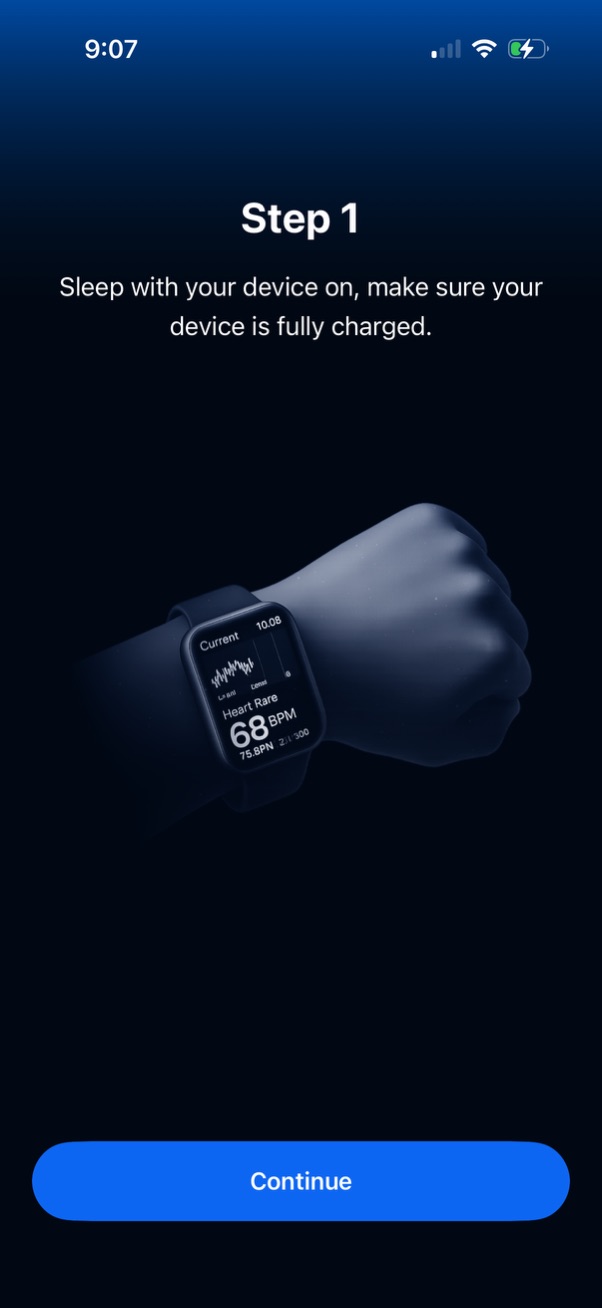
Onboarding step screen for a sleep tracking or wearable health app instructing users to sleep with their device on and ensure it’s fully charged, illustrated with a smartwatch. Includes a primary “Continue” button to proceed to the next setup step.
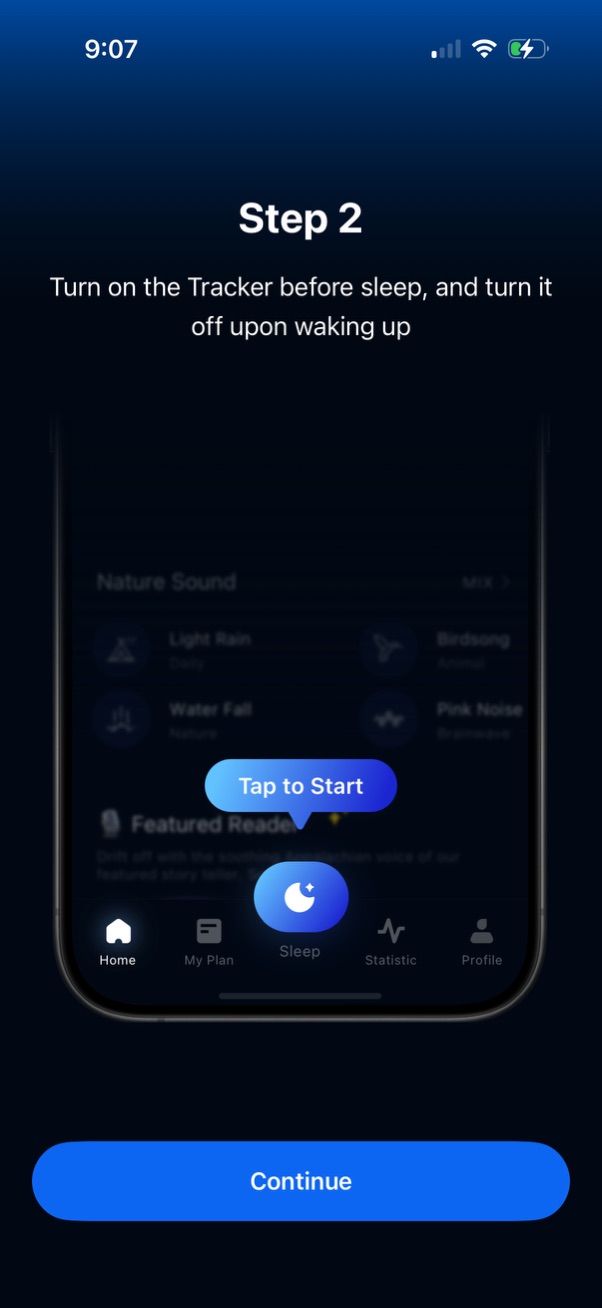
Onboarding instruction screen for a sleep tracking app showing “Step 2” guidance to turn on the sleep tracker before bed and turn it off upon waking, with a highlighted “Tap to Start” sleep button example. Includes a primary “Continue” button to proceed through the setup/tutorial.
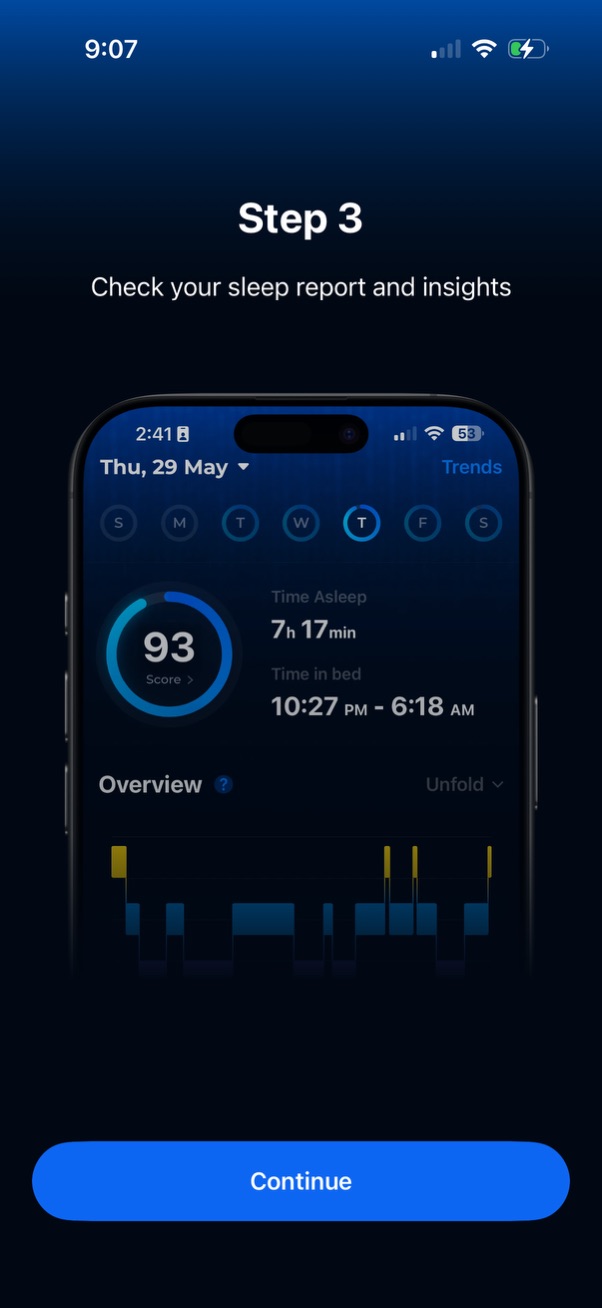
Onboarding tutorial step prompting users to check their sleep report and insights, previewing a sleep tracking dashboard with sleep score, time asleep, time in bed, and trend/overview charts. Includes a primary Continue button to proceed to the next step.

iOS App Tracking Transparency permission modal asking whether to allow the app to track user activity across other companies’ apps and websites, with primary actions to “Ask App Not to Track” or “Allow. ” The prompt appears over a sleep app’s main screen with bottom tab navigation.
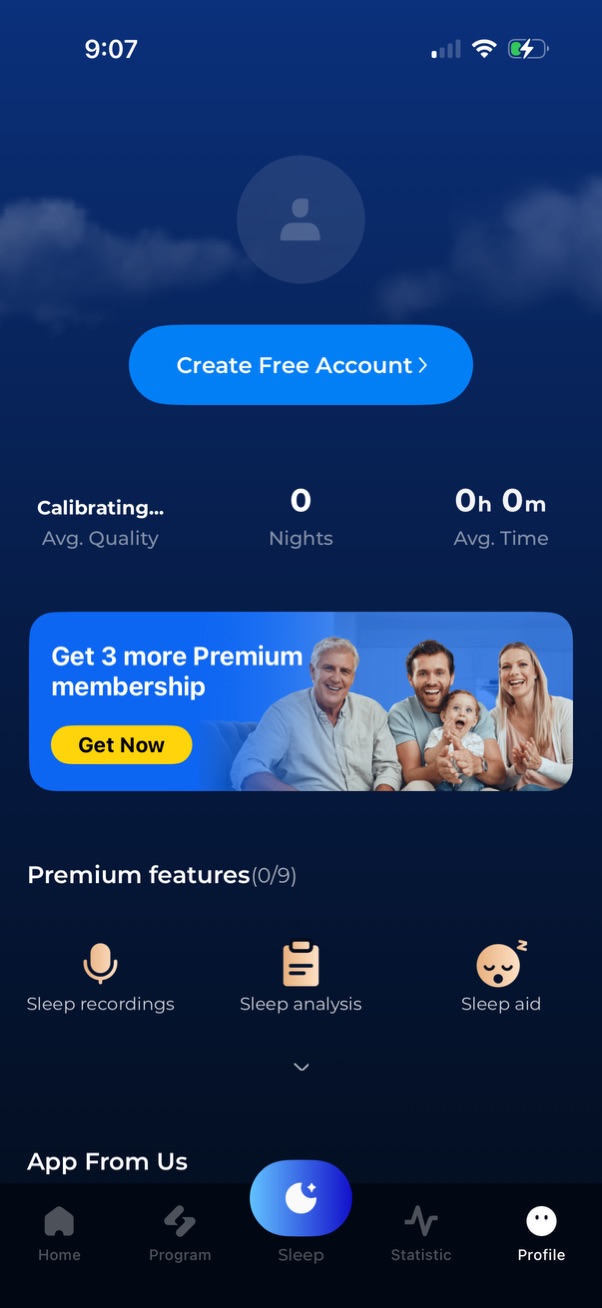
Sleep tracking app profile/dashboard screen prompting users to create a free account, showing calibration status and sleep stats like nights tracked and average time. Includes a premium membership upsell banner with “Get Now” CTA, a list of premium features (sleep recordings, sleep analysis, sleep aid), and a bottom tab bar for navigation.