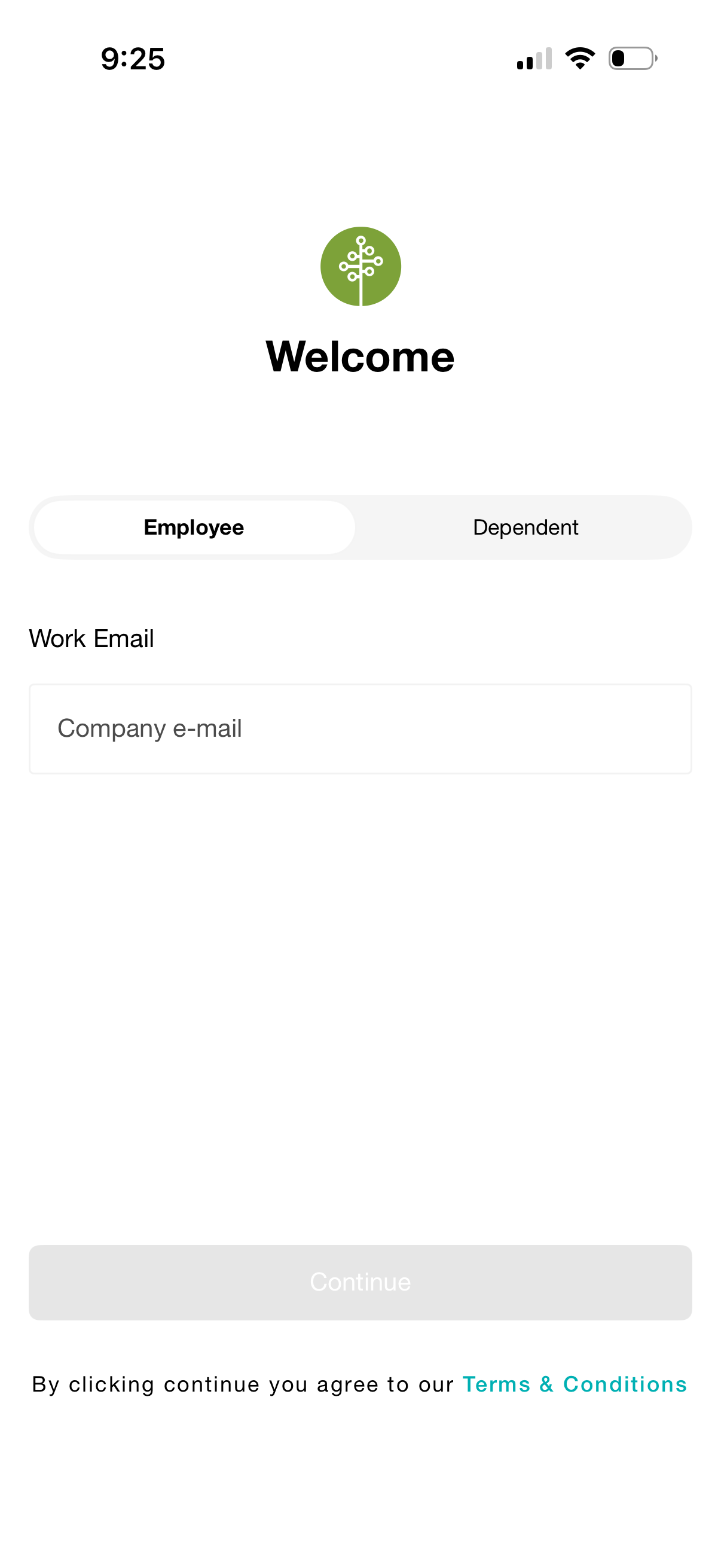
Welcome onboarding/login screen that lets the user choose their role (Employee or Dependent) and enter a work/company email address. A disabled Continue button and Terms & Conditions acknowledgment appear at the bottom to proceed after valid input.
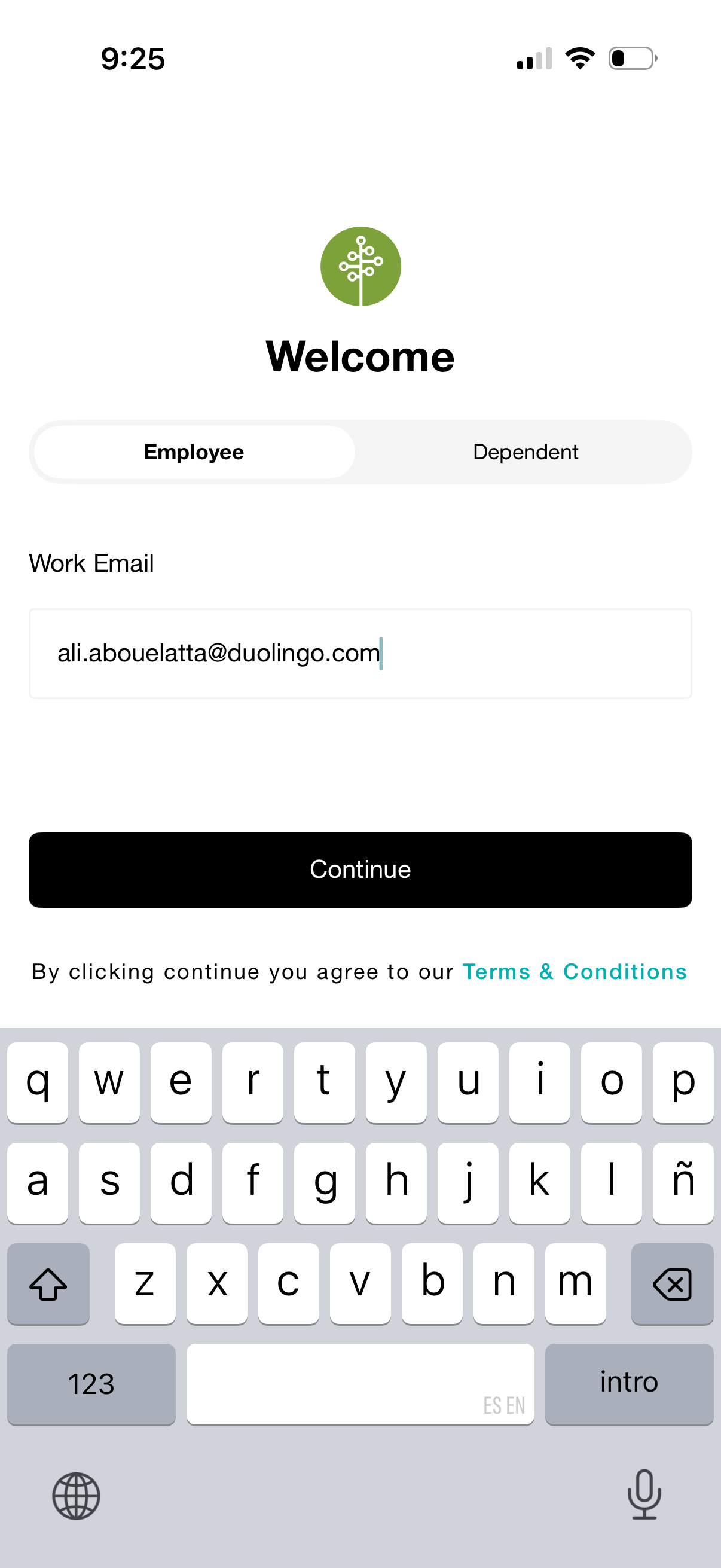
Welcome onboarding/login screen for a benefits or HR app where the user selects an account type (Employee or Dependent), enters their work email, and taps Continue to proceed, with a Terms & Conditions link shown below.
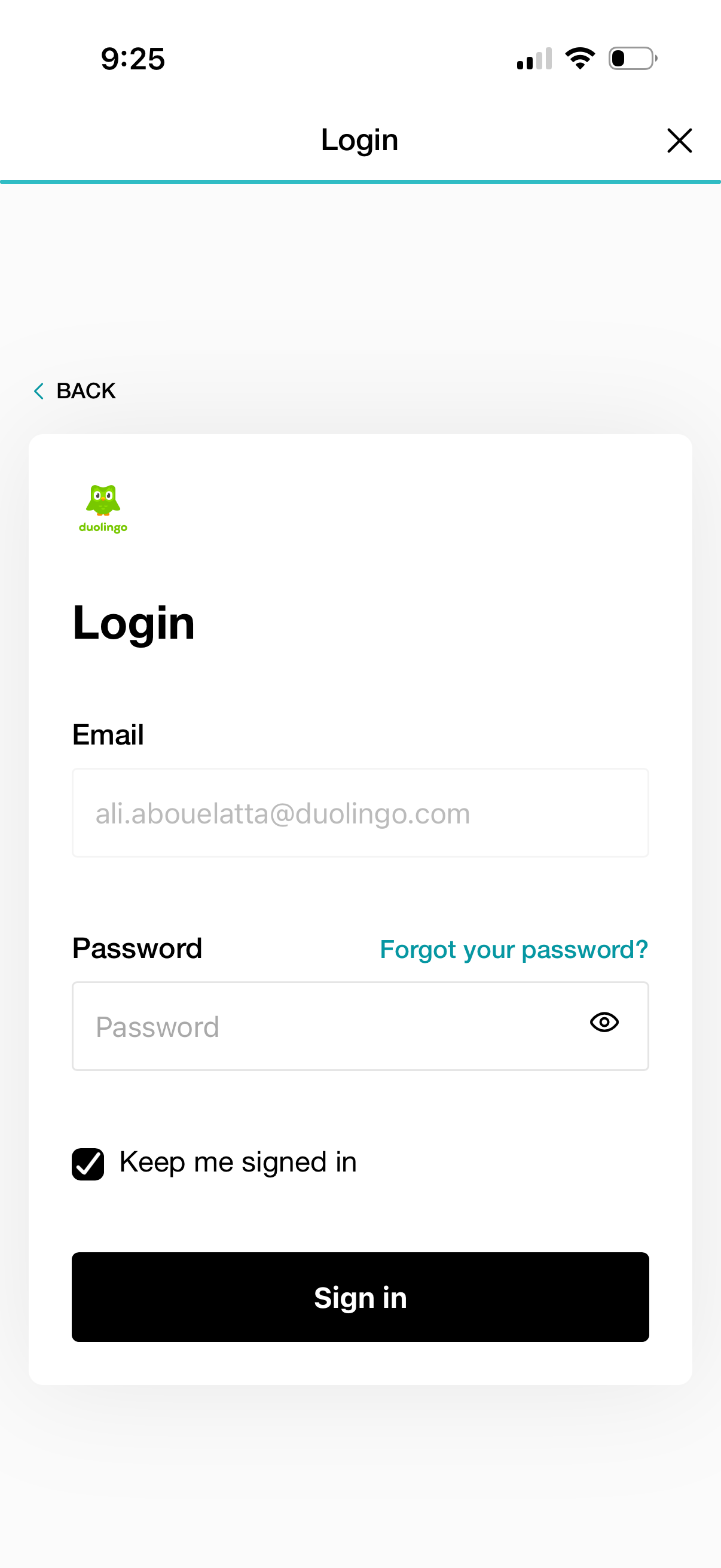
Email and password login screen with fields for email and password, a password visibility toggle, “Forgot your password? ” recovery link, and a “Keep me signed in” checkbox.
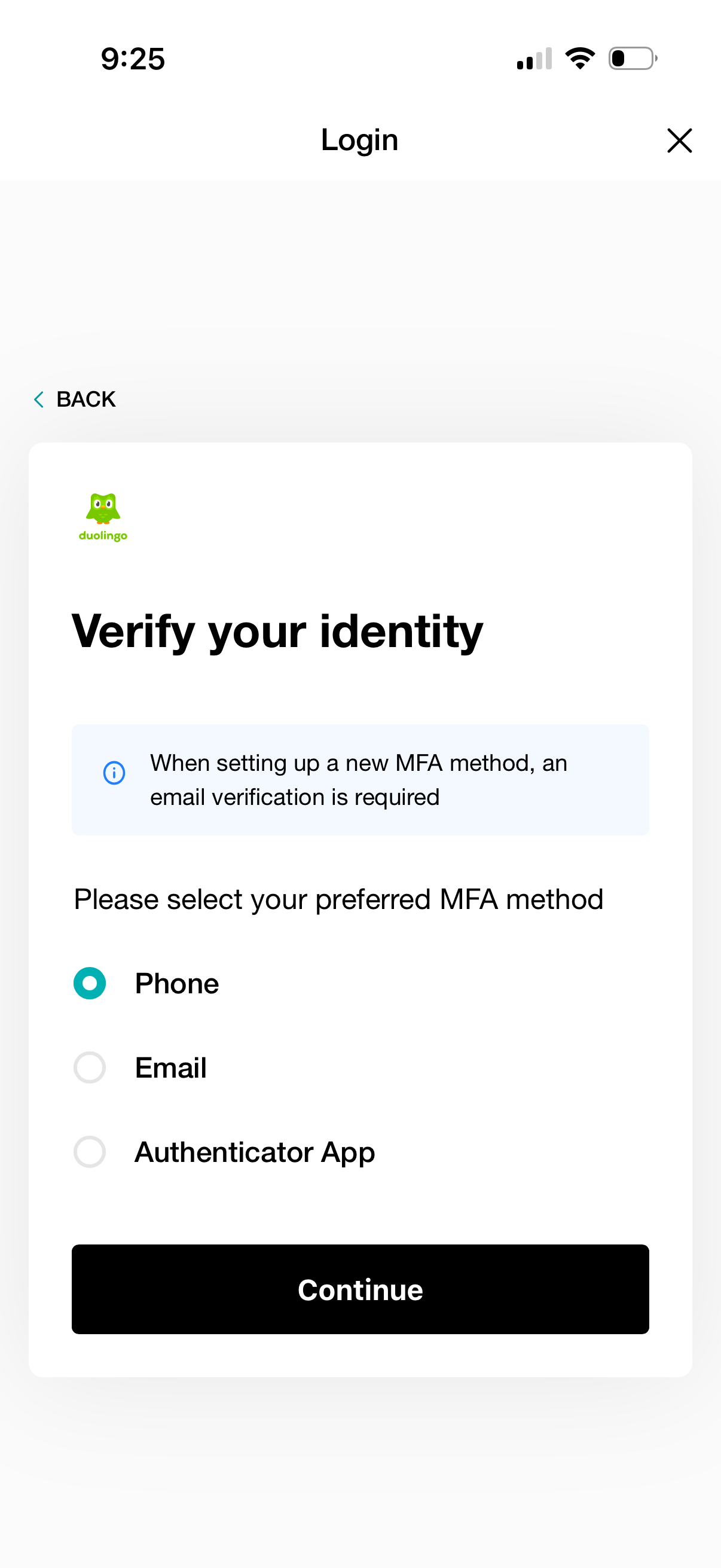
Login identity verification screen prompting the user to set up multi-factor authentication and select a preferred MFA method (phone, email, or authenticator app), with an info note that email verification is required when adding a new method. Includes back/close navigation and a primary Continue button to proceed.
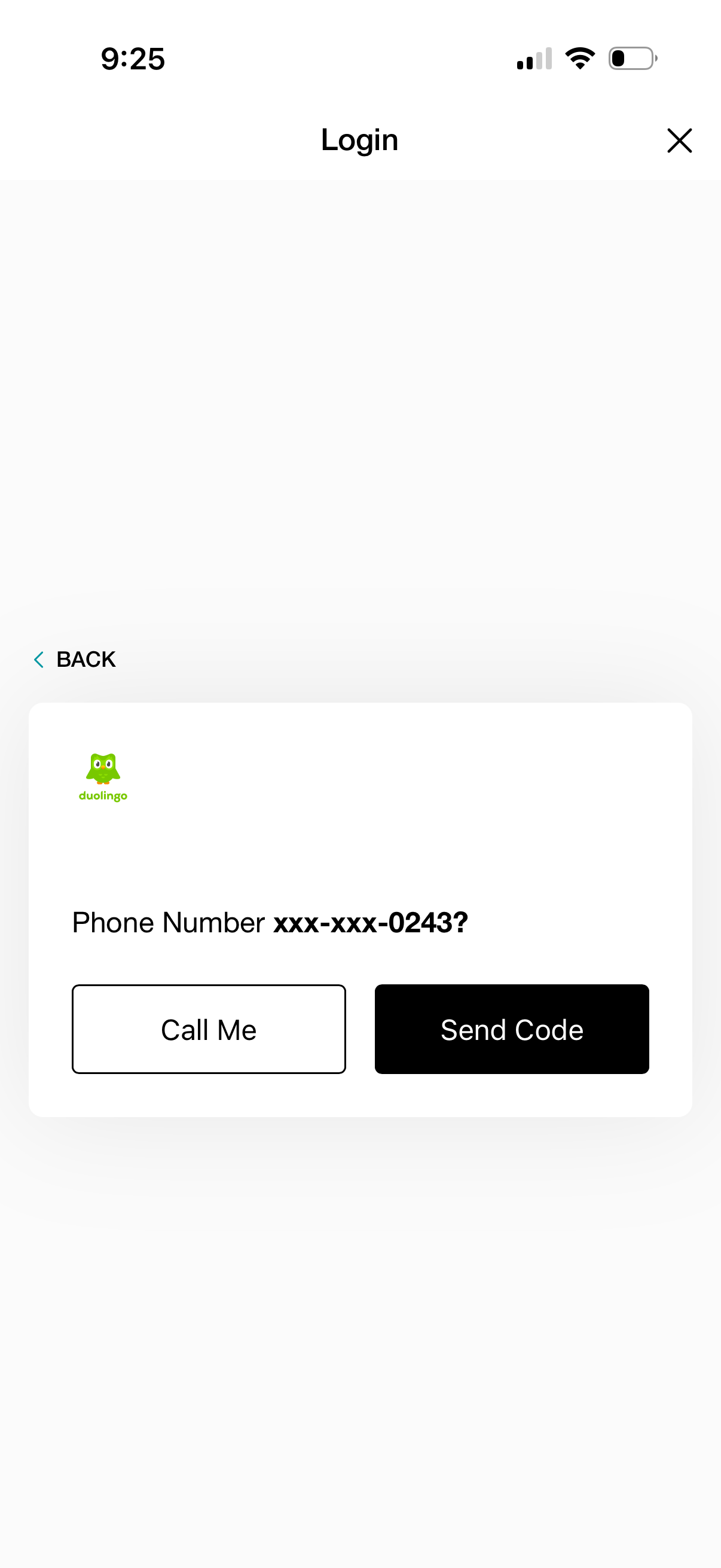
Login verification screen prompting the user to confirm a masked phone number and choose how to receive a verification code, with primary actions to send an SMS code or request a phone call. Includes back navigation and a close/dismiss button for exiting the login flow.
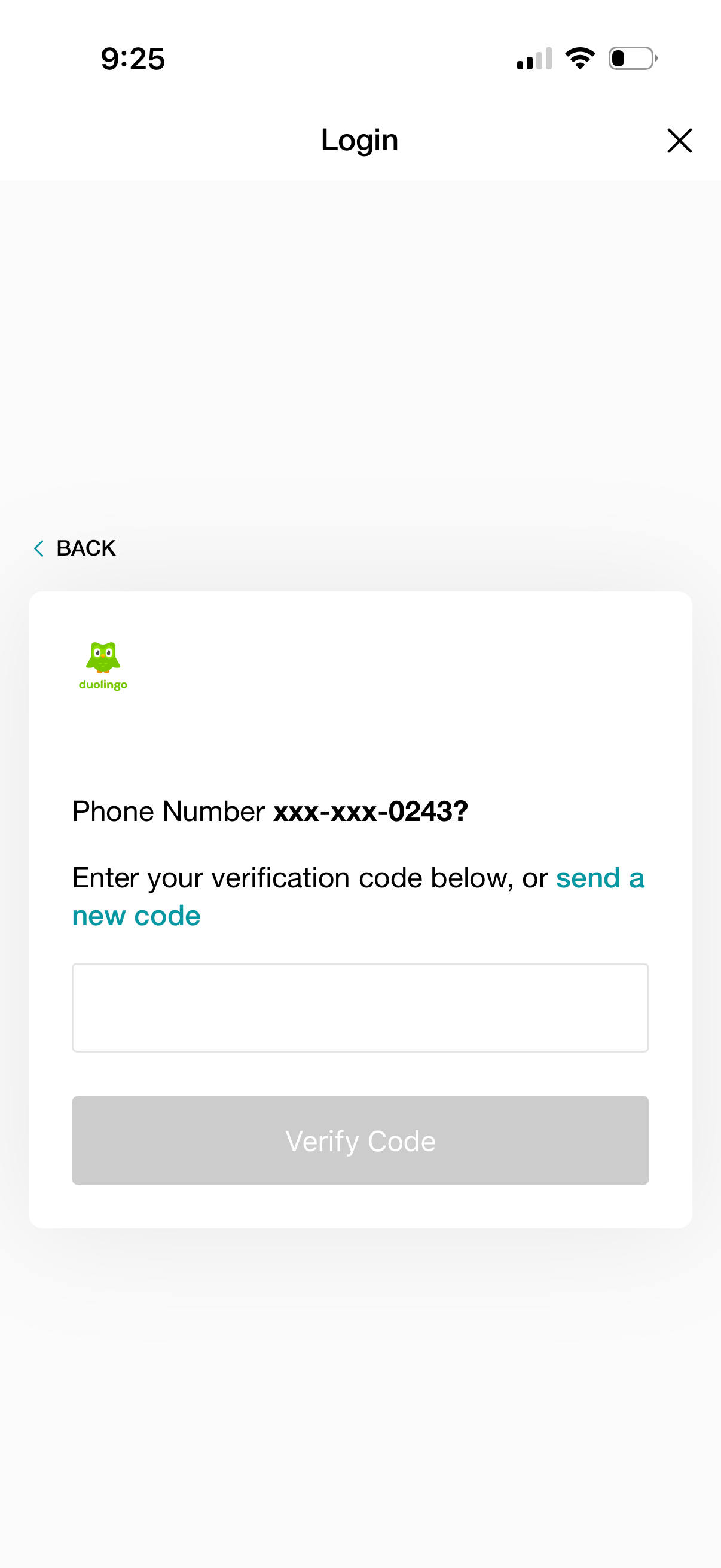
Phone number login verification screen prompting the user to enter an SMS verification code, with a link to resend a new code. Includes a code input field, a disabled “Verify Code” button until entry, and navigation controls to go back or close.
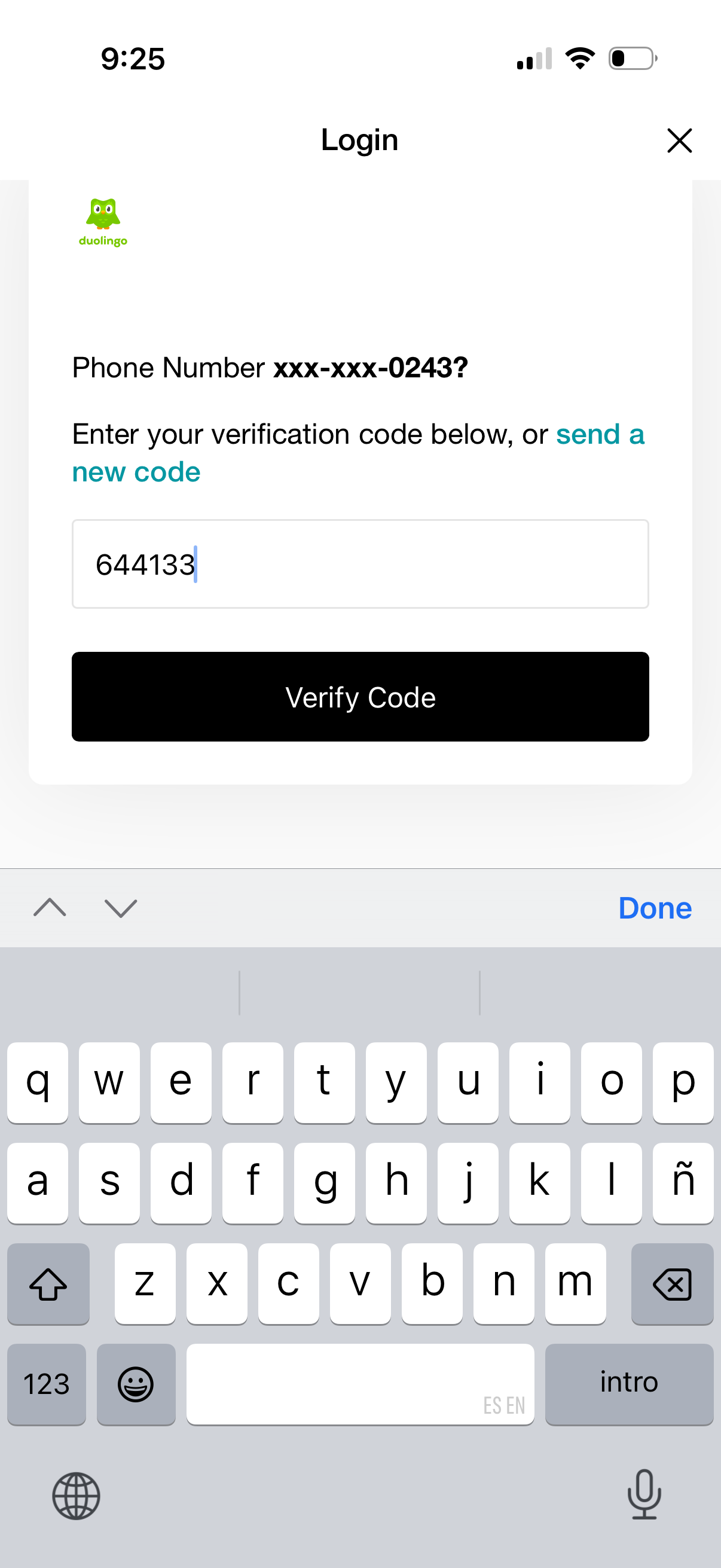
Phone number login verification screen prompting the user to enter an SMS one-time passcode, with an option to resend a new code. Includes a code input field and a primary “Verify Code” button to complete authentication.
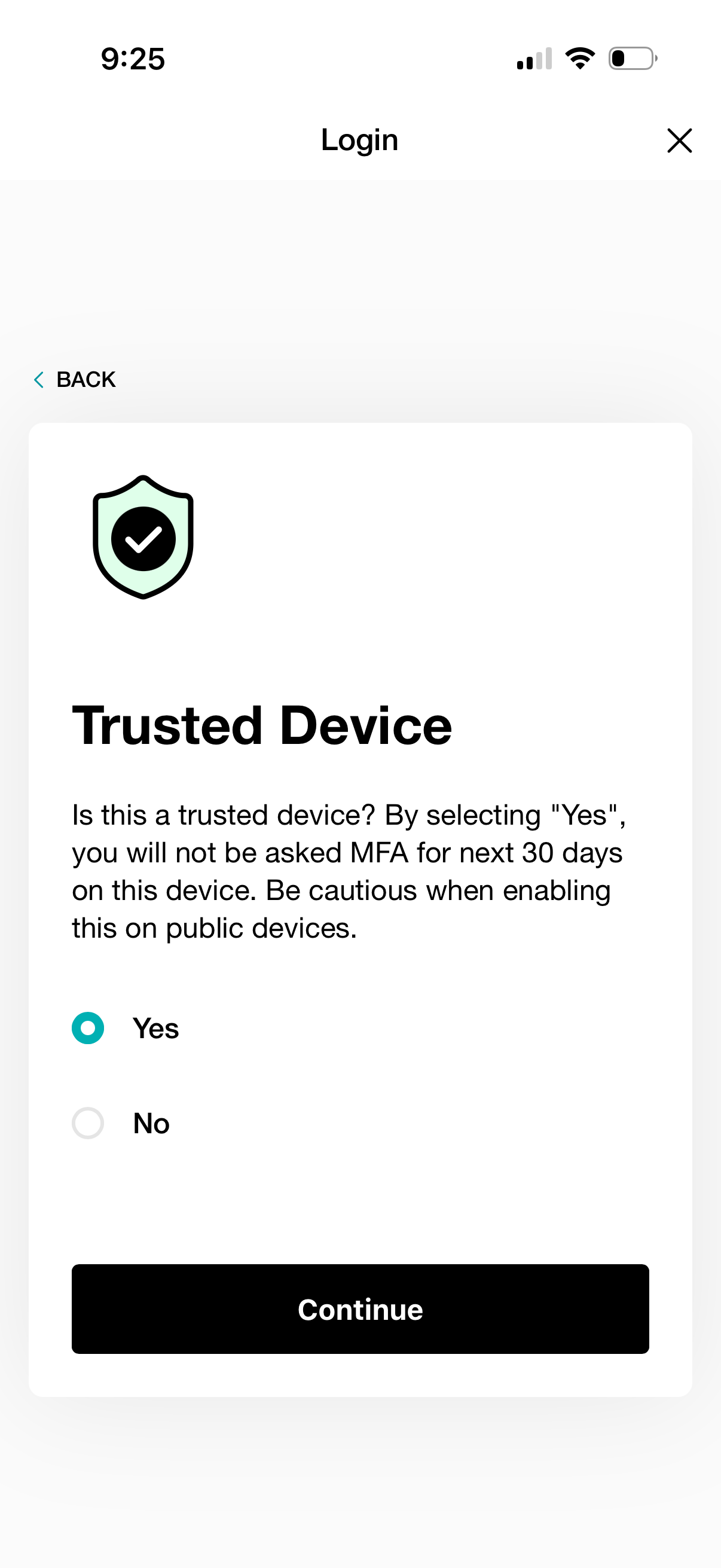
Login security screen asking the user to mark the current device as a trusted device to skip MFA prompts for the next 30 days, with a caution about public devices. Provides Yes/No radio options and a primary Continue button to proceed.
Minimal login modal screen with a top navigation bar titled “Login” and a close (X) button, showing a blank loading/placeholder state with a centered app logo while authentication content loads.