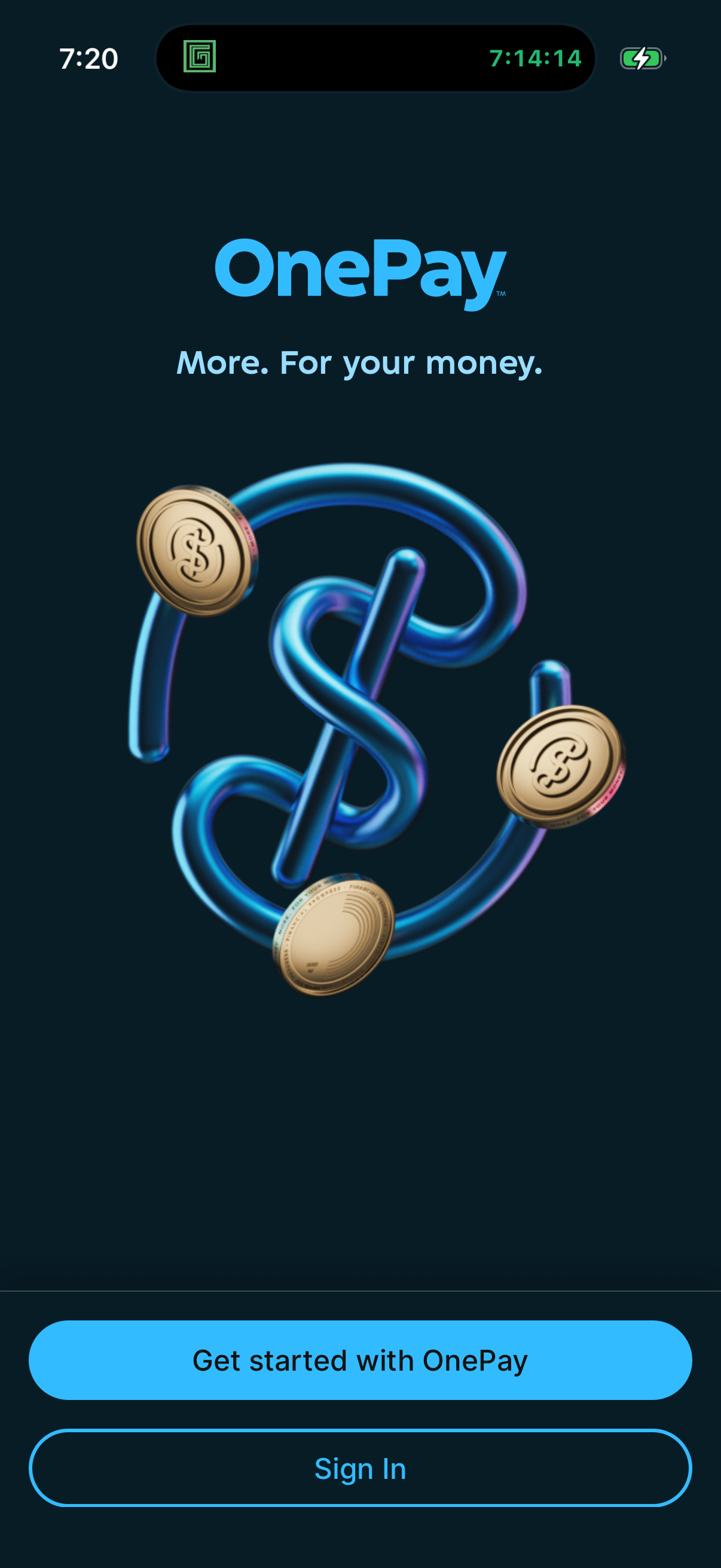
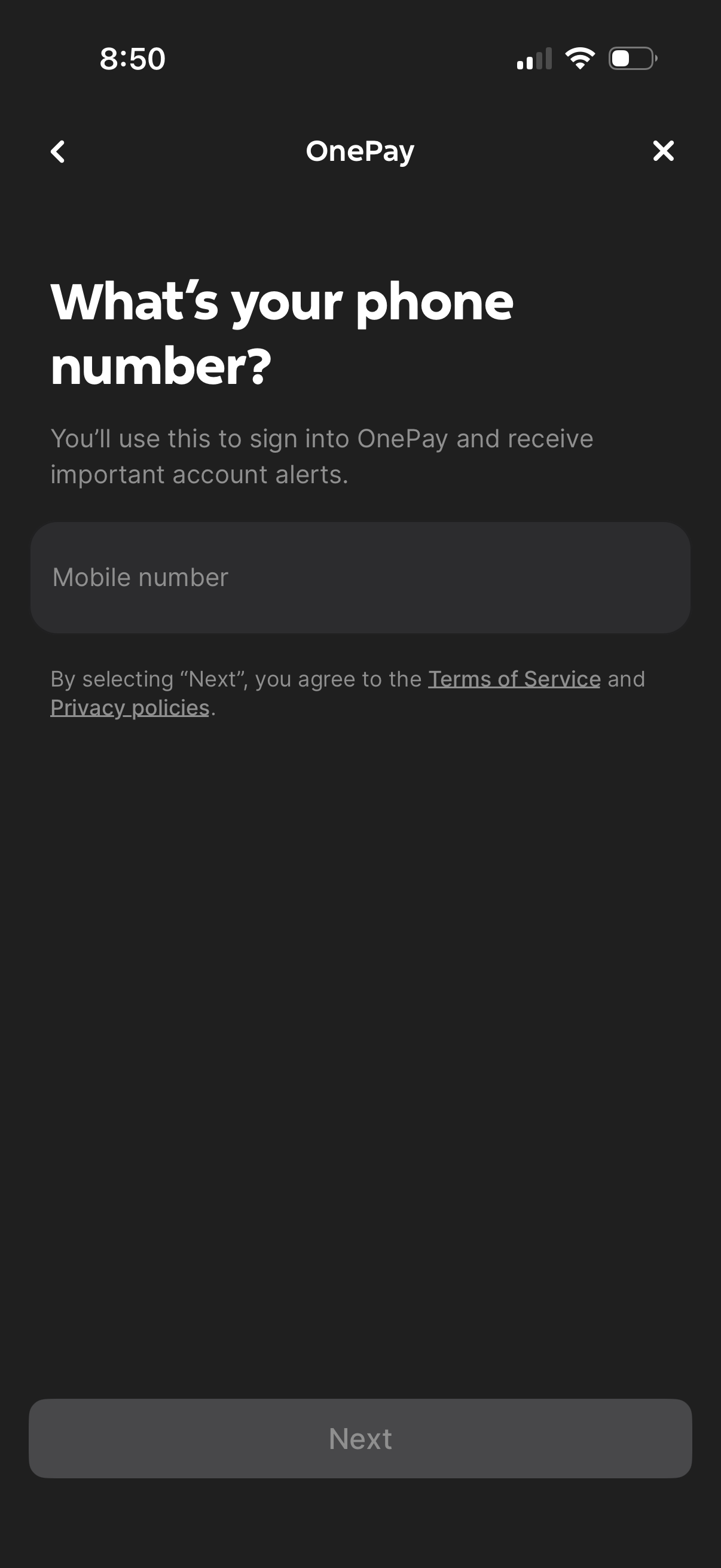
Phone number entry screen for a payments app signup/login flow, asking for a mobile number to sign in and receive account alerts. Includes a single input field, a disabled “Next” button until completion, and links to Terms of Service and Privacy Policy with back/close navigation.
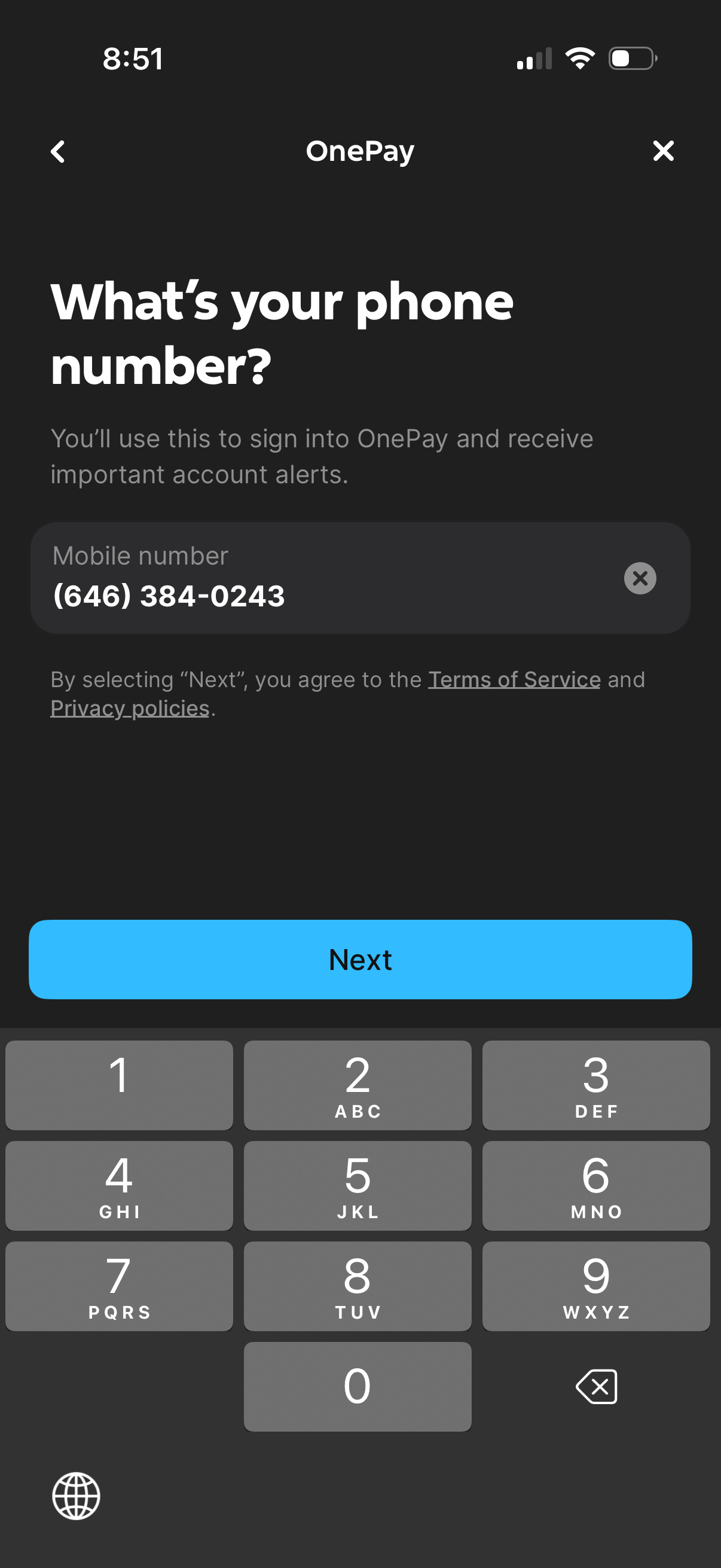
Phone number entry screen for OnePay sign-in, asking for a mobile number to receive account alerts with an editable input field and clear button plus links to Terms of Service and Privacy Policy. Primary action is a “Next” button to continue the onboarding/login flow, with back and close controls in the header.
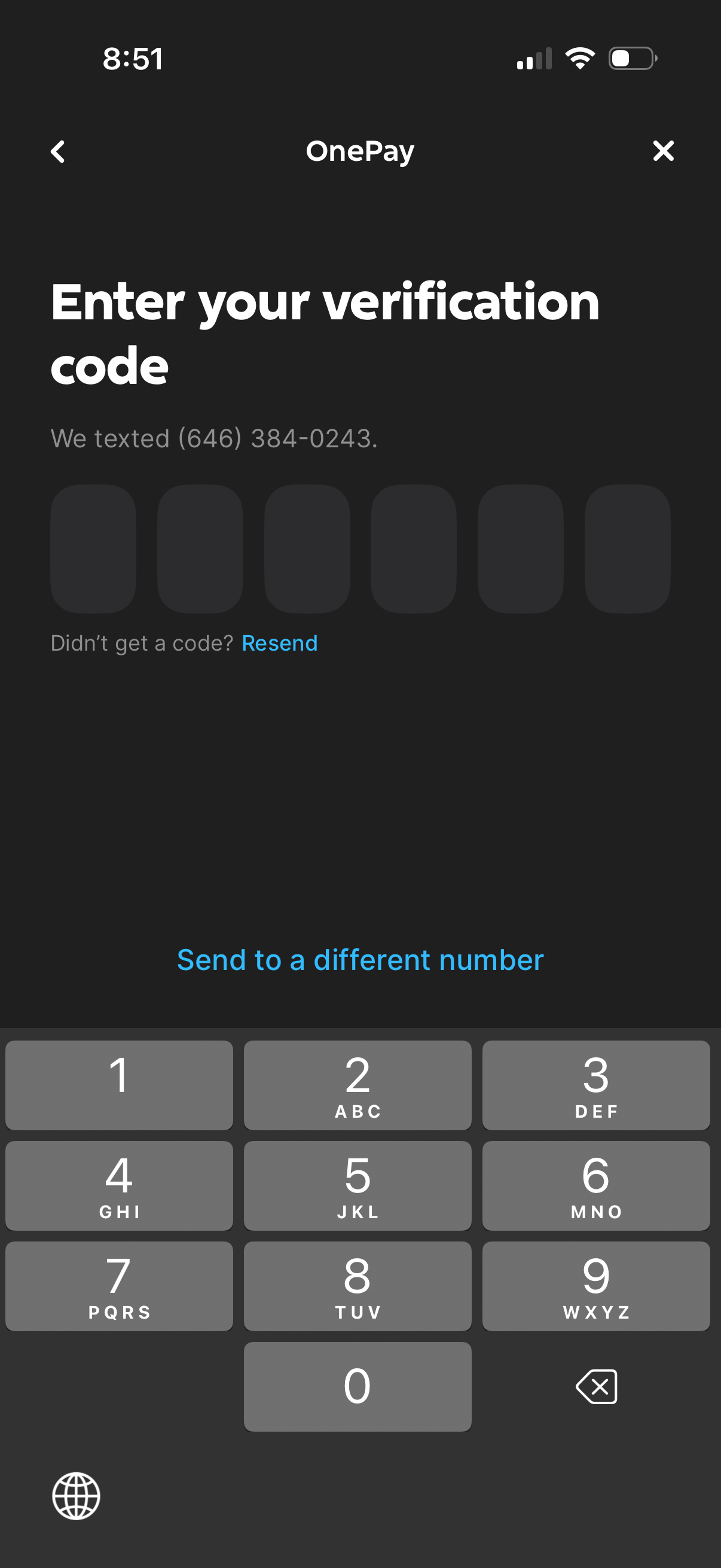
SMS OTP verification screen for a payments app prompting the user to enter a 6-digit verification code sent to their phone number. Includes actions to resend the code or send it to a different number, with back and close controls.
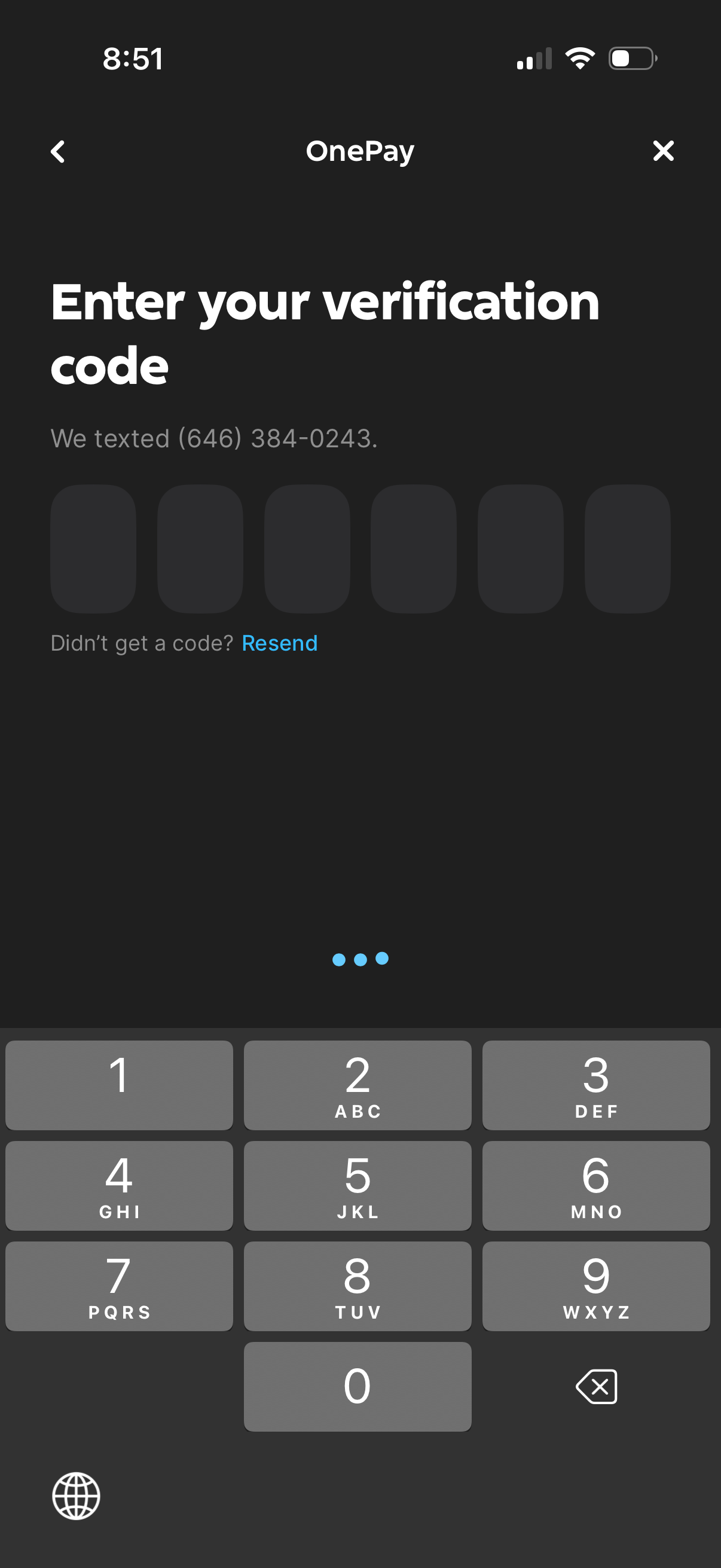
Mobile OTP verification screen for a payment app prompting the user to enter a 6-digit SMS code sent to their phone number, with segmented code input fields. Includes a “Resend” option for not receiving the code and navigation controls to go back or close the flow.
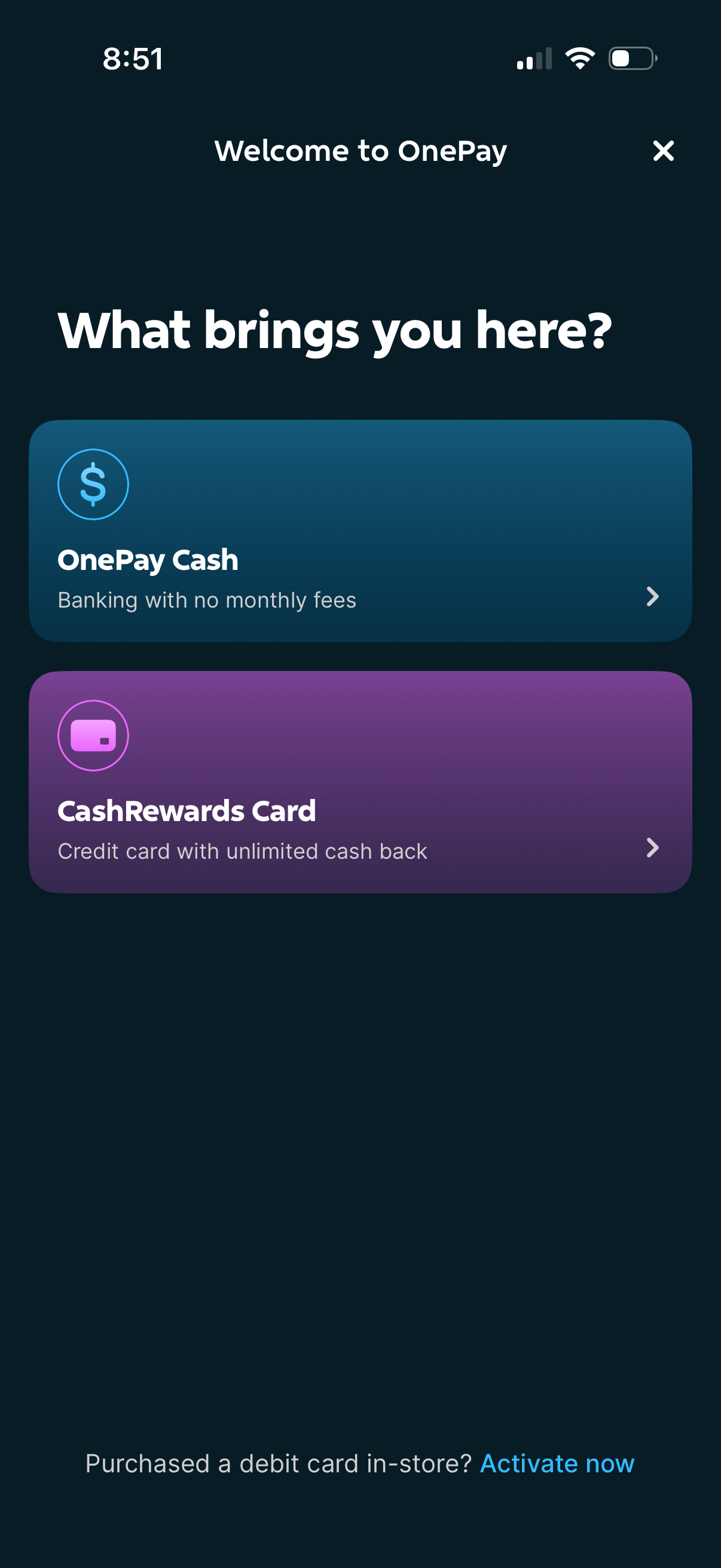
Onboarding welcome screen for a finance app asking “What brings you here? ” and prompting the user to choose between opening a banking account (no monthly fees) or applying for a cash-back credit card.
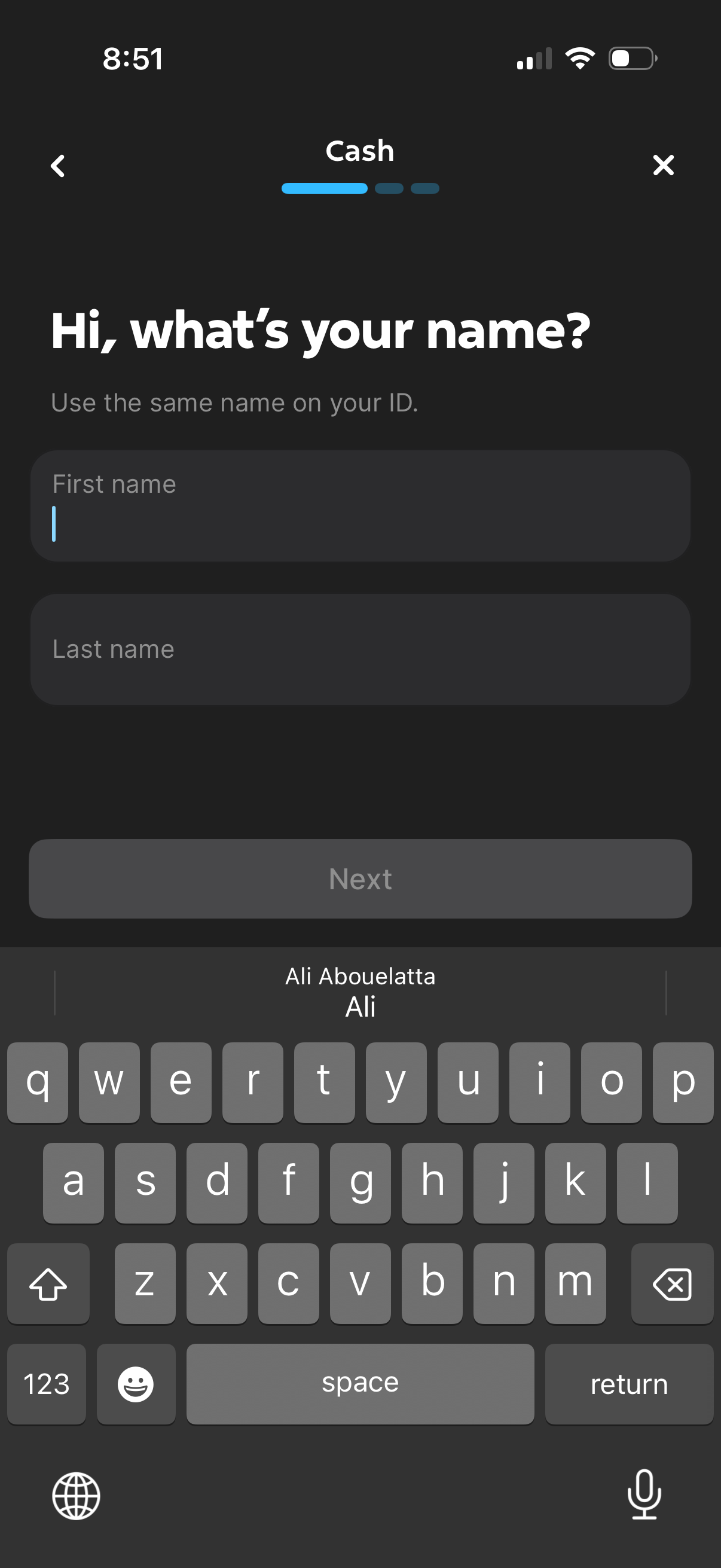
Cash app onboarding/identity verification screen asking for the user’s legal first and last name to match their ID, with text input fields and a disabled “Next” button until the form is completed, plus back and close controls and a step progress indicator.
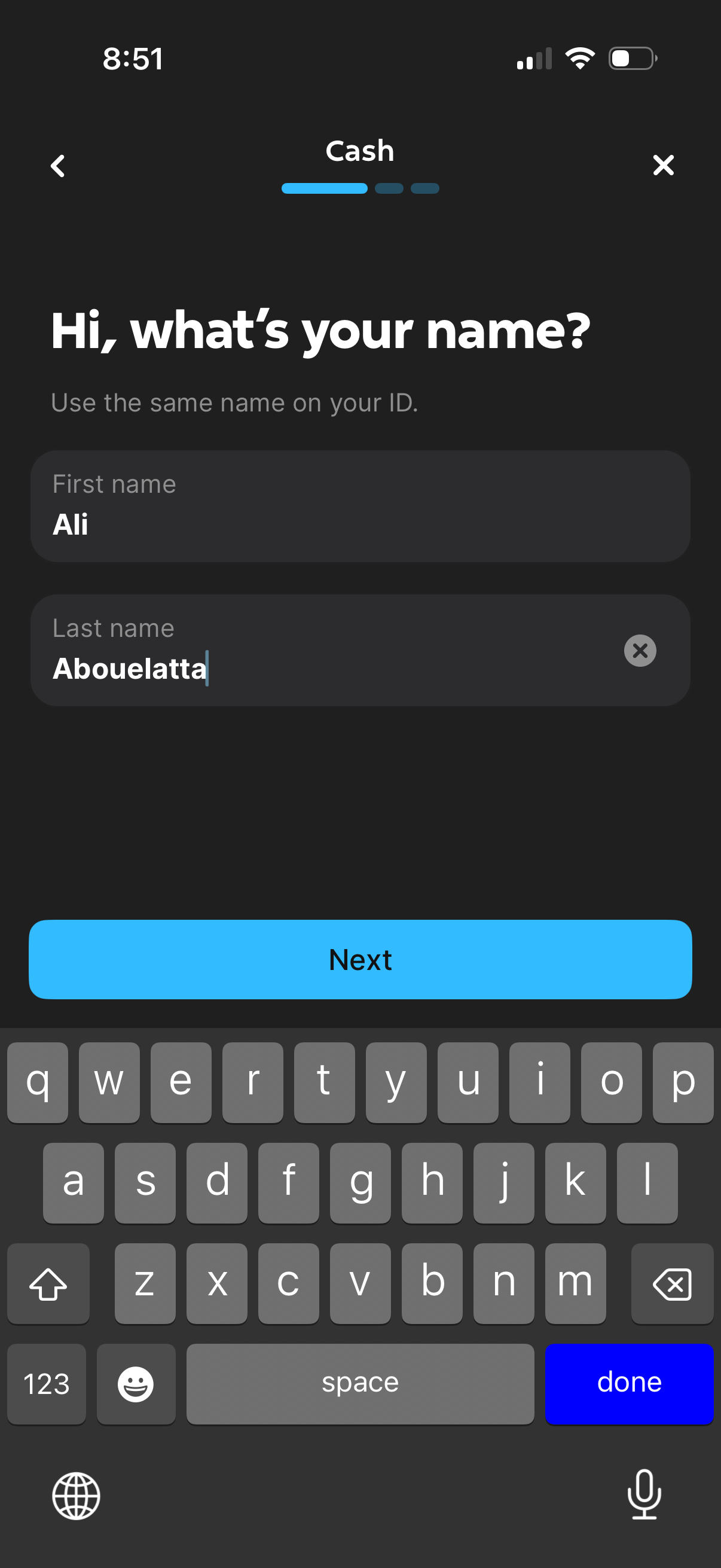
Onboarding/verification form screen for a cash/finance app asking for the user’s legal name to match their ID, with separate first name and last name input fields. Includes back/close navigation, a progress indicator, and a prominent “Next” button to continue.
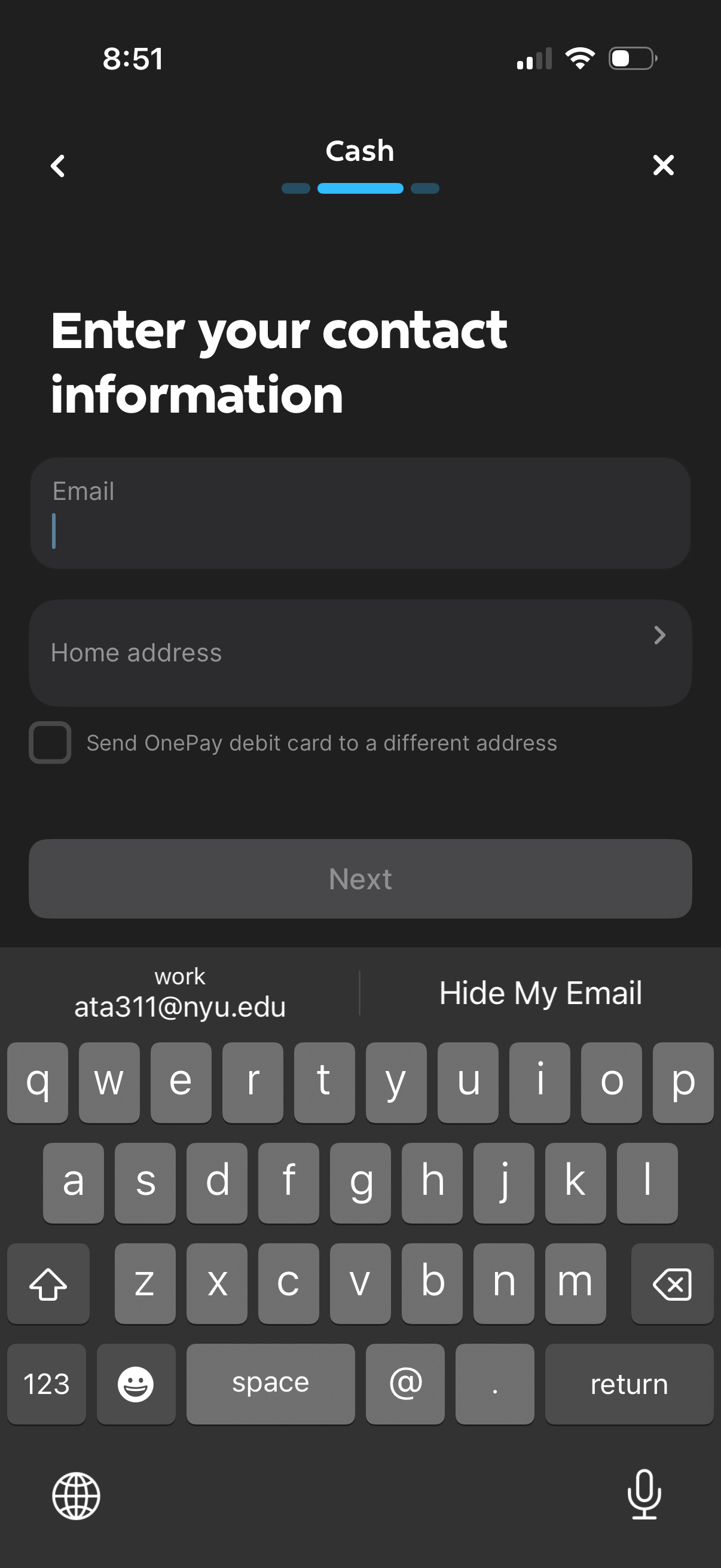
Cash onboarding form screen prompting the user to enter contact information, including an email field and selectable home address, with an option to send a debit card to a different address. Includes back/close controls, a progress indicator, and a disabled Next button until required details are completed.
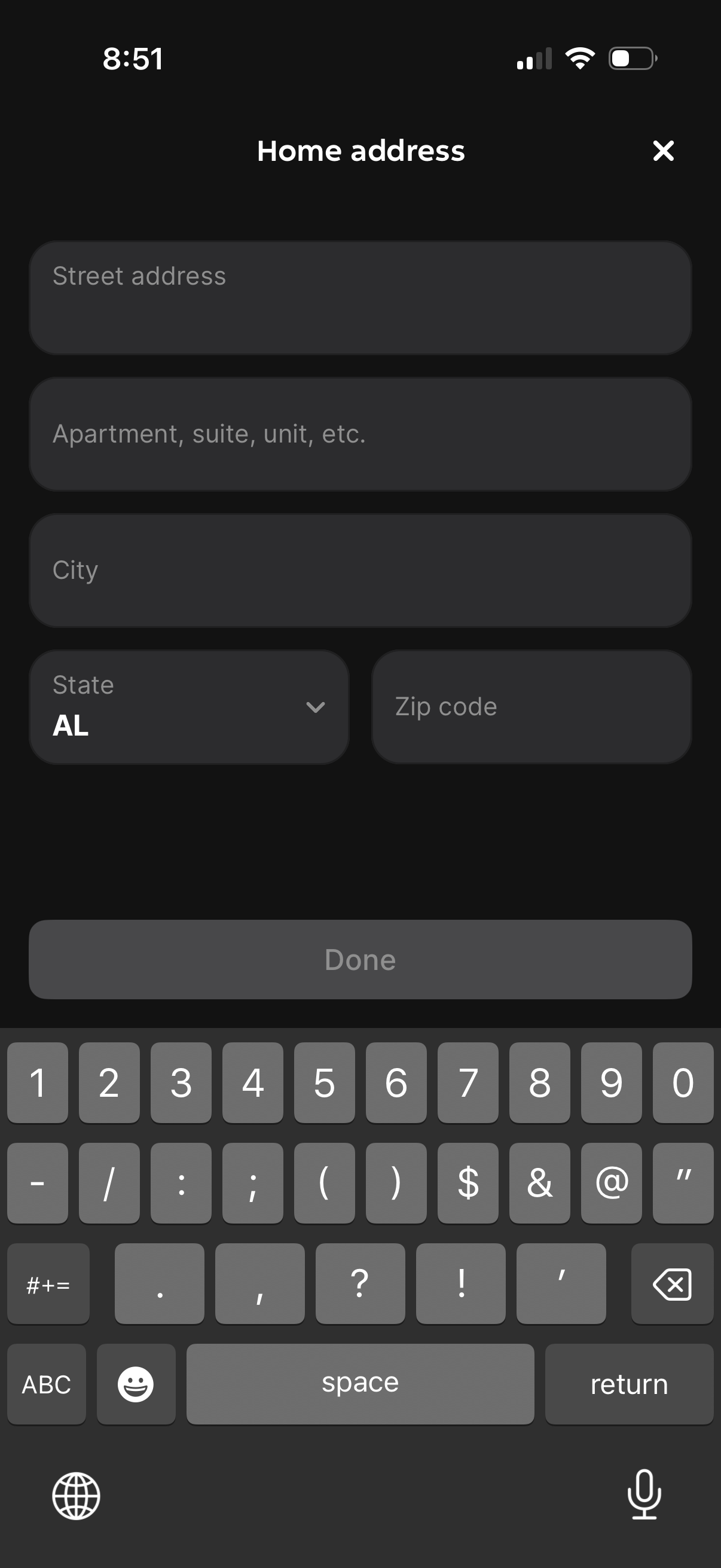
Home address entry form with fields for street address, apartment/unit, city, state dropdown selector, and zip code, with an X to close. Includes a bottom “Done” button to save/confirm the address.
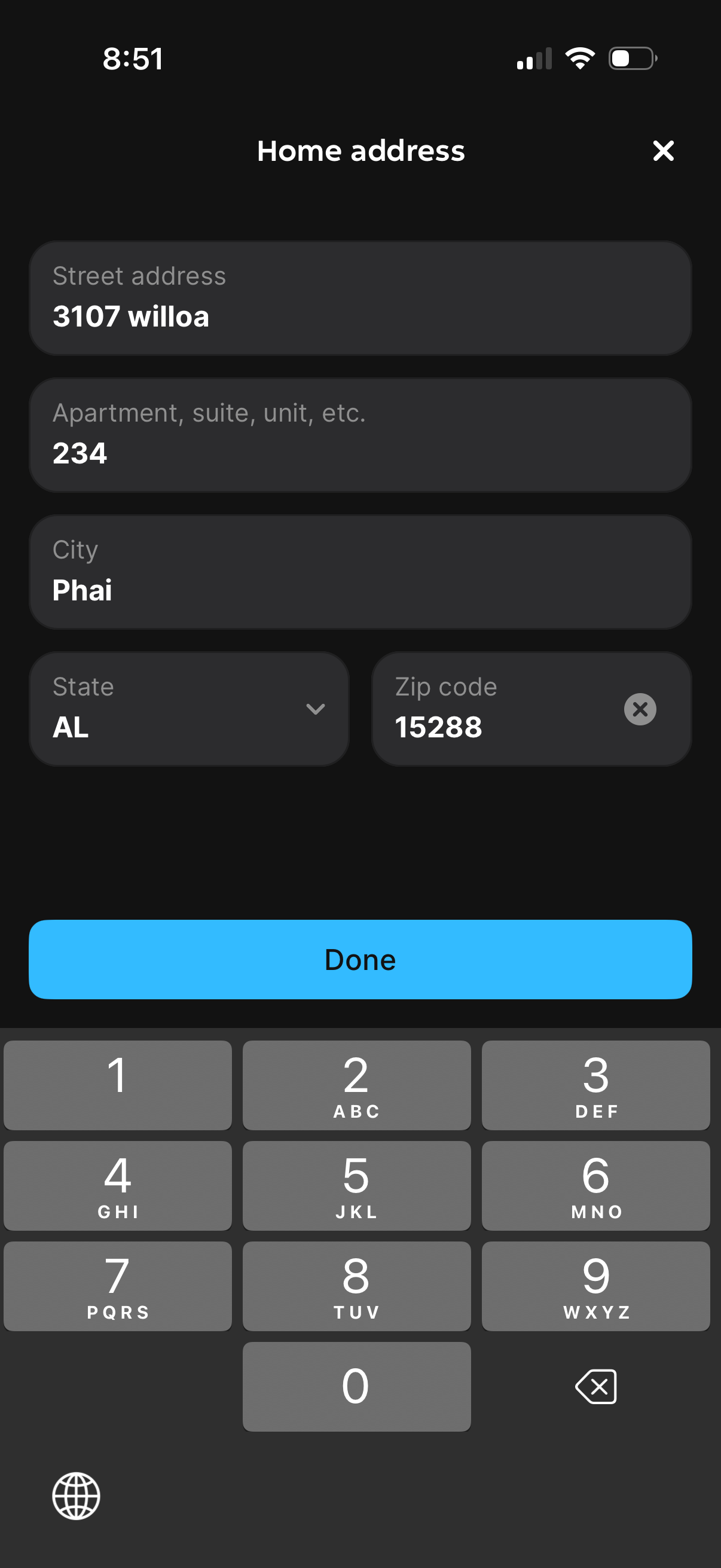
Home address entry form with fields for street address, apartment/unit, city, state dropdown, and zip code with clear option, plus a close icon to dismiss. A prominent Done button saves the address details.
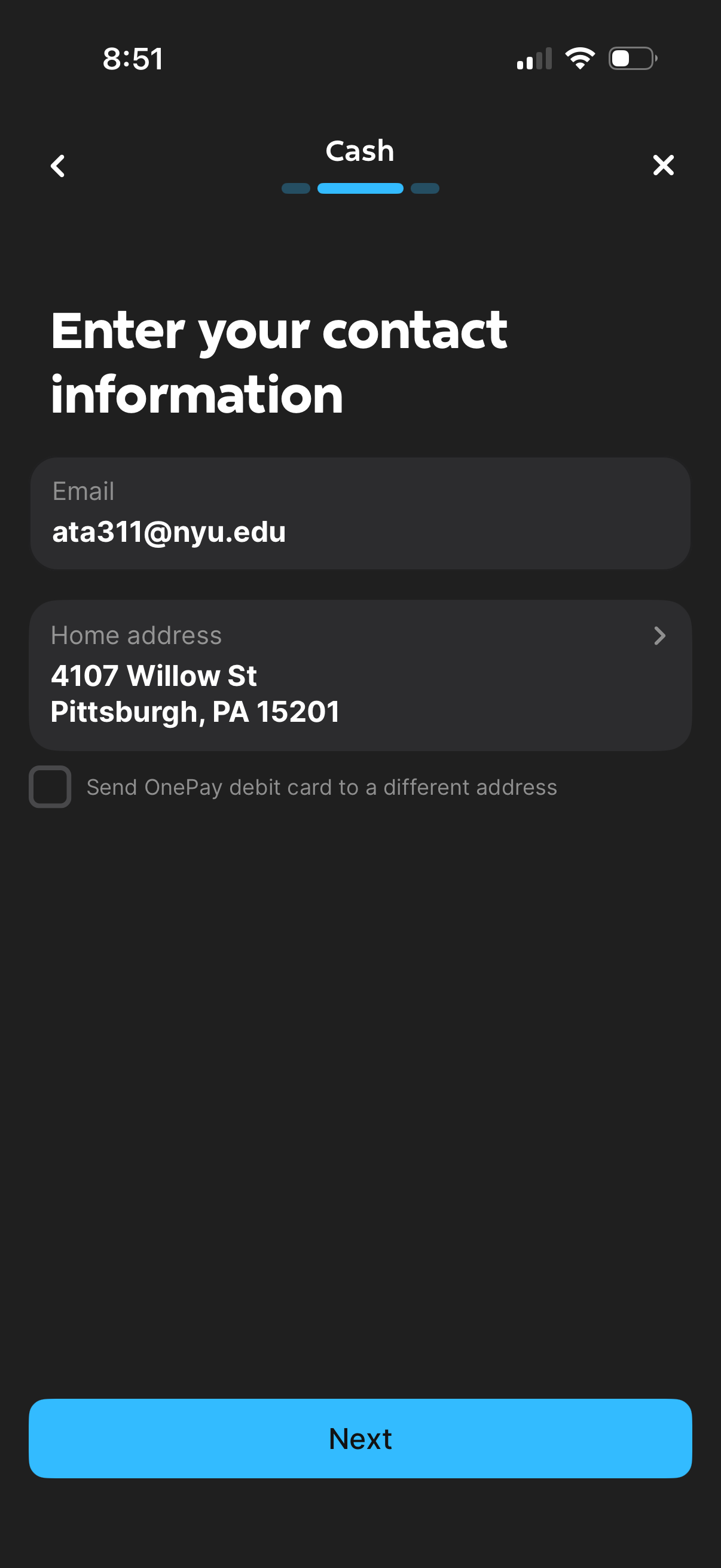
Cash onboarding form screen prompting the user to enter contact information, including email and home address, with an option to send a debit card to a different address. Includes back/close navigation and a prominent Next button to continue the setup flow.
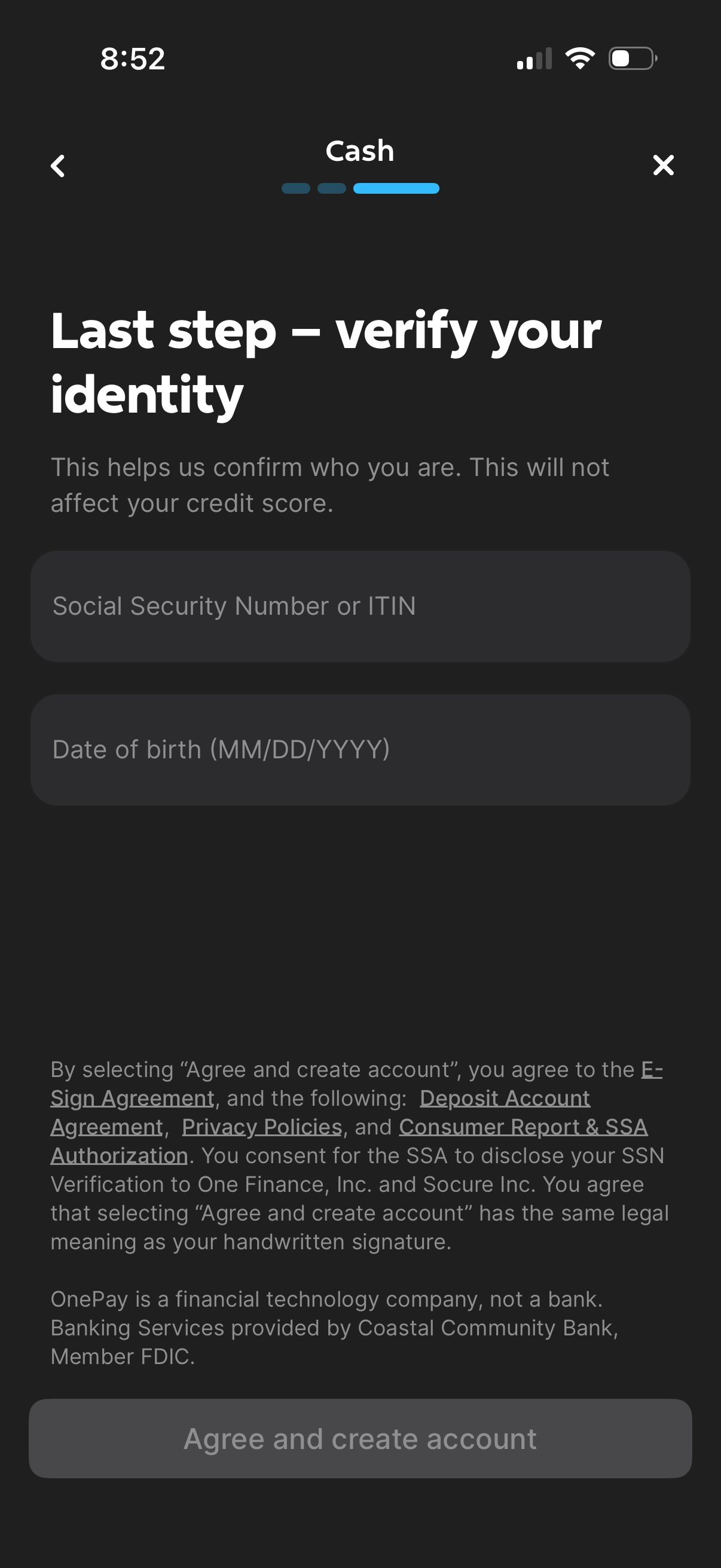
Cash account onboarding screen prompting the final identity verification step, with form fields to enter Social Security Number/ITIN and date of birth. Includes consent and legal agreement text and a primary action button to “Agree and create account,” plus back and close navigation.
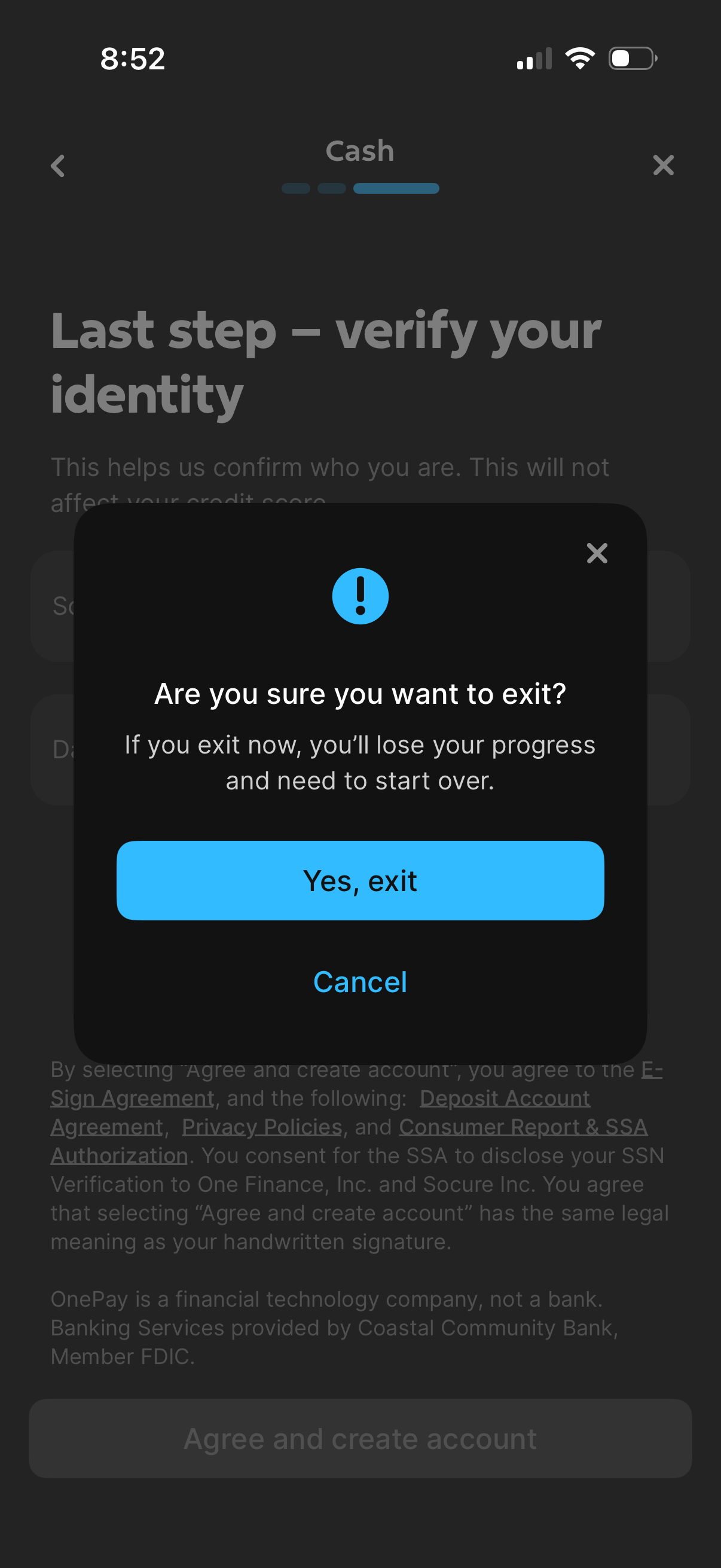
Exit confirmation modal during a cash account onboarding/identity verification step, warning that leaving will lose progress and require starting over. Provides primary action to confirm “Yes, exit” and secondary option to Cancel/close the dialog.