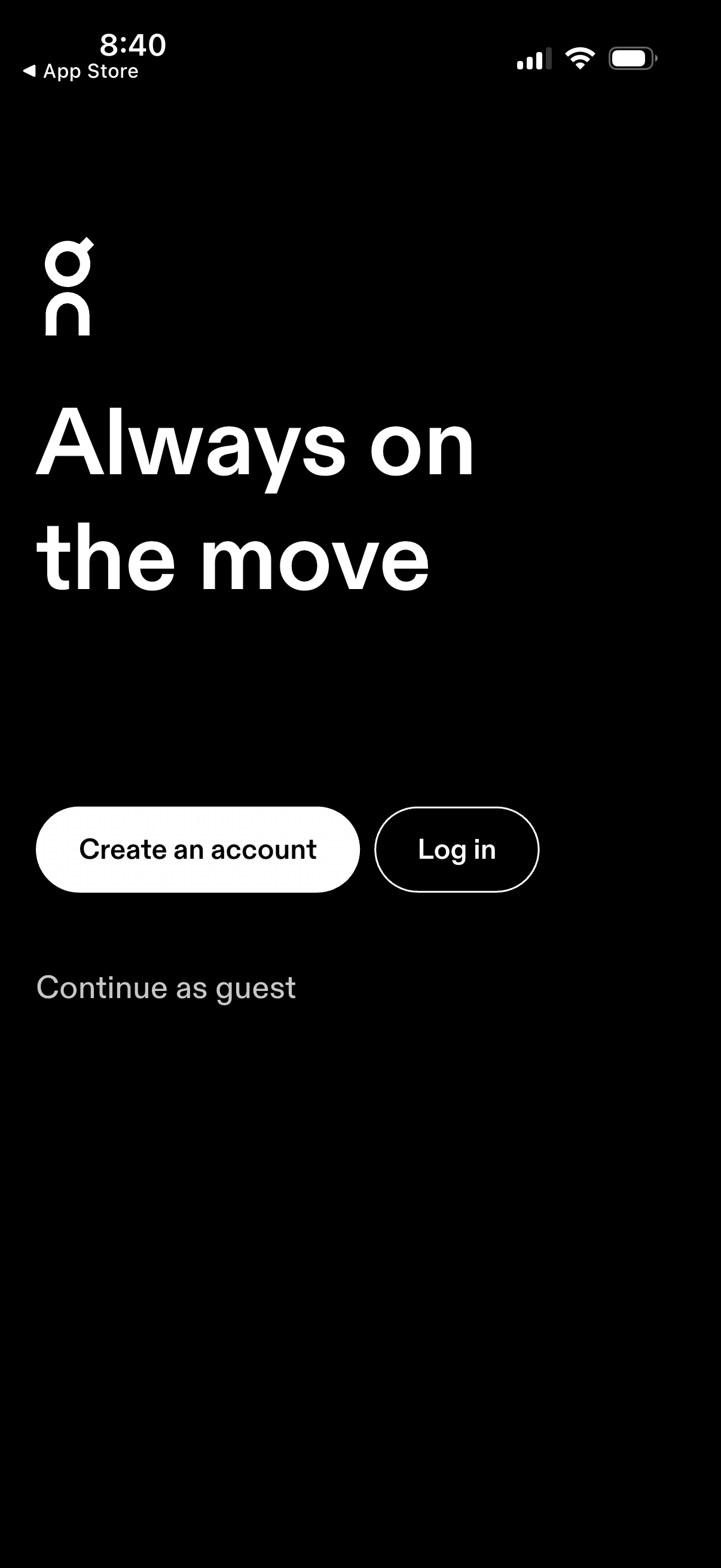
Minimal onboarding welcome screen with a headline and primary authentication actions, offering buttons to create an account or log in. Includes an alternative option to continue as a guest without signing up.

Account sign-up screen for creating a new account with email and password fields, password visibility toggle and minimum character requirement. Includes an optional checkbox for email updates, links to privacy policy and terms, a primary Continue button, and alternative sign-up options via Google or Apple.

Account sign-up screen for creating a new account with email and password fields, including password visibility toggle and minimum character requirement hint. Includes an optional checkbox to subscribe to email updates, links to privacy policy and terms, and a primary Continue button with a close icon to exit.

Account sign-up screen for creating a new account with email and password fields, including a password visibility toggle and minimum character requirement. Provides an optional checkbox for email updates, links to privacy policy and terms, and primary actions to continue or sign up using Google or Apple.
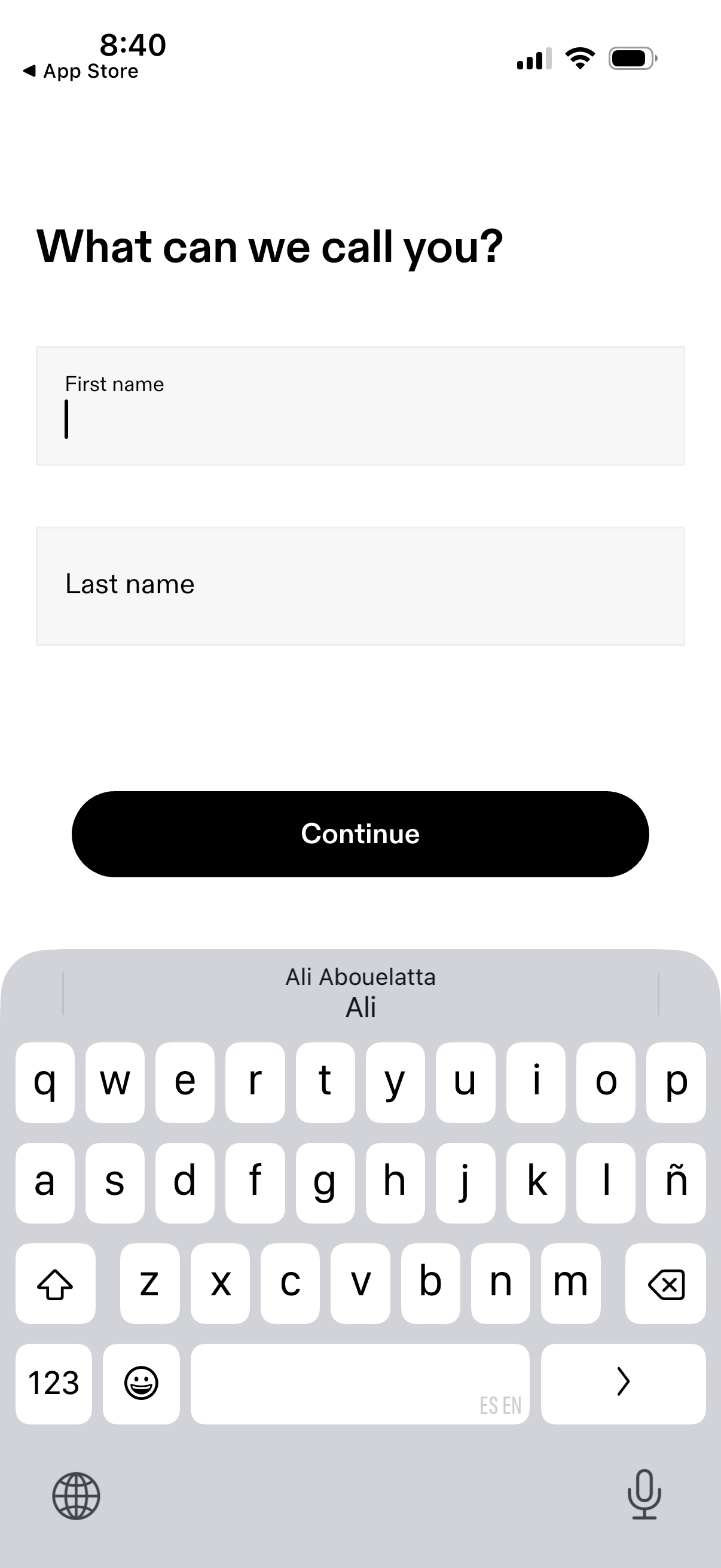
Onboarding profile setup screen asking the user for their first and last name with two text input fields. A primary “Continue” button advances to the next step while the keyboard is open for name entry.
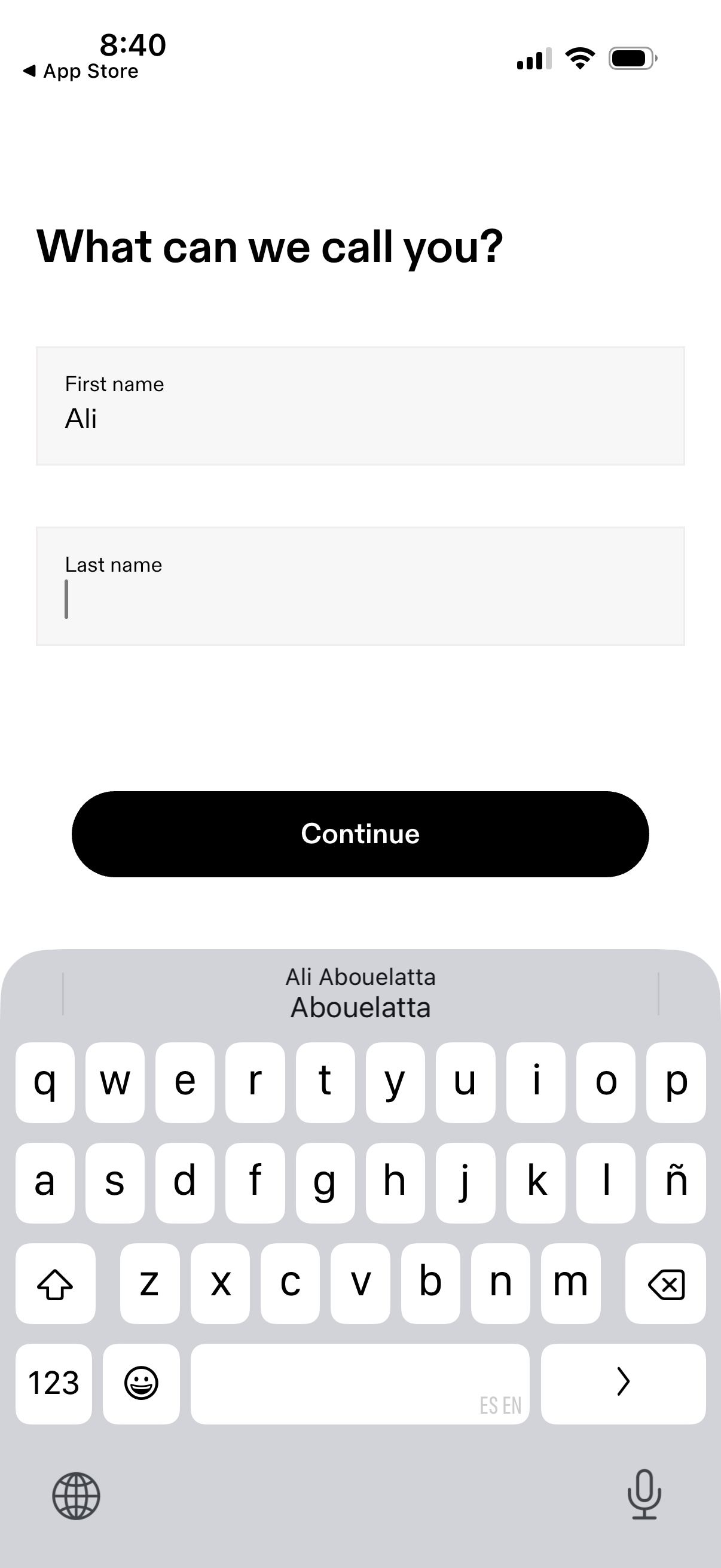
User onboarding profile setup screen asking “What can we call you? ” with text fields for first name and last name and a primary Continue button to proceed.
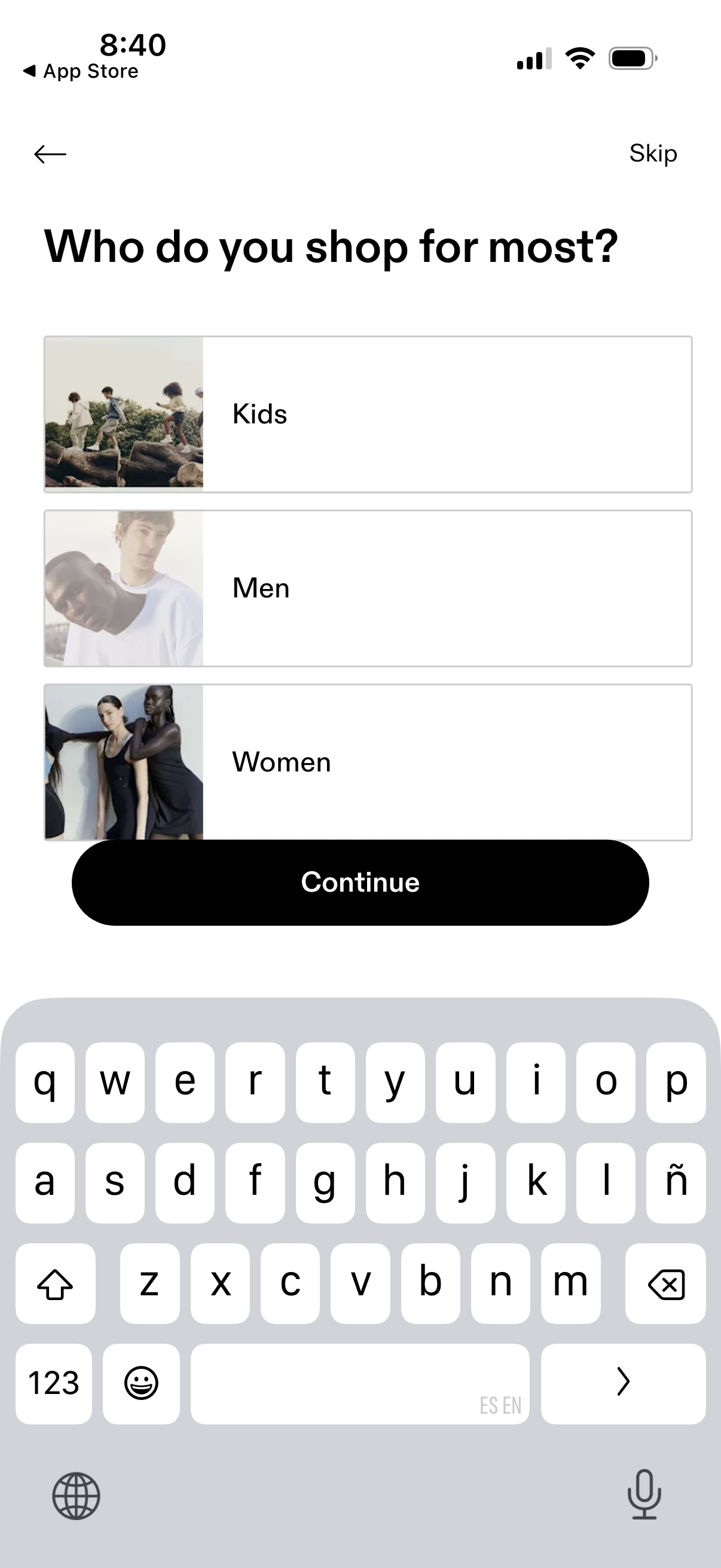
Onboarding preference question screen for a shopping app asking “Who do you shop for most? ” with selectable options (Kids, Men, Women) shown as image tiles.
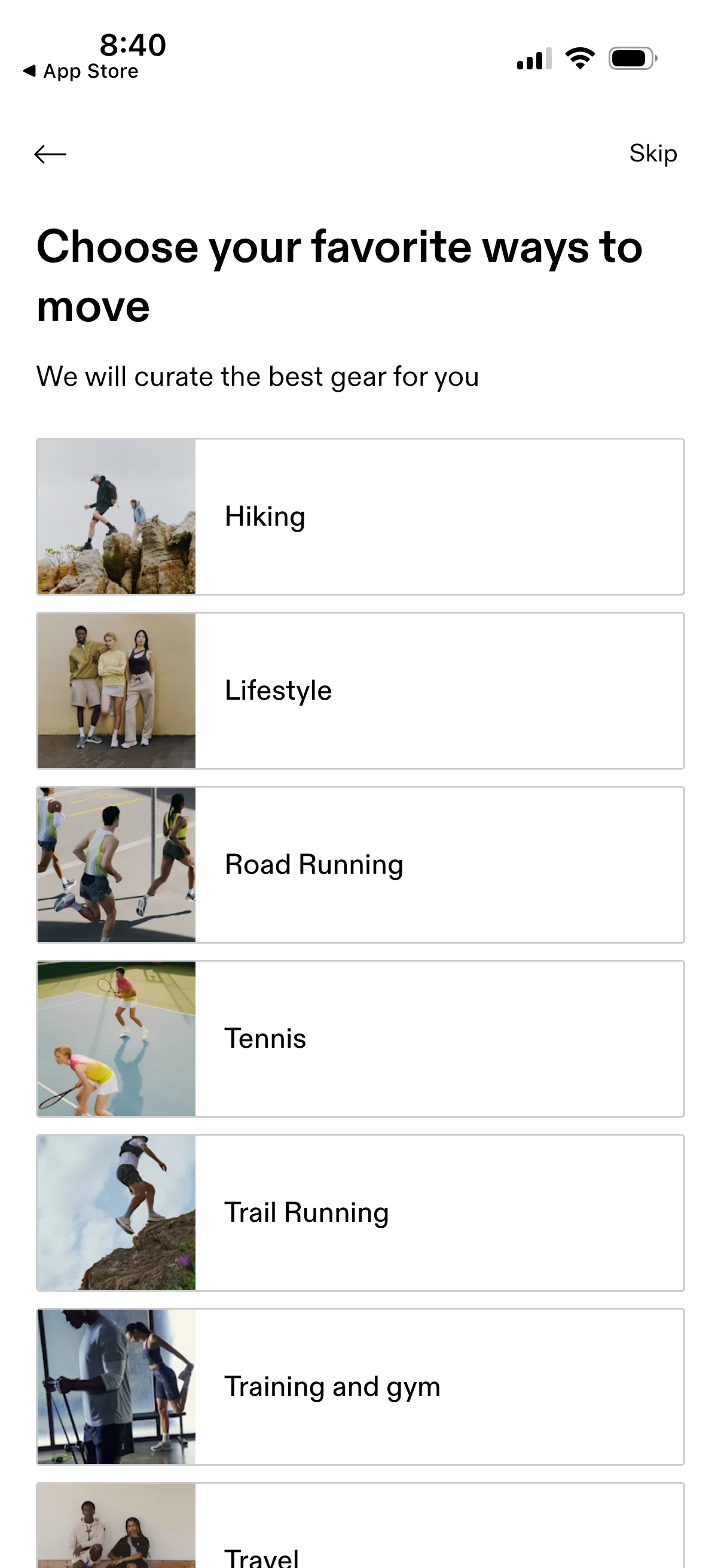
Onboarding preference selection screen asking users to choose their favorite ways to move so the app can curate recommended gear. Scrollable list of activity categories with image tiles (e.

Onboarding preference selection screen asking users to choose their favorite ways to move so the app can curate recommended gear, shown as a scrollable list of activity categories with images (e. g.
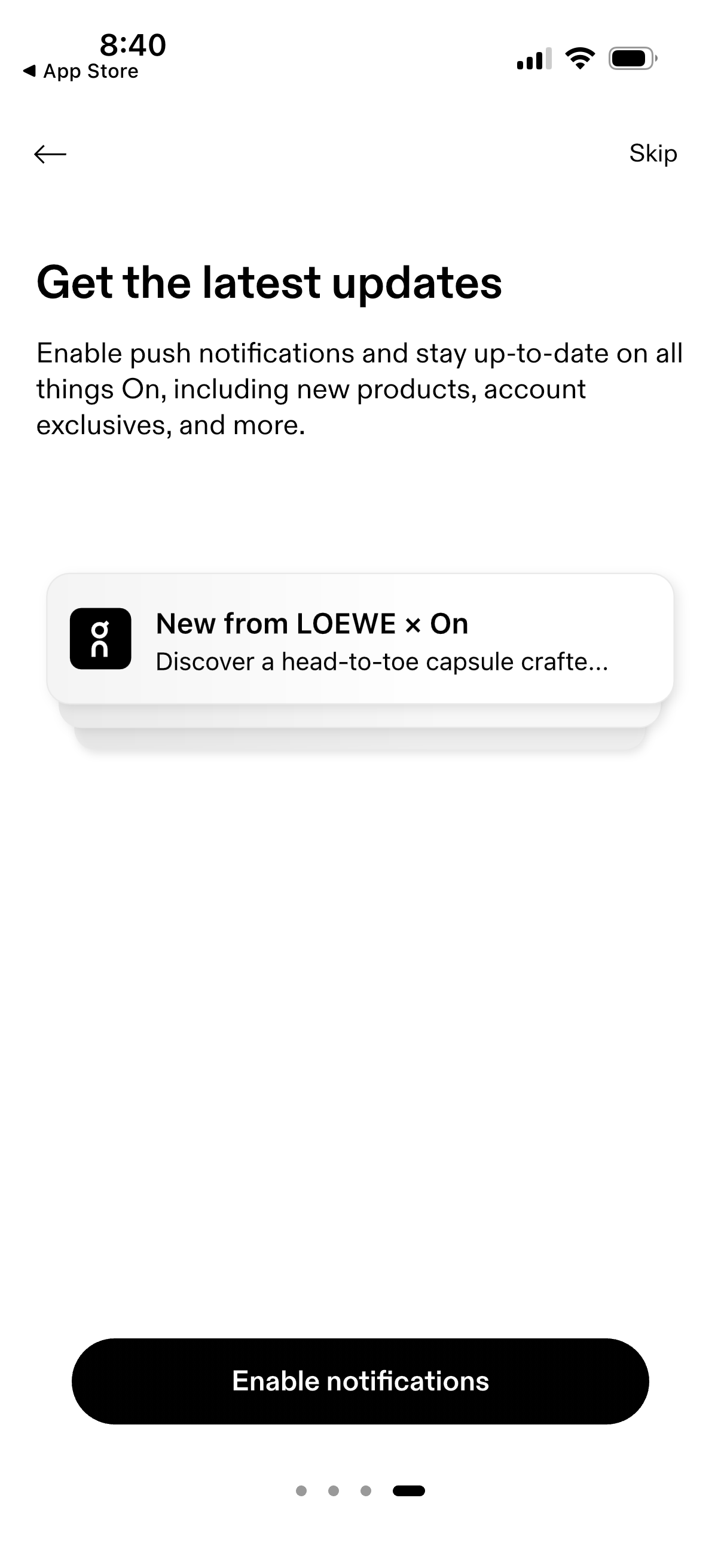
Onboarding permissions screen prompting the user to enable push notifications to receive the latest updates like new products and account exclusives, with a sample notification preview card. Primary action is a large “Enable notifications” button, with back navigation and a “Skip” option.