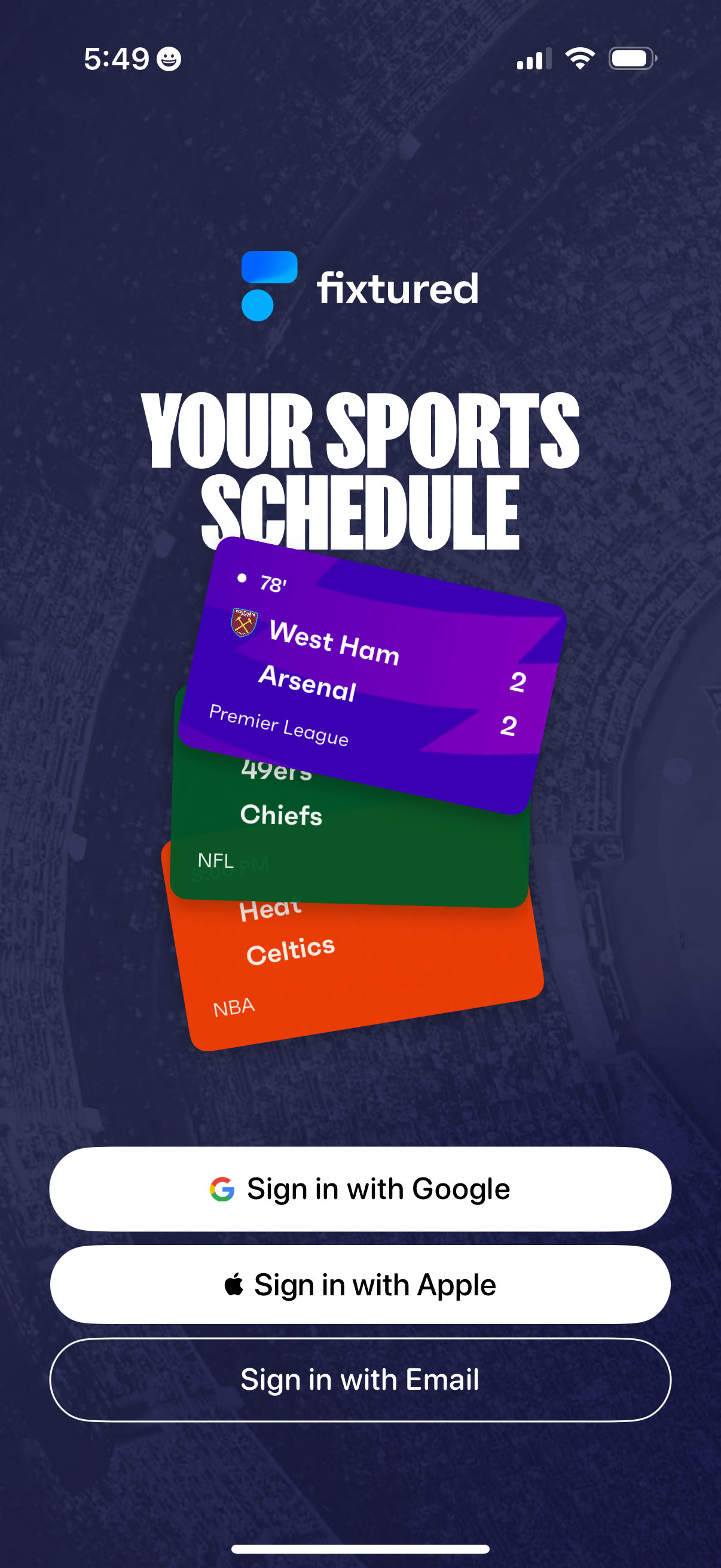
Sports schedule app welcome and authentication screen promoting “Your sports schedule” with sample live game cards and scores. Provides sign-in options via Google, Apple, or Email to start using the app.
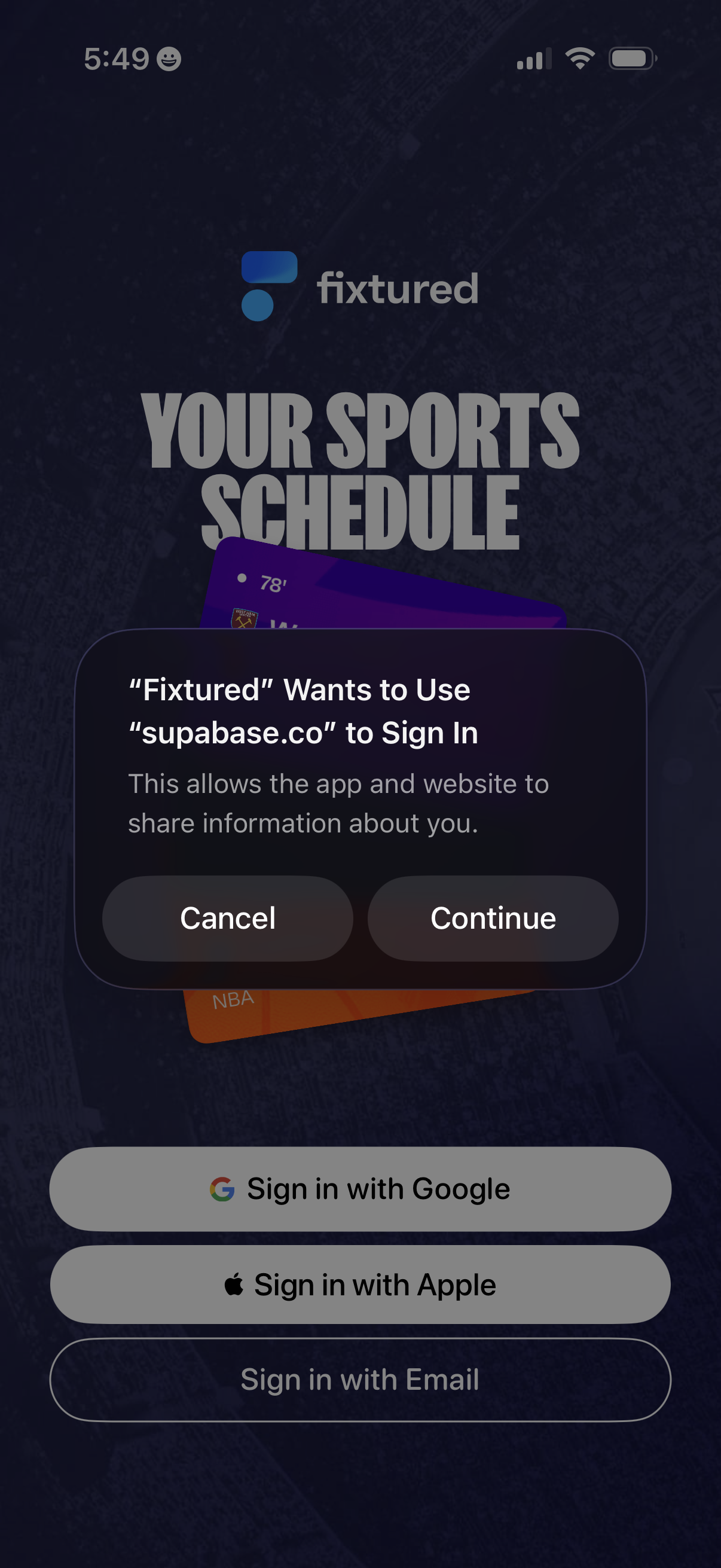
Login screen for a sports schedule app showing sign-in options with Google, Apple, or email. An iOS system modal prompts the user to authorize web-based authentication via an external domain with Cancel and Continue actions.
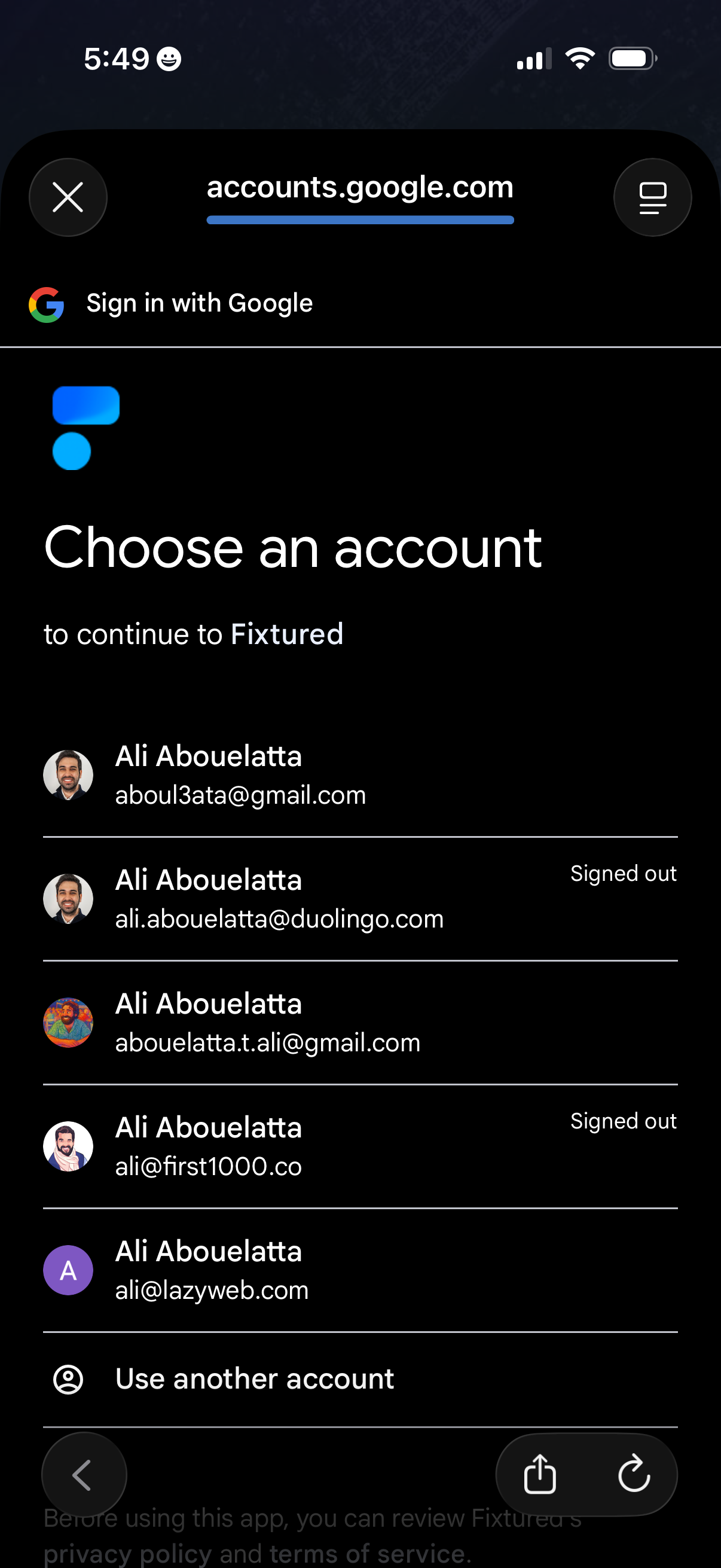
Google OAuth sign-in screen prompting the user to choose an account to continue to an app, showing a list of saved Google accounts with avatars, email addresses, and signed-out status indicators. Includes an option to use another account and controls to close or return to the previous step.
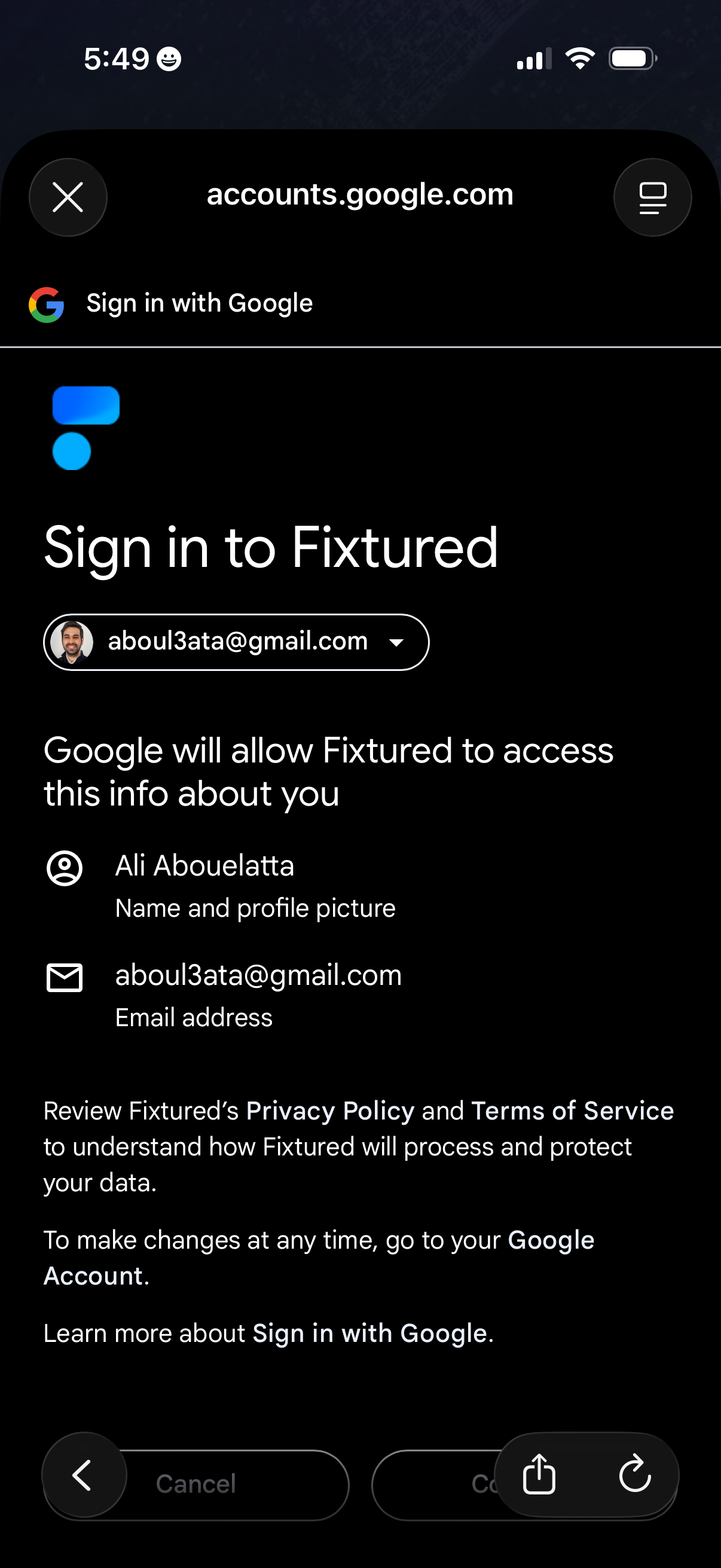
Google OAuth “Sign in with Google” consent screen for logging into an app, showing the selected Google account and the permissions the app will access (profile name/photo and email). Includes actions to continue or cancel and links to privacy policy and terms.
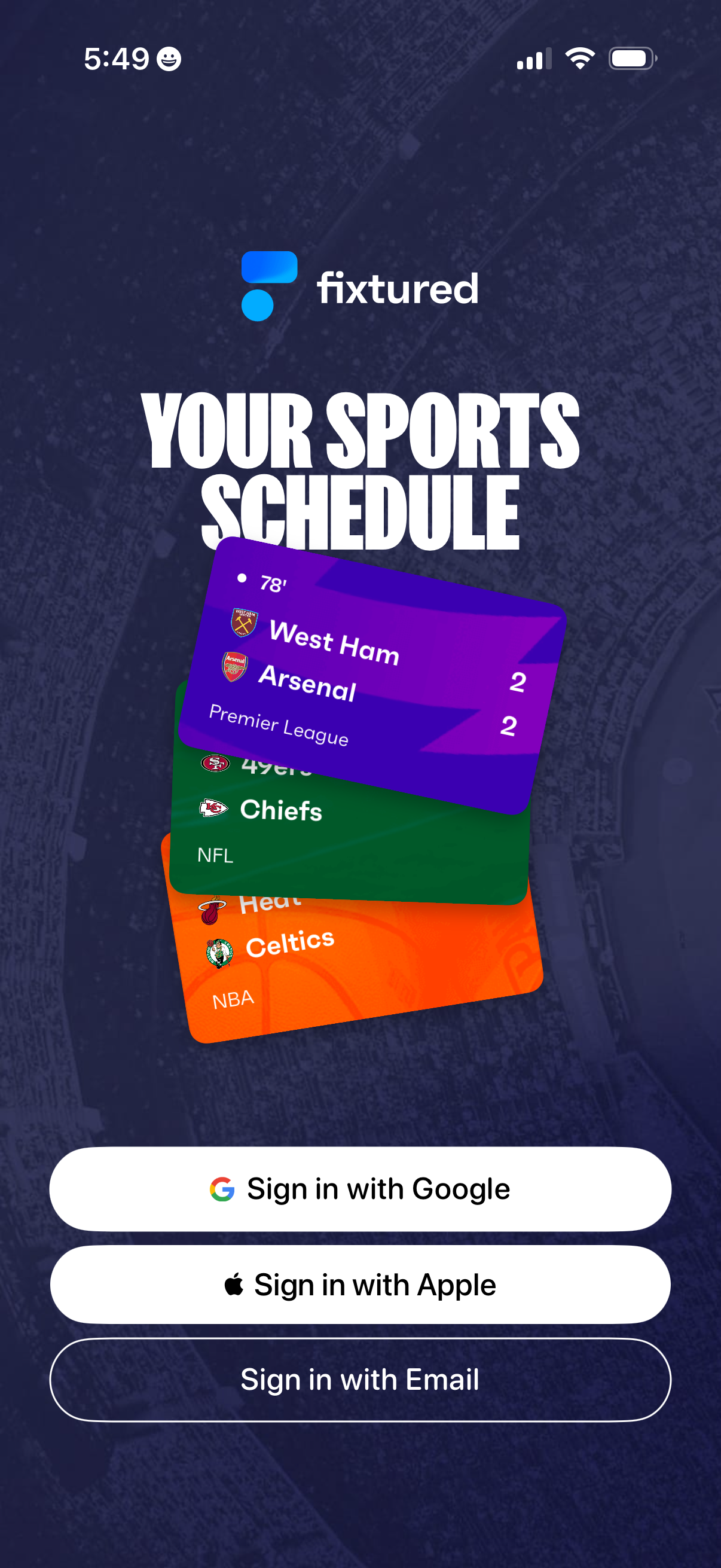
Sports schedule app welcome/login screen promoting “Your sports schedule” with sample game cards and live scores across leagues. Offers authentication options with primary buttons to sign in with Google, Apple, or email.
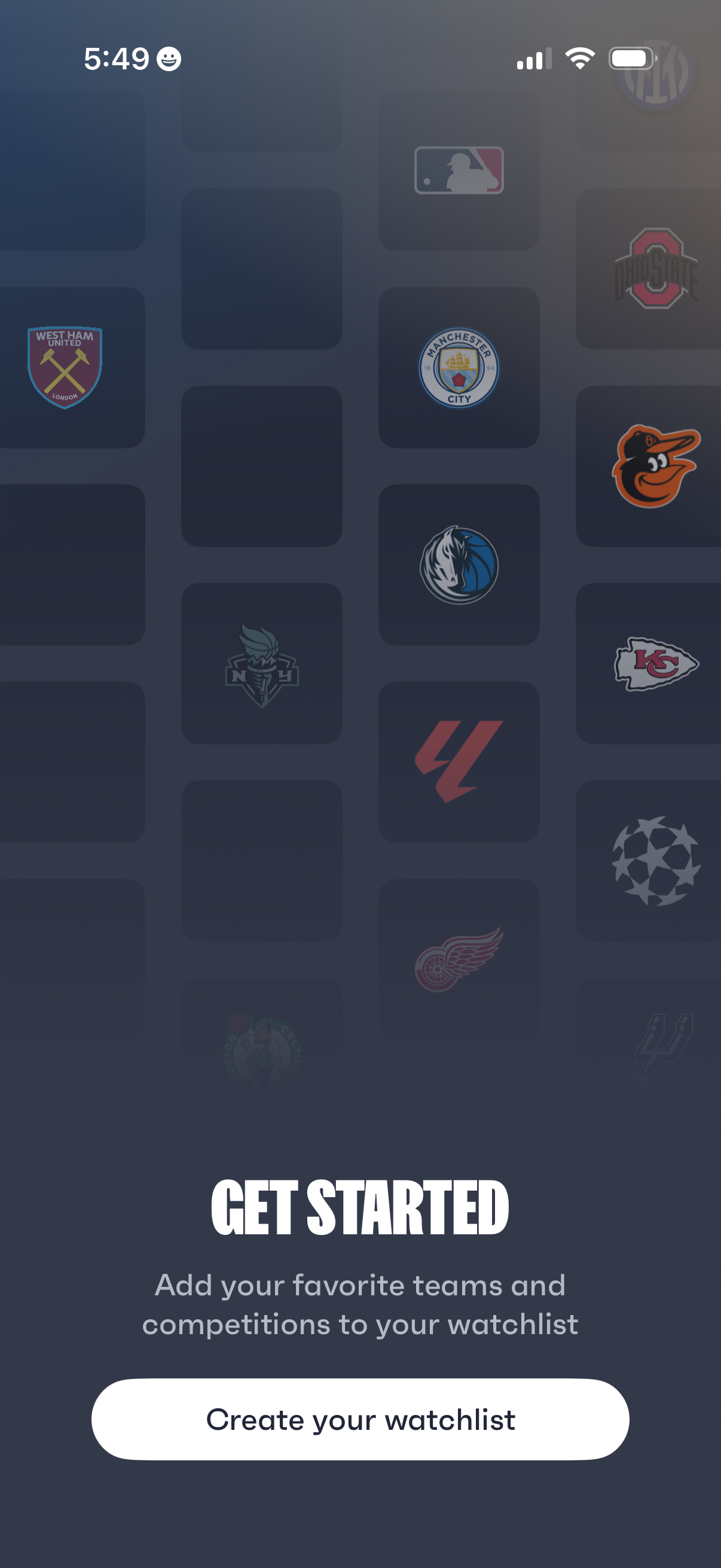
Onboarding “Get Started” screen for a sports app prompting users to add favorite teams and competitions to a watchlist. Includes a prominent primary CTA button to “Create your watchlist” over a background grid of league and team logos.