Onboarding Survey
Branded loading/splash screen for an education app showing a mascot logo and the message “Preparing your course…” indicating the app is initializing and loading course content.
Welcome/intro splash screen for a language practice app, featuring branding illustration, marketing claims with star rating and awards, and a primary “Continue” button to proceed into onboarding or sign-up.
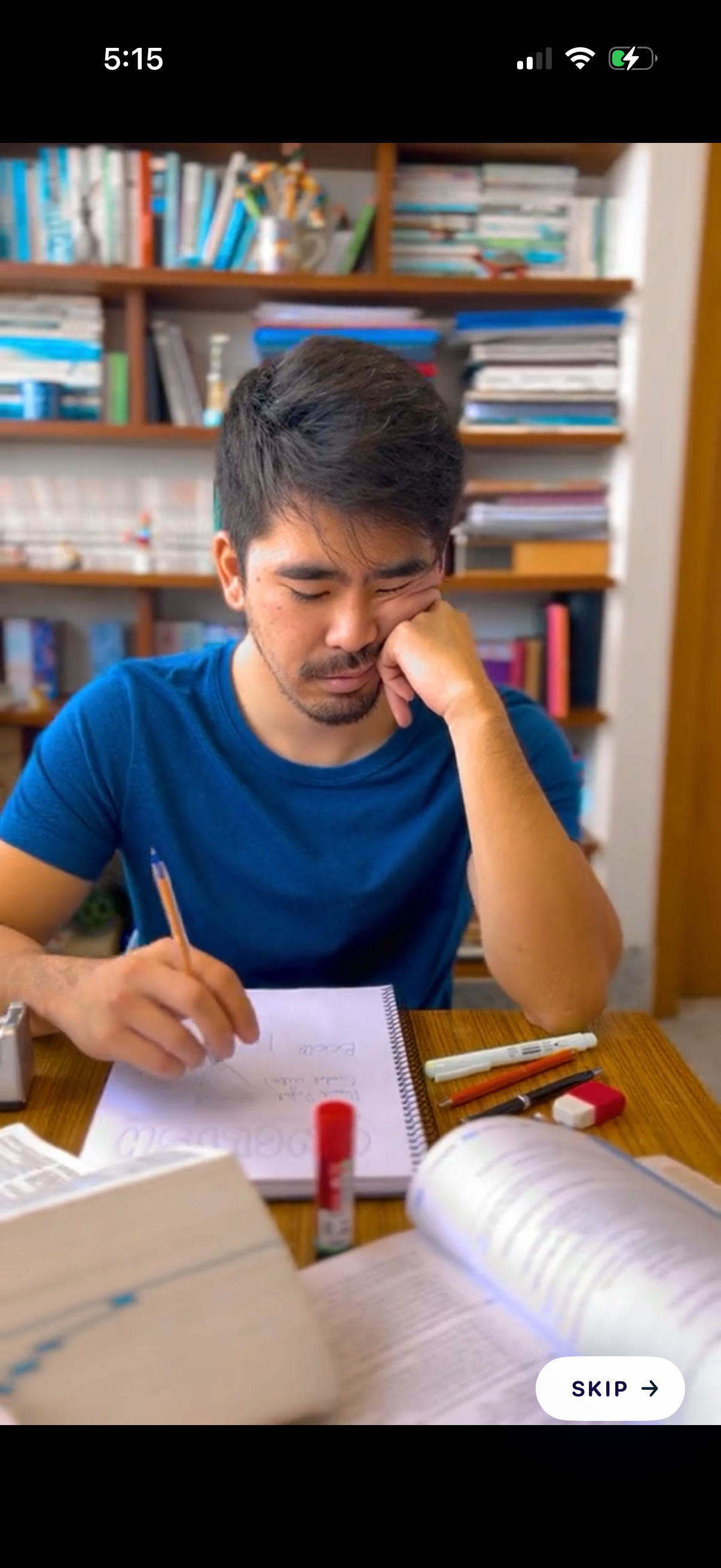
Onboarding/tutorial video screen showing a student studying at a desk, with a prominent “Skip” button to bypass the intro and proceed to the app. Full-screen media content with minimal UI overlays emphasizes the option to skip the onboarding step.
Welcome/intro splash screen for a language practice app, featuring branding illustration, marketing claims with star rating and awards, and a primary “Continue” button to proceed into onboarding or sign-up.
Onboarding welcome screen prompting the user to create a custom practice plan, featuring an illustration and a primary call-to-action button to start (“Let’s go! ”).
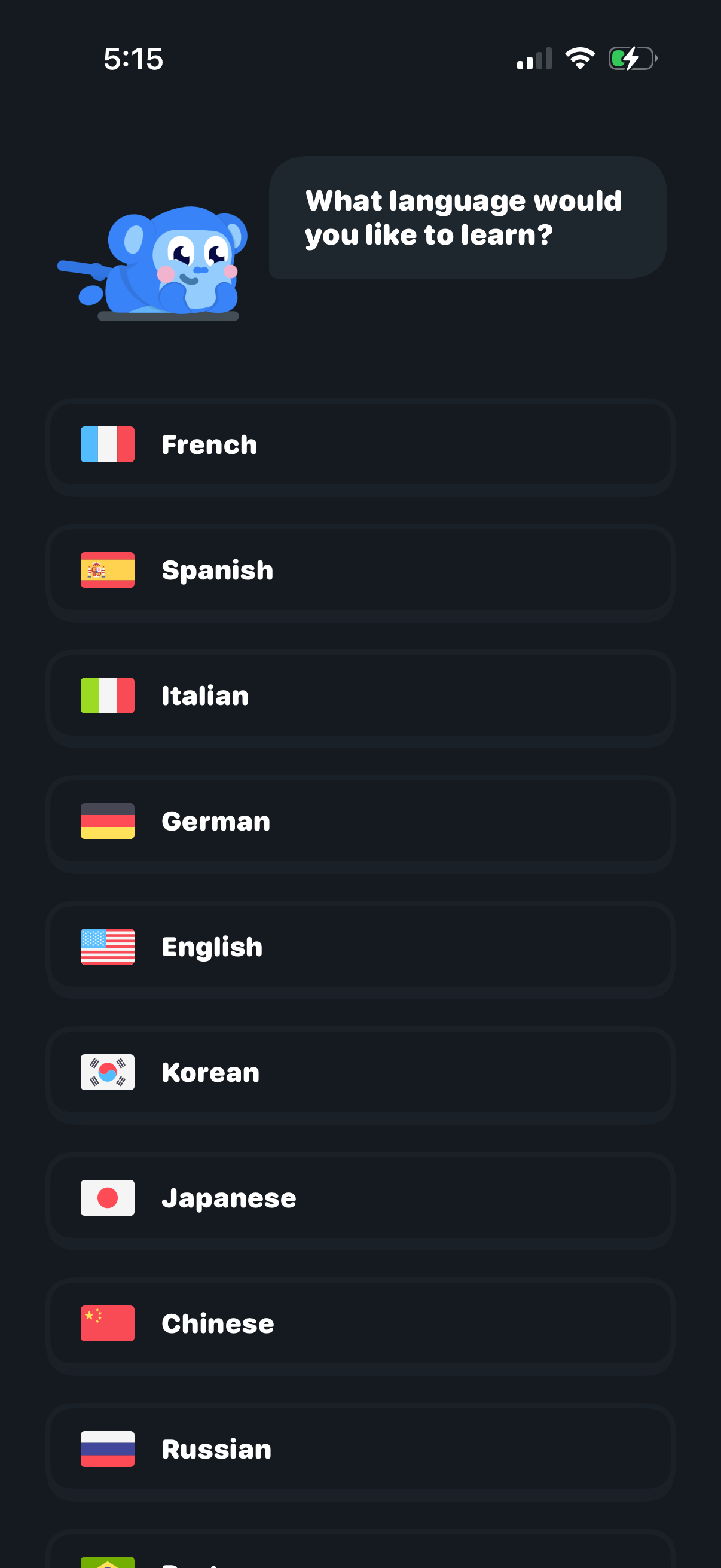
Language learning app onboarding screen asking “What language would you like to learn? ” with a scrollable list of language options shown as large selectable rows with country flags (e.
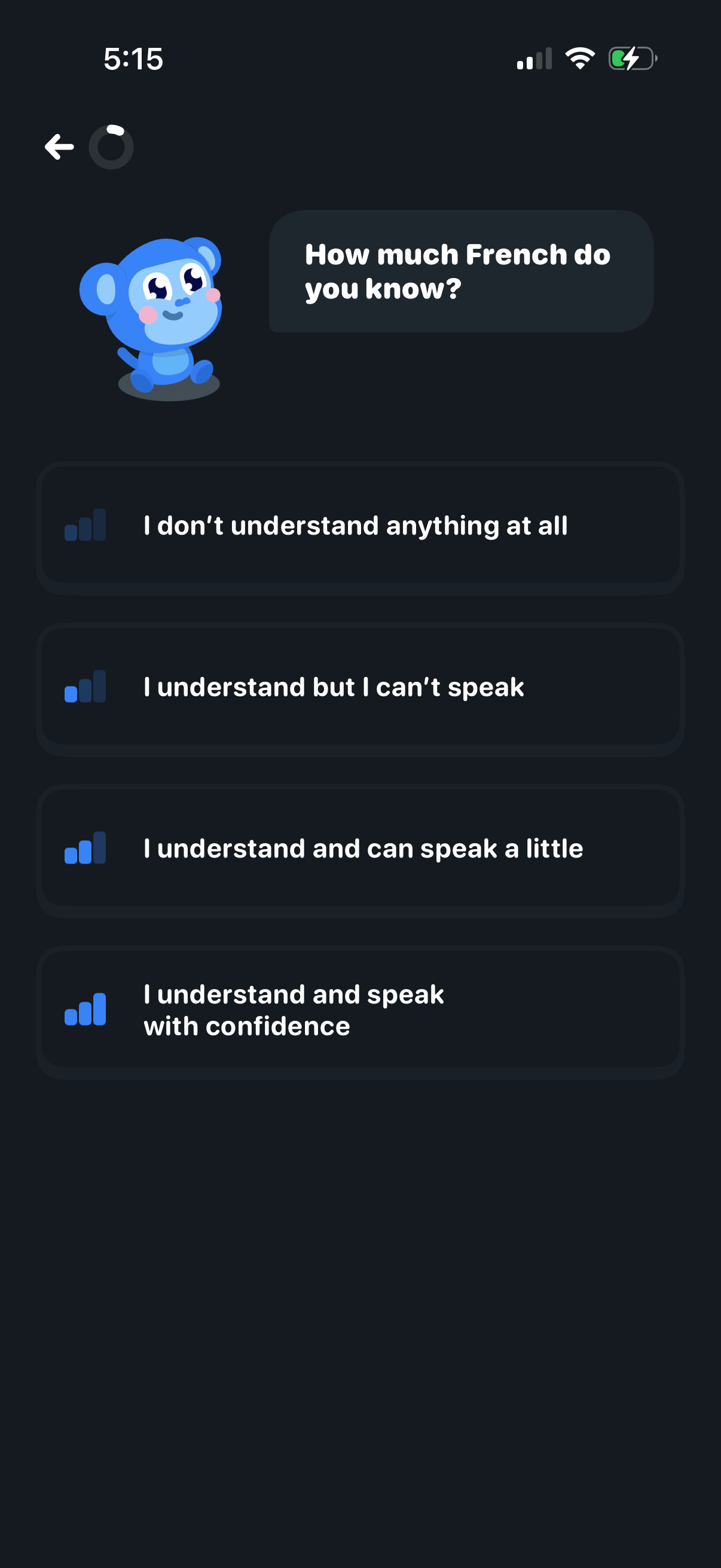
Language learning app onboarding screen asking users to self-assess their French proficiency. Users choose one of several skill-level options (from no understanding to speaking confidently) via large selectable list buttons, with back navigation.
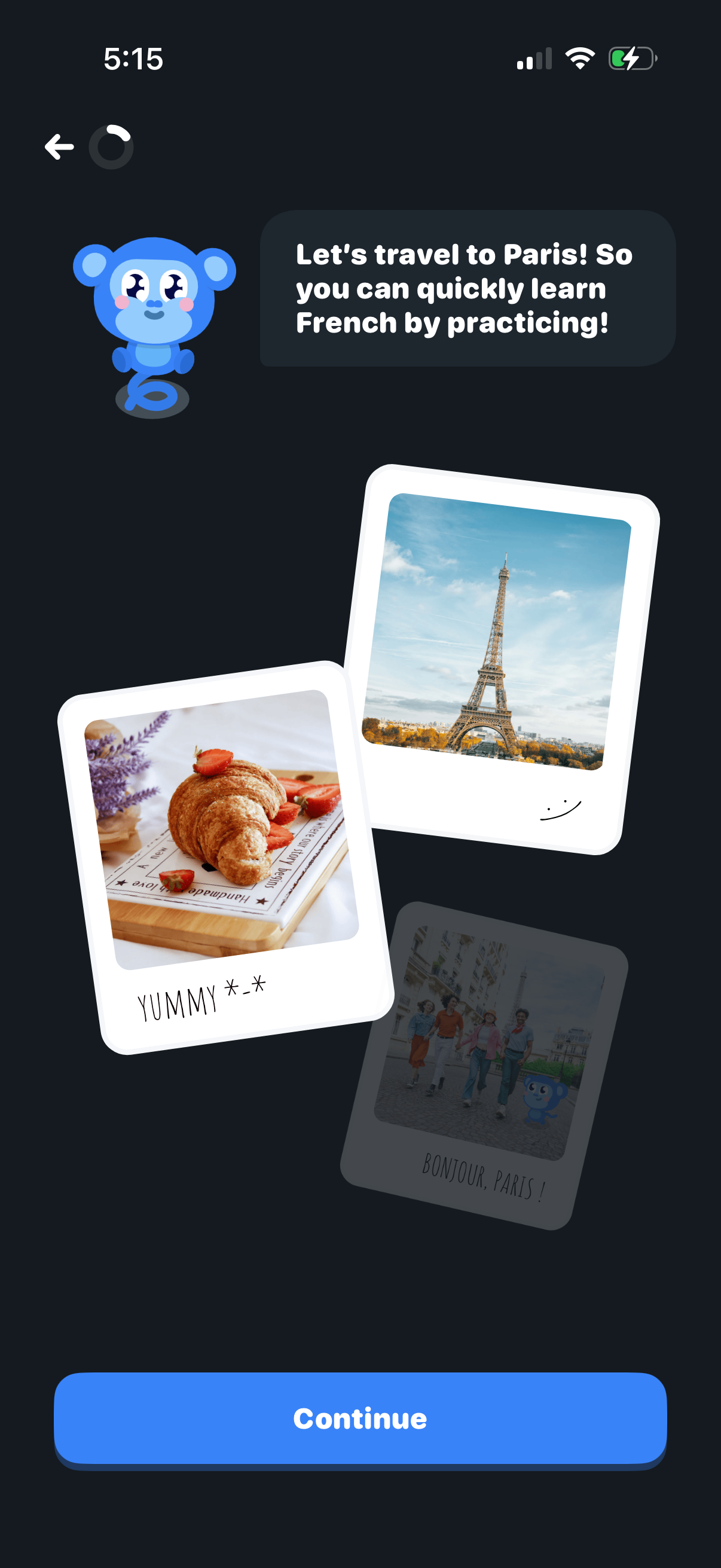
Onboarding lesson intro screen for a language-learning app themed around traveling to Paris to practice French, with a mascot message and travel photo cards as visual context. Includes a back arrow and a prominent “Continue” button to proceed to the next step.
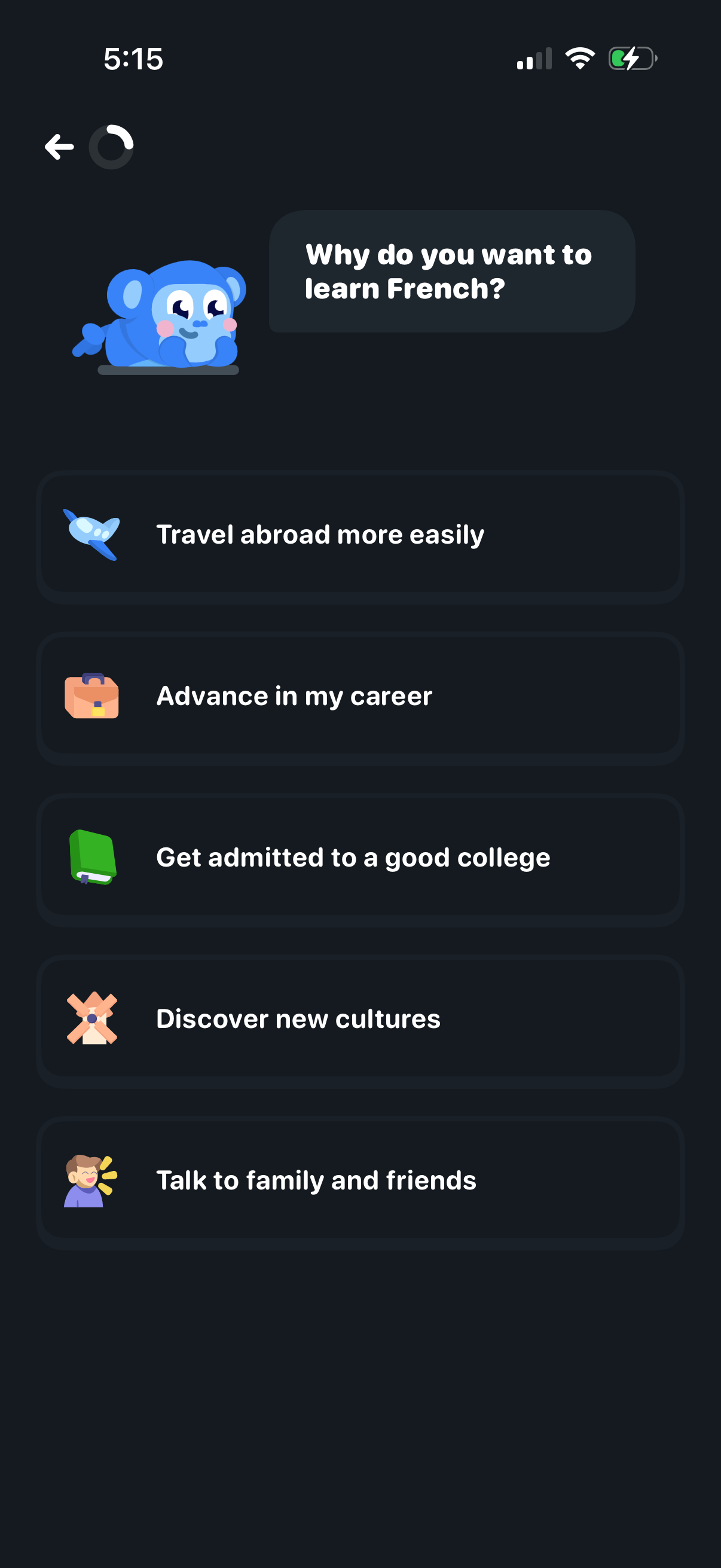
Onboarding question screen for a language-learning app asking “Why do you want to learn French? ” and personalizing the experience by letting users choose a motivation from a list (travel, career, college, discover cultures, talk to family and friends).
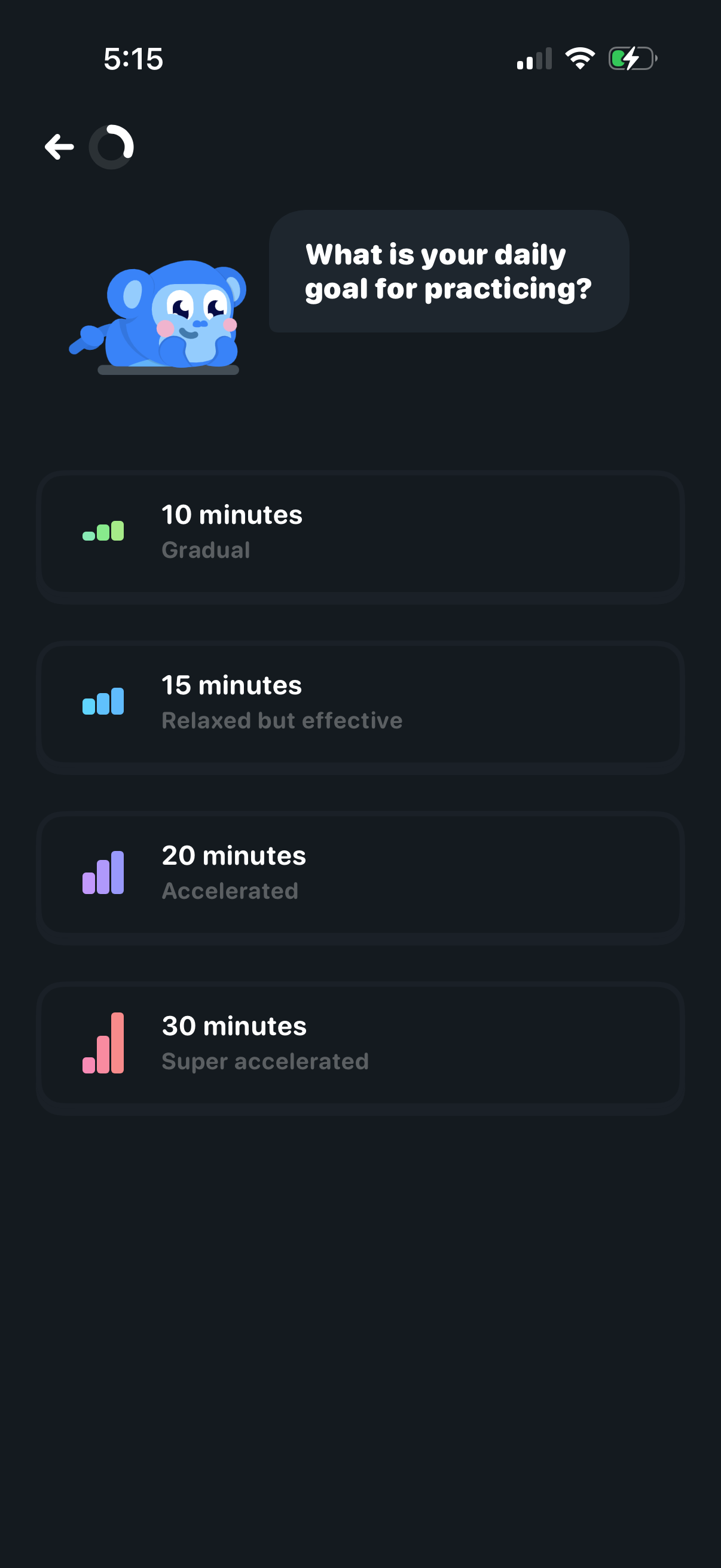
Goal-setting screen in a learning/practice app asking the user to choose a daily practice target. Provides selectable time-based options (10, 15, 20, 30 minutes) with intensity labels (gradual to super accelerated) and a back navigation control.
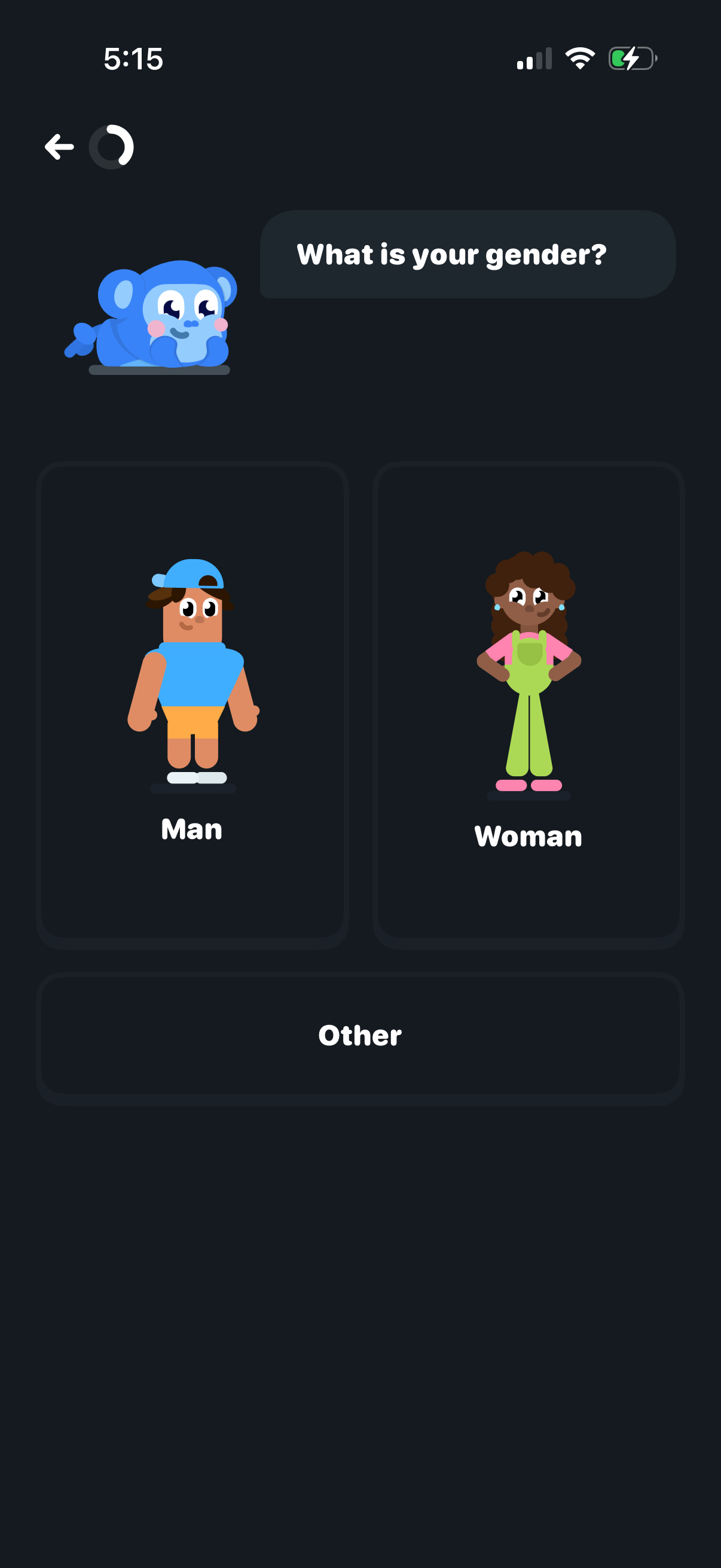
Onboarding profile setup screen asking “What is your gender? ” with illustrated selectable cards for Man and Woman plus an Other option.
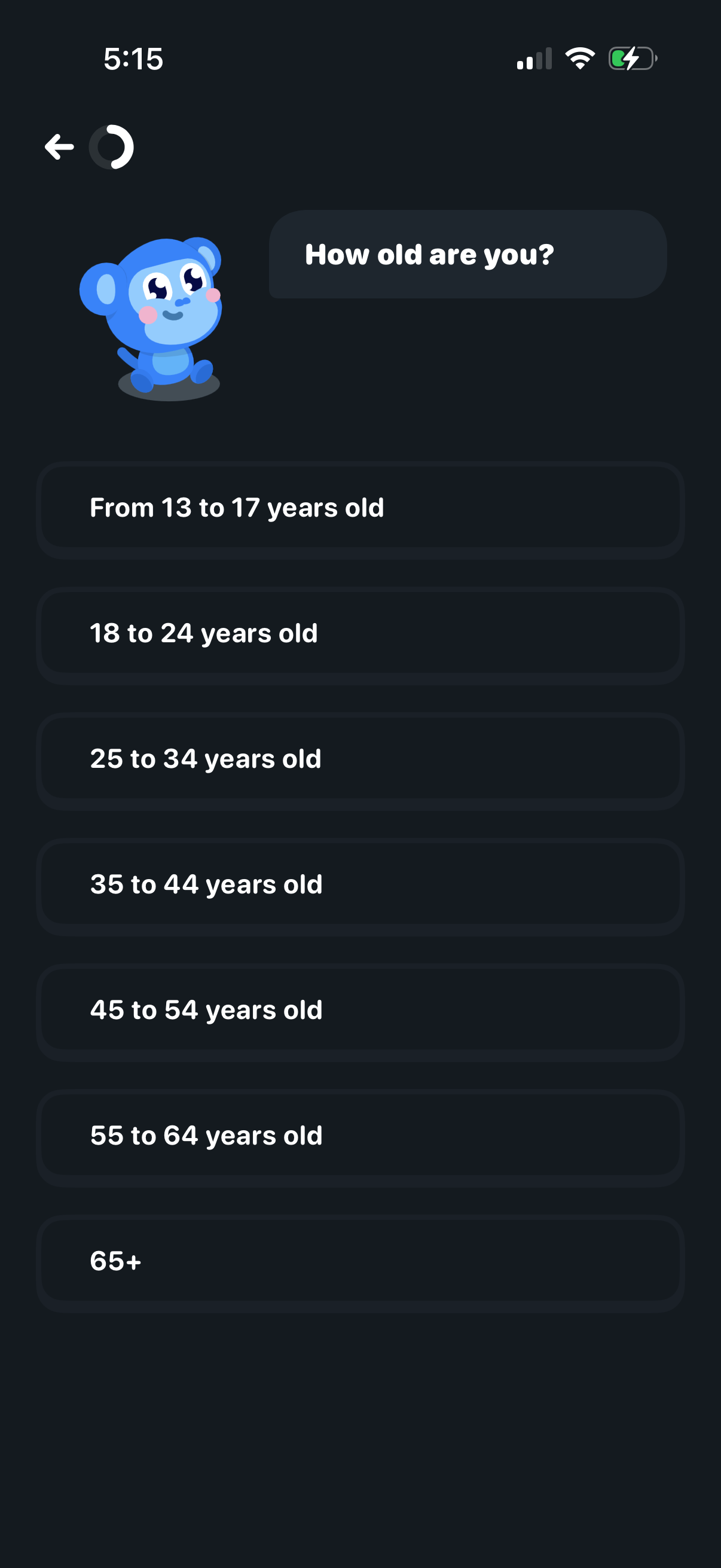
Onboarding demographic question screen asking “How old are you? ” with a list of selectable age ranges (13–17 through 65+) in large button-style options.
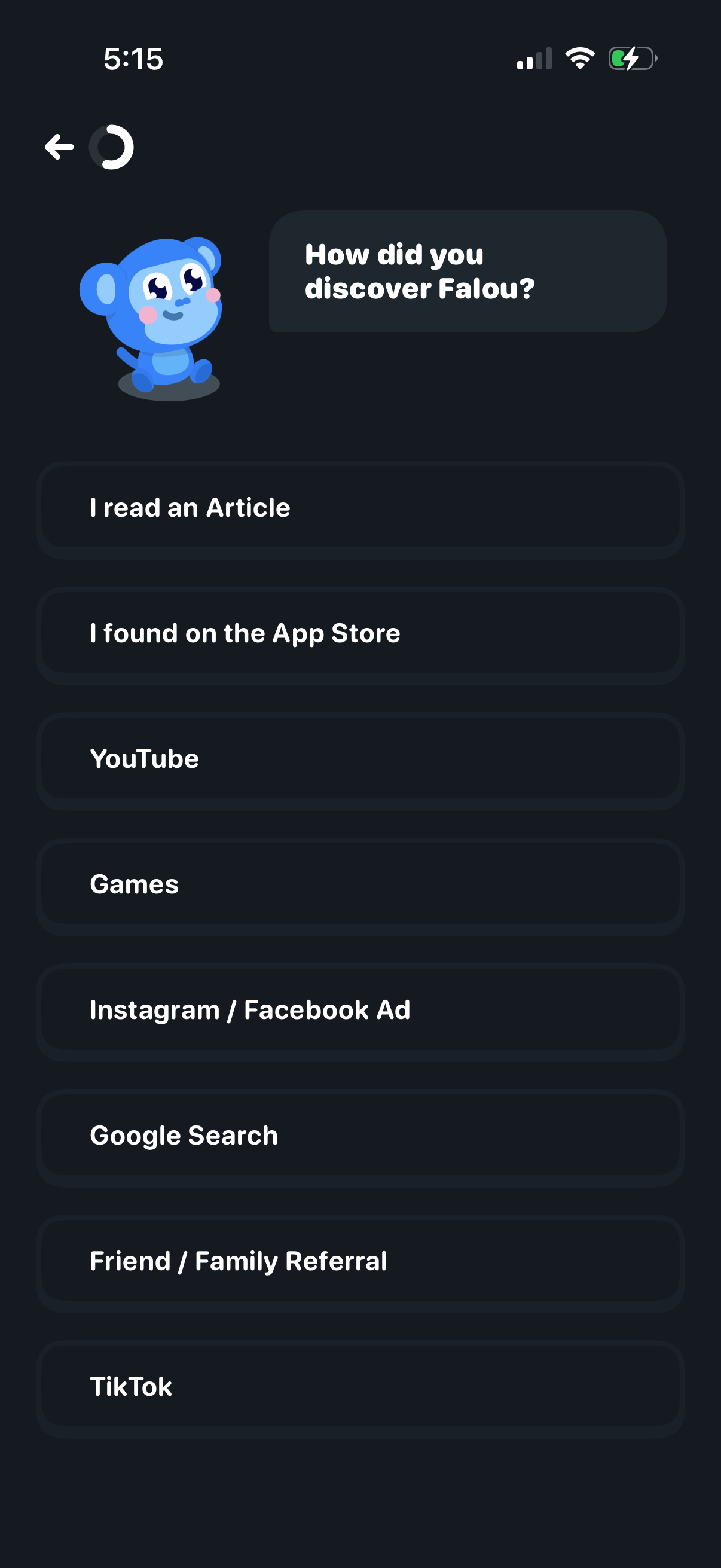
Onboarding survey screen asking “How did you discover” the app, used to capture acquisition/referral source. Users select one option from a list of channels such as article, app store, YouTube, games, social ads, Google search, friend/family referral, or TikTok, with a back navigation control.
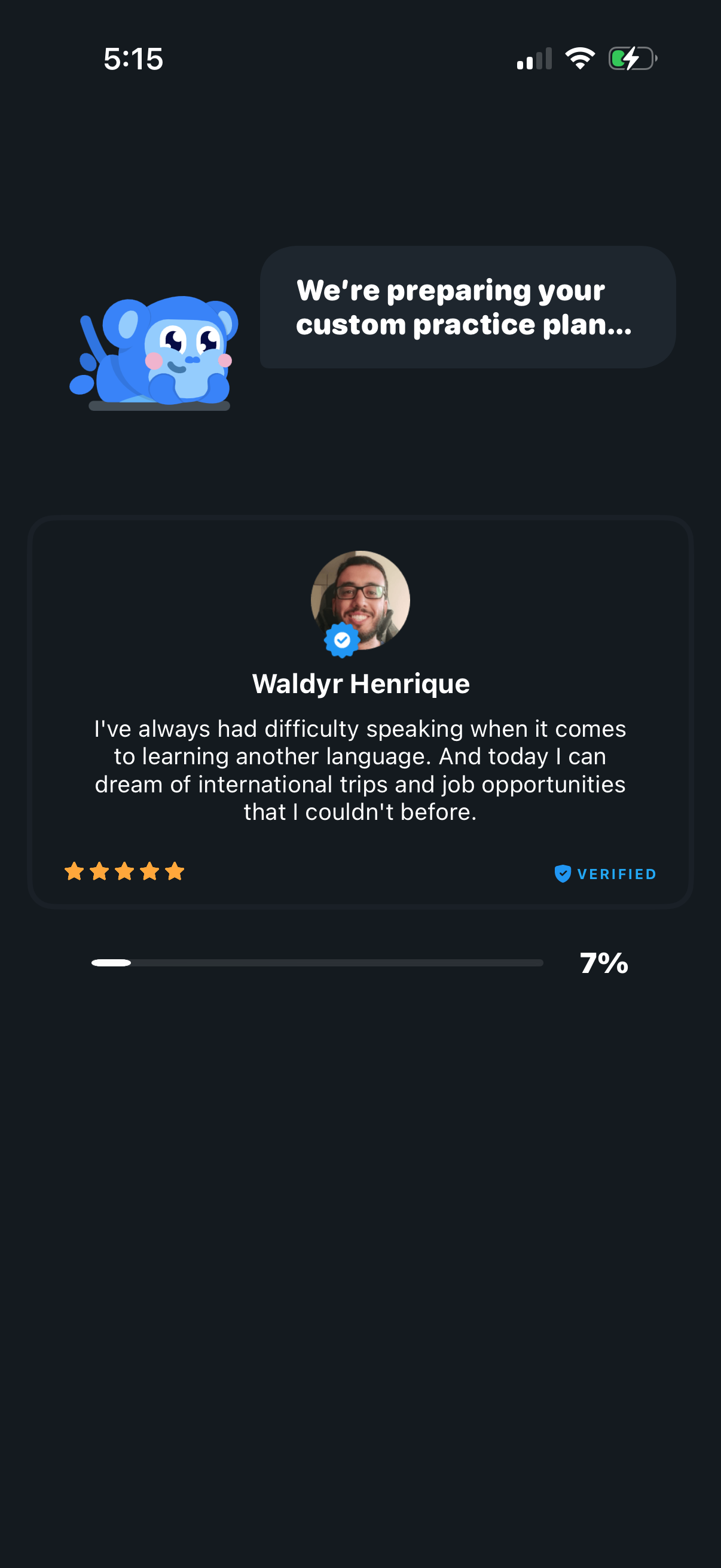
Loading screen during onboarding that indicates the app is preparing a personalized custom practice plan for language learning. Shows a progress bar with percentage completion and a verified user testimonial card with star rating while the plan is generated.
Welcome/sign-in screen for an app with a mascot illustration, offering social authentication options to “Continue with Apple” or “Continue with Google,” plus a close button to dismiss. Includes a terms of service and privacy policy consent disclaimer at the bottom.