start roleplay scenario
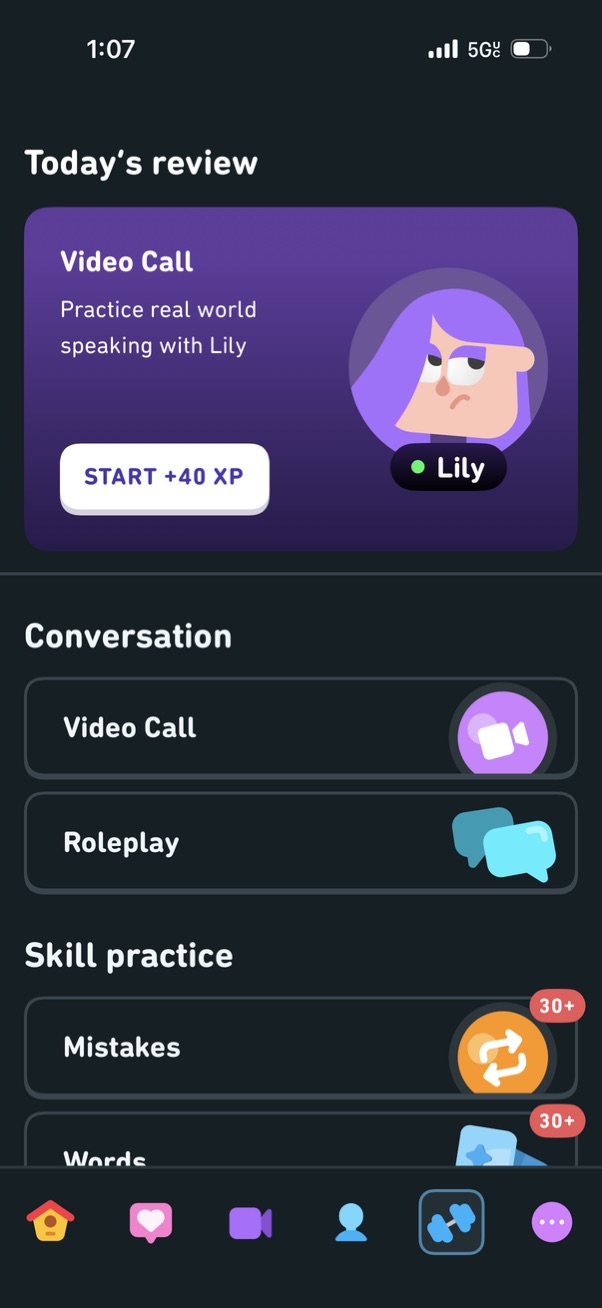
Daily review dashboard for a language learning app highlighting a featured “Video Call” speaking practice with an AI tutor and a Start button that rewards XP. Below, categorized sections list review activities like Conversation (video call, roleplay) and Skill practice (mistakes, words) with badges indicating available items to practice.
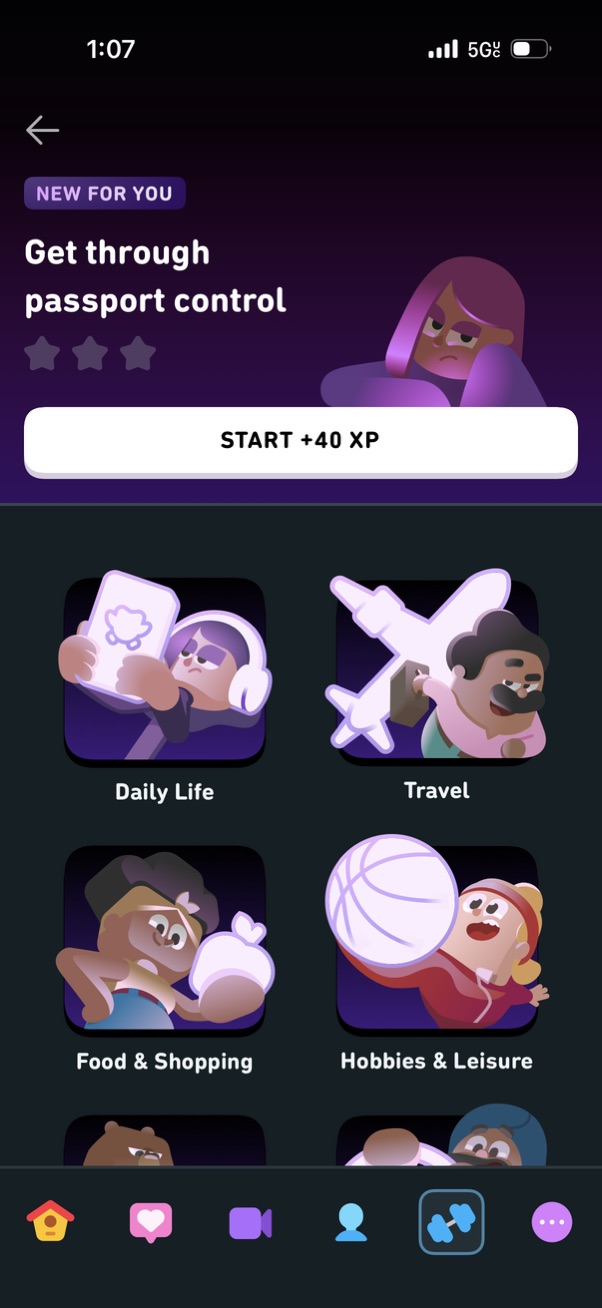
Gamified language-learning lesson screen recommending a “New for you” travel-themed lesson (“Get through passport control”) with a large Start button showing XP reward and star difficulty/progress. Below is a grid of illustrated category tiles (Daily Life, Travel, Food & Shopping, Hobbies & Leisure) with bottom navigation for switching app sections.
A full-screen loading state with an illustrated mascot animation and the text “Loading…” plus a playful status message, indicating the app is preparing or optimizing content before the next screen loads. Dark background with minimal UI and no user actions besides waiting.
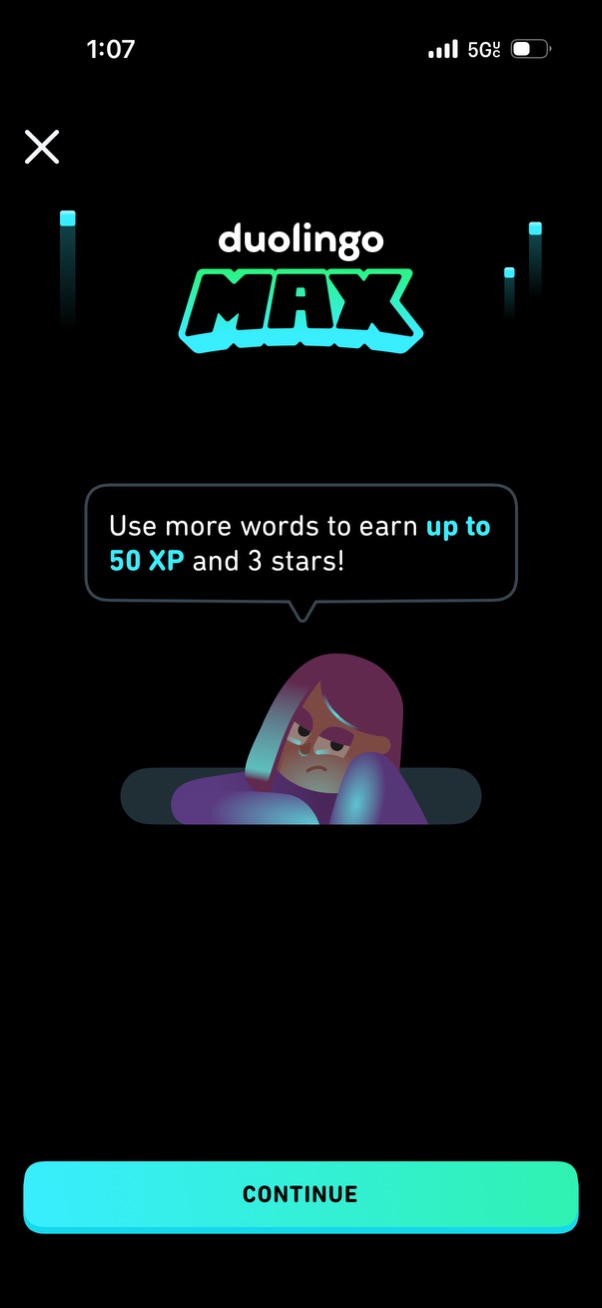
Duolingo Max onboarding/tip screen that encourages users to use more words during a lesson to earn up to 50 XP and 3 stars. Provides a primary “Continue” CTA to proceed and an X icon to close the prompt.
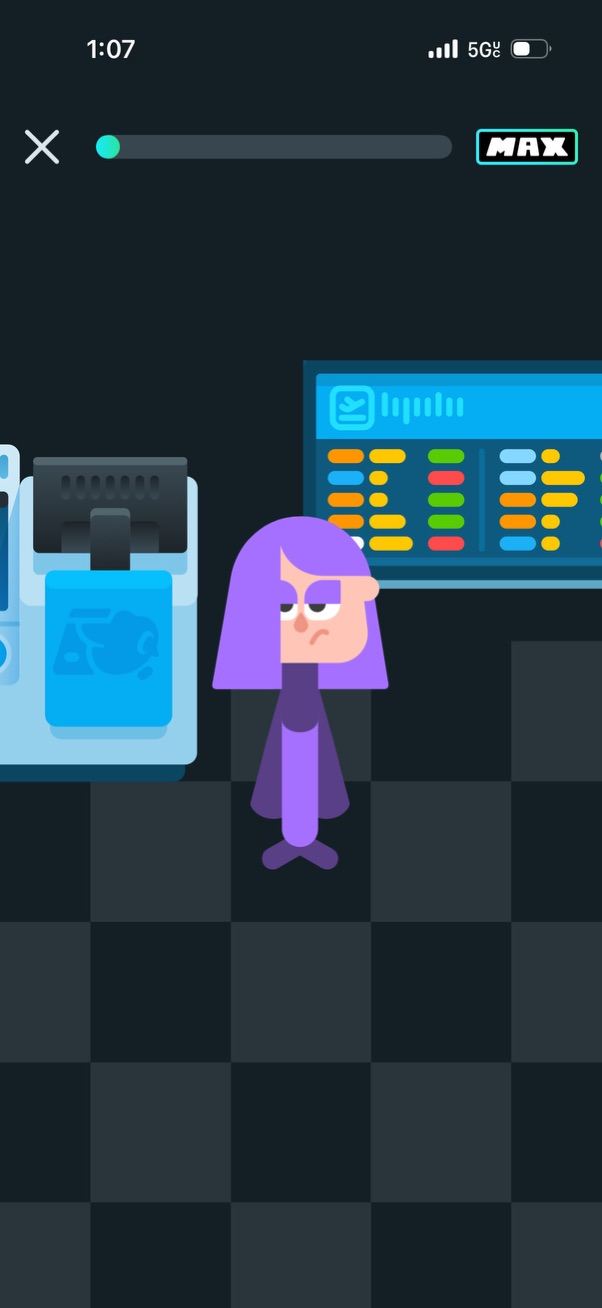
In-game interactive scene screen showing a character in a lab environment with a close button, a horizontal progress/status bar, and a “MAX” indicator for a fully charged/leveled state. The UI emphasizes viewing the scene and tracking progress rather than forms or navigation.

Language learning lesson screen showing an animated character with a Spanish dialogue prompt, audio playback icon, and a “Translate” option to reveal the meaning. A top progress bar indicates lesson completion, with controls to close the lesson and a “Max” button for advanced/unlimited mode.

Interactive language-learning dialogue screen showing a Spanish prompt with audio playback and an English translation tooltip, alongside an avatar scene. Users respond by typing in a text field with microphone voice input, with a progress bar, close button, and “MAX” level indicator at the top.
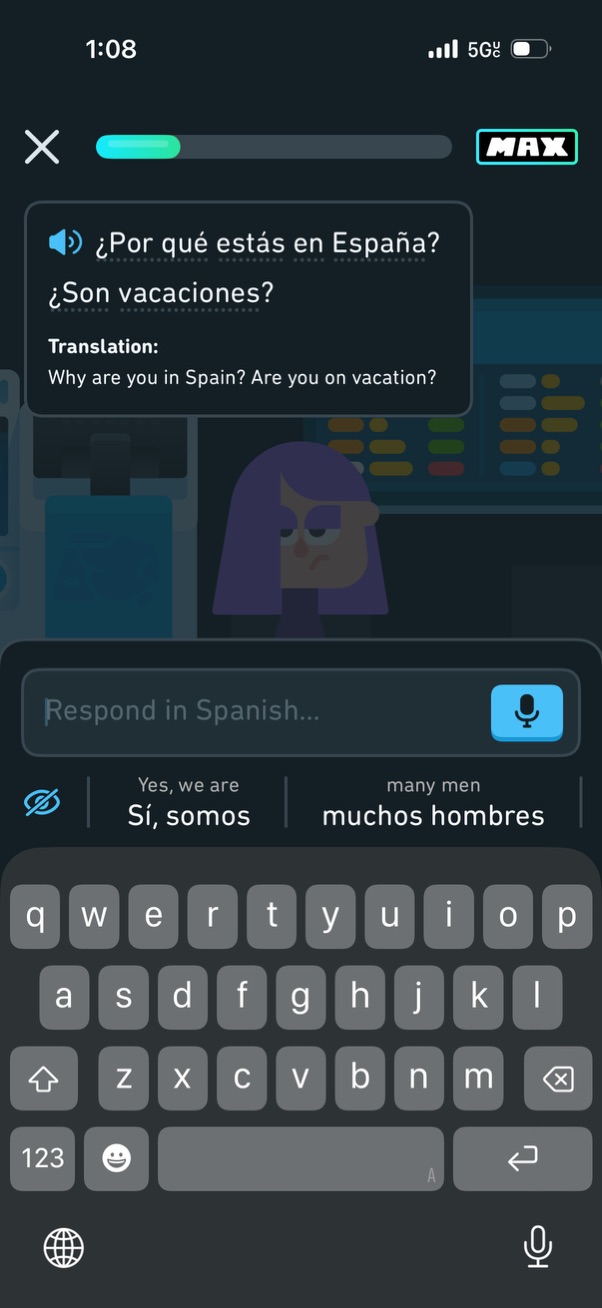
Language-learning conversation exercise screen showing a Spanish prompt with an audio playback button and an English translation, plus a text field to respond in Spanish with microphone voice input and suggested phrase shortcuts. A progress bar and close button indicate lesson flow while the user types their answer using the on-screen keyboard.
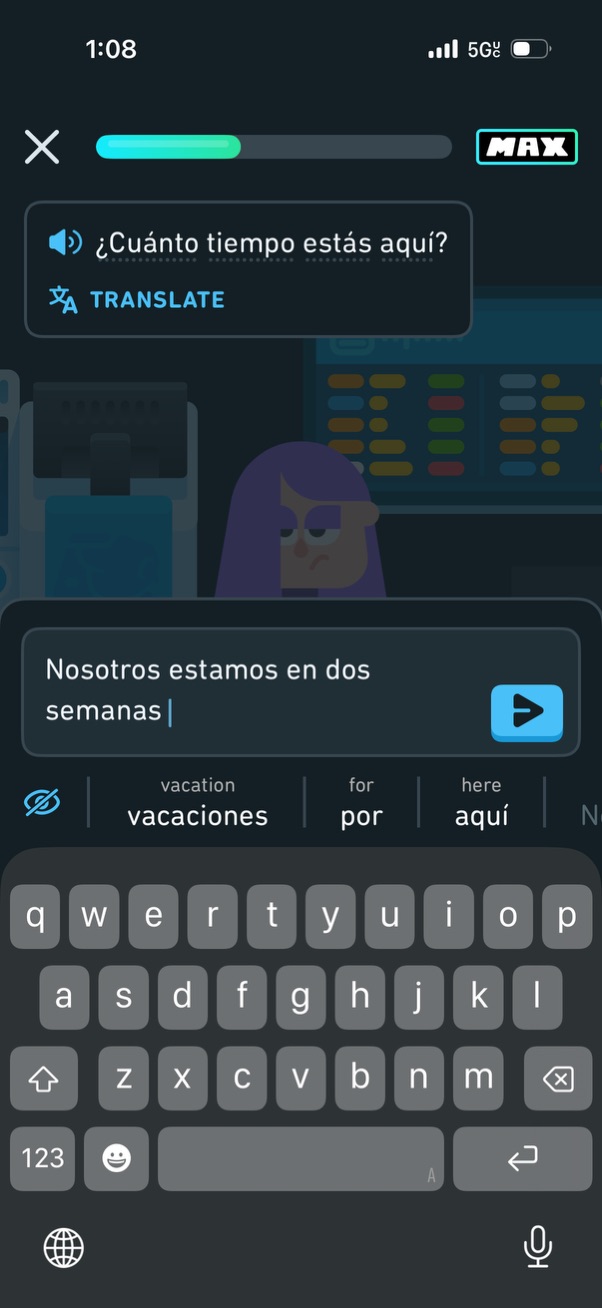
Language-learning chat conversation screen showing a Spanish prompt with audio playback and a translate option while the user types a reply in a message input. Includes a lesson progress bar with a MAX indicator, a send button, and keyboard with word suggestions for composing the response.
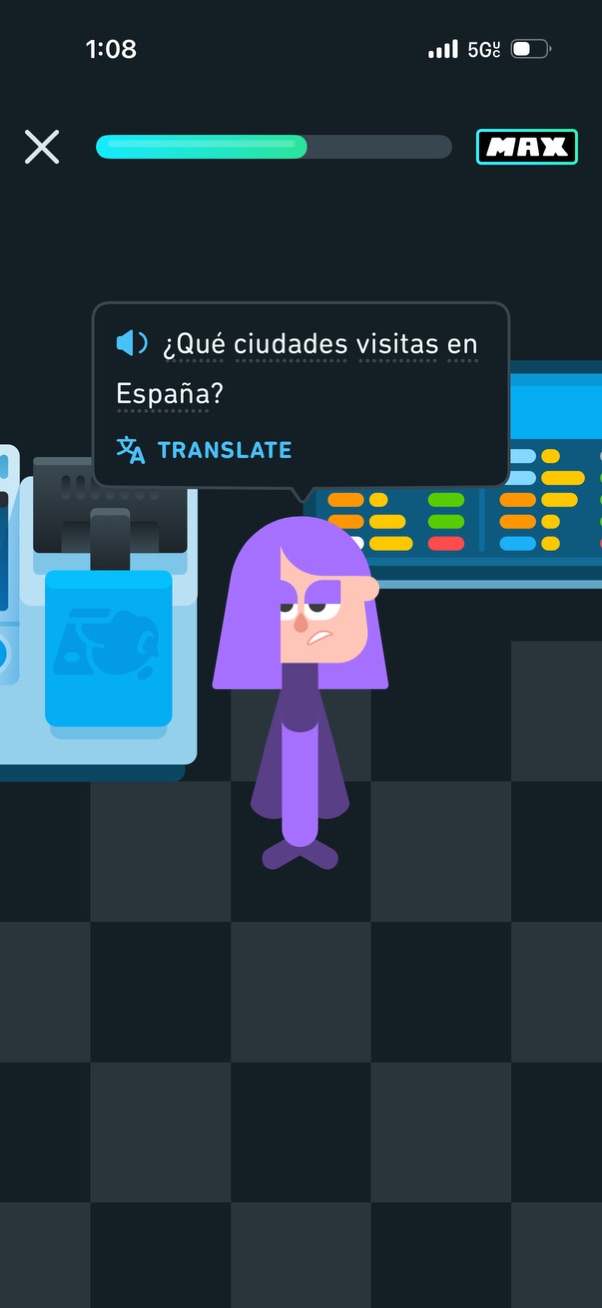
Language learning lesson screen showing a character dialogue prompt in Spanish with audio playback and a “Translate” option to help understand the sentence. The top bar includes a close button, progress indicator, and a MAX subscription badge.
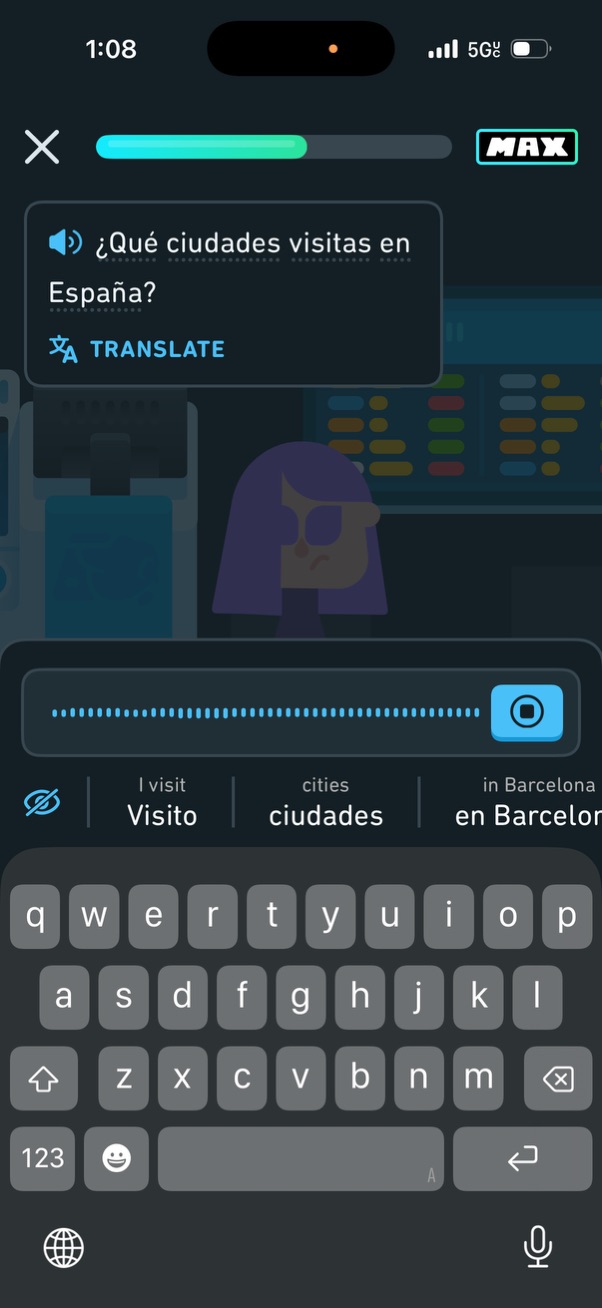
Language-learning lesson screen showing a Spanish prompt with audio playback and a “Translate” option, plus a progress bar and close button at the top. The user is entering a response in a text input with predictive suggestions, a hide/visibility toggle, and a submit/check button next to the field.

Animated game/story scene screen with a character in a lab setting, showing a top progress bar for level or scene completion, a close (X) button to exit, and a “MAX” indicator for max speed/energy. Minimal UI focuses on passive viewing of the scene with only navigation and status controls.
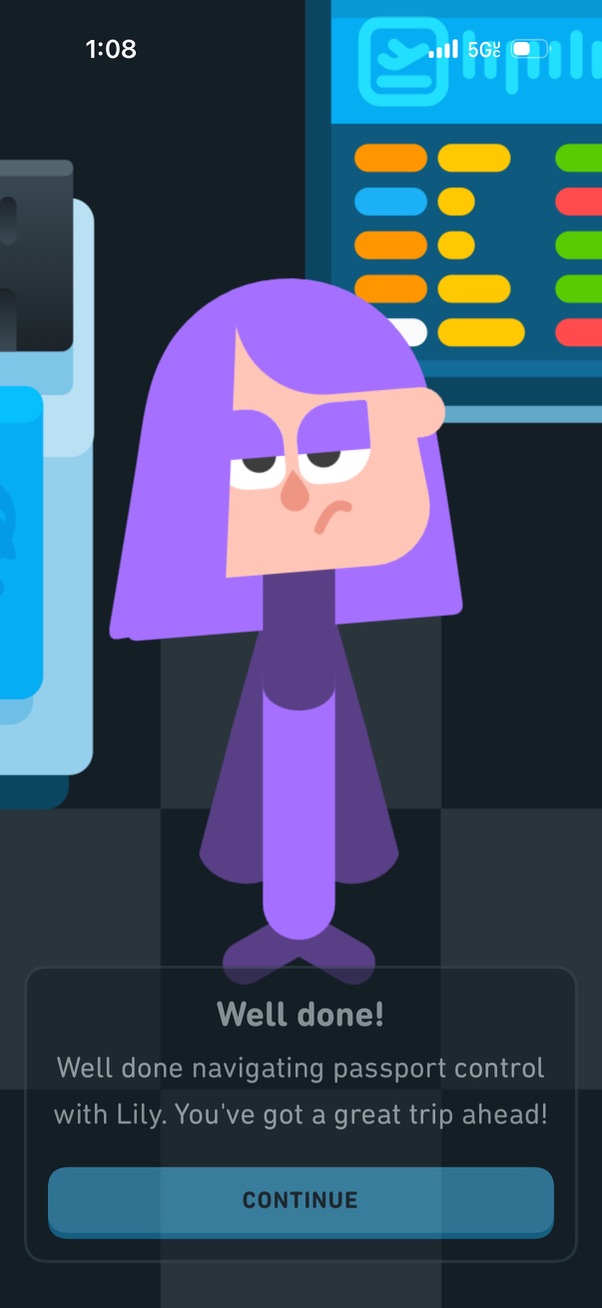
A gamified congratulatory completion screen that praises the user for successfully navigating a “passport control” step, featuring a character illustration and a single primary CTA button to Continue. This appears as an end-of-lesson or checkpoint success modal encouraging progress to the next stage.

A congratulatory completion screen for a travel/airport onboarding tutorial, confirming the user successfully navigated passport control and previewing an upcoming trip. Includes a prominent “Continue” button to proceed to the next step.

Language learning roleplay feedback review screen showing a key takeaway grammar tip with an example and a chat-style conversation highlighting a corrected response (revision). Includes a primary “Continue” button to proceed after reviewing feedback.
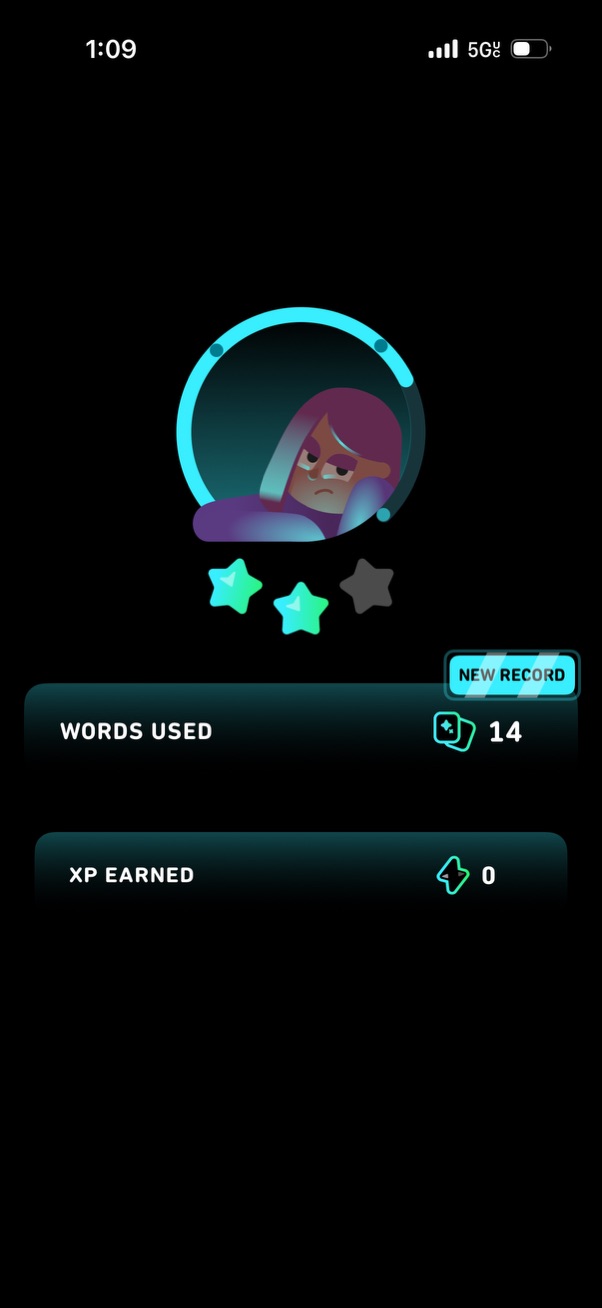
Post-activity results screen showing a star rating and performance summary, highlighting metrics like “Words Used” with a “New Record” badge and “XP Earned. ” Designed as a gamified progress/score recap after completing a session or challenge.

Post-activity results screen showing a performance rating with stars and an avatar, plus stats like words used (with a “new record” badge) and XP earned. A prominent “Continue” button lets the user proceed after reviewing their score and rewards.