
Gamified language-learning lesson path screen showing the current unit/section with a series of activity nodes (video chat, games, listening, exercise) to start, plus a chest progress meter and rewards/energy counters. Users can join a league/event, view objectives, and navigate via a bottom tab bar to home, social/likes, video, profile, practice, and more.

Gamified language-learning home screen showing the current section/unit and activity options with progress and XP/energy indicators, plus quick actions for practice modes. A “Course refresher” card prompts the user to start the next review lesson and earn XP, with bottom navigation to main app areas.

Duolingo loading screen showing an animated mascot and a “Loading…” status while the next lesson or activity prepares. Includes a motivational tip message to keep learners engaged during the wait.
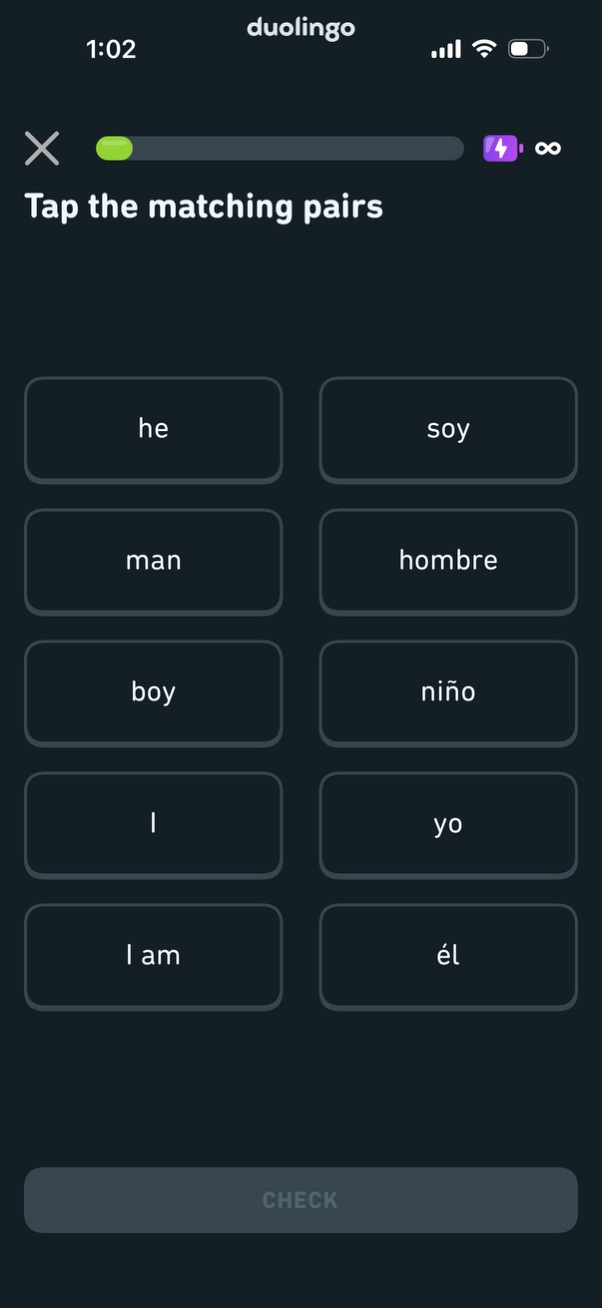
Language learning quiz screen with a “Tap the matching pairs” prompt where users match English words to their Spanish translations by selecting tiles in two columns. Includes a progress bar with close button, a disabled “Check” submission button, and a lightning/bonus indicator for lesson status.
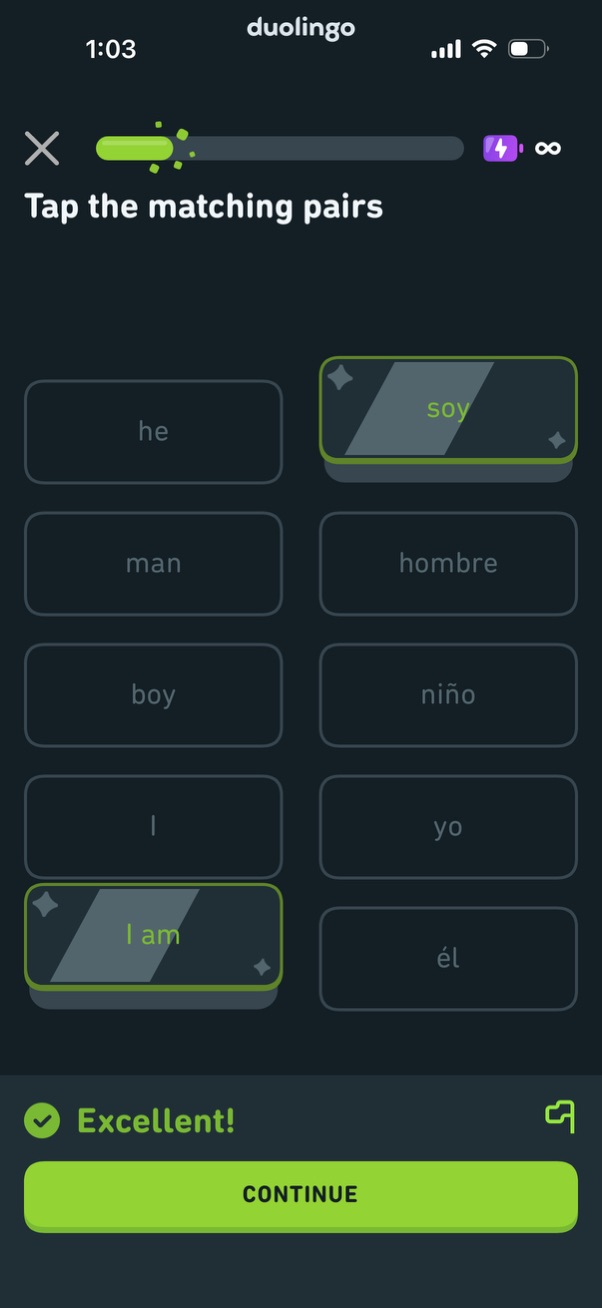
Language-learning quiz screen showing a matching-pairs exercise where users tap English and Spanish word tiles to form correct translations, with selected matches highlighted. Includes a progress indicator, instant success feedback (“Excellent!

Language learning quiz screen asking the user to select the correct translation for a word shown in a speech bubble, with multiple-choice answer buttons and a disabled “Check” submission button. The interface includes a progress bar, exit control, and icons for streak/energy at the top.
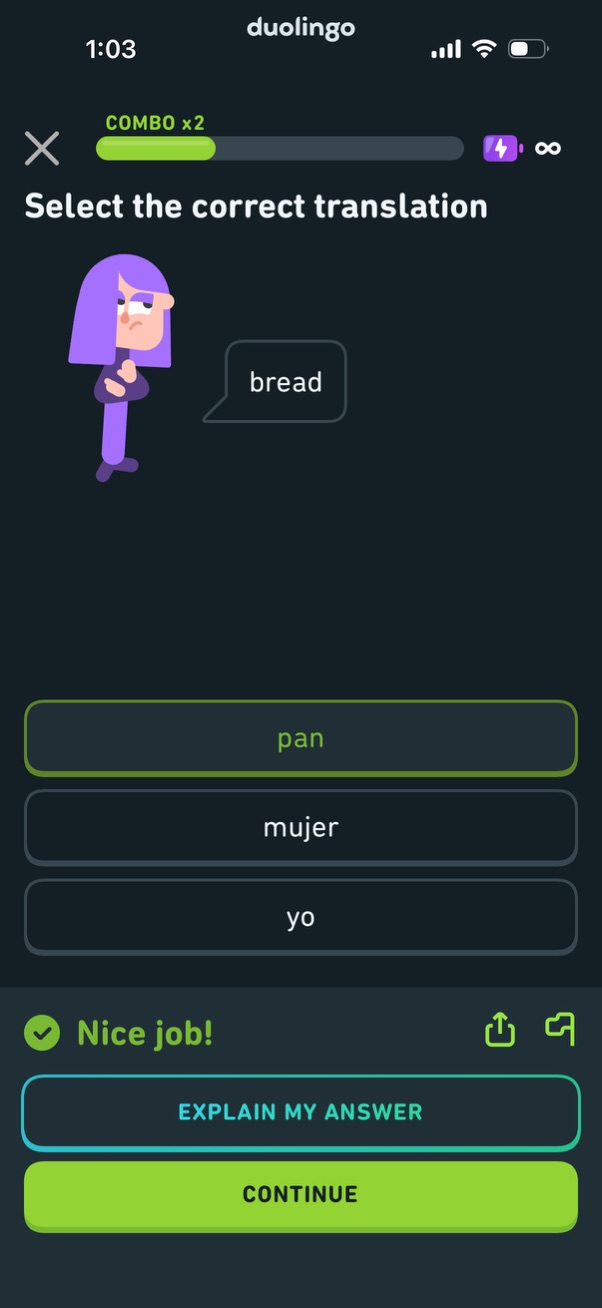
Language learning quiz screen asking the user to select the correct translation for a word, showing multiple-choice answer buttons and a progress/combo bar. After a correct selection, it displays positive feedback with actions to explain the answer and continue to the next question.
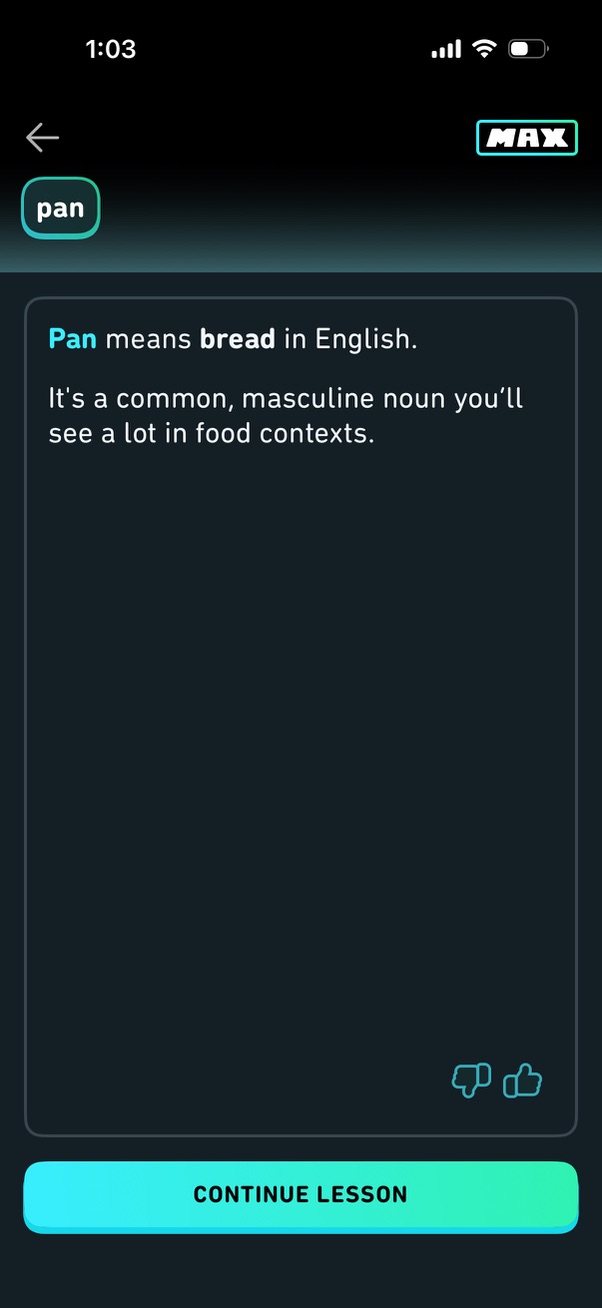
Language learning lesson screen showing a vocabulary explanation card defining a word and giving context/grammar notes, with thumbs up/down feedback controls. A primary “Continue lesson” button lets the user proceed to the next step.
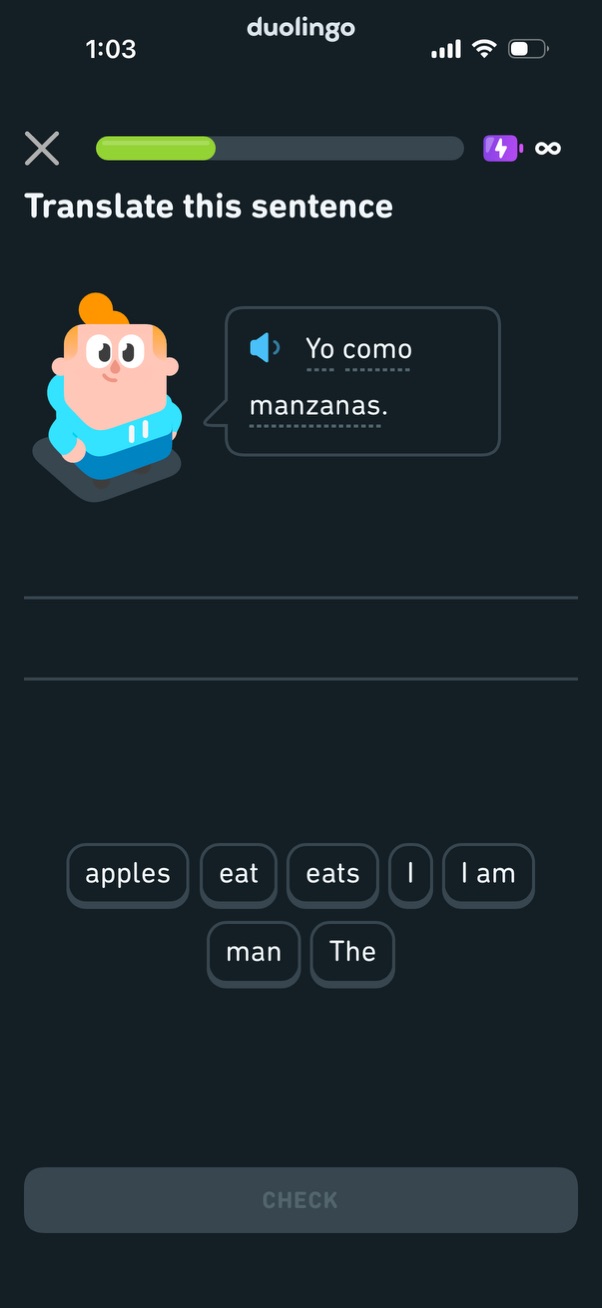
Language learning translation exercise screen prompting the user to translate a foreign sentence with an audio playback option, using selectable word tiles to fill blank lines. Includes a progress bar, exit button, and a disabled “Check” button that activates after completing the translation.

Language learning translation exercise screen where users translate an audio prompt sentence by selecting word tiles to build the correct phrase. Shows a success state with “Good job,” an option to “Explain my answer,” and a primary “Continue” button, plus progress/combo indicators and skip/exit controls.

Language-learning quiz screen prompting the user to select the correct translation for a word shown in a speech bubble, with multiple-choice answer buttons and a disabled “Check” submit button until an option is chosen. Includes a progress bar, close button, and status indicators at the top for lesson progress and energy/streak.
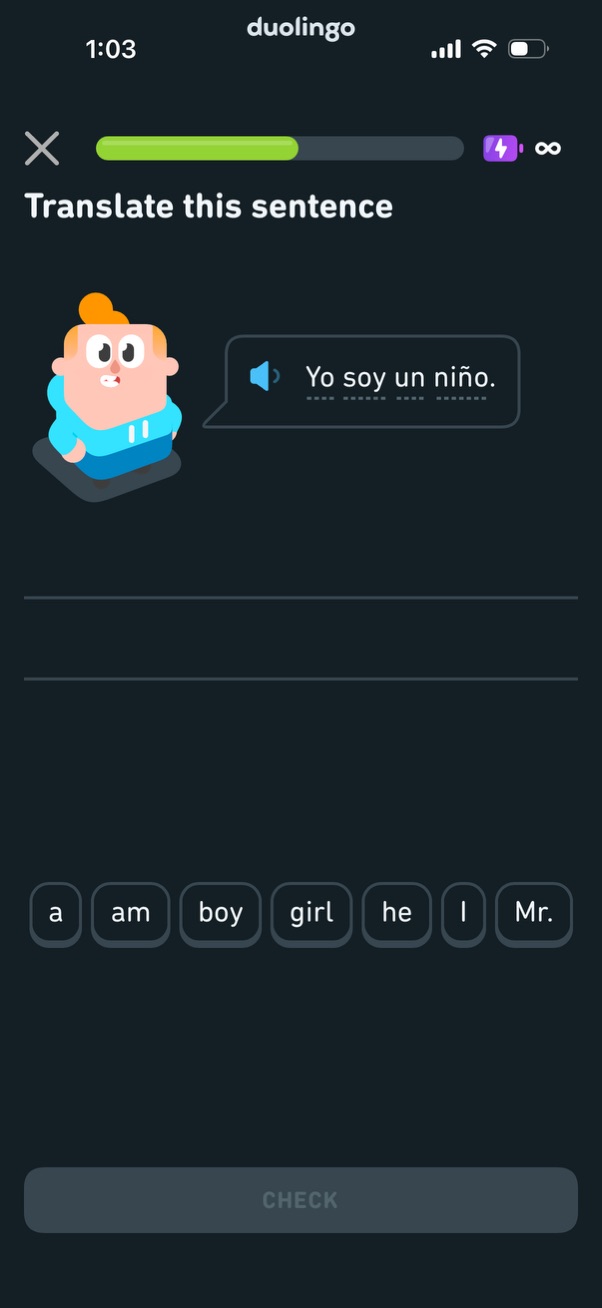
Language learning lesson screen prompting the user to translate a sentence, showing an audio playback button for the foreign phrase and a word bank to build the answer in blank lines. A progress bar and exit button appear at the top, with a disabled “Check” button at the bottom until the translation is completed.

Language learning exercise screen for translating a sentence, showing the prompt with audio playback, word bank tiles to build the translation, and progress/score indicators like a streak combo. After submitting, it displays positive feedback with options to “Explain my answer” or continue to the next question.
Positive feedback screen in a language-learning lesson showing a “Brilliant! ” success message with mascot animation and a top progress bar indicating lesson completion.
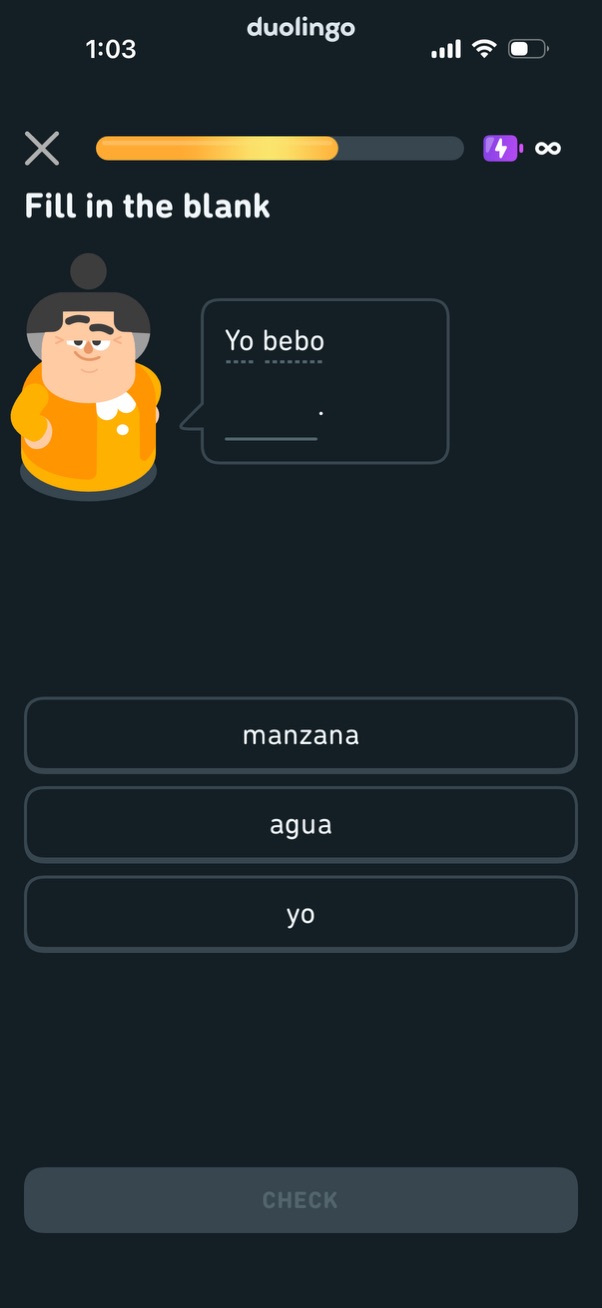
Language learning quiz screen with a “Fill in the blank” sentence prompt and selectable word choices to complete it, showing a character illustration and a progress bar with exit controls. Users tap one of the multiple-choice options and then press a disabled/enabled “Check” button to submit the answer.

Language learning quiz “fill in the blank” screen showing a Spanish sentence with a missing word and multiple-choice options, with the correct answer selected. The bottom confirmation panel displays success feedback, the English meaning, an “Explain my answer” action, and a primary “Continue” button, along with a progress/combo bar at the top.
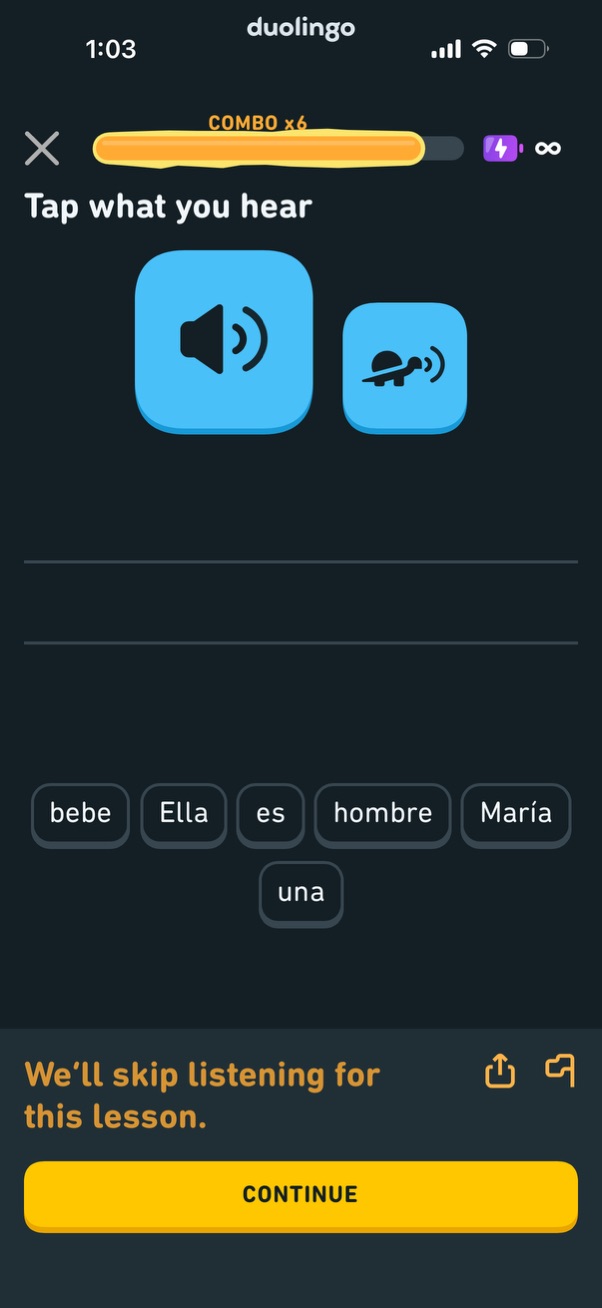
Language-learning listening exercise screen prompting the user to “Tap what you hear,” with buttons to play audio at normal or slow speed and word tiles to select and build the correct sentence. A progress/combo bar is shown at the top, and a bottom banner indicates listening will be skipped for this lesson with a primary Continue button.
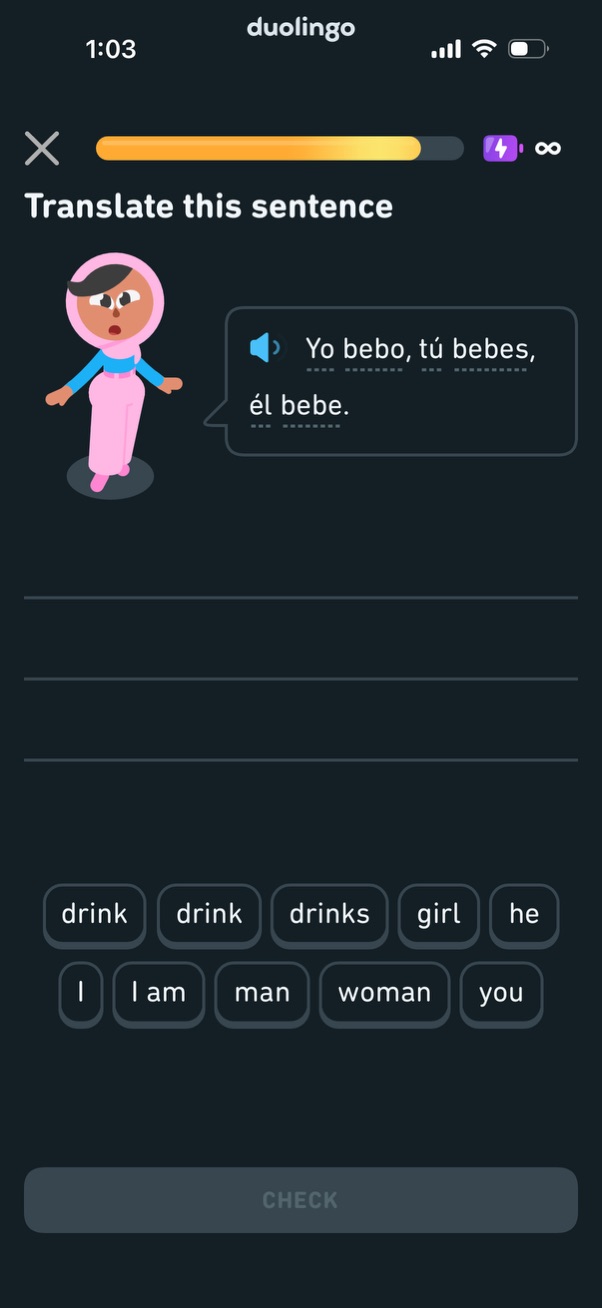
Language learning translation exercise screen where the user translates a presented sentence with optional audio playback by selecting words from a word bank to fill in the answer lines, then taps a Check button to submit. A progress bar, close button, and lesson status/boost icons appear at the top to track completion and exit the quiz.
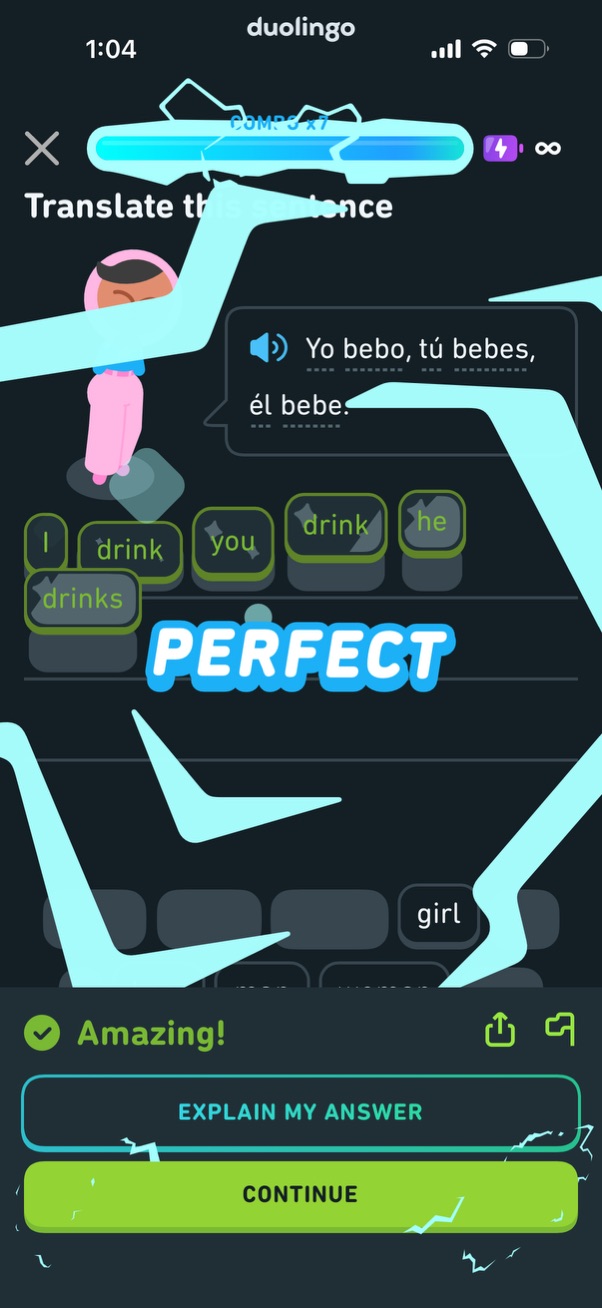
Language learning exercise results screen showing a “Translate the sentence” prompt with audio playback and word-bank tiles, confirming a correct answer with a large “Perfect” celebration. Provides feedback (“Amazing!
A gamified education app celebration screen confirming “Lesson complete! ” with a large mascot illustration and confetti-style visuals, serving as a post-lesson completion state before progressing to the next activity.
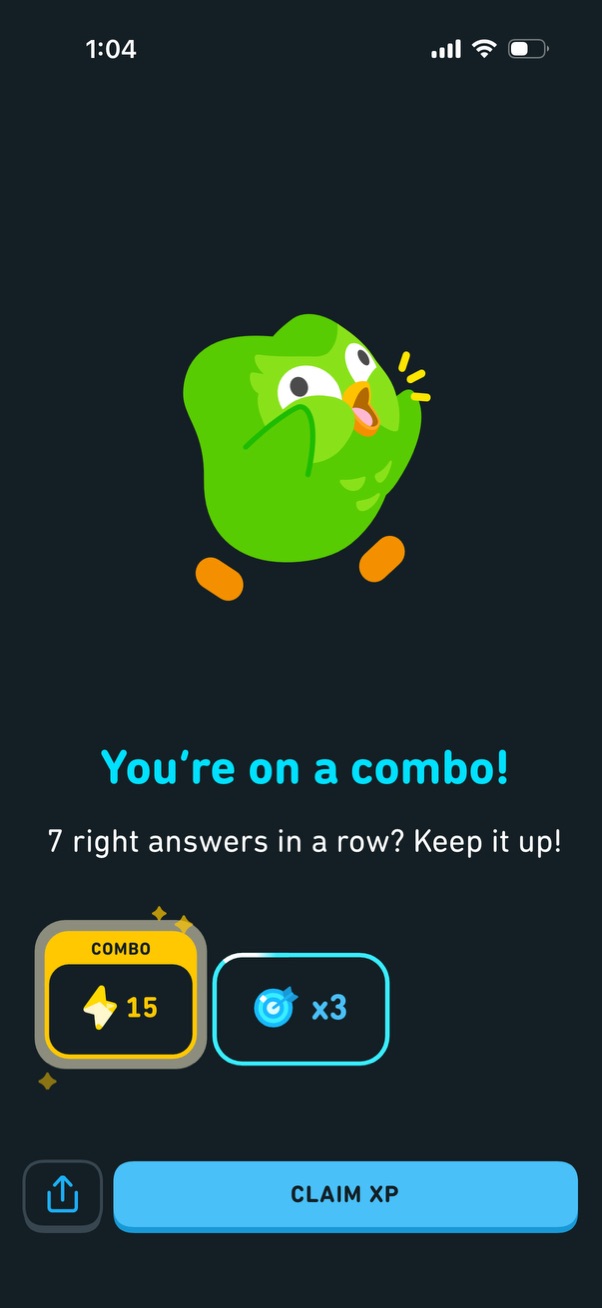
Gamified achievement popup celebrating a correct-answer streak combo, showing how many answers in a row and the rewards earned (XP points and a multiplier/boost). Main actions include a prominent “Claim XP” button to collect the reward and an option to share.