upload photo from library
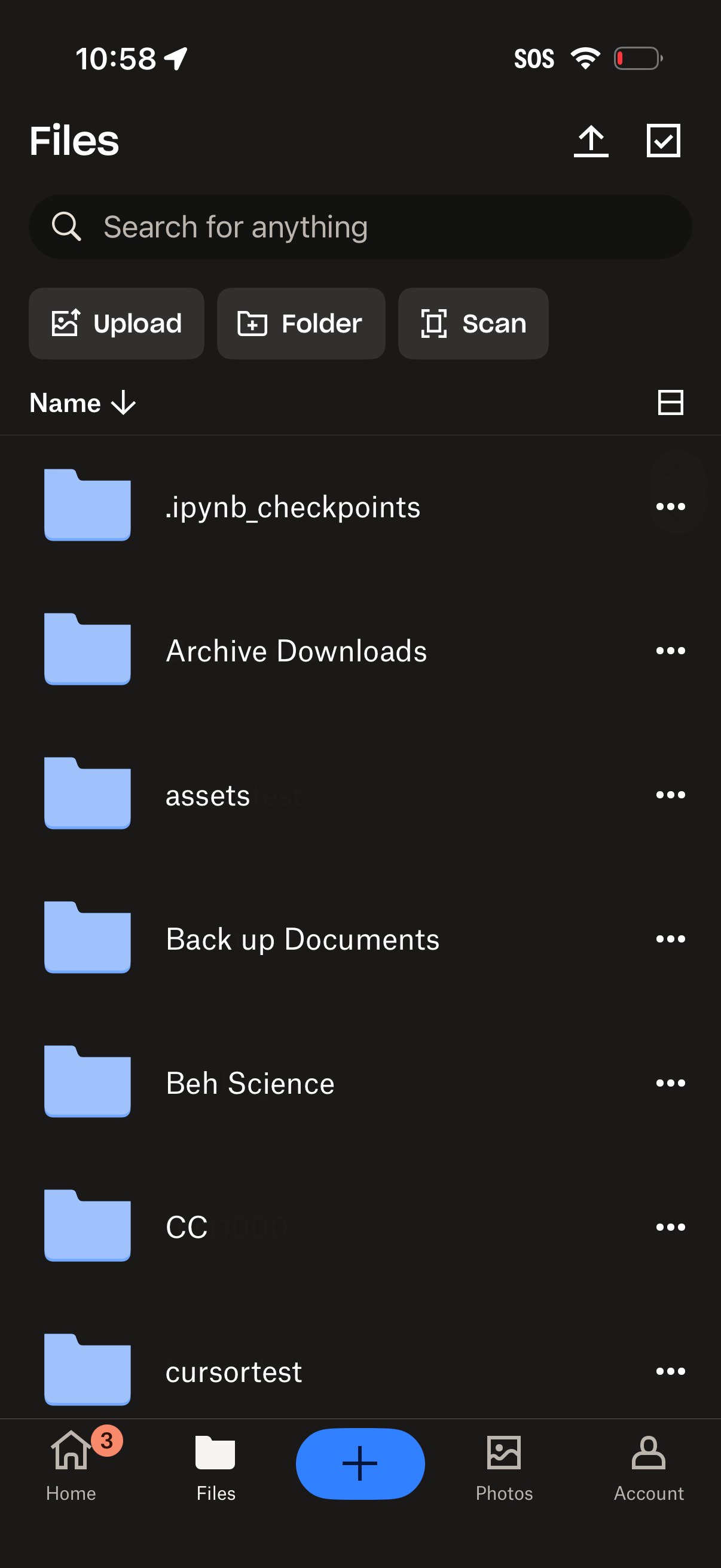
Cloud file manager “Files” screen showing a search bar and quick actions to upload files, create a new folder, or scan documents. Displays a sortable list of folders with overflow menus for item actions, plus top controls for upload/select and a bottom tab bar with a central add button.
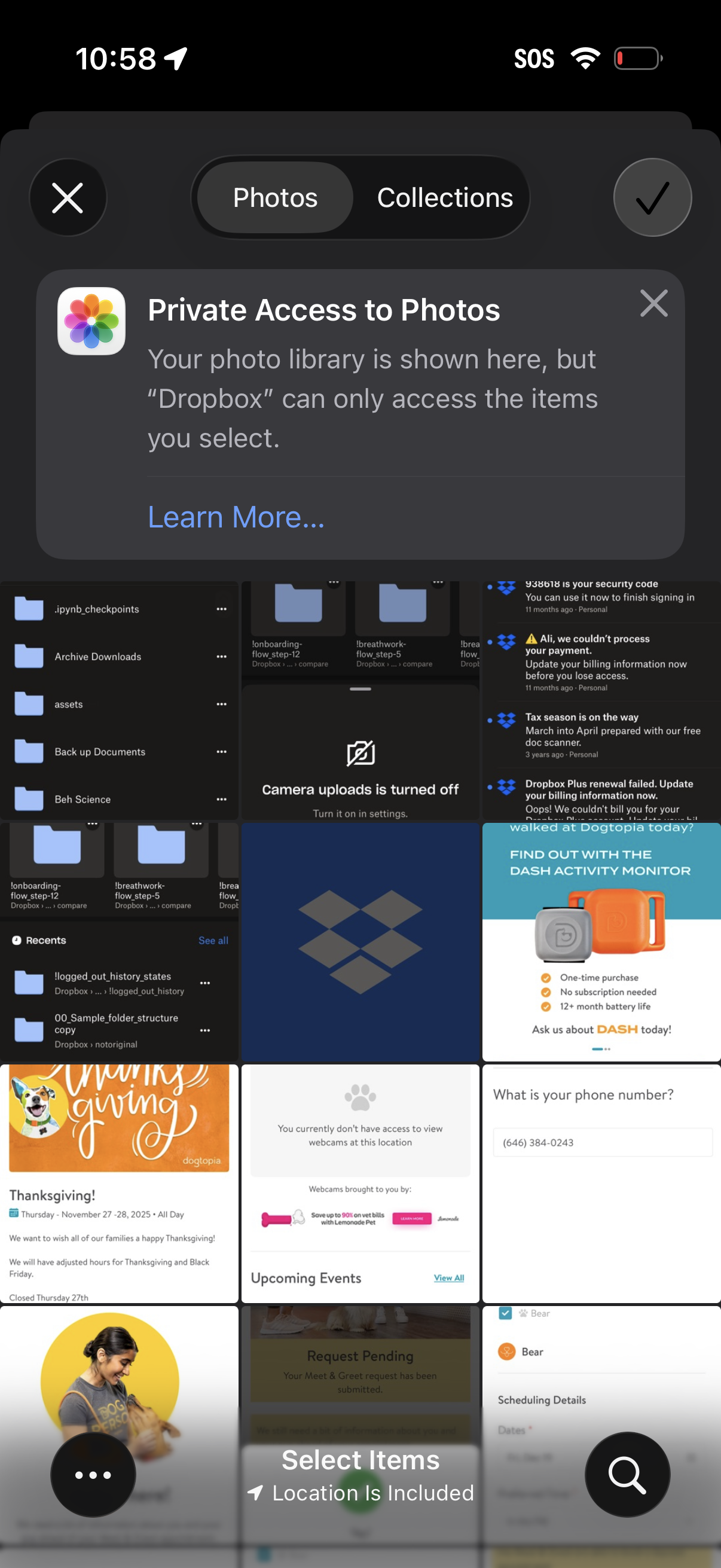
iOS photo picker selection screen with tabs for Photos and Collections and a privacy notice explaining that the app can only access items you select. Users can browse a grid of thumbnails and confirm or cancel selection using the checkmark and close buttons.
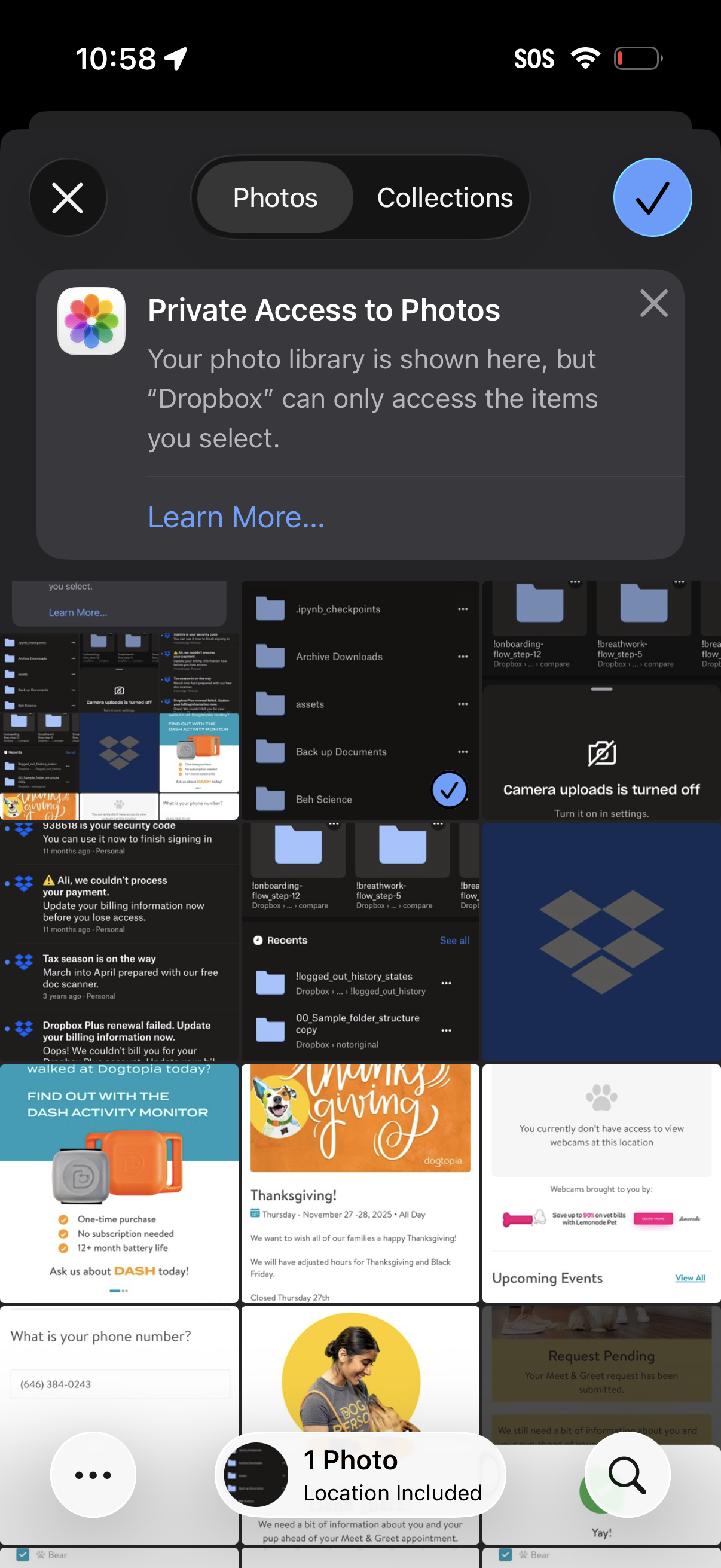
iOS photo picker modal for selecting and importing images into an app, with tabs for Photos and Collections, a grid of thumbnails, and a checkmark button to confirm selection. A privacy permission banner explains limited access to selected items and includes an option to learn more.
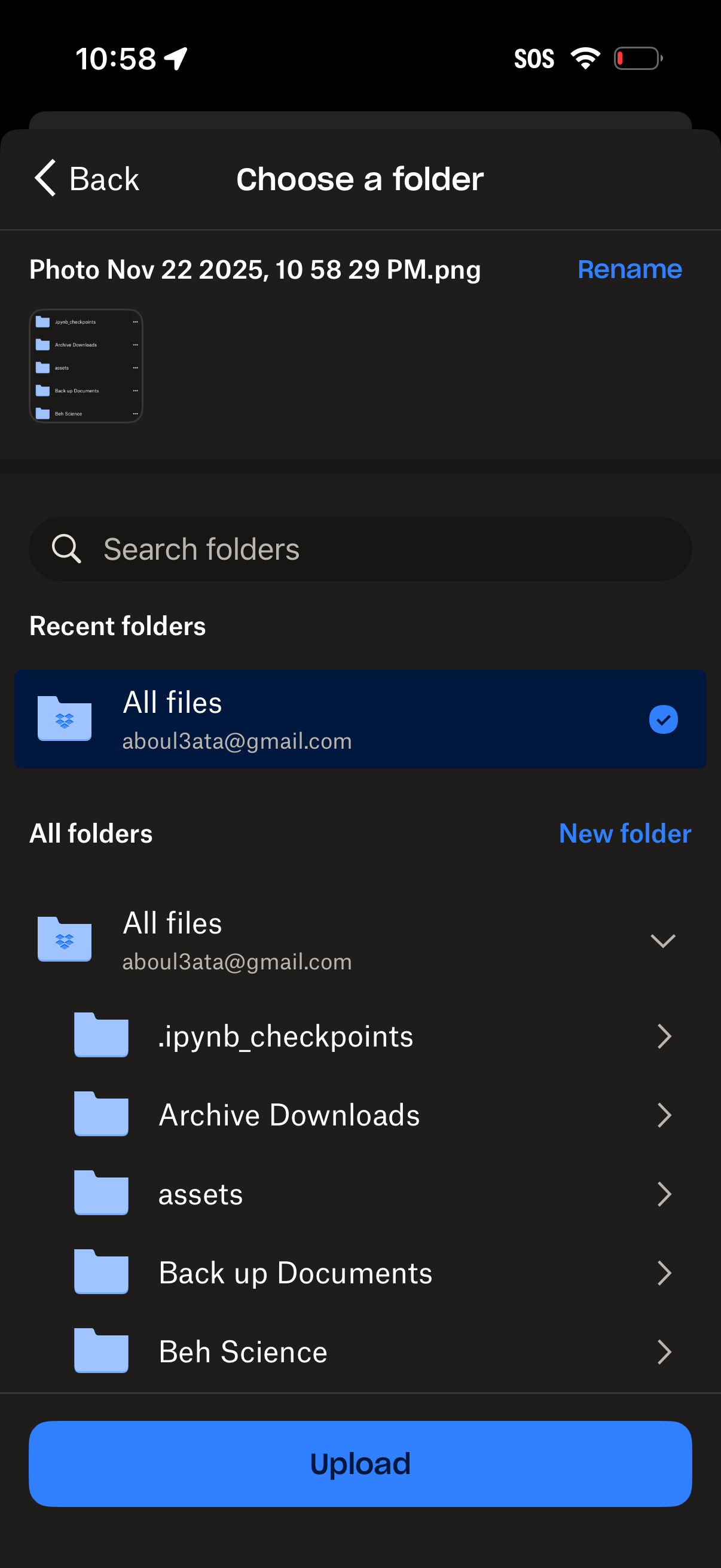
File upload destination picker screen that lets users choose a cloud storage folder for an image, with a file name preview and rename option. Includes search folders, recent folders and full folder list with navigation, a new folder action, and a primary Upload button.
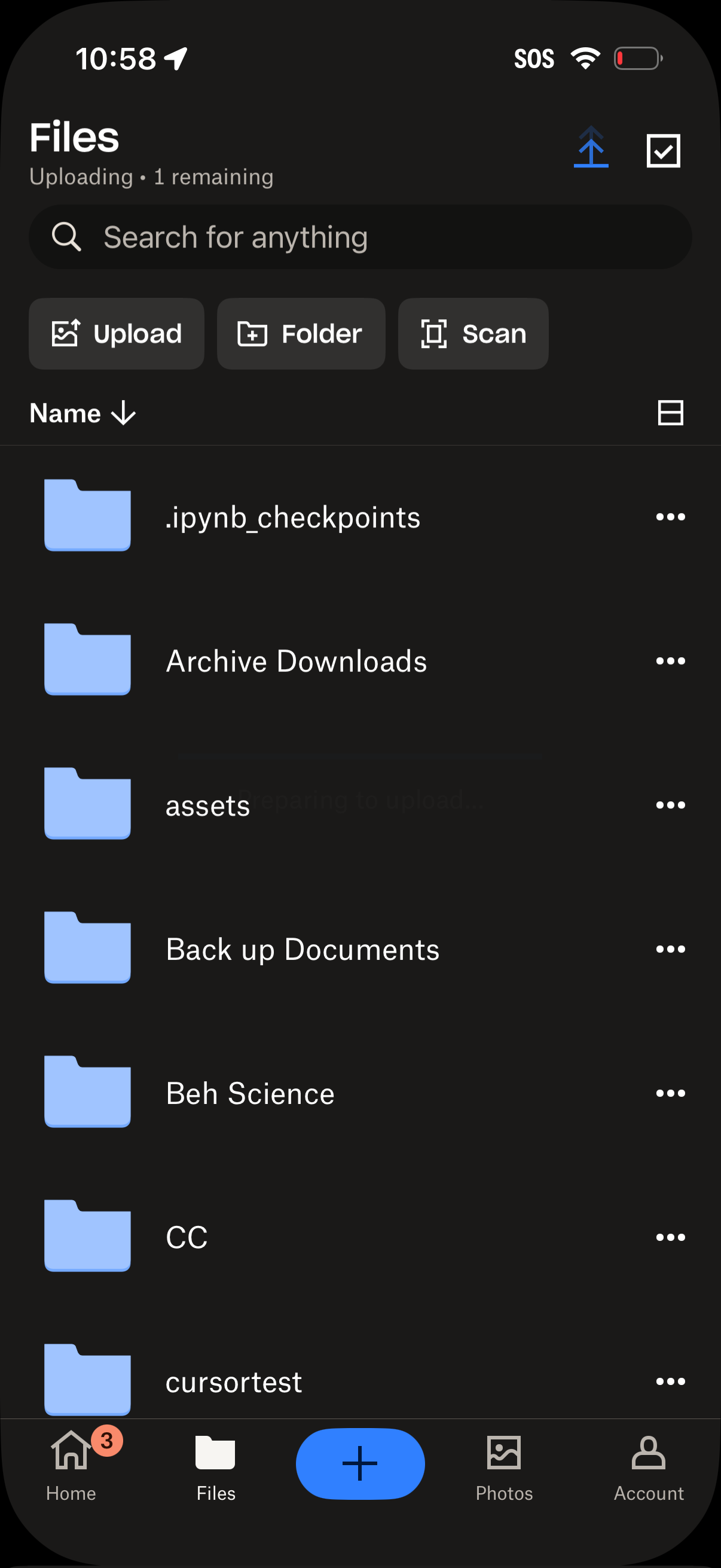
Mobile cloud file manager “Files” screen showing an uploading status, a global search bar, and quick actions to Upload, create a Folder, or Scan documents. Below is a sortable list of folders with overflow menus and a bottom tab bar for Home, Files, add/new (+), Photos, and Account.