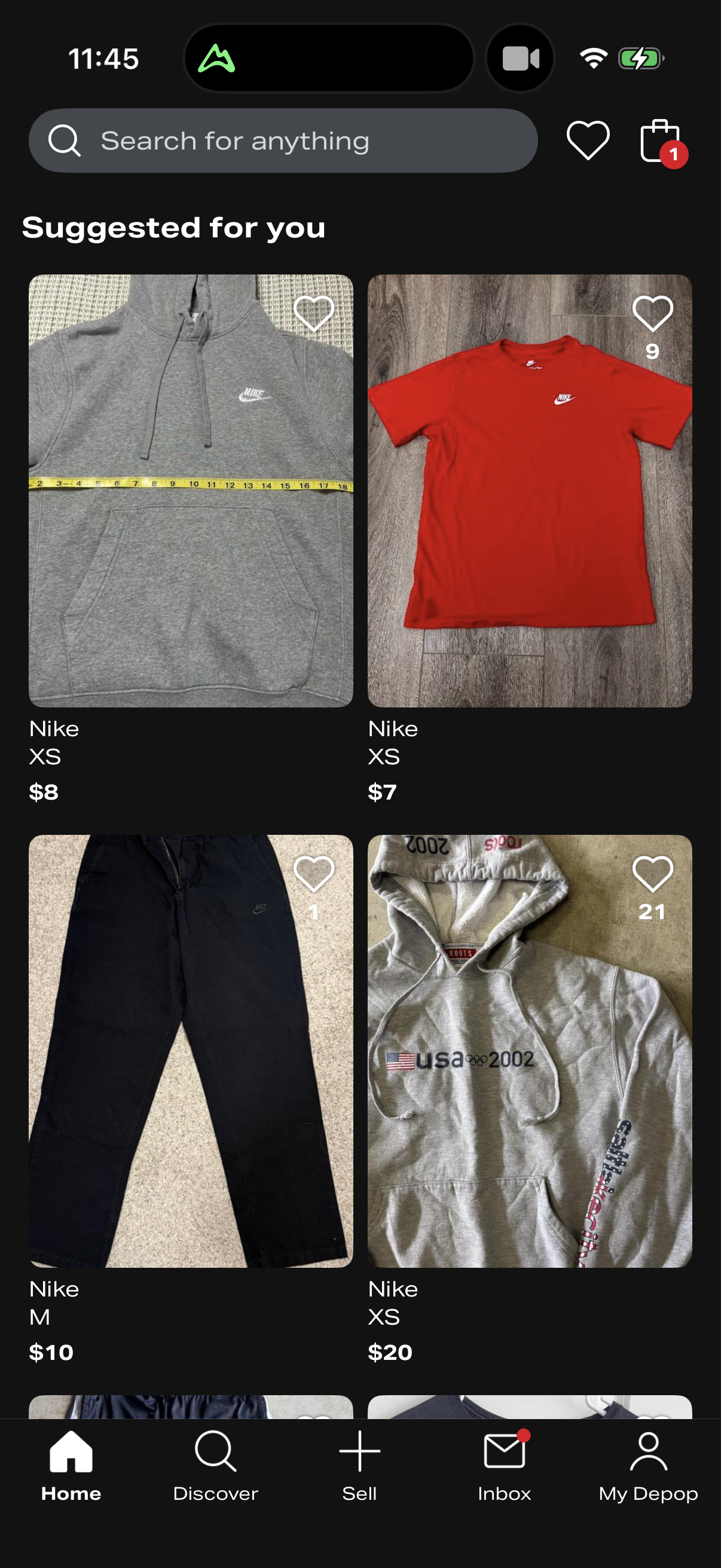
sign up with email
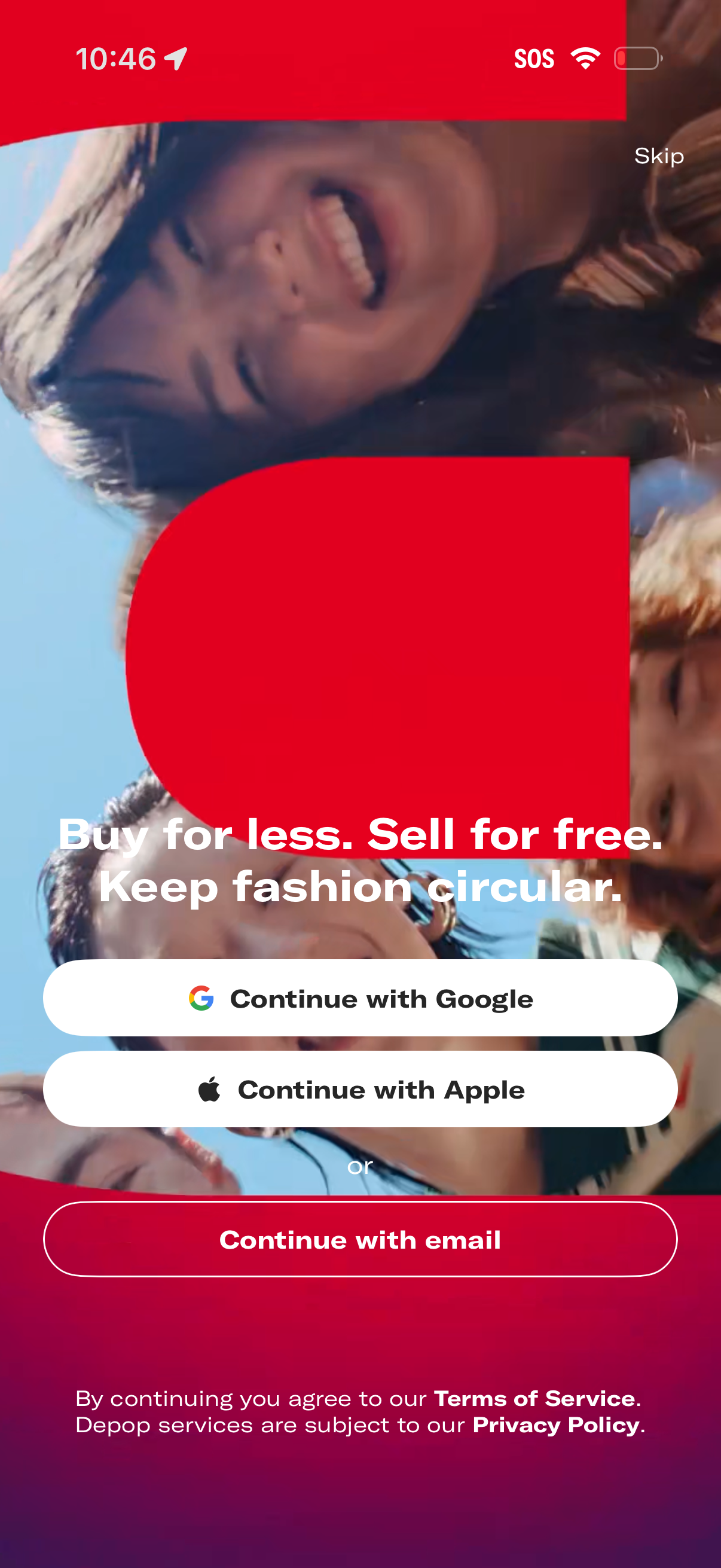
Onboarding/sign-in screen for a fashion resale marketplace with a value proposition headline and a Skip option. Provides authentication choices to continue with Google, Apple, or email, plus terms of service and privacy policy consent.
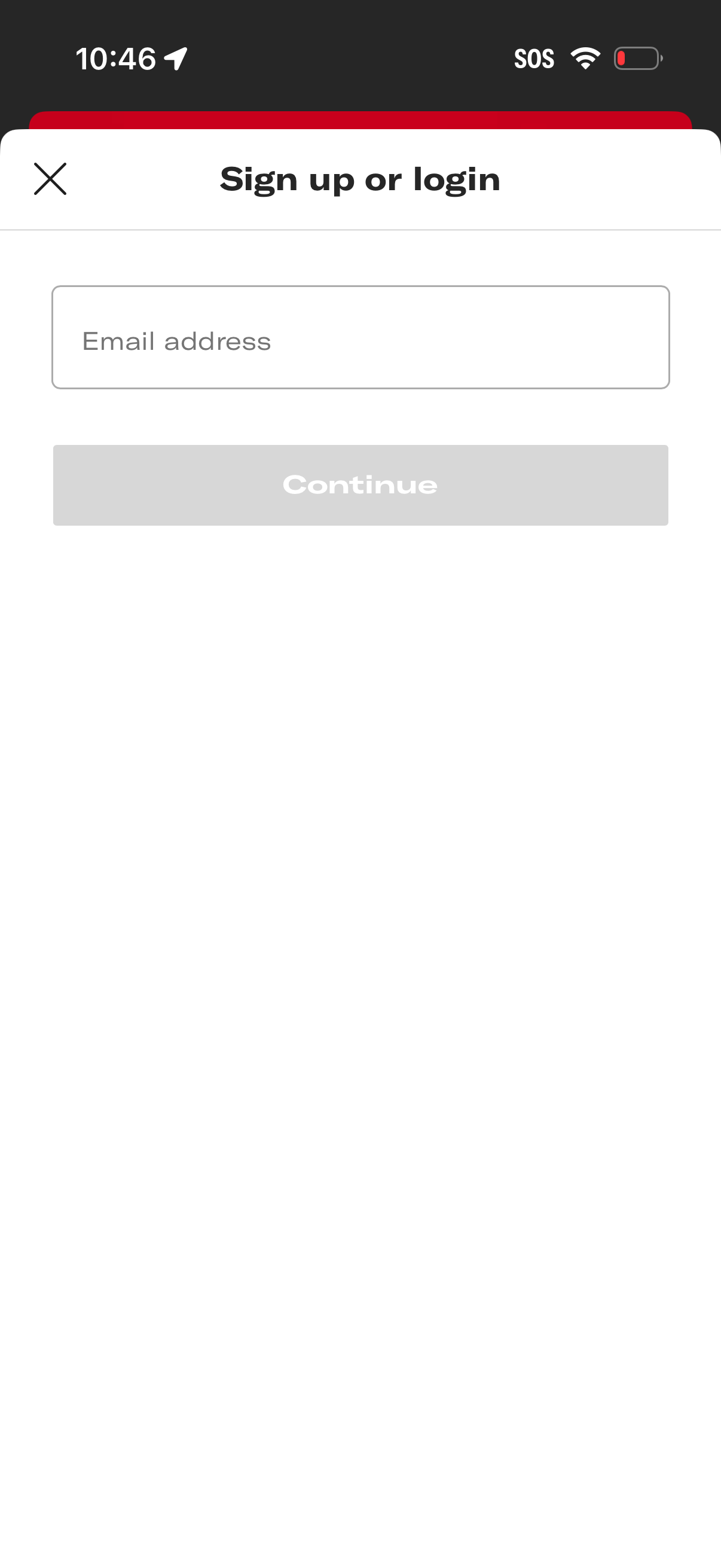
Modal sign up or login screen prompting the user to enter an email address to continue, with a disabled Continue button until input is provided. Includes a close (X) icon to dismiss the authentication flow.
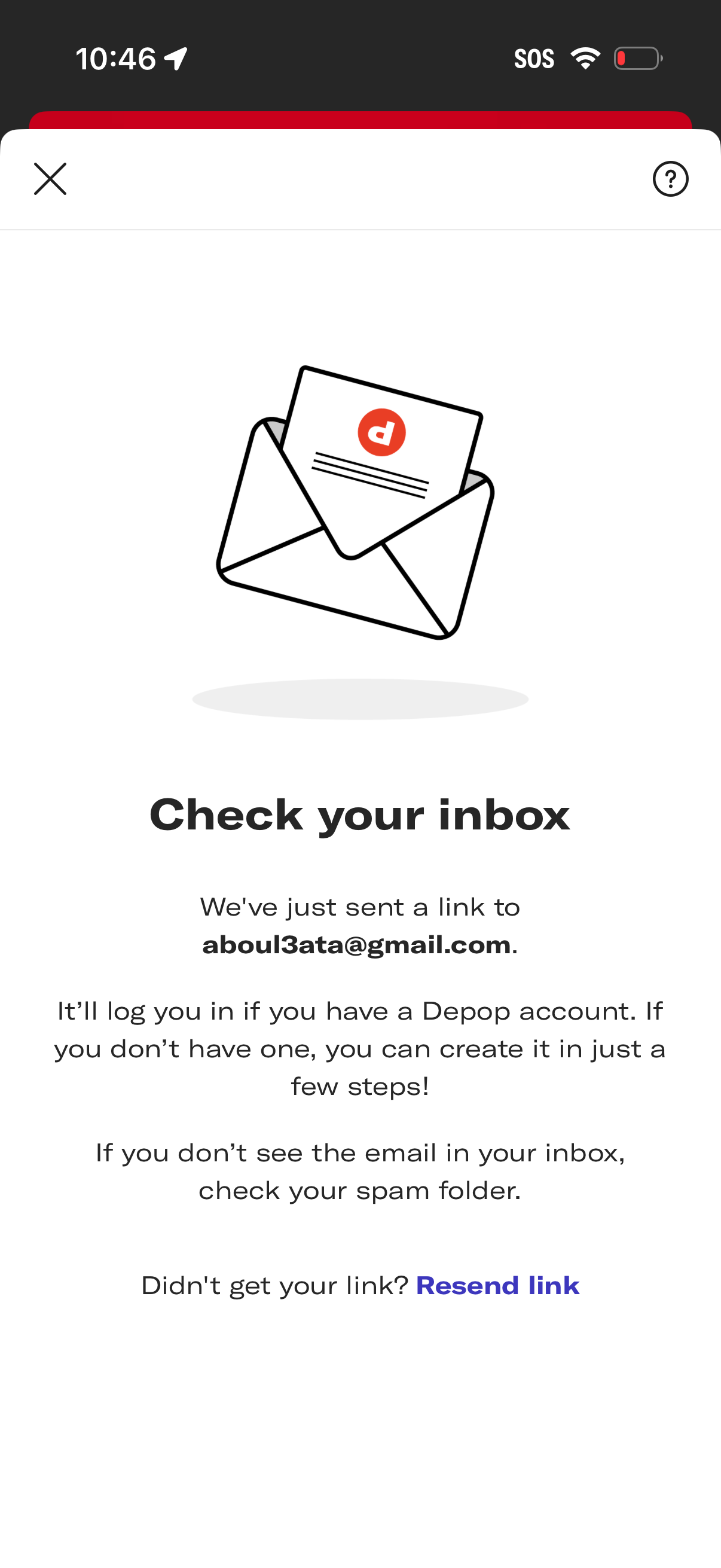
Email magic-link login confirmation screen prompting the user to check their inbox after a sign-in link has been sent, with guidance to check spam and an option to resend the link. Includes close and help icons for exiting or getting support.
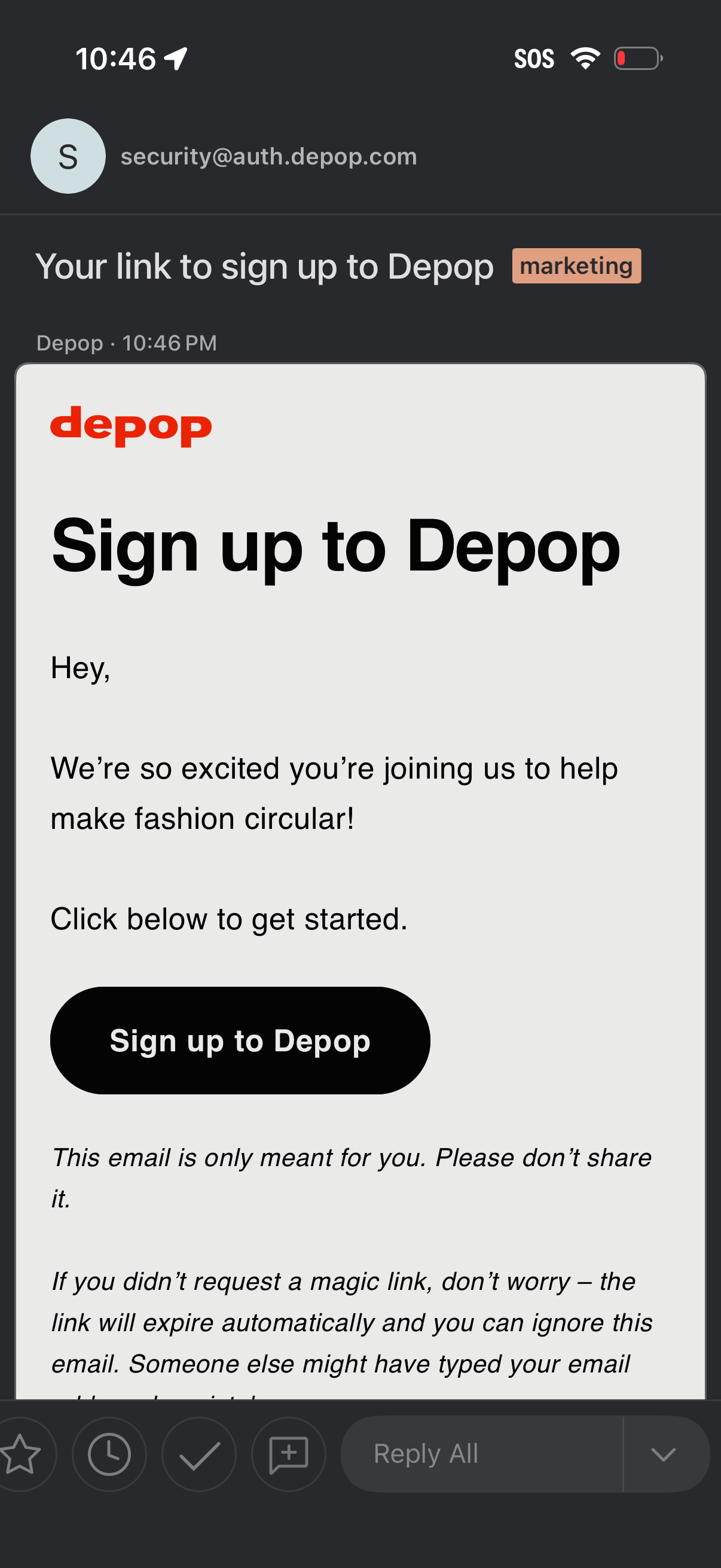
Email inbox screen showing a Depop magic link invitation to create an account, with a prominent “Sign up to Depop” call-to-action button. The message includes onboarding copy and security notes about not sharing the link and the link expiring if not requested.
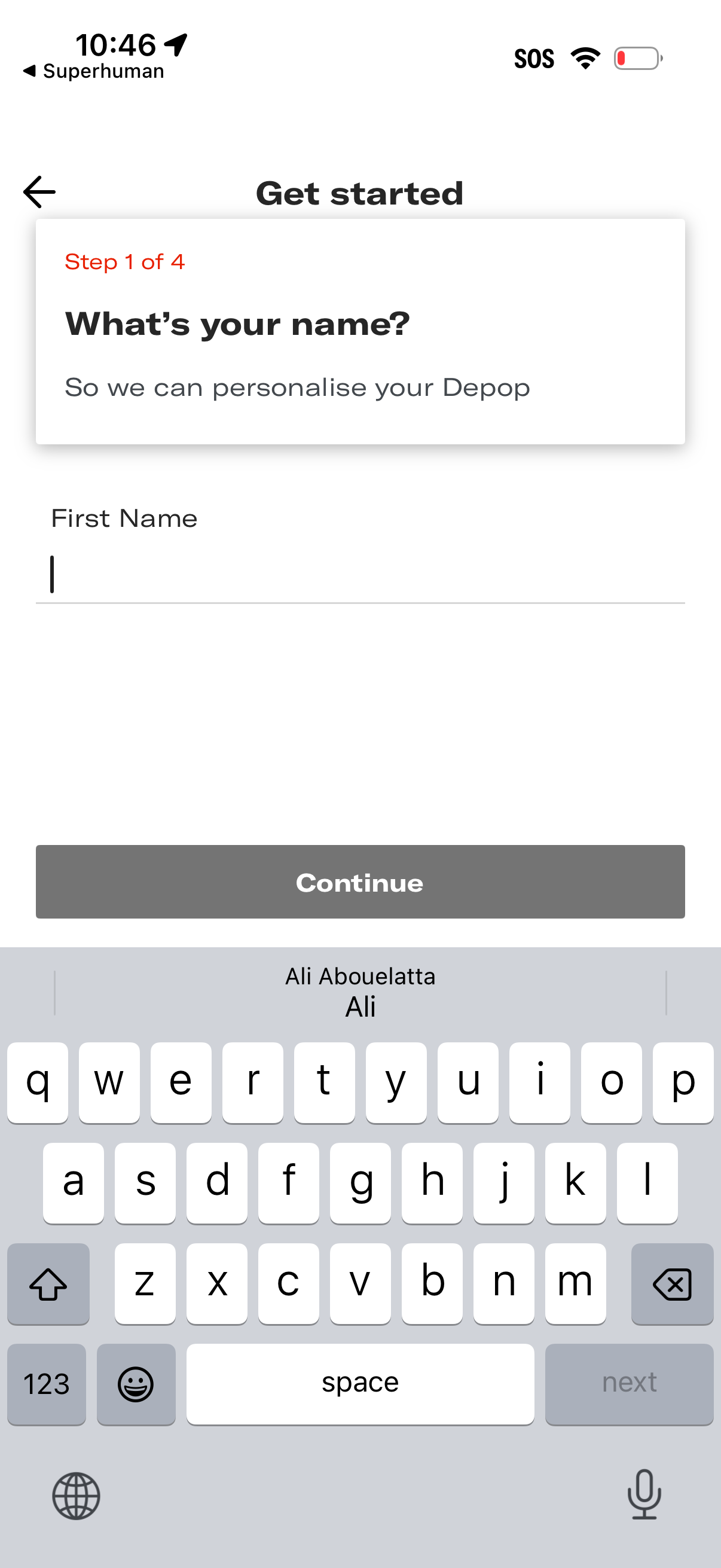
Onboarding “Get started” flow step 1 of 4 prompting the user to enter their first name to personalize their account, with a text input field, back navigation, and a primary Continue button (disabled until a name is entered).
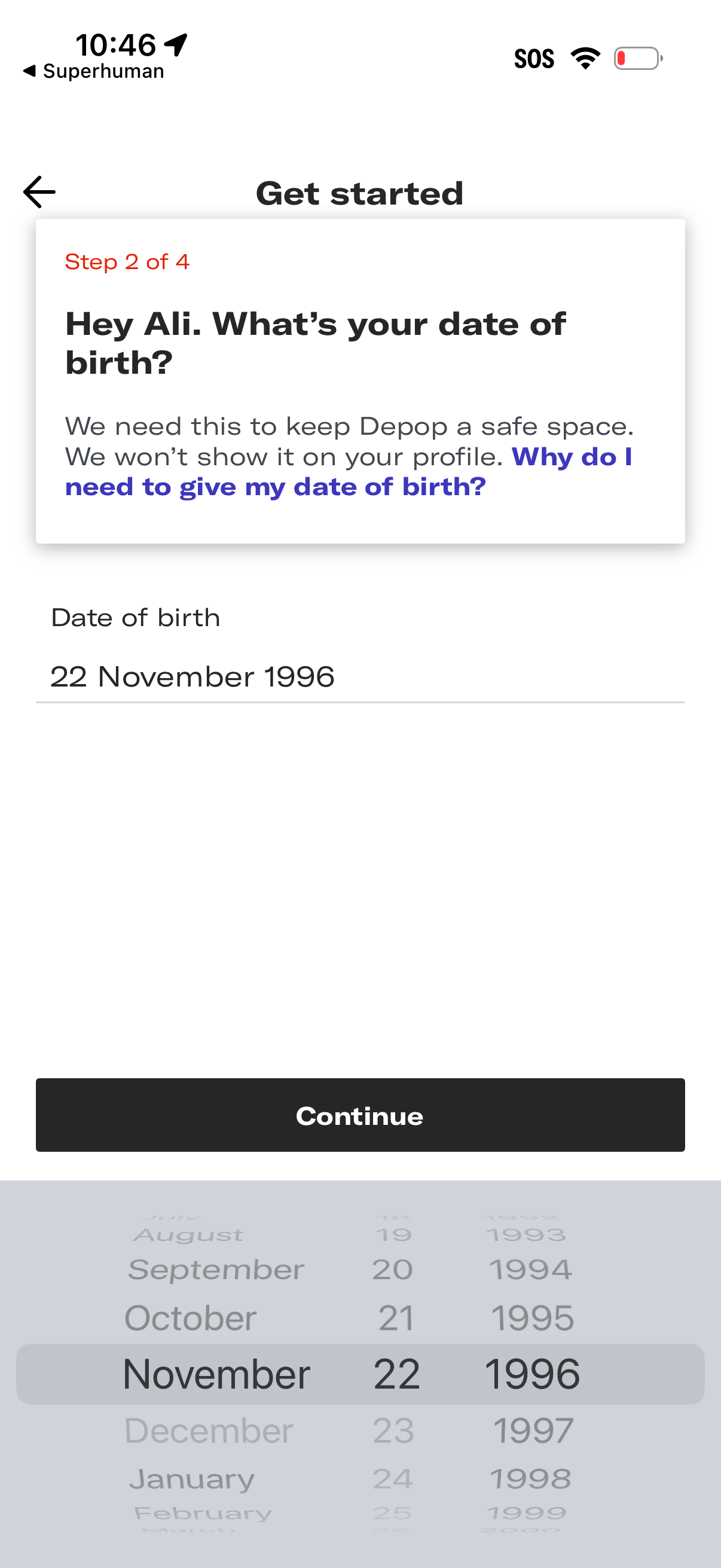
Multi-step onboarding “Get started” screen (step 2 of 4) asking the user to enter their date of birth for safety/age verification, with an explanation and help link about why it’s needed. Includes a date picker input showing the selected birth date and a primary “Continue” button to proceed.
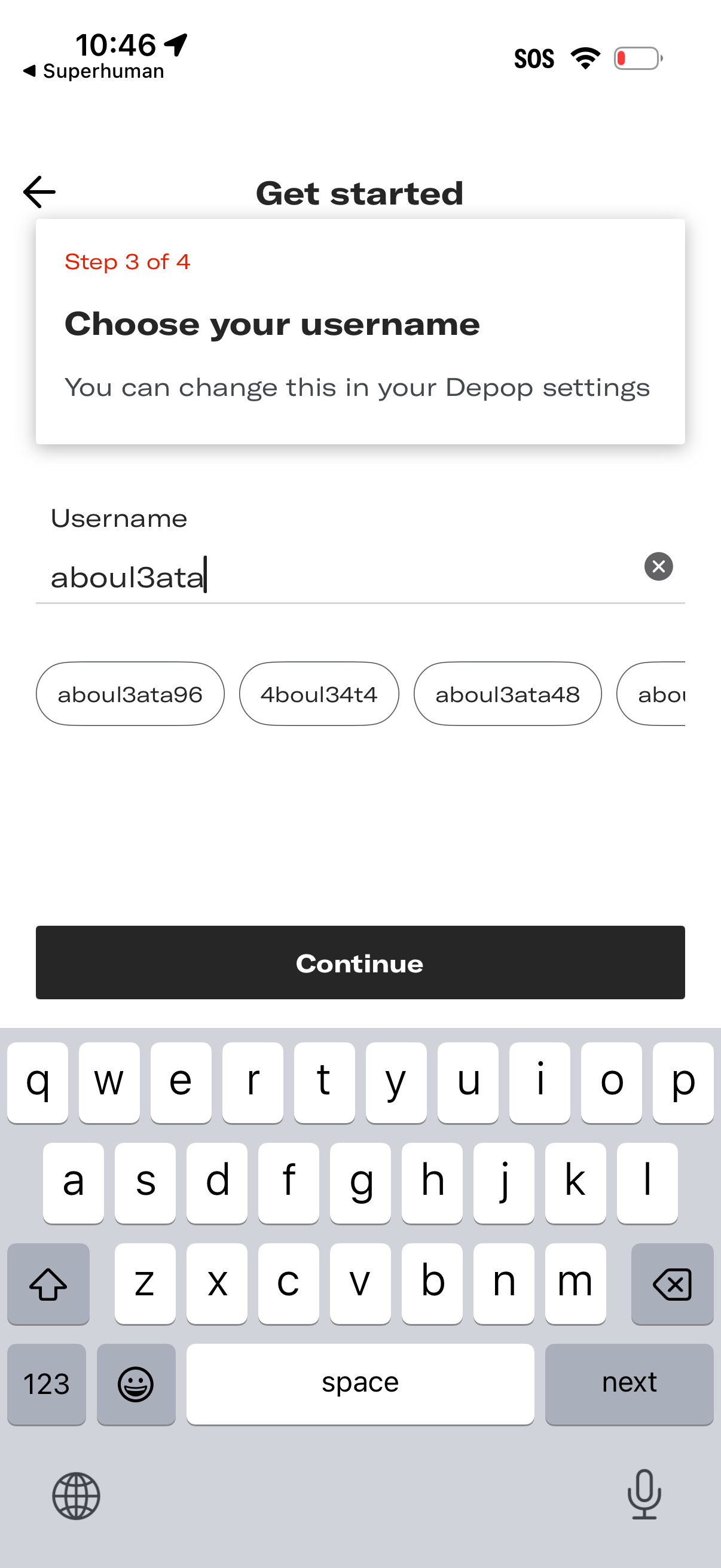
Onboarding “Get started” step 3 of 4 prompting the user to choose a username, with a text input field, suggested available username chips, and an option to clear the entry. A primary Continue button advances to the next step, with note that the username can be changed later in settings.
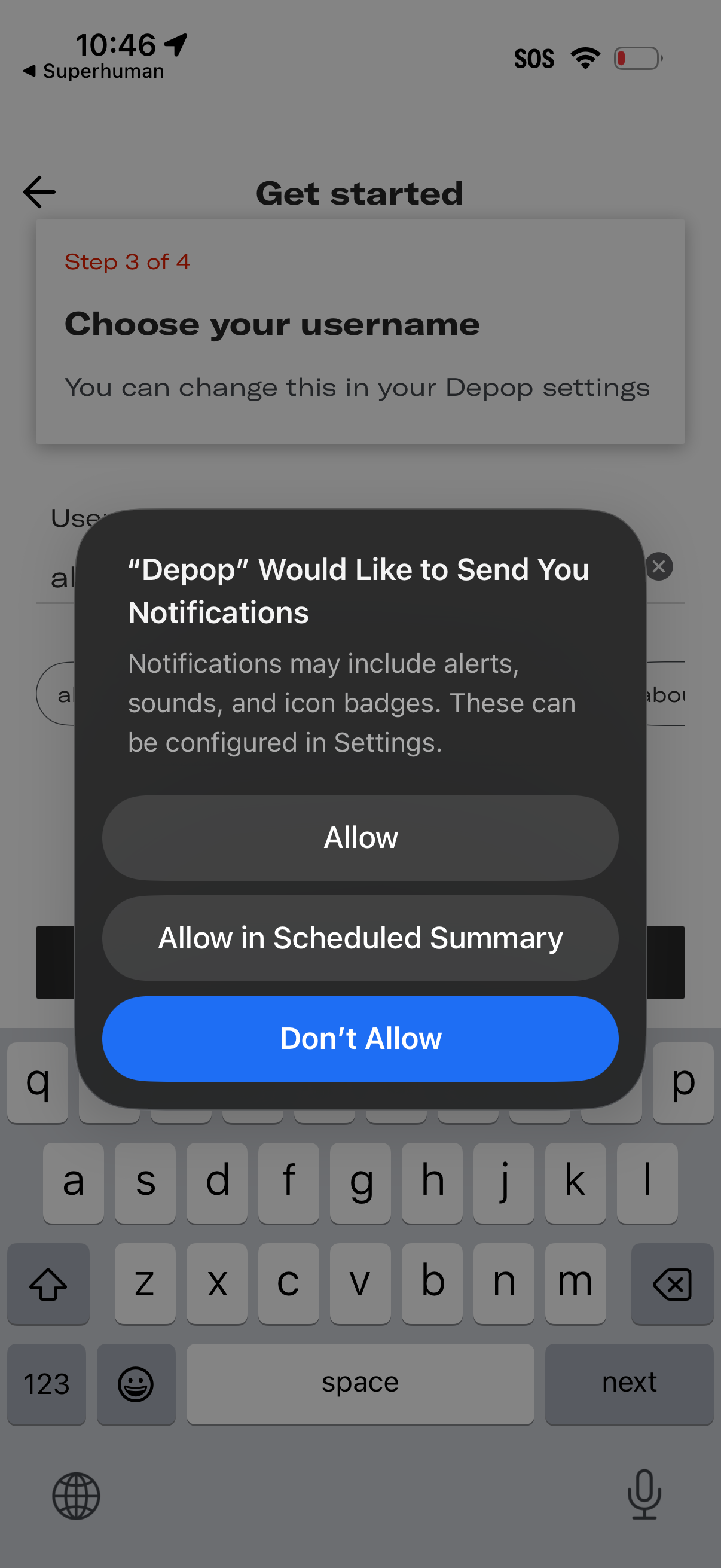
Onboarding “Get started” screen for account setup where the user chooses a username (step 3 of 4), with an iOS system permission modal requesting push notification access. The dialog offers actions to Allow, Allow in Scheduled Summary, or Don’t Allow while the user is typing in the username field.
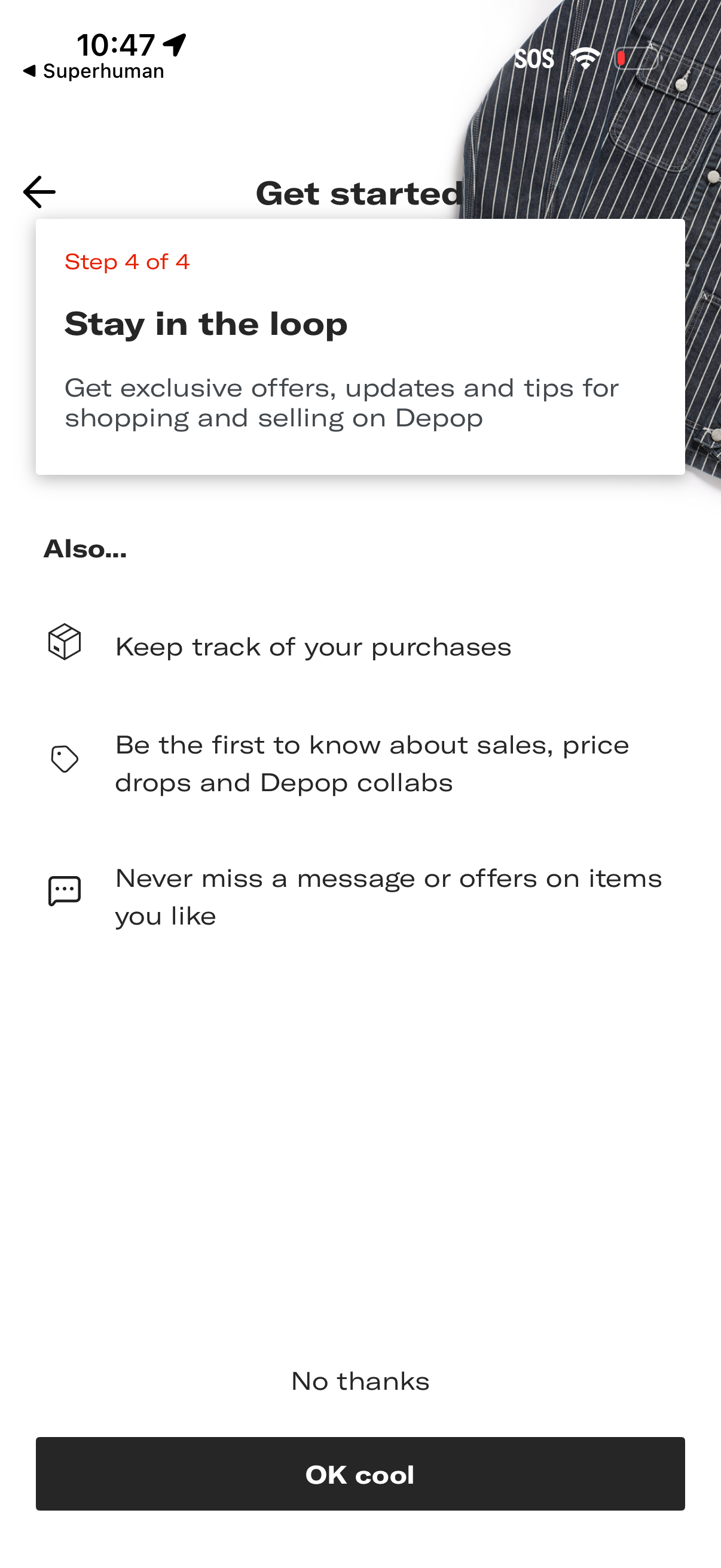
Onboarding “Get started” step prompting users to opt in to updates and marketing notifications, highlighting benefits like tracking purchases, getting sale/price drop alerts, and not missing messages or offers. Includes primary CTA to accept and a secondary “No thanks” option to decline.
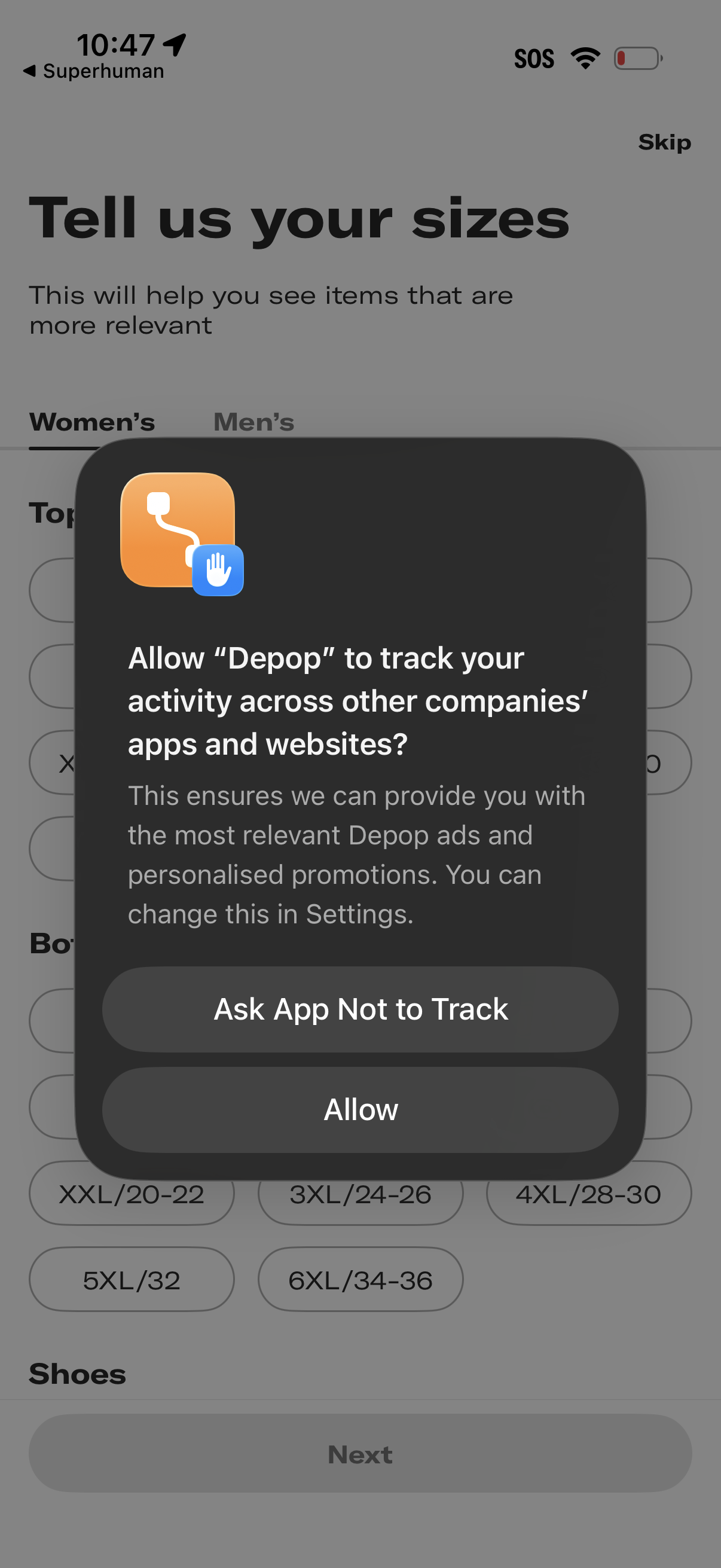
iOS App Tracking Transparency permission modal asking whether to allow the shopping app to track activity across other apps and websites, with primary actions to Allow or Ask App Not to Track. The prompt appears during onboarding on a “Tell us your sizes” personalization screen with women’s/men’s tabs, selectable clothing size chips, and a Next button.
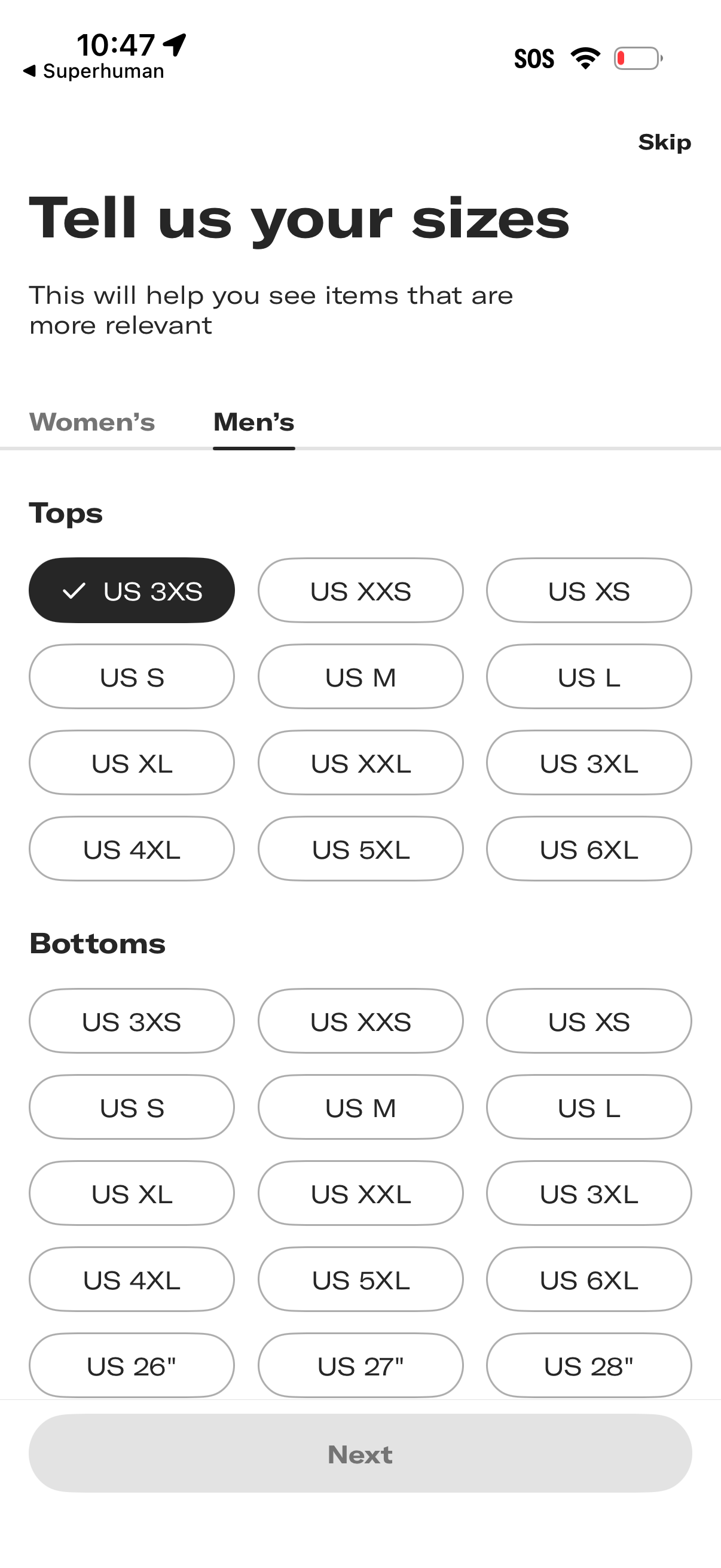
Onboarding preference screen for a fashion shopping app where users select their clothing sizes to personalize product recommendations. Includes Women’s/Men’s tabs, separate size pickers for tops and bottoms with multiple US size options, a Skip link, and a Next button to continue.
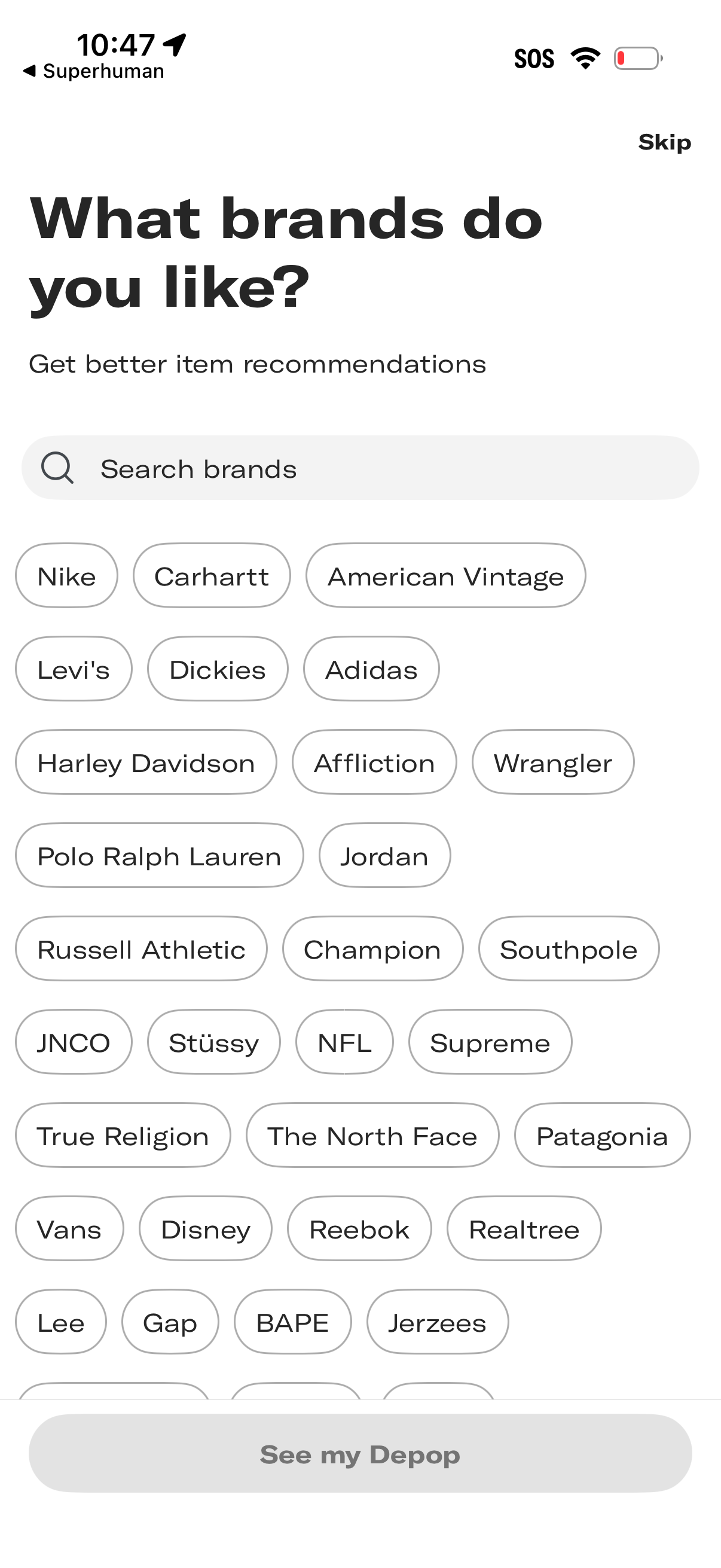
Onboarding preference screen asking users to select favorite clothing brands to improve personalized item recommendations. Includes a brand search field, a list of selectable brand chips/tags, a Skip option, and a bottom call-to-action button to continue.
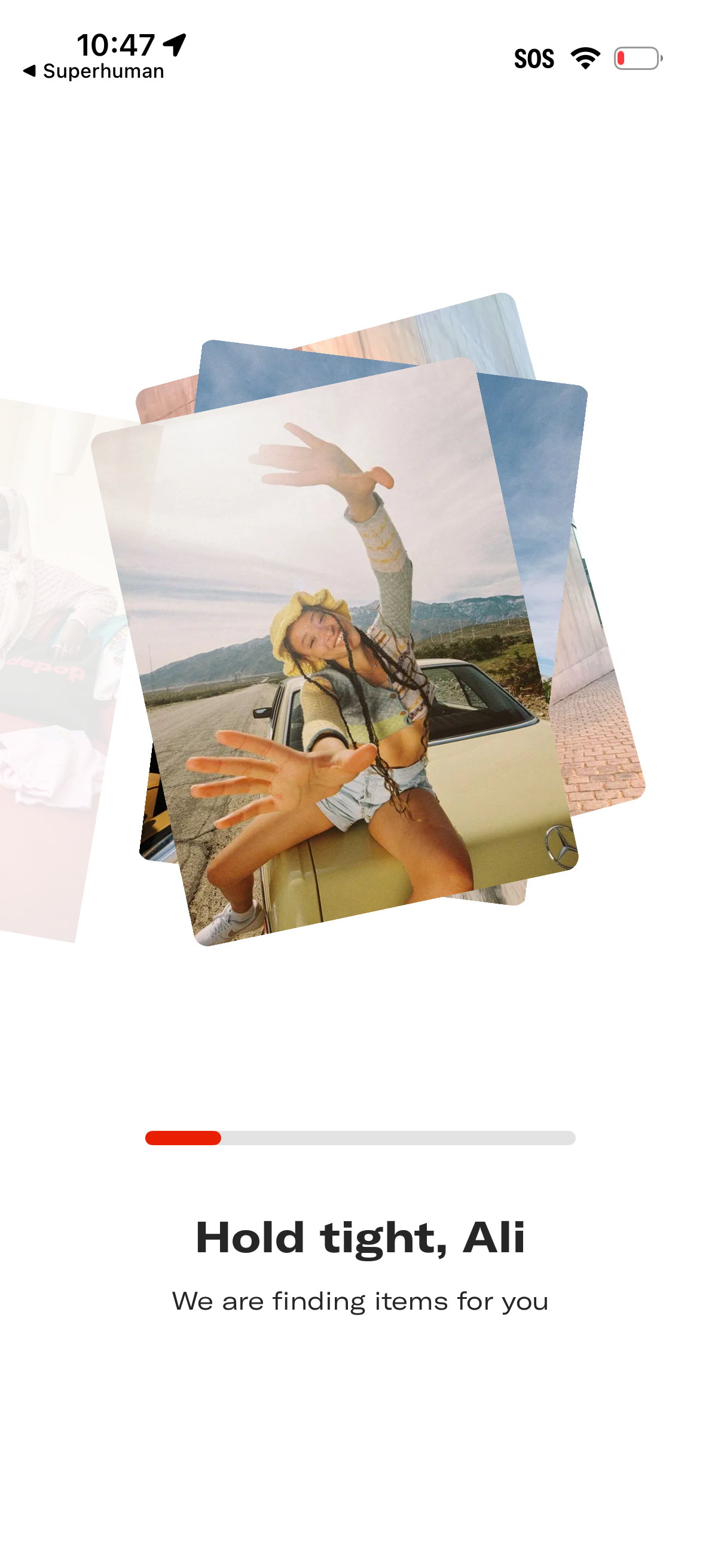
Loading/progress screen for a shopping or recommendation app that shows a photo stack animation while the system searches for items, with a progress bar and message like “Hold tight… we are finding items for you. ” Includes back navigation and an SOS option in the top bar.