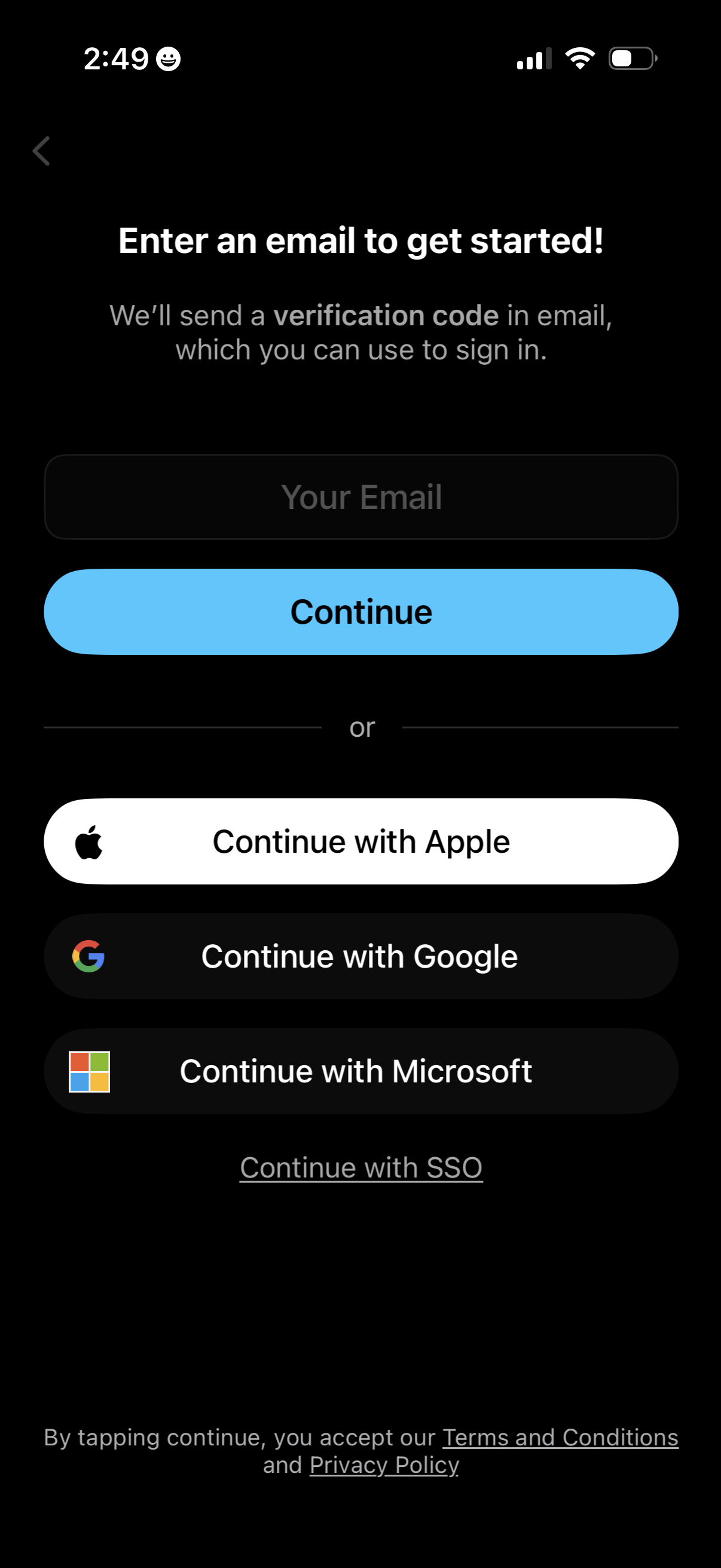
Email-based sign-up/sign-in screen prompting the user to enter an email to receive a verification code and continue. Offers alternative authentication options including Continue with Apple, Google, Microsoft, and SSO, with links to terms and privacy policy.
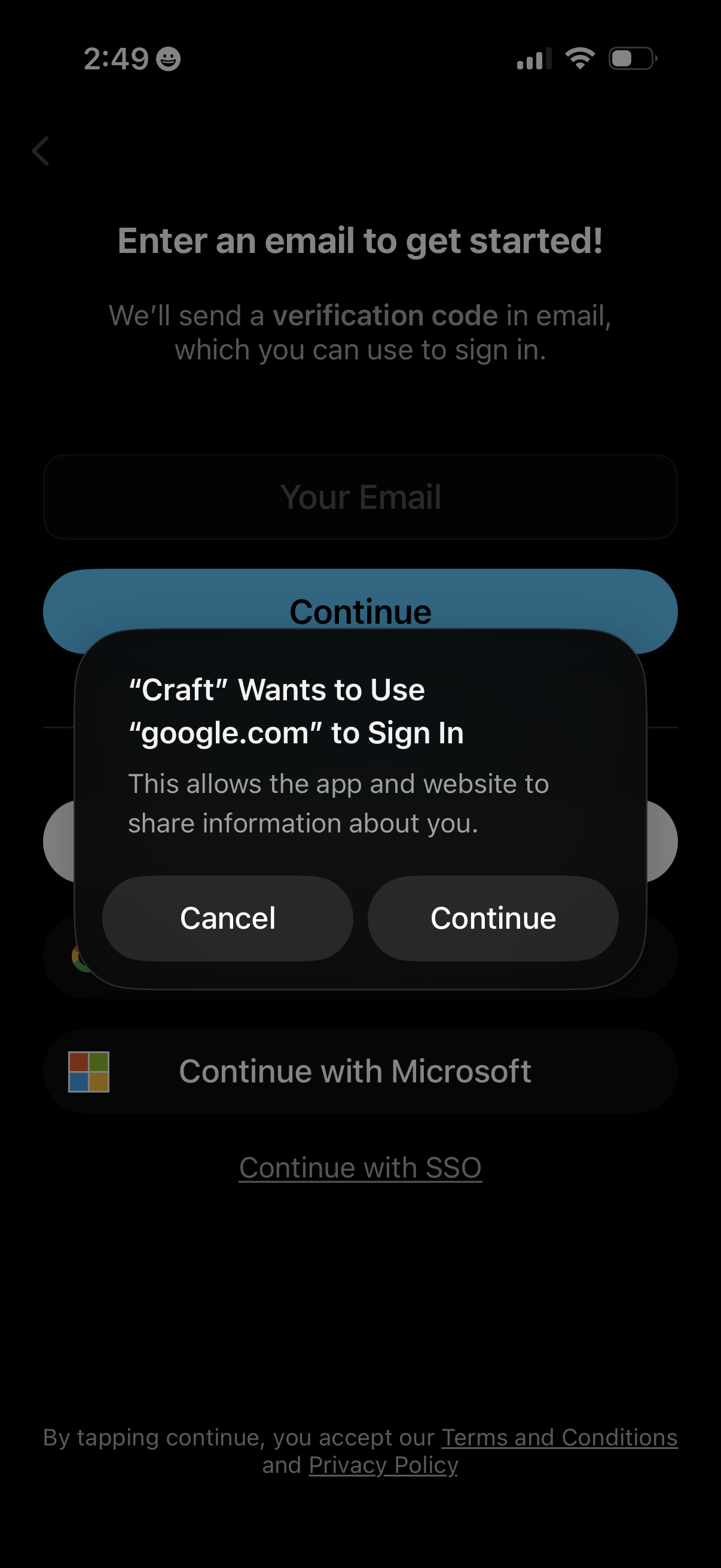
Email sign-in onboarding screen prompting the user to enter an email address to receive a verification code, with a primary Continue button and alternative sign-in options like Google, Microsoft, and SSO. An iOS system permission dialog overlays the screen asking to allow using a Google domain to sign in, with Cancel and Continue actions.
Full-screen document or web page viewer with a top loading progress bar, a close button, and an overflow/menu icon. Bottom controls provide back navigation plus share and close actions for exiting or distributing the content.
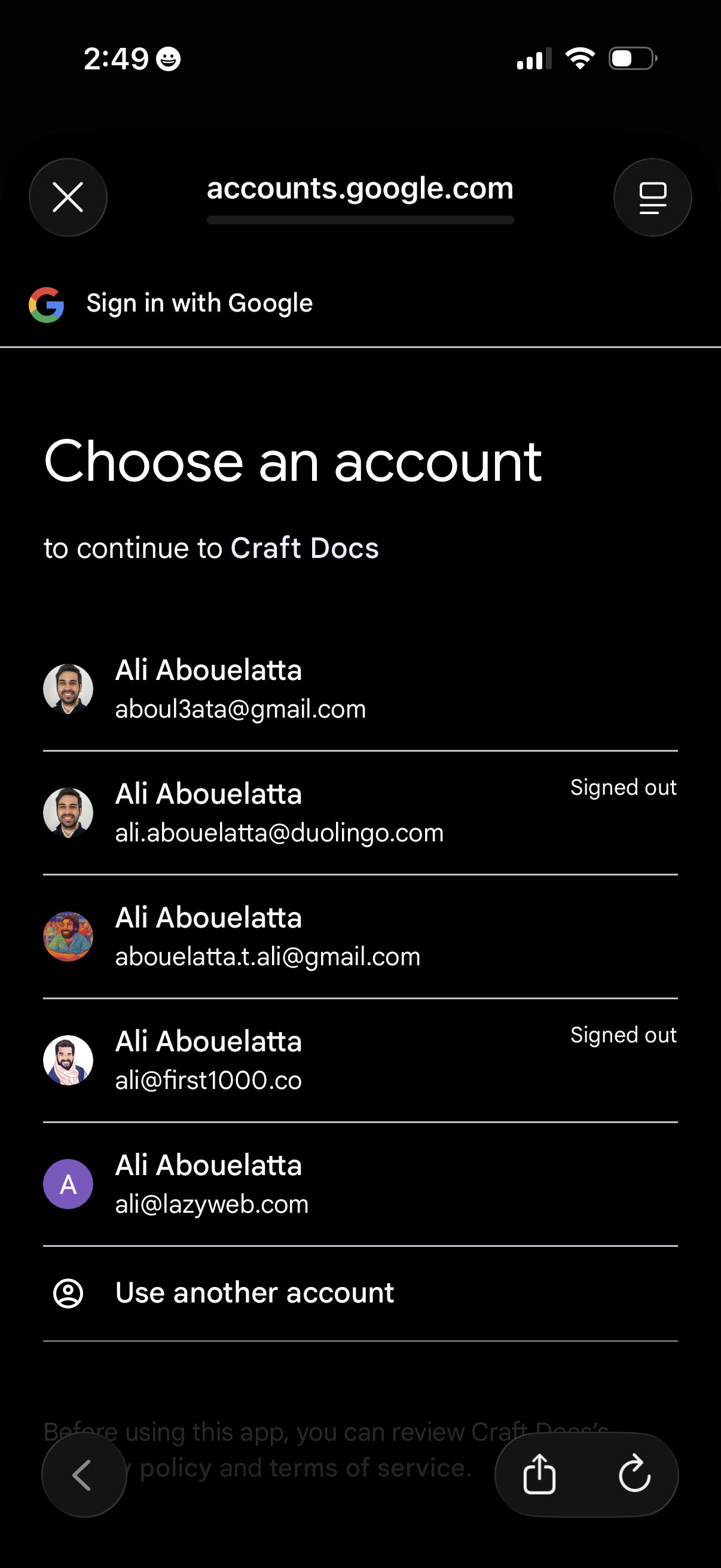
Google sign-in account chooser screen for continuing to an app, showing a list of saved Google accounts with avatars, email addresses, and signed-out status. Users can tap an existing account to proceed or select “Use another account” to add a different login.
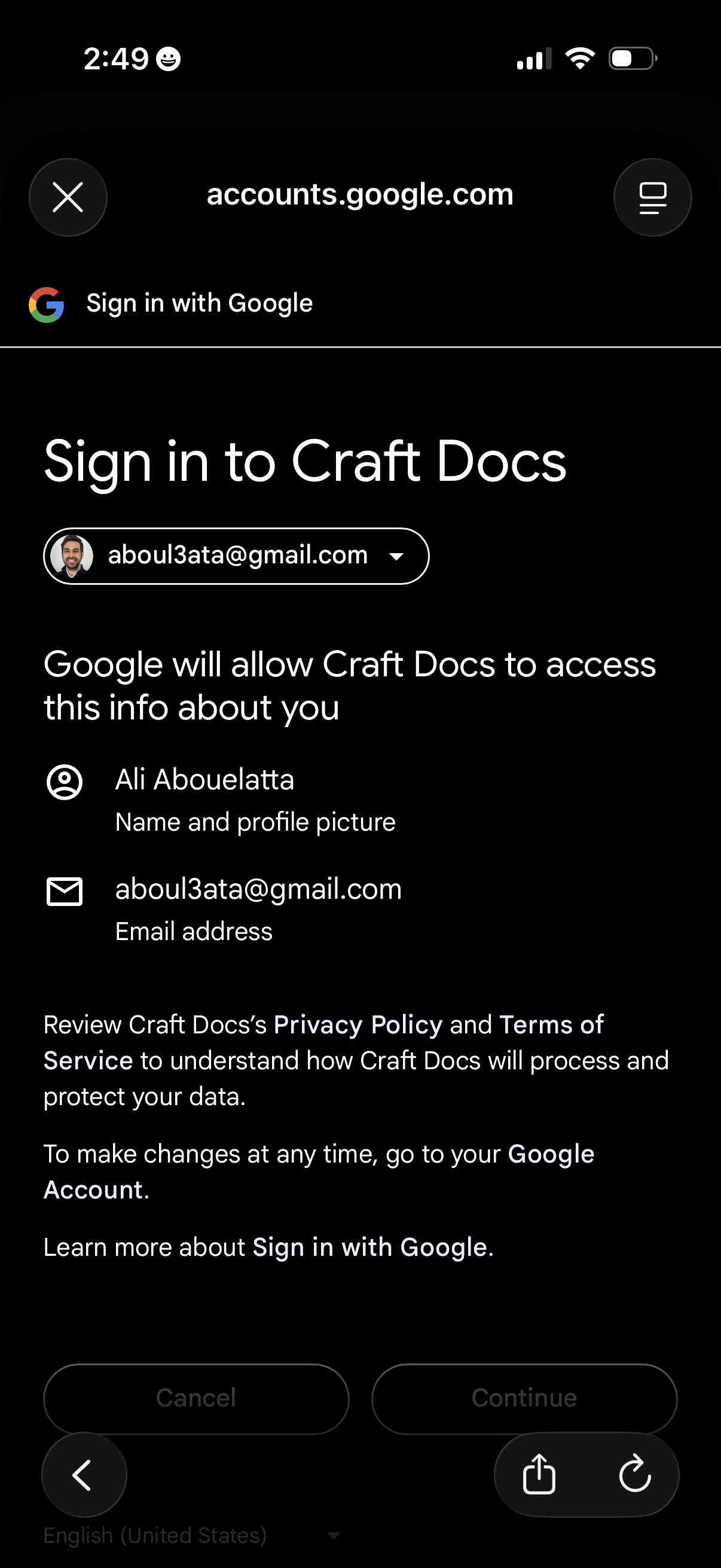
Google OAuth “Sign in with Google” consent screen for a third-party app, showing the selected Google account and the data permissions requested (name/profile photo and email address) with links to privacy policy and terms. Primary actions are Cancel or Continue to authorize access and complete login.

A full-screen loading state overlay with a centered spinning progress indicator, shown over a blurred background to indicate content is being fetched or processed. This screen communicates that the app is busy and temporarily disables interaction until loading completes.
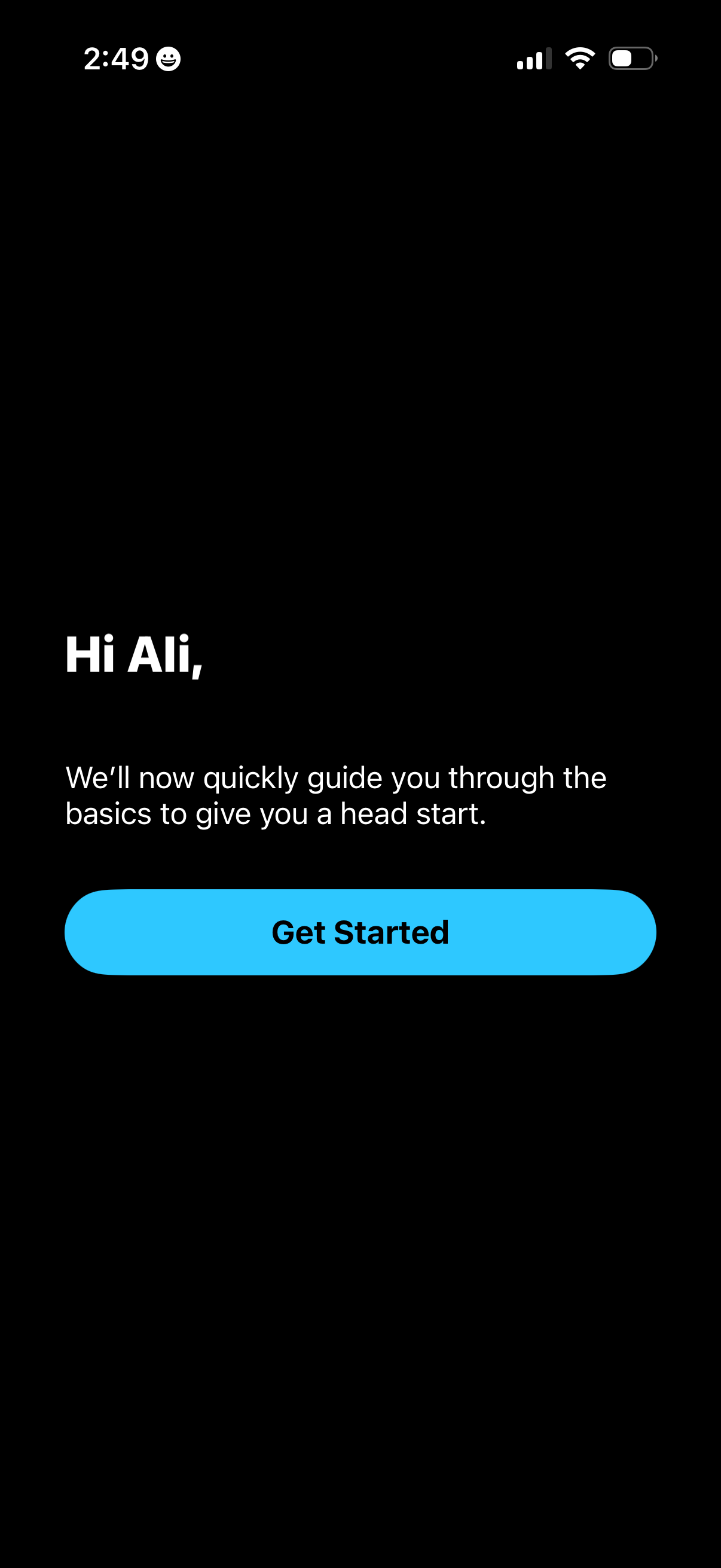
Welcome onboarding screen that greets the user and introduces a quick guided tutorial to learn the app basics. Primary action is a prominent “Get Started” button to begin the onboarding walkthrough.