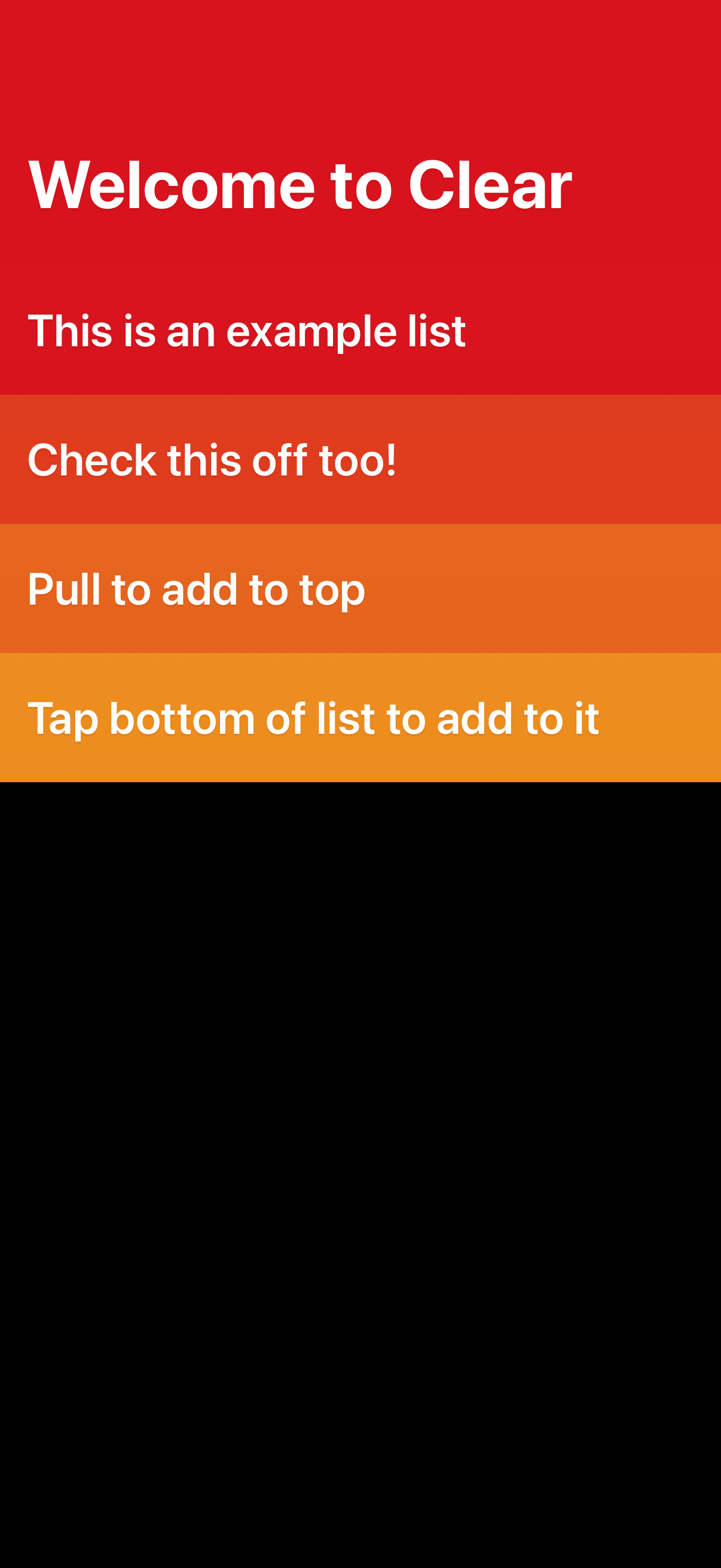
Onboarding welcome screen for a minimalist to-do list app showing an example checklist with guidance on how to interact, including checking off items, pulling down to add a new task at the top, and tapping the bottom of the list to add another item. The screen emphasizes basic list management and gesture-based task creation.

Onboarding checklist/to-do list screen showing an example list with tasks and instructions for interactions like checking off items, pull-to-add at the top, and tapping the bottom to add new items, with the keyboard open for entering a new task. A subtle menu/tooltip indicates quick actions such as creating multiple items or checking off multiple items.
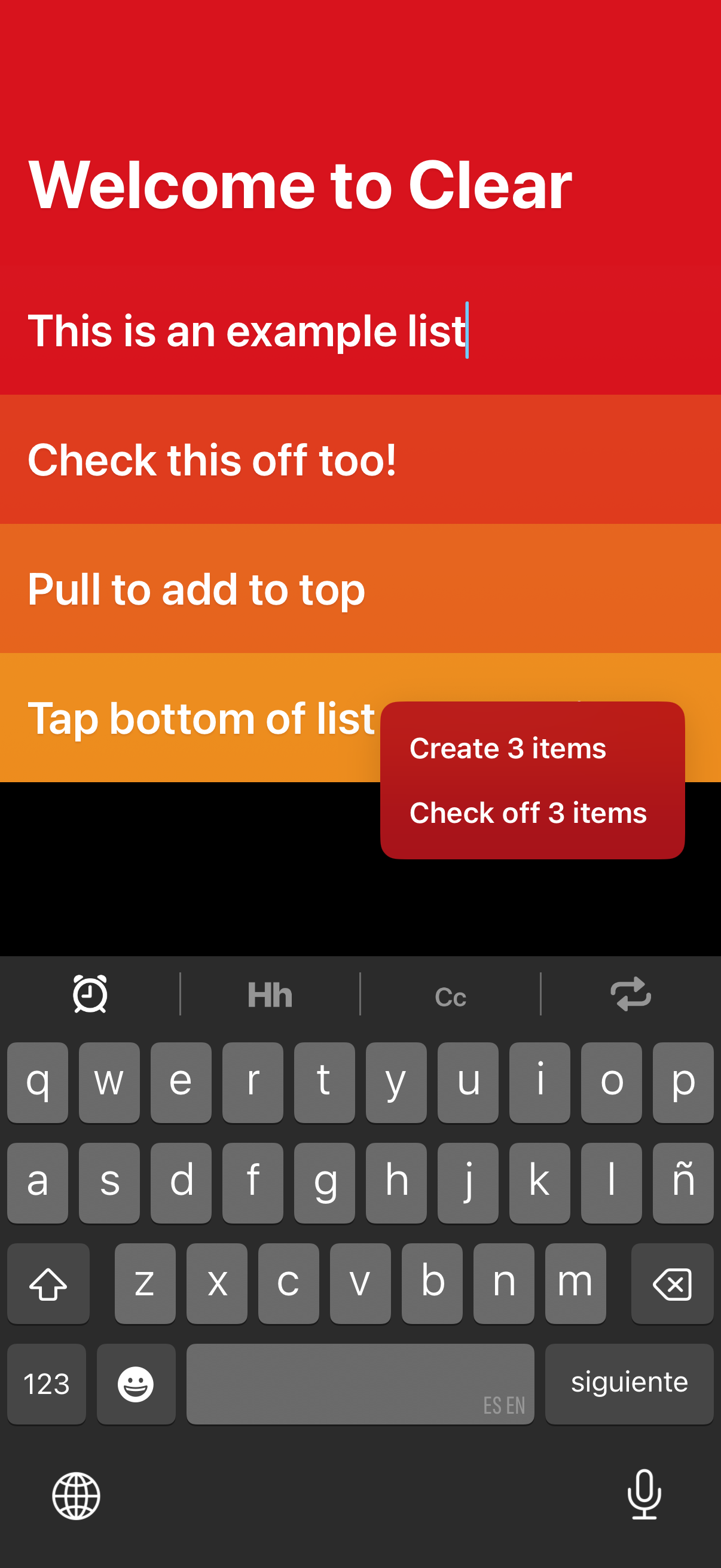
Onboarding checklist/to‑do list screen showing a list of sample tasks with inline text input to name a list and guidance like pull to add items and check off tasks. A contextual tip/tooltip indicates actions such as creating items and checking off items while the keyboard is open for editing.

To-do list app screen showing a list of tasks with guidance for adding items (pull to add at top, tap bottom to add) and an in-progress reminder time picker. A contextual popover menu lets users create multiple items or check off multiple items, with actions to remove the reminder or confirm changes.
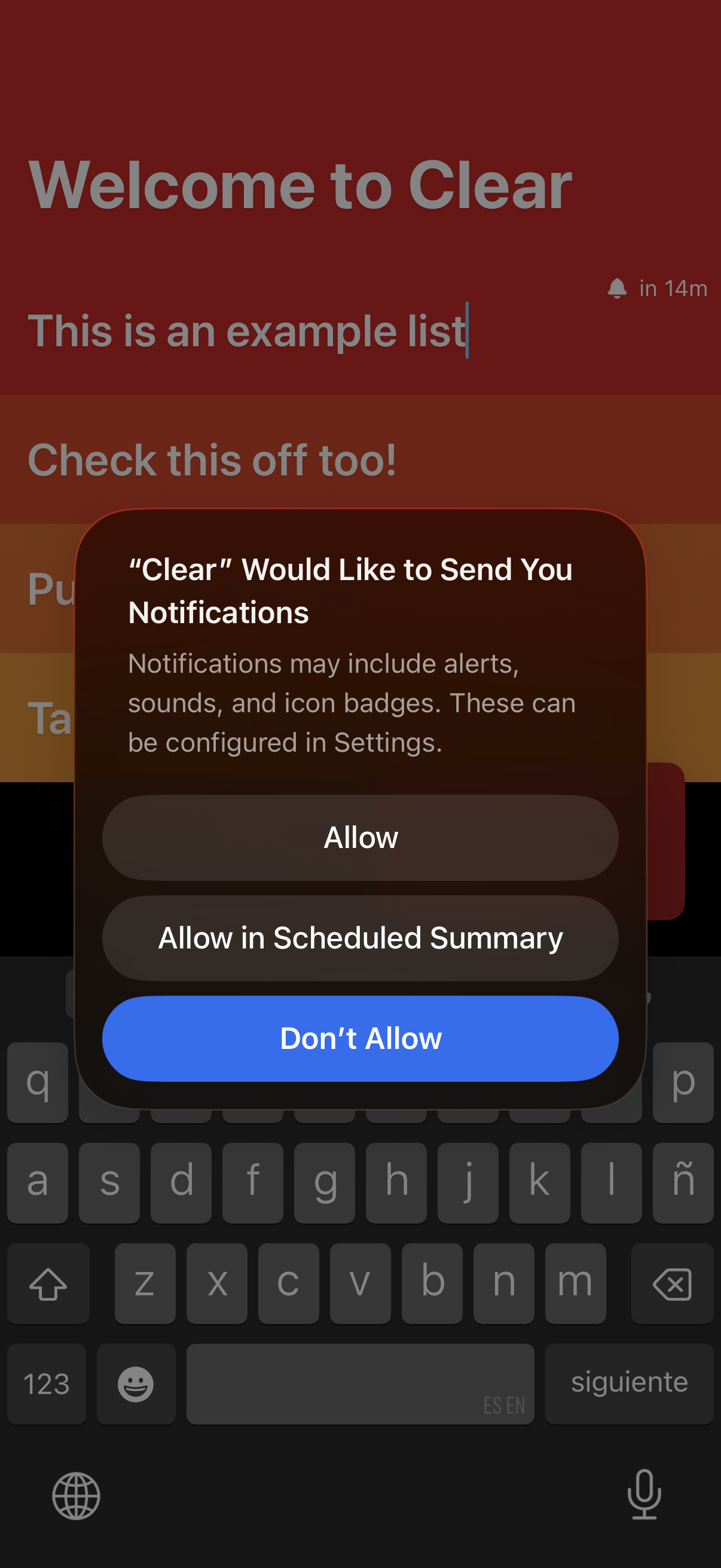
A to-do list app welcome screen is shown with a system permission modal requesting to send push notifications. The dialog offers actions to Allow, Allow in Scheduled Summary, or Don’t Allow.
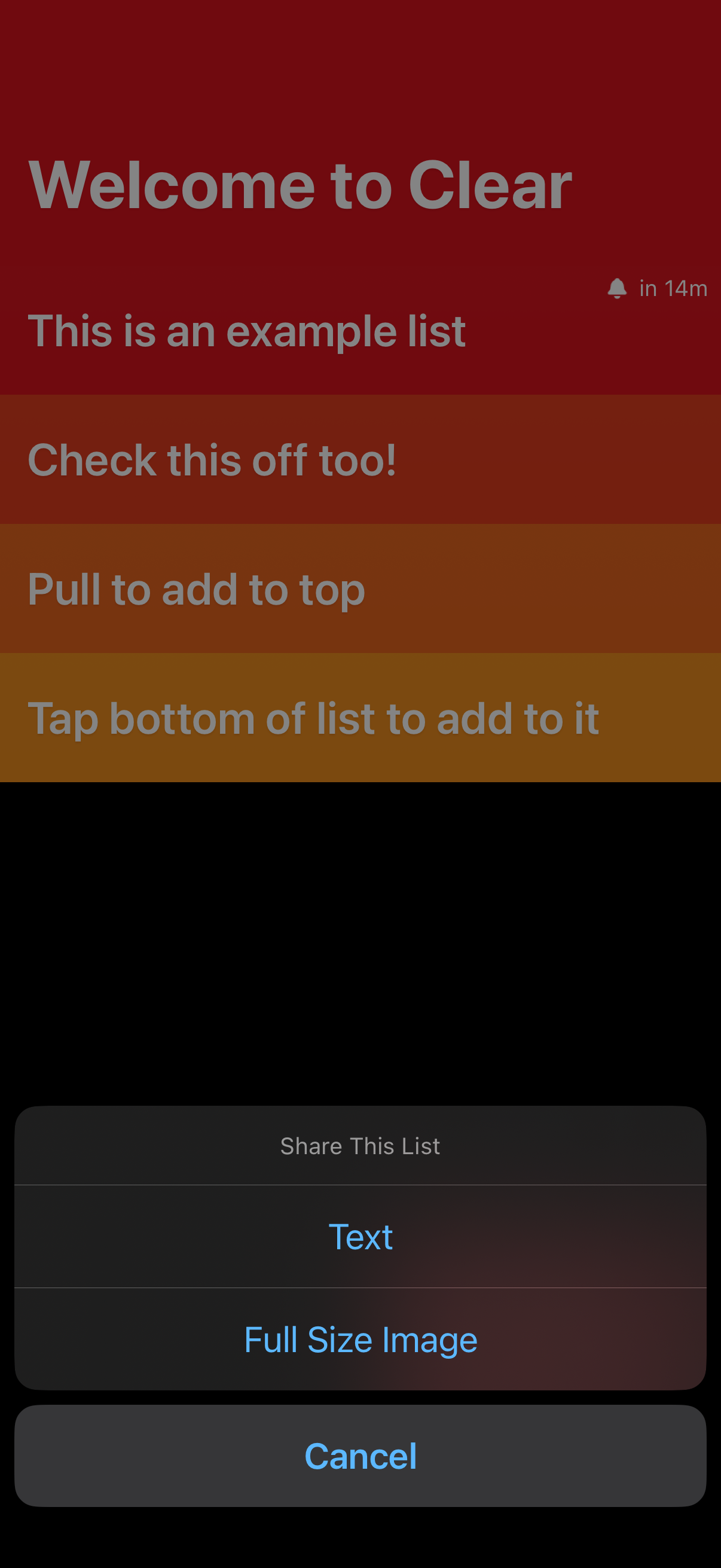
To-do list app screen showing an example checklist with large colored rows and tips for adding items via pull-to-add or tapping the bottom. An iOS share action sheet is open to share the list, offering export options like Text or Full Size Image with a Cancel button.
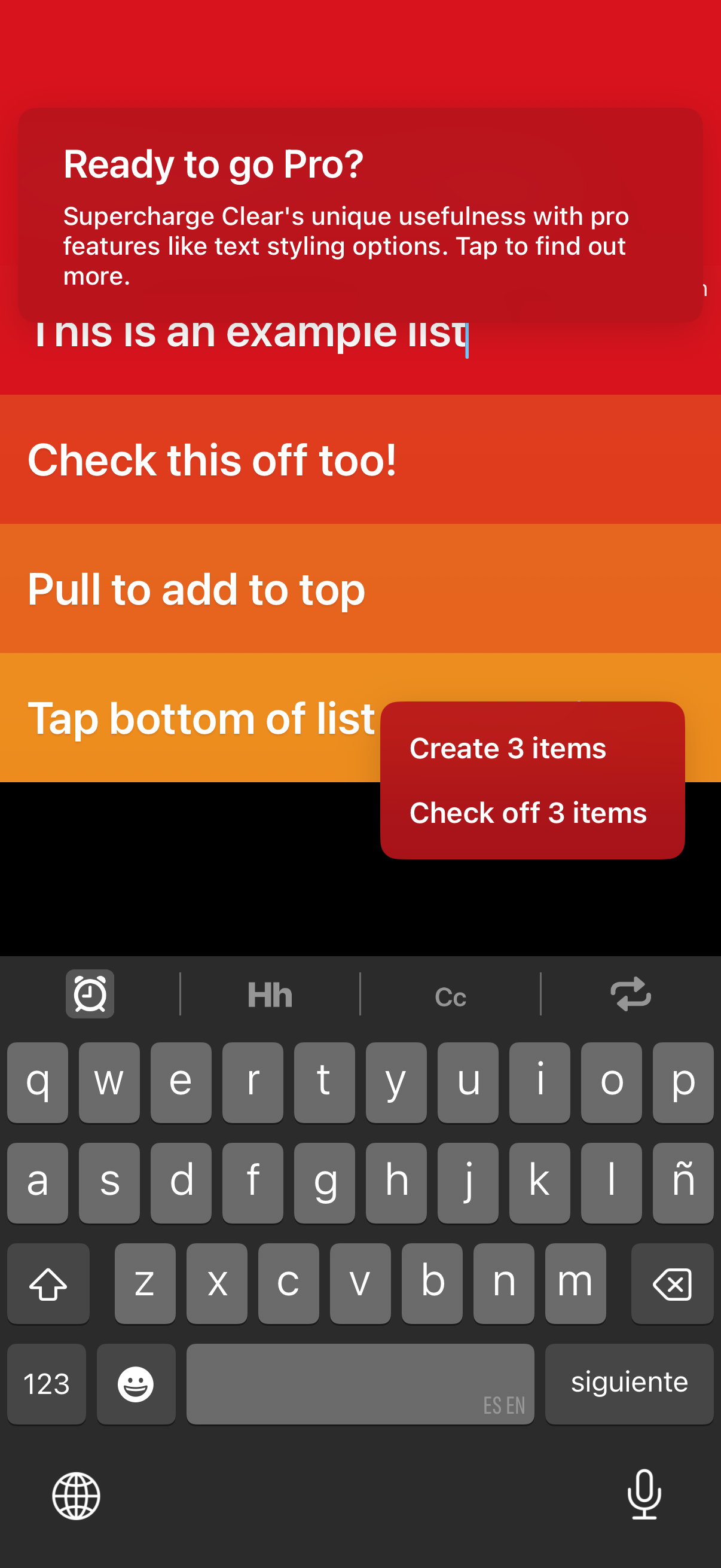
Color-coded to-do list editing screen with a promotional upsell banner inviting users to upgrade to Pro for additional features like text styling. Includes inline list item input with keyboard open and a floating action menu offering quick actions such as creating multiple items or checking off multiple items.

Subscription/upgrade features screen for a to-do list app’s Pro plan, listing premium benefits like cloud sync, web access, Apple Watch support, repeating tasks, and widgets/lock screen widgets. Includes a paywall-style layout with feature descriptions and a tooltip prompting actions like creating items or checking off items.

Welcome/empty state screen for a to-do list app showing the “My Lists” section header and a greeting message (“Welcome to Clear”), indicating the user is at the lists overview before any lists are displayed.
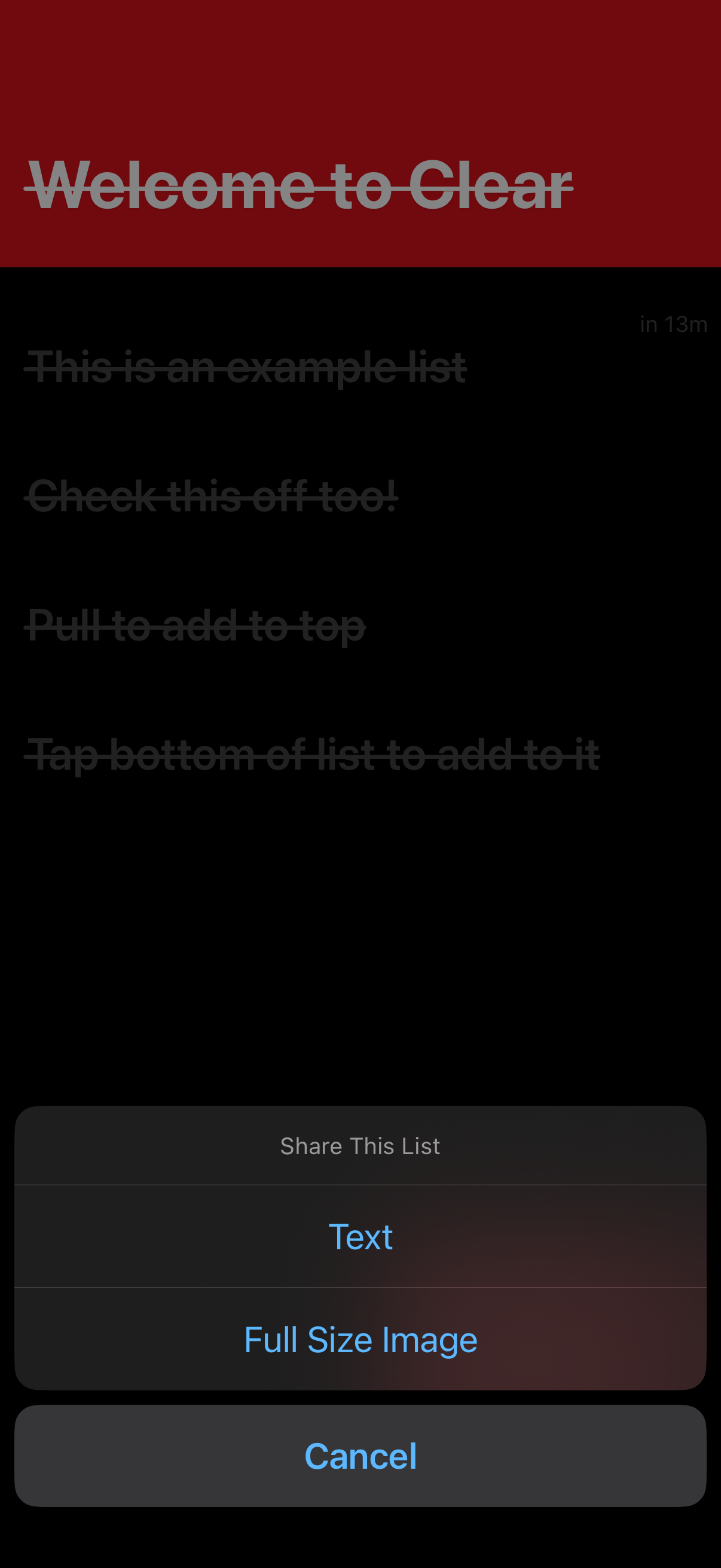
A checklist or task list screen with completed items crossed out and a timestamp indicator, showing an iOS action sheet for sharing the list. The share menu offers options to export as Text or Full Size Image, with a Cancel button to dismiss.

To-do list app onboarding or welcome screen with an input field to create a new list, showing a placeholder checklist in the background. A pop-up action menu offers quick options to create multiple items or check off items while the keyboard is open for typing.
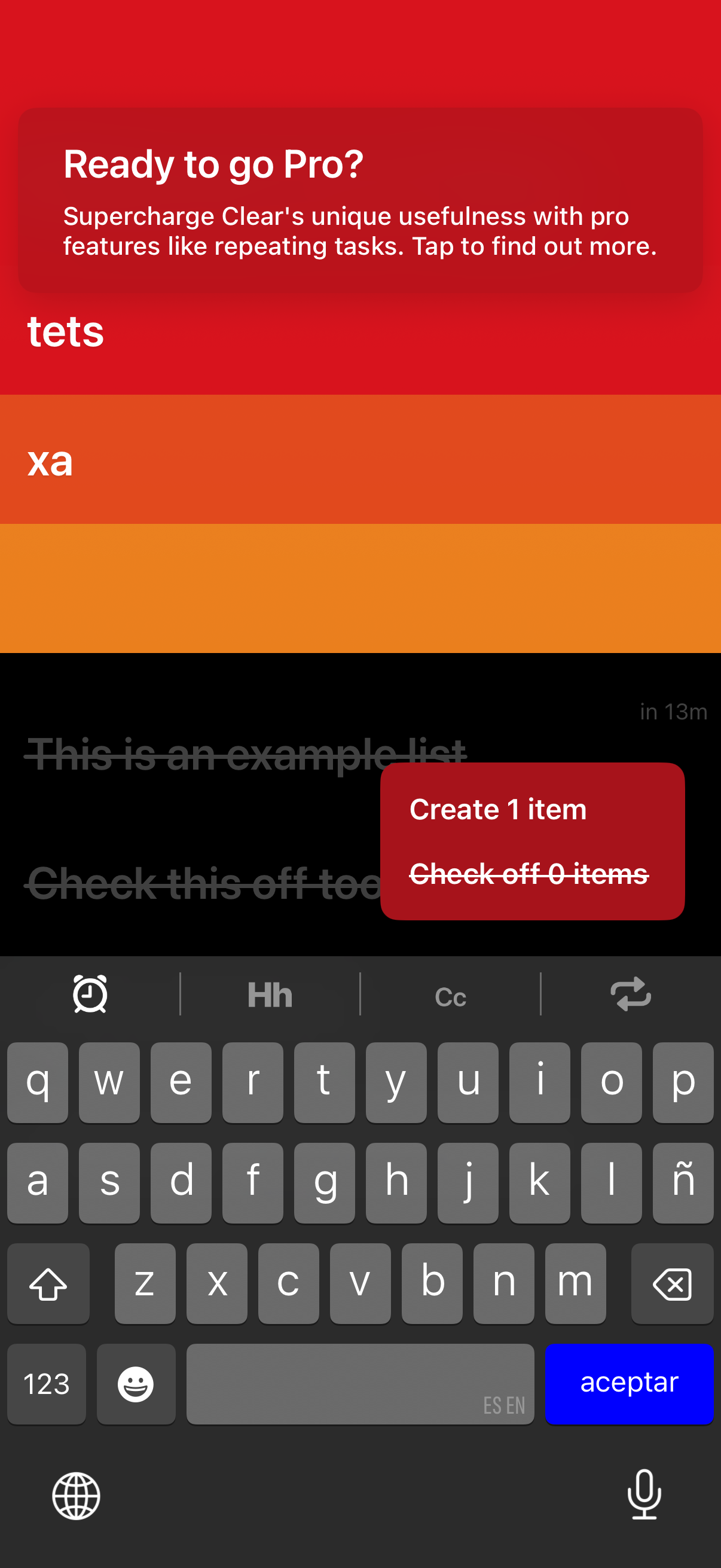
Task list editing screen in a to-do app showing a promotional upsell banner encouraging users to upgrade to Pro for features like repeating tasks. The user is typing with the keyboard open and a floating action menu offers quick actions to create an item or check off items.

Onboarding/tutorial screen for a to-do list app showing “Welcome” and a few sample list items, with the keyboard open for typing and creating a new item. A help overlay menu offers quick actions like create items, check off items, and return back to the main lists.
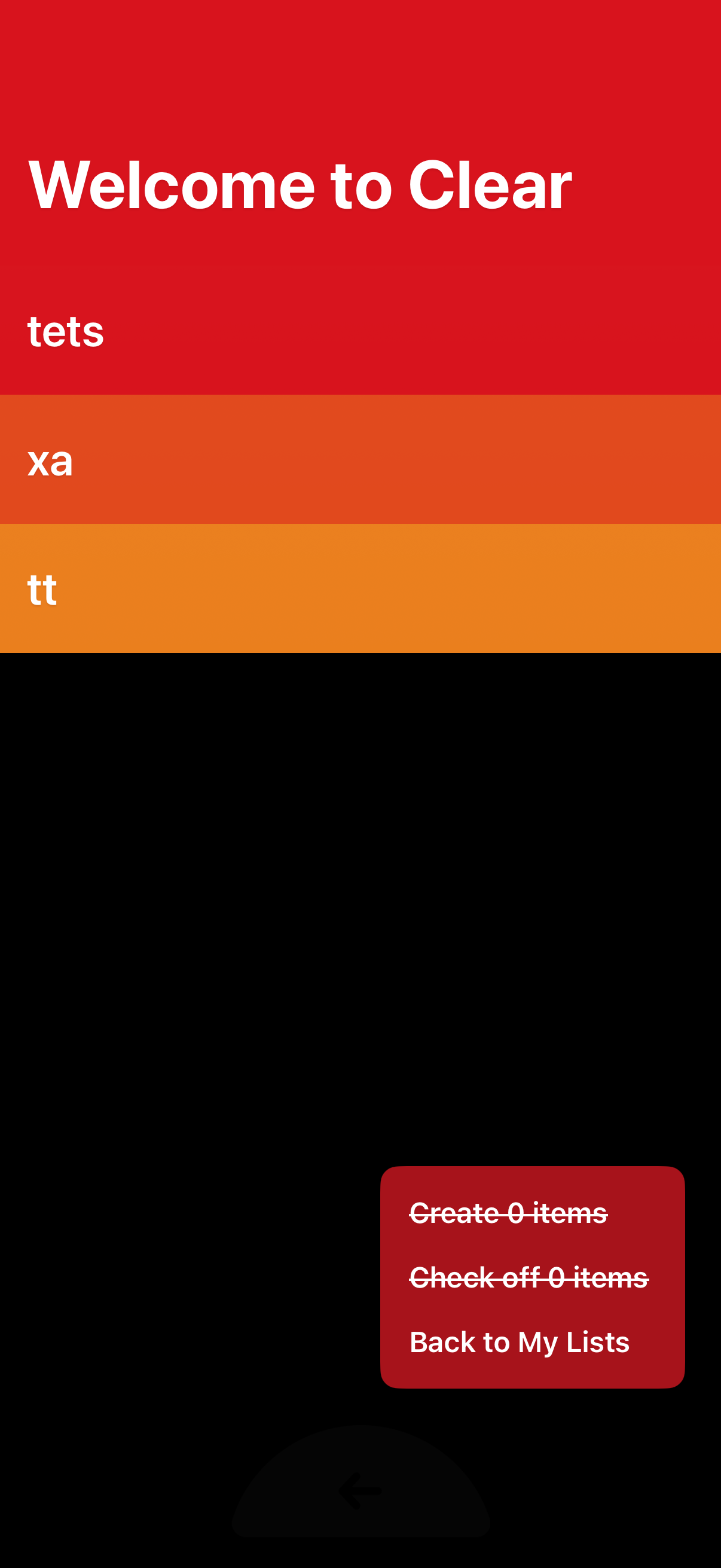
Onboarding welcome screen for a to‑do list app that introduces the product and shows colorful sample lists/sections. A contextual menu overlays the screen with options to create items, check off items, and return to the main lists.