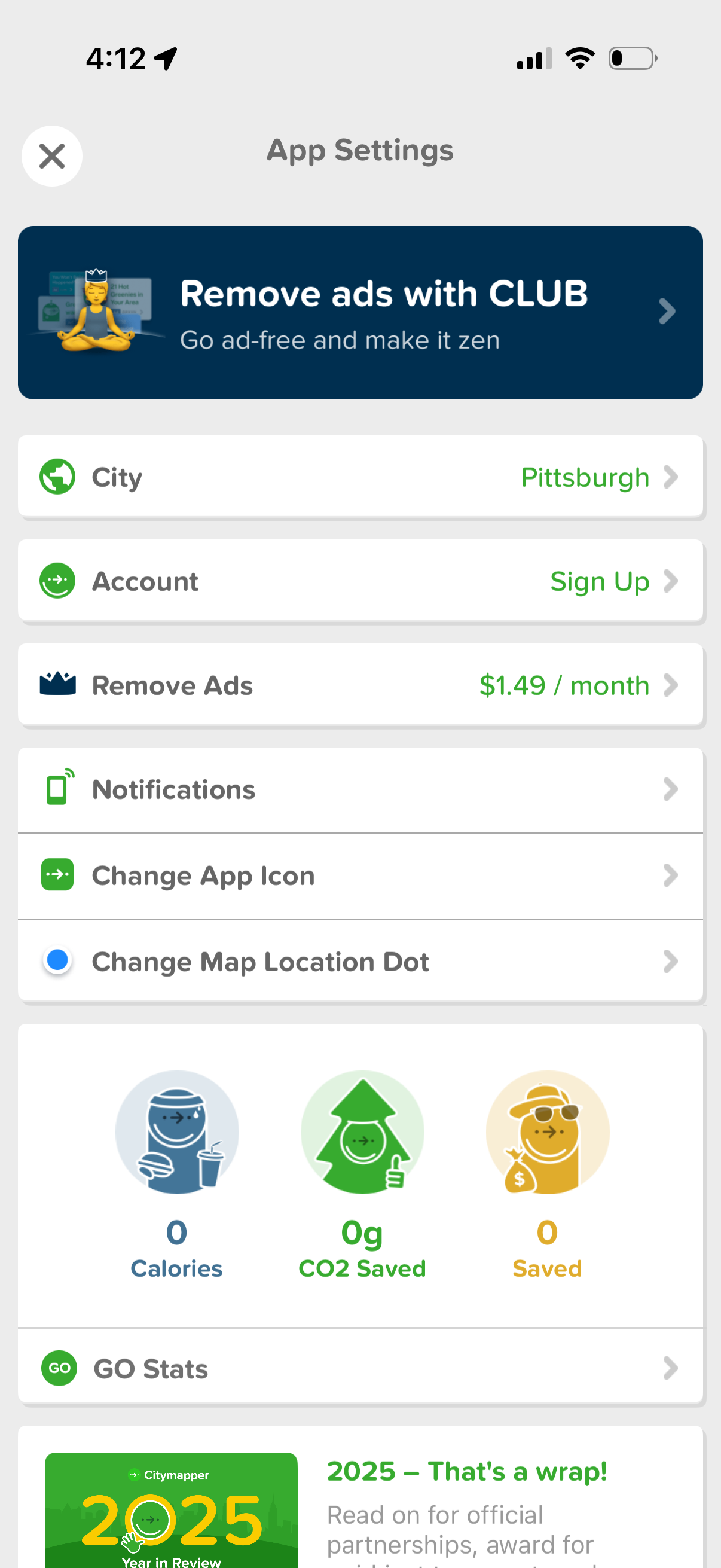
App settings screen with a promotional banner to remove ads via a paid subscription, plus options to set city, manage account sign-up, and access a “Remove Ads” plan with price. Additional settings include notifications, changing the app icon and map location dot, and a stats section showing calories, CO2 saved, and money saved.
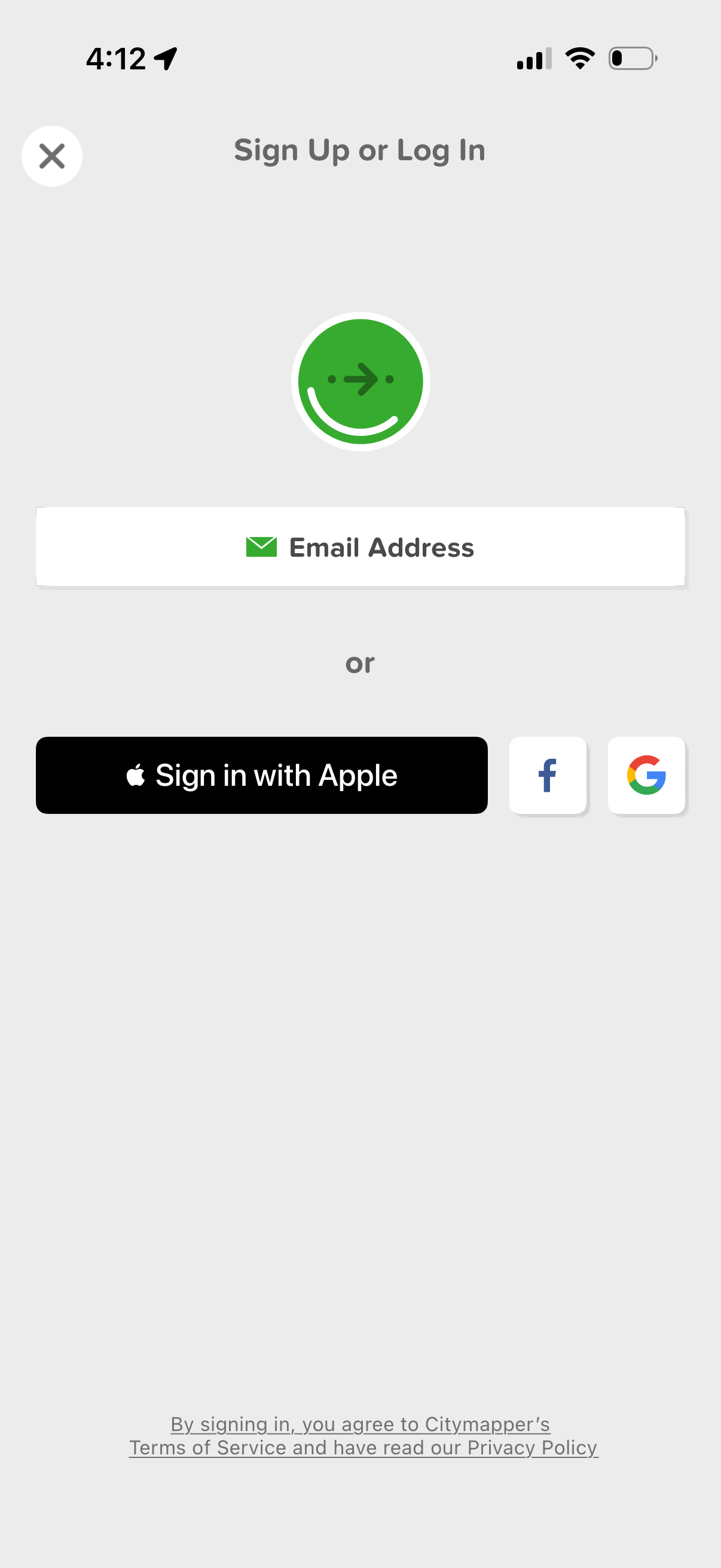
Authentication screen prompting users to sign up or log in with options to continue via email address or use social sign-in buttons (Sign in with Apple, Facebook, Google). Includes a close/dismiss button and a terms of service and privacy policy consent note.
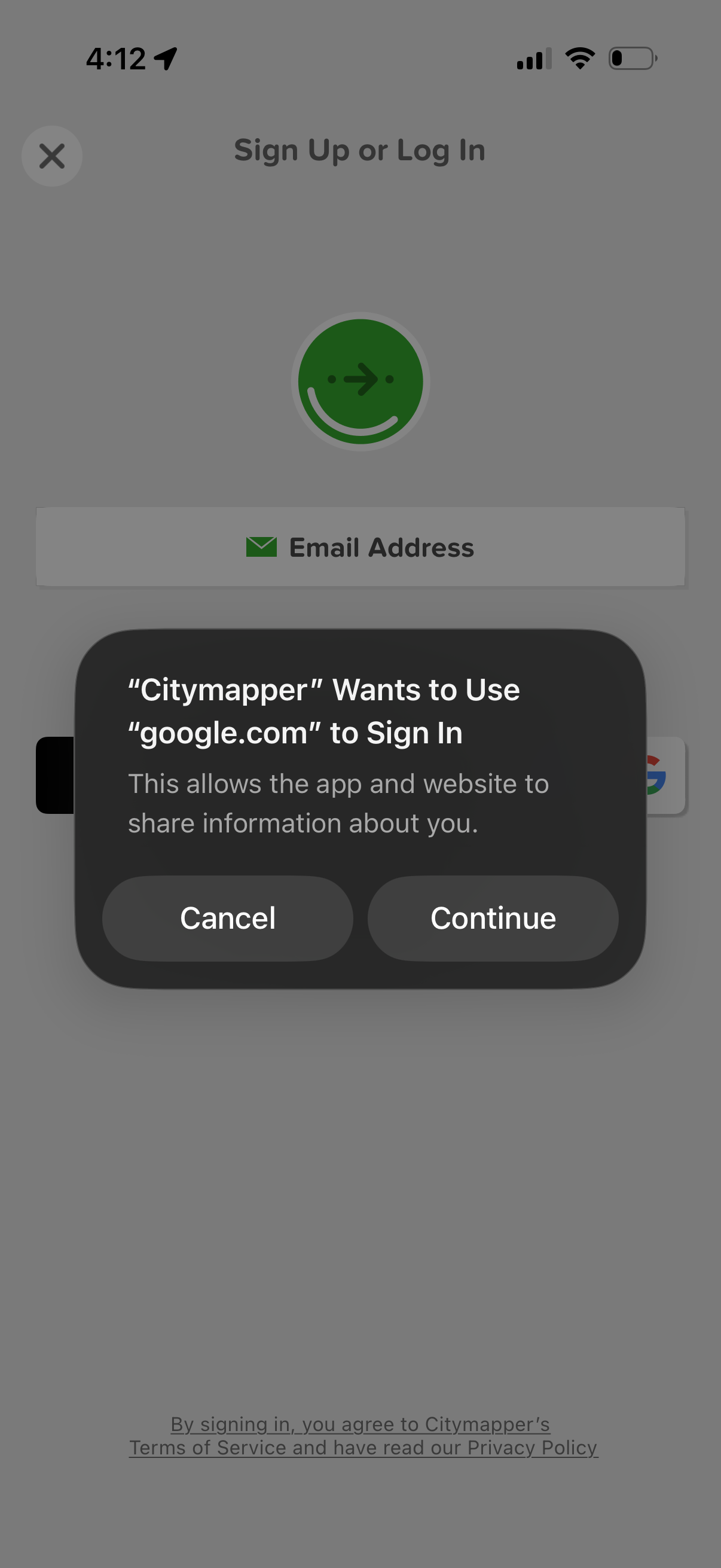
Sign up or log in screen with an email address option, overlaid by an iOS system permission dialog asking to allow a third-party website to sign in and share information. The modal presents primary actions to Cancel or Continue for the external sign-in flow.
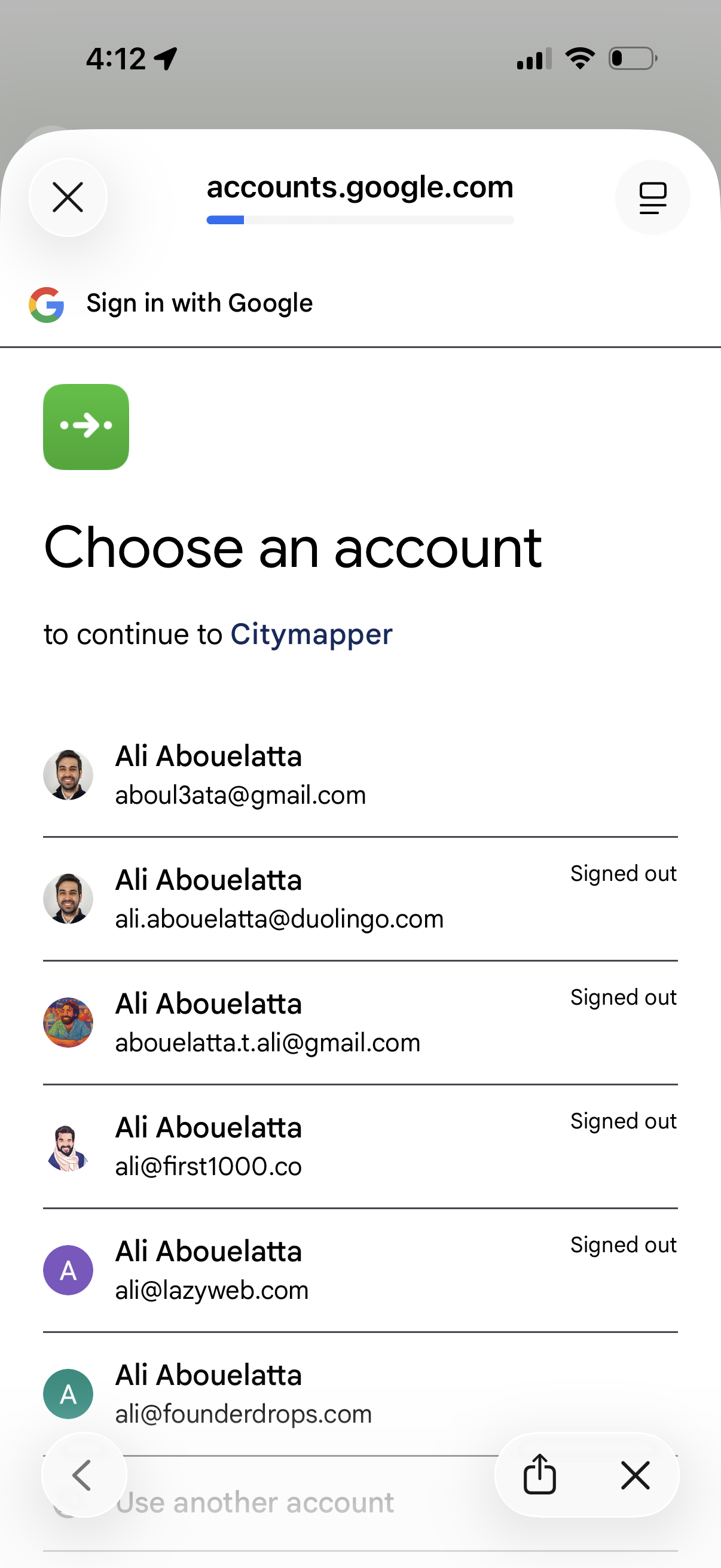
Google OAuth “Sign in with Google” account chooser screen for continuing to an app, showing a list of saved Google accounts with avatars, email addresses, and signed-out status. Users select an account to sign in, with options to close/cancel or use another account.
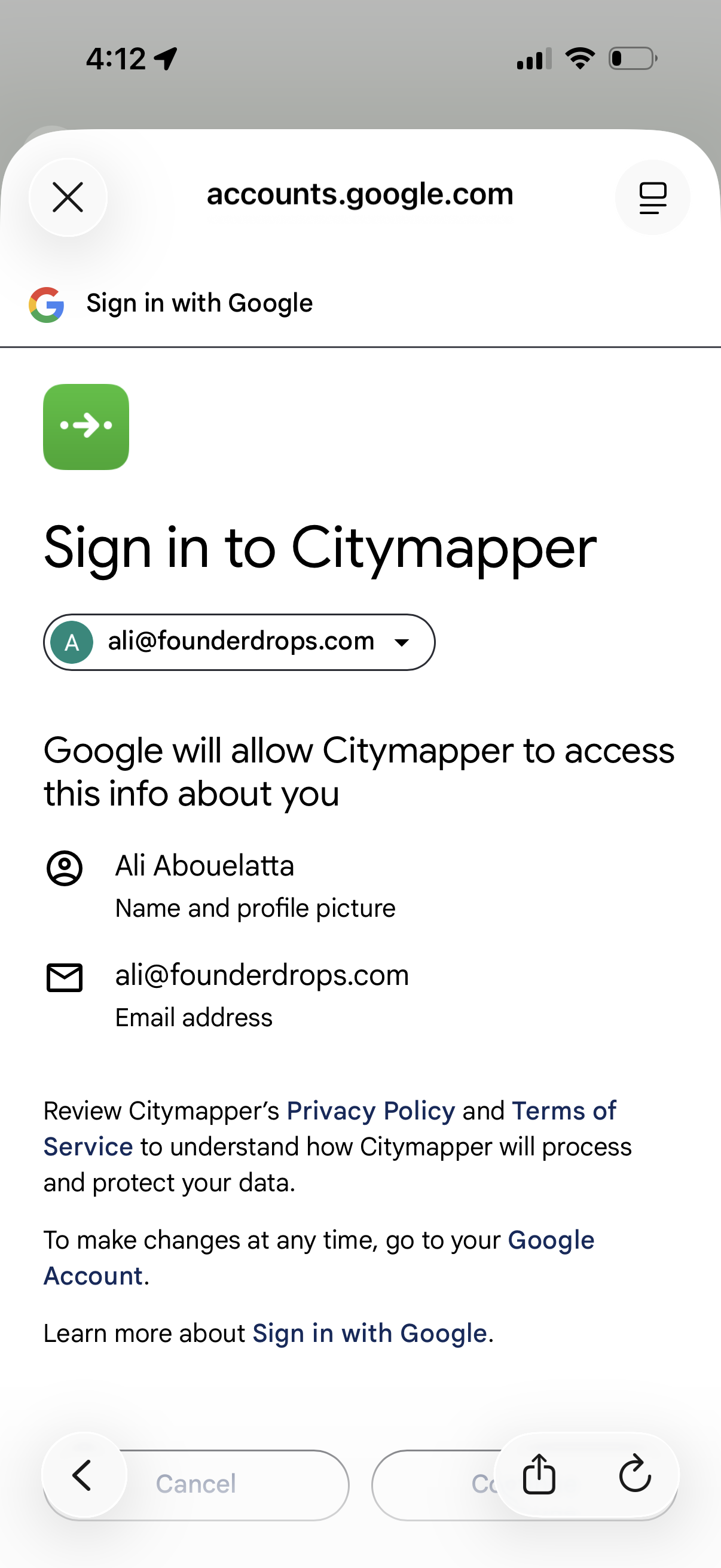
Google OAuth “Sign in with Google” consent screen for signing into an app (Citymapper), showing an account selector dropdown and the permissions being granted (name/profile picture and email address) with links to privacy policy and terms, plus cancel/continue actions.
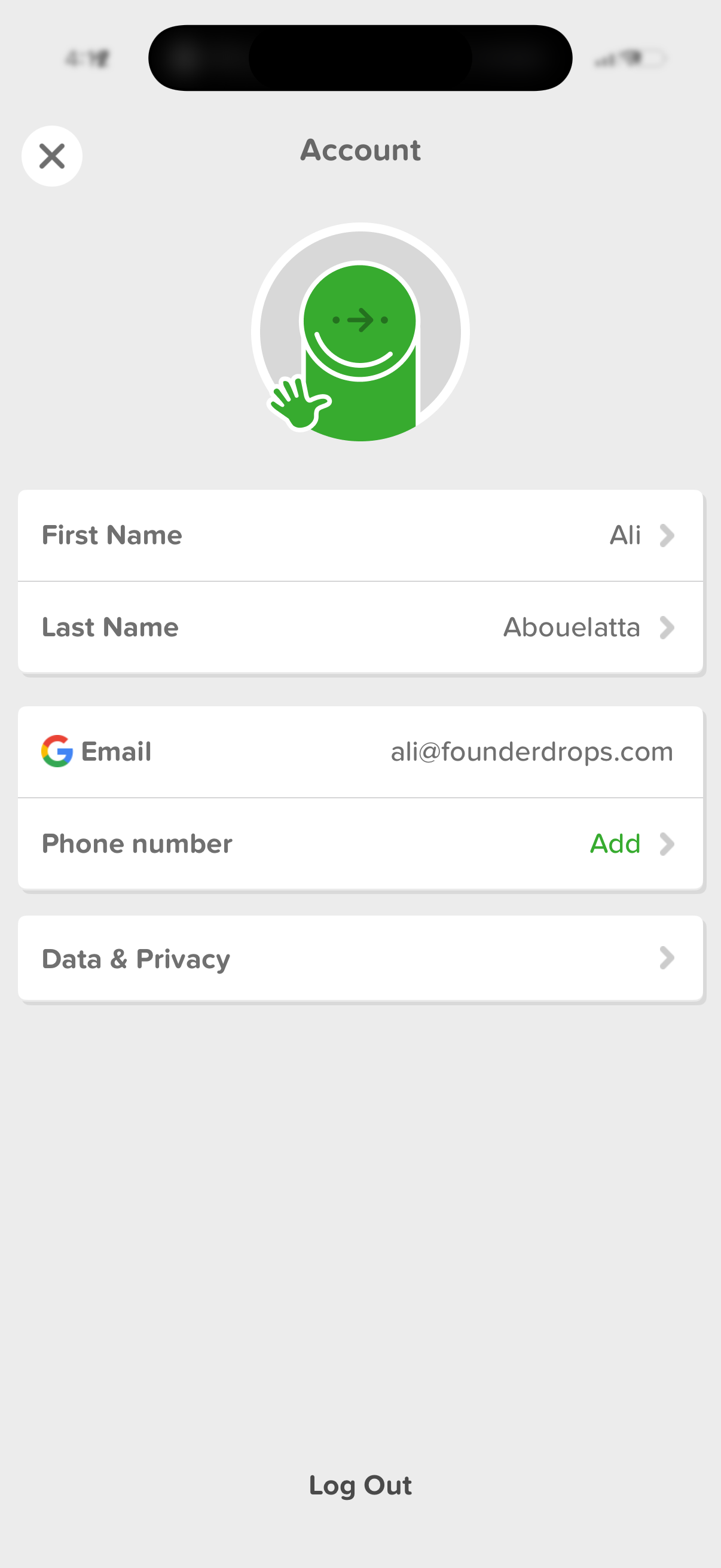
Account settings screen showing editable personal profile information, including first and last name, linked email, and an option to add a phone number. Provides a link to Data & Privacy settings and a primary Log Out action, with a close button to exit the page.