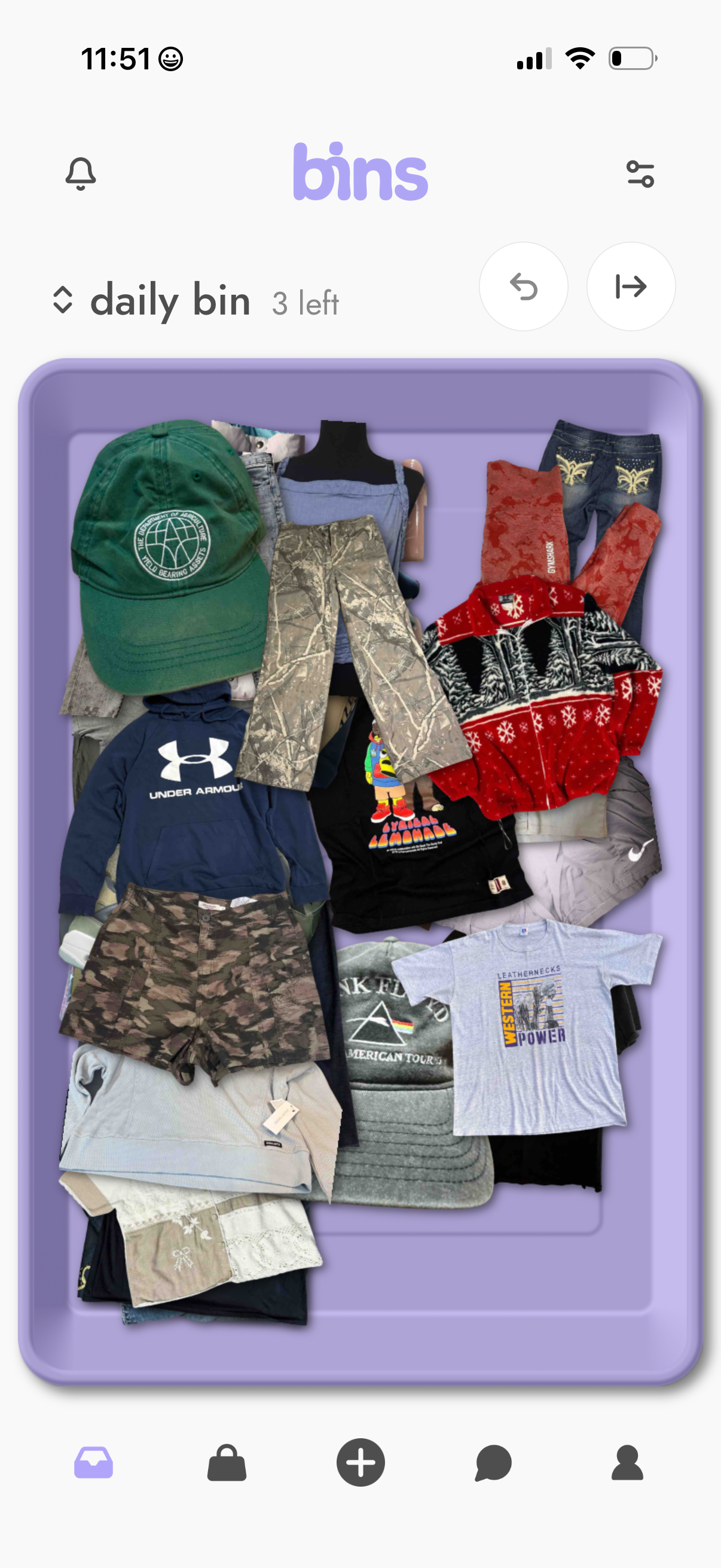
Clothing discovery feed showing a “daily bin” of items piled in a tray, with a counter for how many bins are left and swipe controls to go back or move to the next bin. Top icons provide notifications and filters/settings, while a bottom tab bar offers navigation plus a central add/create action.
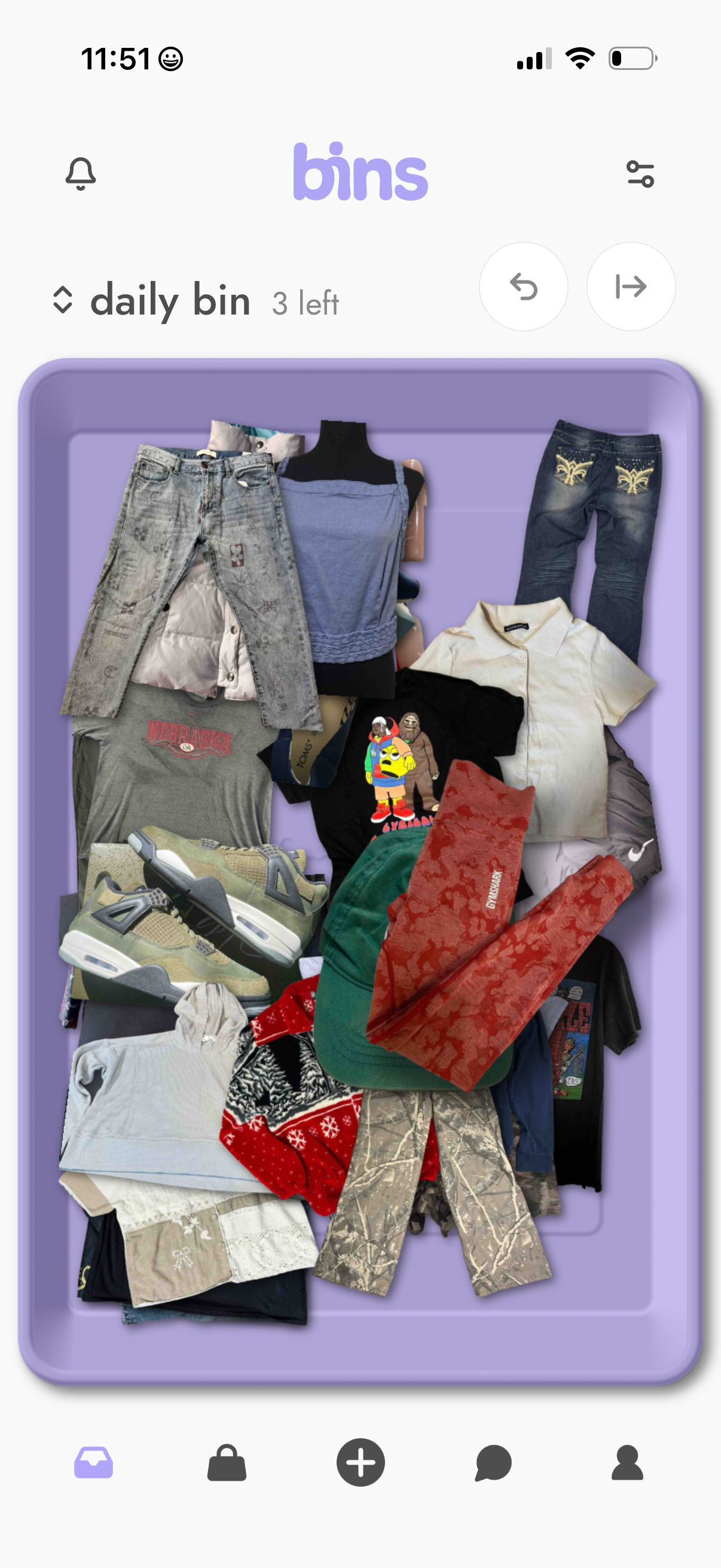
Main “daily bin” feed in a clothing resale/thrifting app showing a pile of apparel items within a bin, with progress text indicating how many bins are left to view. Includes controls to navigate through bins (previous/next), plus top icons for notifications and filters/settings and a bottom tab bar with add/new post.
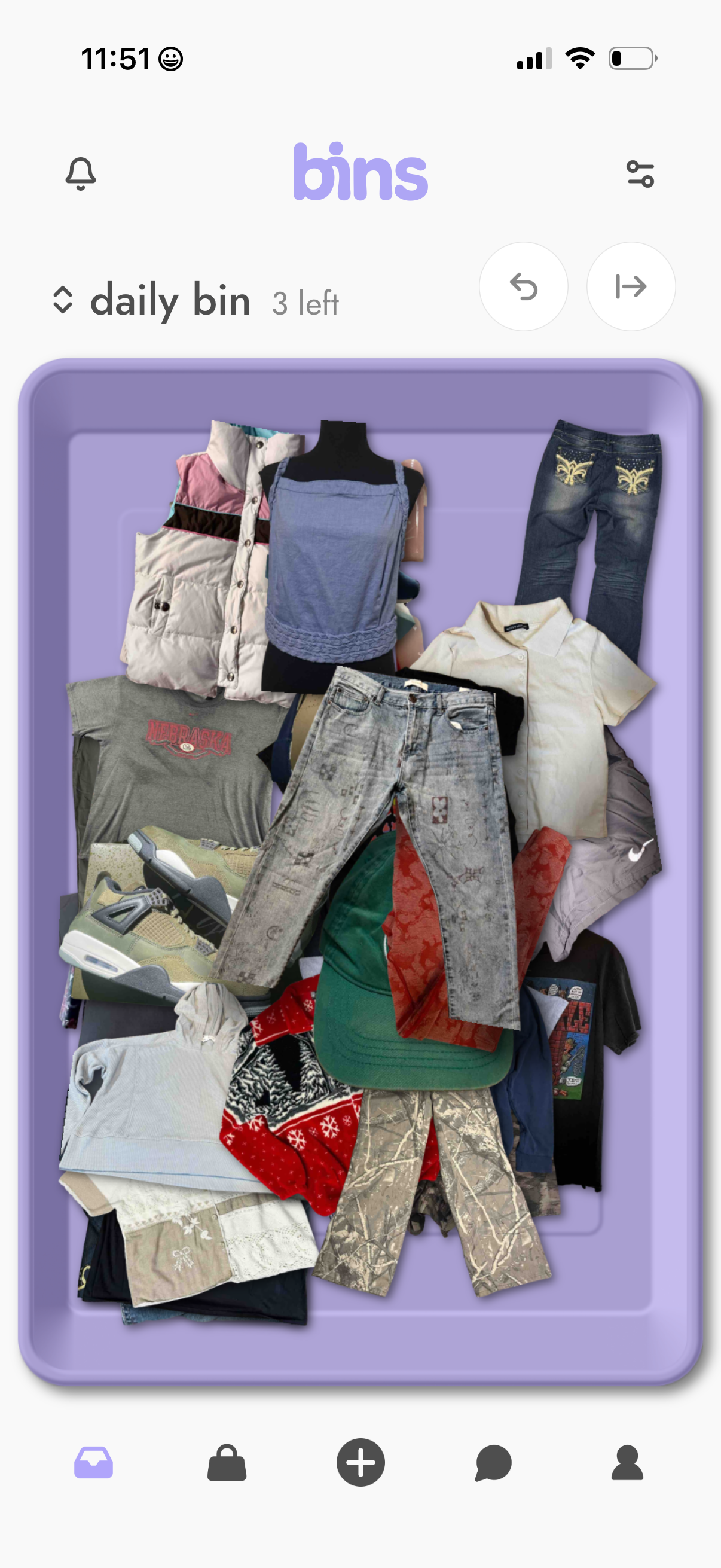
Closet/outfit discovery screen showing a “daily bin” with a pile of clothing items and a counter for how many bins are left. Users can navigate to previous/next bins, access notifications and filters/settings, and use a bottom tab bar with a central plus button to add items.
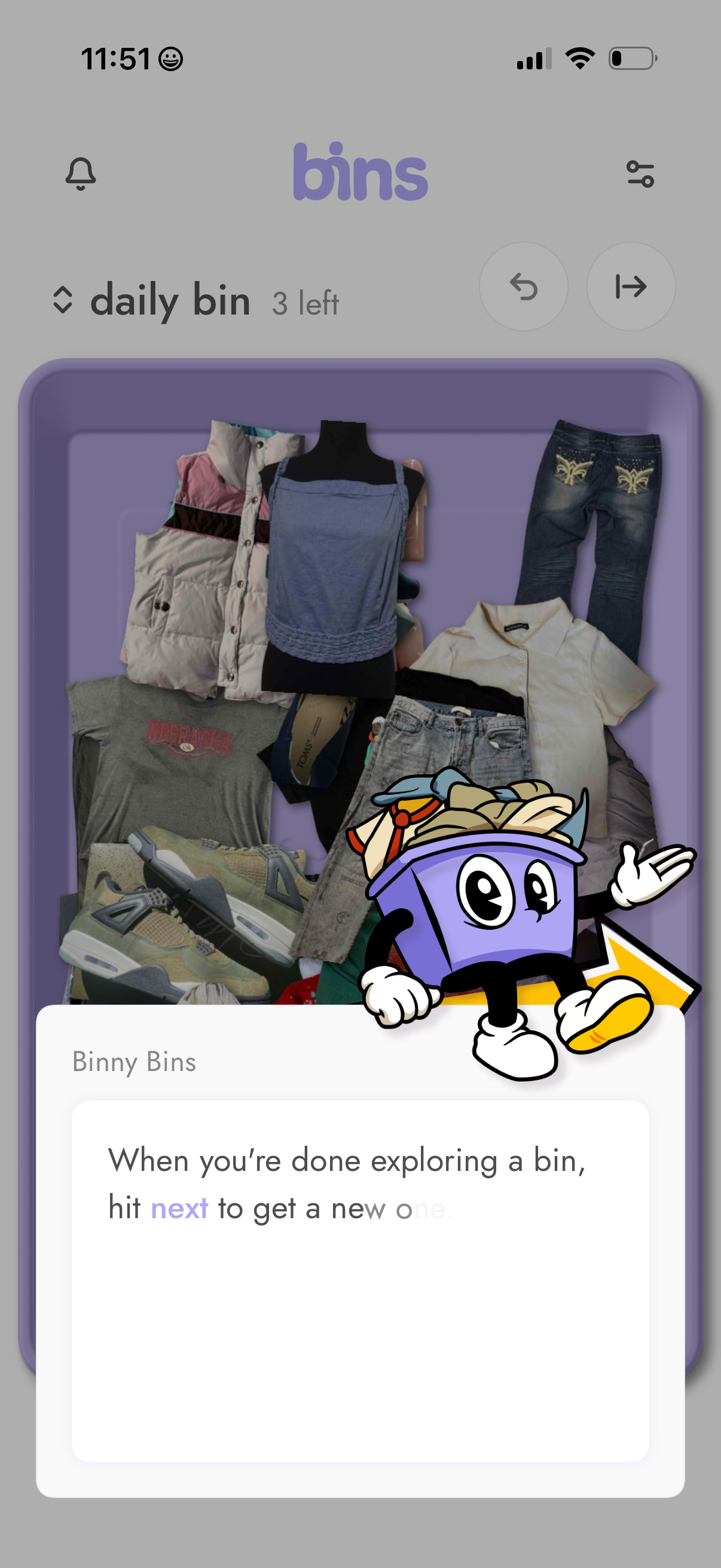
Browsing screen for a “daily bin” of secondhand items, showing a bin preview with clothing and shoes and a counter for bins left. Includes navigation controls to move to the previous or next bin, plus notification and filter/settings icons, with an instructional overlay explaining to tap Next to load a new bin.
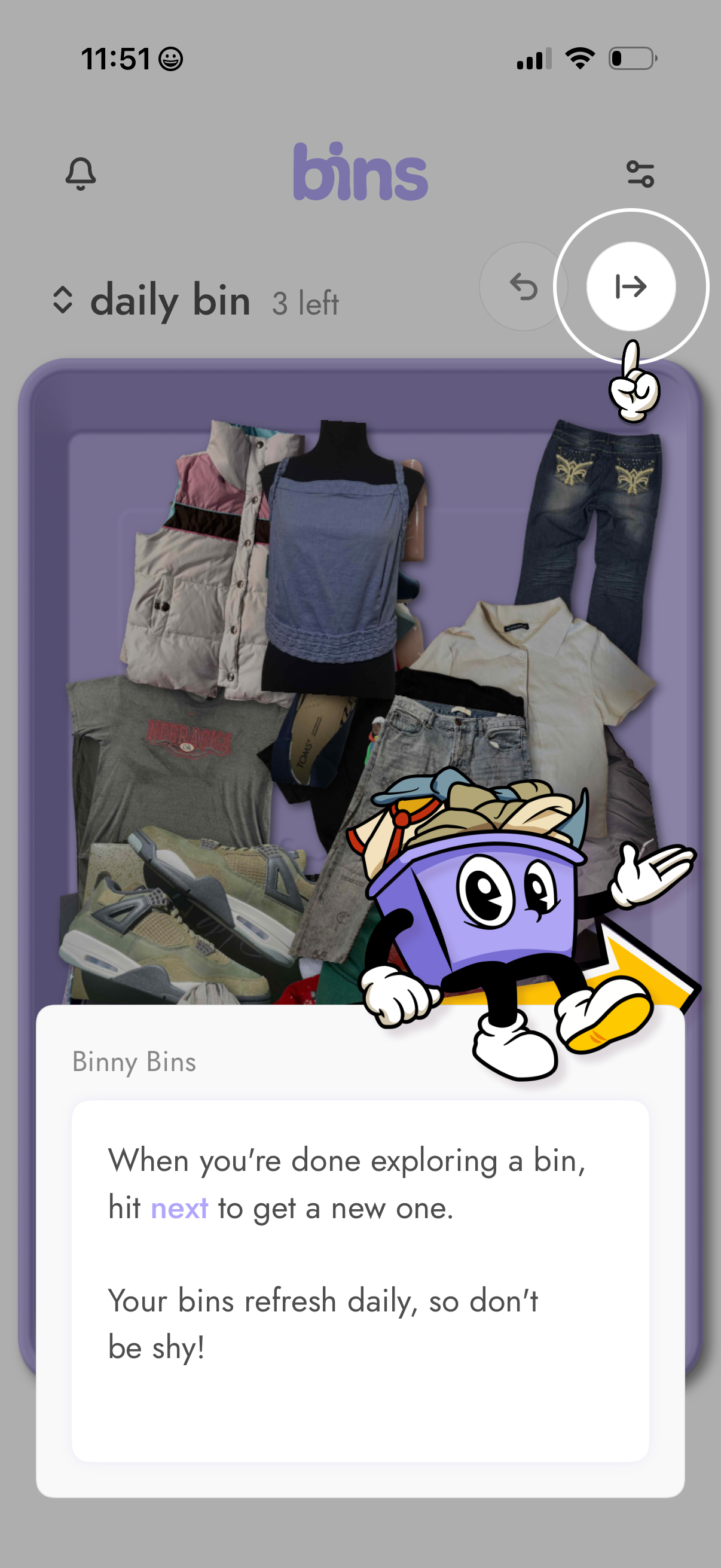
Marketplace-style browsing screen showing a “daily bin” of thrift items with a counter for bins left, plus notification and filter controls. An onboarding tooltip explains tapping the Next button to load a new bin and that bins refresh daily.
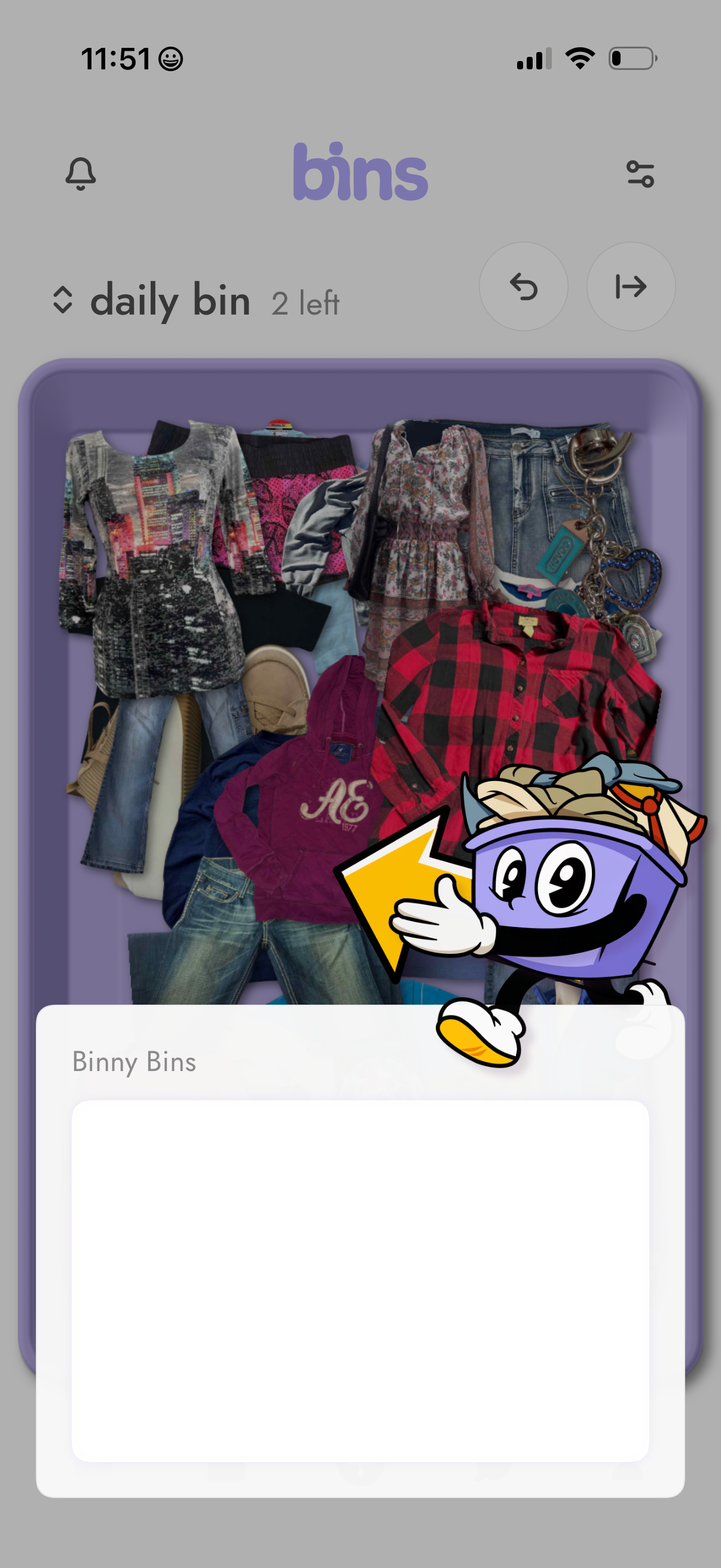
Main “daily bin” screen of a decluttering/closet sorting app showing a bin filled with clothing items and a progress indicator (“2 left”), with navigation arrows to move between bins or items. Includes top-bar actions for notifications and settings/filters, and a bottom card labeled “Binny Bins” for viewing or adding notes/details about the current bin.
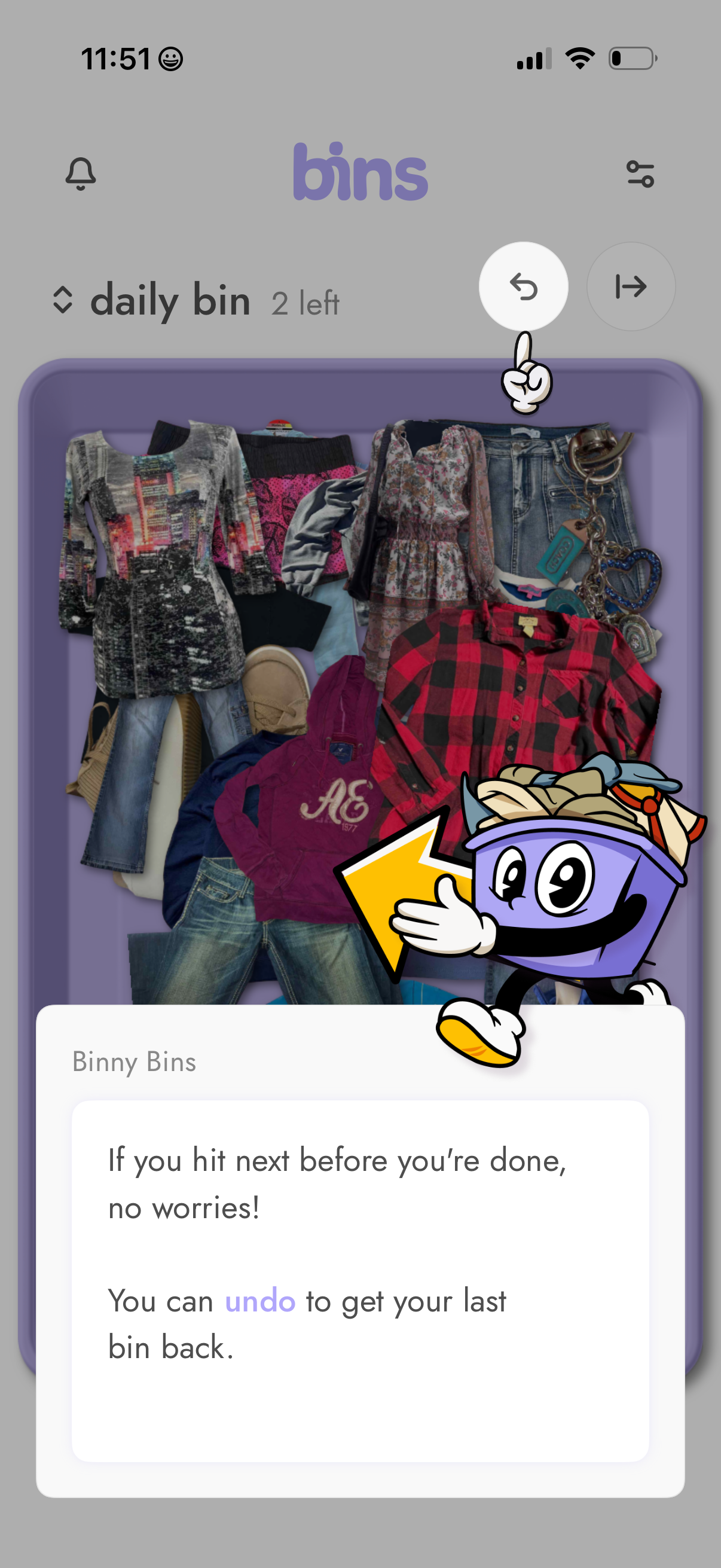
Tutorial overlay on a “daily bin” decluttering screen showing a bin of clothing items with navigation controls, emphasizing an Undo action to restore the last discarded item if the user taps Next too early. The screen includes remaining-bin count, notification/settings icons, and an instructional card explaining how to undo.
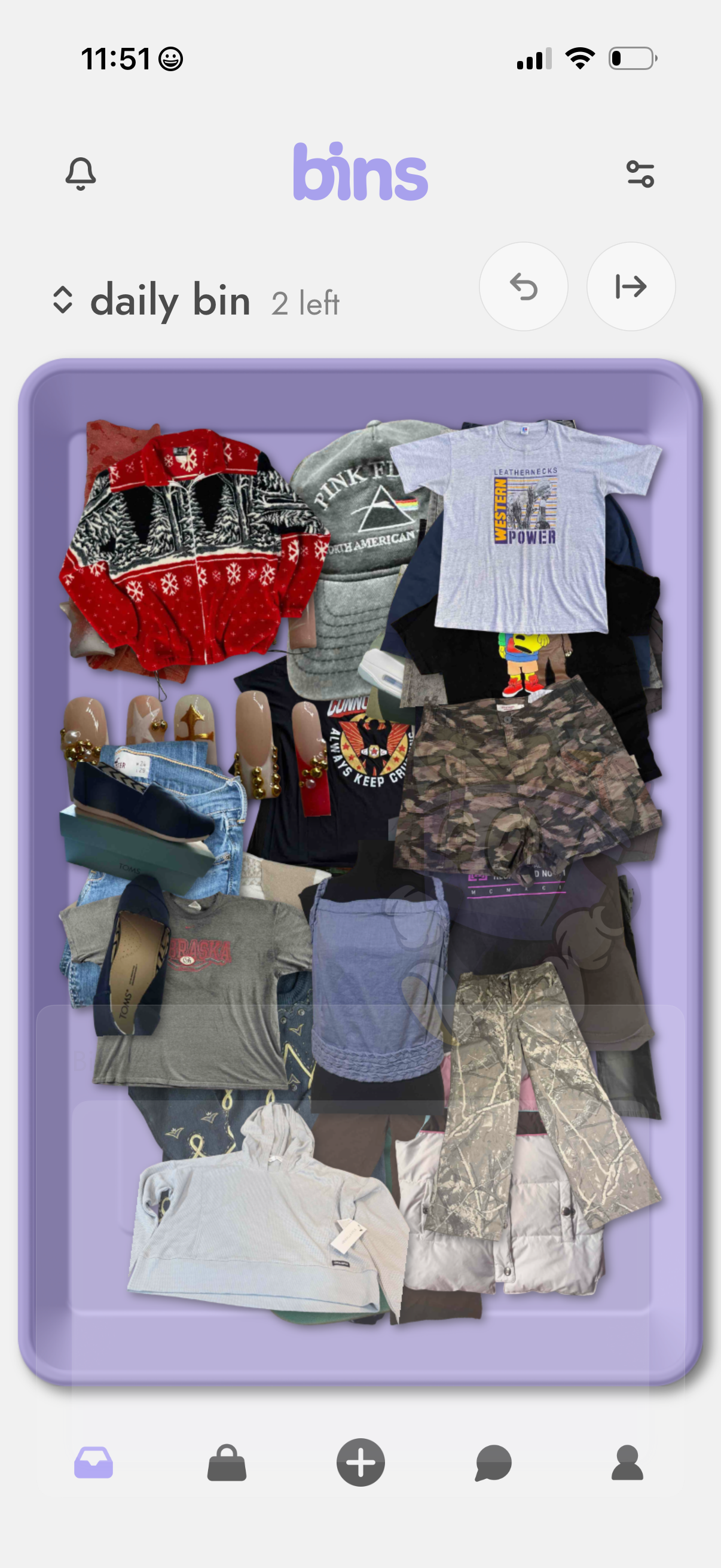
A clothing resale app home screen showing the “daily bin” of thrift items with a count of bins left, featuring large collage-style product imagery and controls to navigate to the next or previous bin. Top icons provide access to notifications and filters/settings, while a bottom tab bar enables switching sections, adding a new listing, and viewing messages/profile.
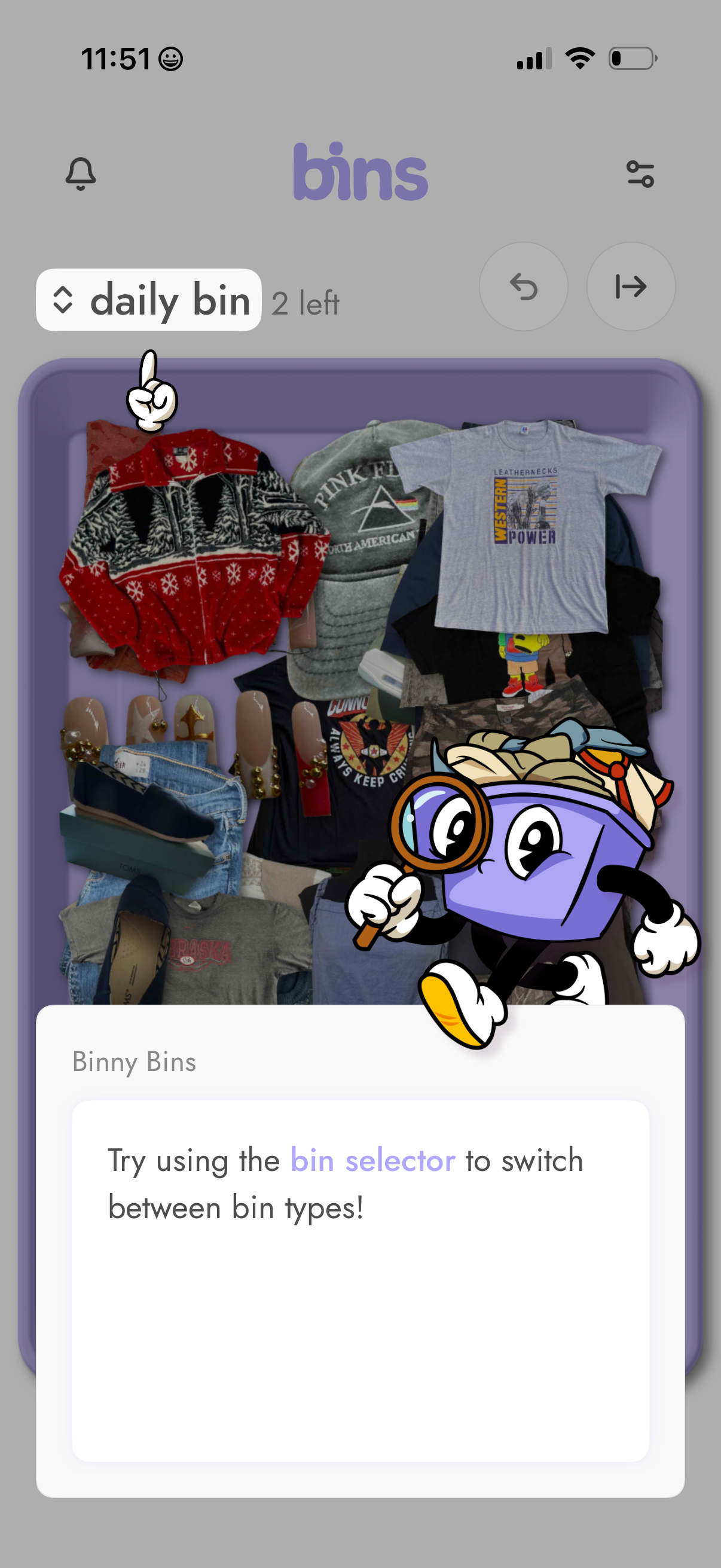
Main collection screen for a clothing resale/closet app showing a “bin” view with a pile/grid of items and a bin selector dropdown (e. g.
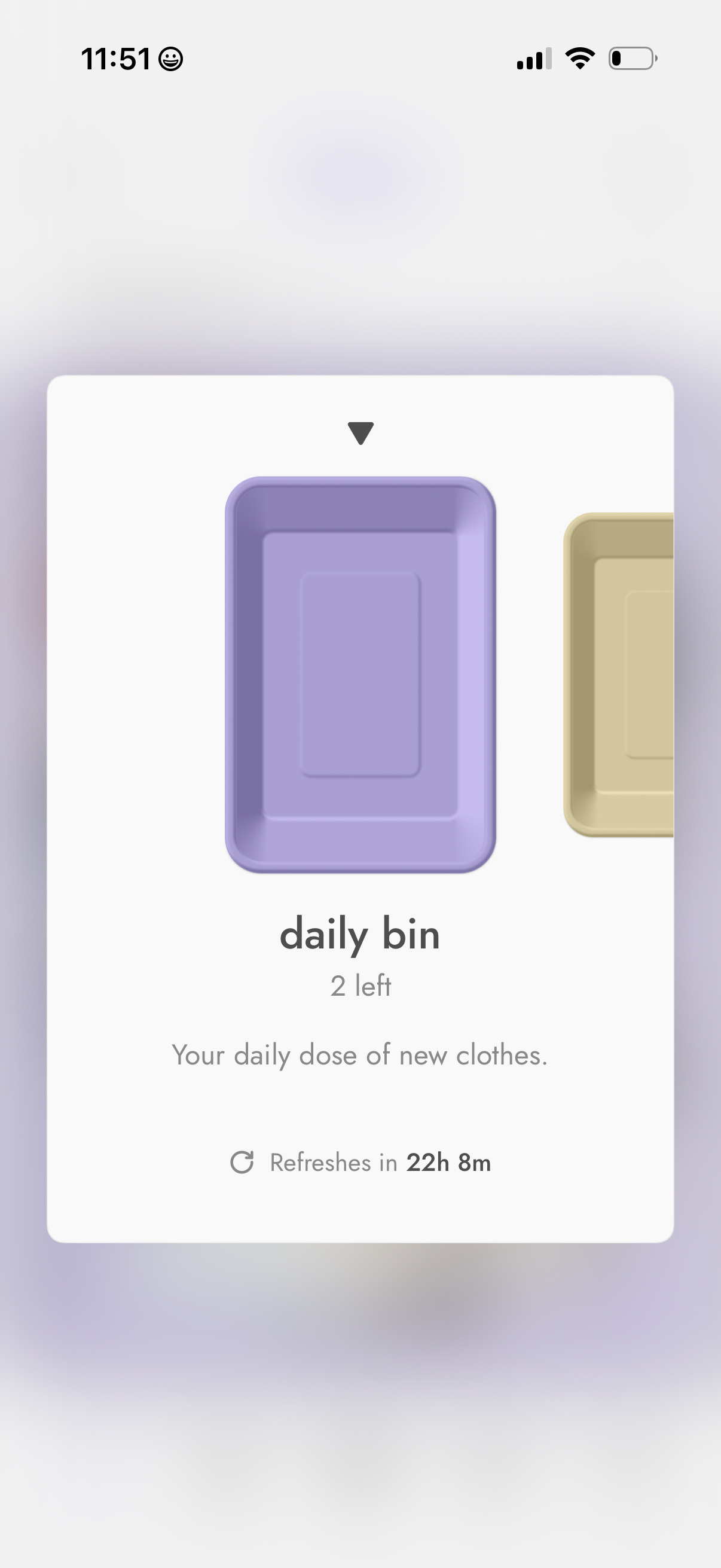
A fashion shopping app screen highlighting a “daily bin” feature that delivers a limited daily selection of new clothes, showing how many picks are left. Includes a countdown timer indicating when the bin refreshes next.
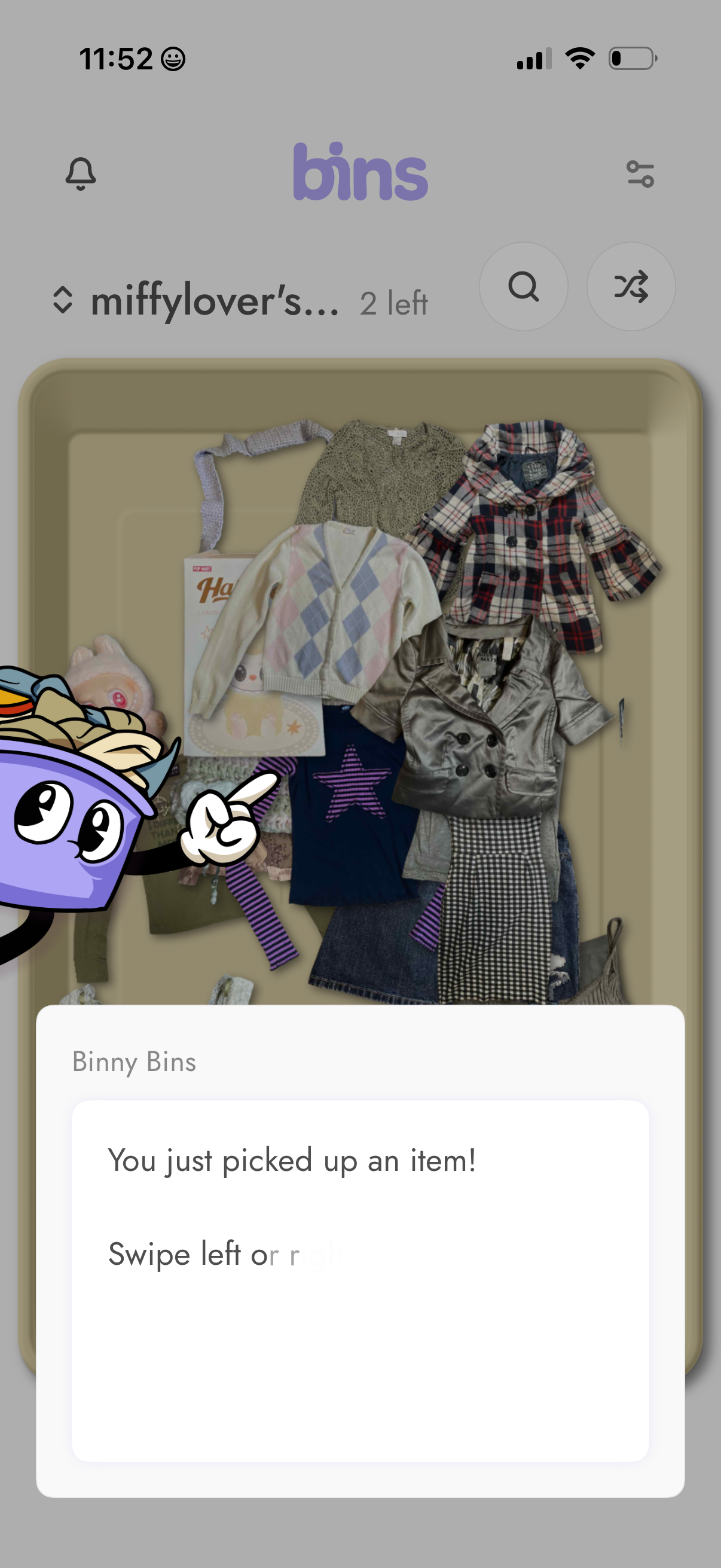
Inventory “bin” browsing screen showing a bin filled with clothing items with controls to search and shuffle/sort items. A bottom educational modal tooltip appears after picking up an item, instructing the user to swipe left or right to take an action.
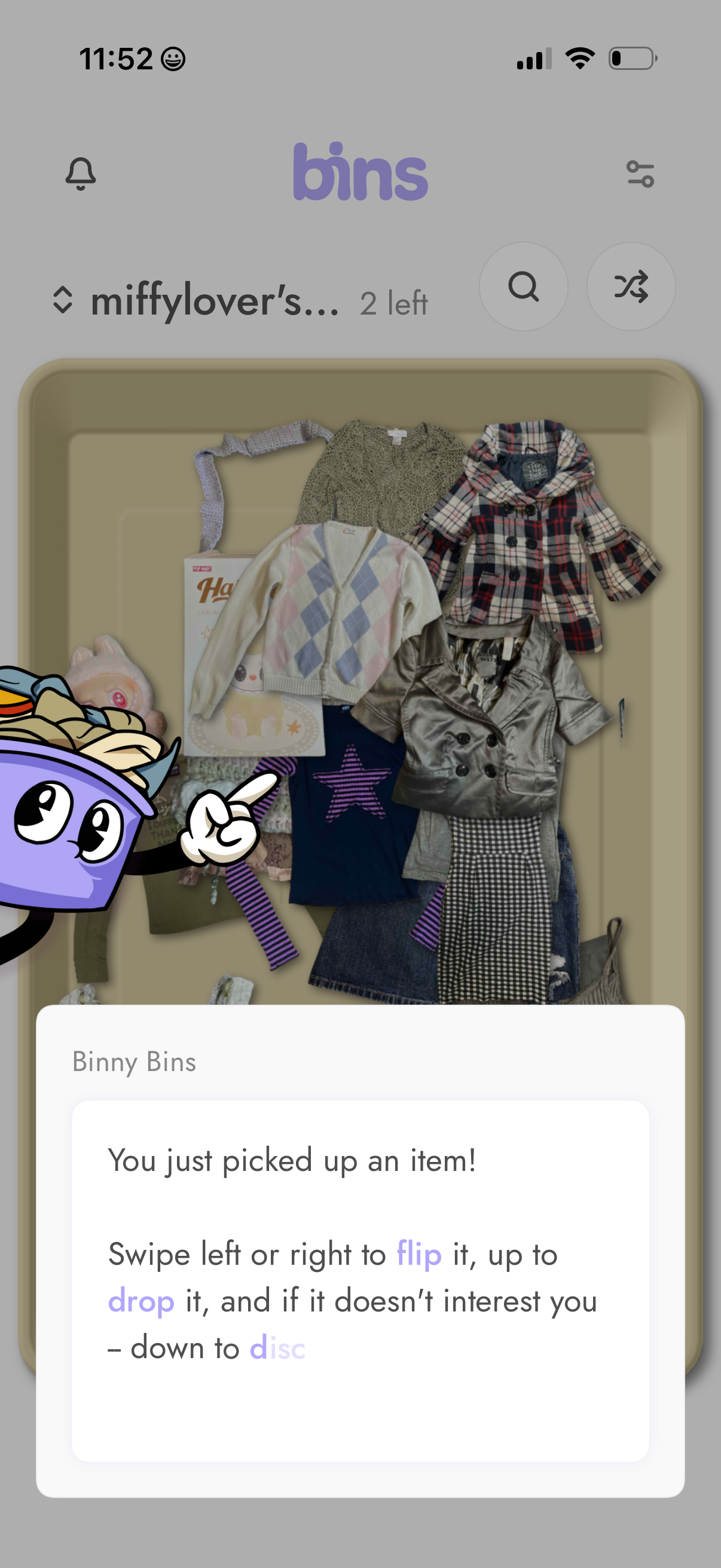
A closet/bin browsing screen showing a bin of clothing items with controls to search and shuffle through bins, plus a tutorial pop-up that explains gesture-based item actions like swiping to flip, swiping up to drop, and swiping down to discard. It also indicates how many bins are left and includes notification and settings/filter icons in the header.
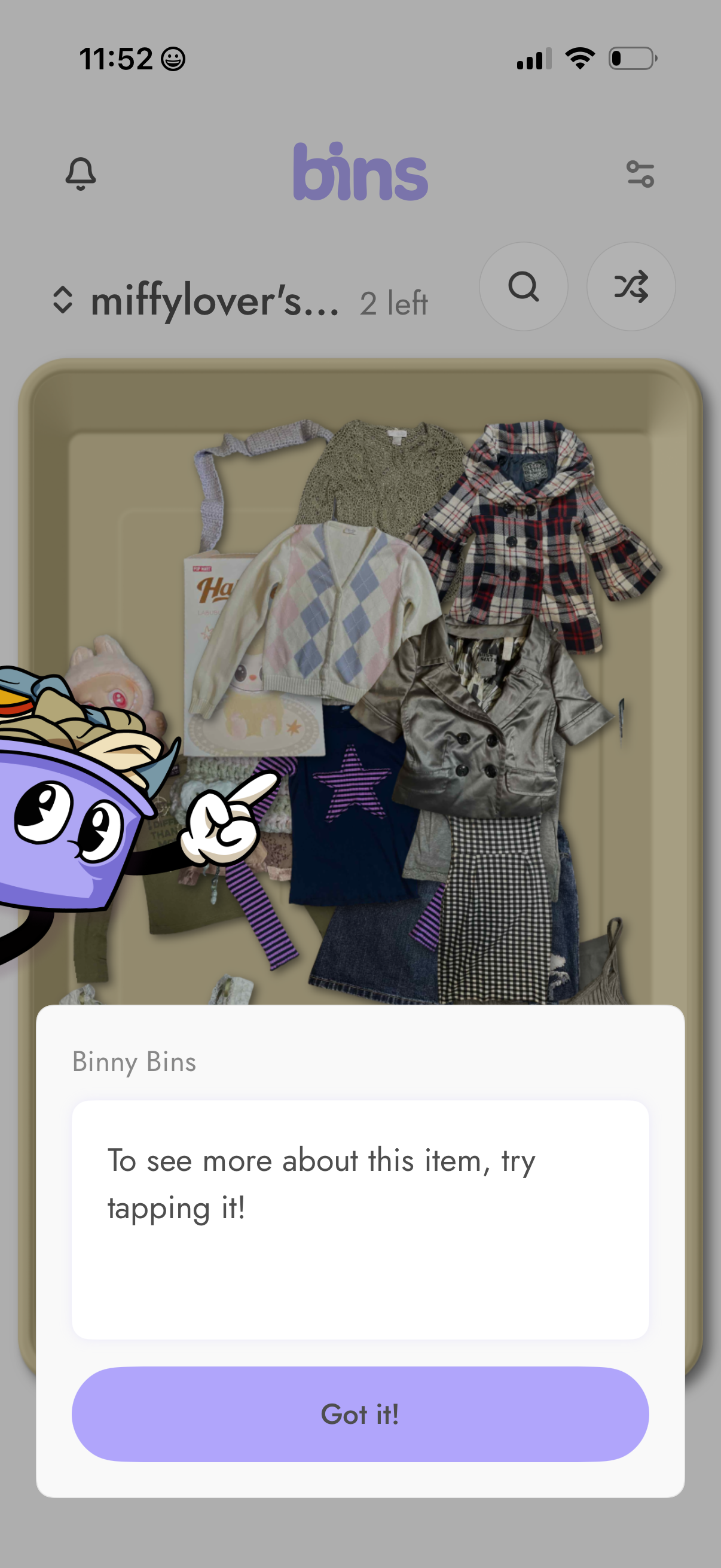
Closet organizer “bins” screen showing a bin of clothing items with search and sort/shuffle controls, plus a notification/settings icon. A tutorial pop-up explains that users can tap an item to view more details, with a “Got it!
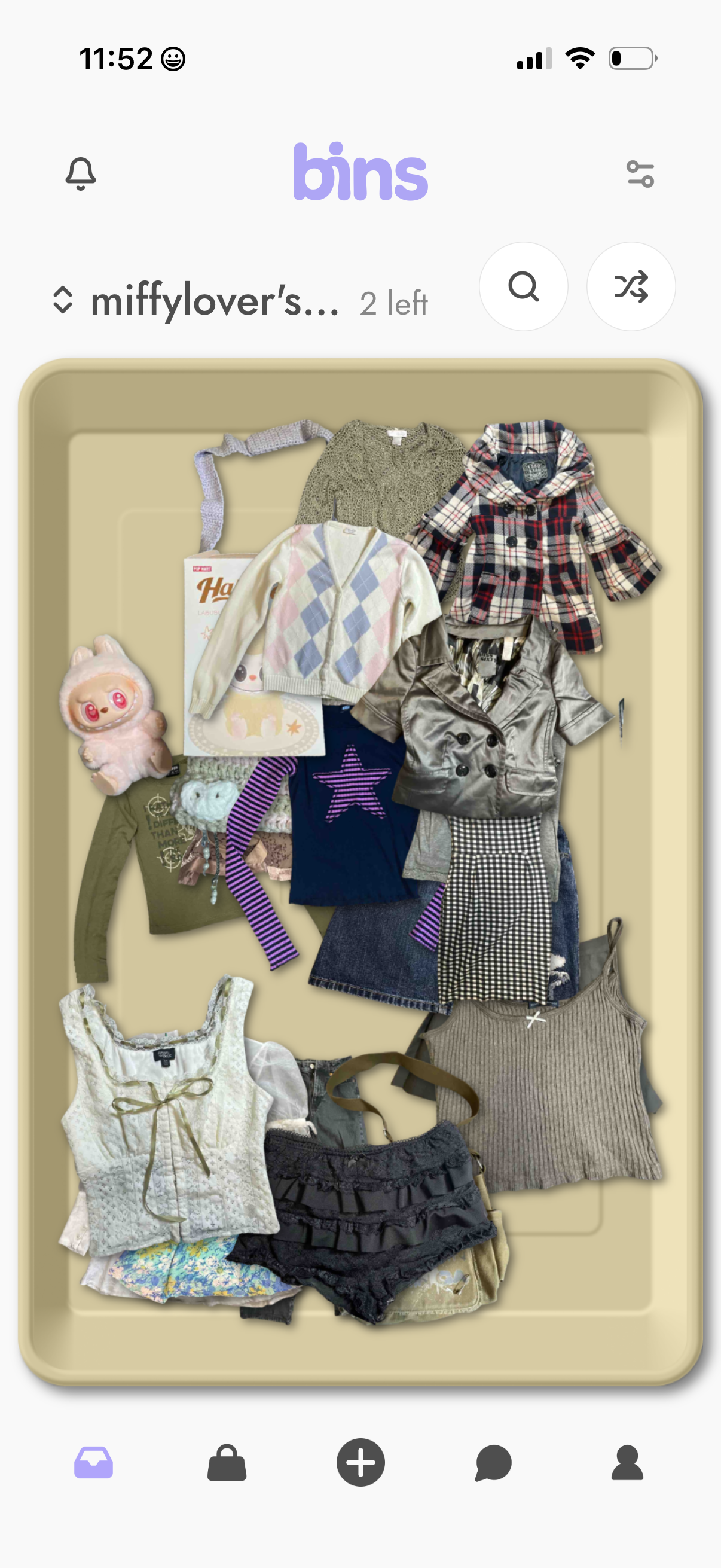
A digital closet “bin” screen showing a tray-style collage of clothing items inside a user-named collection with an indicator of items remaining. Top actions include search, filter/sort, and notifications, with a bottom tab bar for navigating to bins, shopping/bag, add new items, messages, and profile.