add item and start
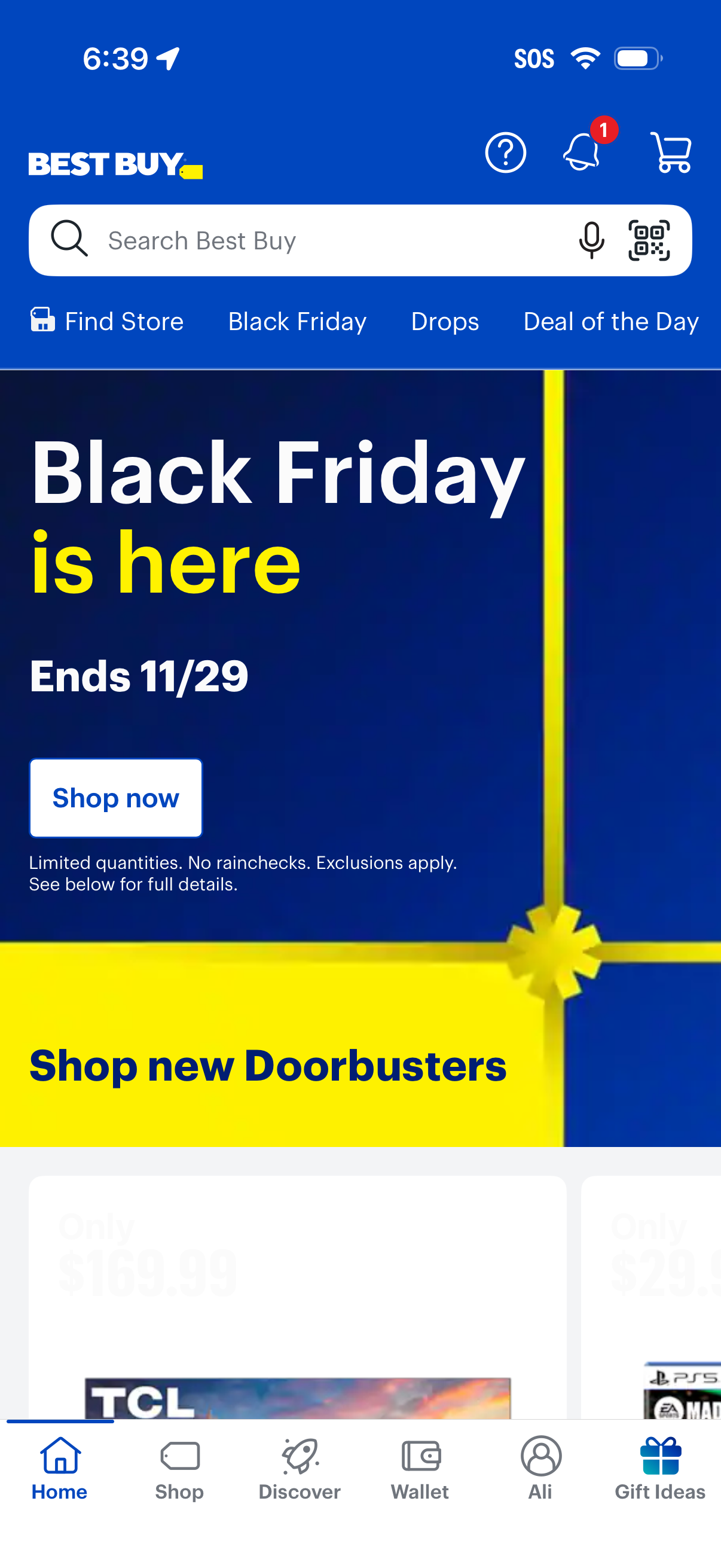
Retail app home screen promoting a Black Friday sale with a large campaign banner and primary “Shop now” call-to-action, plus a section to shop new doorbusters. Top navigation includes search with voice and barcode/QR scanning, shortcuts for finding a store and daily deals, and icons for help, notifications, and cart, with a bottom tab bar for Home, Shop, Discover, Wallet, and Gift Ideas.
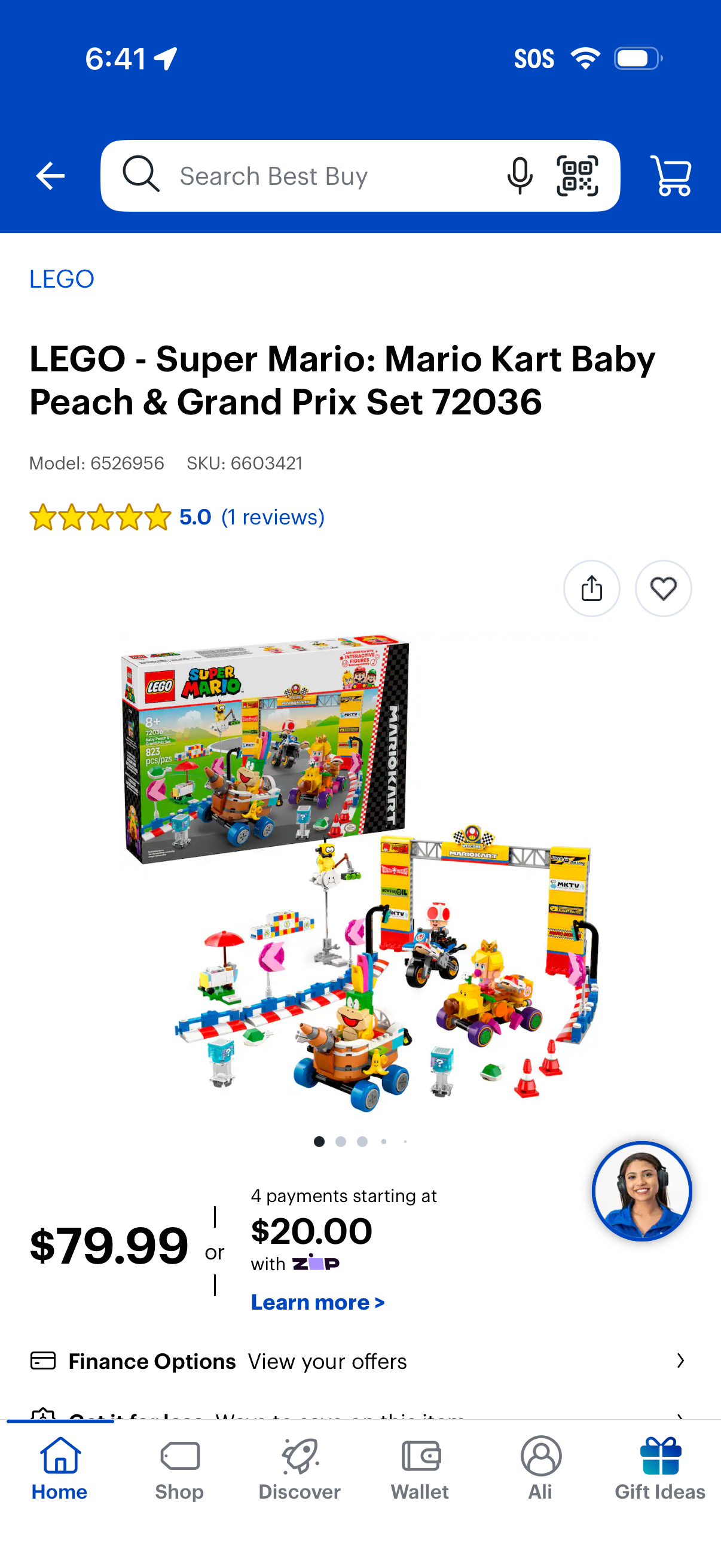
E-commerce product detail page for a LEGO set showing the product title, model/SKU, star rating and reviews, image gallery, and pricing with installment payment option. Top actions include searching (with voice and barcode scan), viewing the cart, sharing, and saving to a wishlist/favorites.
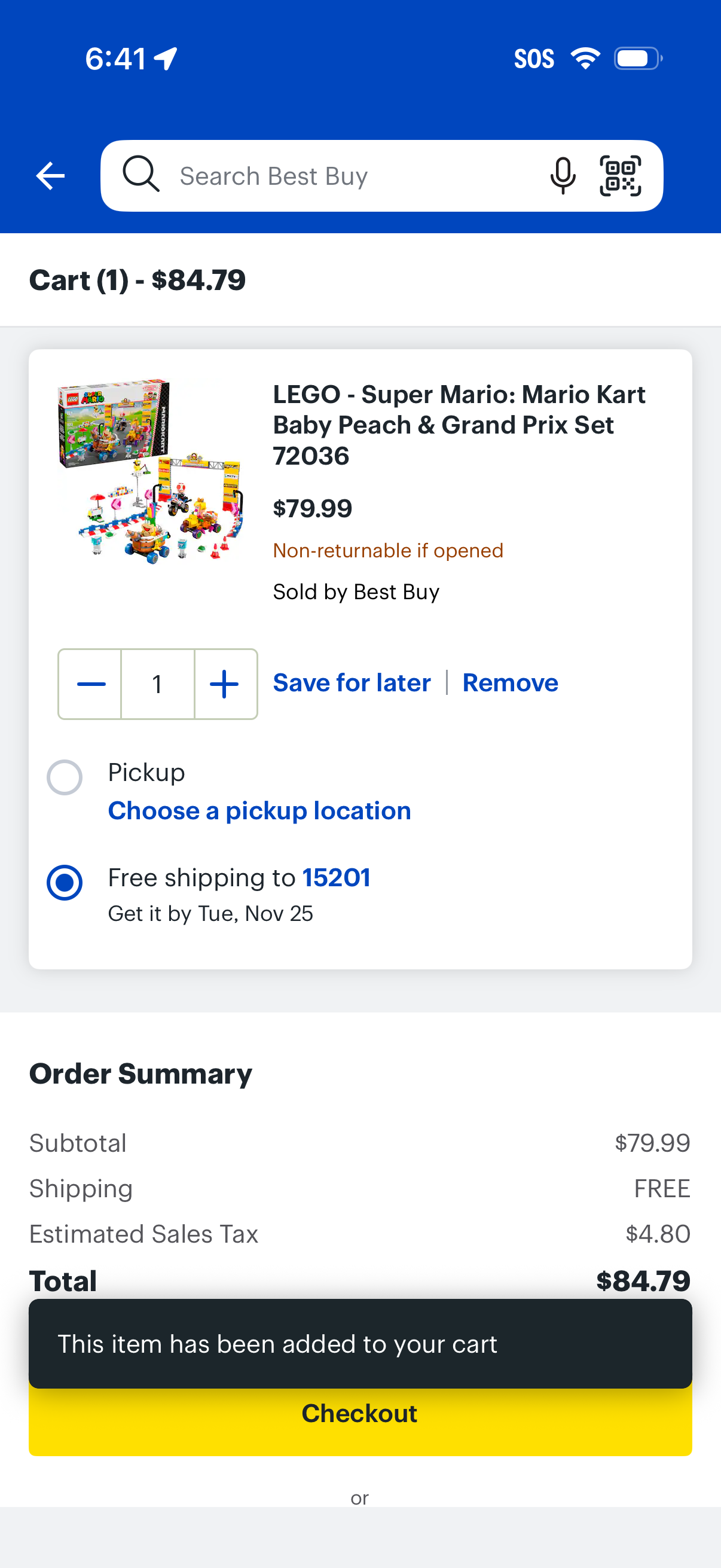
Mobile shopping cart screen showing a single product with image, price, seller info, and return policy, plus quantity stepper controls and actions to save for later or remove. Users can choose pickup or free shipping delivery options with estimated arrival, review an order summary with taxes and total, and proceed via a prominent checkout button with an added-to-cart confirmation banner.
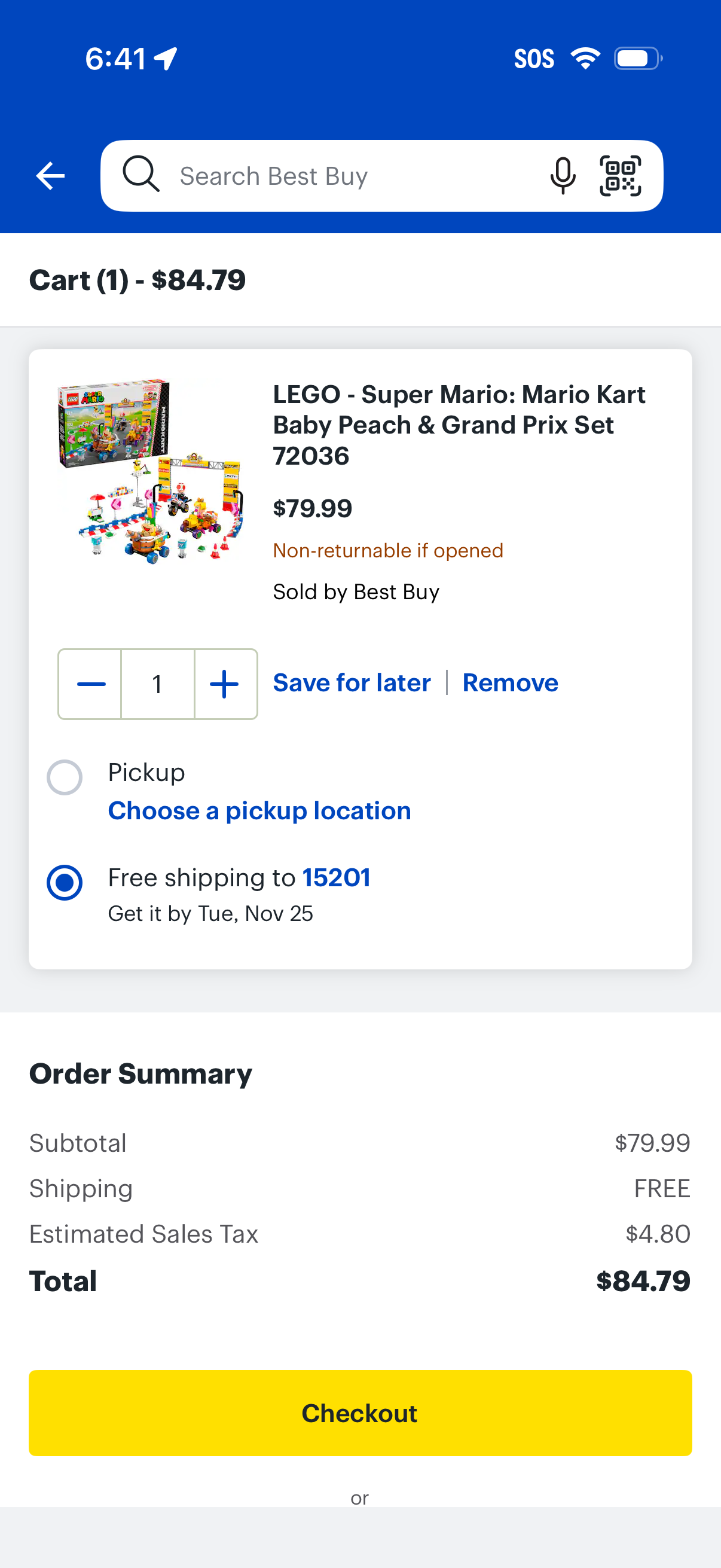
Mobile shopping cart screen showing a single product with image, price, seller/return policy, and quantity stepper plus options to save for later or remove. Users can choose pickup location or free shipping with delivery estimate, review an order summary with subtotal/tax/total, and proceed via a prominent Checkout button.

E-commerce checkout screen for “Getting your order” showing shipping details with a delivery date and free shipping option, plus an action to switch to store pickup. Includes a shipping address form with fields for name, address, optional apartment info, city, state selector, and ZIP code, alongside an order summary total.
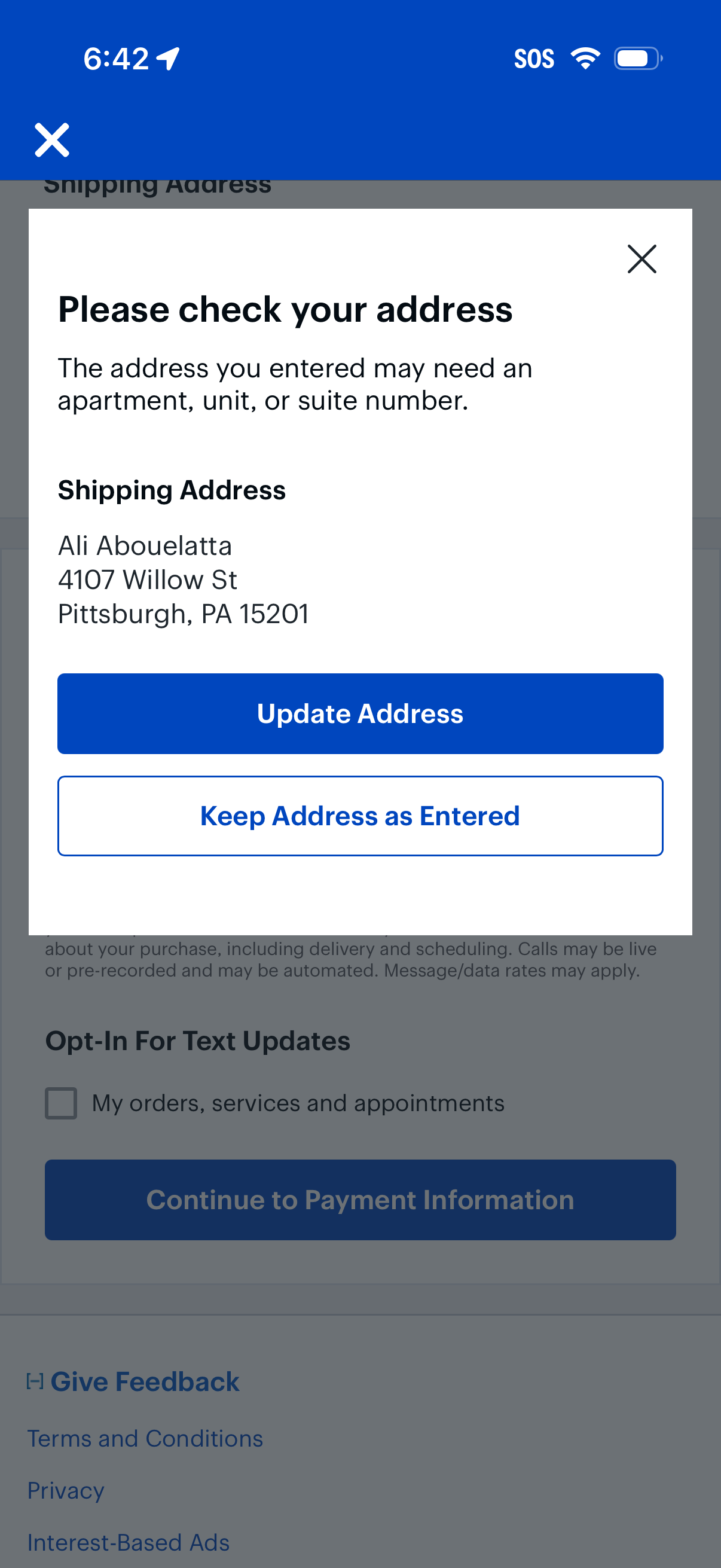
Checkout shipping address validation modal warning that the entered address may be missing an apartment/unit/suite number and prompting the user to review the shipping address. Provides primary actions to Update Address or Keep Address as Entered, with close/dismiss controls.

Checkout address form for entering shipping details, including first and last name, street address with autocomplete suggestions and optional apartment/suite, city, state dropdown, and ZIP code. Includes a checkbox to use the same address for billing plus close and done actions while typing.
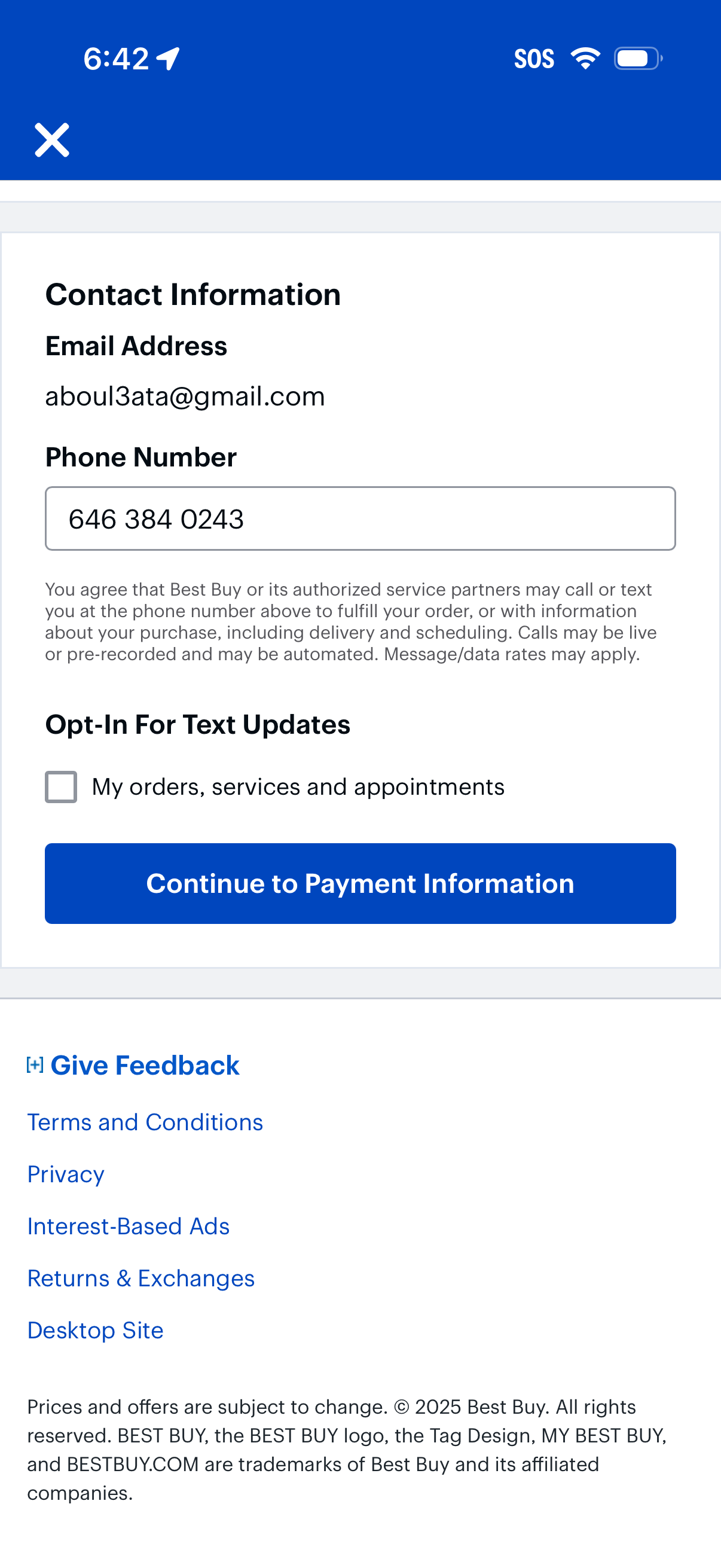
Checkout contact information step where the user reviews their email address, enters a phone number, and optionally opts in to SMS updates for orders, services, and appointments. Primary action is a “Continue to Payment Information” button, with an option to close the flow.
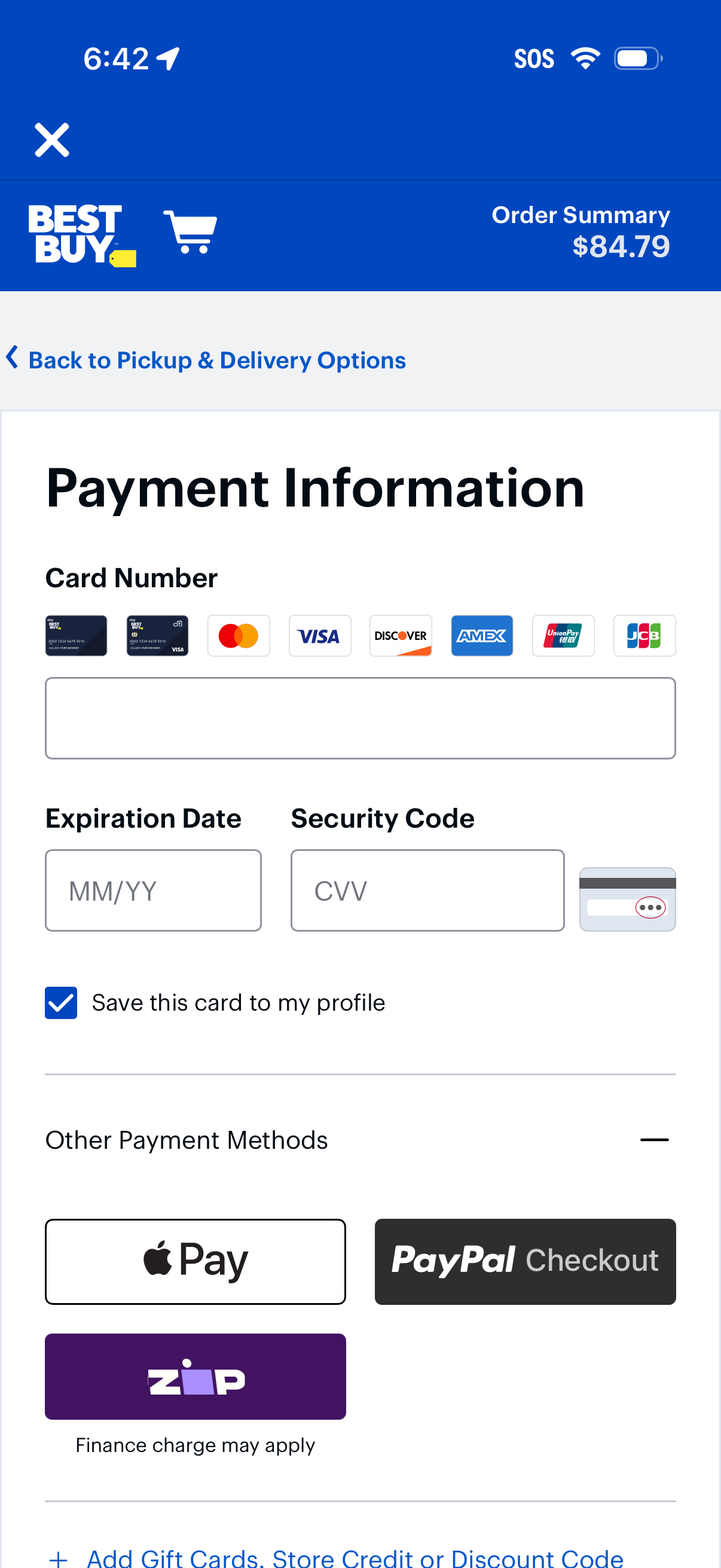
Ecommerce checkout payment information screen showing an order summary total and fields to enter credit card number, expiration date, and CVV with an option to save the card to the user profile. Includes alternative payment methods like Apple Pay, PayPal Checkout, and Zip financing, plus navigation back to pickup and delivery options.
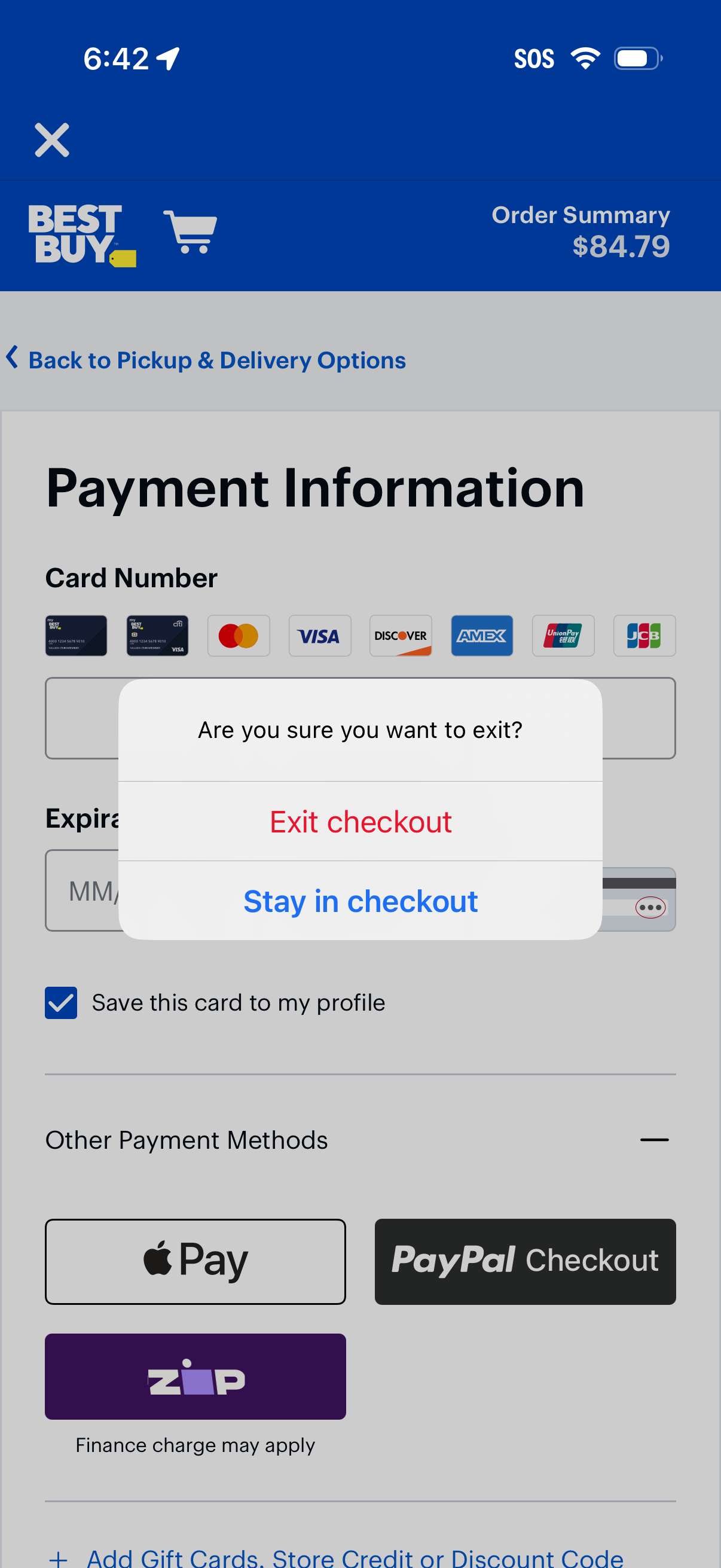
Checkout payment information screen showing credit card entry fields (card number and expiration), a toggle to save the card to the profile, and alternative payment methods like Apple Pay, PayPal Checkout, and Zip. An exit confirmation modal appears asking whether to exit checkout or stay in checkout.