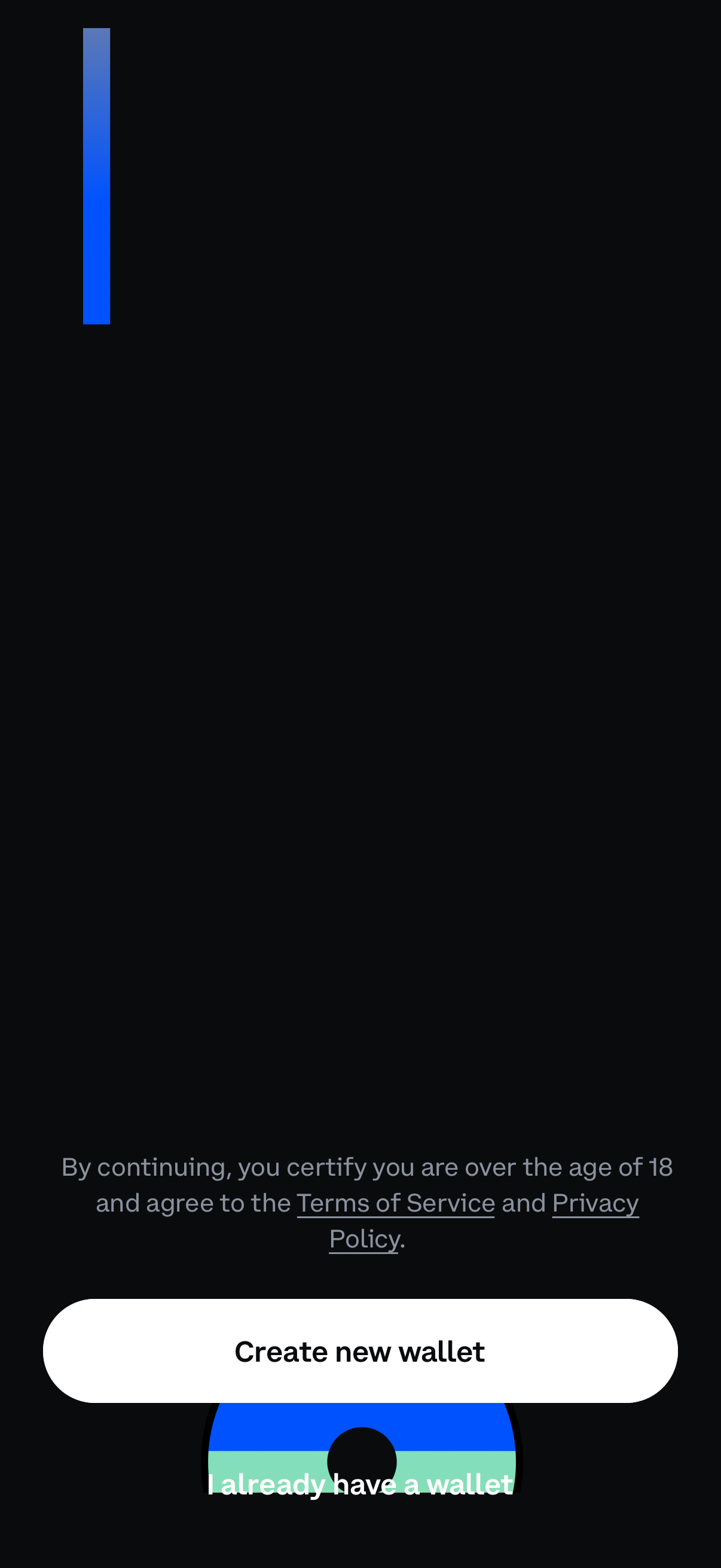
Crypto wallet onboarding screen prompting users to create a new wallet, with a secondary option to sign in if they already have a wallet. Includes an age confirmation notice and links to Terms of Service and Privacy Policy before continuing.
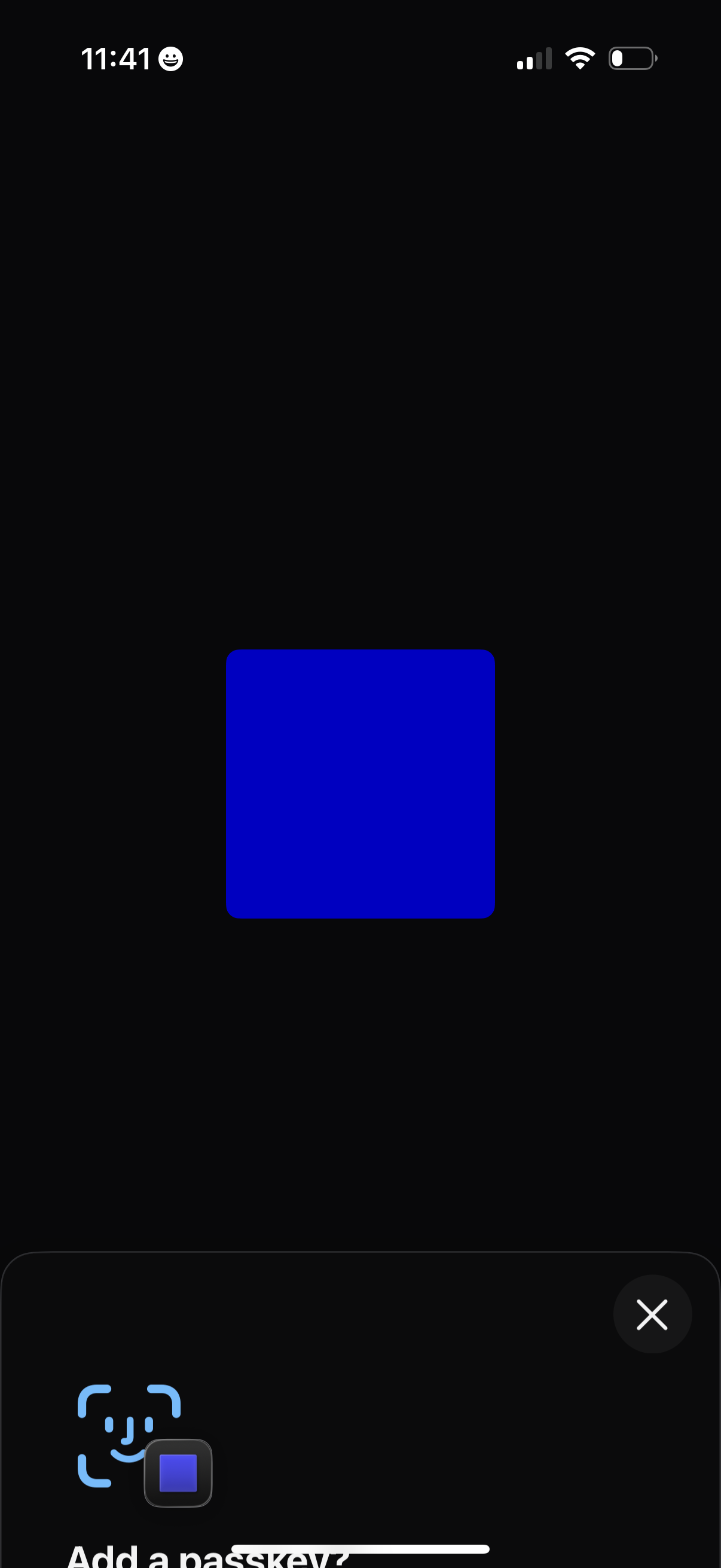
System modal for setting up a passkey, showing a Face ID icon to scan your face and create or add a passkey for passwordless sign-in. Includes a close (X) action to dismiss the setup sheet.
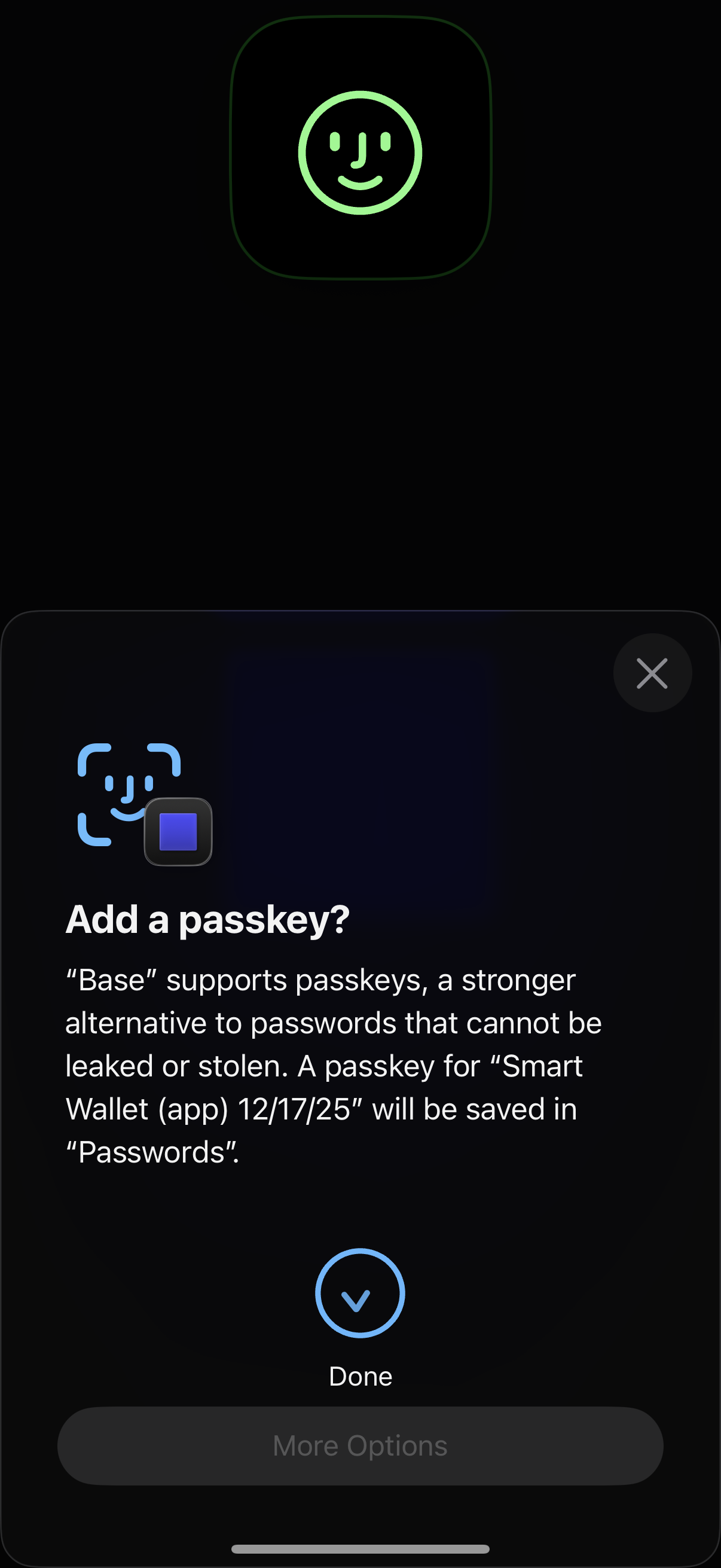
System modal prompting the user to add a passkey for an app as a secure alternative to passwords, explaining it will be saved in the device password manager. Primary action is to confirm with “Done,” with options to close the dialog or open “More Options.
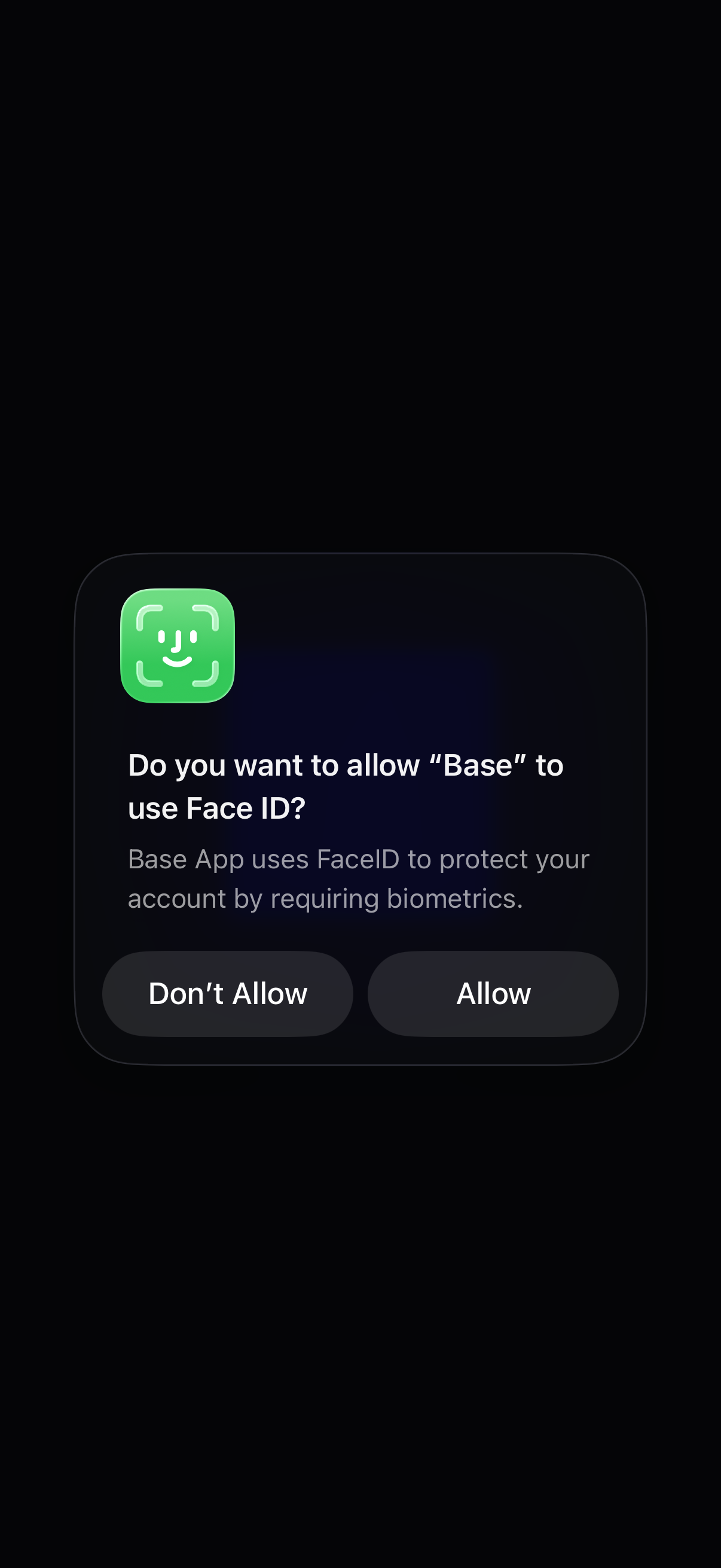
iOS system permission modal asking the user to allow the app to use Face ID for biometric authentication to protect the account. Provides primary actions to Allow or Don’t Allow.
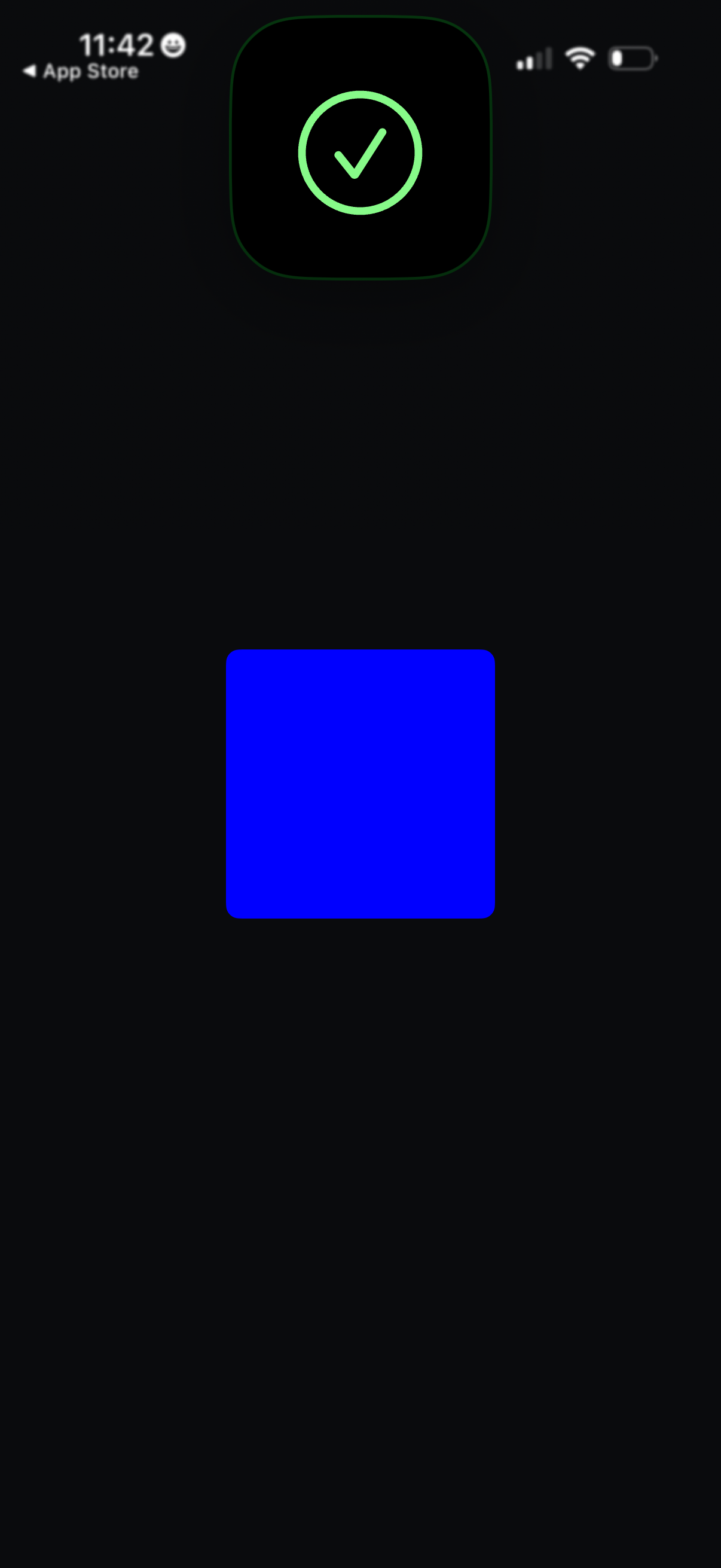
Minimal success/confirmation screen in dark mode showing a large checkmark icon to indicate a completed action or verification, with no visible text or buttons and only a back navigation to return to the previous page.
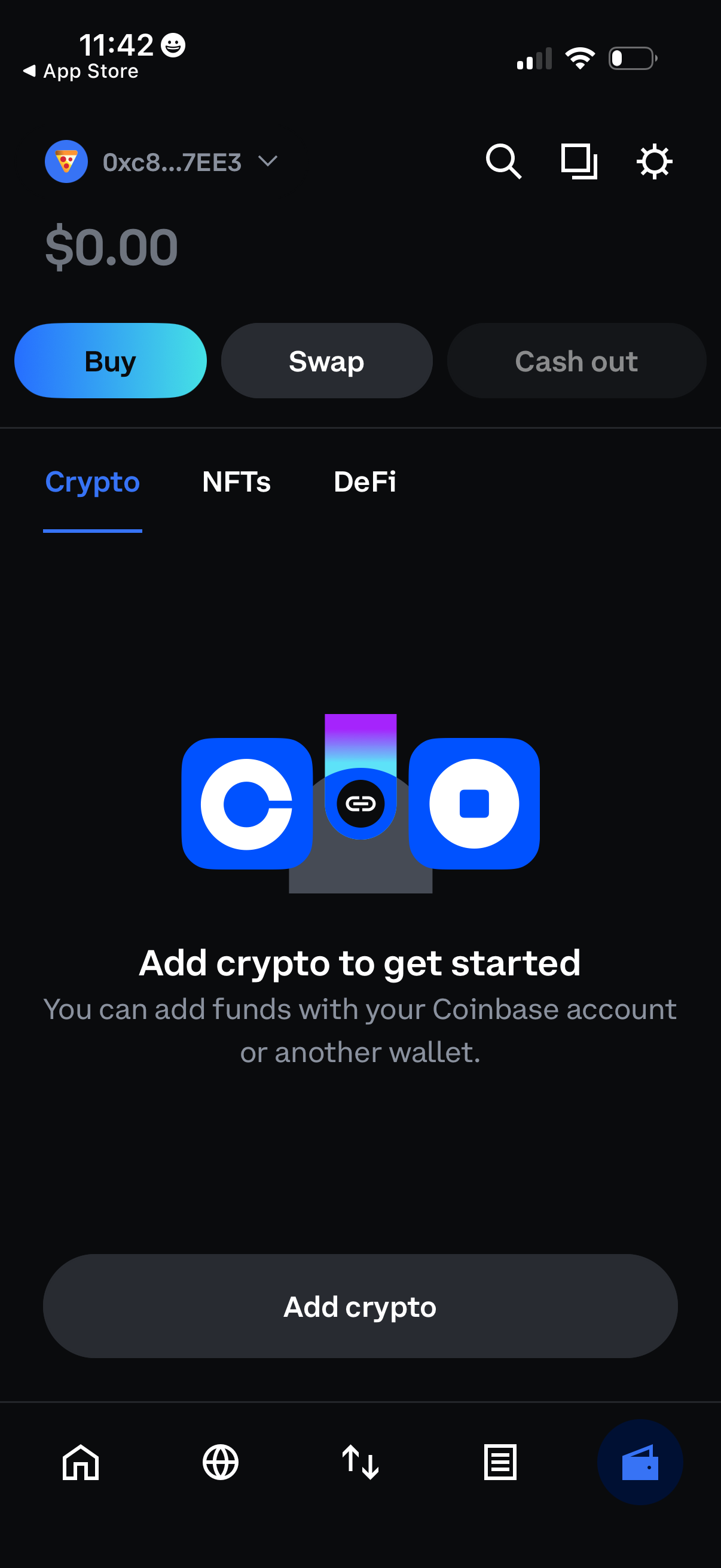
Crypto wallet home screen showing a $0 balance with primary actions to Buy, Swap, and Cash out, plus tabs for Crypto, NFTs, and DeFi. An empty-state prompt encourages the user to add funds via a linked exchange account or another wallet, with a prominent “Add crypto” button and top search/settings shortcuts.