set nutrition goal
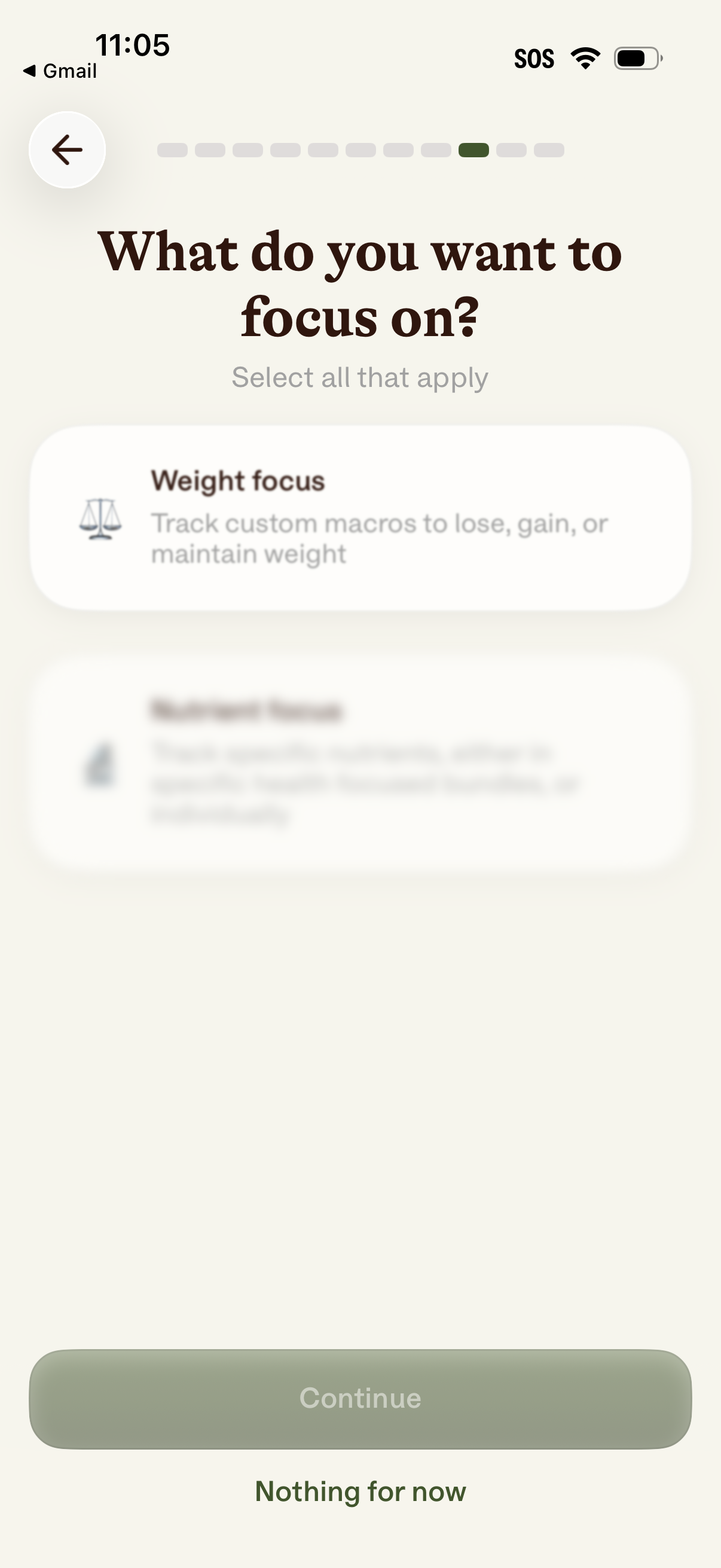
Onboarding goal selection screen in a health/nutrition app asking what the user wants to focus on, with multi-select cards such as “Weight focus” (custom macros to lose/gain/maintain) and a progress indicator. Primary action is a disabled Continue button that becomes enabled after selecting options, with an alternative “Nothing for now” skip link and back navigation.
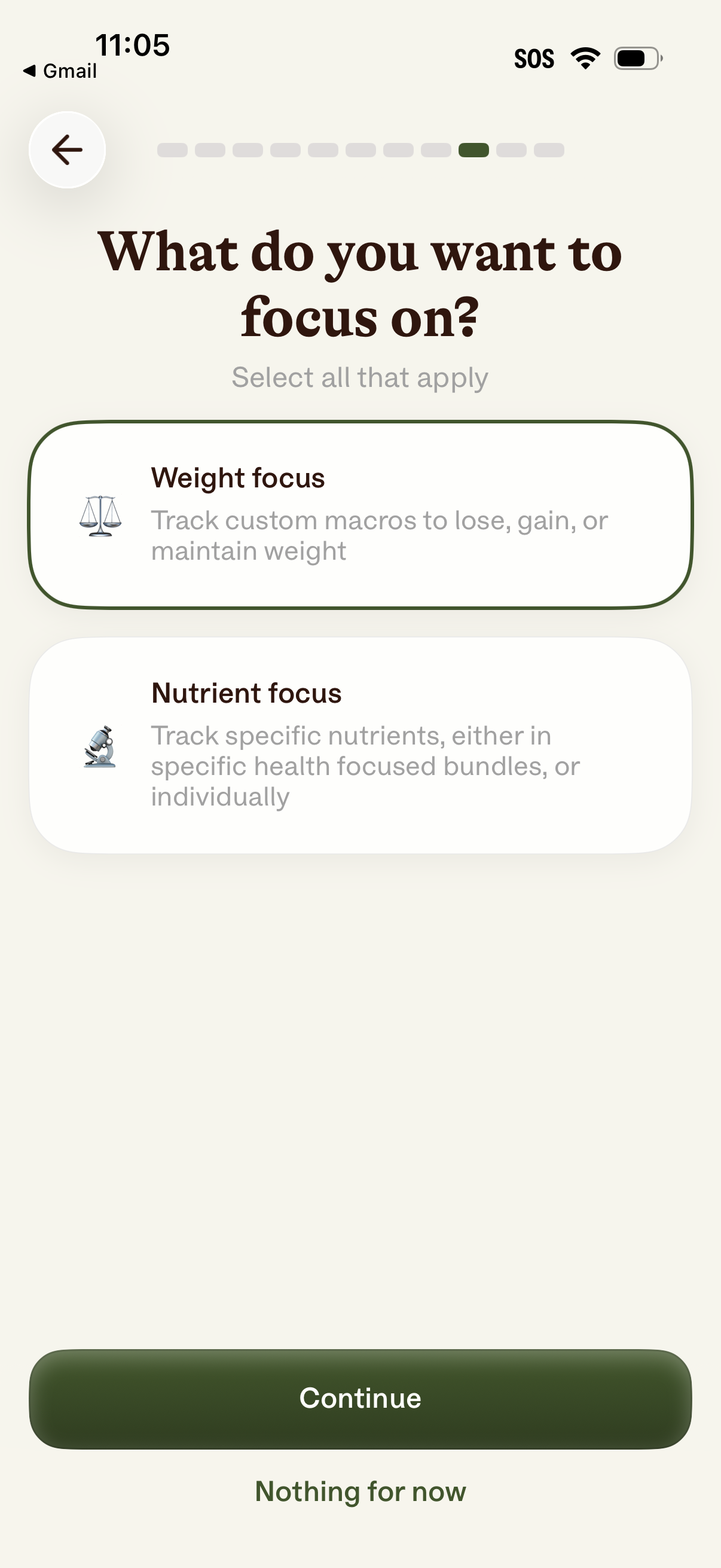
Onboarding goal-selection screen in a nutrition/health tracking app asking “What do you want to focus on? ” with selectable cards for Weight focus or Nutrient focus.
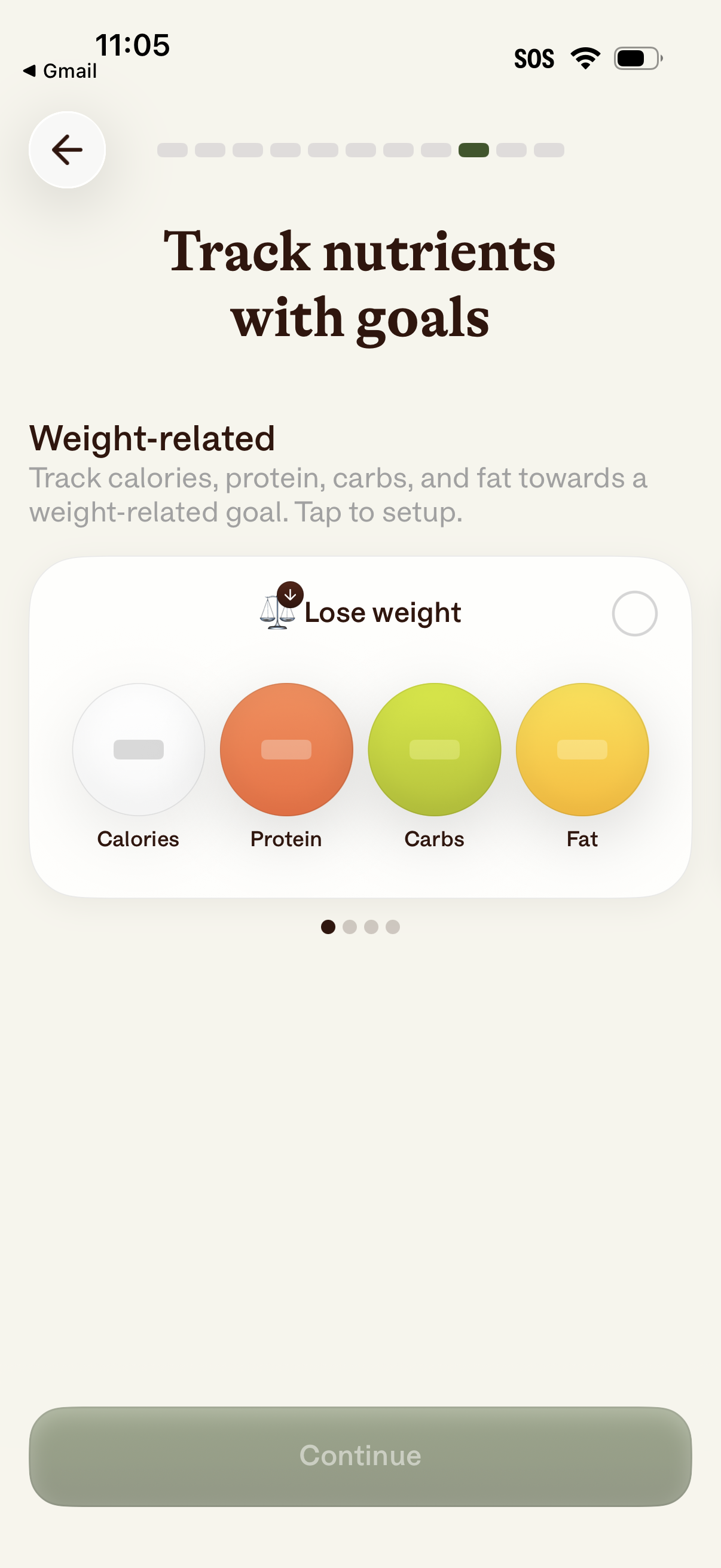
Onboarding screen for setting nutrition tracking goals, prompting users to track calories, protein, carbs, and fat toward a weight-related objective. Users can select a goal such as “Lose weight” and proceed with a Continue button.
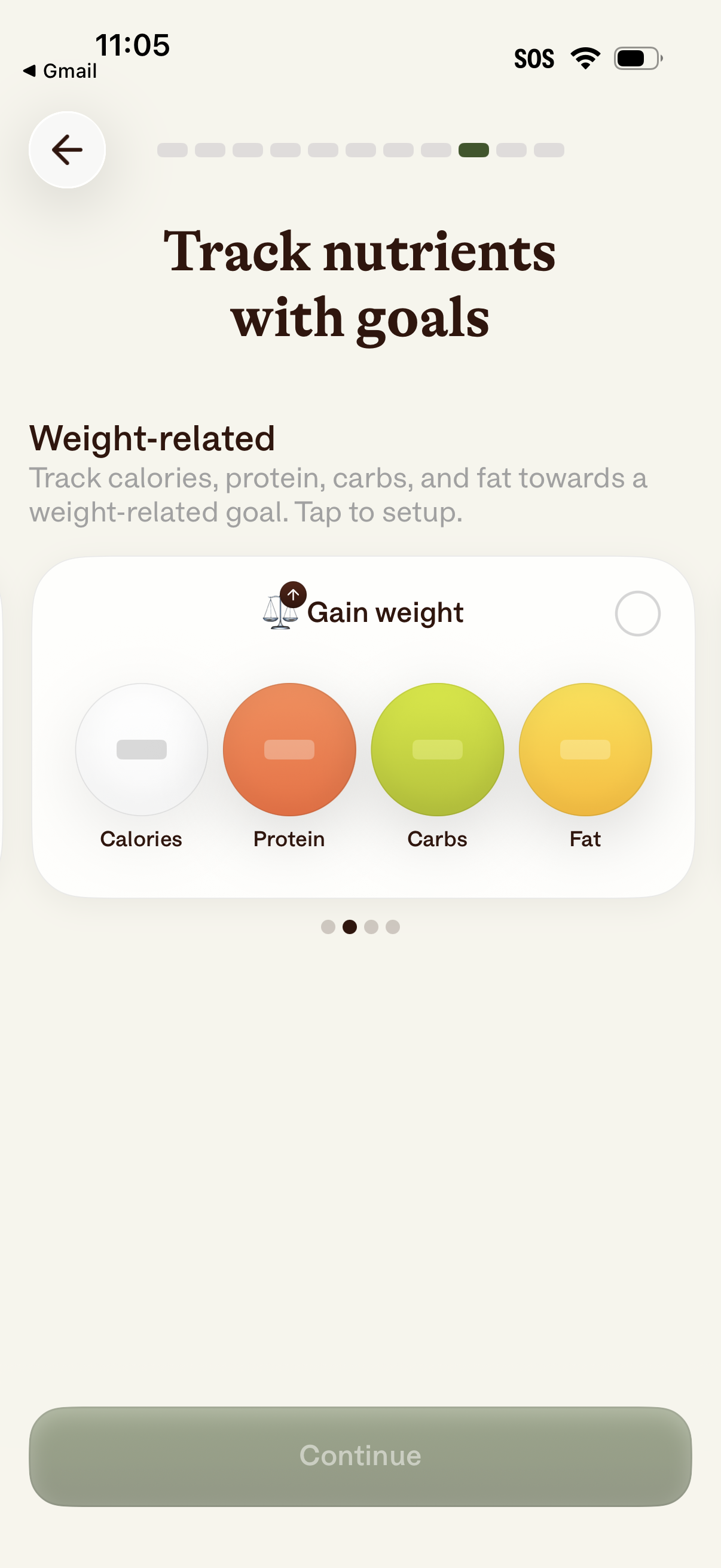
Onboarding screen for a nutrition tracking app prompting users to set weight-related nutrient goals, showing a selectable “Gain weight” option with targets for calories, protein, carbs, and fat. Includes a progress indicator, back navigation, and a primary Continue button to proceed with setup.
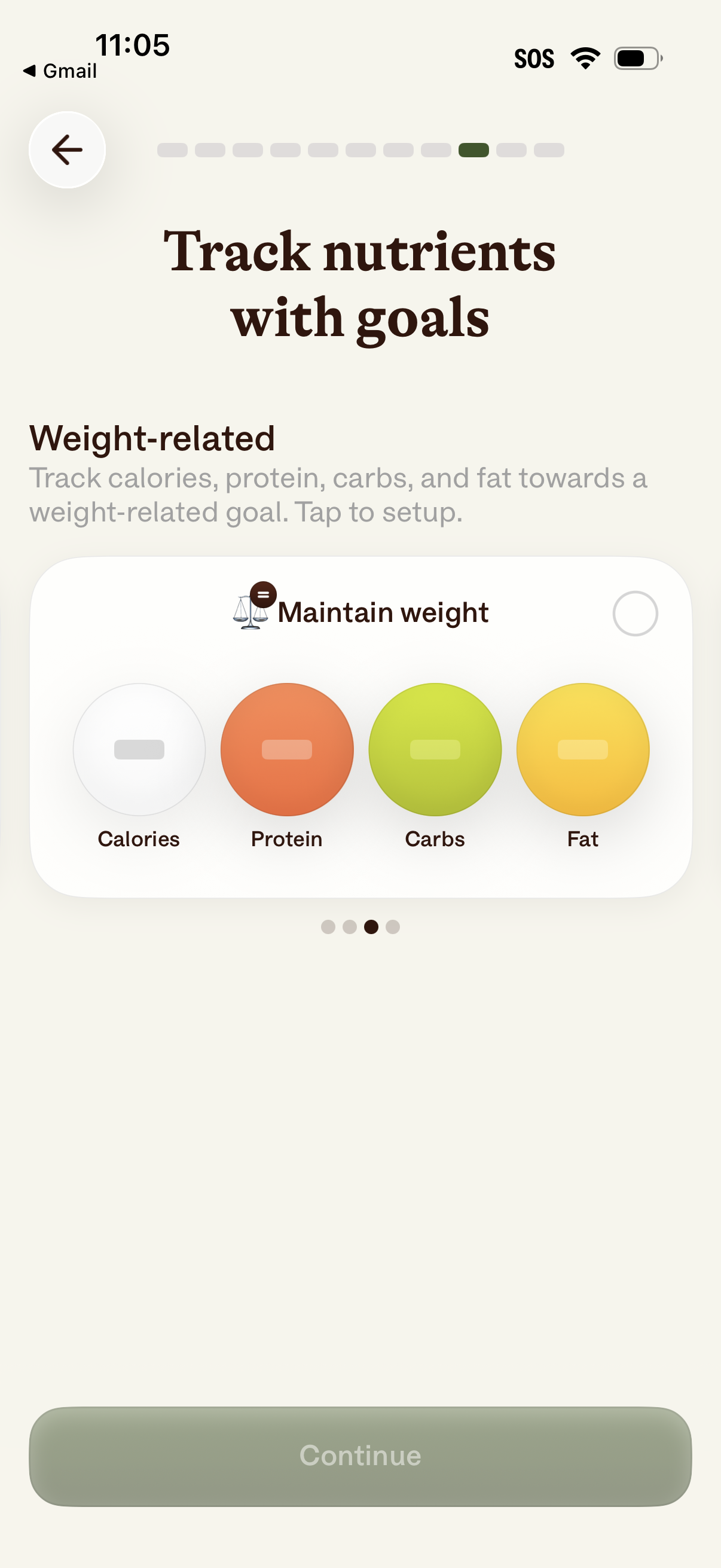
Onboarding screen for a nutrition/fitness app prompting users to set weight-related nutrient tracking goals by selecting an option like “Maintain weight,” showing tracked metrics for calories, protein, carbs, and fat. Includes a progress indicator, back navigation, and a disabled Continue button until a goal is chosen.
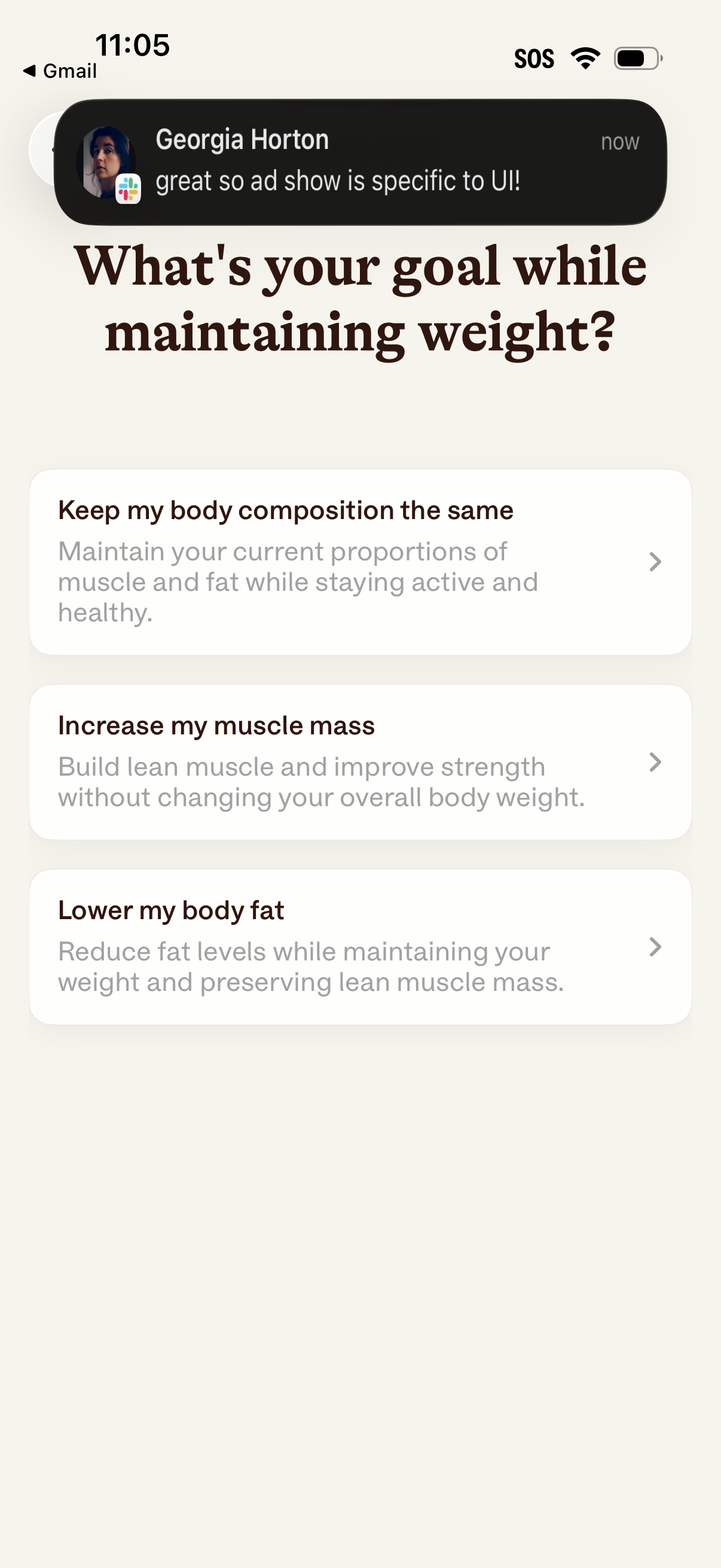
Goal selection screen in a fitness or weight management onboarding flow asking what the user’s goal is while maintaining weight. Presents three tappable list options with brief explanations and chevrons: keep body composition the same, increase muscle mass, or lower body fat.
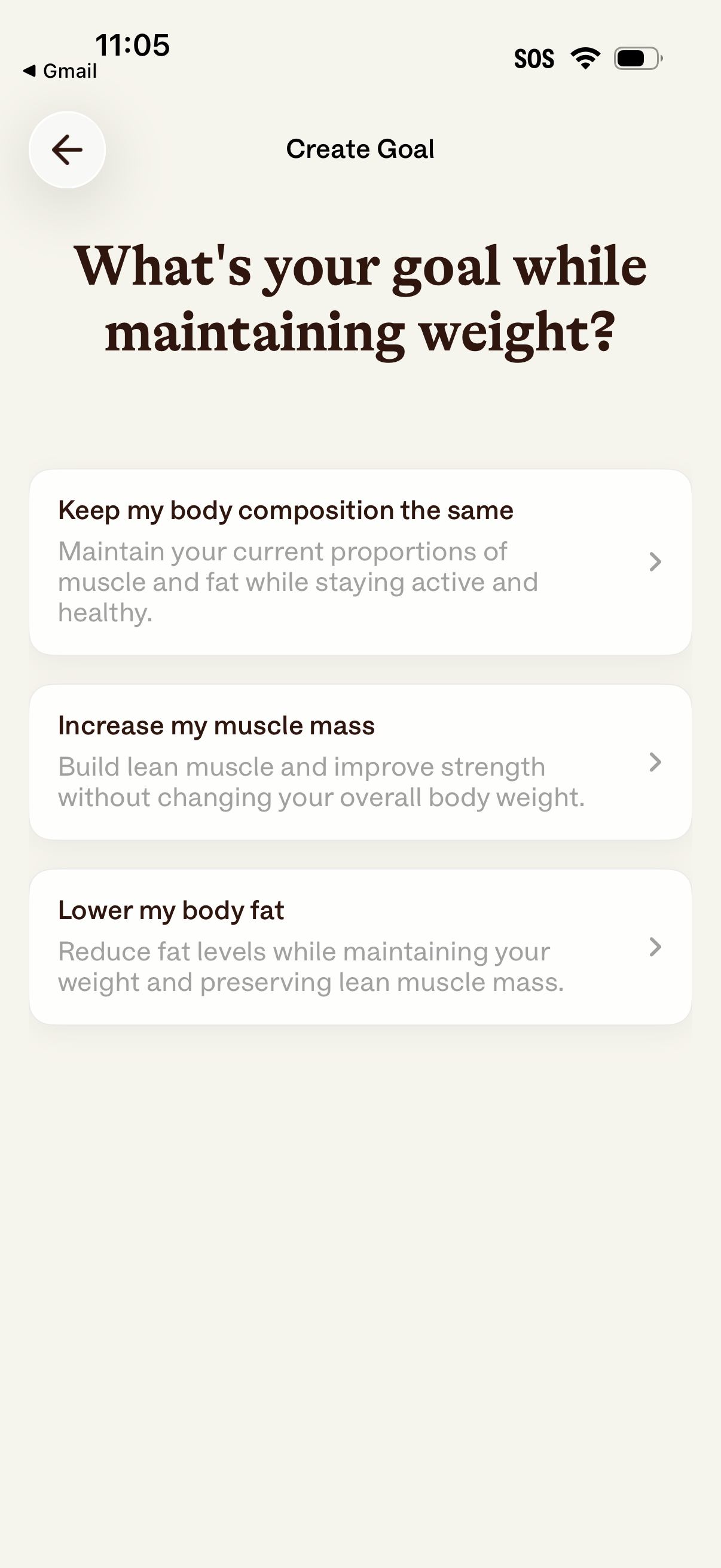
Goal creation screen in a fitness/health app asking the user to choose their objective while maintaining weight. Presents selectable options as list cards, including keeping body composition the same, increasing muscle mass, or lowering body fat, with a back button for navigation.
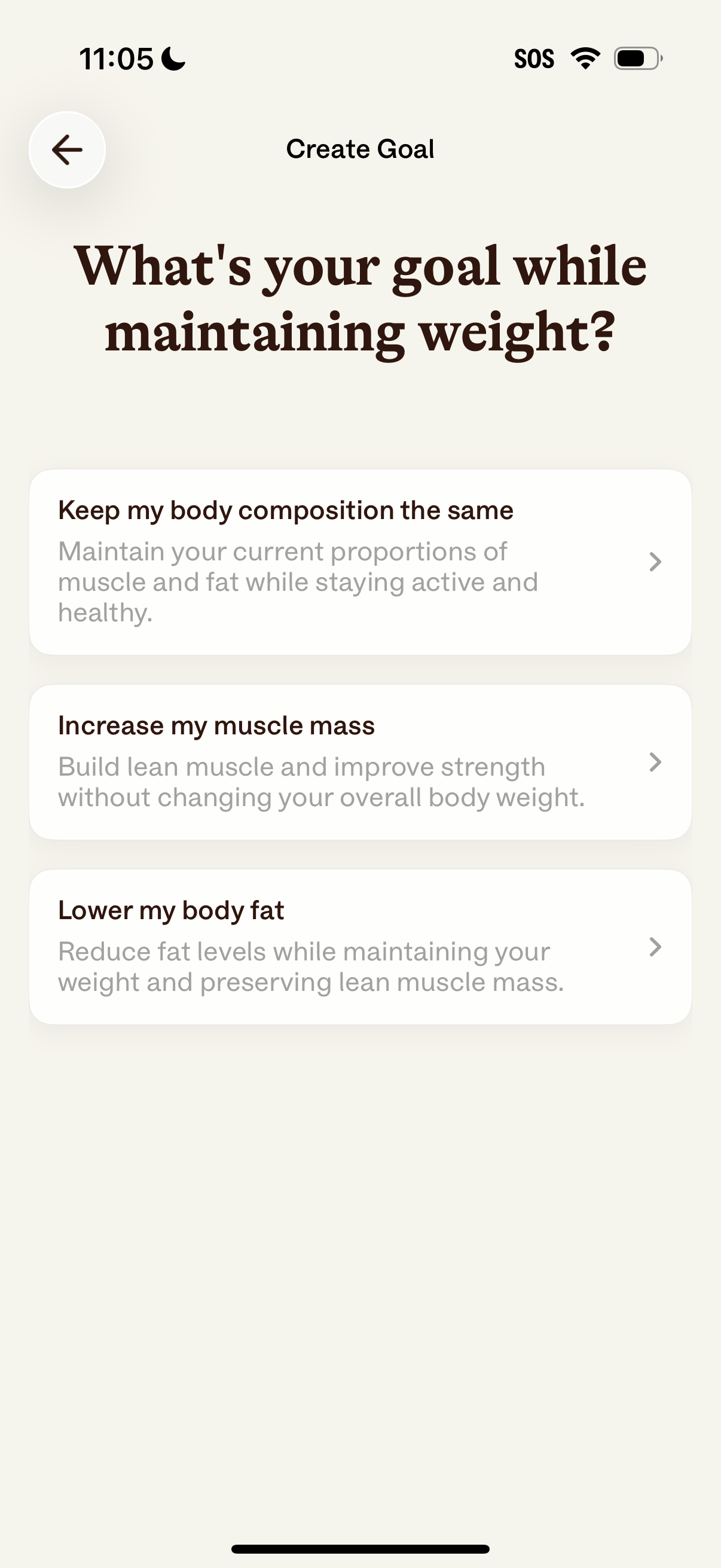
A fitness goal setup screen asking the user to choose their goal while maintaining weight, presented as selectable cards. Options include keeping body composition the same, increasing muscle mass, or lowering body fat, each leading to the next step in the goal creation flow.
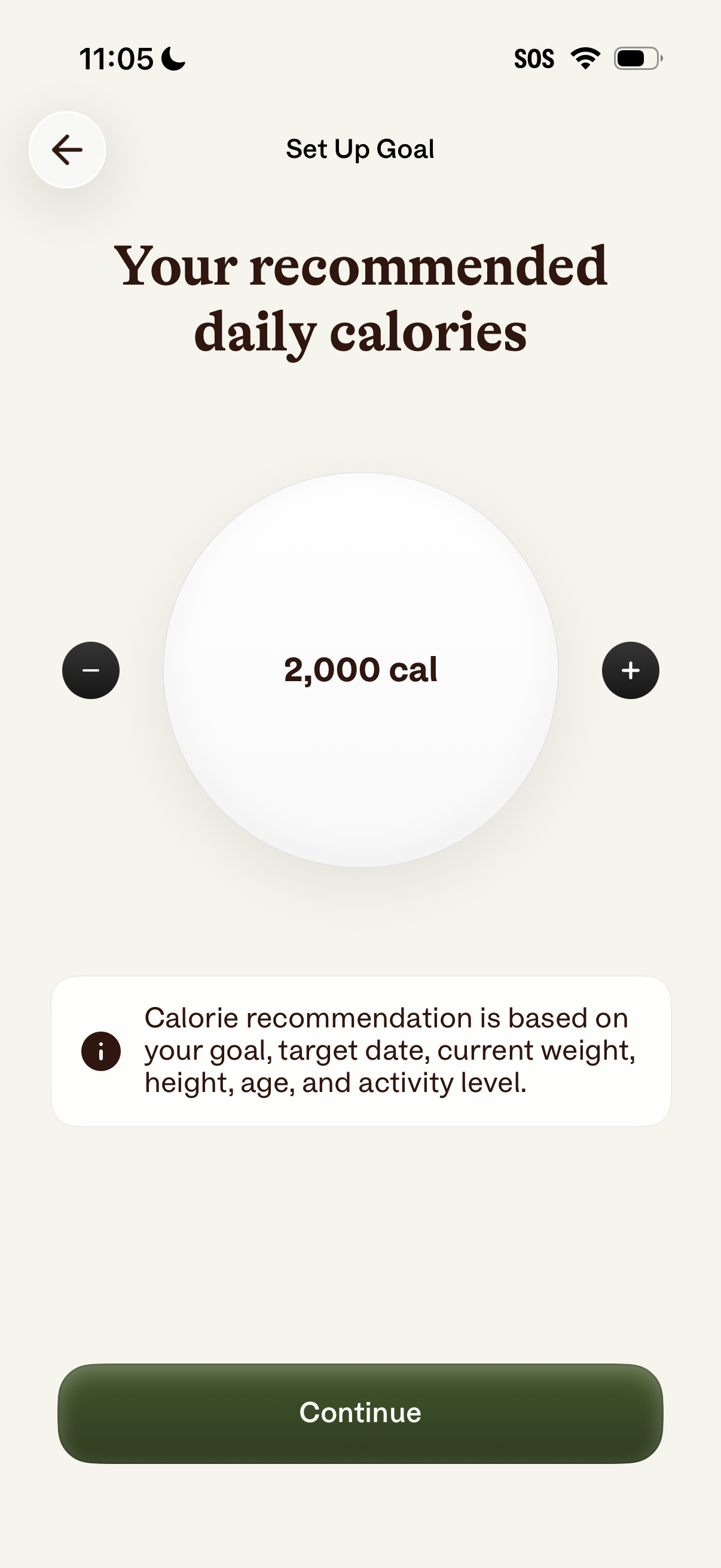
Goal setup screen in a nutrition/fitness app showing a recommended daily calorie target with plus/minus controls to adjust the value (e. g.
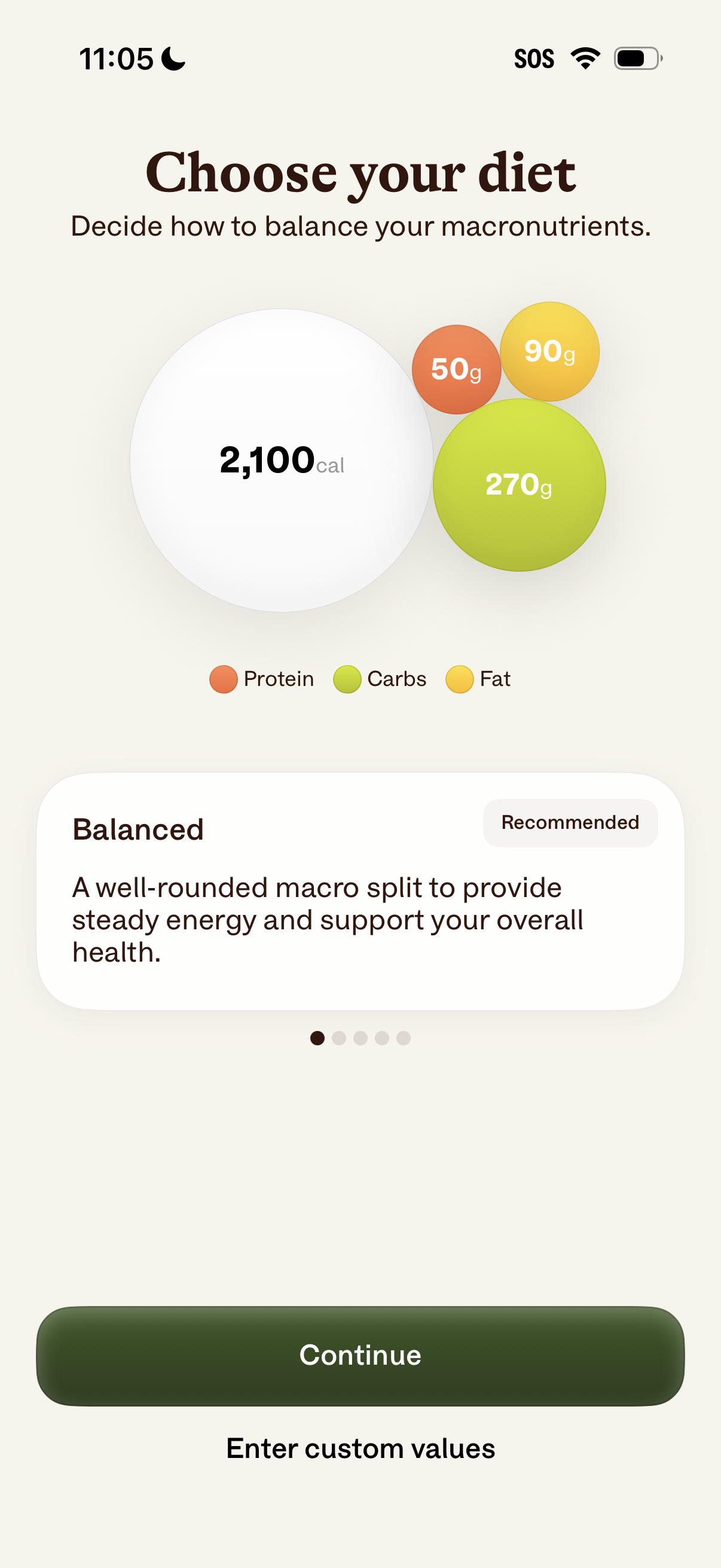
Diet selection screen in a nutrition/fitness app where users choose a macronutrient split, showing total daily calories and grams for protein, carbs, and fat via a visual chart. Includes a recommended “Balanced” plan card with description, pagination for other options, a primary Continue button, and a link to enter custom macro values.
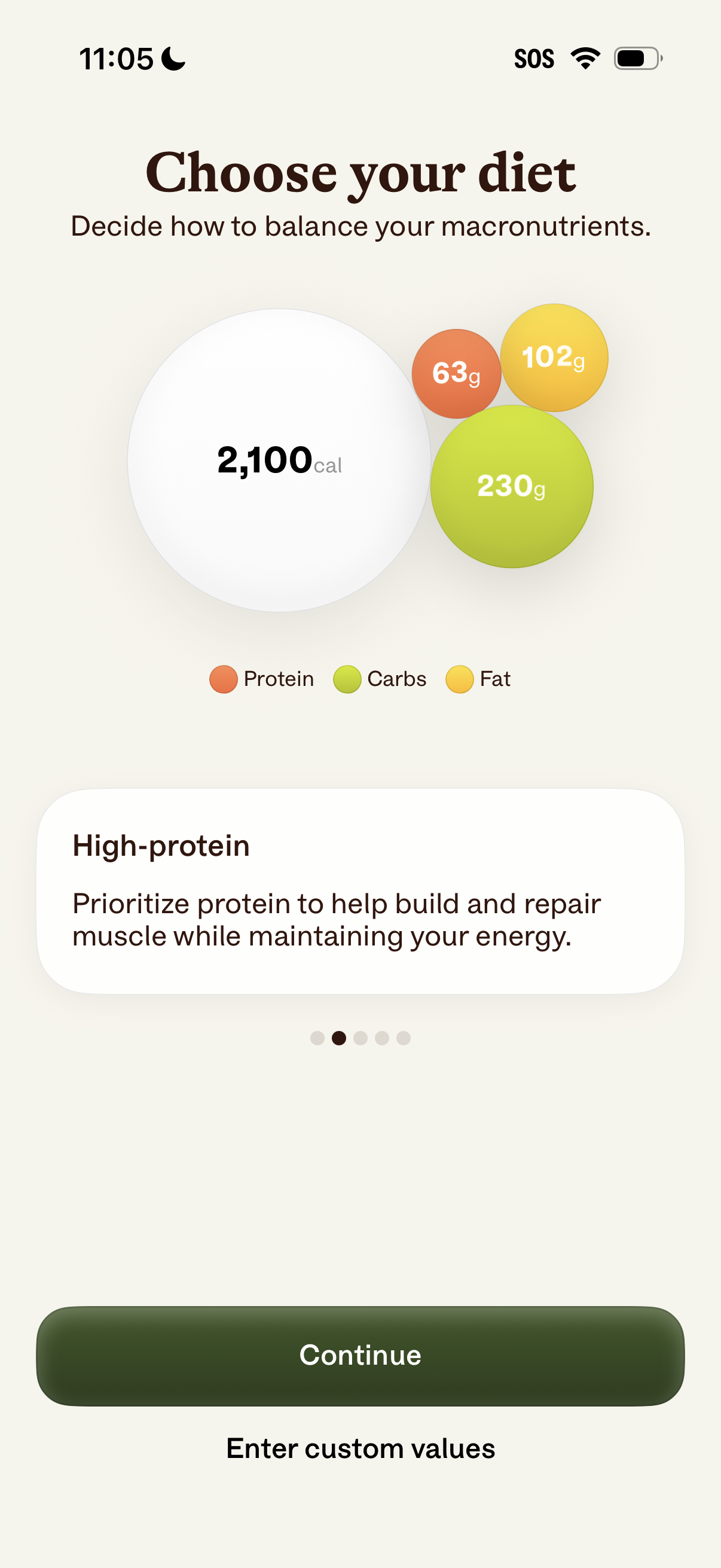
Diet selection screen in a nutrition or calorie-tracking onboarding flow showing a daily calorie target and macronutrient breakdown (protein, carbs, fat) with a highlighted preset option like “High-protein” and its description. Users can continue with the selected macro plan or choose to enter custom macronutrient values.
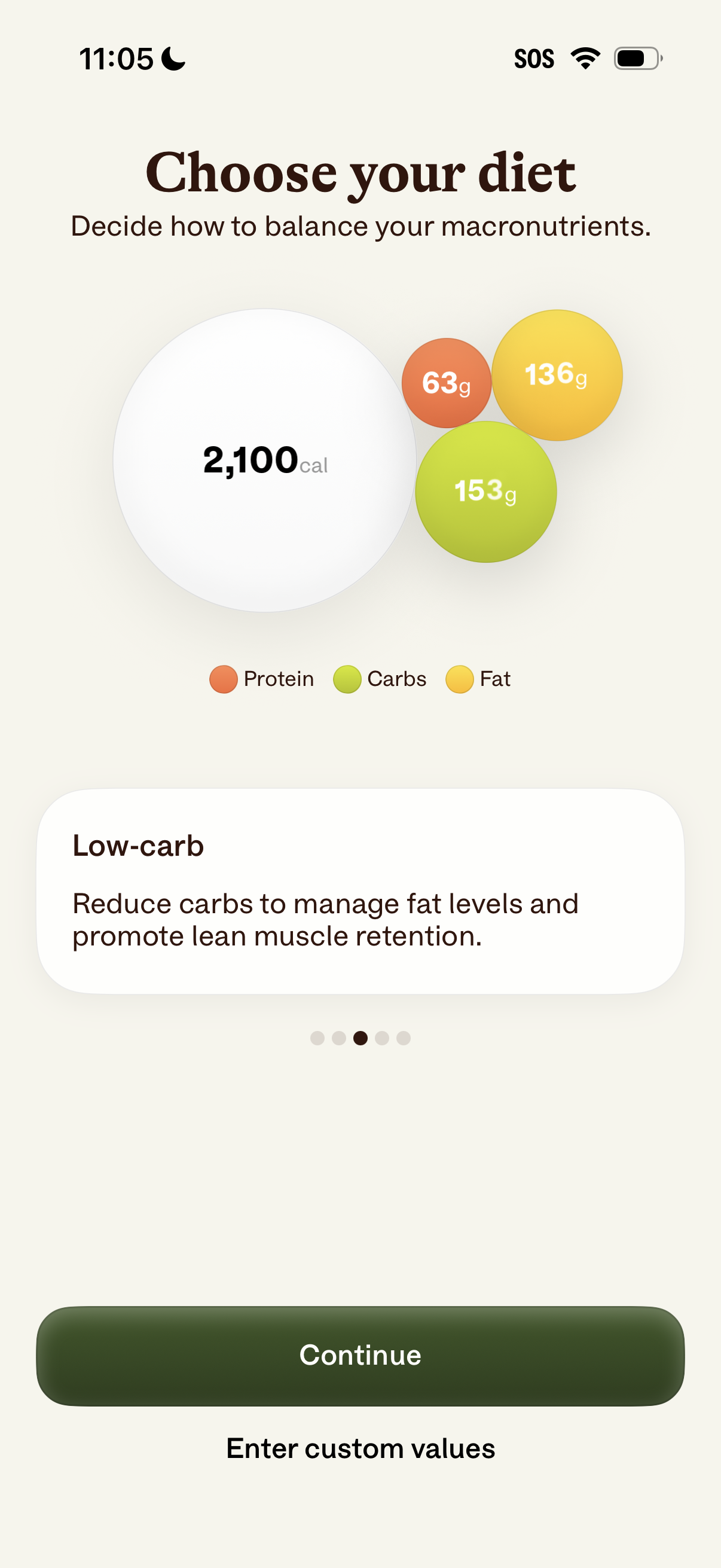
Diet selection screen for a nutrition or calorie-tracking app where users choose a macronutrient plan, showing total daily calories and a visual breakdown of protein, carbs, and fat grams. Includes a highlighted diet option (e.
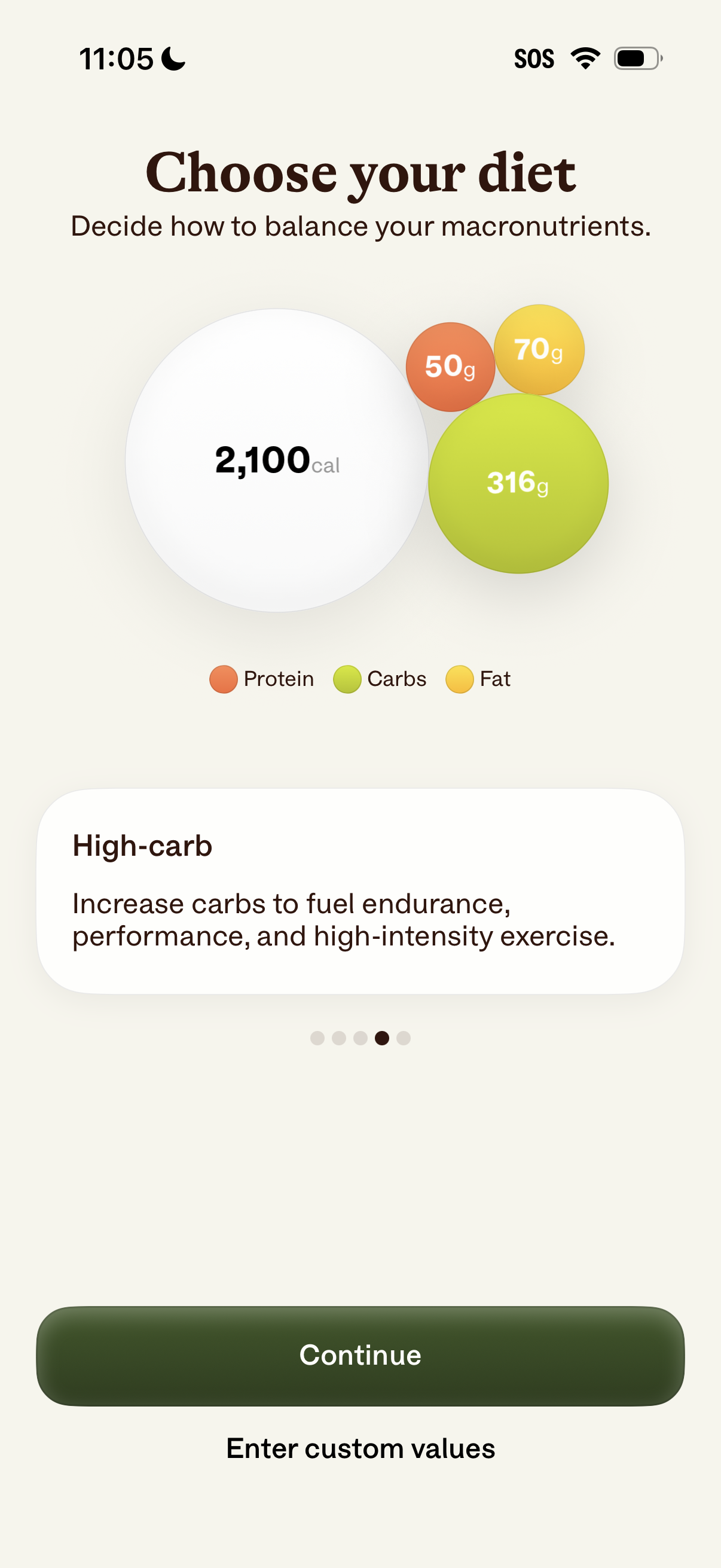
Diet selection screen in a nutrition or calorie-tracking app that lets users choose a macronutrient balance, showing daily calories and grams for protein, carbs, and fat with a highlighted preset (e. g.
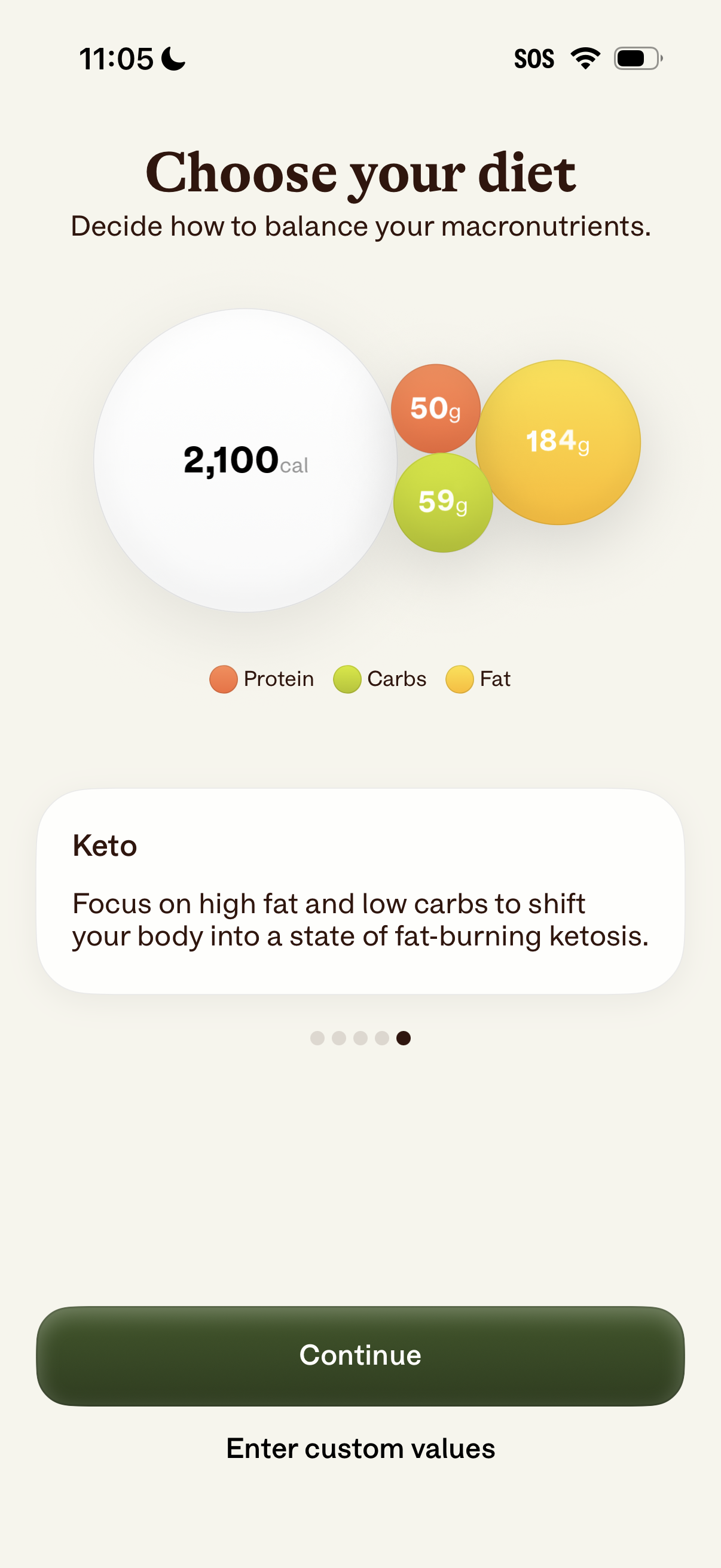
Diet selection screen in a nutrition or calorie tracking app where users choose how to balance macronutrients, showing a 2,100-calorie target and a visual breakdown of protein, carbs, and fat grams for the selected plan (e. g.
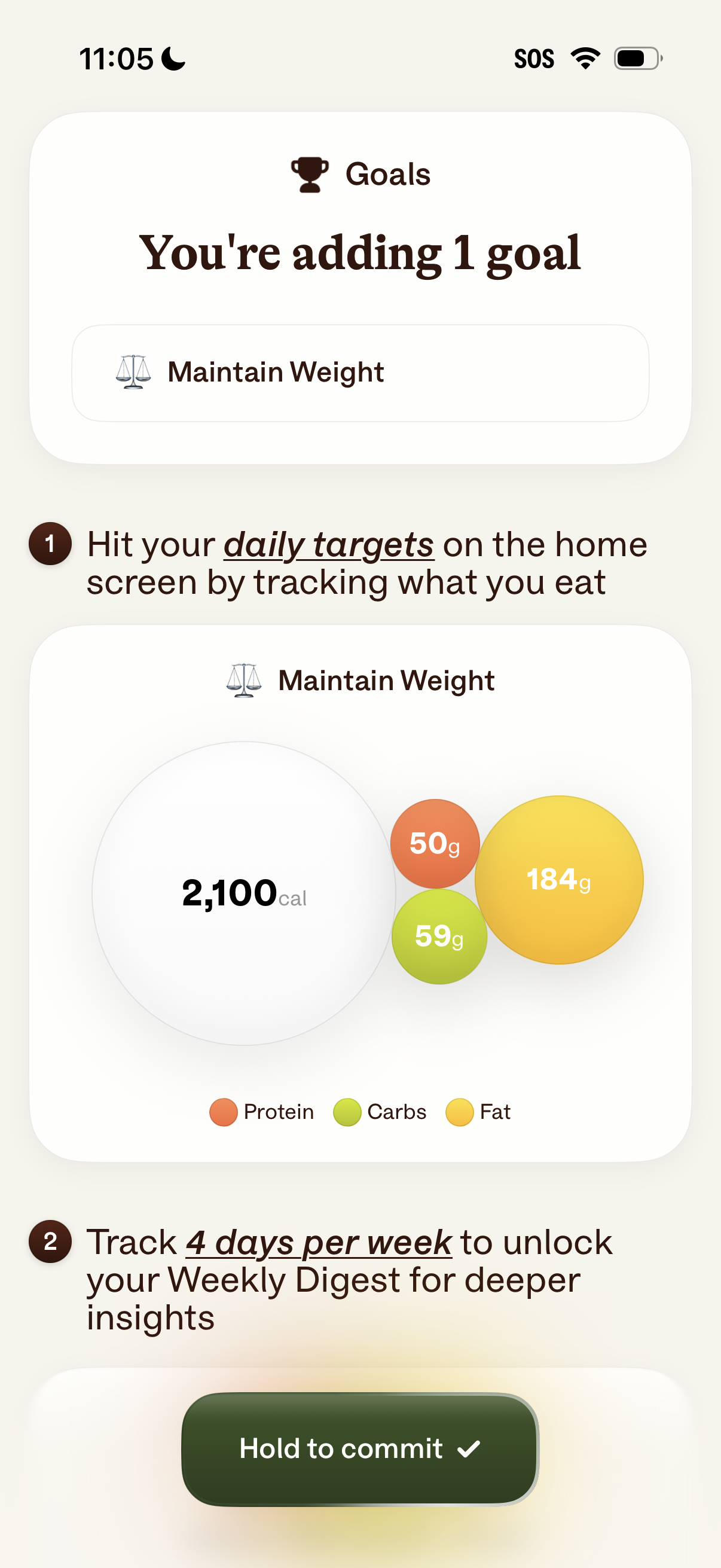
Goal-setting onboarding screen in a nutrition/fitness tracking app where the user is adding a “Maintain Weight” goal and is prompted to hit daily calorie and macro targets by logging food. Includes a preview of daily targets (calories plus protein/carbs/fat breakdown) and a “hold to commit” interaction to confirm the goal and unlock a weekly digest after tracking multiple days.
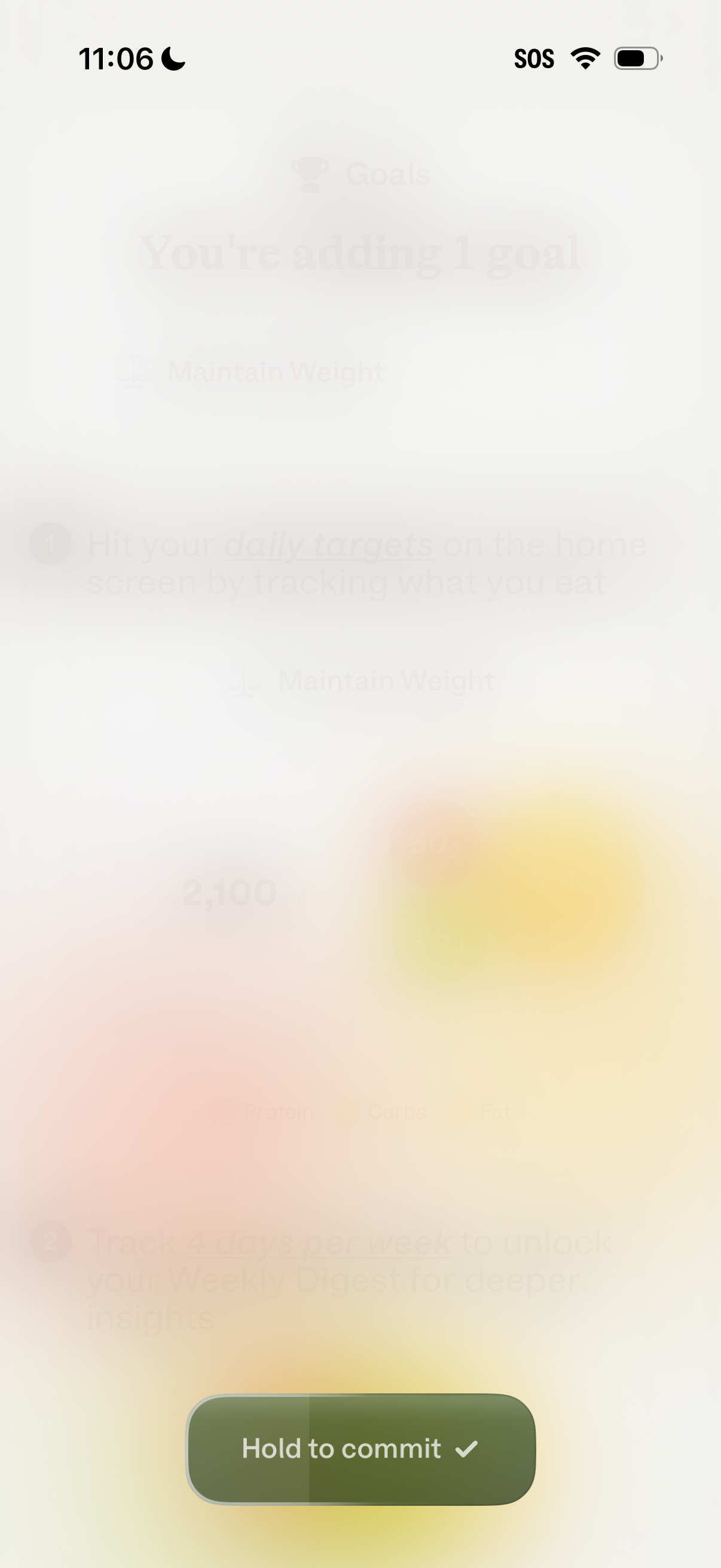
Confirmation screen for adding a health or nutrition goal (e. g.

Minimal confirmation screen with a single “Hold to commit” slide-and-hold button used to prevent accidental submissions and finalize an action. The interface is otherwise blank, emphasizing deliberate press-and-hold to confirm.
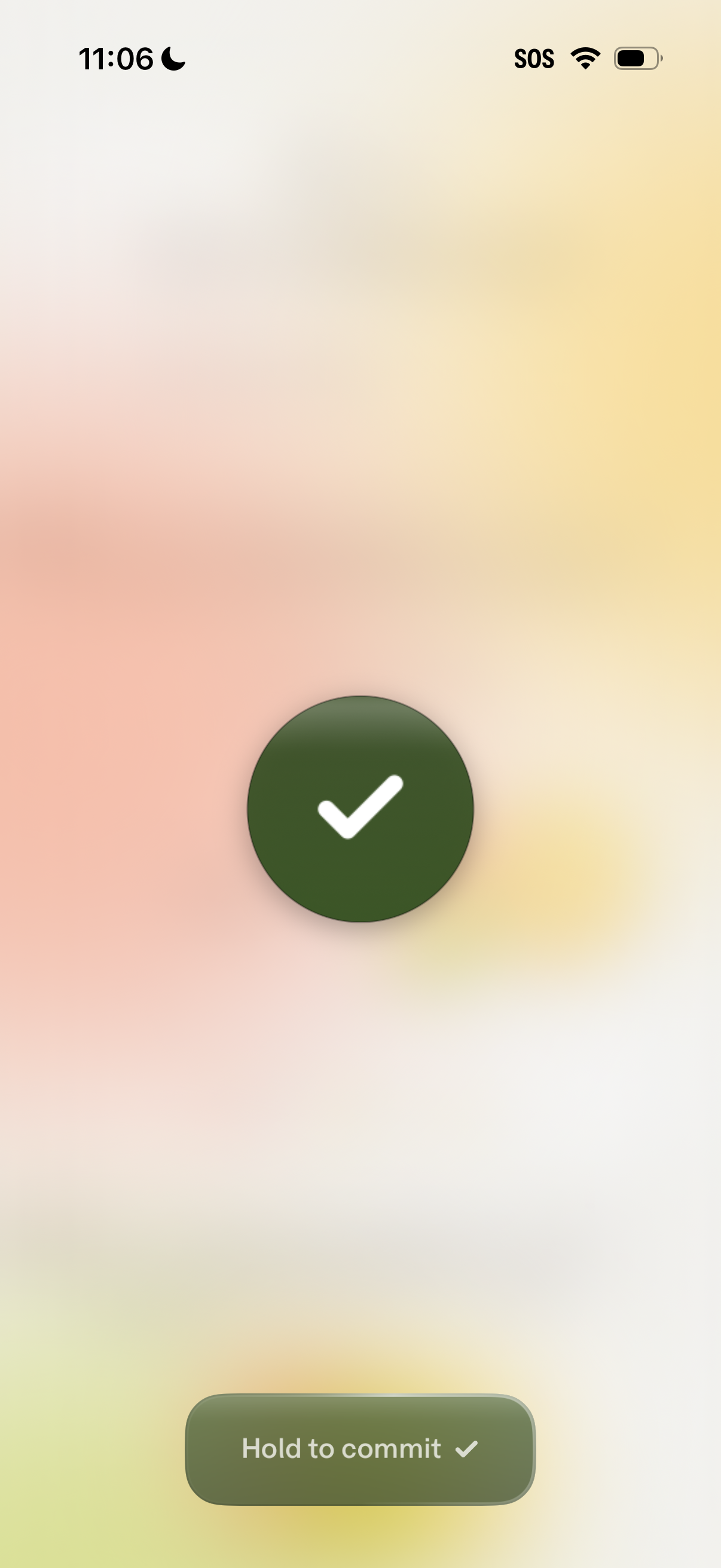
Confirmation/commit screen showing a large checkmark indicator and a primary “Hold to commit” button requiring a press-and-hold gesture to finalize an action or transaction. This UI emphasizes deliberate approval to prevent accidental submission.