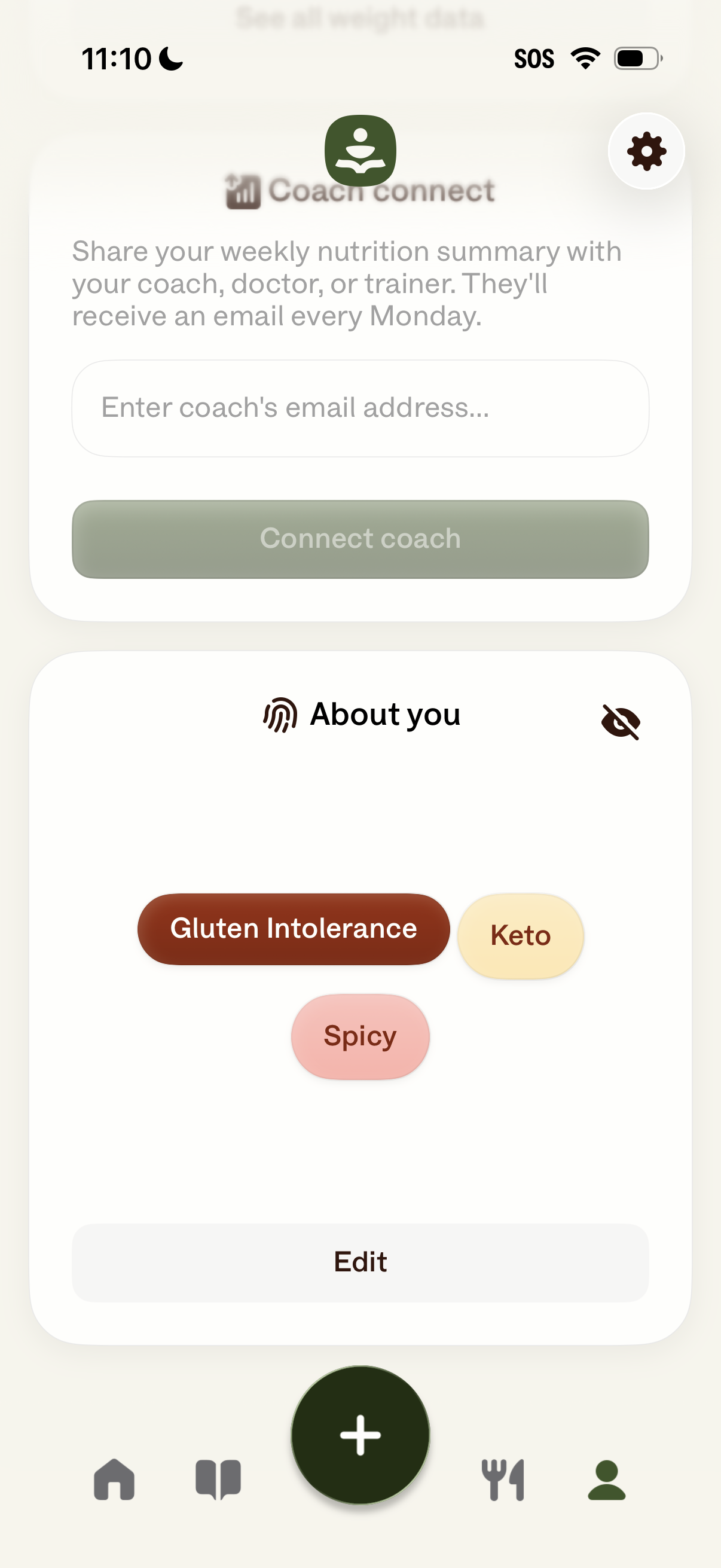
Profile/settings screen for a nutrition tracking app that lets users connect a coach by entering an email address to share weekly nutrition summaries via automatic Monday emails. It also shows an “About you” section with dietary preferences/tags (e.
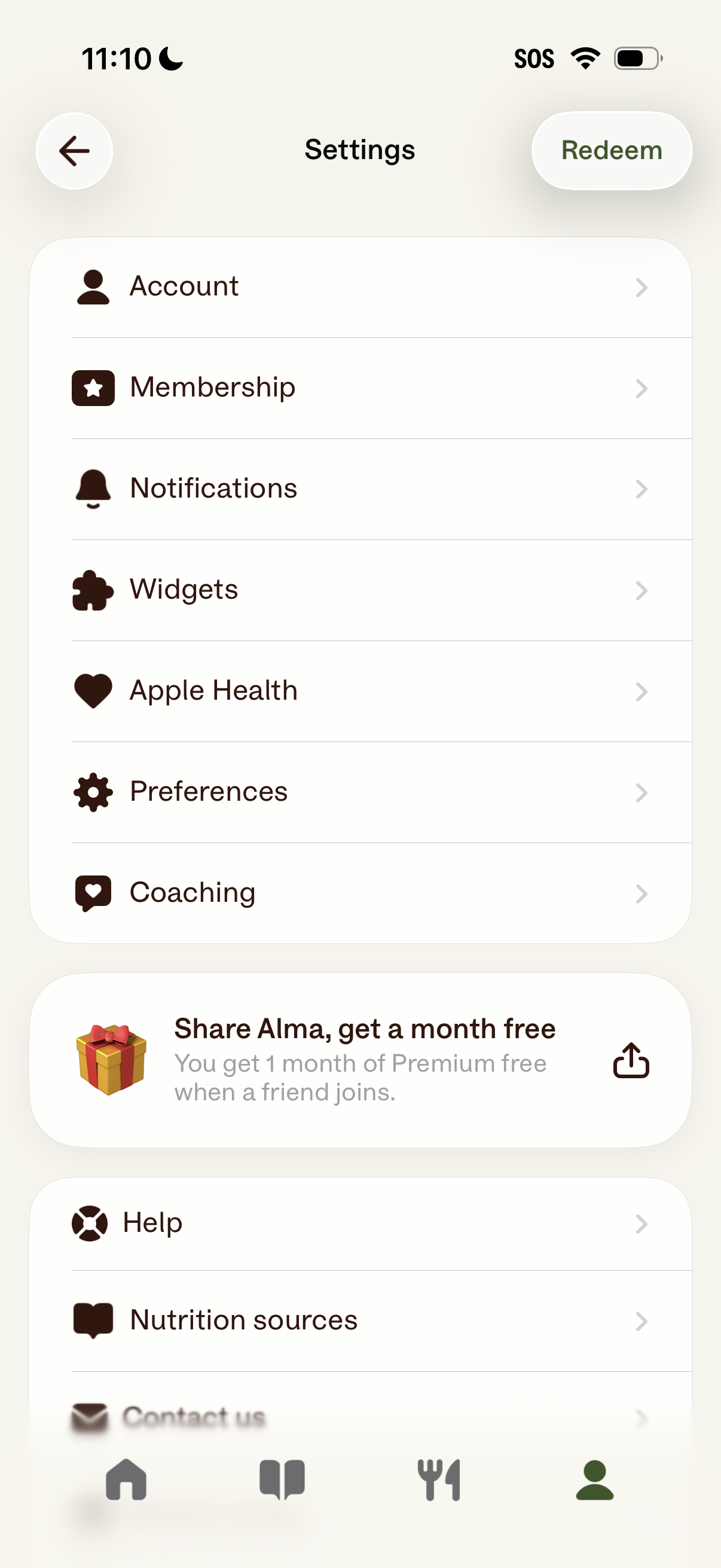
Settings screen for a health/nutrition app with a list of navigable options including Account, Membership, Notifications, Widgets, Apple Health integration, Preferences, and Coaching. Includes a referral/share banner to earn a free month of premium, a Redeem button in the header, and help/support links like Help and Nutrition sources.
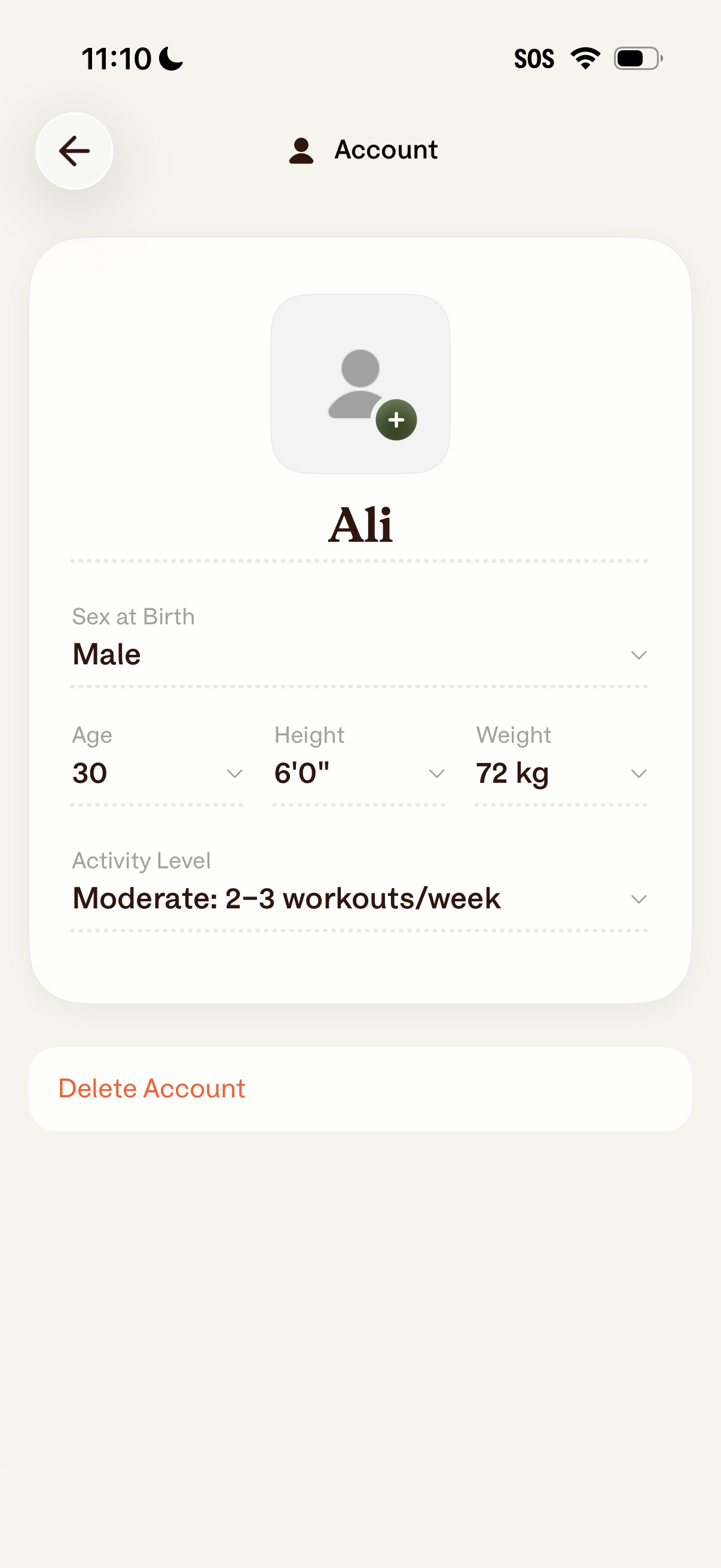
Account profile settings screen for a health/fitness app where the user can add or change their profile photo and edit personal metrics like sex at birth, age, height, weight, and activity level via dropdown fields. Includes a prominent destructive action to delete the account and a back navigation button.
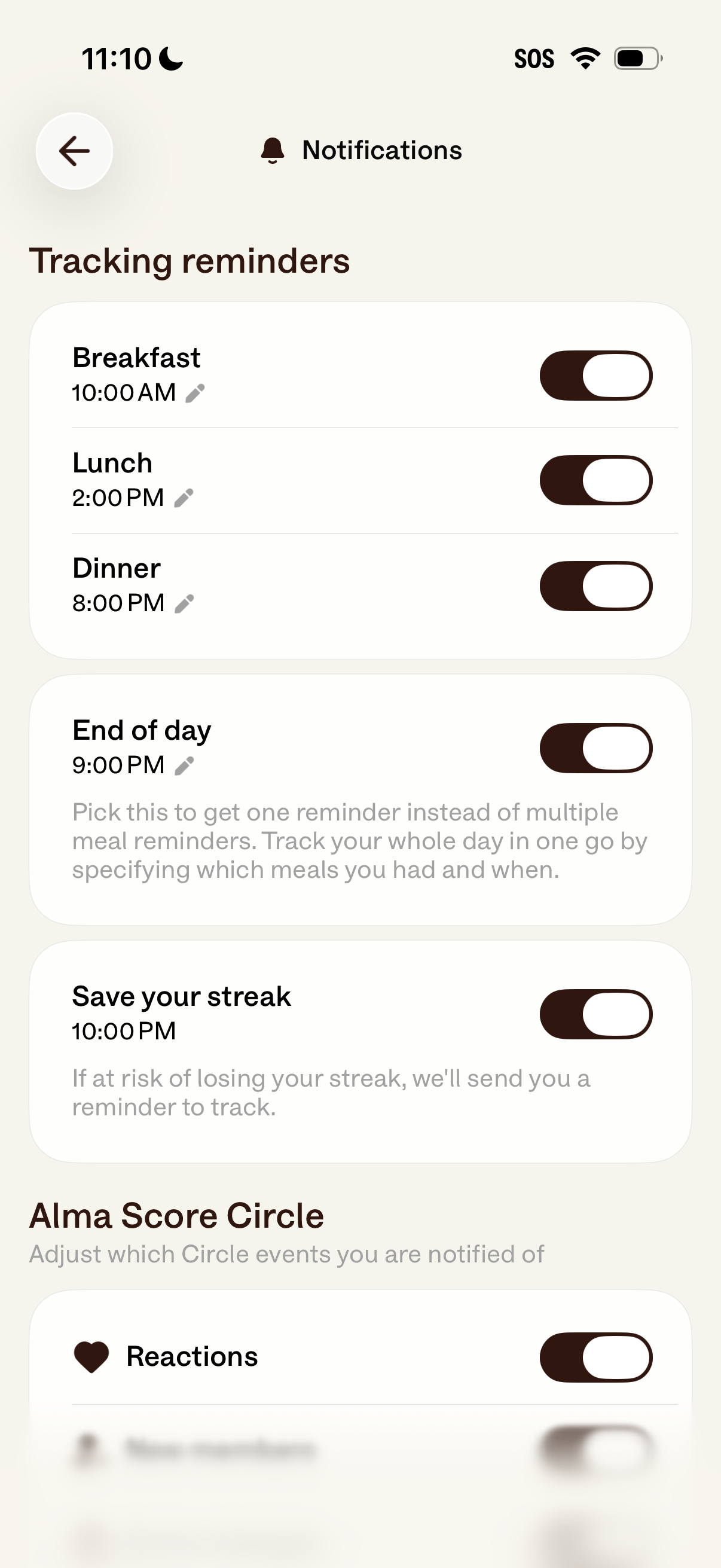
Notifications settings screen for tracking reminders, letting users enable/disable meal-based reminders (breakfast, lunch, dinner) and edit their times, or choose a single end-of-day reminder. Includes an optional “save your streak” reminder toggle and additional notification categories for a community/circle feed (e.
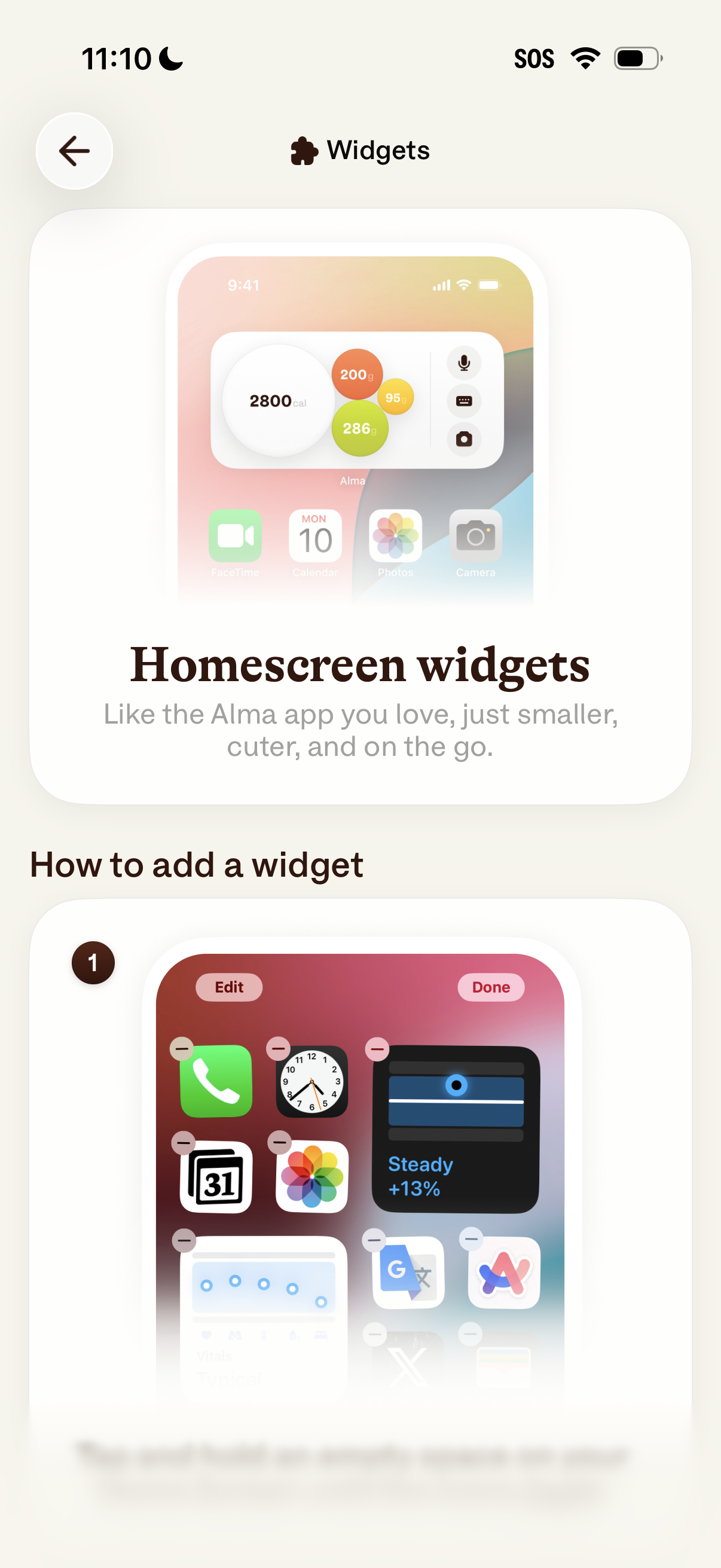
An in-app “Widgets” info screen introducing homescreen widgets, showing a preview of a compact stats widget and explaining the benefits of having quick glance data on the go. The page includes a “How to add a widget” section with step-by-step iOS home screen editing visuals to guide users through adding the widget.
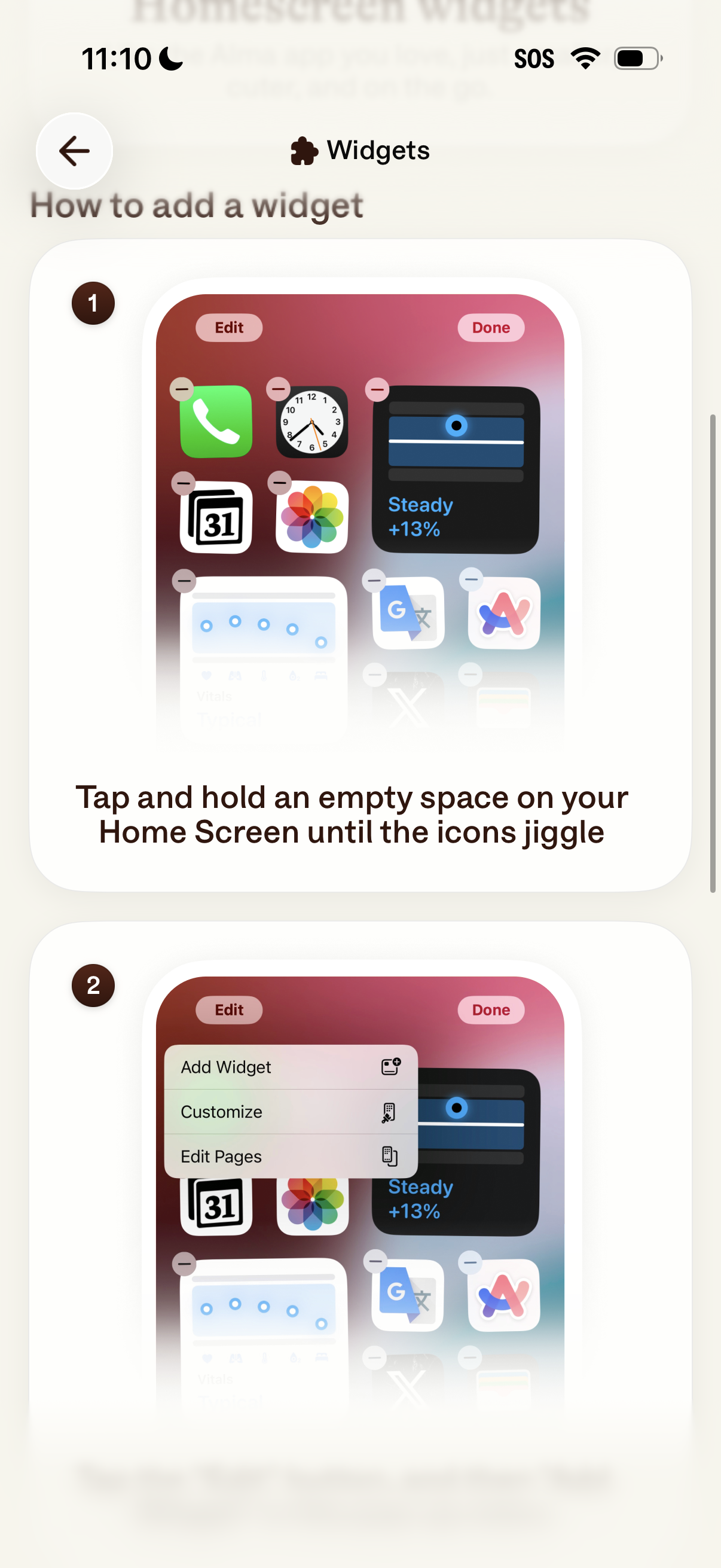
Help/tutorial screen explaining how to add a widget to the iOS home screen, showing step-by-step images of long-pressing an empty area until icons jiggle and then using the edit menu to select “Add Widget” (with options like Customize and Edit Pages).
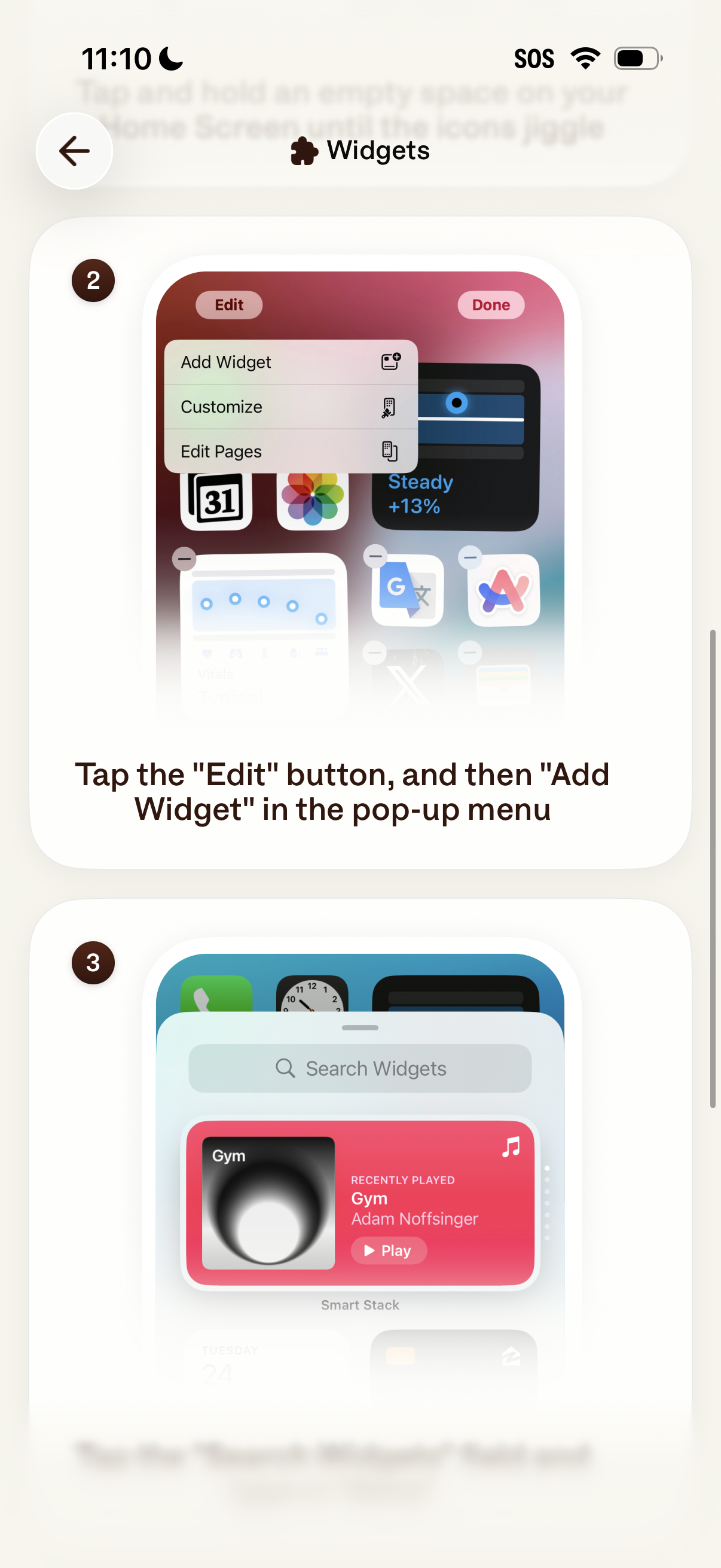
Instructional onboarding screen for iOS home screen widgets showing how to enter edit mode and use the pop-up menu to add a widget, with visual step numbering and a back button. The screen includes a preview of the widget picker with a search bar and example widget cards to guide users through widget setup.
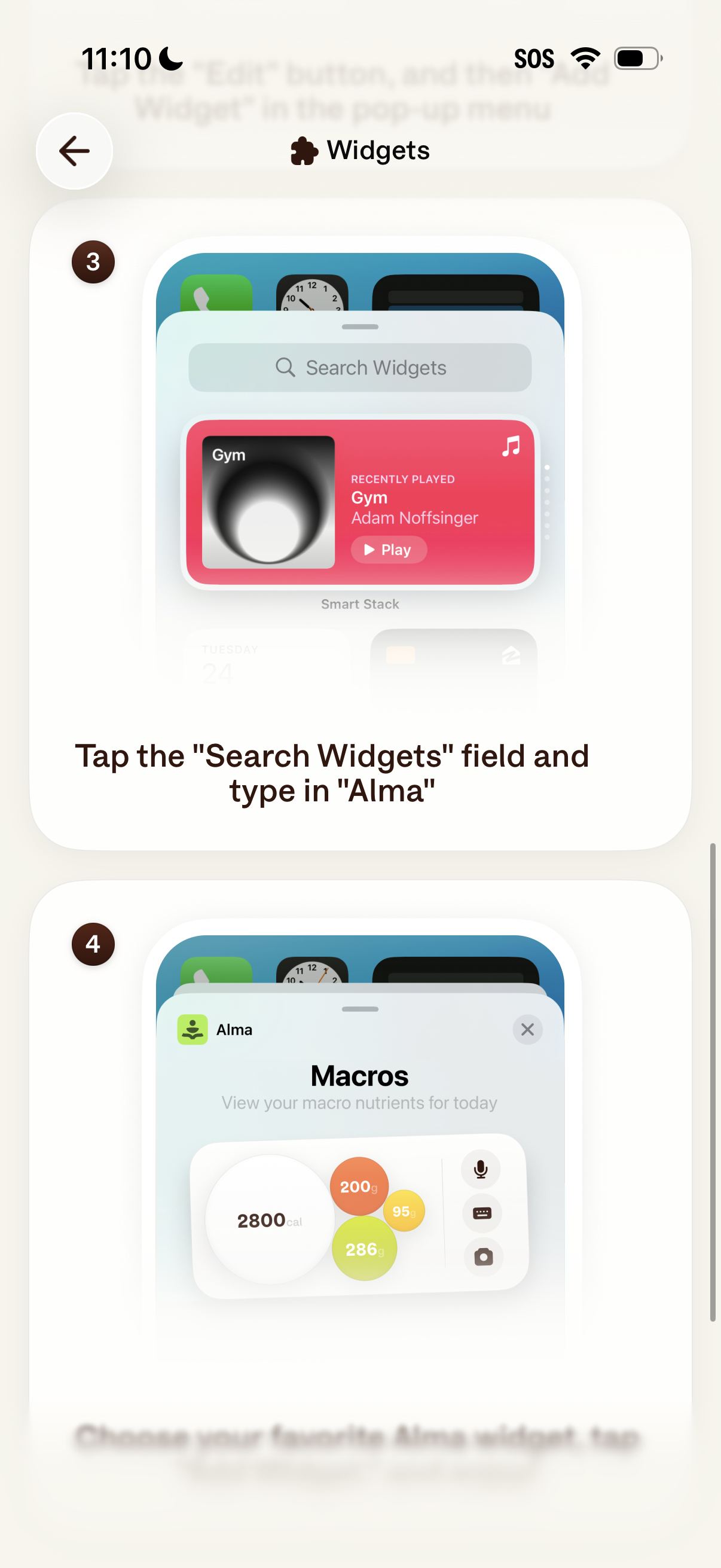
Tutorial/onboarding screen for iOS Widgets setup showing how to use the “Search Widgets” field to find a specific app (e. g.
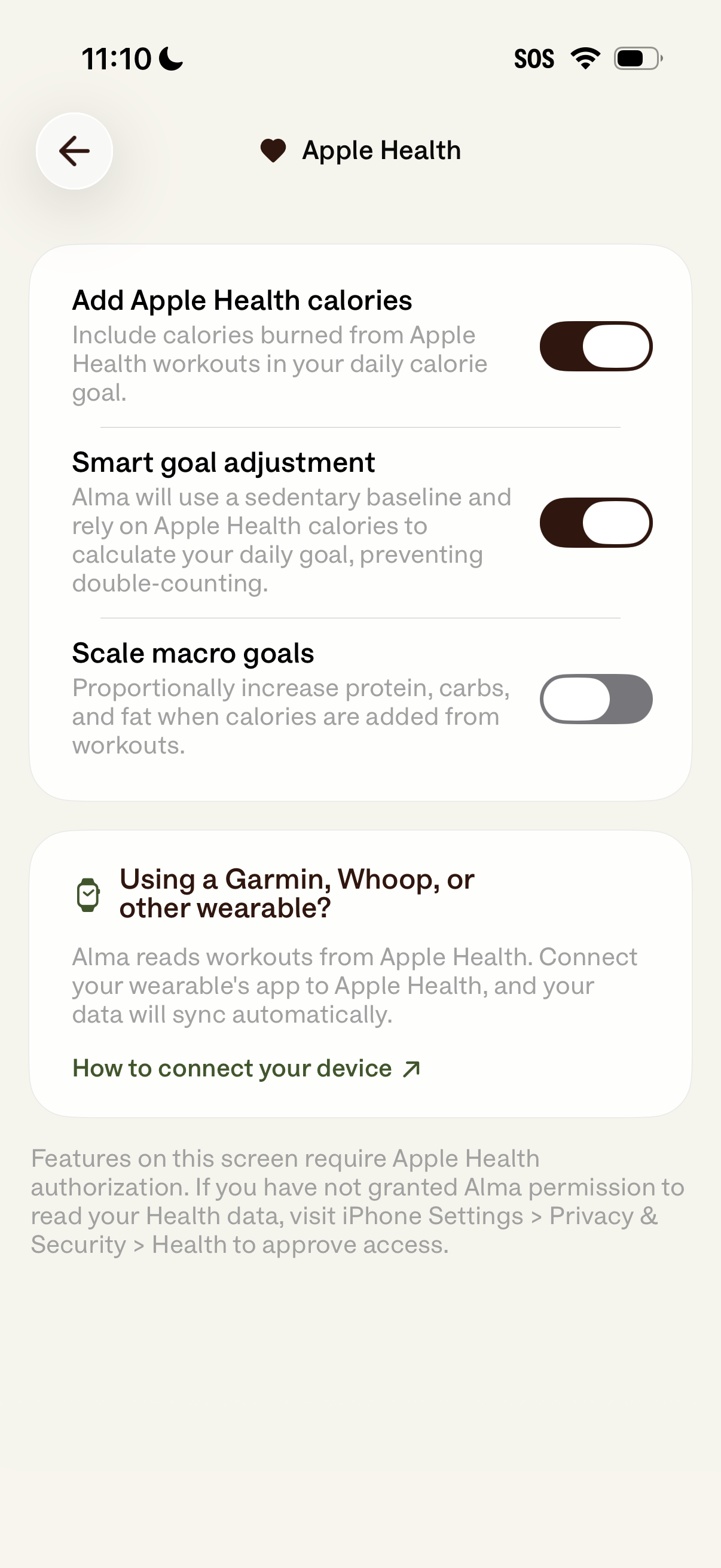
Apple Health integration settings screen for a nutrition/fitness app, with toggles to include Apple Health workout calories in the daily calorie goal, enable smart goal adjustment to prevent double-counting, and scale macro goals when calories are added. Includes an info card and link explaining how to connect other wearables via Apple Health and notes about required Health data permissions.
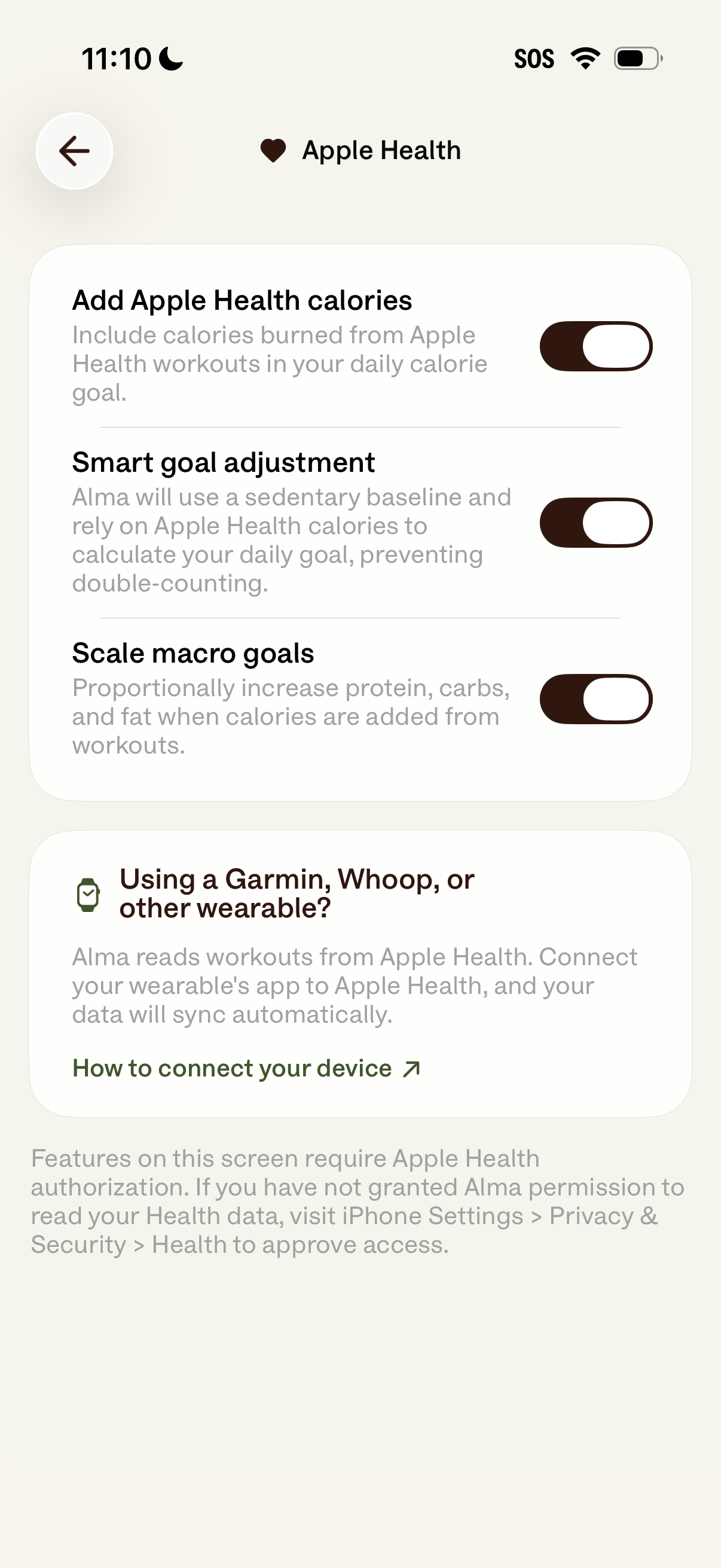
Settings screen for Apple Health integration in a nutrition/fitness app, with toggles to include Apple Health workout calories in daily calorie goals, enable smart goal adjustment to avoid double counting, and scale macro targets when added calories are applied. Includes a help card for connecting other wearables via Apple Health syncing and a link to instructions for connecting a device.
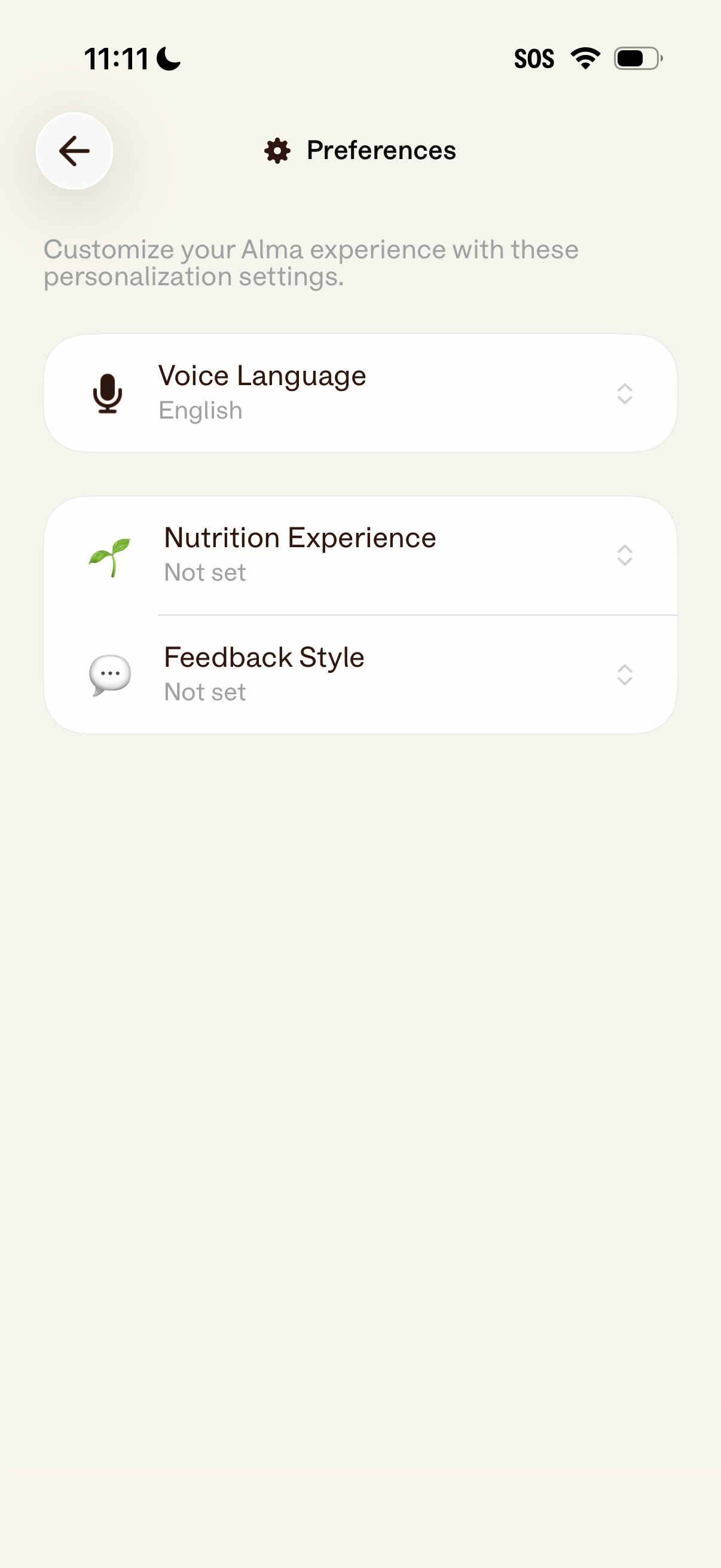
Preferences settings screen for personalizing an app experience, with selectable rows to configure voice language, nutrition experience level, and feedback style. Includes back navigation and chevron controls indicating each option opens a picker or detail page.
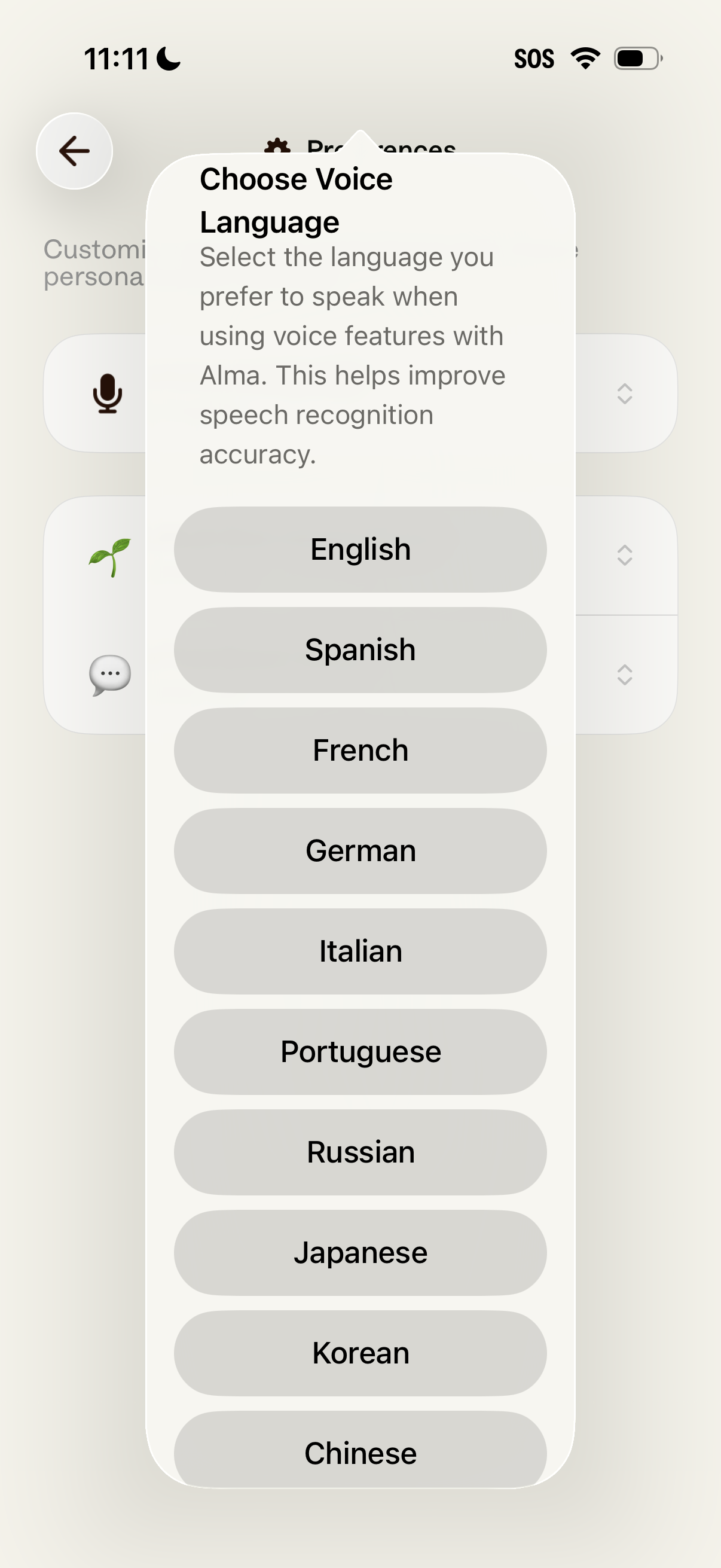
A preferences modal for choosing the voice input language to improve speech recognition accuracy, shown as a bottom sheet overlay. Users select from a list of languages such as English, Spanish, French, German, Italian, Portuguese, Russian, Japanese, Korean, and Chinese.
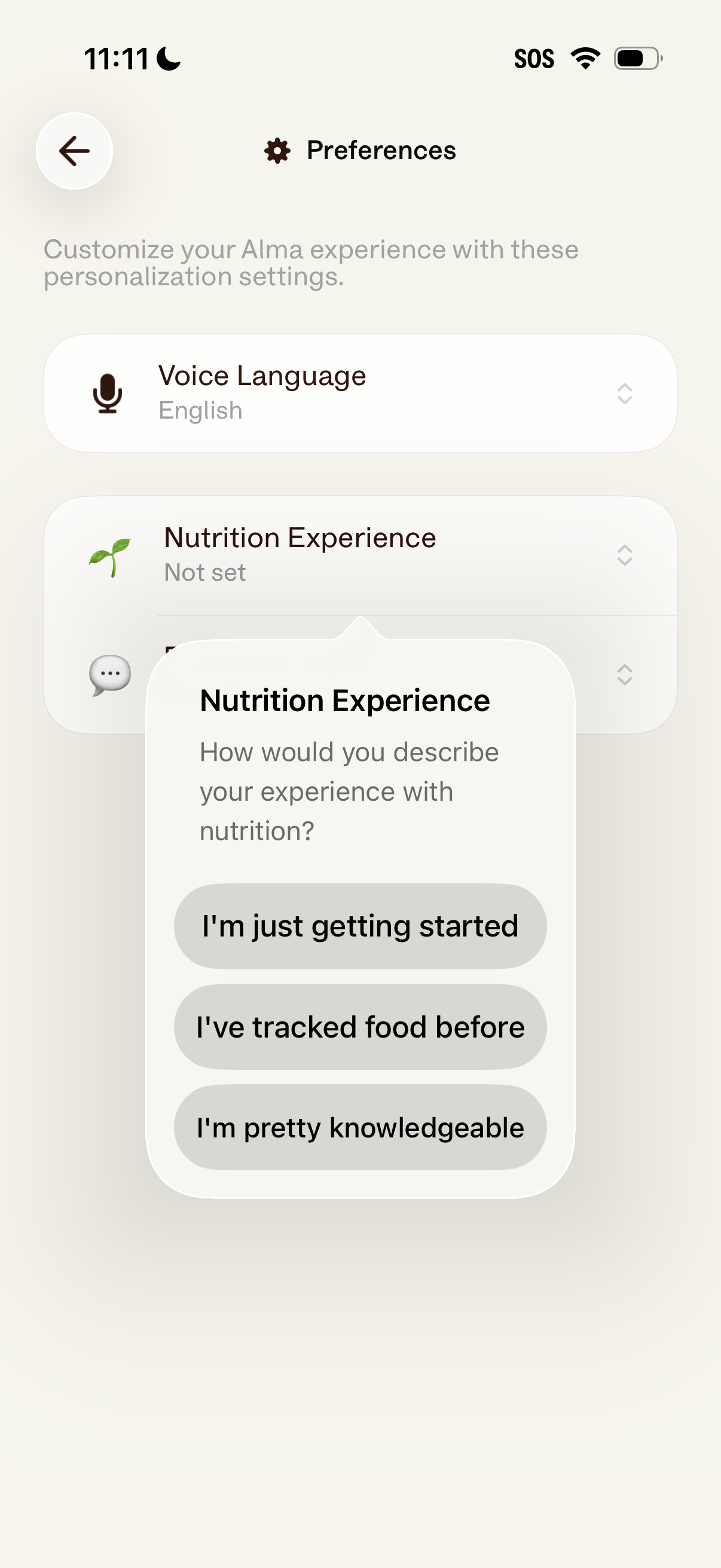
Preferences/settings screen for a health or nutrition app where users customize personalization options like voice language and nutrition experience level. A modal bottom sheet asks “How would you describe your experience with nutrition?
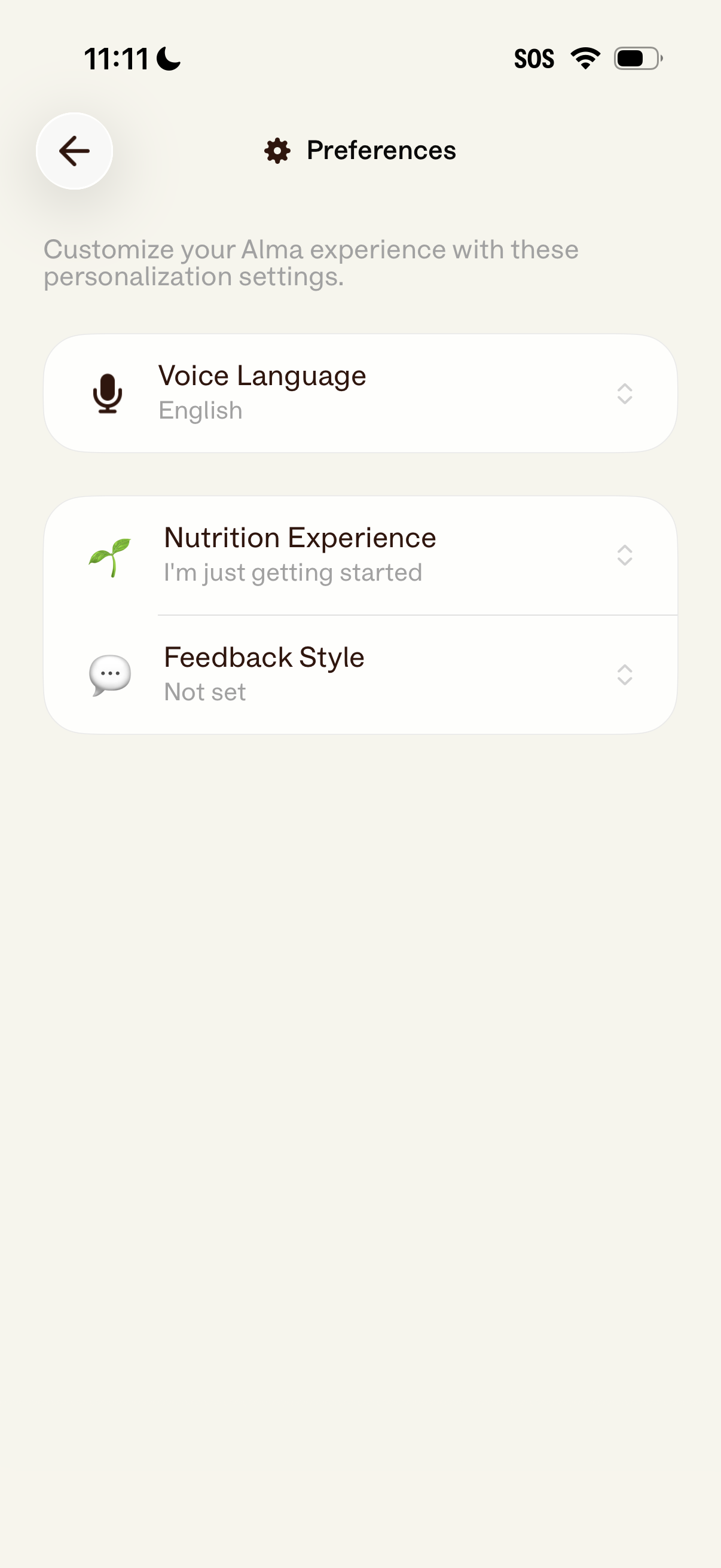
Preferences settings screen for personalizing a nutrition coaching app, with selectable rows to change voice language, set nutrition experience level, and choose a feedback style. Includes a back button and list-style options with current values and chevrons to open pickers.
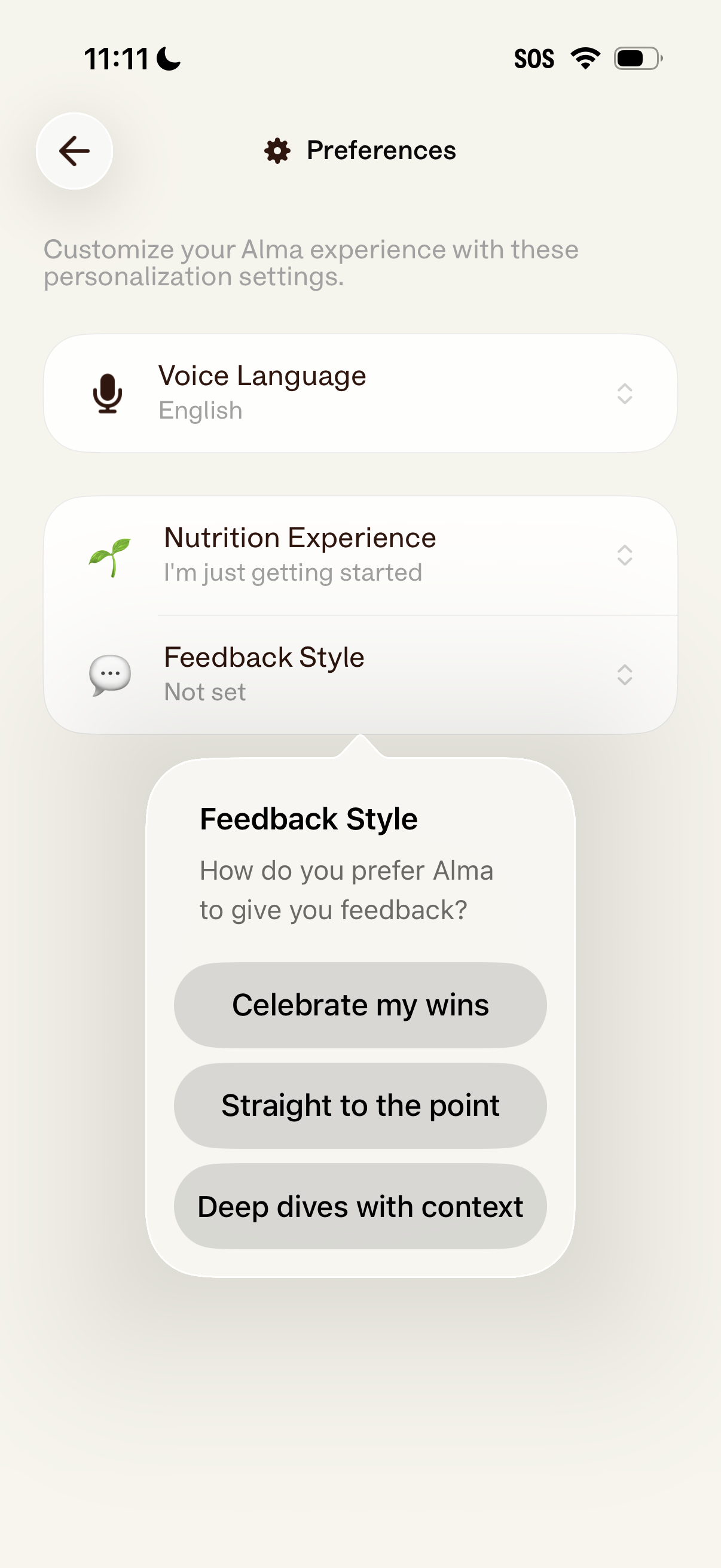
Preferences settings screen for a nutrition/health coaching app where users customize personalization options like voice language, nutrition experience level, and feedback style. A bottom sheet modal lets the user choose how the coach provides feedback (celebratory, straight to the point, or deep dives with context).
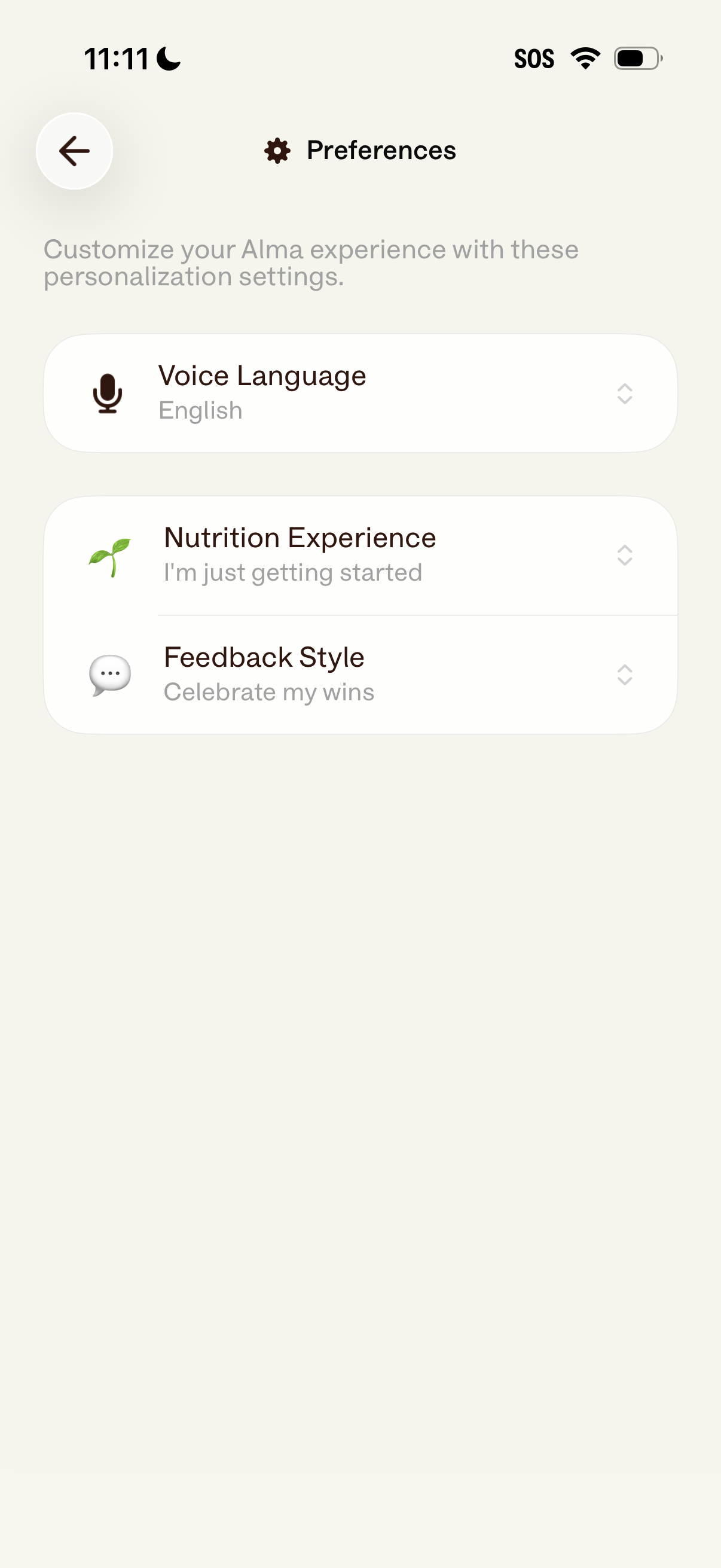
Preferences settings screen for a wellness/nutrition app where users customize personalization options, including voice language, nutrition experience level, and feedback style. Each row is a selectable menu item with a current value preview and a back navigation control.
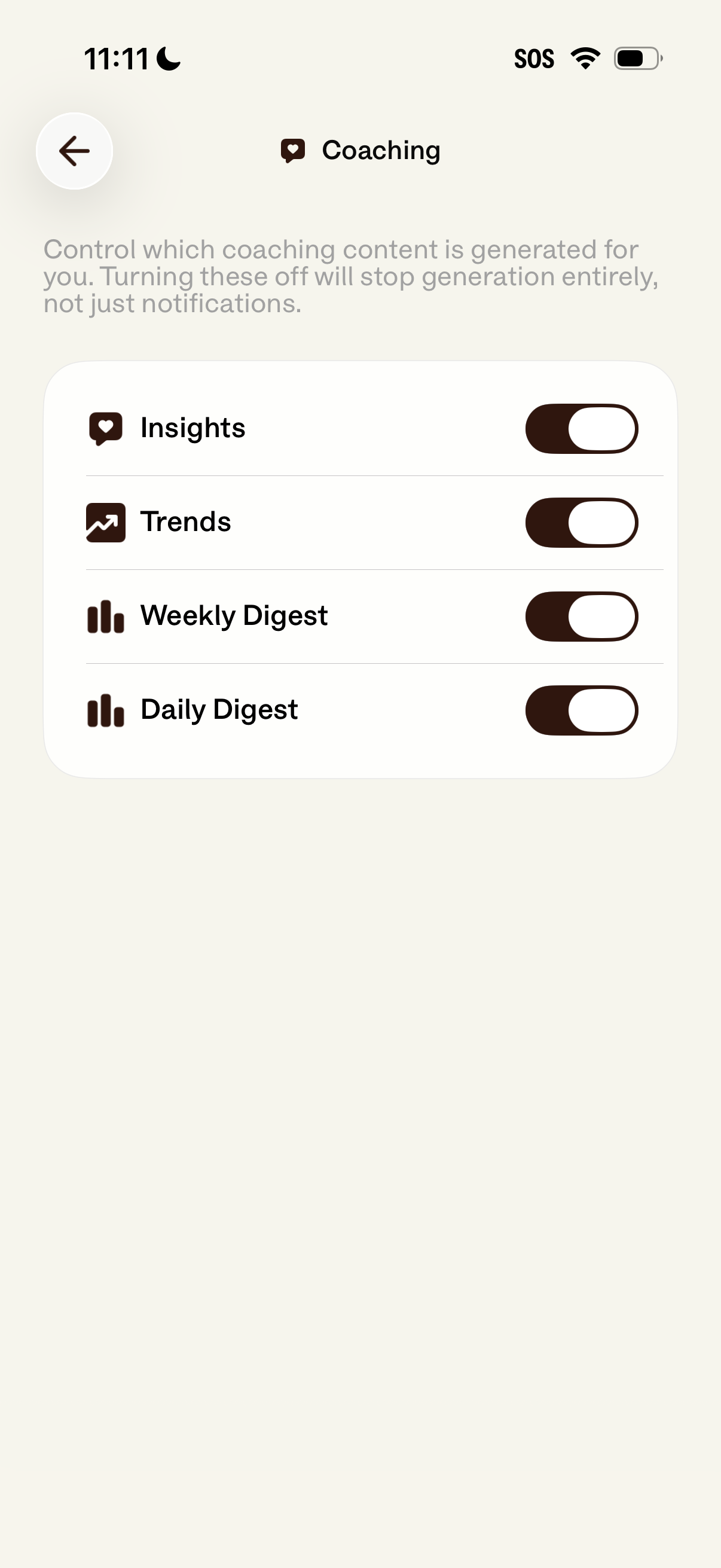
Settings screen for controlling generated coaching content, with toggle switches to enable or disable Insights, Trends, Weekly Digest, and Daily Digest. Includes explanatory text noting that turning these off stops content generation, not just notifications, and a back navigation button.
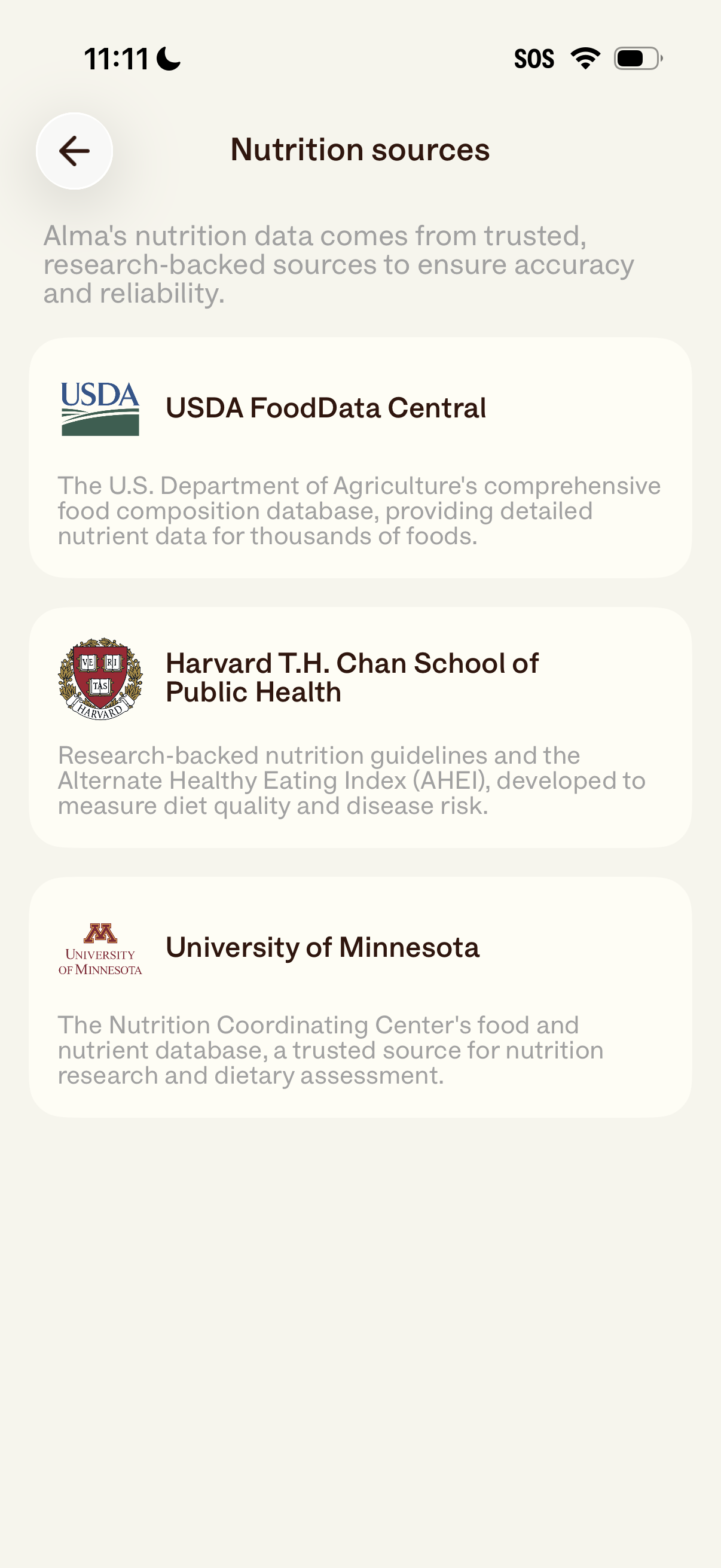
Information screen explaining the trusted sources behind an app’s nutrition data, with a brief intro about accuracy and reliability. Shows a scrollable list of source cards with organization logos, names, and descriptions (e.