complete curation survey
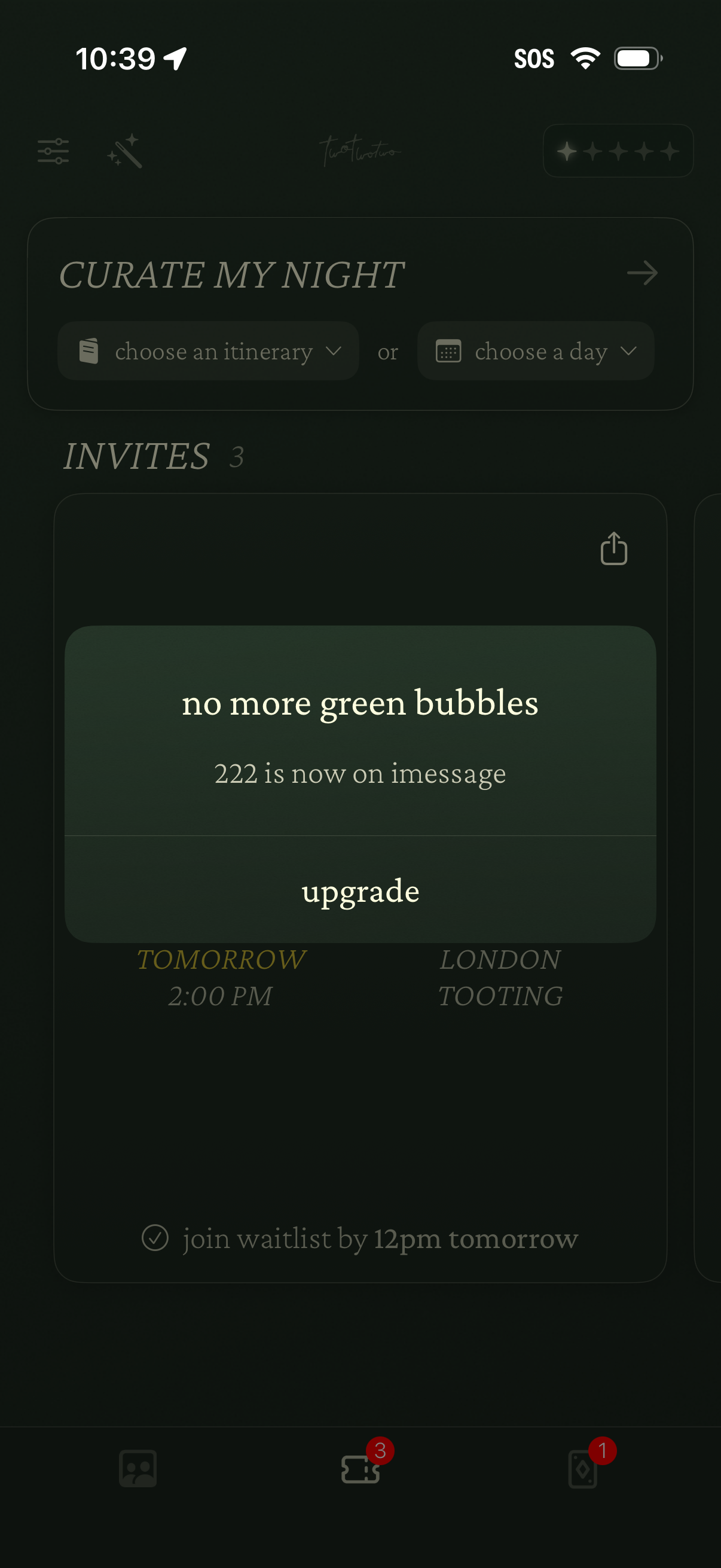
Nightlife planning home screen that lets users curate a night by choosing an itinerary or selecting a day, with an Invites section listing upcoming event invitations. Includes an upsell modal prompting users to upgrade for iMessage integration and a share action on invite cards.
New direct message chat screen with an organization/contact profile icon and prompt to start the conversation by typing a message, showing expected response time and a link to data/privacy management. Includes a message composer with attachment/add button, send button, and a close (X) to exit the chat.
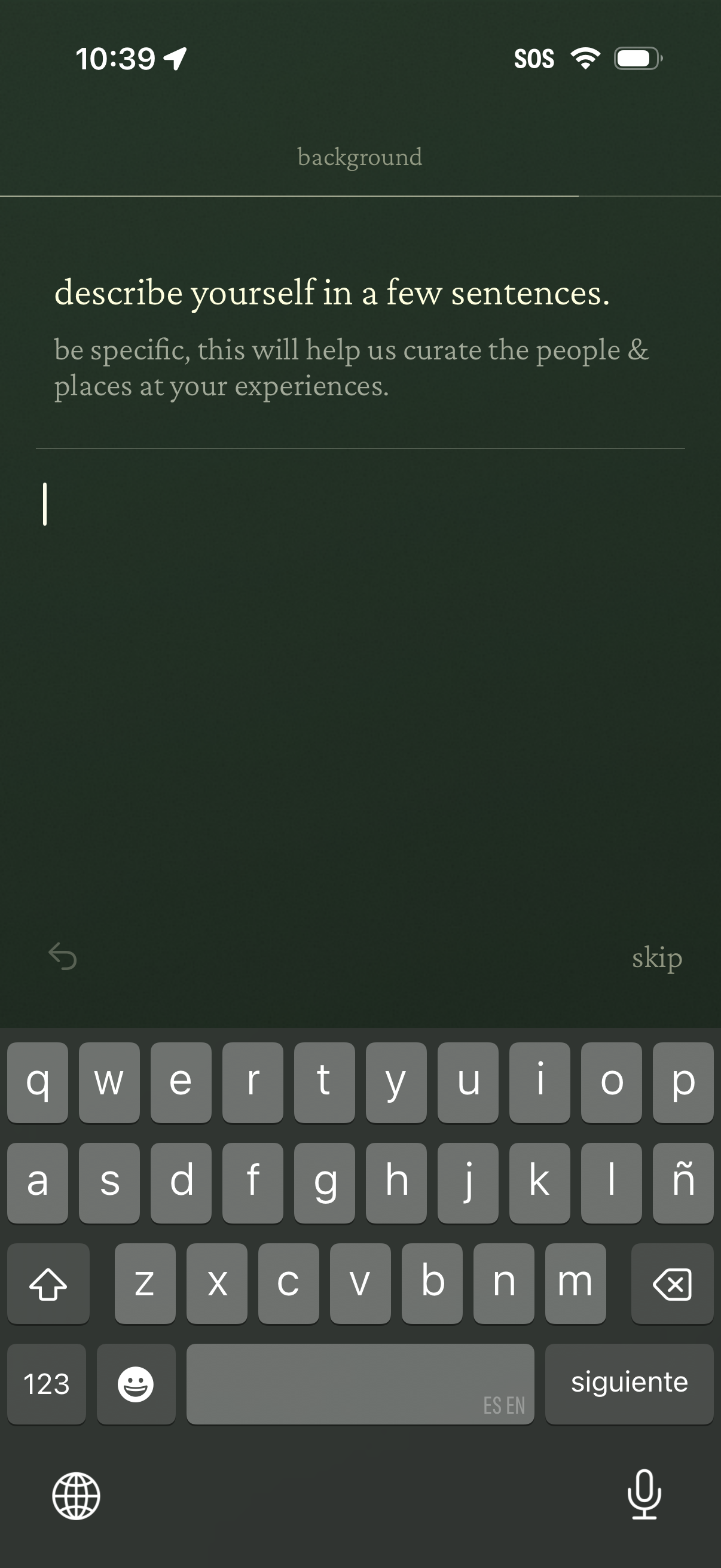
Onboarding profile background screen prompting the user to write a short bio about themselves in a free-text field to help personalize curated people and places in their experiences. Includes back navigation and a “skip” option to bypass this step.

Minimal splash/loading screen titled “interests” with a plain background and no visible controls, suggesting an interests onboarding or preferences section is about to load.
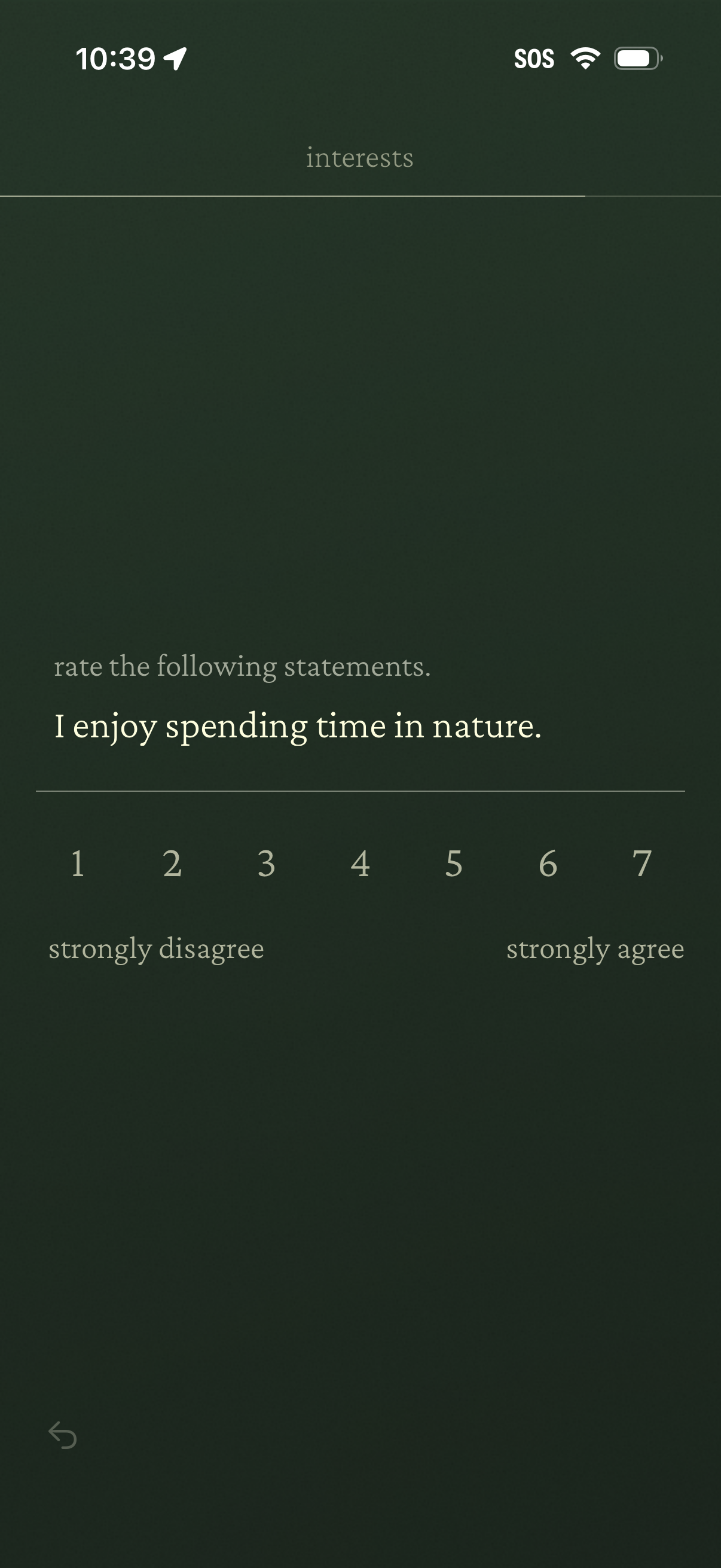
Interests onboarding survey screen asking the user to rate a statement (“I enjoy spending time in nature”) on a 1–7 Likert scale from strongly disagree to strongly agree. Includes a back navigation control for returning to the previous question.
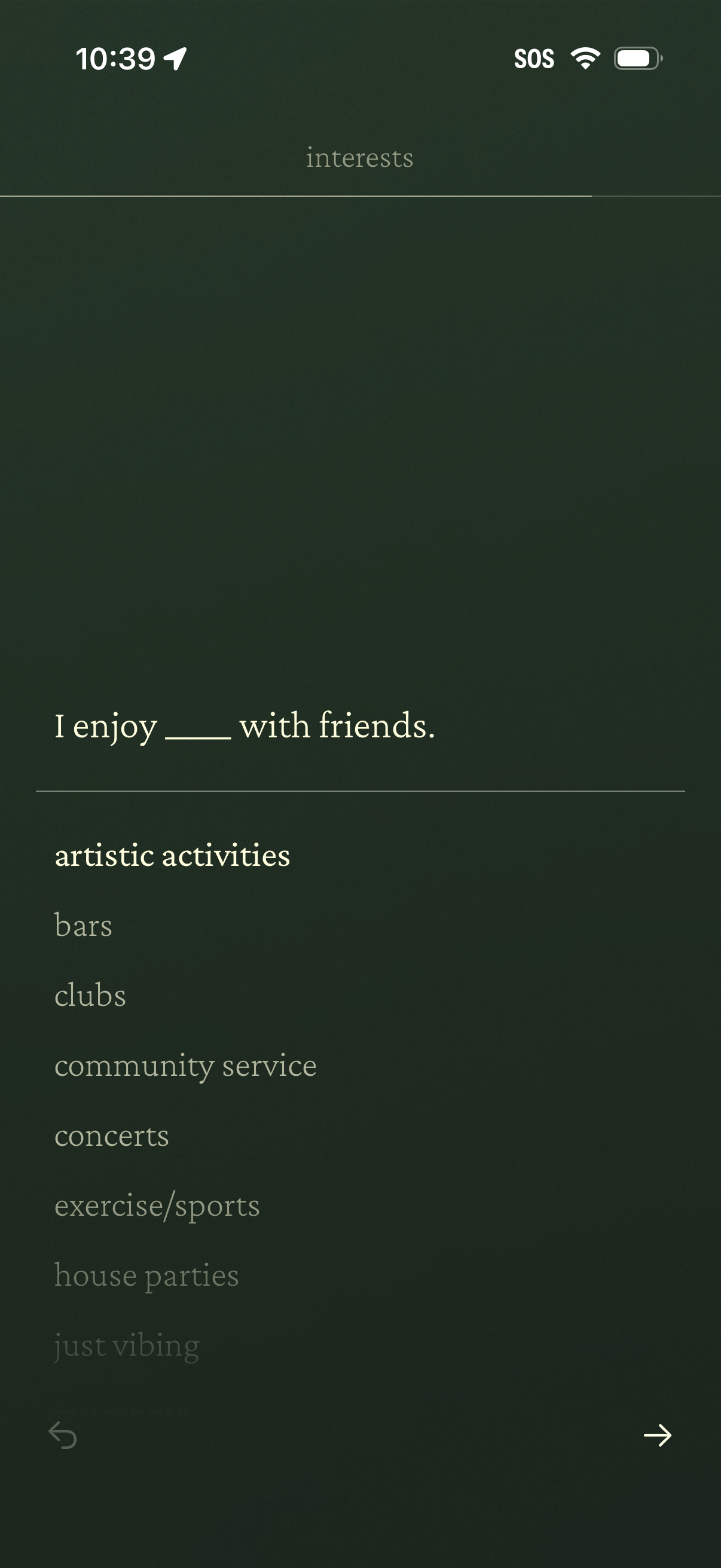
Onboarding interests selection screen prompting the user to complete “I enjoy ___ with friends” by choosing from a list of social activities (e. g.
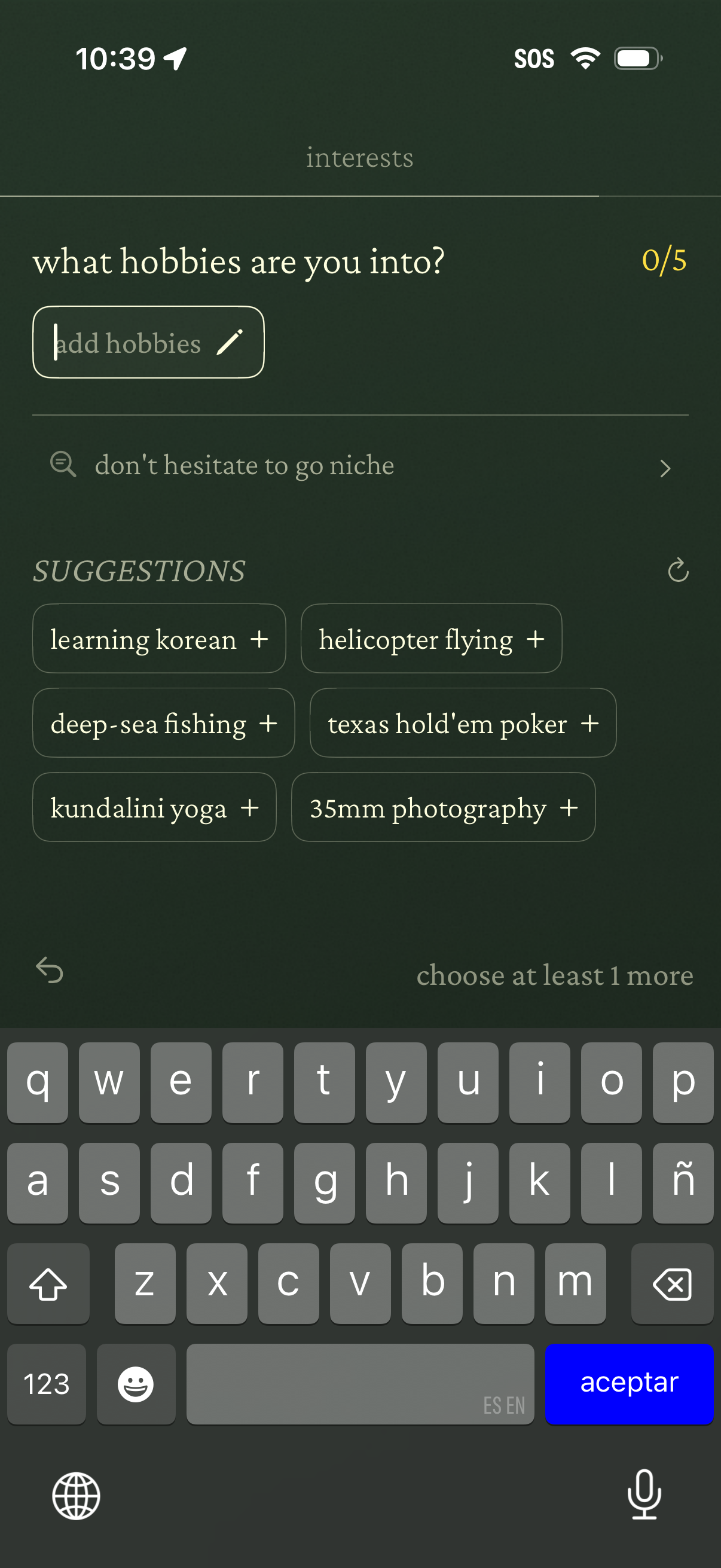
Interests onboarding screen asking the user to add up to 5 hobbies, with a text input to type and edit entries. Provides tappable suggestion chips (e.
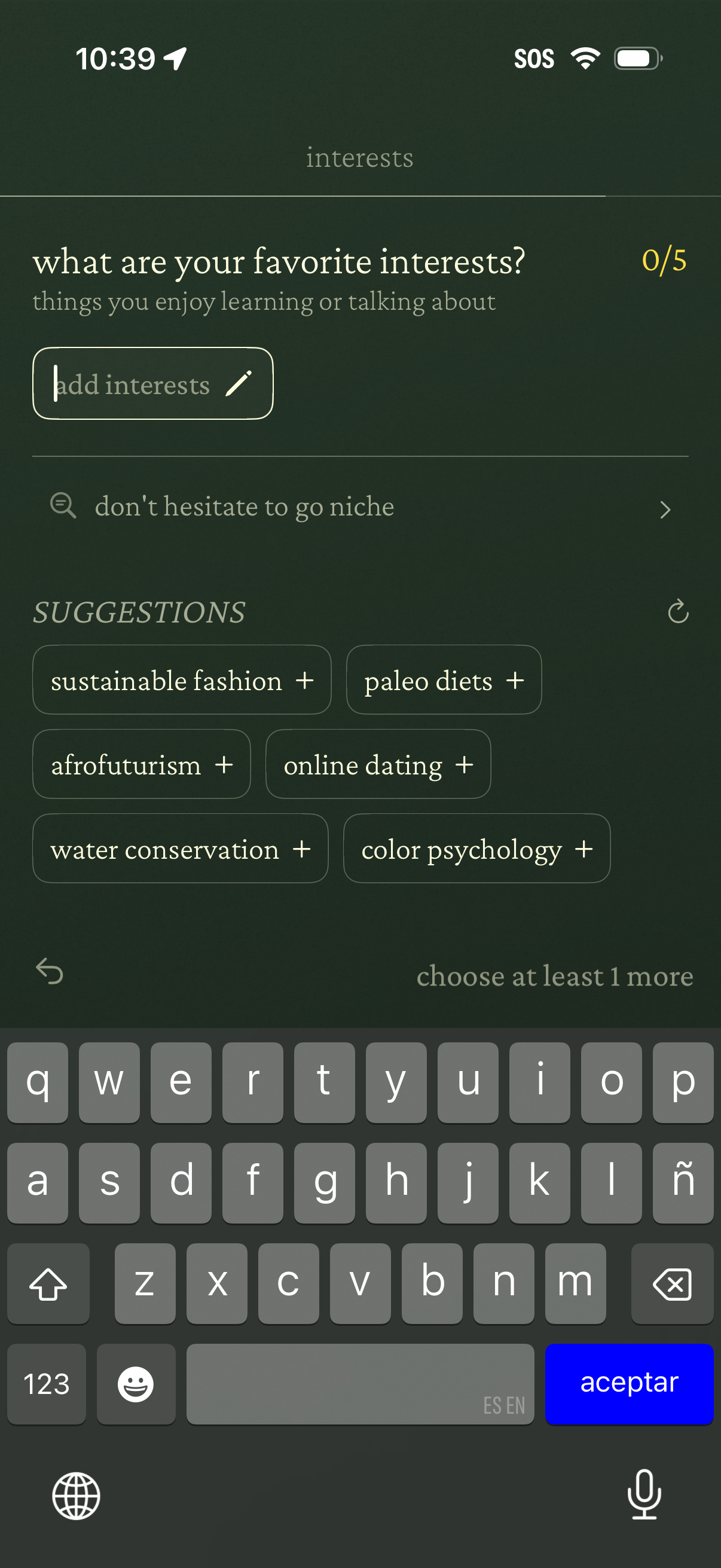
Onboarding profile setup screen prompting users to add up to five favorite interests, with an input field to type custom interests and a counter showing progress. Includes a searchable suggestions section with tappable interest chips to quickly add topics, plus back navigation and a prompt to choose at least one more interest.
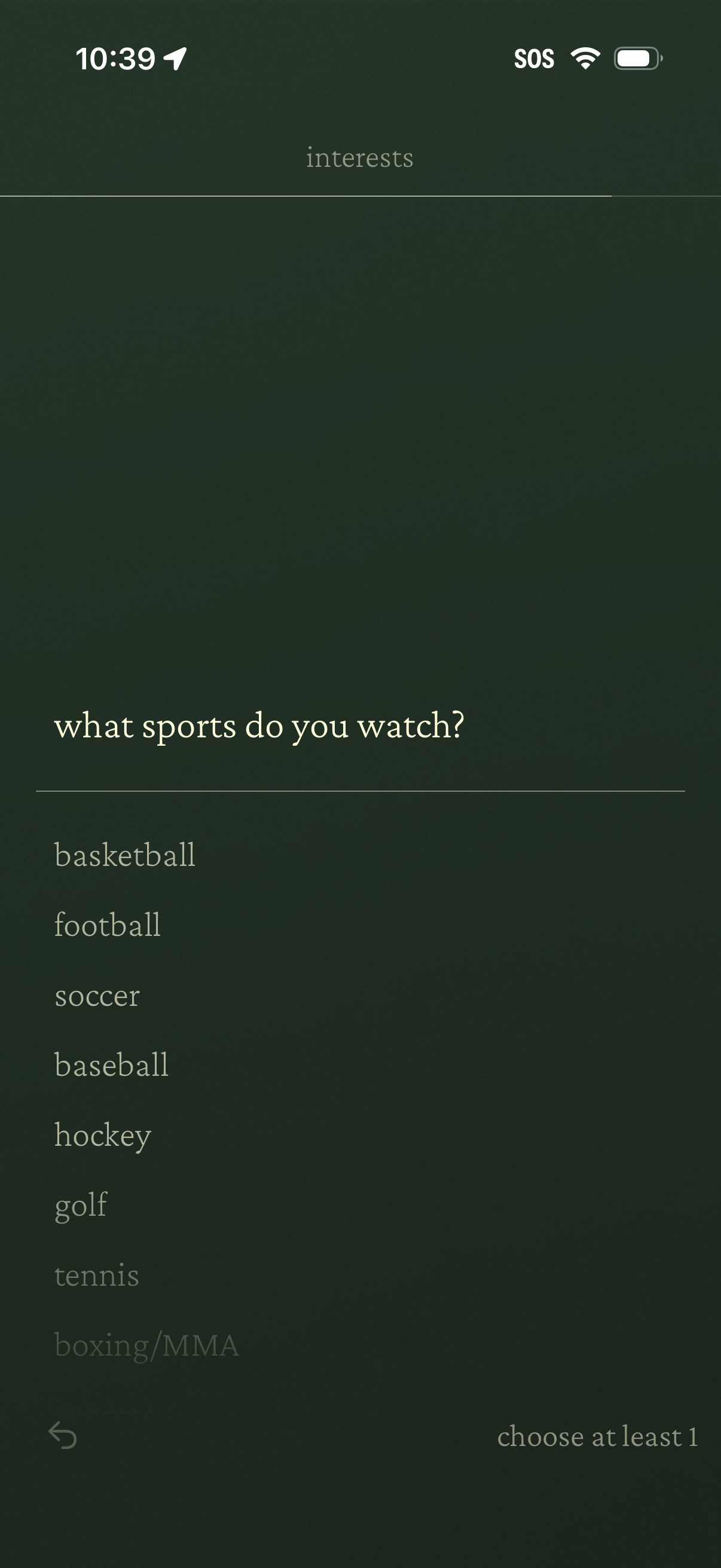
Interests onboarding screen asking “what sports do you watch? ” with a vertical list of sport options (e.
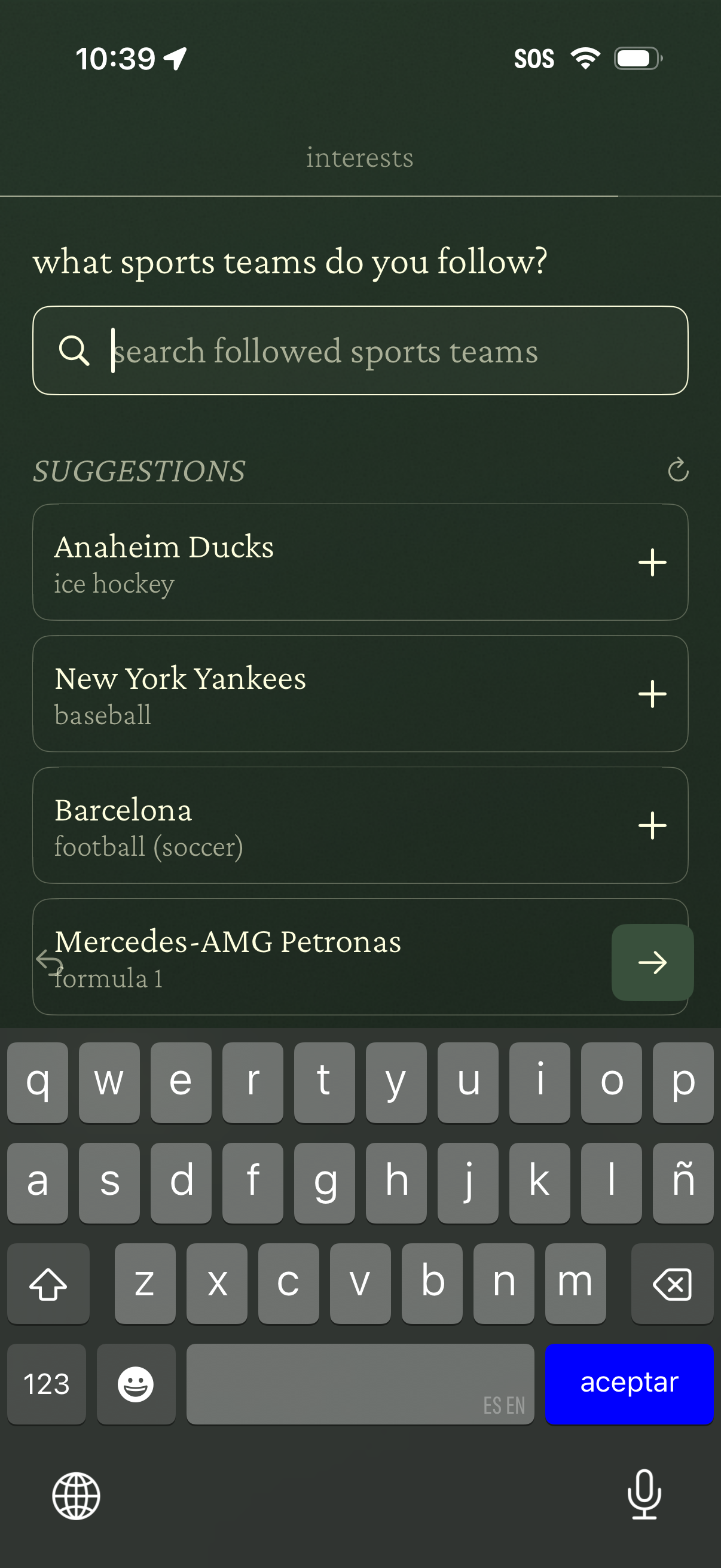
Interests onboarding screen asking users what sports teams they follow, with a search field to find teams and a suggested list by sport. Users can add teams via plus buttons and proceed to the next step.
Onboarding interests prompt screen asking the user to type an activity or place they want to try in their city, with example suggestions shown. Includes a text input field with back navigation and a “skip” option to bypass the question.

Minimal splash/loading screen for a streaming or entertainment app section labeled “movies & shows,” indicating entry into a movies and TV browsing experience with no visible navigation or actions.
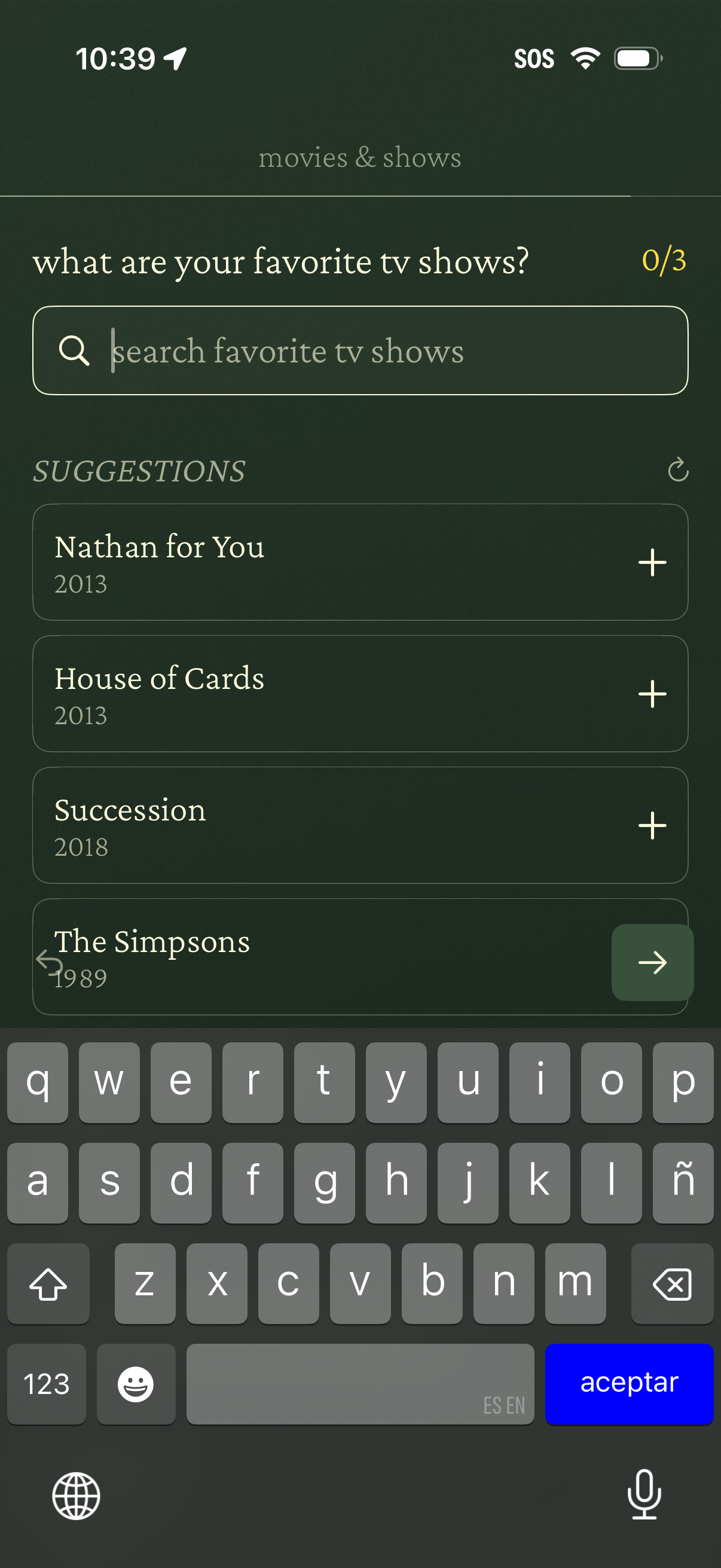
Preference selection screen for onboarding where users choose up to three favorite TV shows, with a search field to find titles and a suggested list of shows each with an add (+) button. Includes a refresh suggestions control and a next/continue arrow to proceed after selecting favorites.
Minimal input screen with a single text field and on-screen keyboard for entering content and submitting via an “accept” action. Used for simple text entry or creating/editing a short value.
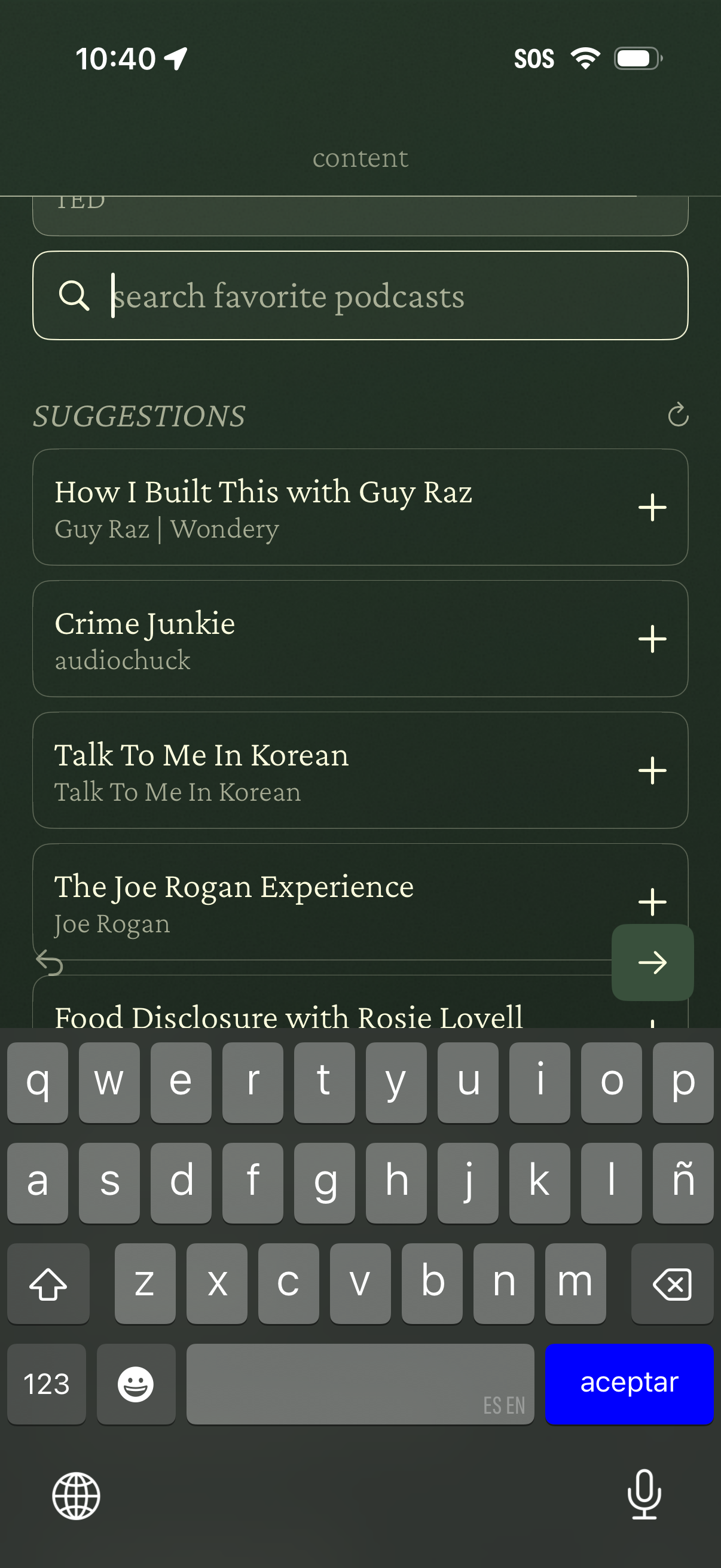
Podcast discovery and favorites screen with a search bar to find podcasts and a suggestions list showing show titles and publishers. Each suggested podcast has a plus button to quickly add it to your favorites, with a refresh icon to reload recommendations.
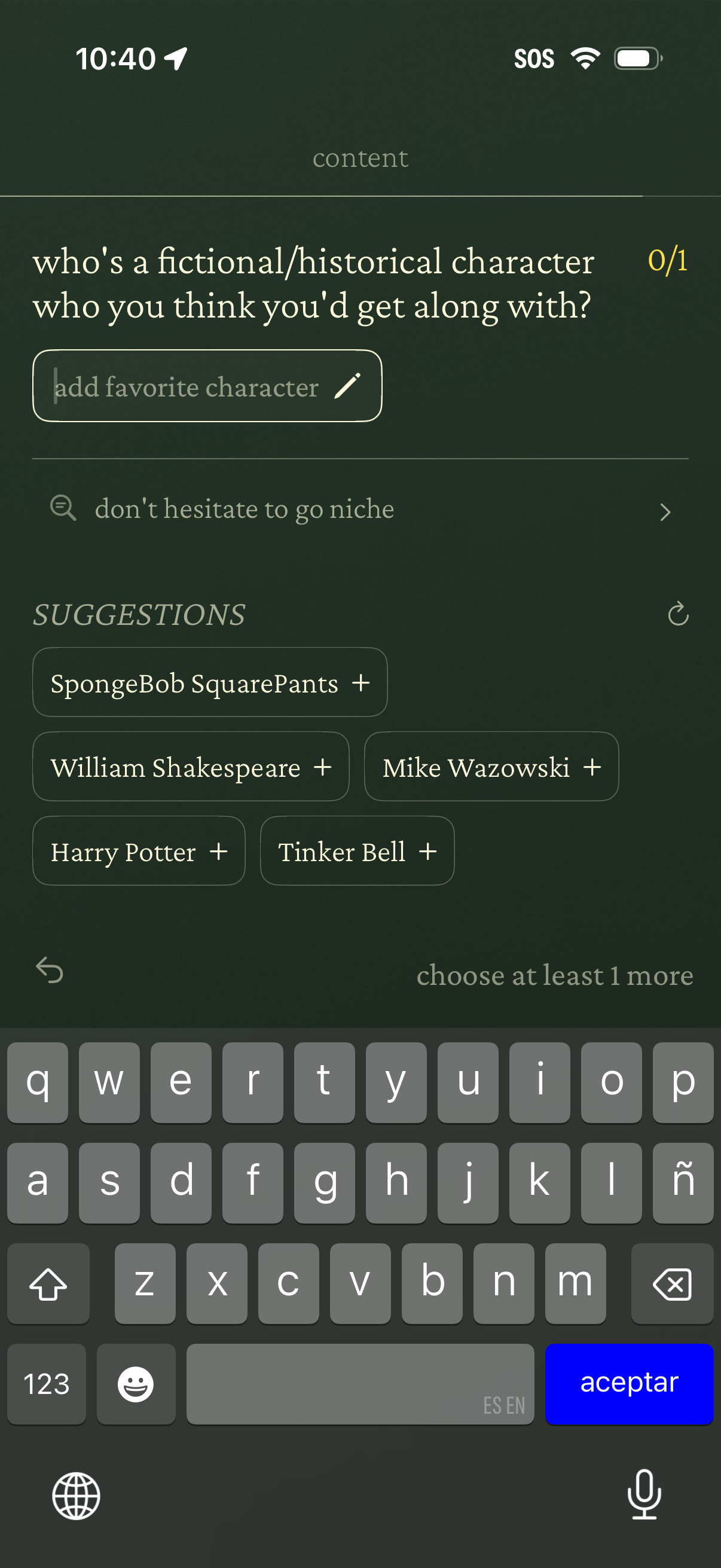
Profile questionnaire screen asking the user to add a favorite fictional or historical character they’d get along with, with a text input field and character count. Includes a “go niche” hint and tappable suggestion chips with plus icons to quickly add preset characters, plus navigation to continue once at least one choice is selected.
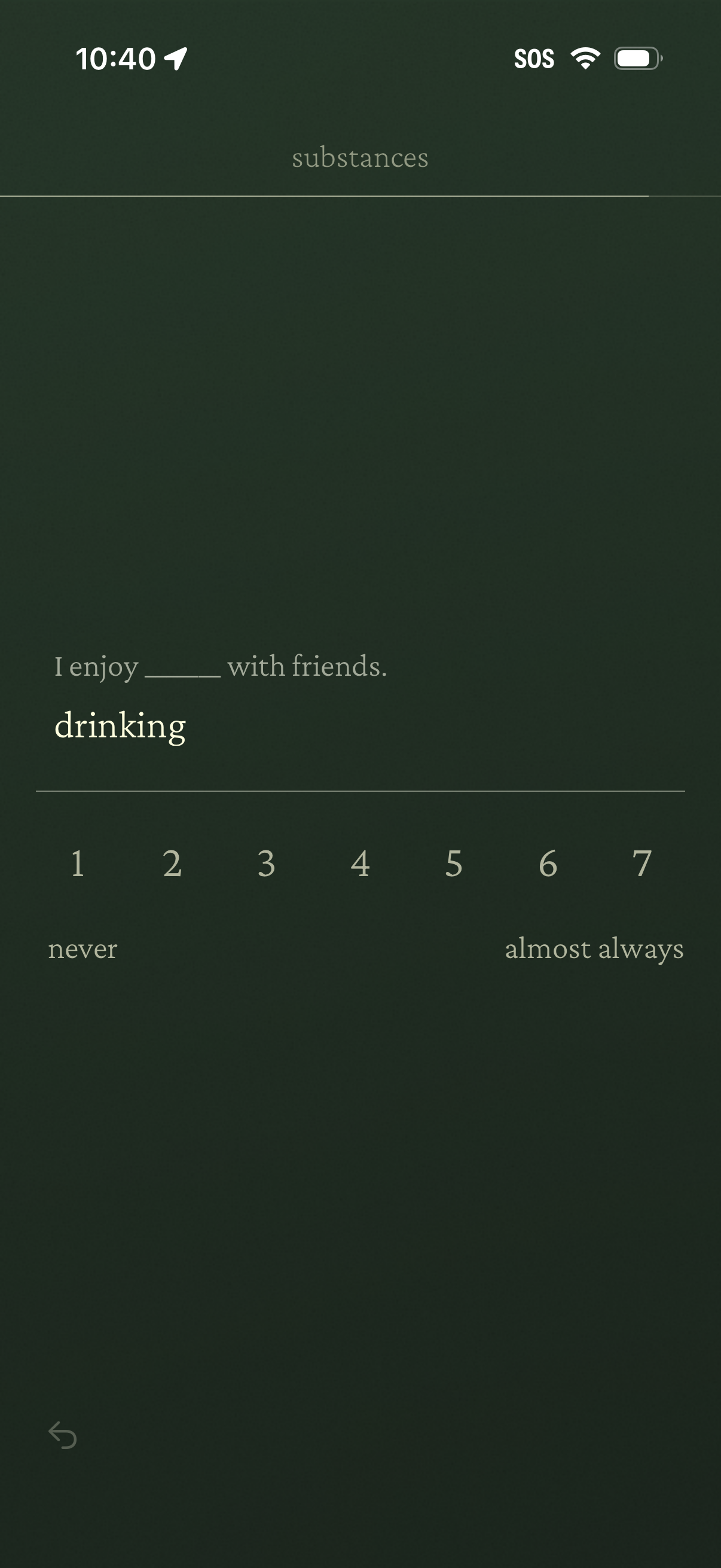
A survey question screen in a “substances” section asking the user to rate how often they enjoy drinking with friends. Users respond by selecting a 1–7 Likert scale from “never” to “almost always,” with a back navigation option.
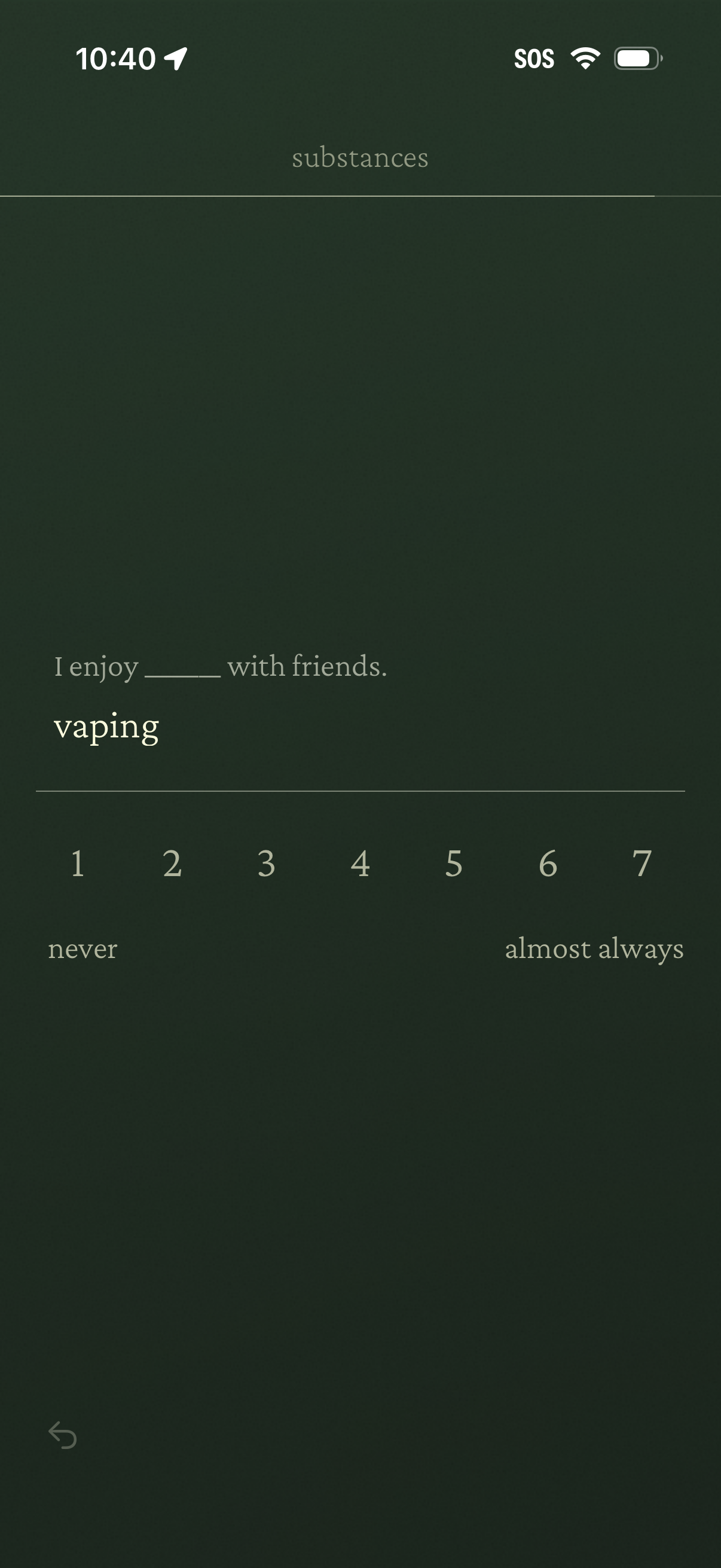
A survey/onboarding question screen for “substances” asking the user how often they enjoy a specific substance with friends (e. g.
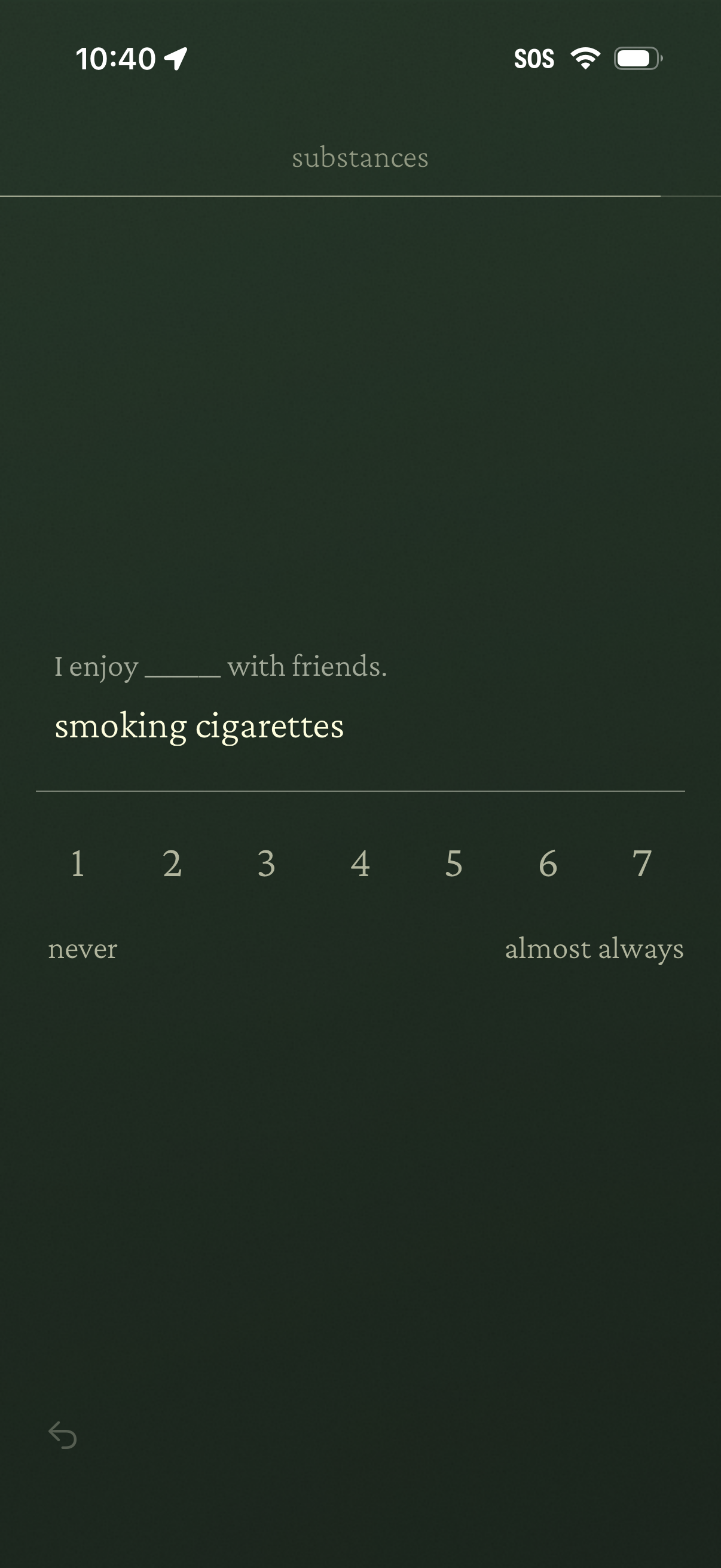
Questionnaire survey screen for tracking substance use habits, asking “I enjoy ___ with friends” with an example like smoking cigarettes. Users select frequency on a 1–7 Likert scale from never to almost always, with a back navigation option.
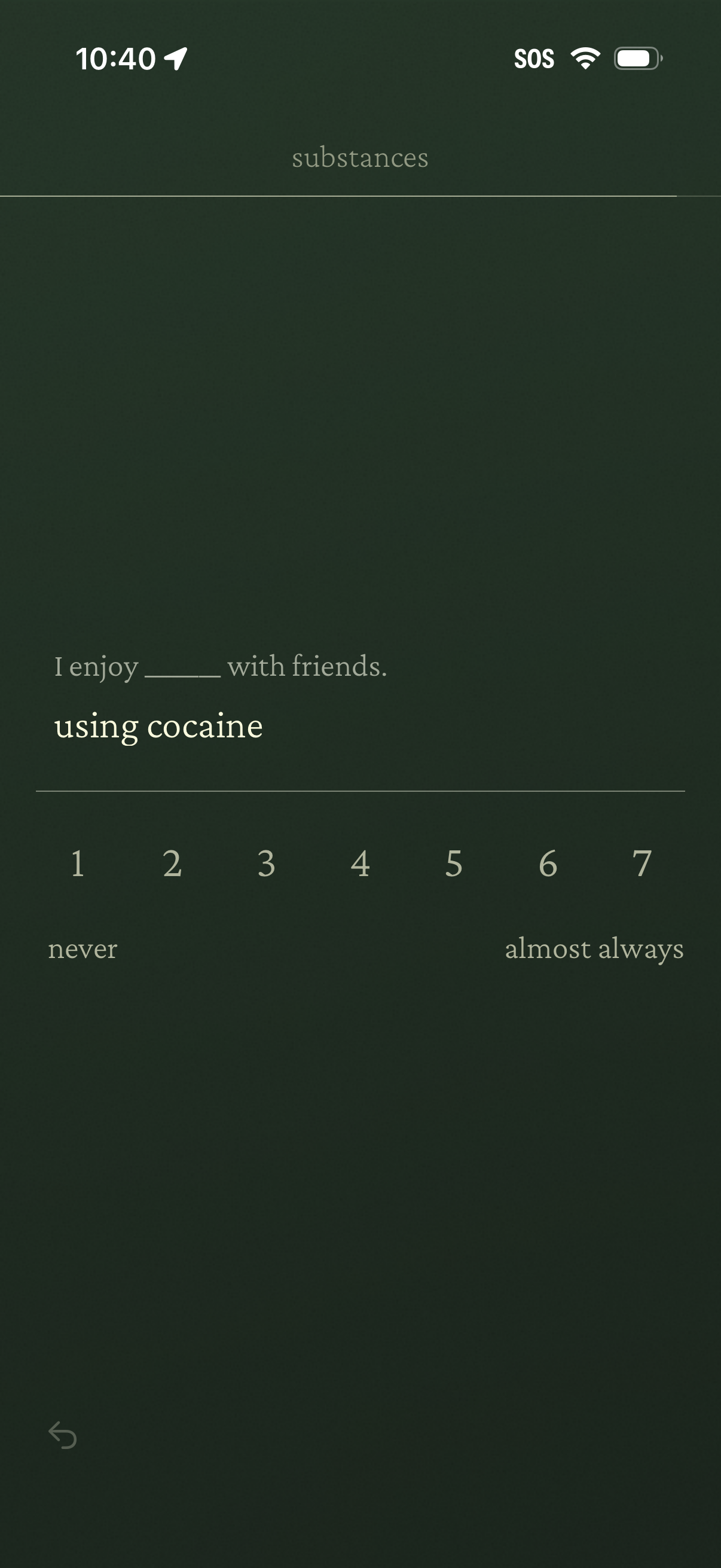
Questionnaire survey screen for reporting substance use habits, showing a fill‑in statement (e. g.

Minimal splash/loading screen for the Account section, showing only a centered “account” label on a dark background with no visible navigation or actions.
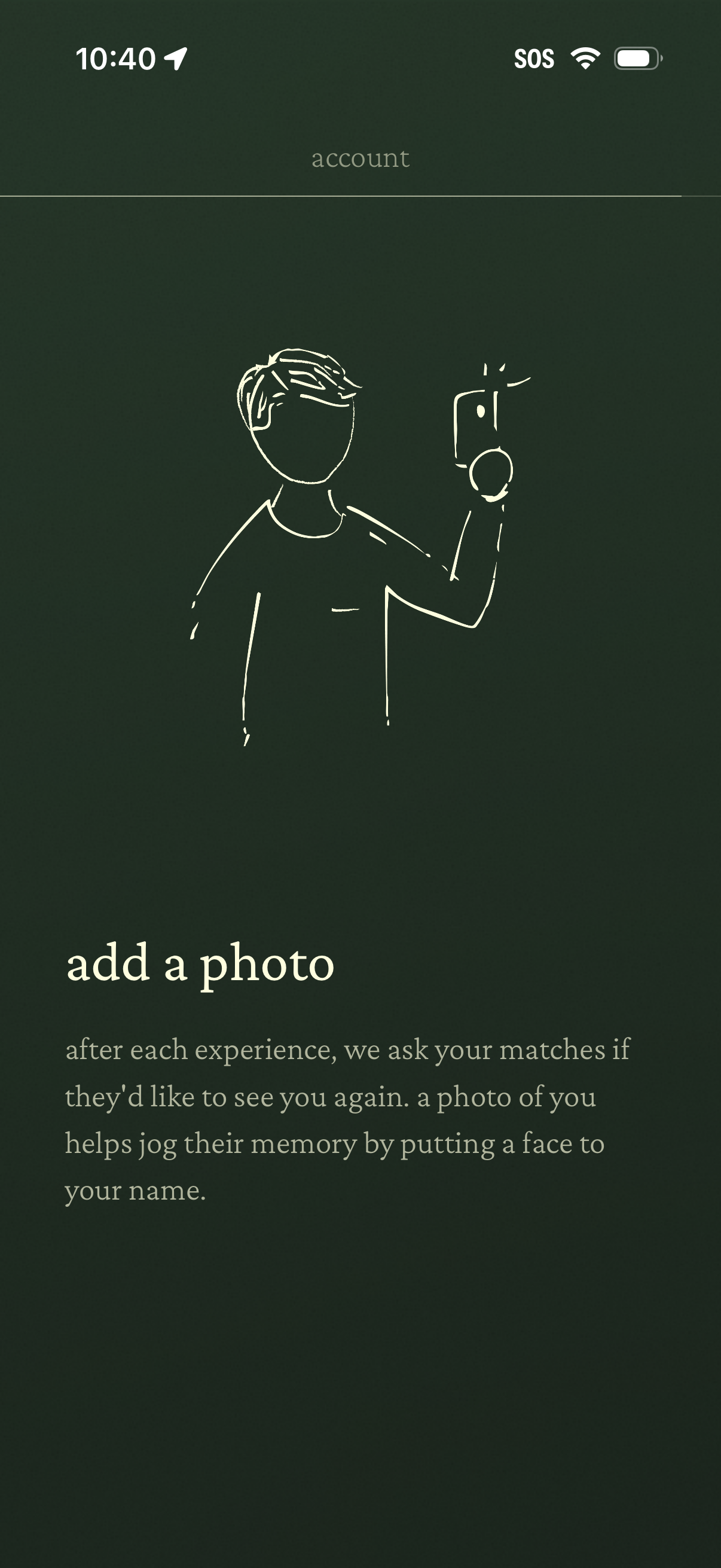
Account onboarding prompt asking the user to add a profile photo, explaining why a photo is needed to help matches recognize them after an experience. Minimal informational screen with illustration and guidance text encouraging photo upload for the user profile.
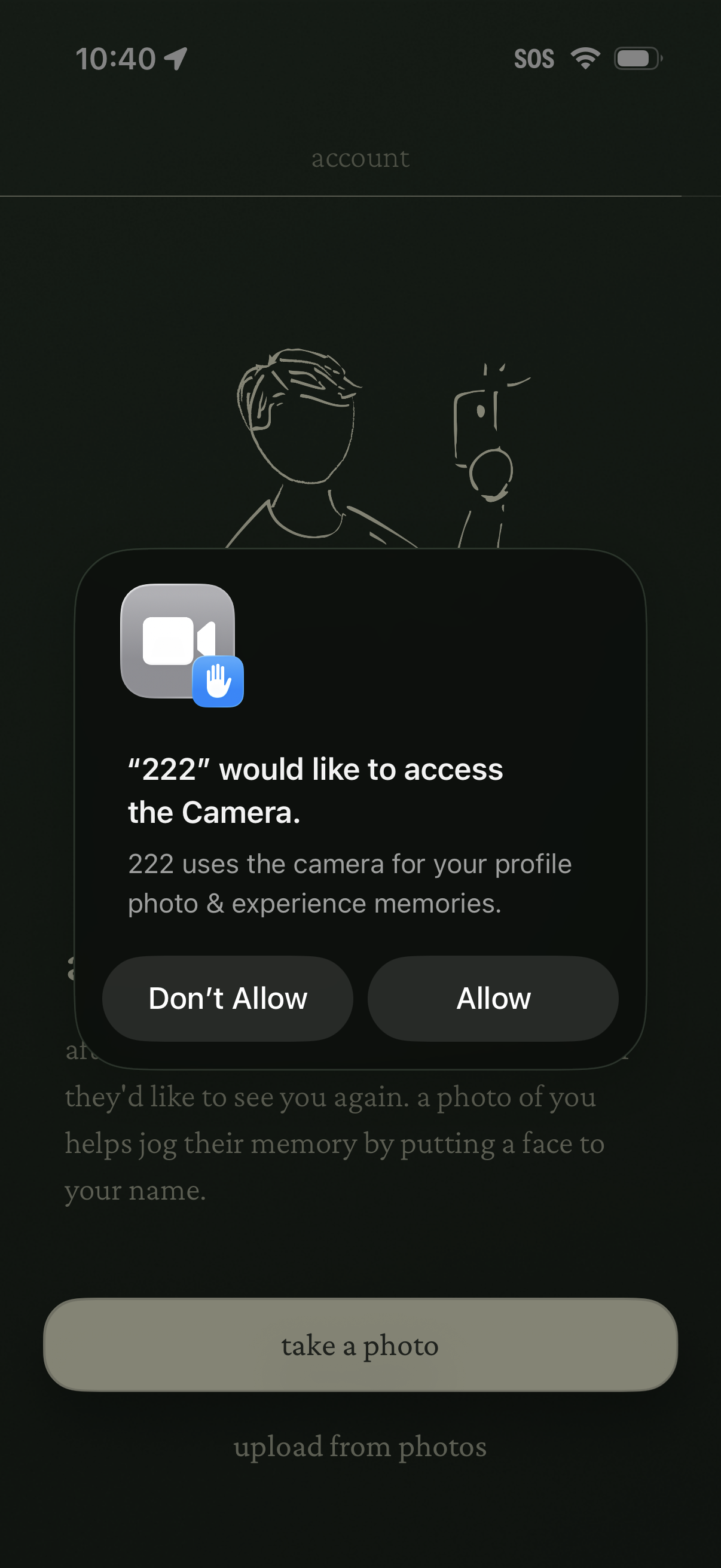
iOS system permission modal requesting access to the device camera, explaining it’s needed for profile photo and memory capture, with primary actions to Allow or Don’t Allow. The underlying account screen includes options to take a photo or upload from photos for a profile image.
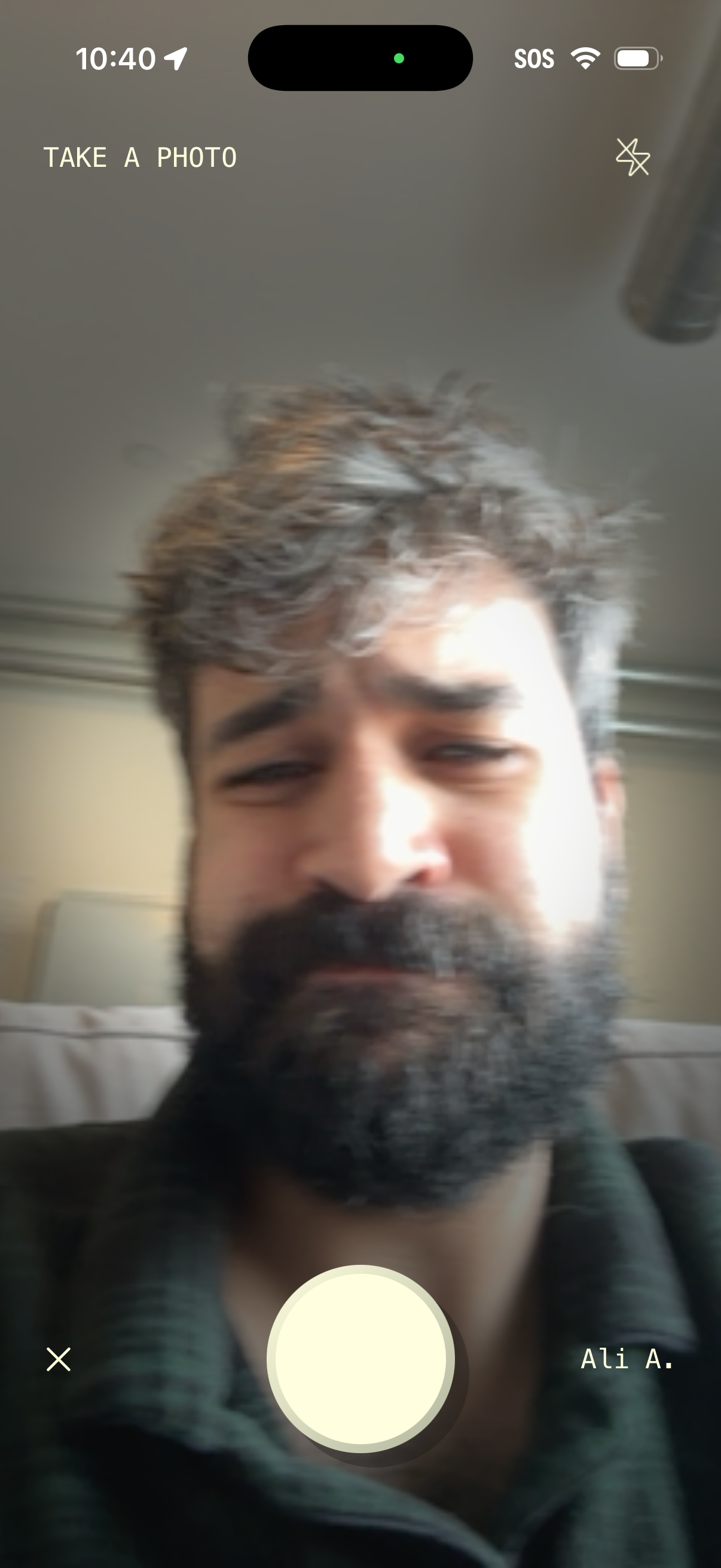
Front-facing camera capture screen for taking a selfie photo, featuring a live preview, flash toggle, large shutter button, and options to cancel/close or confirm the user identity before submitting the photo.
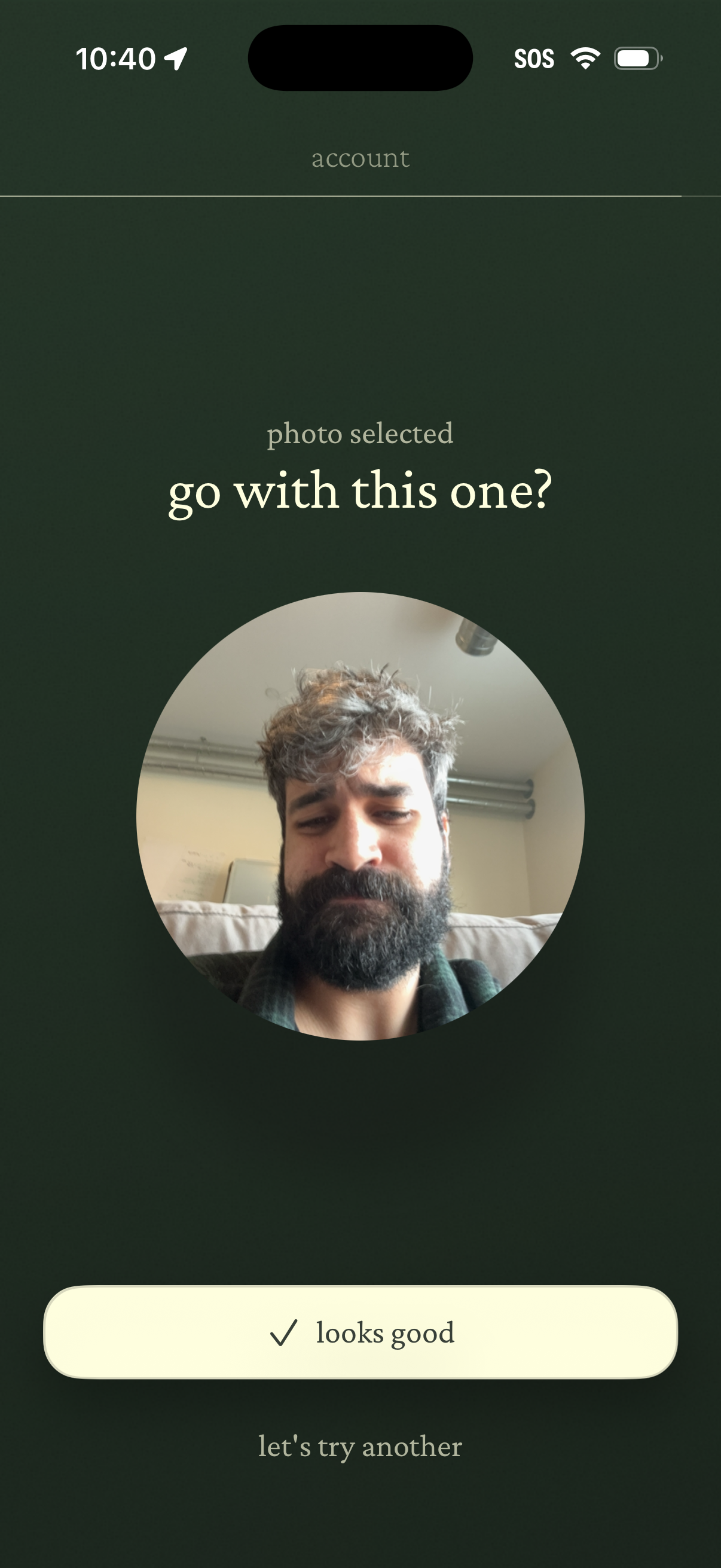
Account profile photo selection confirmation screen showing a circular preview of the chosen image and asking “go with this one? ”.
Account verification loading screen indicating “verifying this is a human…” with an illustration, used during signup/login to confirm the user via CAPTCHA or bot detection before continuing.
Account section confirmation screen showing a minimalist success state with the message “looks great,” likely indicating profile or account details have been reviewed or updated successfully. This is a simple feedback/acknowledgement screen without visible action buttons or form fields.
Account screen showing a confirmation success message after uploading a profile photo, thanking the user and indicating the upload completed successfully. This is a lightweight status/feedback screen in the account setup or profile update flow.

Minimal onboarding or settings screen titled “invite preferences,” likely used to configure how a user wants to send or receive invitations (e. g.
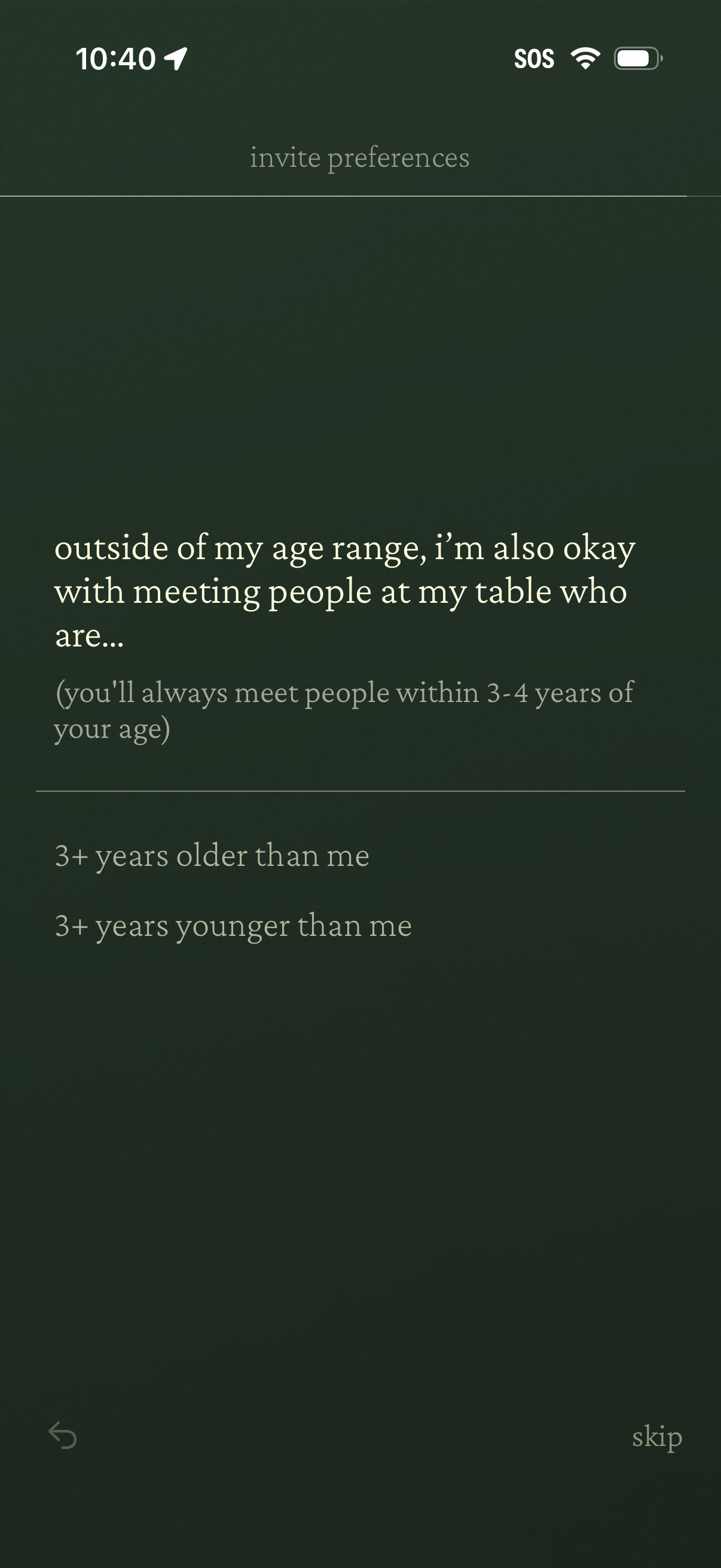
Invite preferences settings screen for a social dining/meetup app where users choose whether they’re okay meeting people at their table who are outside their age range. Provides selectable options like “3+ years older than me” or “3+ years younger than me,” with back and skip navigation.
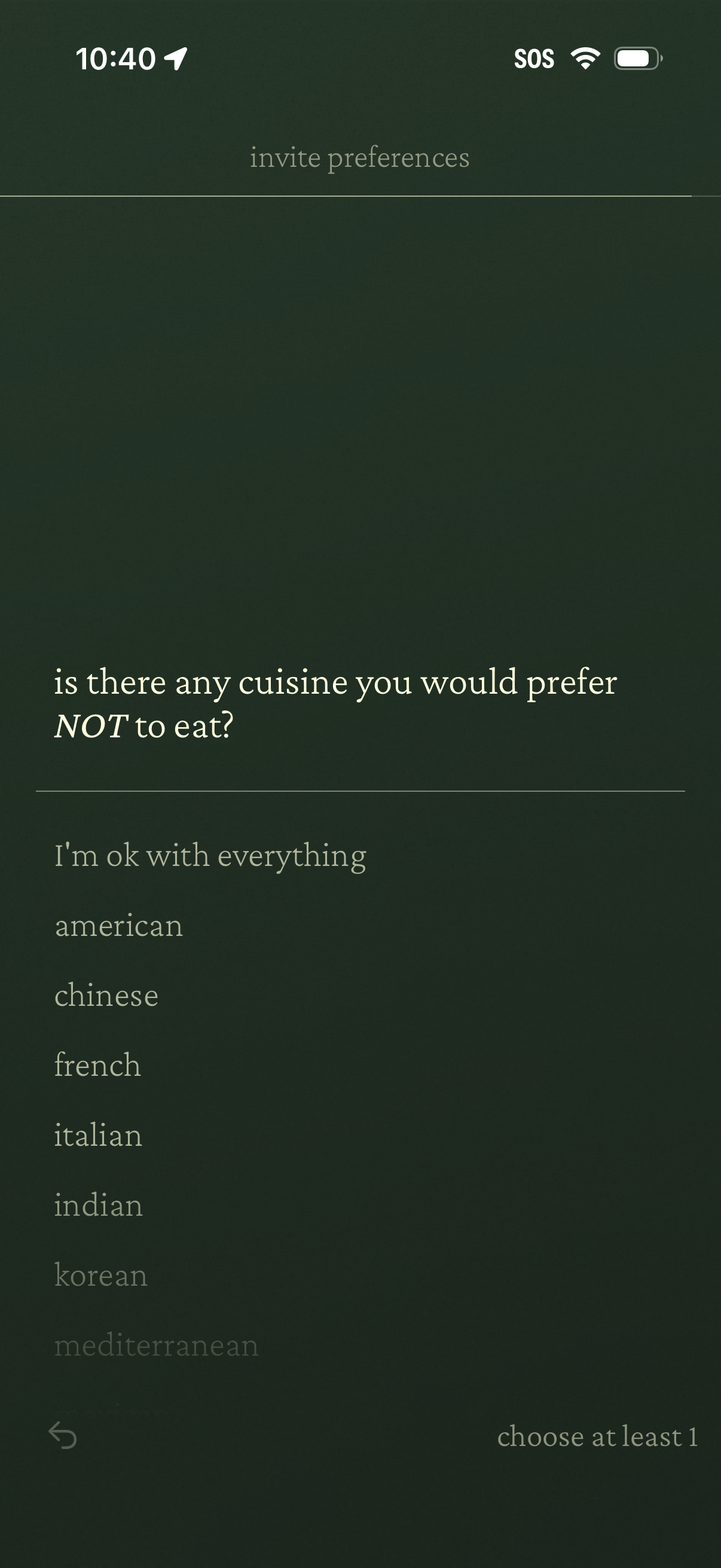
Invite preferences survey screen asking users to select any cuisines they prefer not to eat, showing a single-select list of cuisine options (e. g.
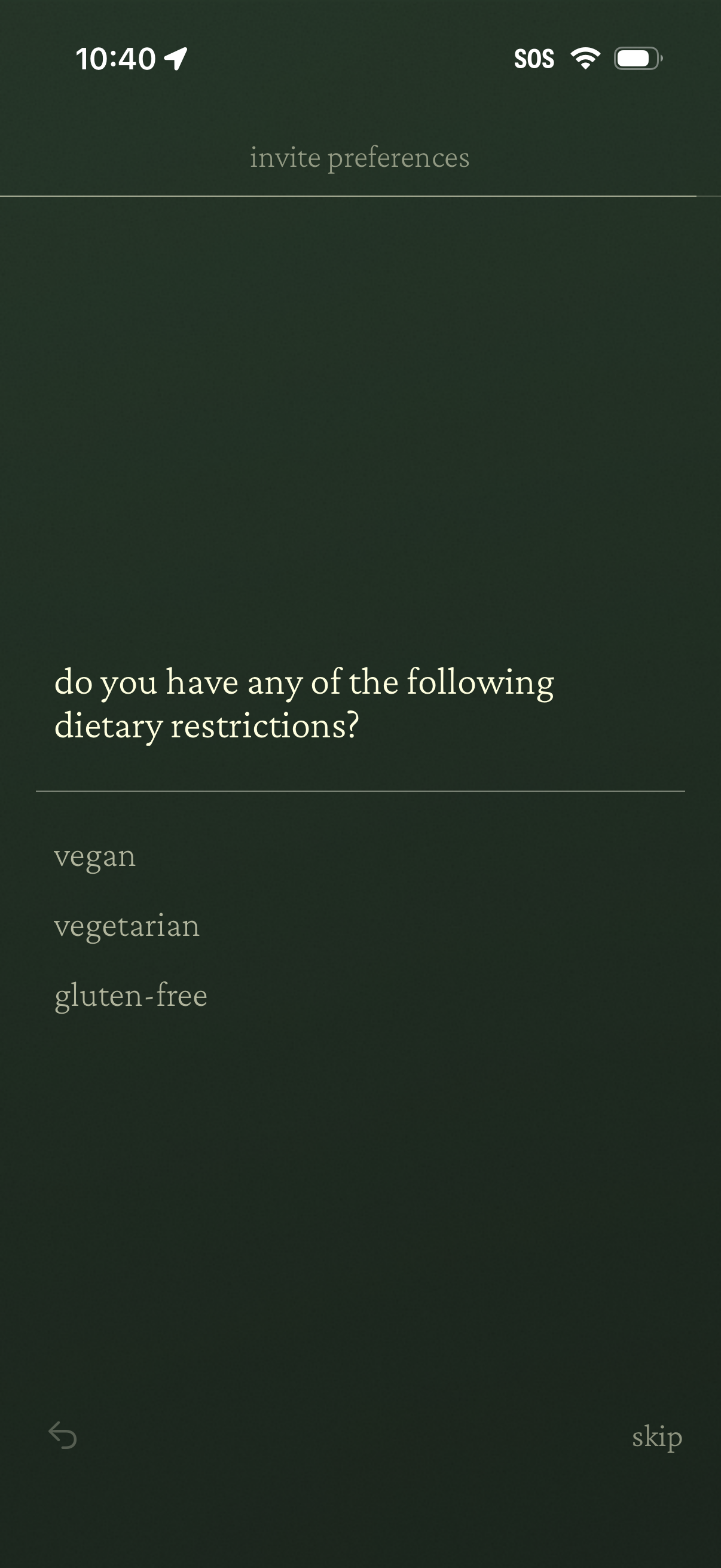
Invite preferences onboarding screen asking the user to select dietary restrictions, with options like vegan, vegetarian, and gluten-free. Includes navigation controls to go back or skip this step.
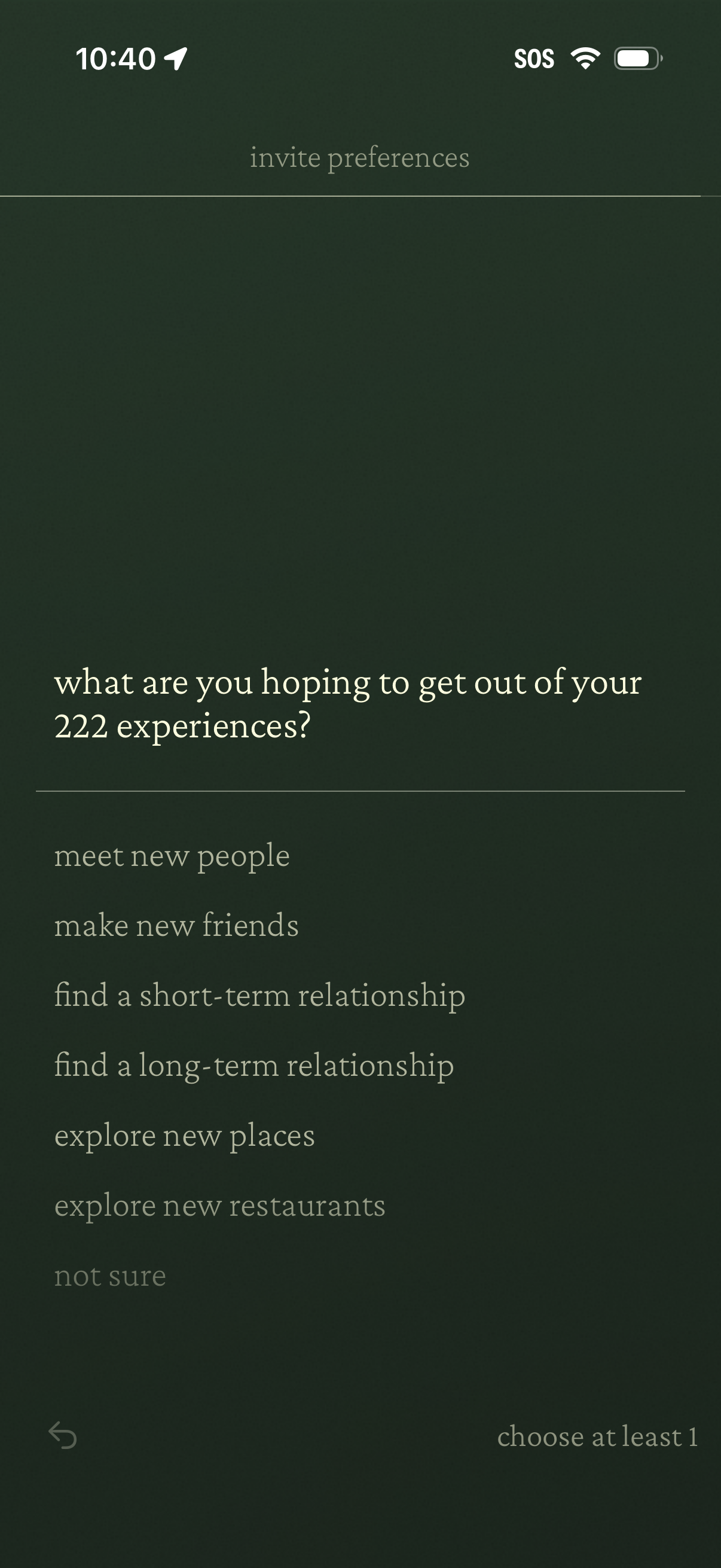
Invite preferences onboarding screen asking users what they hope to get out of the app’s experiences, with selectable goals like meeting new people, making friends, finding short- or long-term relationships, exploring new places or restaurants, or “not sure. ” Users must choose at least one option and can navigate back.
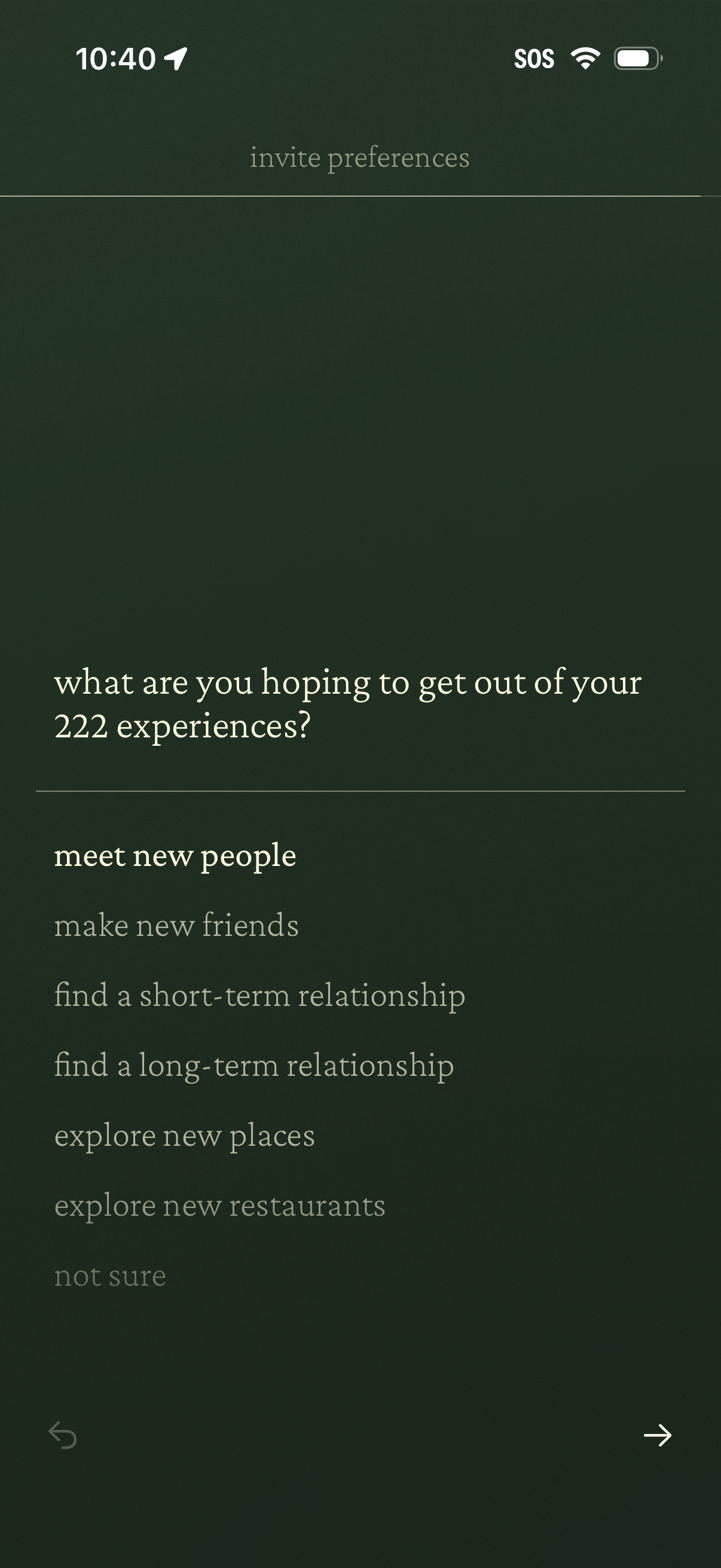
Onboarding “invite preferences” screen asking the user what they hope to get out of the app, with a single-choice list of goals like meet new people, make friends, find short- or long-term relationship, explore places/restaurants, or not sure. Includes back navigation and a next arrow to continue.
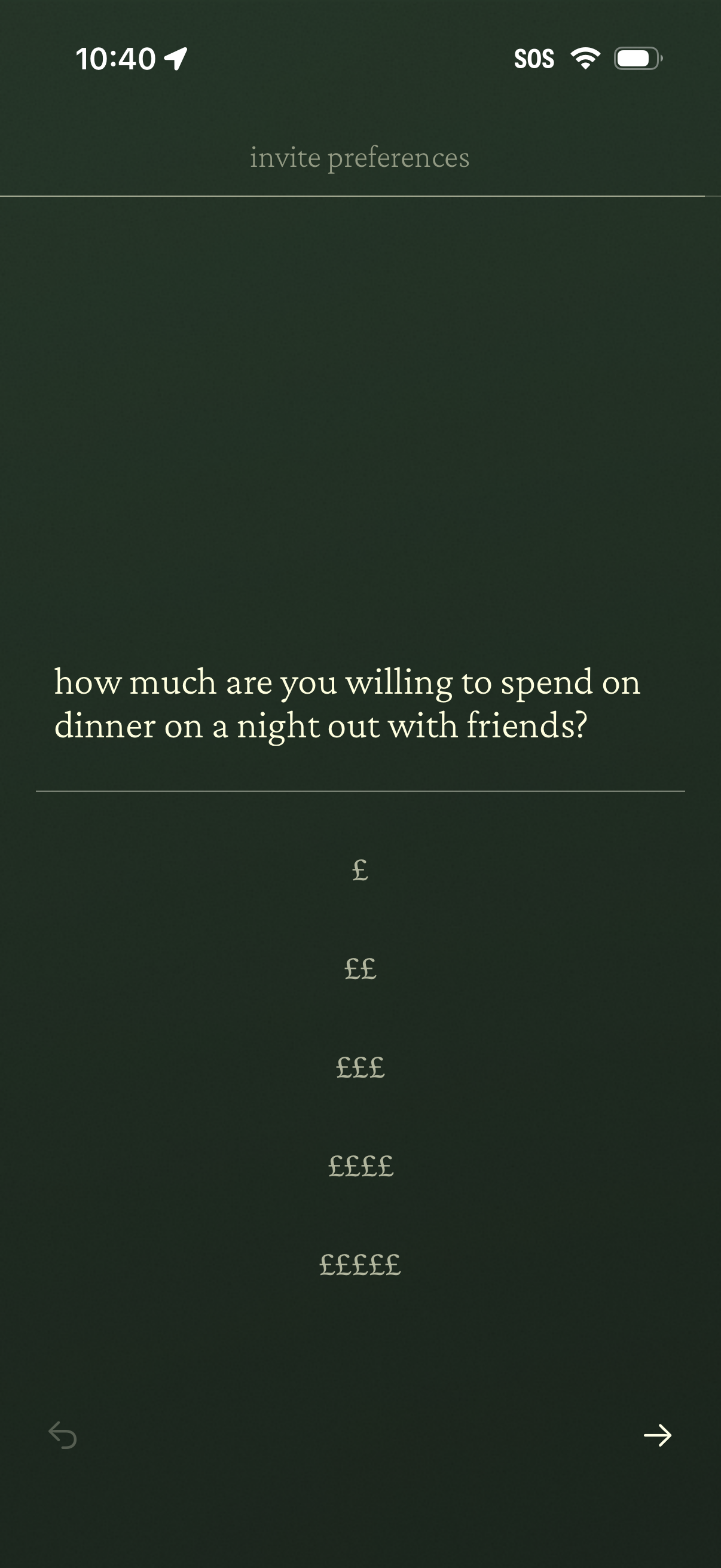
Invite preferences questionnaire screen asking the user to select their dinner budget for a night out with friends. Provides multiple price-tier options shown as £ symbols with back and next navigation controls.
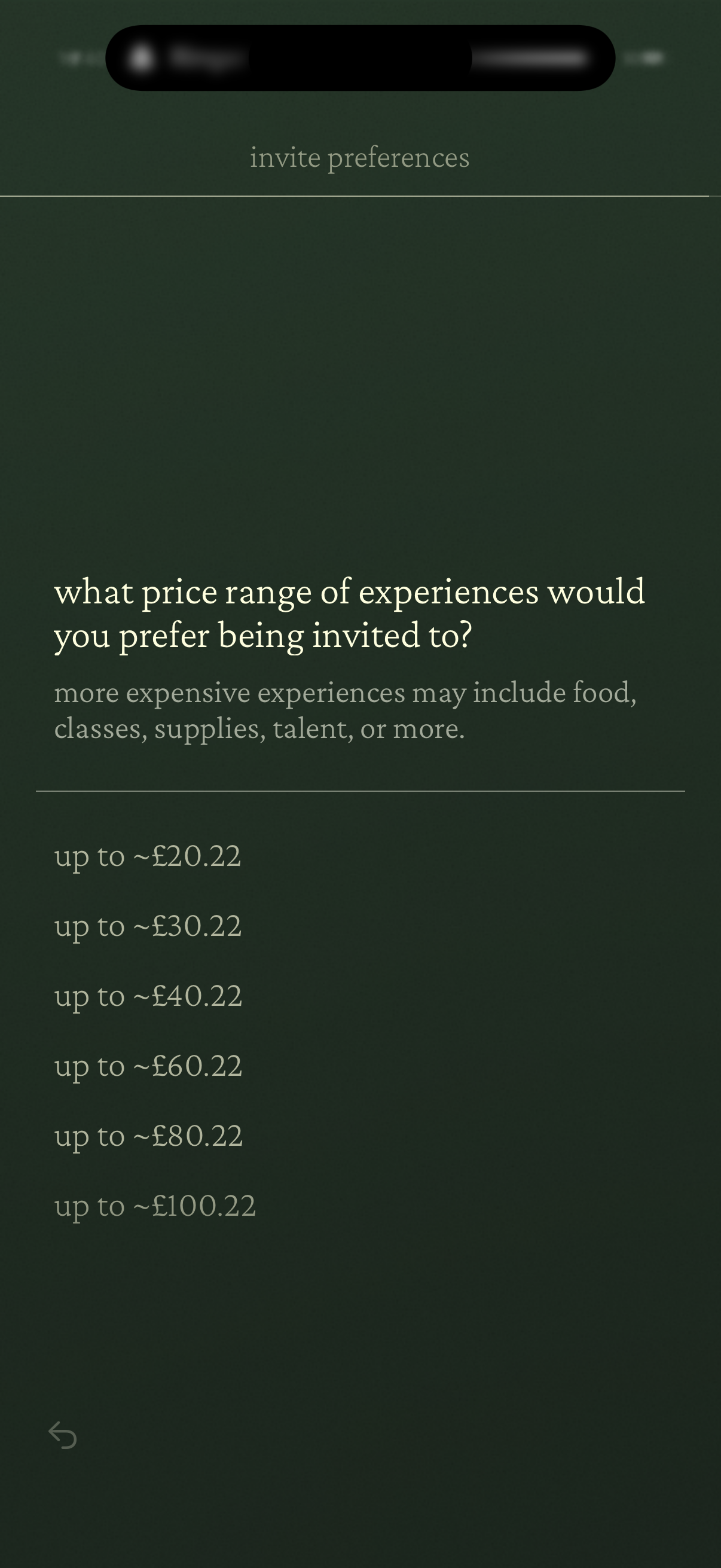
Invite preferences settings screen asking the user to choose a preferred price range for experiences they want to be invited to. Provides selectable budget options in GBP (e.
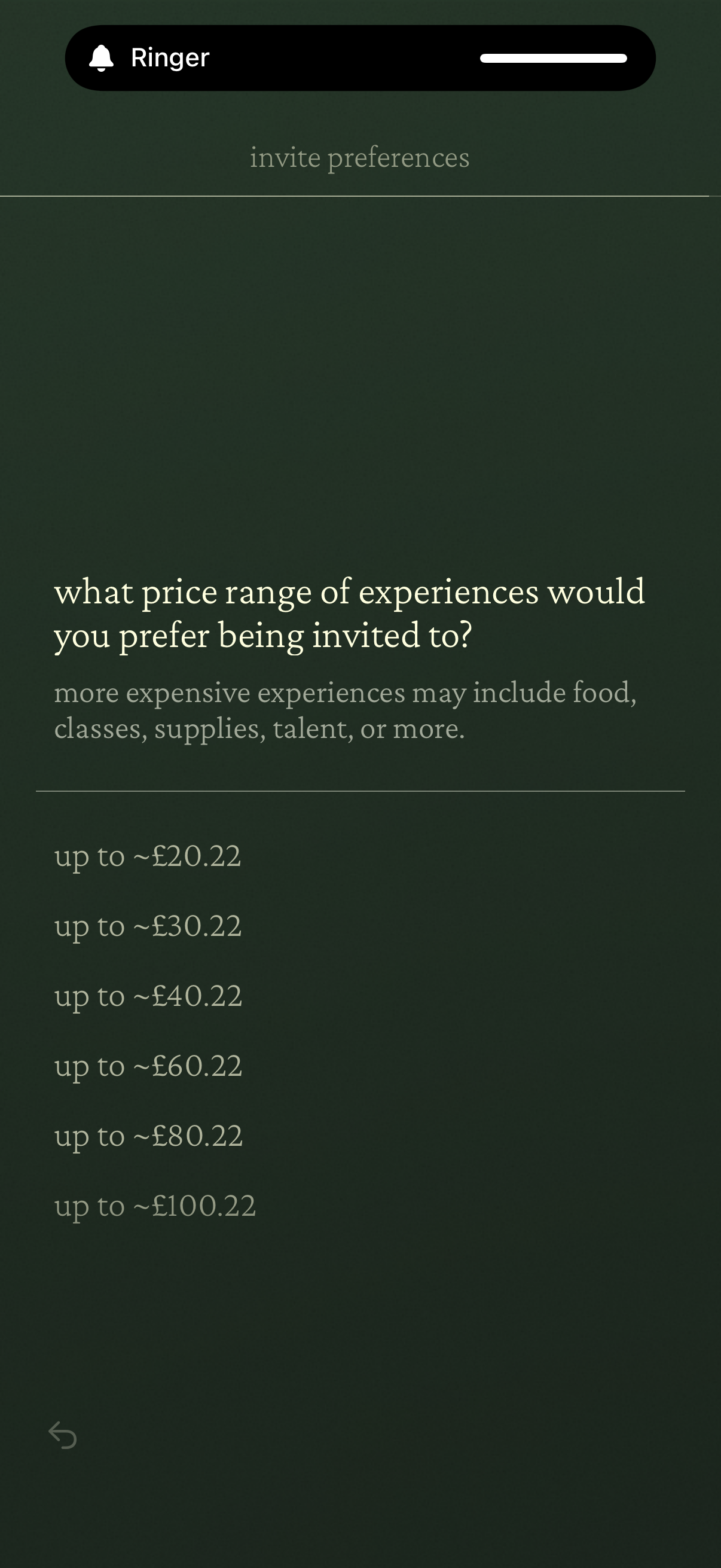
Invite preferences screen asking users to choose a preferred price range for experiences they want to be invited to. Provides a list of selectable budget options in GBP (e.
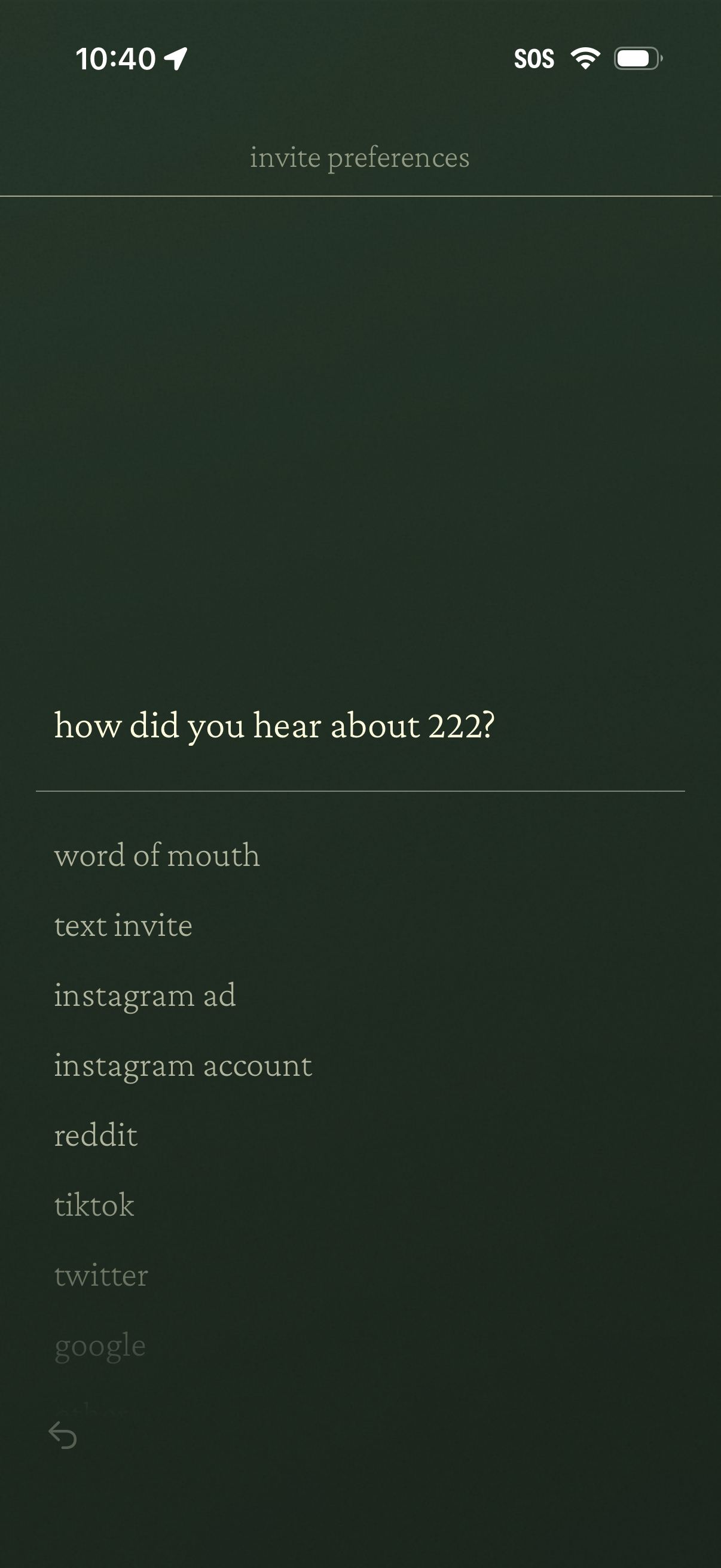
Invite preferences survey screen asking “How did you hear about [app]? ” with a single-select list of acquisition sources like word of mouth, text invite, Instagram ad/account, Reddit, TikTok, Twitter, and Google to capture onboarding attribution.
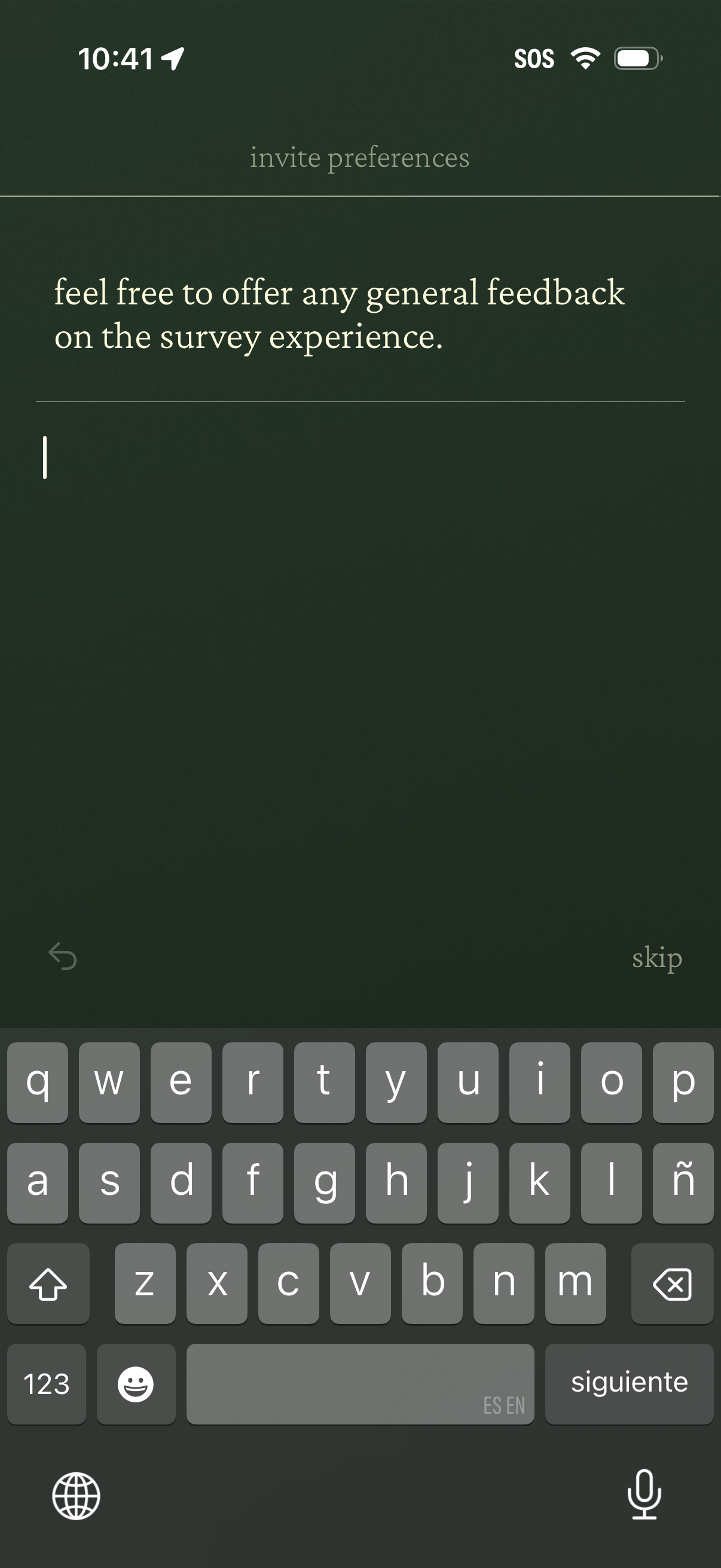
Survey feedback screen in an invite preferences flow prompting the user to type open-ended general feedback about the survey experience in a text field. Includes navigation controls to go back or skip this step.

Minimal full-screen loading or transition screen with a blurred dark background and a centered row of five star/sparkle icons indicating progress or waiting state. No visible navigation, text, or actions beyond the passive loading indicator.
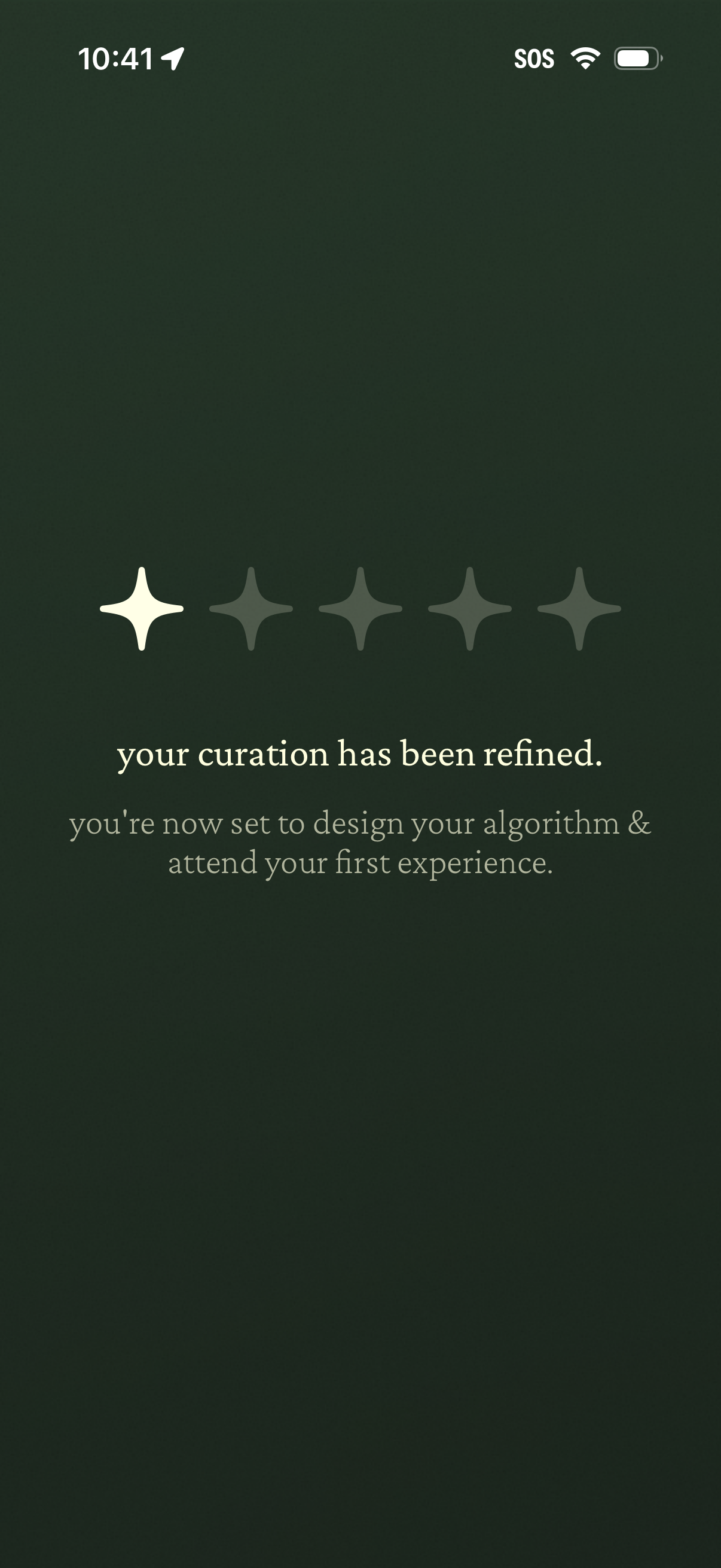
Minimal onboarding confirmation screen indicating the user’s preferences/curation have been refined and they’re ready to design their algorithm and attend their first experience, using a star progress indicator and no primary action buttons.