link social accounts
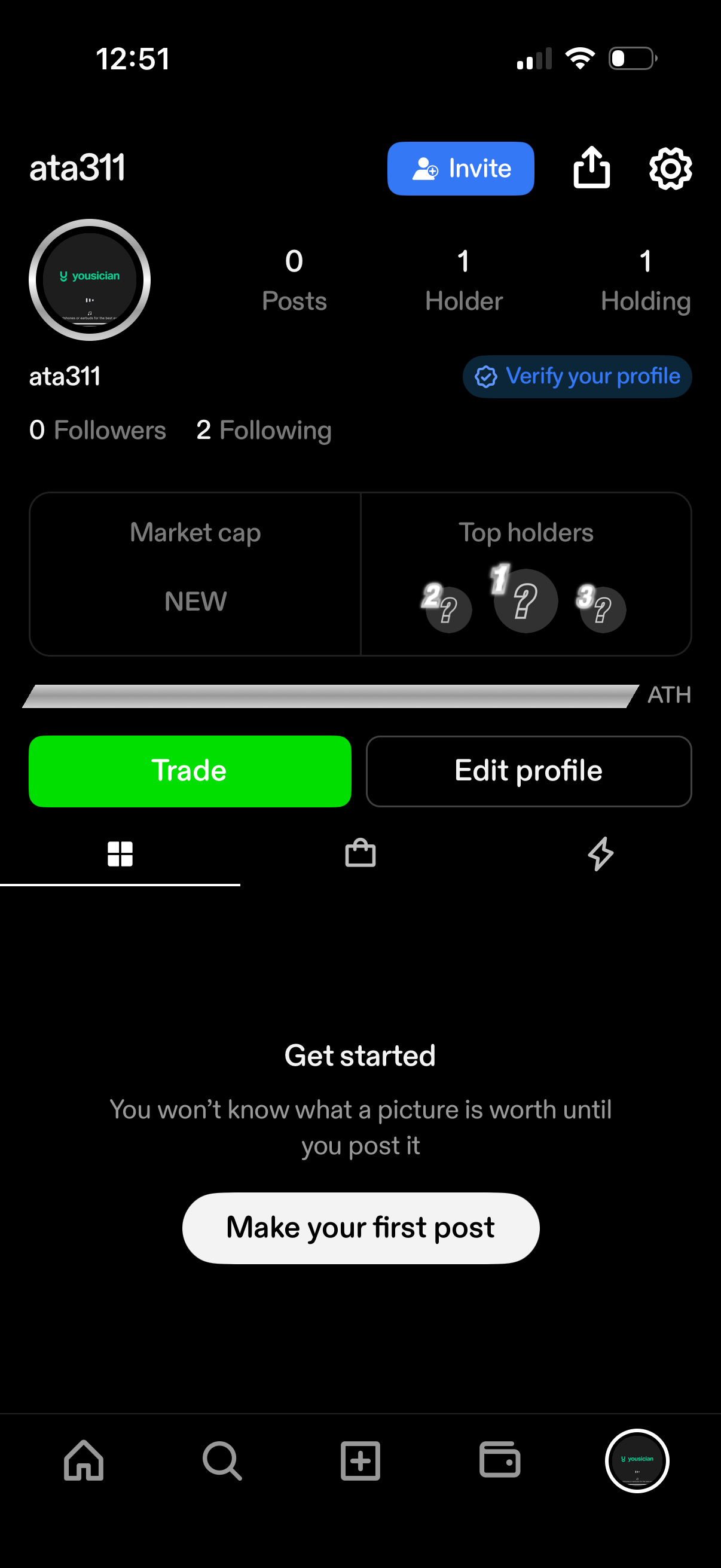
User profile dashboard in a social crypto trading app showing avatar, username, follower/following counts, posts, holder and holding stats, plus market cap and top holders widgets. Primary actions include inviting others, sharing, verifying the profile, trading, editing the profile, and a prompt to make the first post.
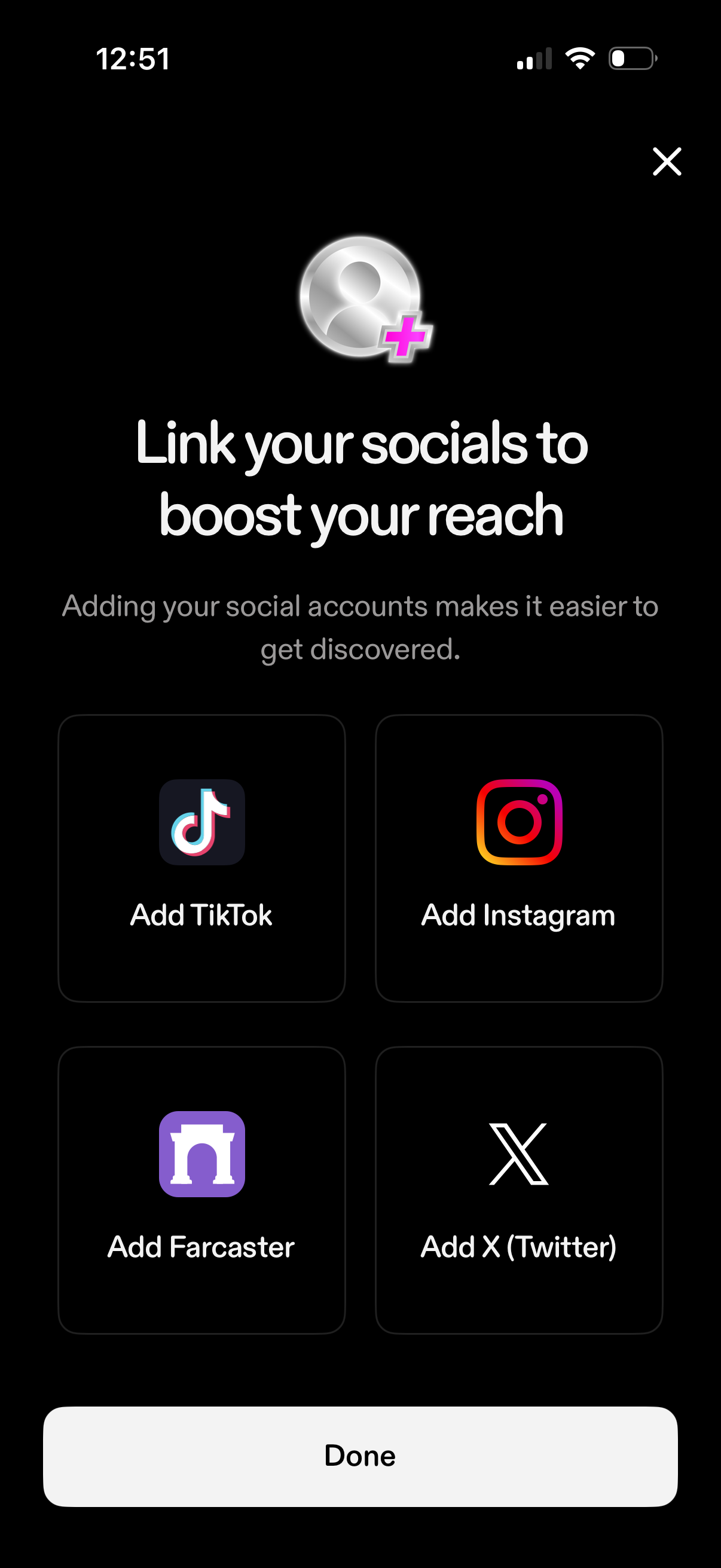
Modal screen prompting users to link social media accounts to boost reach and discovery, with selectable tiles to add TikTok, Instagram, Farcaster, or X (Twitter). Includes a close icon and a “Done” button to finish linking or exit the flow.
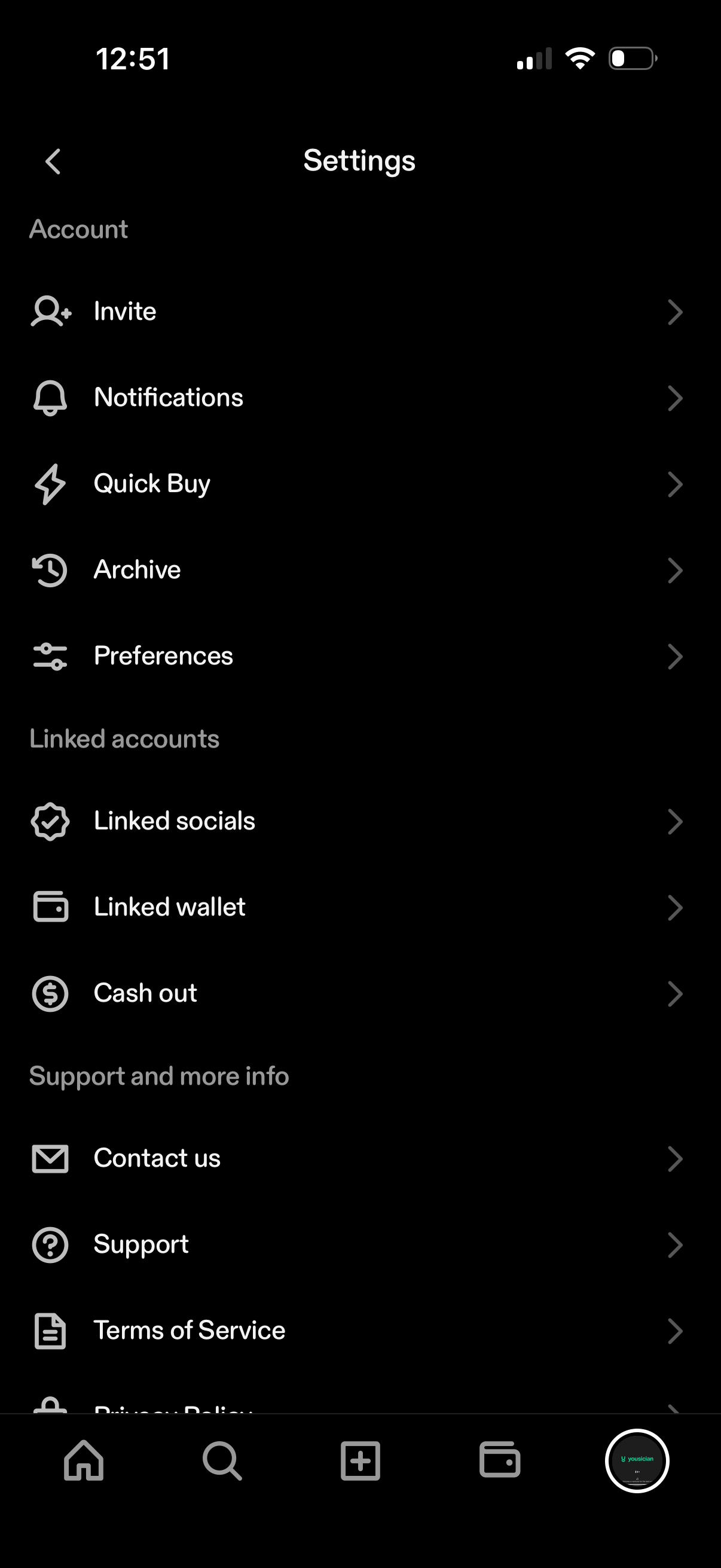
Settings menu screen with grouped sections for Account, Linked accounts, and Support, listing navigation options like Invite, Notifications, Quick Buy, Archive, Preferences, Linked socials, Linked wallet, and Cash out. Includes help and legal links such as Contact us, Support, and Terms of Service.
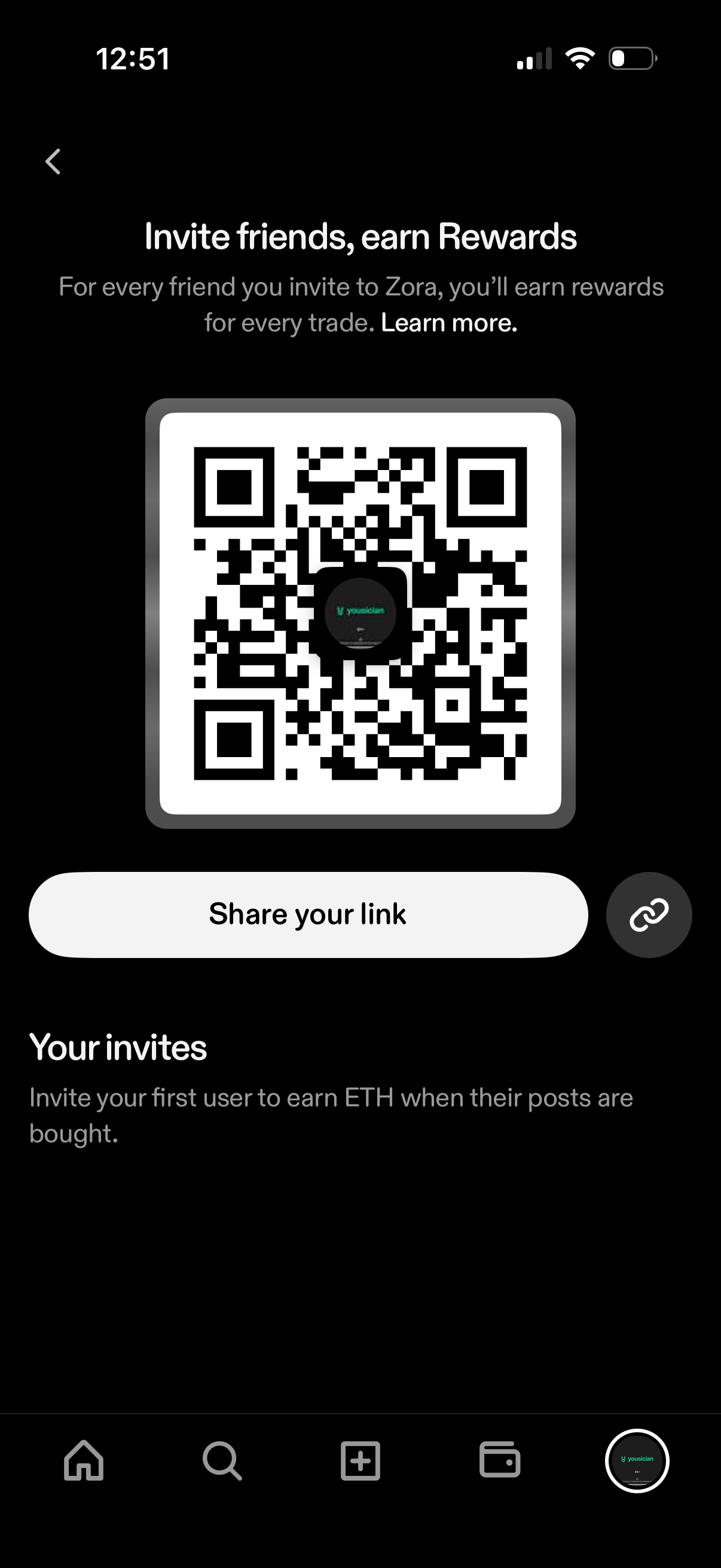
Referral program invite screen showing a personalized QR code and invite link to share, with messaging about earning rewards for inviting friends. Primary actions include sharing the referral link/copying it and viewing your invite status or history.
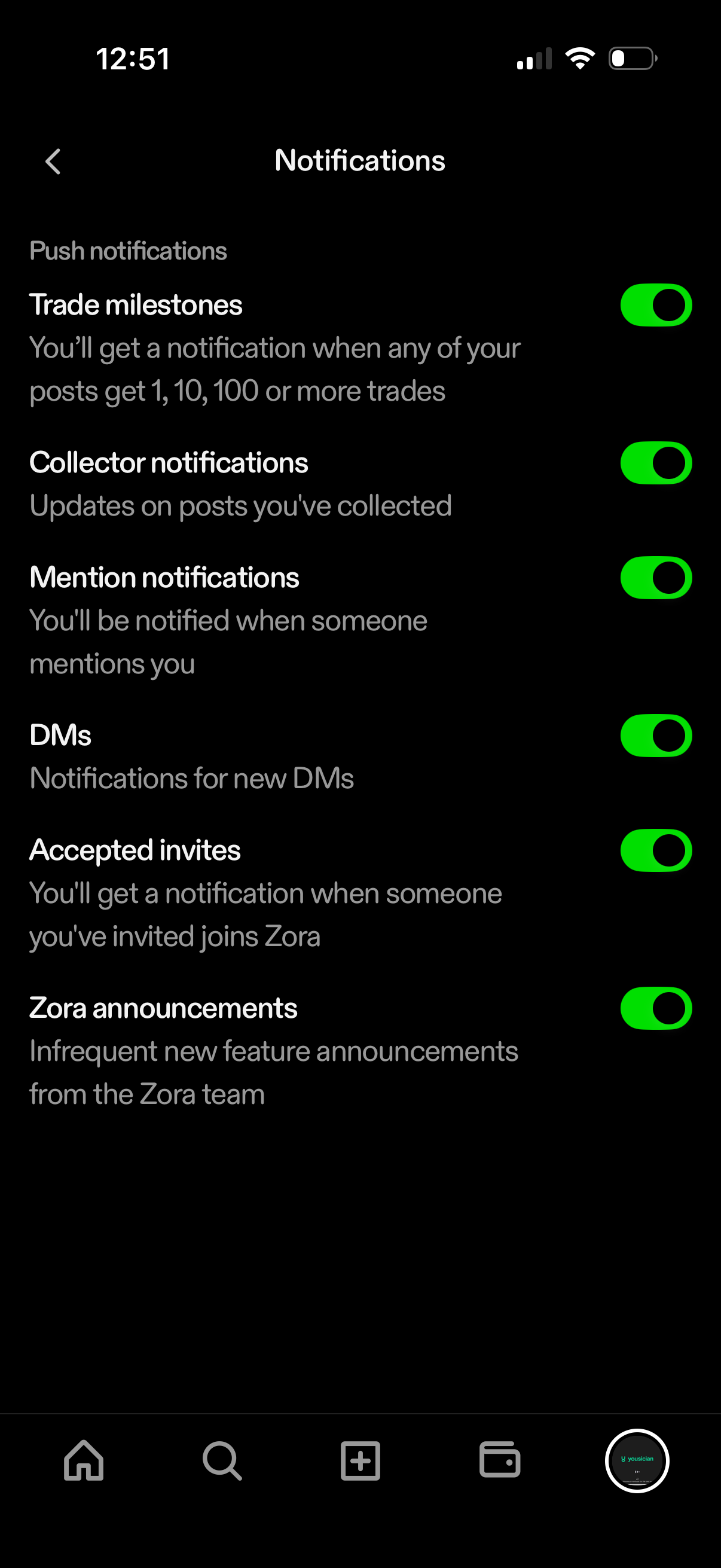
Notification settings screen for managing push notification preferences with individual toggle switches. Users can enable or disable alerts for trade milestones, collector updates, mentions, direct messages, accepted invites, and app announcements.
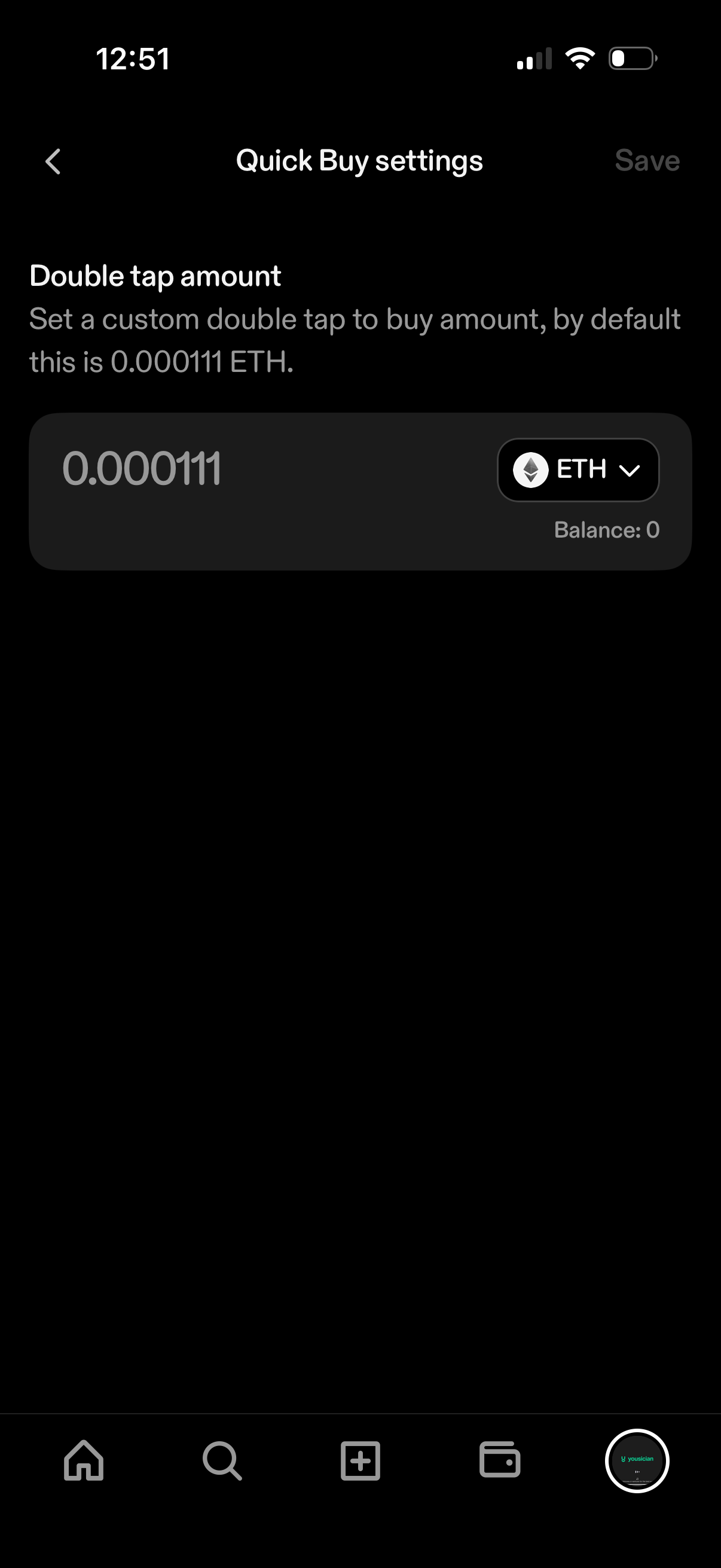
Quick Buy settings screen for a crypto wallet/trading app where the user sets a custom double-tap purchase amount. Includes an amount input field with a cryptocurrency selector dropdown (e.
Archive screen in a social media app with tabs to switch between archived Posts and Streams. The Posts archive is empty-state, showing “No hidden posts yet” with a back button to return.
Archive screen for a social media profile with tabs for Posts and Streams, currently showing an empty stream archive state. Includes an empty-state message and a primary “Go live” call-to-action to start a livestream.
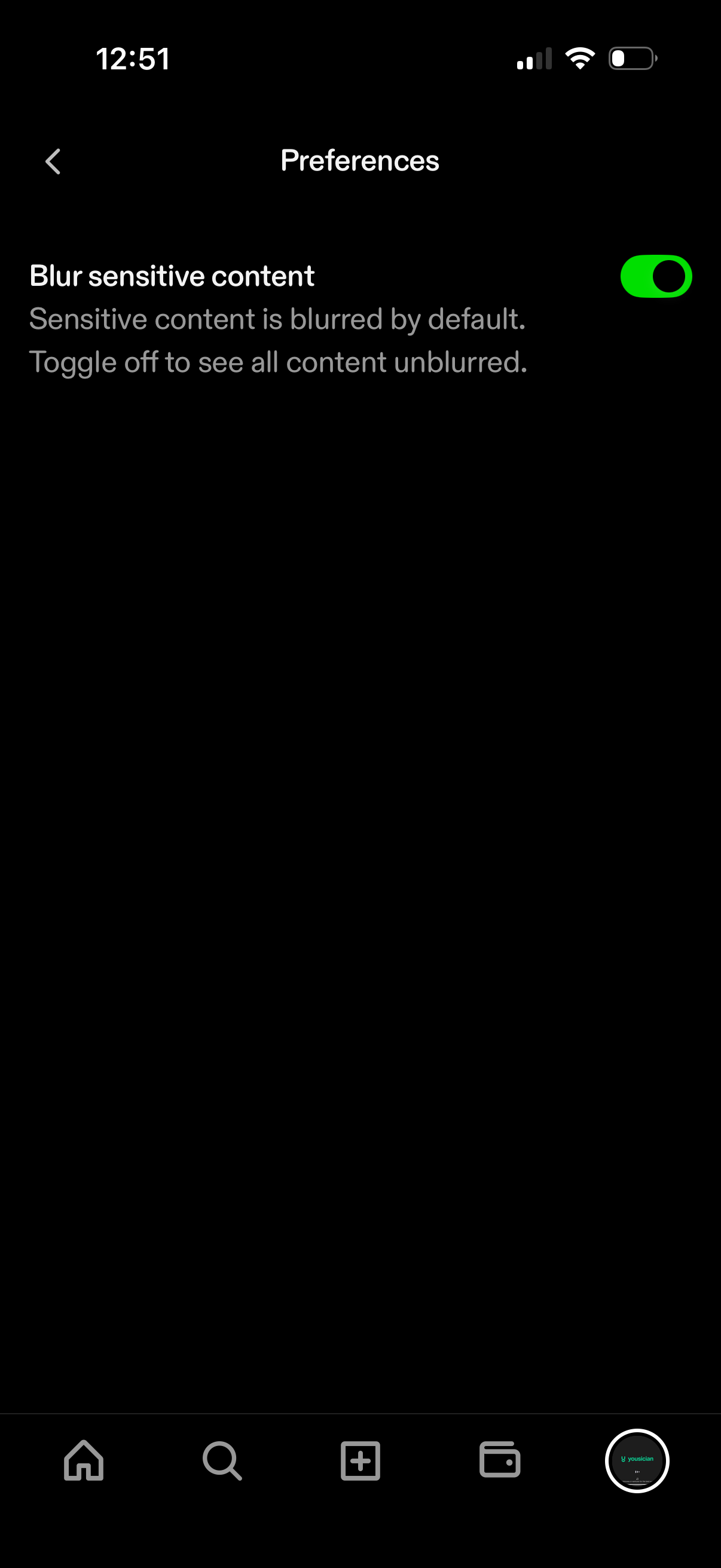
Preferences settings screen with a single privacy/content safety option to blur sensitive content, including descriptive helper text and a toggle switch to enable or disable blurring so content appears unblurred.
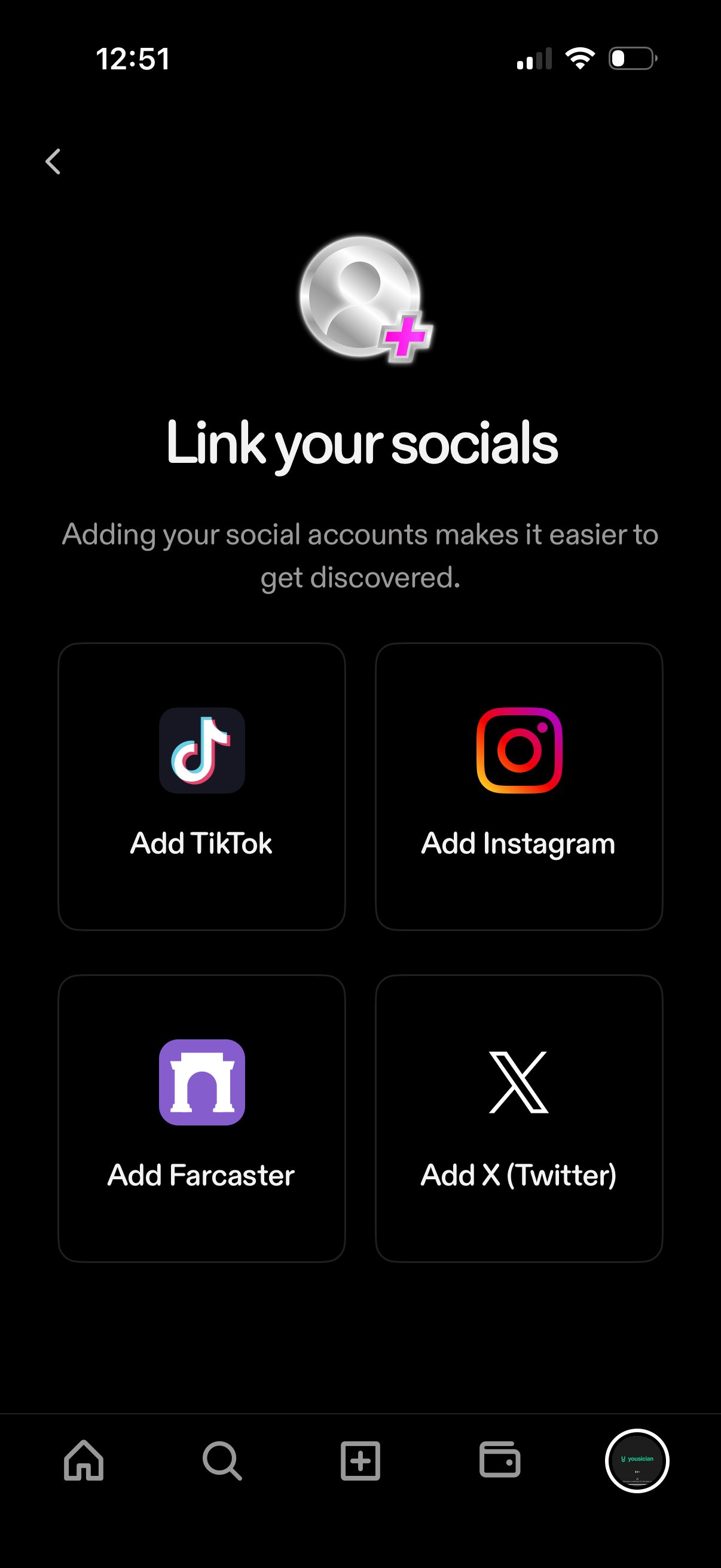
Profile settings screen prompting users to link social media accounts to improve discoverability. Provides tappable options to add TikTok, Instagram, Farcaster, or X (Twitter) with a back navigation.
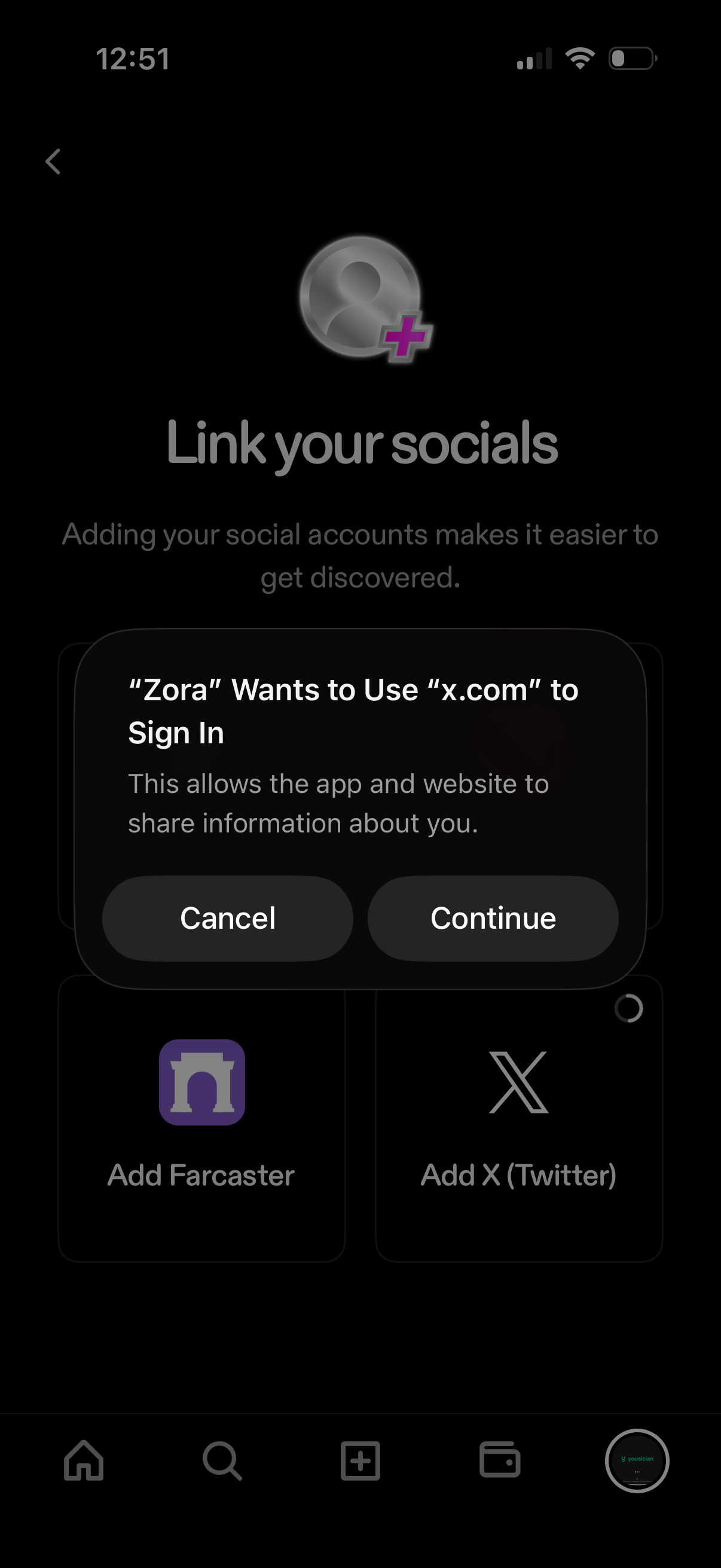
Social account linking screen prompting users to connect external networks to improve discoverability, with options like Add Farcaster and Add X (Twitter). An iOS OAuth permission modal overlays the page asking to use x.
Full-screen modal viewer with a blank loading state, showing a close (X) button, a minimal progress indicator at the top, and a secondary options/menu button. Bottom controls provide back navigation plus share and close actions for exiting or sharing the content being viewed.