Sign In
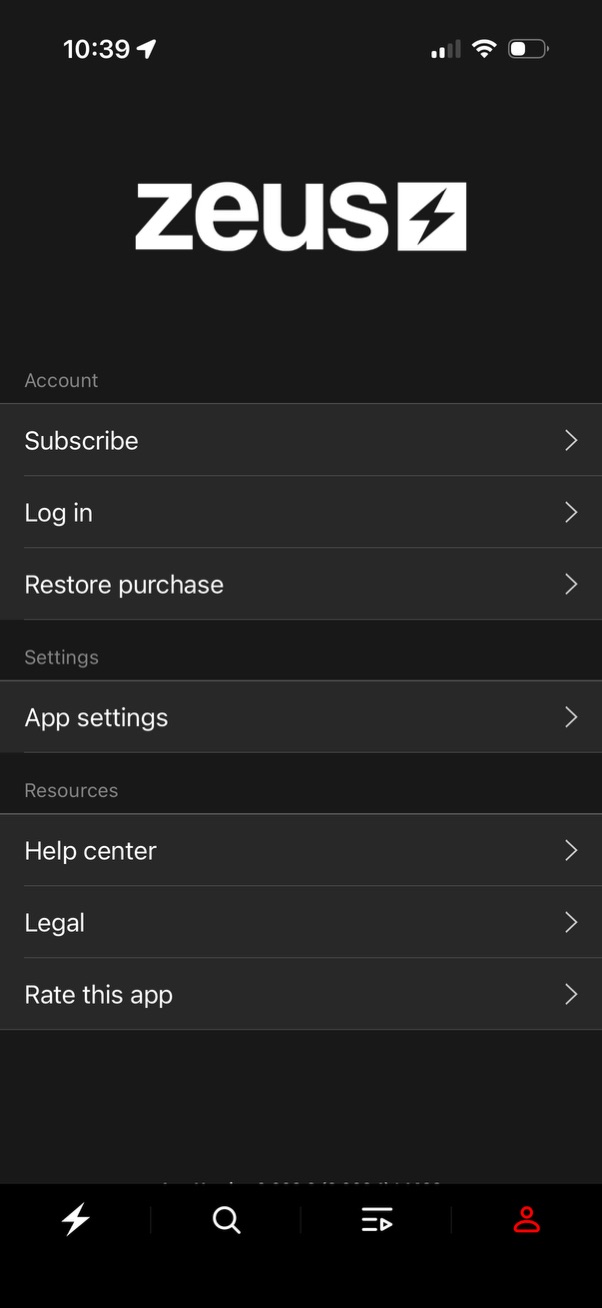
Account and settings screen in a mobile app with list navigation to manage subscription, log in, and restore purchases. Also includes links to app settings, help center, legal information, and an option to rate the app.
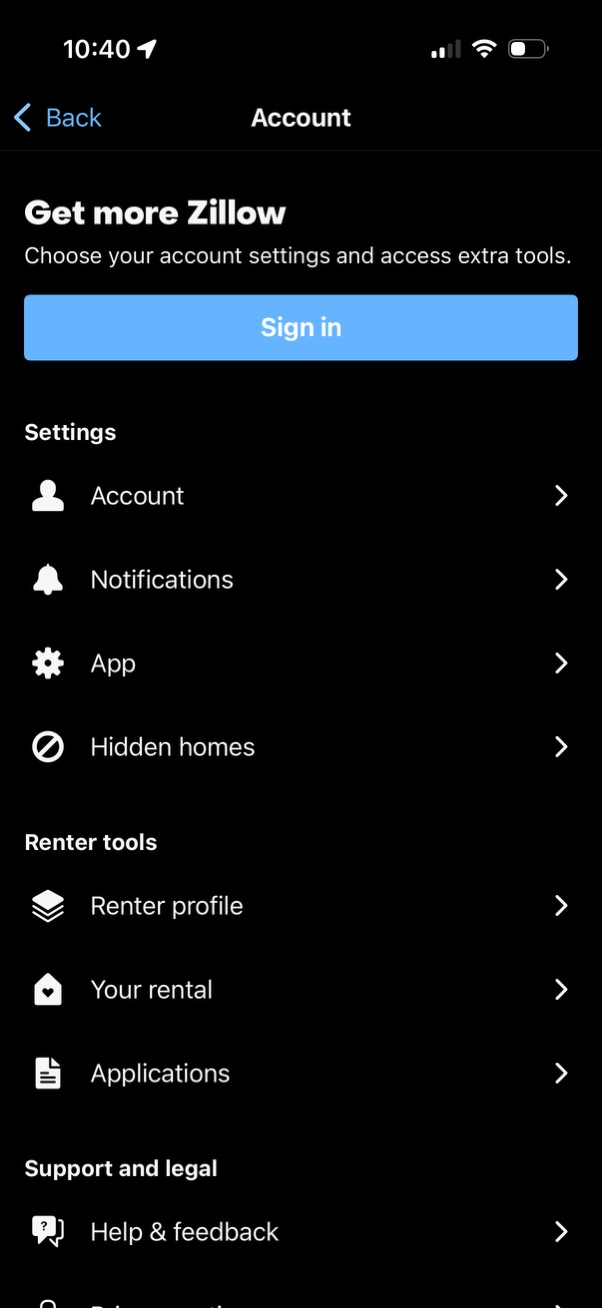
Account screen for a real estate/rentals app prompting the user to sign in to access settings and extra tools. Provides a list of navigational options including Account, Notifications, App settings, Hidden homes, renter tools (Renter profile, Your rental, Applications), and support/help & feedback.
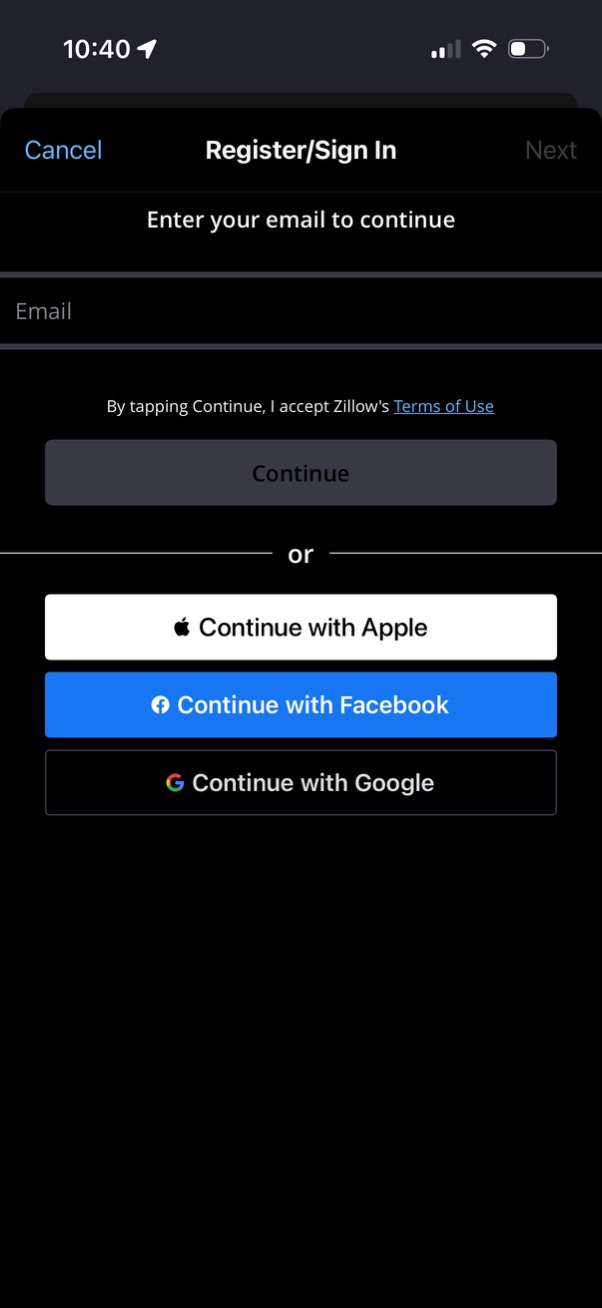
Register/sign-in screen prompting the user to enter an email address to continue, with a primary Continue button and links to Terms of Use. Offers alternative social login options to continue with Apple, Facebook, or Google, plus Cancel/Next navigation.
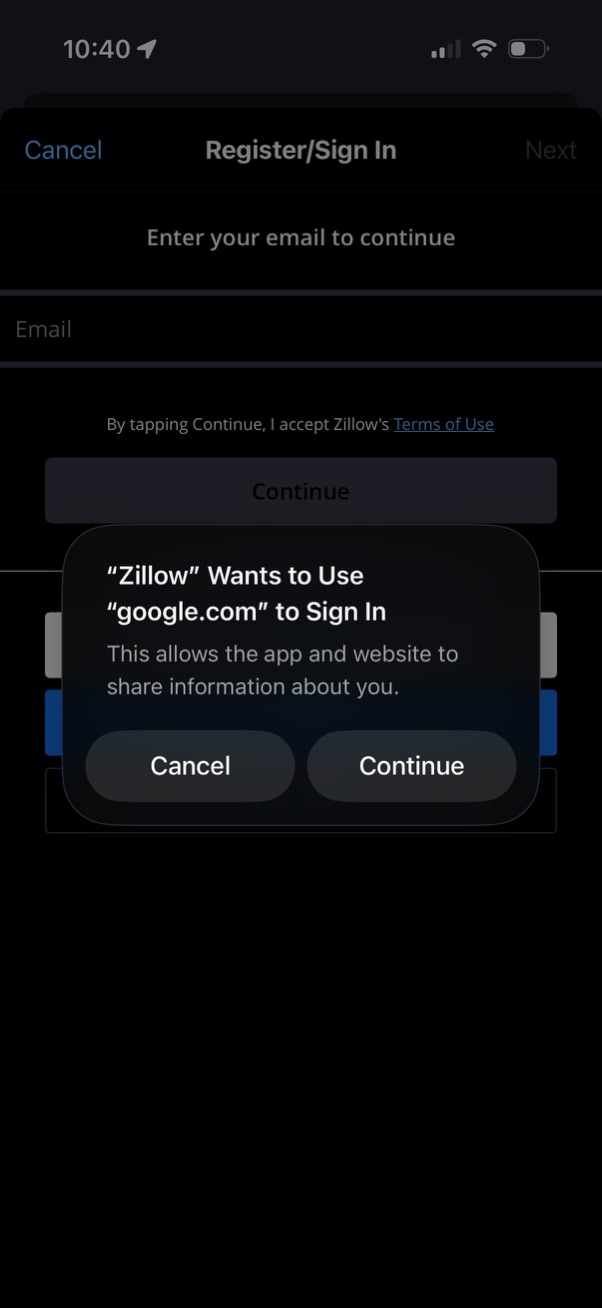
Registration/sign-in screen prompting the user to enter an email and continue, with terms of use acknowledgment. An iOS system modal overlays the page asking permission for the app to use a Google domain to sign in, offering Cancel or Continue.
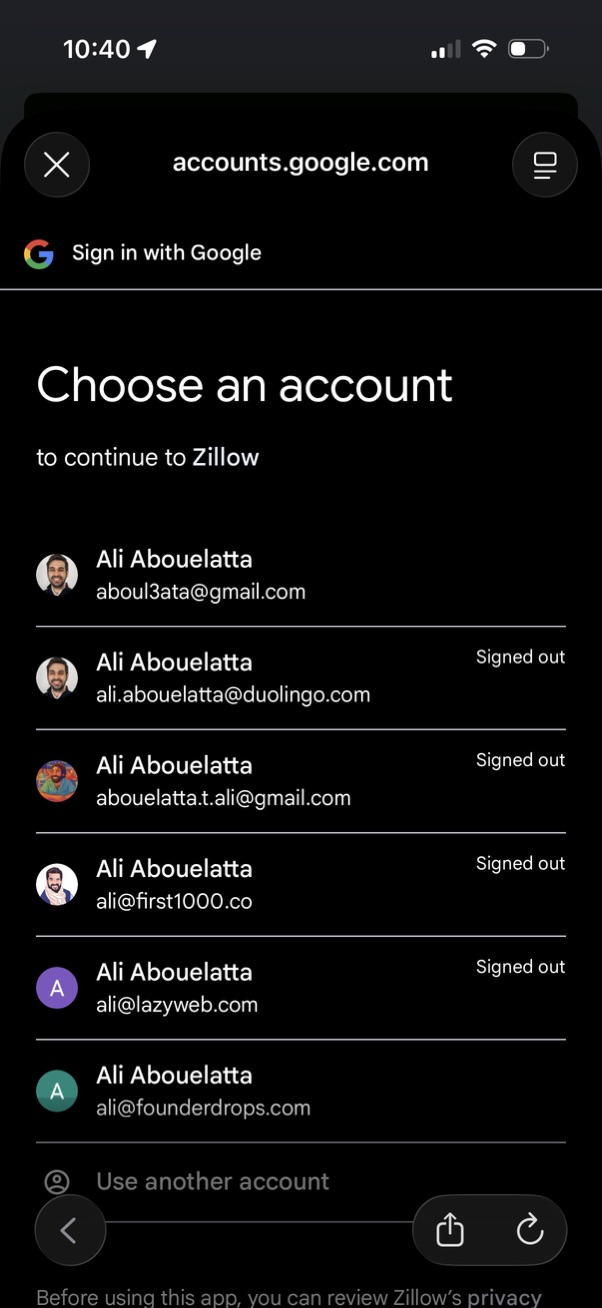
Google OAuth “Sign in with Google” account picker screen prompting the user to choose an existing Google account to continue into a third-party app, showing a list of saved accounts with avatars and signed-out status. Includes an option to use another account plus close/cancel controls.
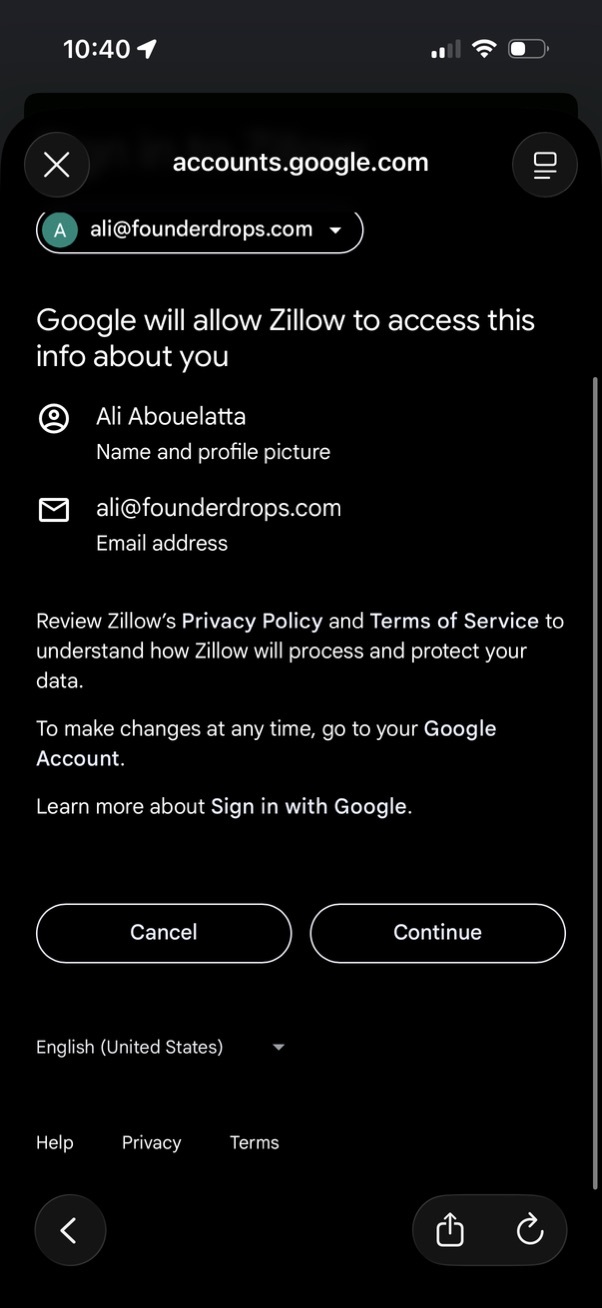
Google OAuth consent screen for “Sign in with Google” showing what user data a third-party app will access (name/profile photo and email), with links to privacy policy/terms and primary actions to Cancel or Continue.