Onboarding

A minimalist splash/loading screen with a solid color background displaying the app name “Zero” centered on the screen, used as an app launch or startup branding screen.

Onboarding welcome screen for an intermittent fasting app showing a circular progress ring with a fasting timer and phase label (e. g.

Onboarding sign-up/login screen for a health app offering social authentication options (Continue with Apple, Facebook, or Google) plus an email address field to continue with email, with a back button and a primary Continue CTA.

Google OAuth sign-in screen prompting the user to choose an existing Google account to continue to a third-party app, showing a list of saved accounts with profile avatars, email addresses, signed-out status indicators, and an option to use another account.

Onboarding welcome screen prompting the user to introduce themselves by entering their name in a text field, with a back navigation arrow. Includes a primary Save button to confirm and continue account setup.

Onboarding profile setup screen prompting the user to enter their last name with a single text input field and a back arrow for navigation. Includes a primary “Save” button to confirm and continue.
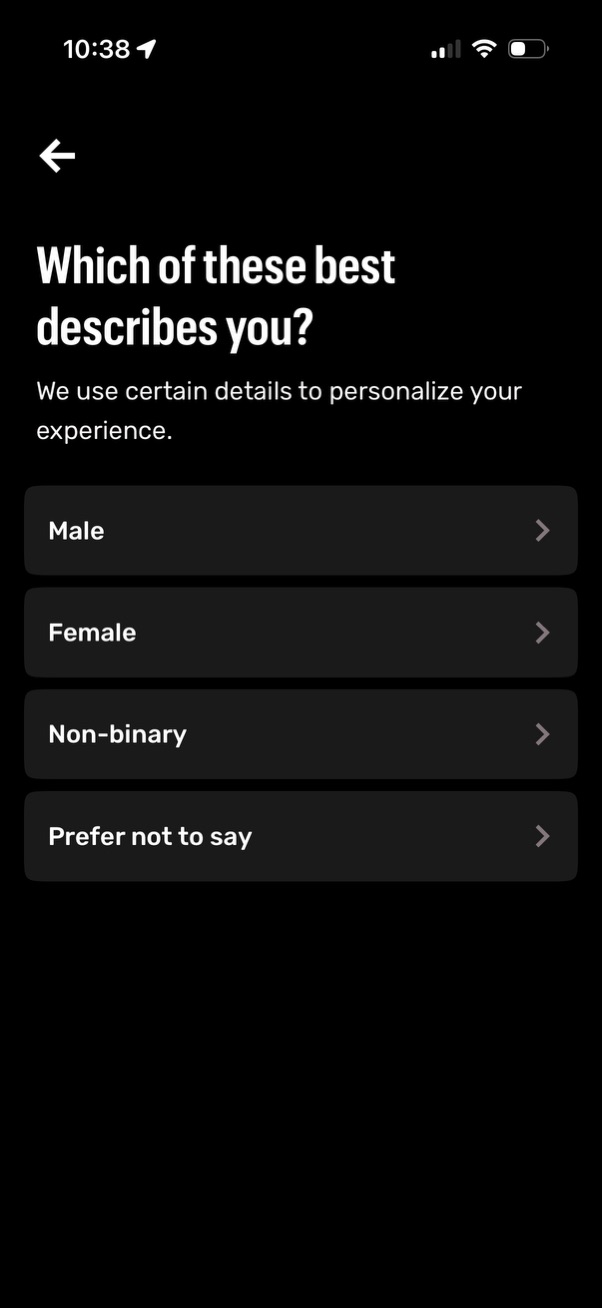
Onboarding profile setup screen asking the user to select their gender identity to personalize the experience, with selectable options for Male, Female, Non-binary, and Prefer not to say, plus a back navigation button.

Onboarding profile setup screen asking the user to enter their height to calculate health goals, using a scroll wheel picker with unit toggle (in/cm). Includes a back arrow for navigation and a primary “Continue” button to proceed.
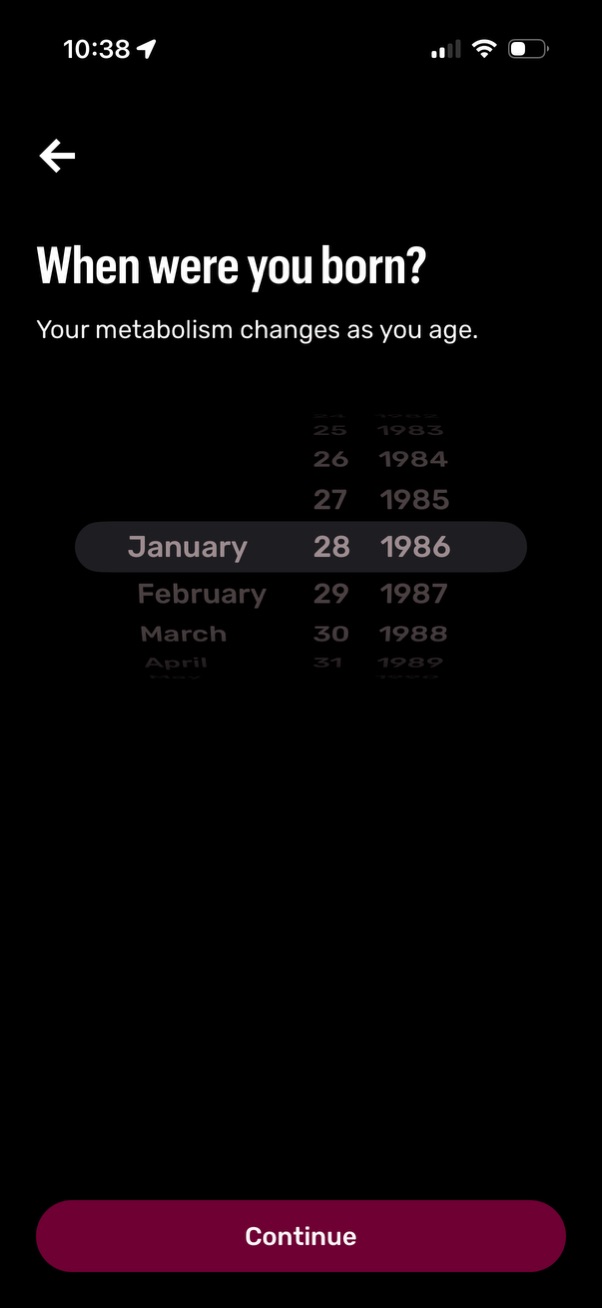
Onboarding screen asking for the user’s birth date to personalize metabolism/age-based settings, using a scrollable wheel picker for month, day, and year. Includes a back arrow and a primary “Continue” button to proceed.

Health/fitness profile setup screen prompting the user to enter their current weight, with a numeric input field and unit selection toggle between KG and LB. Includes a save button and note that the weight can be updated later, with a back navigation option.

Onboarding goal selection screen for a health/wellness app asking “What are your goals? ” to personalize the experience, with multiple selectable options (e.
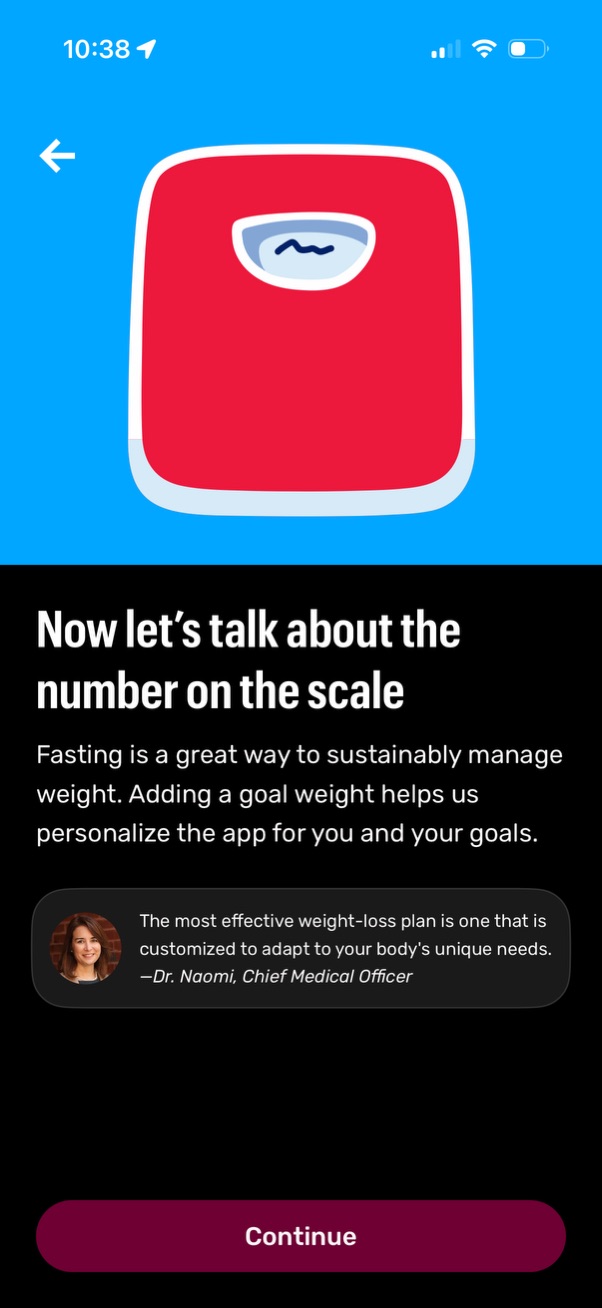
Onboarding screen in a fasting/weight-loss app explaining the importance of entering a scale number and setting a goal weight to personalize the plan, featuring an illustrative scale graphic and an expert quote. Primary action is a “Continue” button with a back arrow for navigation.

Onboarding screen in a fitness/health app asking the user to set a goal weight, with a numeric input field and unit selector (LB). Provides primary actions to Save or Skip the step, with back navigation and a number keypad for entry.

Onboarding screen in a fitness/weight tracking app asking the user to set a goal weight with a numeric input and unit selector (lbs), with a back button to navigate. A dismissible bottom sheet provides a recommended minimum goal weight based on the user’s height and weight and includes an “Adjust My Goal” call-to-action.

Goal weight entry screen in a fitness onboarding flow, asking the user to input a target weight with selectable unit (lb) and an editable numeric field. Provides primary action to Save or optionally Skip, with a back button and numeric keypad for quick entry.

Motivational onboarding screen for a fasting/weight-loss app that highlights a time-based goal projection (e. g.

Educational onboarding screen for a fasting or weight-loss app explaining how fasting helps lose and maintain weight, with an illustration and informational text. Includes a back arrow and a primary “Continue” button to proceed to the next onboarding step.

Onboarding loading screen for a health/fitness app showing progress while analyzing a user’s goals and biometrics to create a personalized fasting and nutrition plan. Includes a back button, animated progress indicator, and a primary “Continue” CTA to proceed.

Onboarding recommendation screen in a nutrition/fasting app that sets a daily protein target (e. g.

Nutrition app onboarding/education screen introducing “Protein Score,” showing a gauge-style score card with feedback about protein density and explaining how the metric tracks protein composition of meals. Includes a back arrow and a primary “Continue” button to proceed.
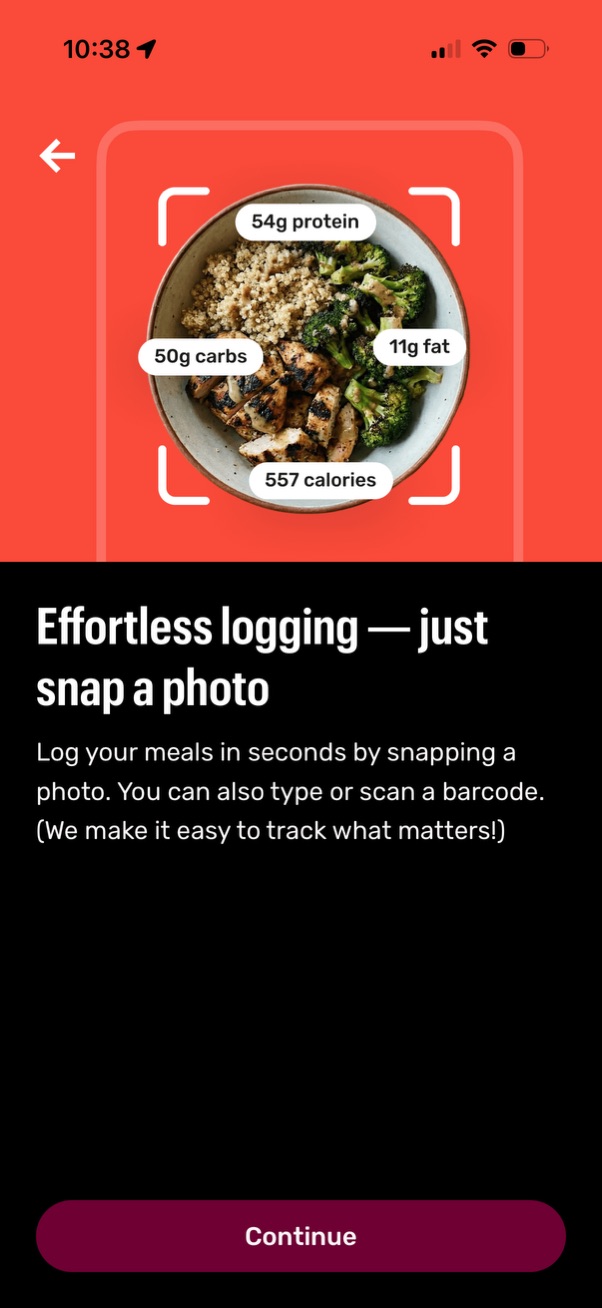
Onboarding feature highlight screen for a nutrition/fitness app showing photo-based meal logging with automatic calorie and macro estimates (protein, carbs, fat). Explains alternative input methods like typing or barcode scanning and includes a back arrow and a primary “Continue” button to proceed.

Hydration goal recommendation screen in a health/fasting app that suggests a daily water intake (e. g.

Onboarding/feature introduction screen for a hydration tracking app explaining how to log daily water intake, with a progress bar showing ounces consumed (e. g.

Permission prompt screen asking the user to re-enable app notifications, explaining the benefit of enabling reminders for building a fasting habit. Primary action is “Continue” to open notification settings, with a secondary “Maybe Later” option and a back button.

Social proof onboarding screen promoting a health/fasting app with a headline about 20M+ users and a scrollable list of 5-star user testimonials with avatars and quotes. Includes a back button and a prominent “Continue” call-to-action to proceed with signup or onboarding.

Onboarding welcome screen with a rocket launch illustration and motivational headline, introducing a setup flow. Includes a back button, progress indicator, and a primary “Continue” CTA to proceed to the next step.

Subscription paywall screen for a health app promoting “Find lasting health,” showing press endorsements and trial options to choose from (7 days free vs 1 month) with annual pricing details. Includes an option to get an email reminder before the trial ends and a primary CTA button to start a no-commitment trial with easy cancellation and links to terms and privacy policies.