Onboarding
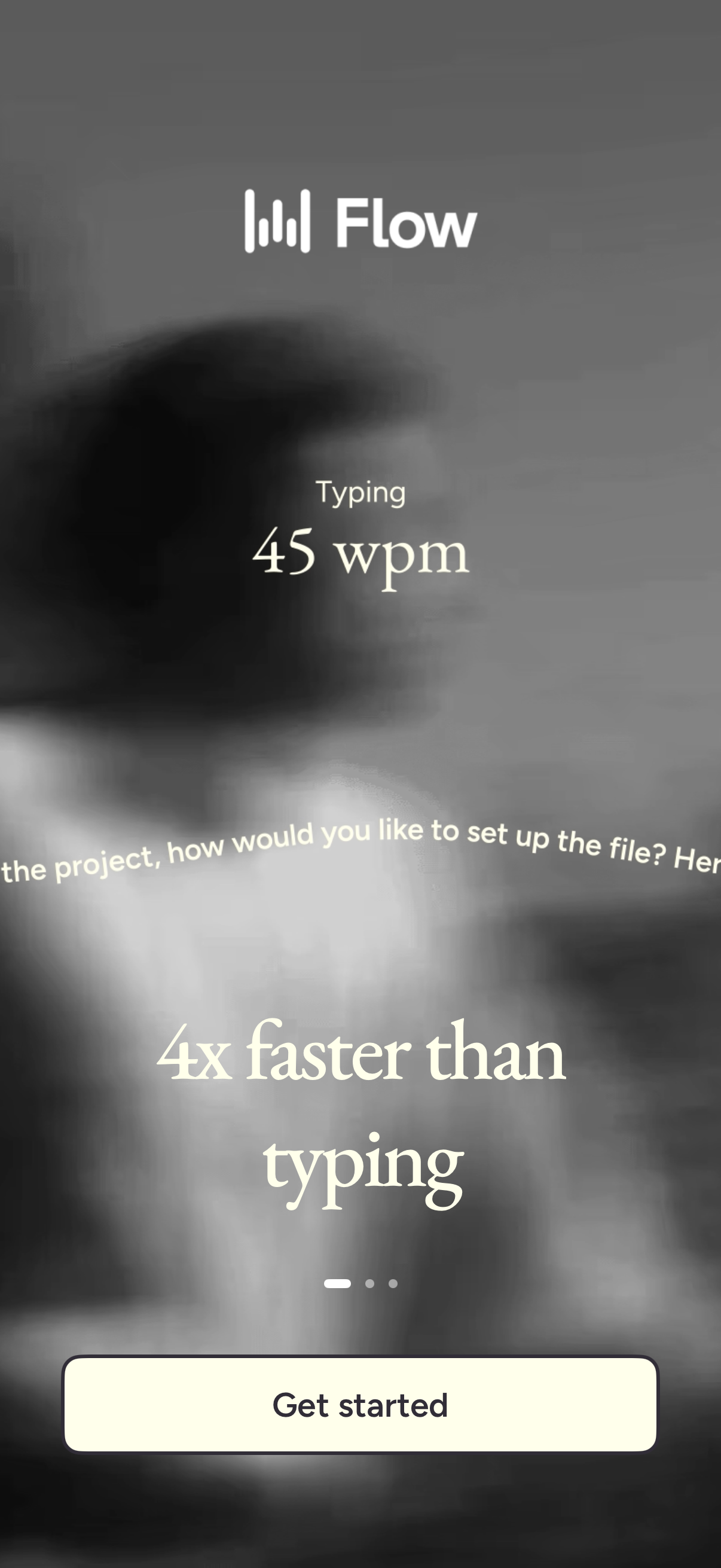
Onboarding welcome screen for a speech-to-text/voice dictation app highlighting typing speed (e. g.
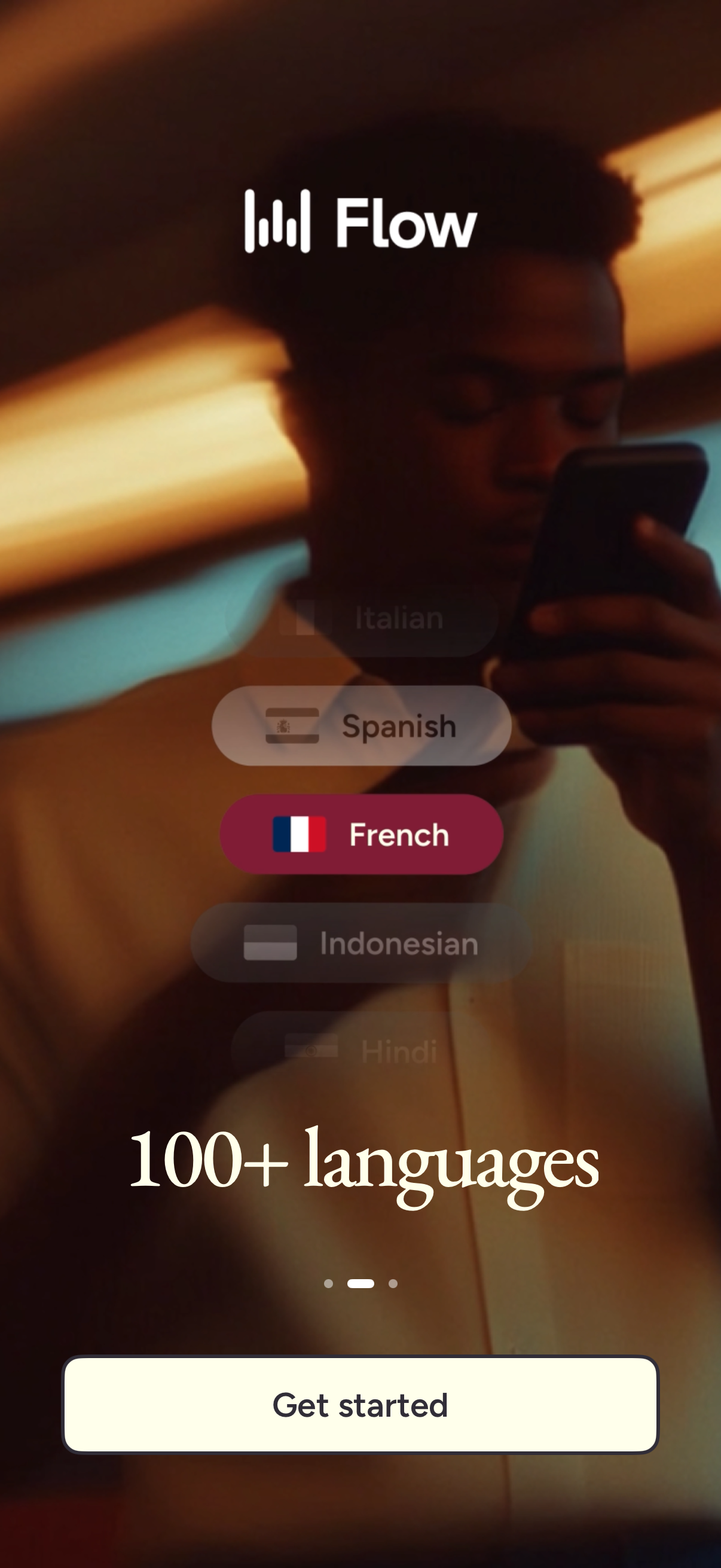
Onboarding welcome screen for a translation/language app highlighting support for 100+ languages with a carousel of selectable languages. Includes a prominent “Get started” call-to-action to begin setup.
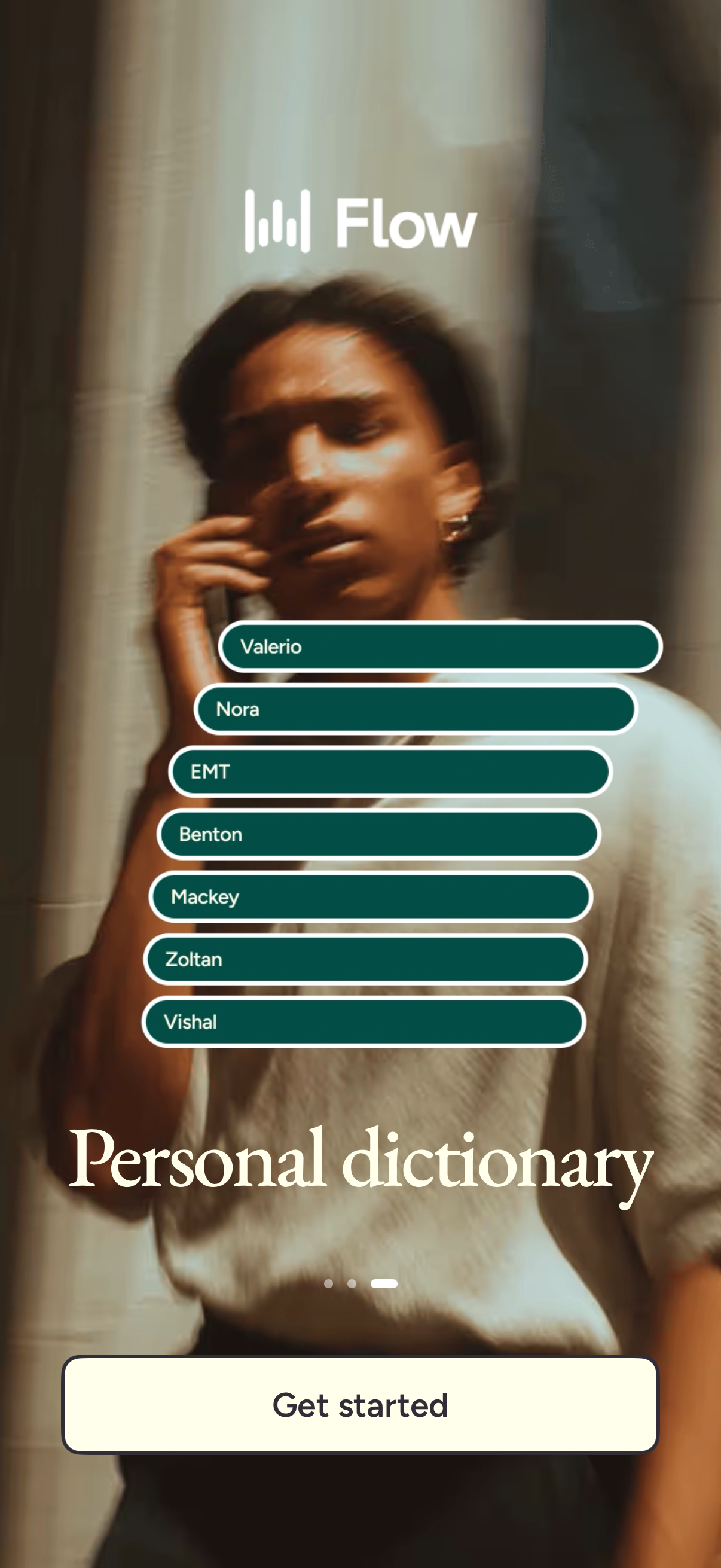
Onboarding welcome screen for a language/learning app featuring a “Personal dictionary” preview with a list of saved vocabulary terms. Includes pagination dots and a primary “Get started” call-to-action to begin setup.
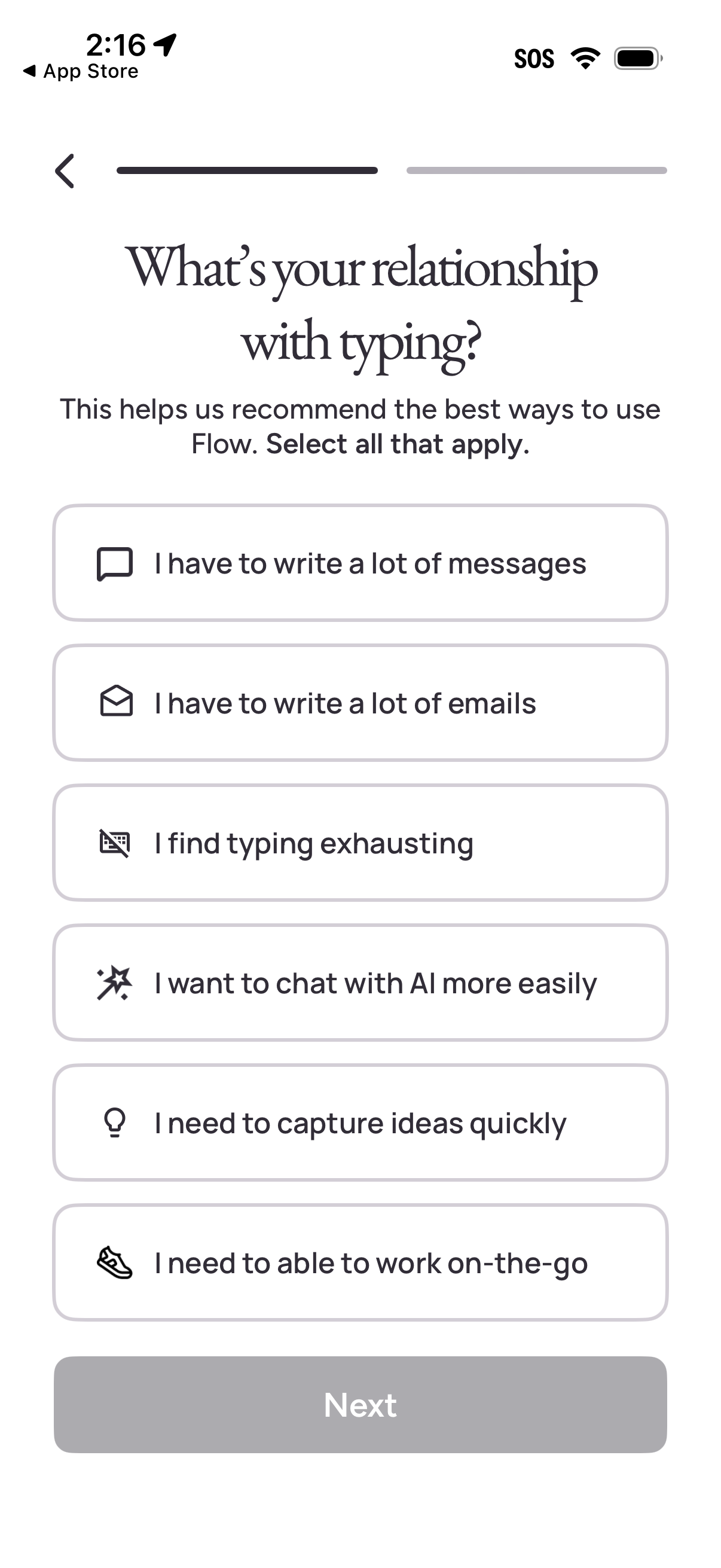
Onboarding survey screen asking “What’s your relationship with typing? ” to personalize recommendations, with a multi-select list of use cases like writing many messages/emails, finding typing exhausting, chatting with AI, capturing ideas quickly, and working on the go.
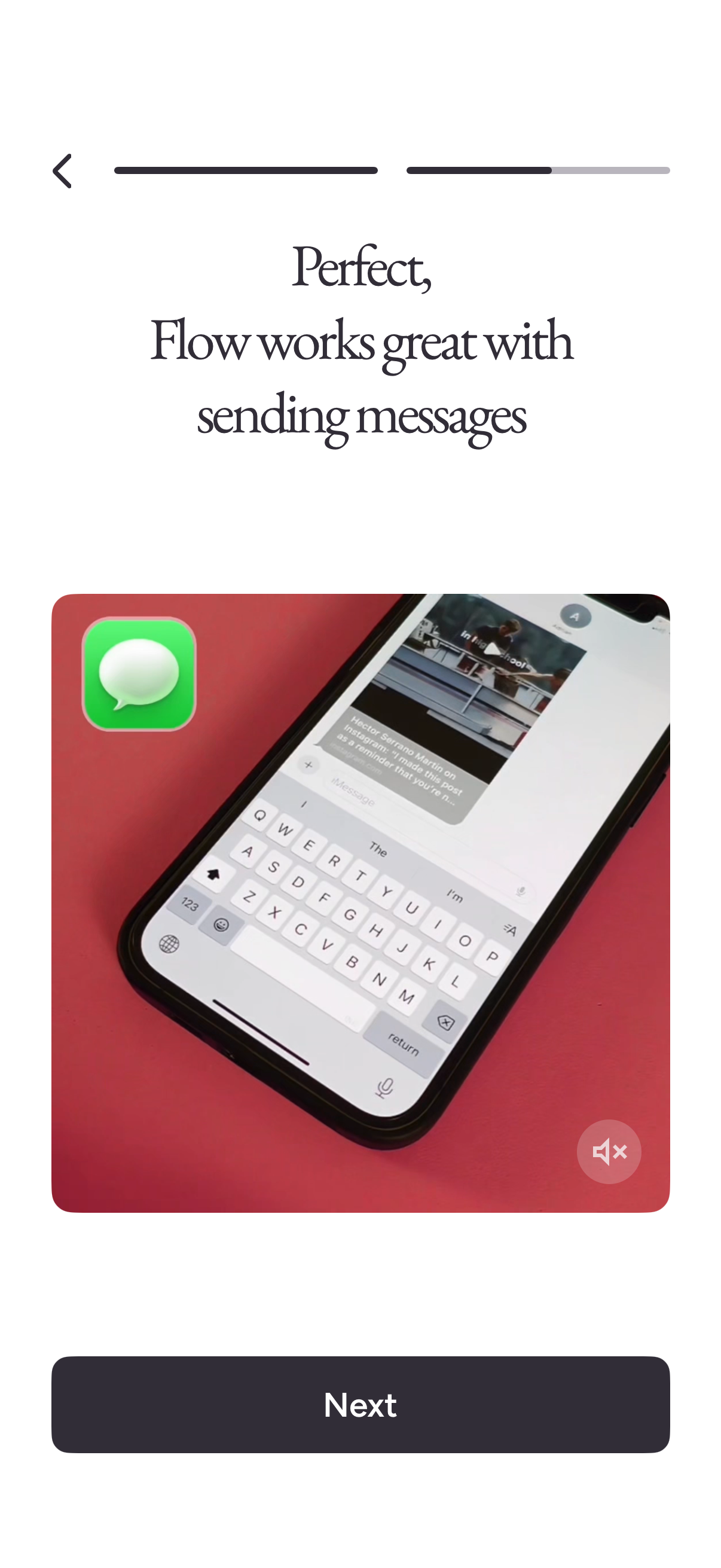
Onboarding step confirming a messaging integration, explaining that the app’s Flow feature works well for sending messages. Includes a back arrow, progress indicator, an illustrative chat image with mute audio icon, and a primary “Next” button to continue setup.
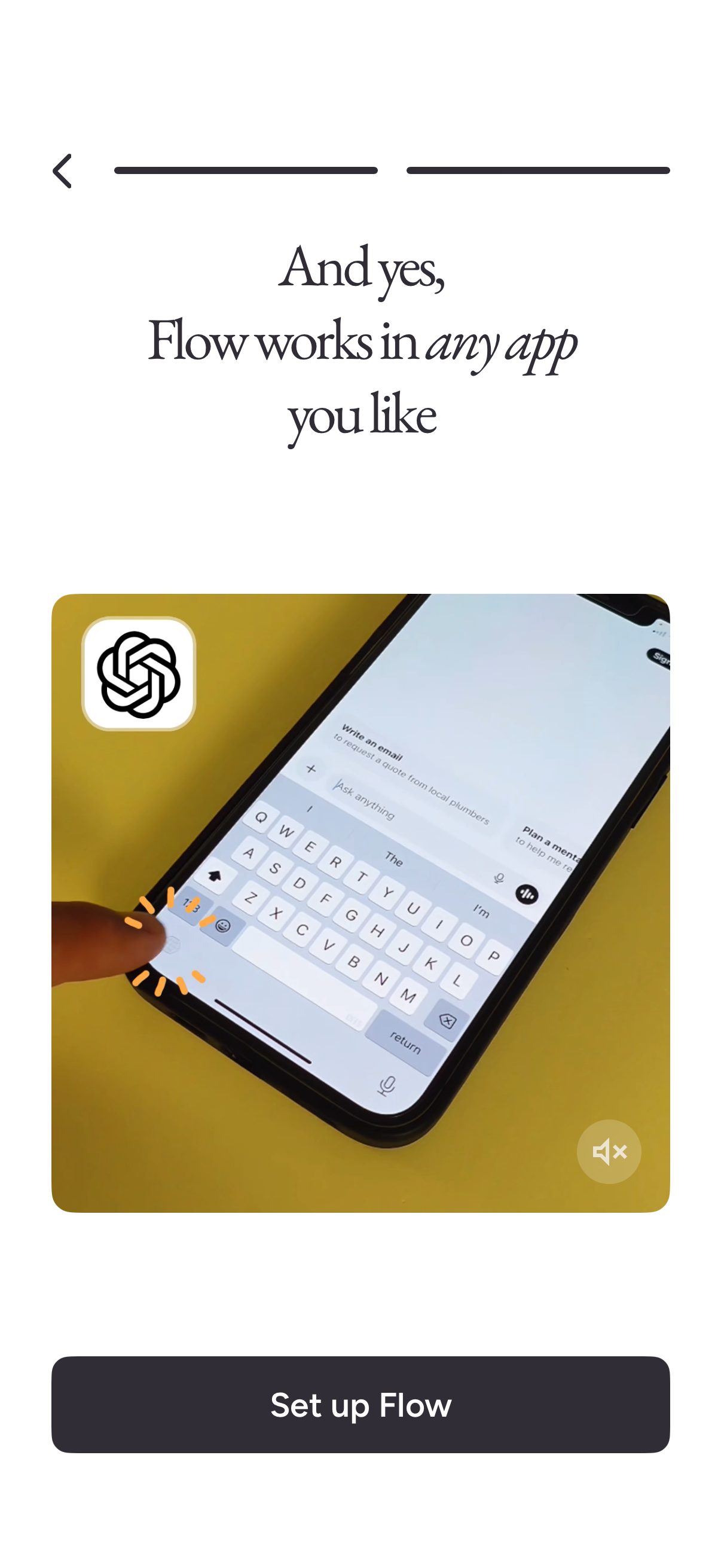
Onboarding/tutorial screen explaining that the Flow feature works in any app, with an illustration of using an AI keyboard assistant. Primary call to action is a “Set up Flow” button with a back arrow and progress indicator at the top.
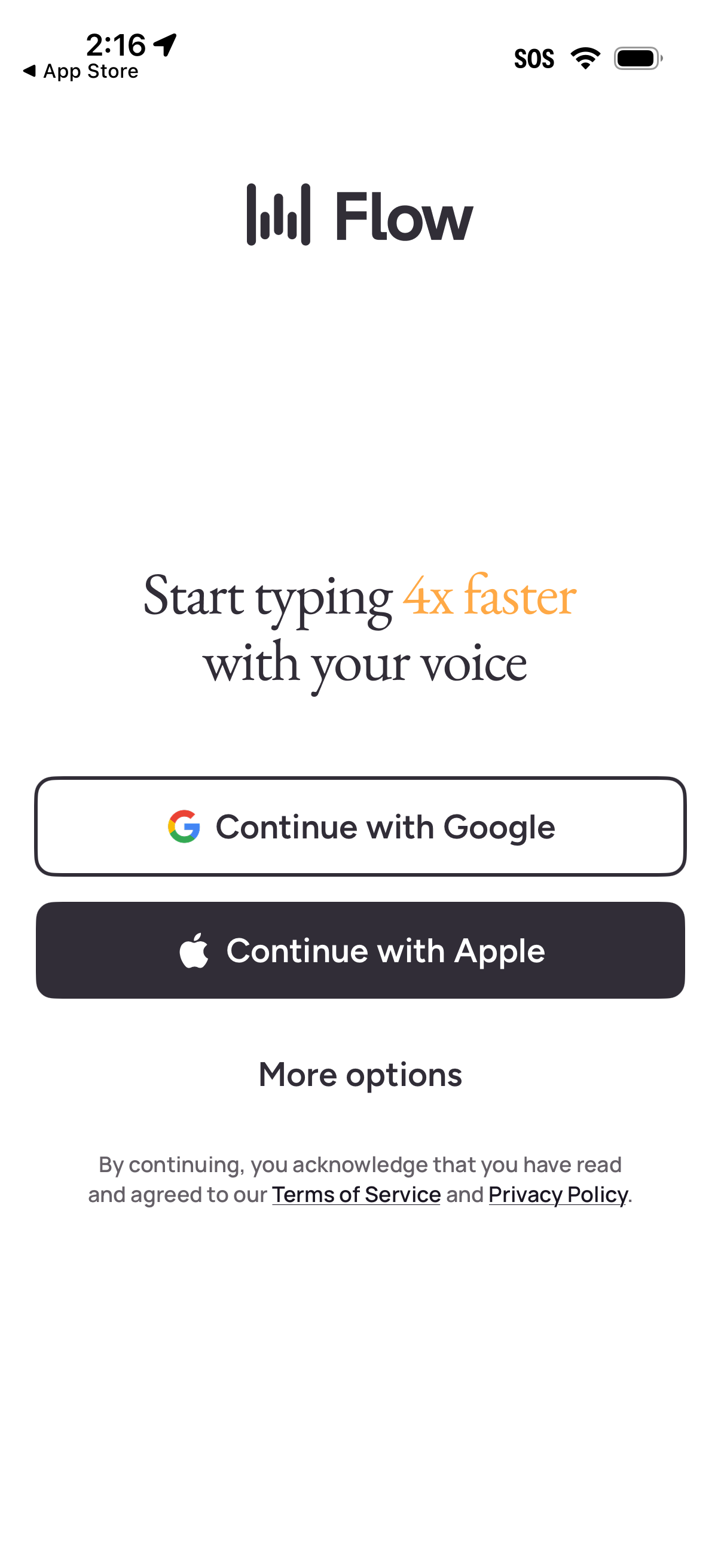
Welcome/login screen for a voice typing app highlighting “Start typing 4x faster with your voice,” offering single sign-on buttons to continue with Google or Apple plus a “More options” link. Includes consent text linking to Terms of Service and Privacy Policy.
Onboarding setup intro screen prompting the user to “set up Flow,” with a short reassurance message and a single primary call-to-action button to begin setup. Includes a back navigation option to return to the previous screen.
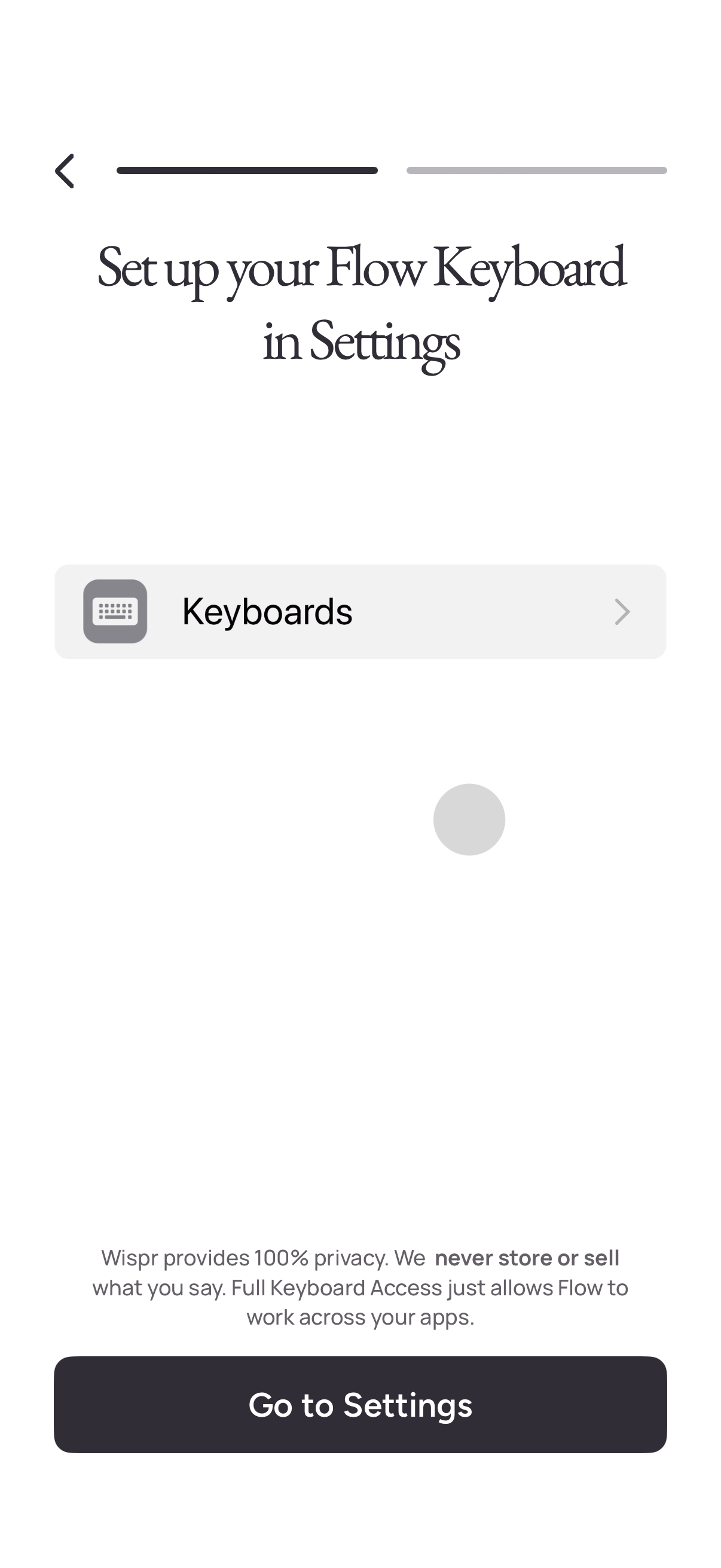
Onboarding setup screen prompting the user to enable a custom “Flow” keyboard in the device Settings, highlighting the Keyboards menu item and privacy note about full keyboard access. Primary action button sends the user to Settings to complete keyboard configuration.
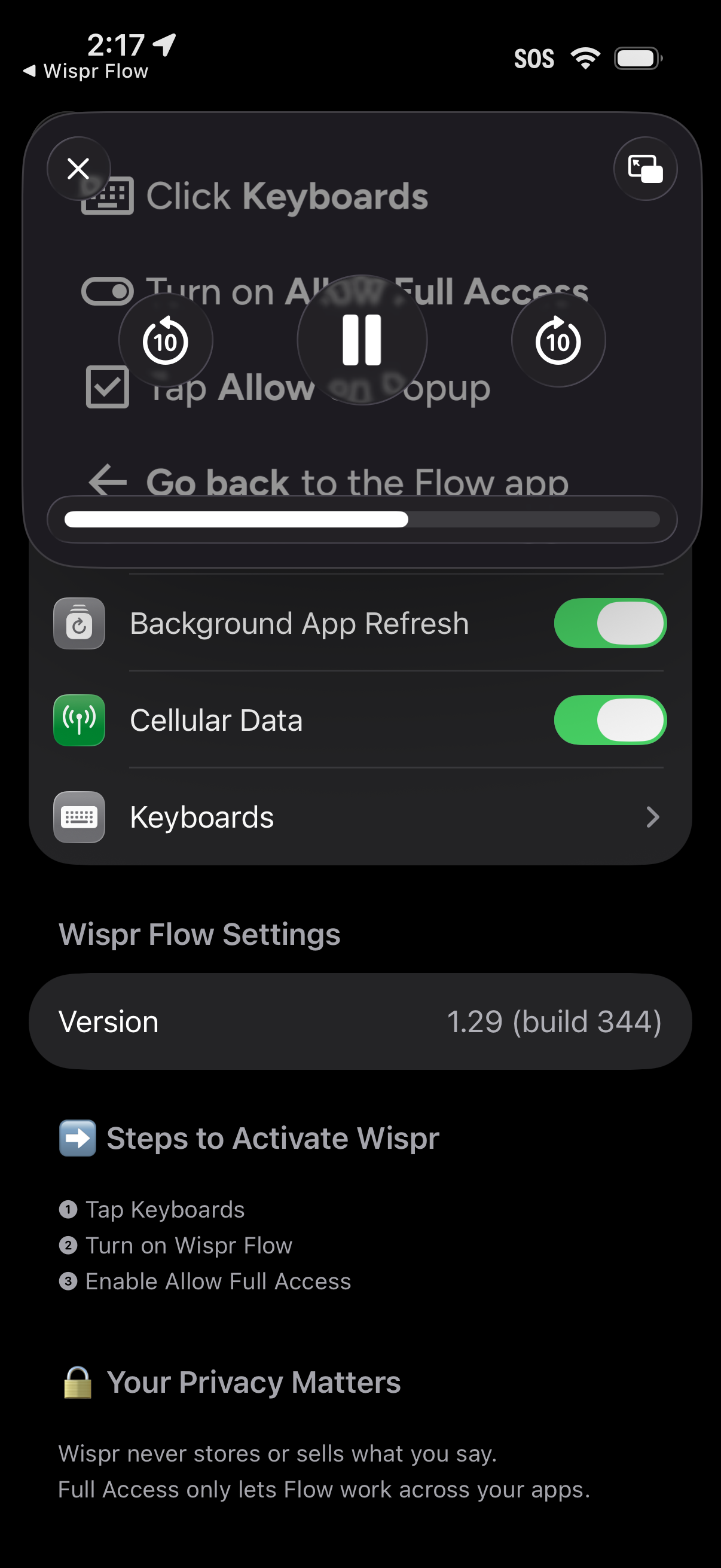
iOS app settings screen for enabling a custom keyboard extension, showing navigation to Keyboards and instructions to turn on the keyboard and allow full access, with permission-related toggles like Background App Refresh and Cellular Data. Includes app version info and a privacy note explaining full access and data handling.
Onboarding prompt screen inviting the user to test a voice dictation feature to see the app’s “Flow” in action. Includes a single primary CTA button to start the demo (“Try Flow”).
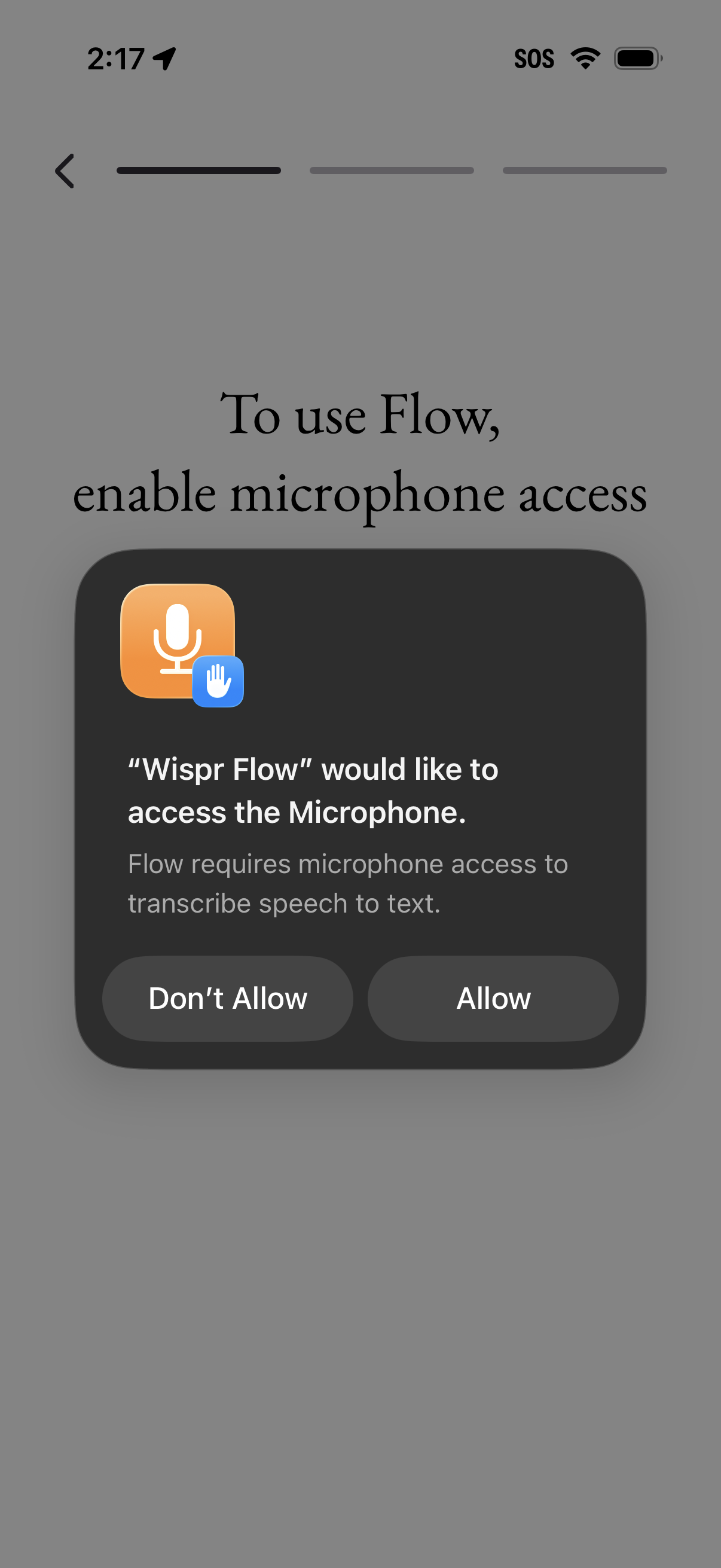
Onboarding permission screen prompting the user to enable microphone access so the app can transcribe speech to text, showing an iOS system modal with “Allow” and “Don’t Allow” actions. Includes progress indicator and back navigation as part of the setup flow.
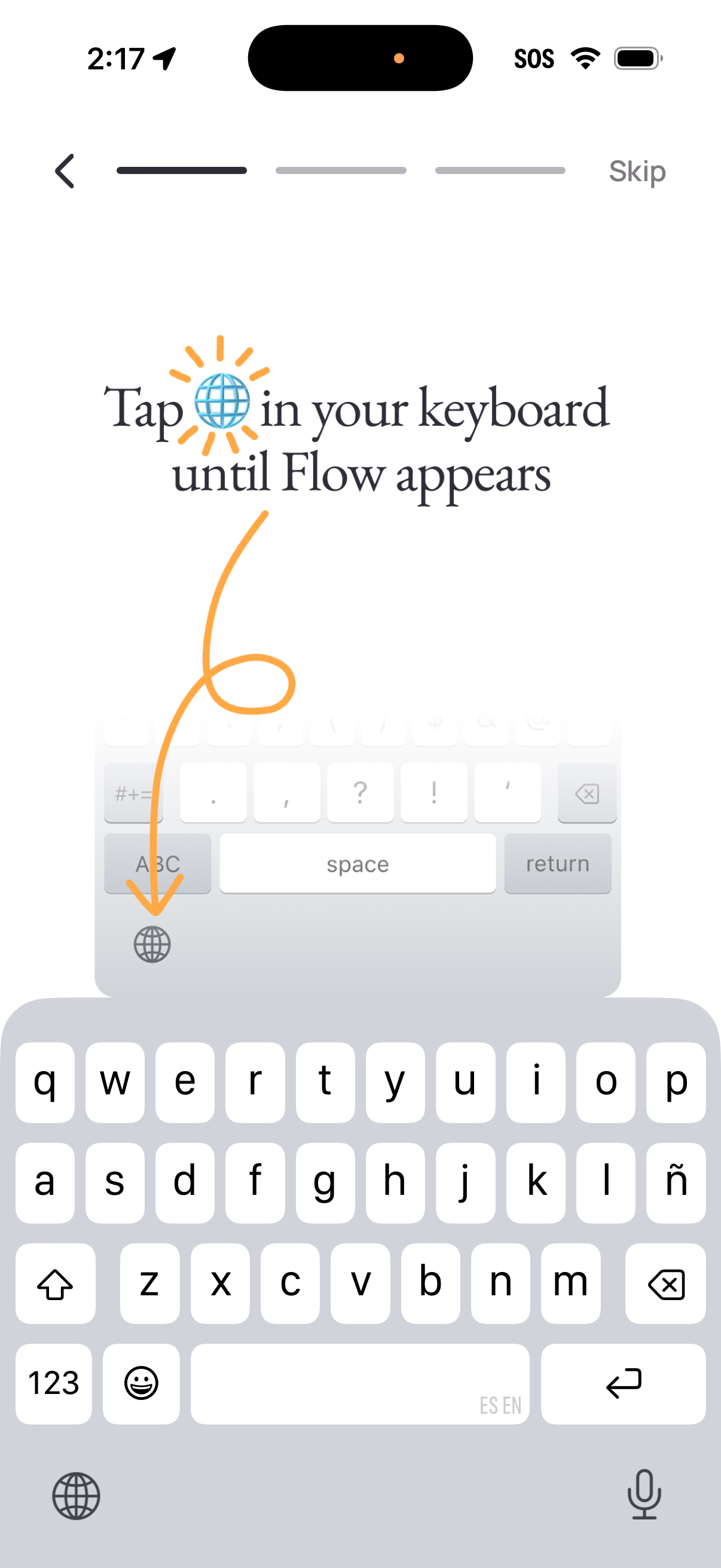
Onboarding instruction screen for enabling a custom keyboard, showing the iOS keyboard and prompting the user to tap the globe/language key to switch keyboards until the app’s “Flow” keyboard appears. Includes a progress indicator with back navigation and a Skip option.
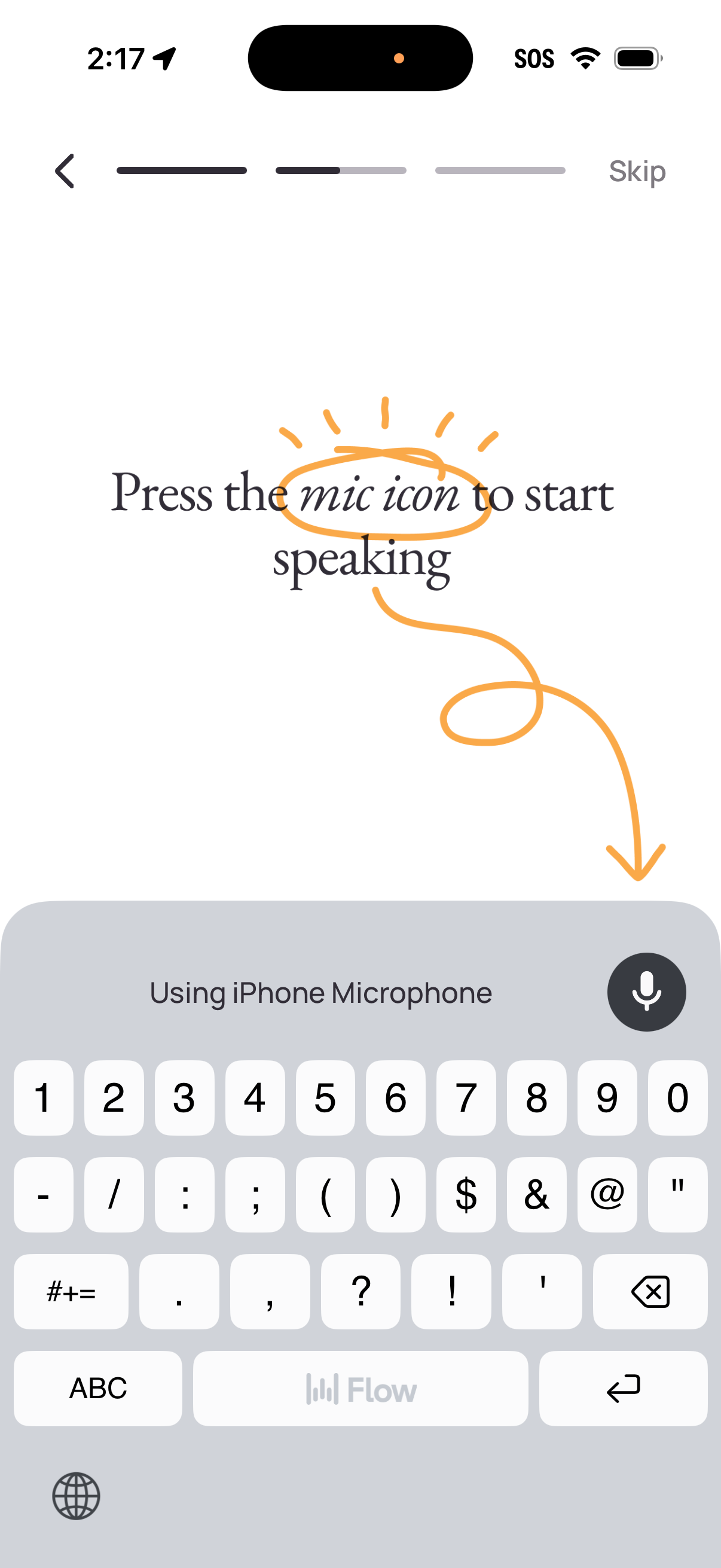
Onboarding tutorial screen for a voice input feature, instructing the user to press the microphone icon to start speaking with the iPhone microphone enabled. Includes step progress indicator, back navigation, and a Skip option while the keyboard with mic button is shown.
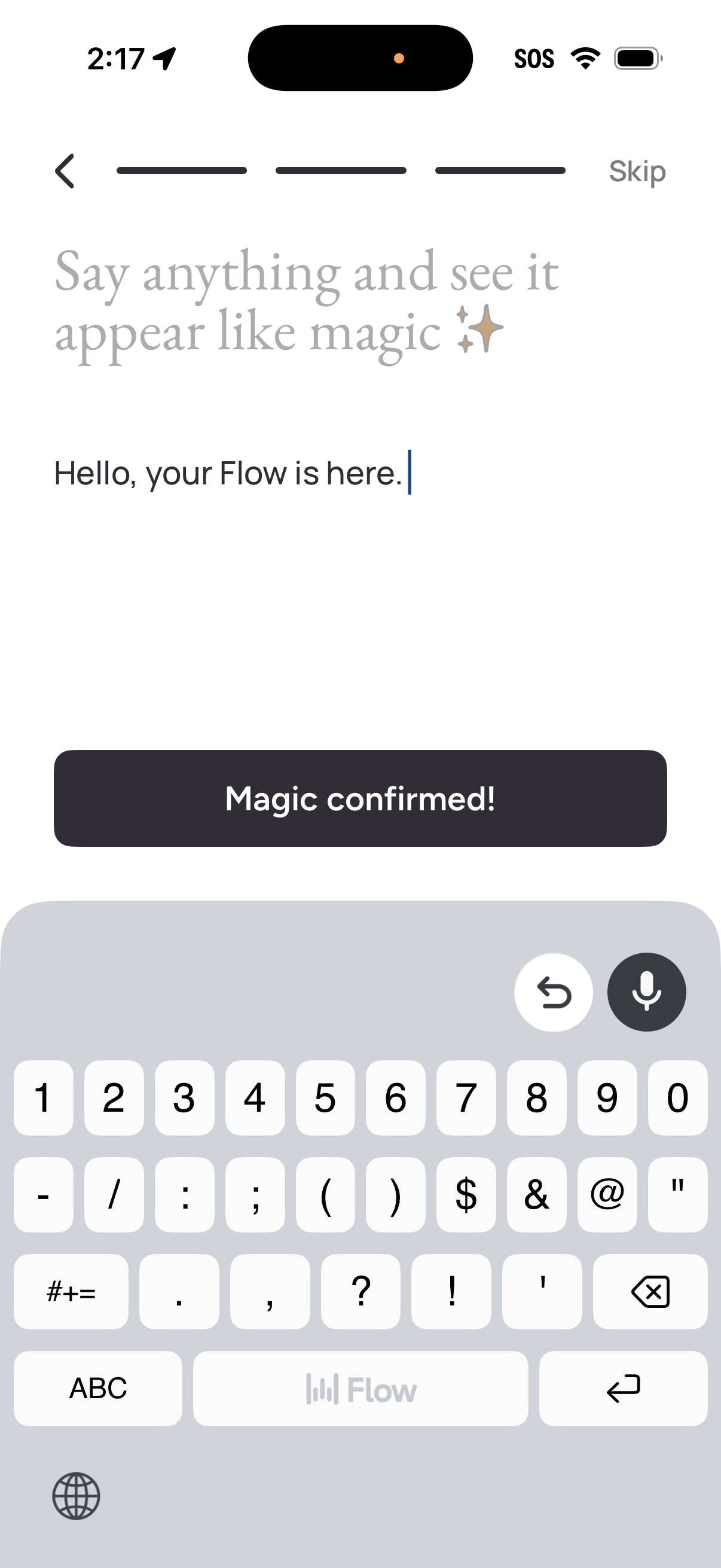
Onboarding step for a voice and text “magic” input feature where users type or dictate a phrase and see it appear instantly in the editor. Includes a progress indicator with back and skip options, and a primary confirmation CTA labeled “Magic confirmed!
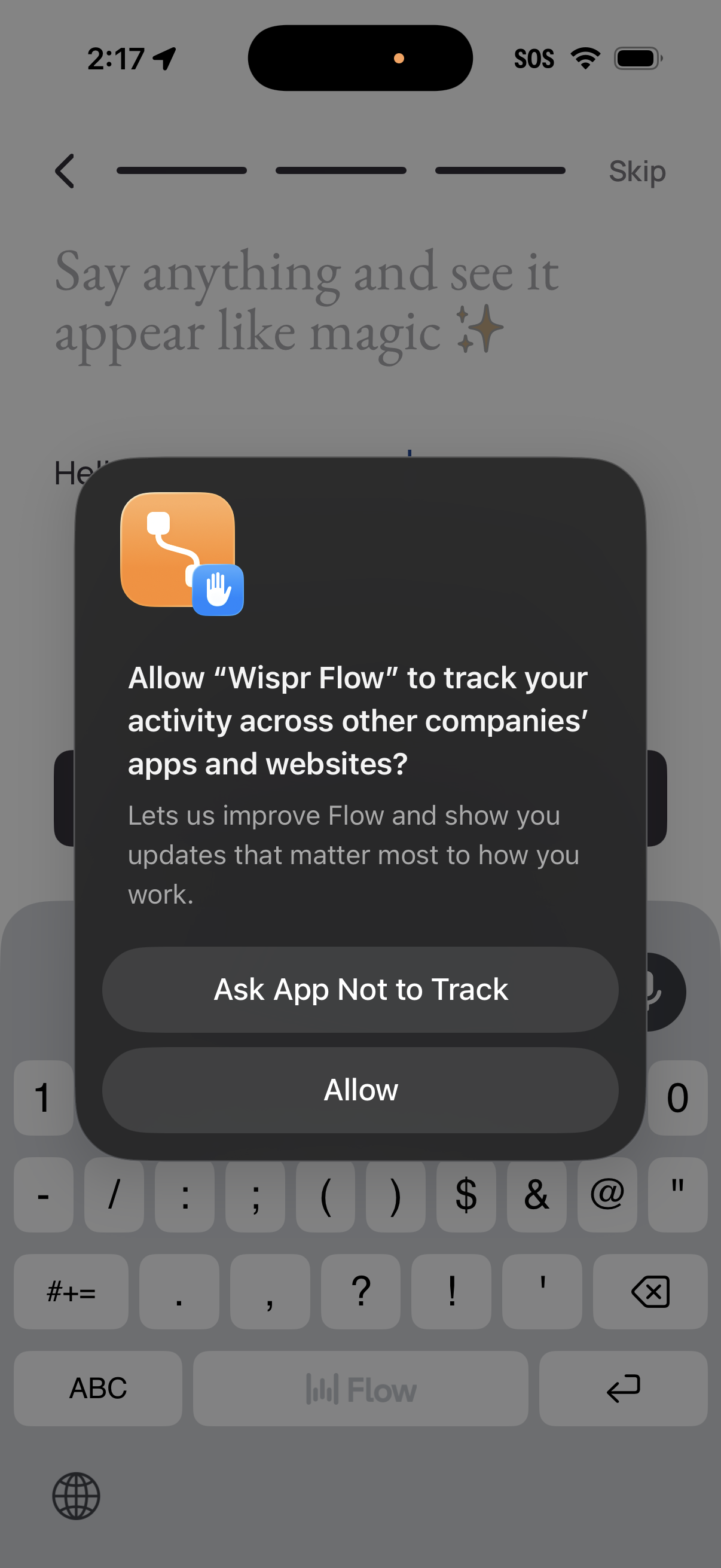
iOS App Tracking Transparency permission pop-up asking whether to allow the app to track activity across other companies’ apps and websites, with primary actions to Allow or Ask App Not to Track. The prompt appears over an onboarding/text input screen and supports user privacy consent decisions.
Onboarding setup completion screen prompting the user to wrap up the setup with a brief “one more step” message. Primary action is a large “Next” button to proceed to the final step and enter the app.
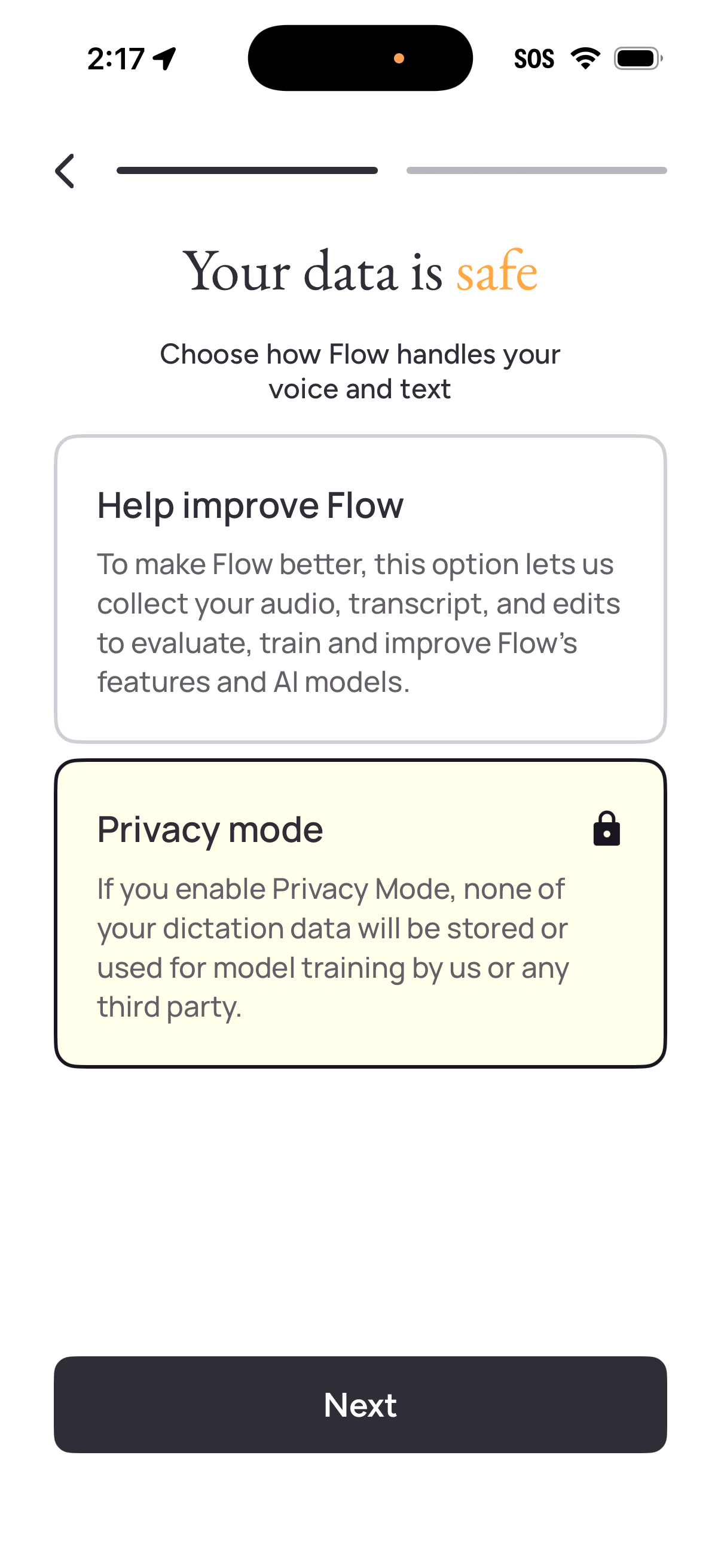
Privacy and data-handling setup screen for a voice dictation/AI assistant, explaining how the app uses voice and text and offering options to either help improve the product by sharing audio/transcripts or enable Privacy Mode so dictation data isn’t stored or used for model training. Includes a back button, step progress indicator, and a primary “Next” call to action.
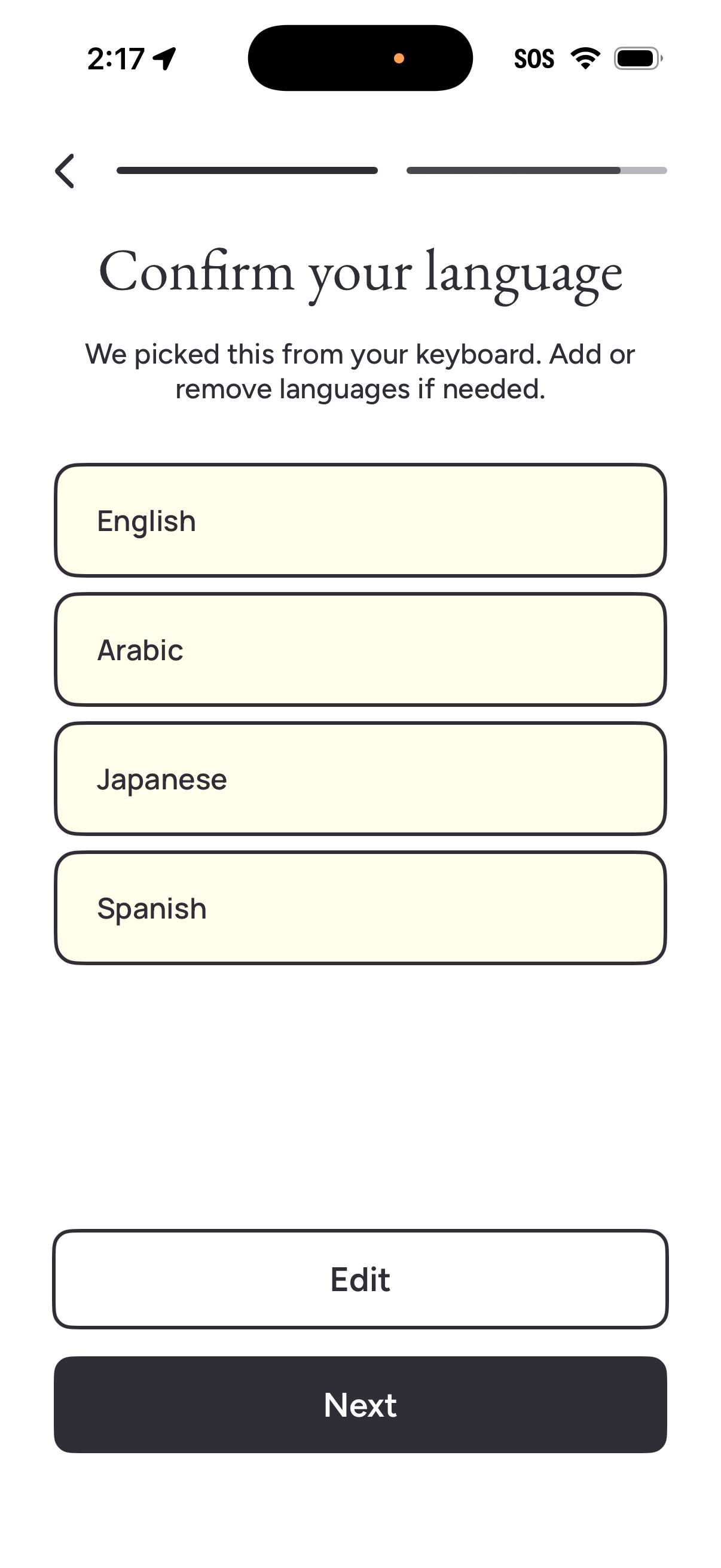
Onboarding language confirmation screen showing detected languages from the user’s keyboard in a selectable list (e. g.
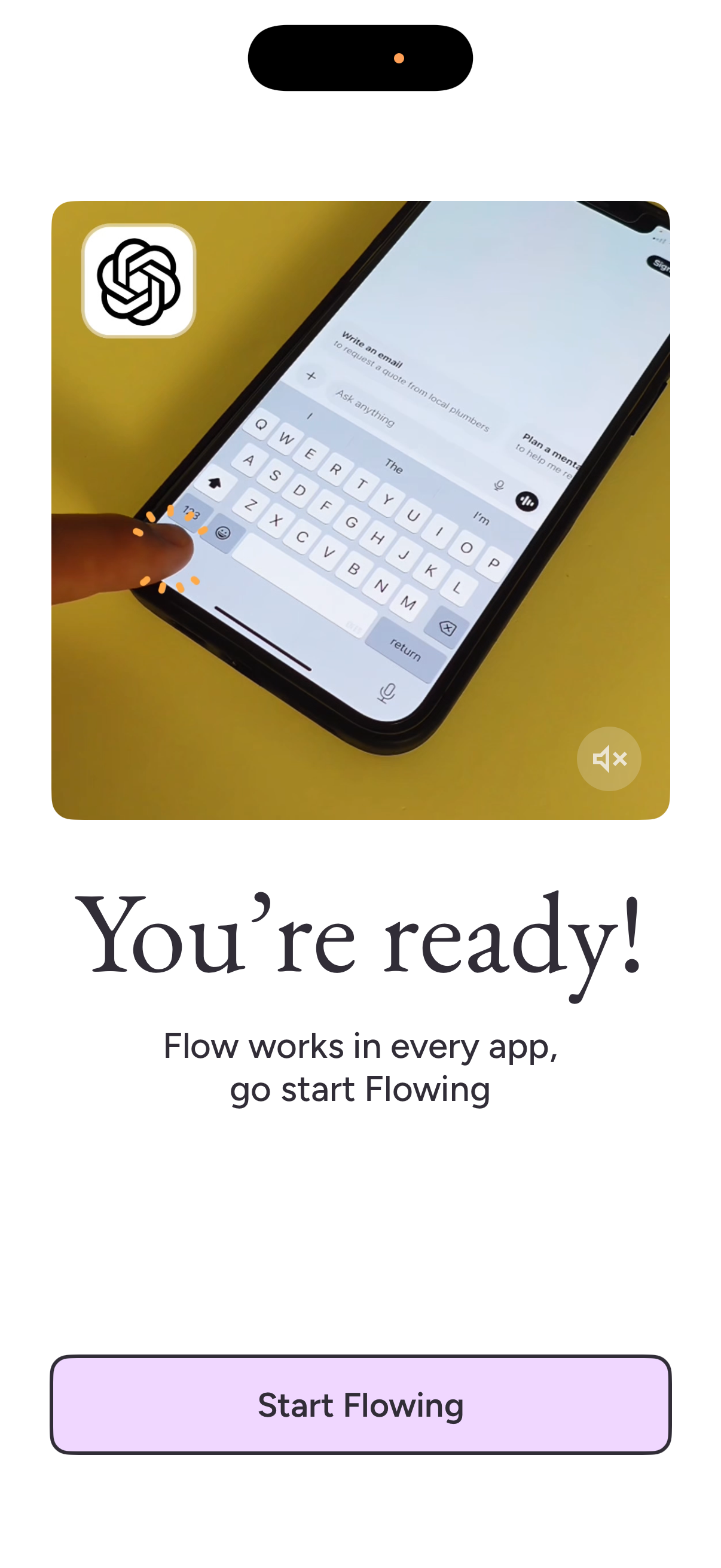
Onboarding completion screen confirming setup is finished, explaining that the AI writing/keyboard assistant works across apps. Includes a primary call-to-action button to “Start Flowing” to begin using the feature.
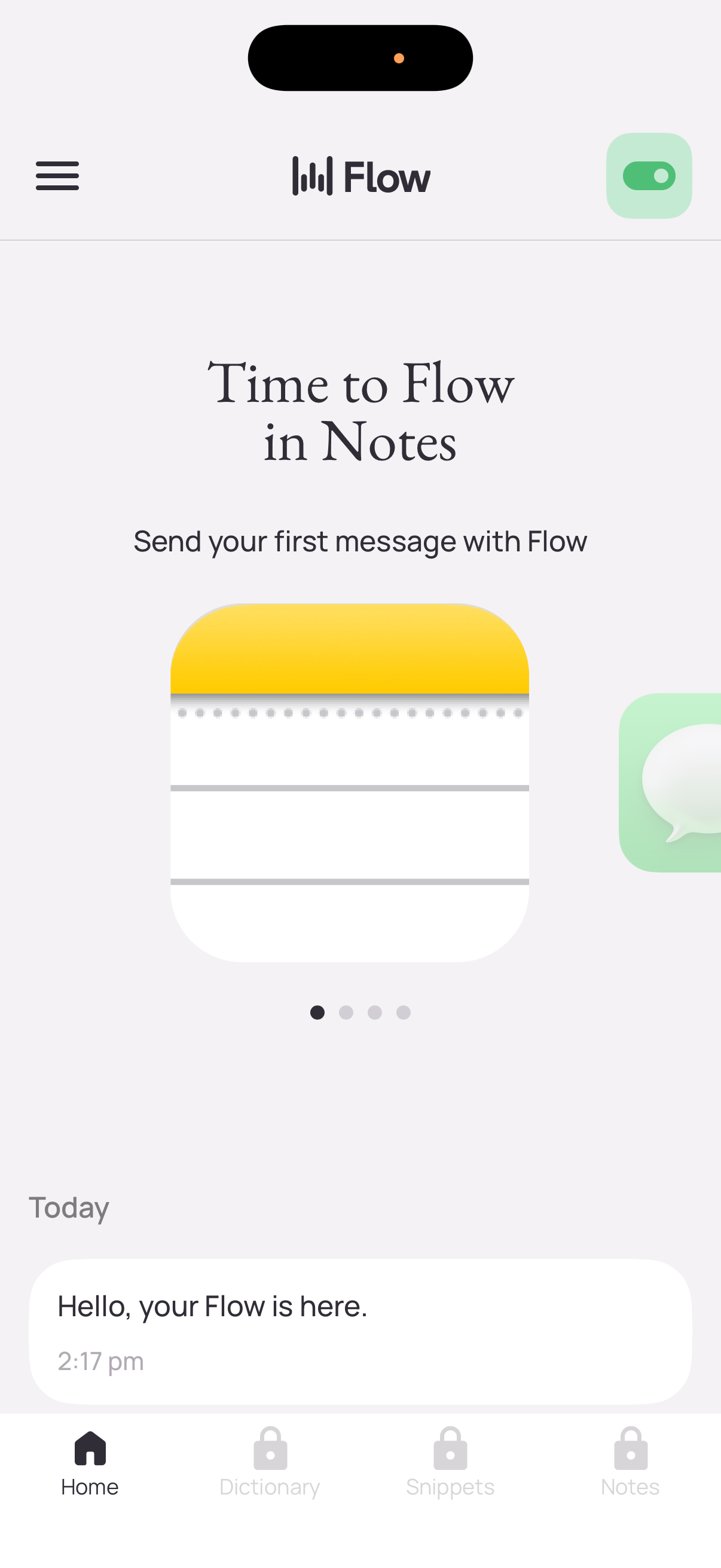
Home onboarding screen for a messaging/notes companion app introducing a “Flow in Notes” feature and prompting the user to send their first message, shown as a carousel with pagination dots. Includes a hamburger menu, an on/off toggle, a preview chat bubble, and a bottom tab bar for Home, Dictionary, Snippets, and Notes.