Onboarding
App launch splash/onboarding screen with a centered logo and a single primary CTA to “Log In” for existing users. Includes legal consent text linking to Terms of Service and Privacy Policy at the bottom.
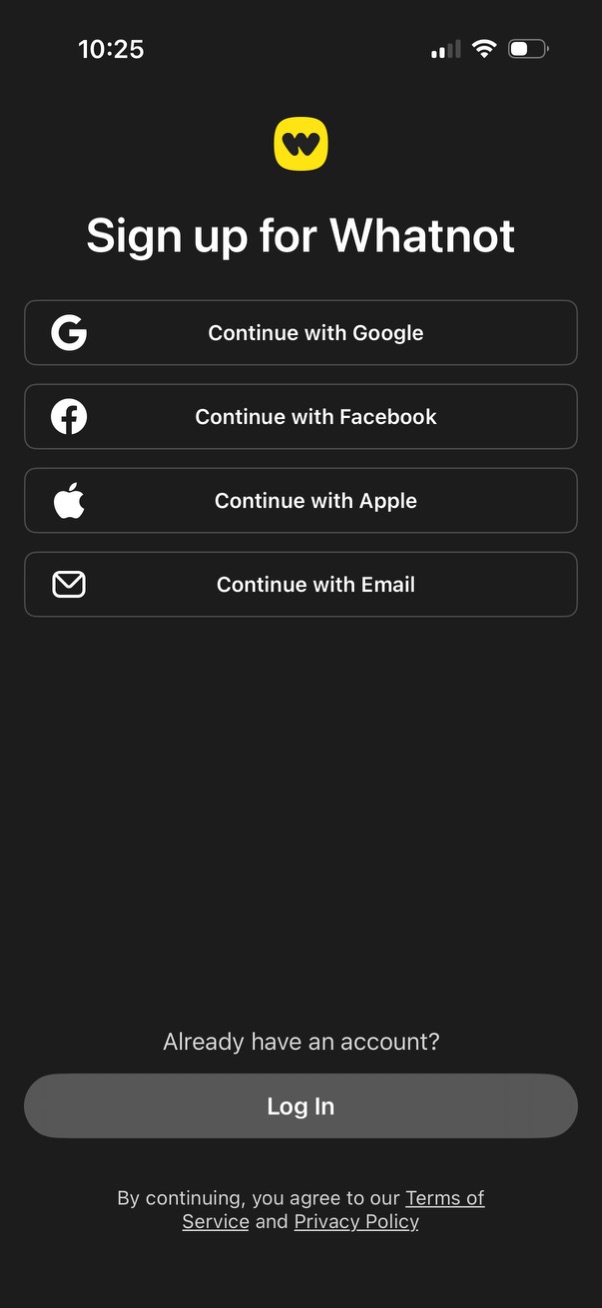
Sign-up screen offering multiple authentication options with buttons to continue with Google, Facebook, Apple, or email. Includes a secondary path to log in for existing users and links to Terms of Service and Privacy Policy.
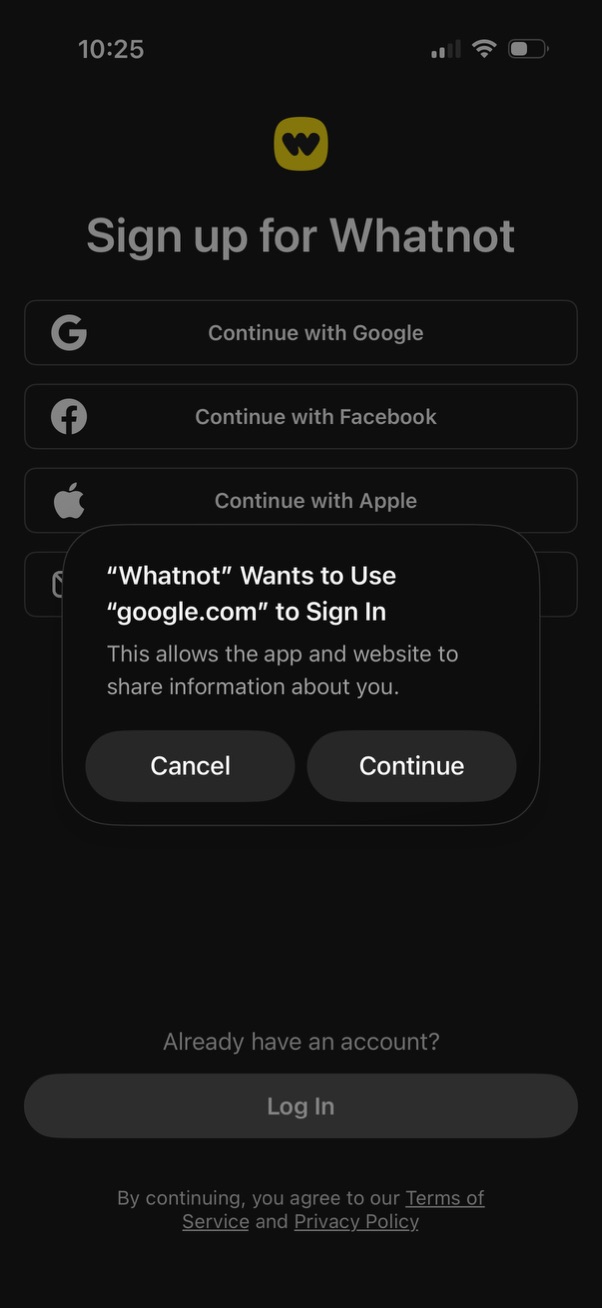
Sign-up screen offering social authentication options to create an account, with buttons to continue with Google, Facebook, or Apple and a link to log in for existing users. An iOS permission modal appears confirming the app wants to use google.
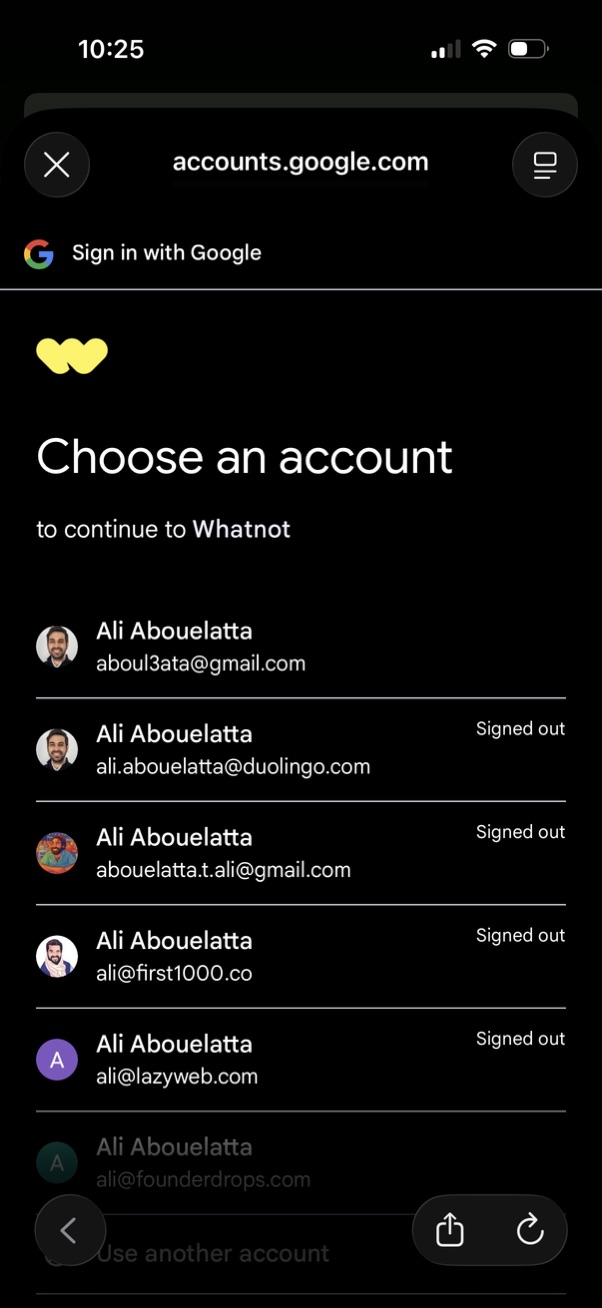
Google “Sign in with Google” account chooser screen prompting the user to select an existing Google account to continue to a third-party app, showing a list of profiles/emails with signed-out status indicators. Includes options to use another account and close/back controls within an in-app browser.
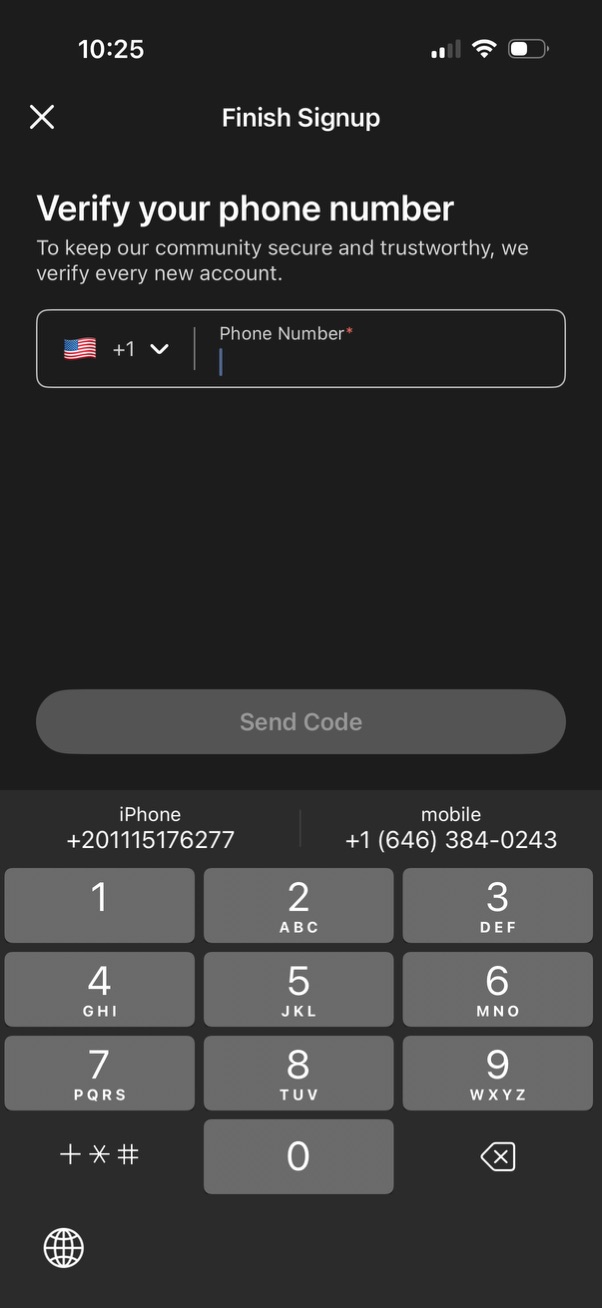
Phone number verification step during signup prompting the user to enter a phone number with a country code selector (flag dropdown) to keep the community secure. Includes a primary “Send Code” action button (disabled until valid input) and a close icon to exit the flow.
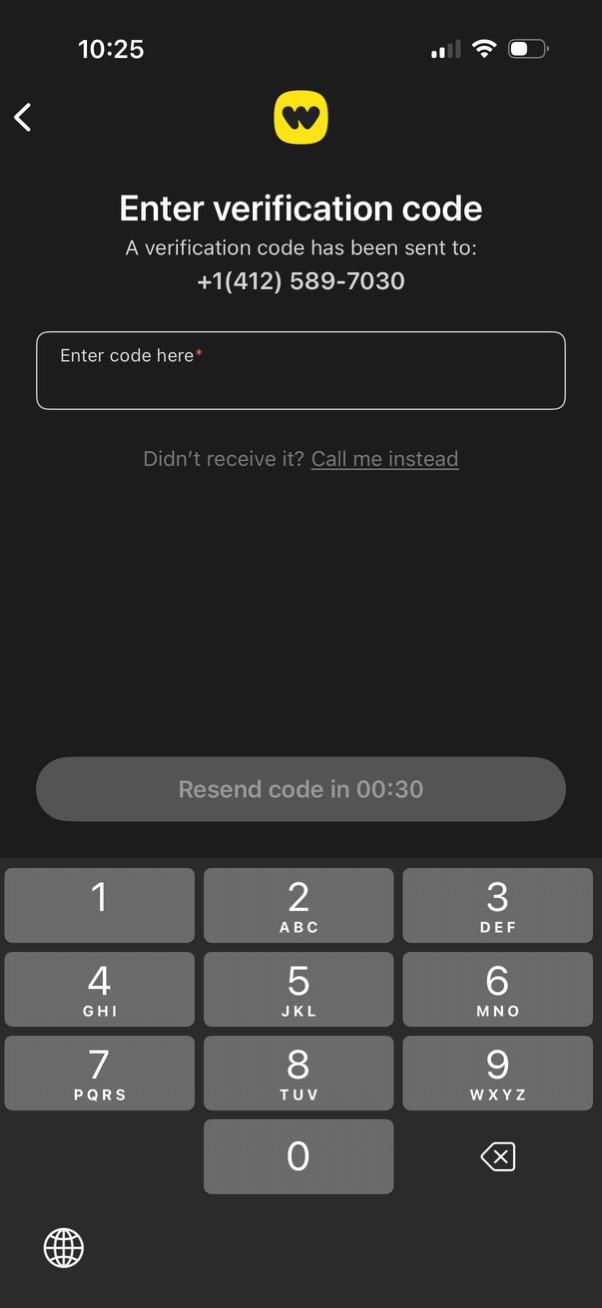
Phone number verification (OTP) screen prompting the user to enter a code sent via SMS, with a single code input field and back navigation. Includes alternatives and recovery actions like “call me instead” and a disabled resend button with countdown timer until the code can be resent.
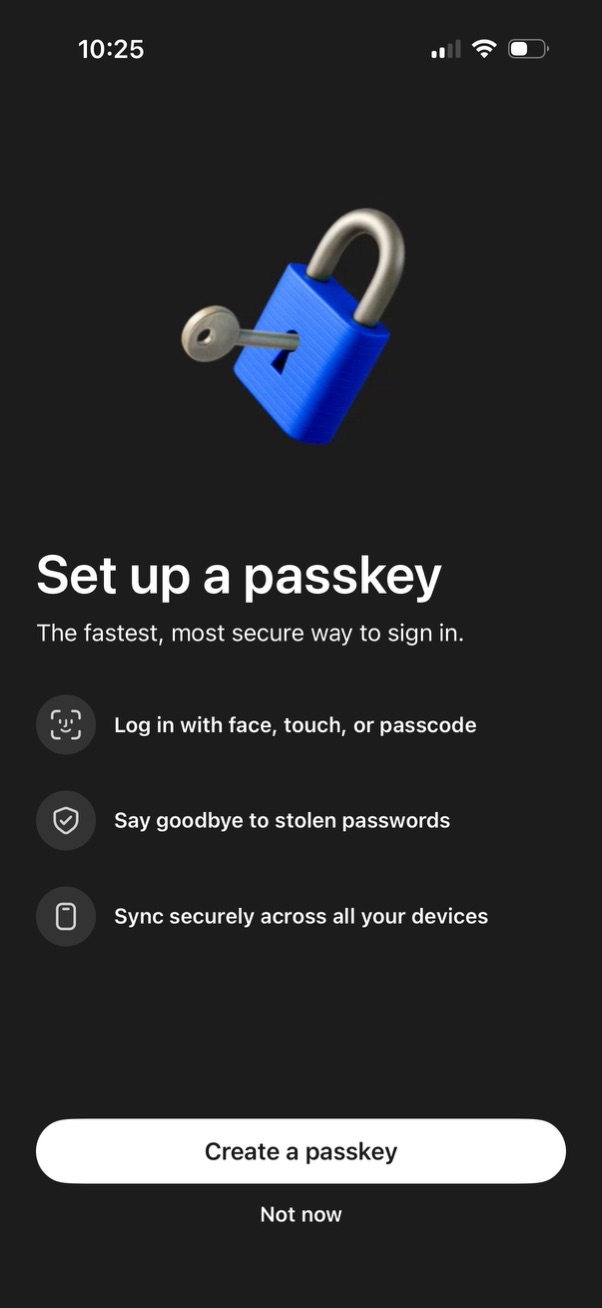
Authentication onboarding screen prompting users to set up a passkey as a faster, more secure sign-in method using face/touch/passcode, eliminating passwords and syncing across devices. Primary actions are “Create a passkey” and “Not now” to defer setup.
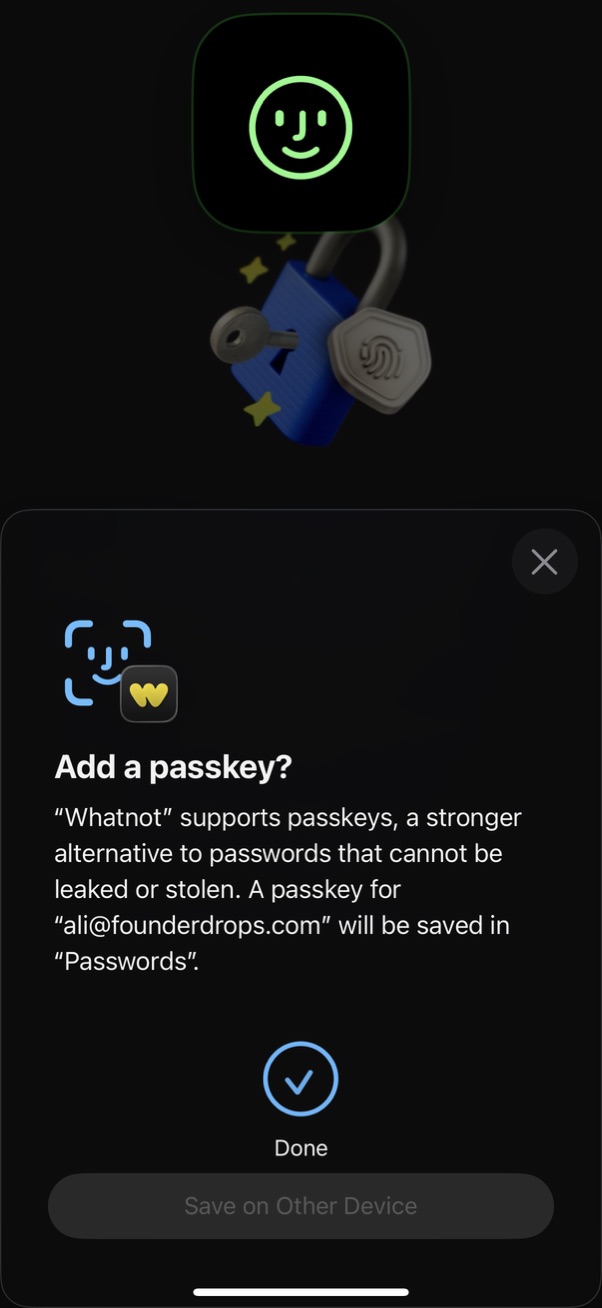
System modal prompting the user to add a passkey for an app as a secure alternative to passwords, explaining that the passkey will be saved in the device’s Passwords manager for the account. Includes a primary “Done” confirmation action, an optional “Save on Other Device” option, and a close (X) button to dismiss.
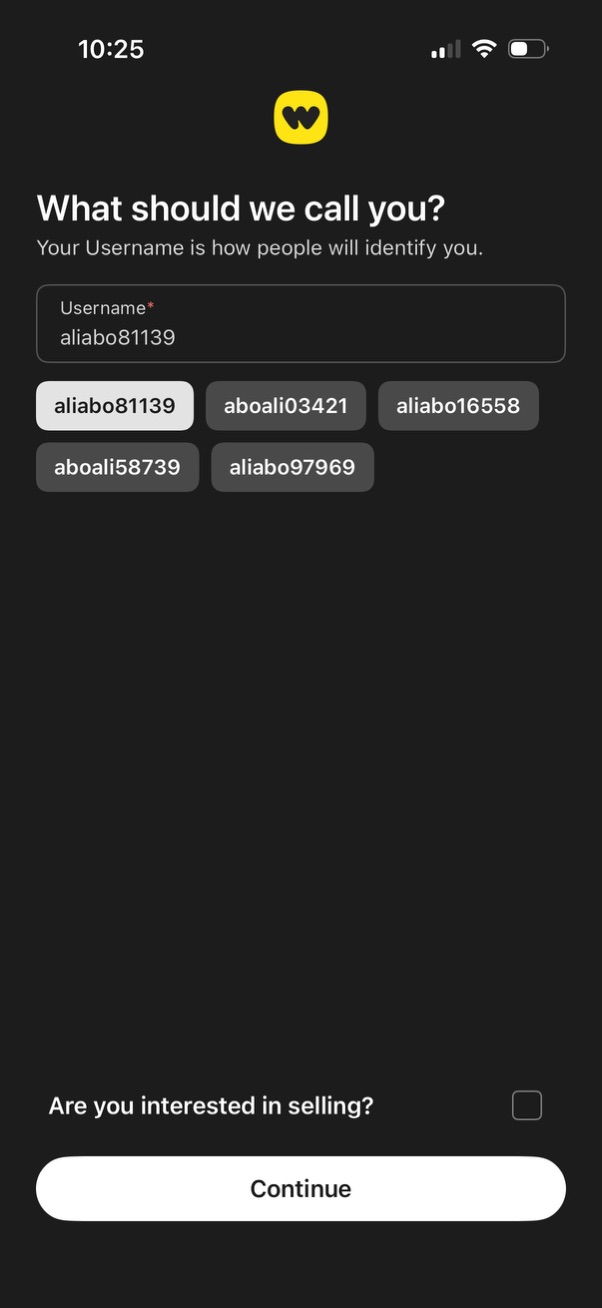
Username setup screen in onboarding asking “What should we call you? ” with a required username input field and multiple suggested username chips to choose from.
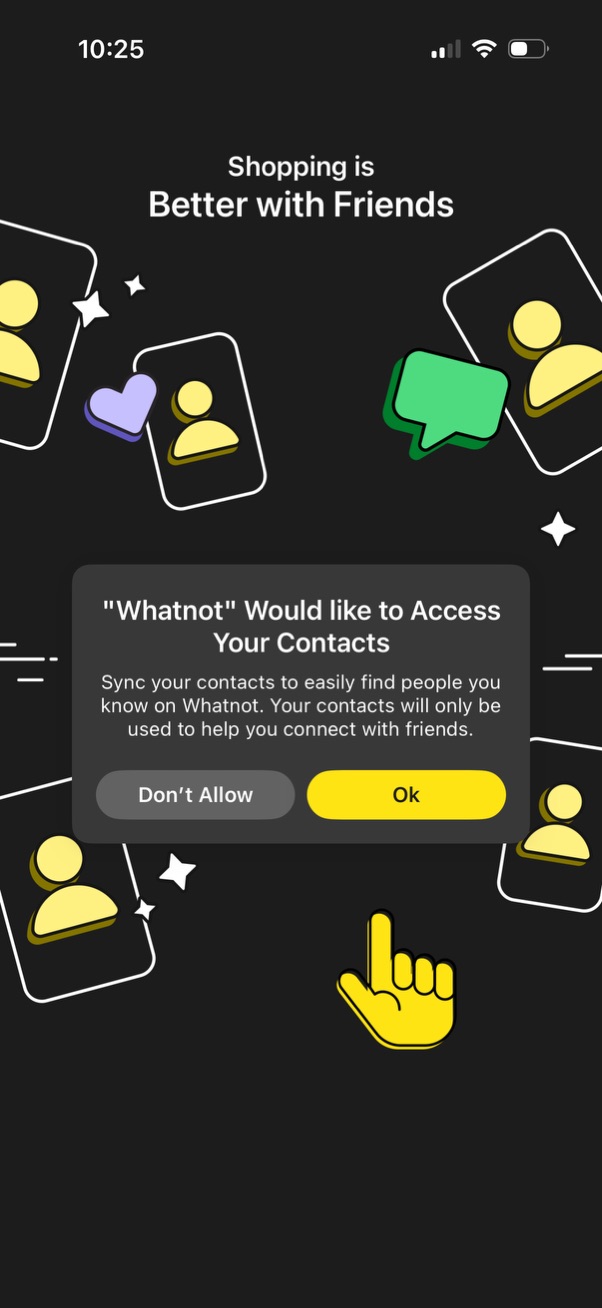
Onboarding screen promoting social shopping and connecting with friends, prompting the user to sync their contacts to find people they know. An iOS system permission modal asks to allow or deny contacts access with primary and secondary actions.
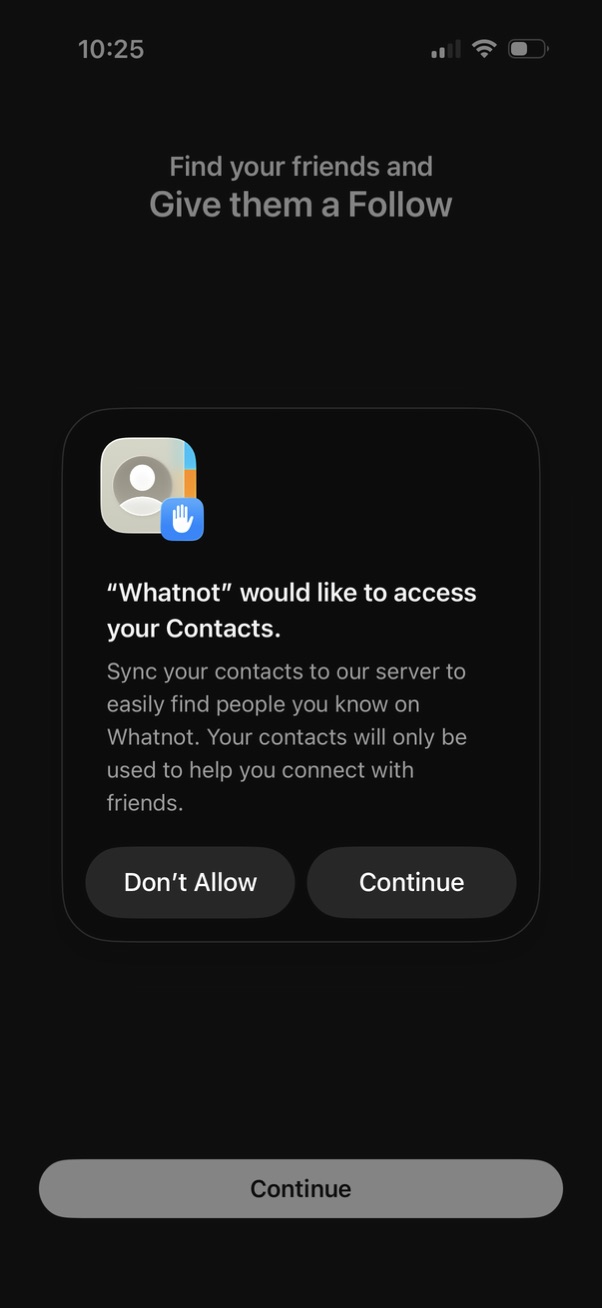
A social onboarding screen prompting users to find friends by syncing their phone contacts, showing an iOS permission dialog requesting access to Contacts. Users can choose “Don’t Allow” or “Continue,” with a primary Continue button to proceed with contact-based friend discovery and following.
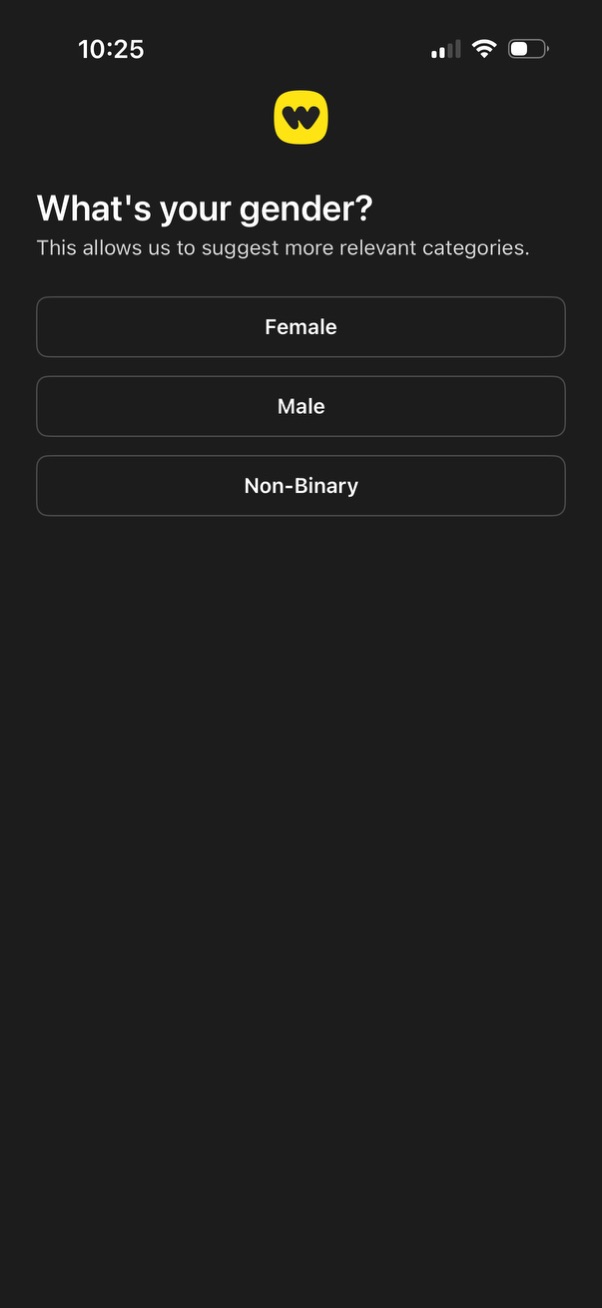
Onboarding profile setup screen asking “What’s your gender? ” to personalize category suggestions, offering three selectable options: Female, Male, and Non-Binary.
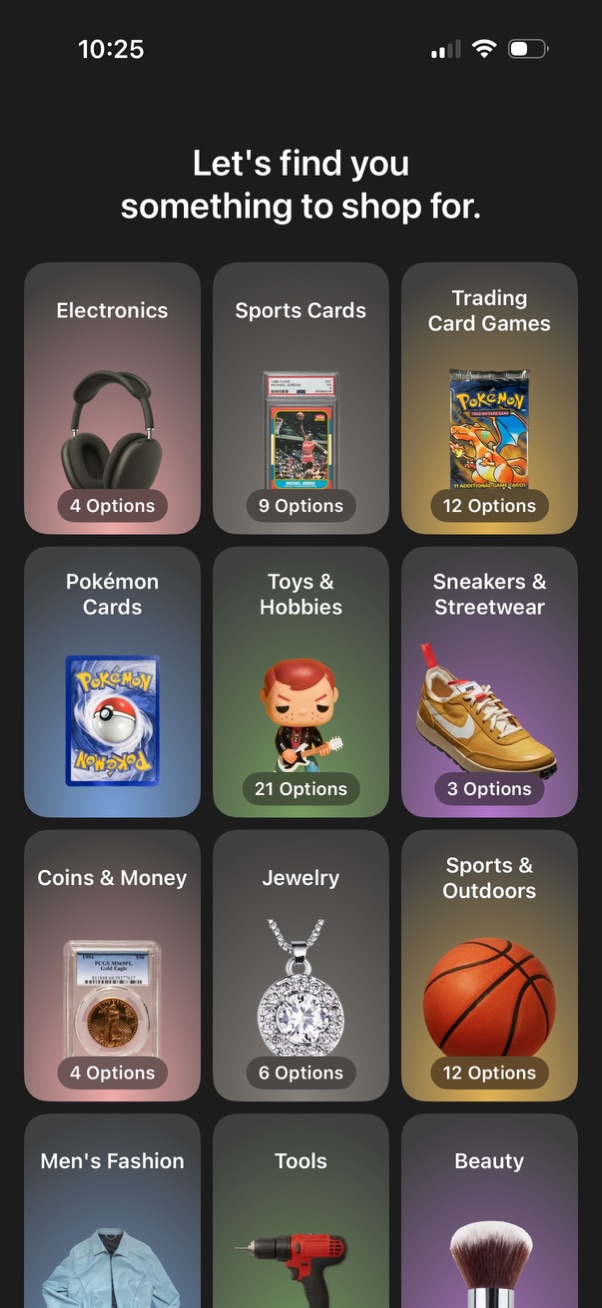
Shopping discovery/browse screen prompting the user to choose what to shop for, showing a grid of tappable product categories with large images. Each category card displays the category name and an “X options” count (e.
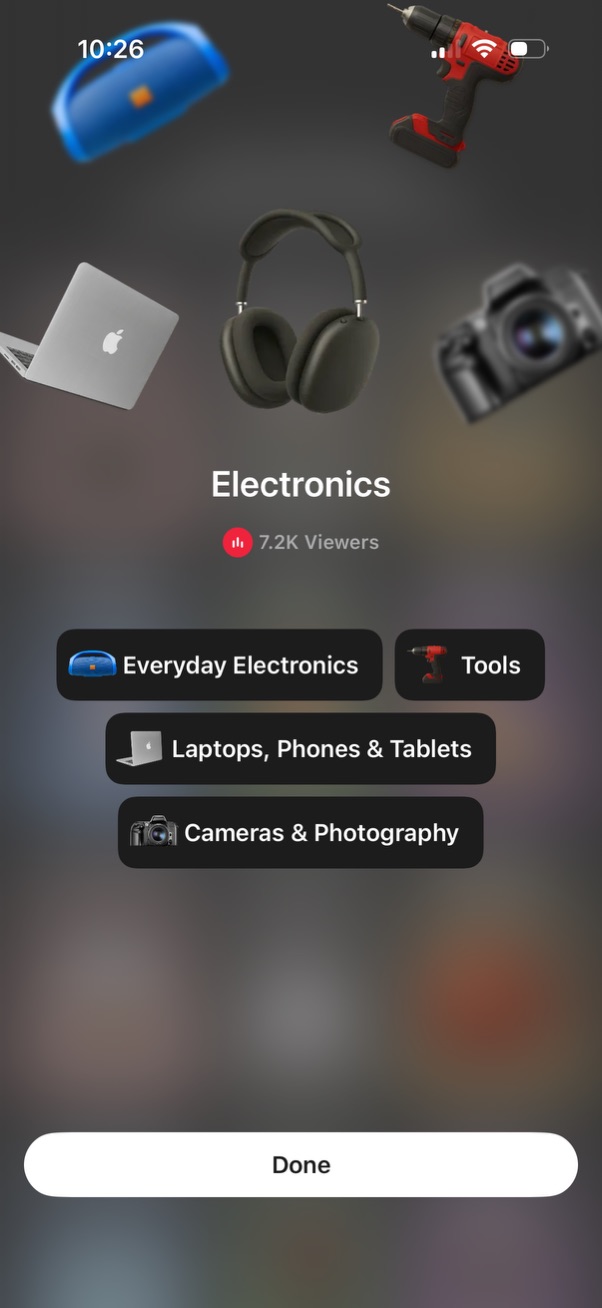
Category selection screen for an “Electronics” section showing viewer count and large pill buttons to choose subcategories like Everyday Electronics, Tools, Laptops/Phones/Tablets, and Cameras & Photography. Includes a bottom “Done” button to confirm and proceed with the selected category.
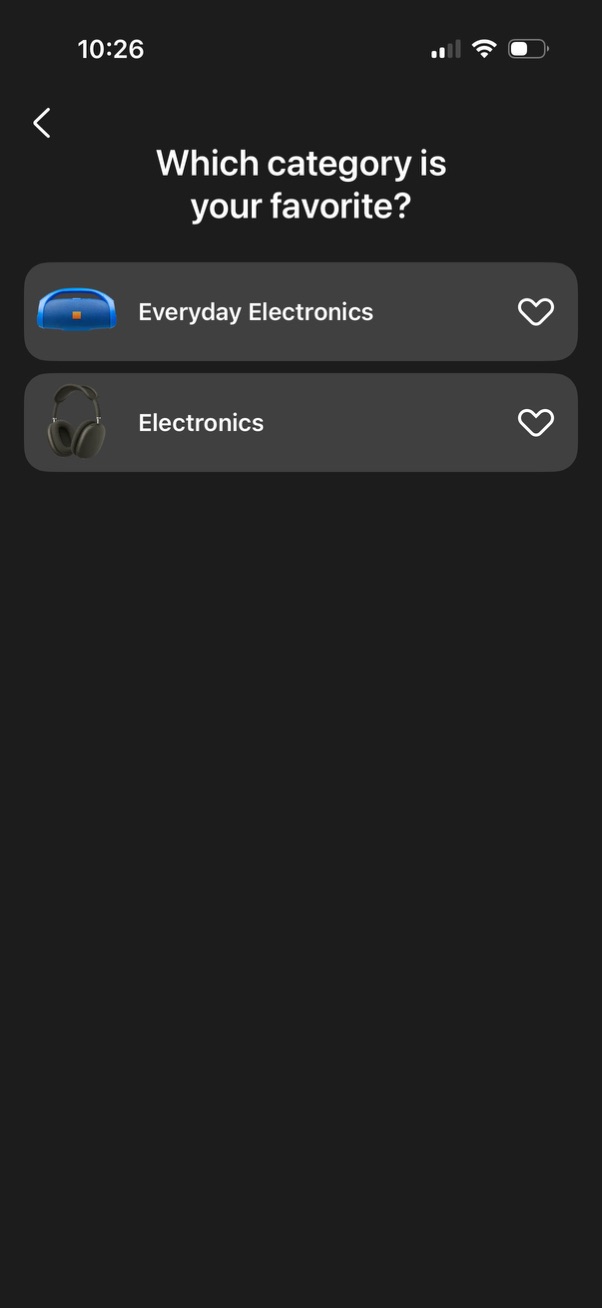
Preference selection screen asking “Which category is your favorite? ” with a list of shopping categories displayed as large cards with icons and a heart button to favorite/select a category (e.
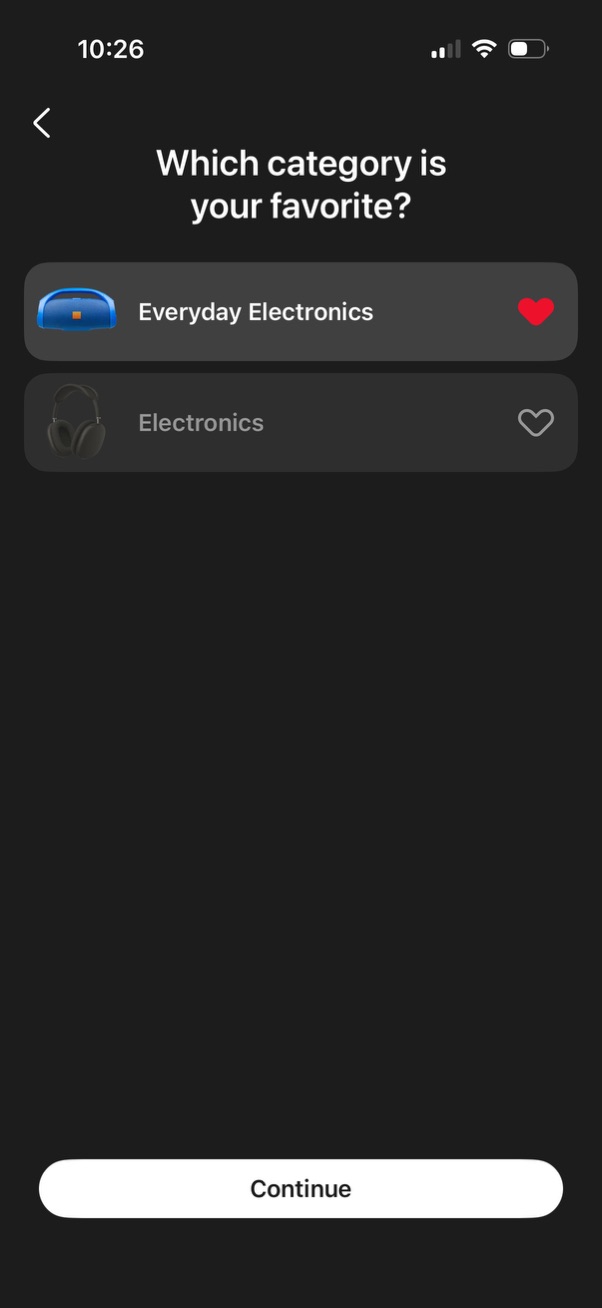
Preference selection screen asking users to choose their favorite category, showing a list of categories with icons and heart toggles to mark favorites. Includes a primary Continue button to confirm selections and proceed.

Loading/interstitial screen for an e-commerce marketplace that says “Finding Top Sellers You’ll Love” with a progress indicator, shown while the app fetches and personalizes recommended sellers.
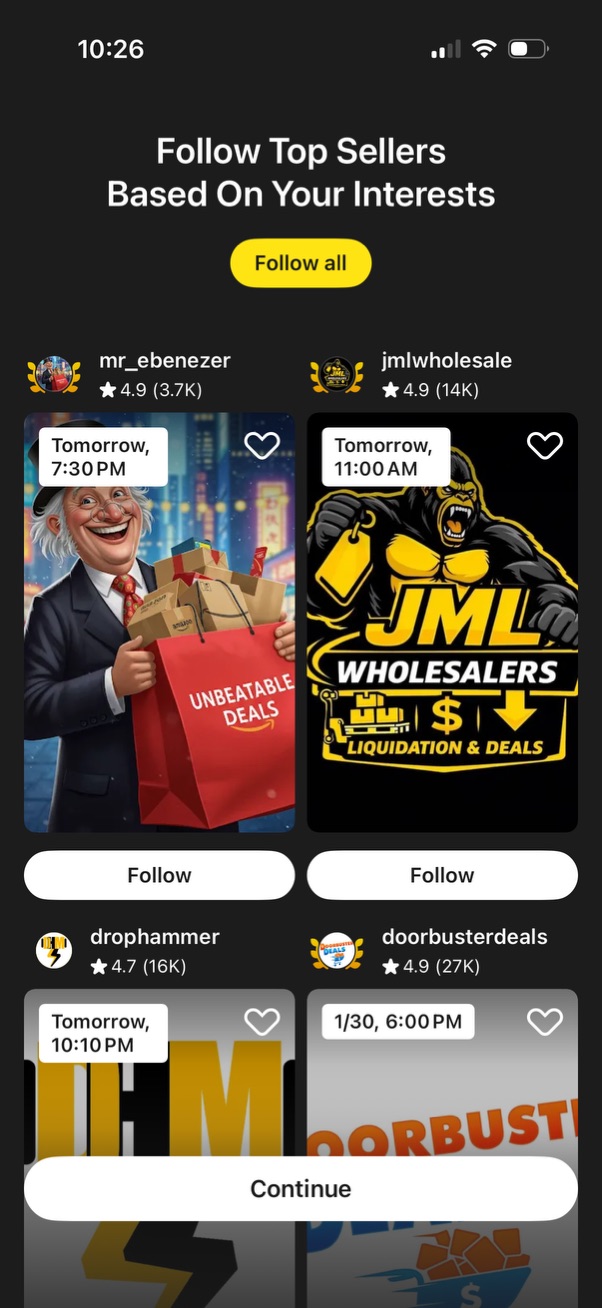
Onboarding recommendation screen prompting users to follow top sellers based on their interests, showing a grid of seller cards with avatar, username, star rating, scheduled live time, and a favorite/like icon. Primary actions include “Follow all,” individual “Follow” buttons for each seller, and a bottom “Continue” button to proceed.
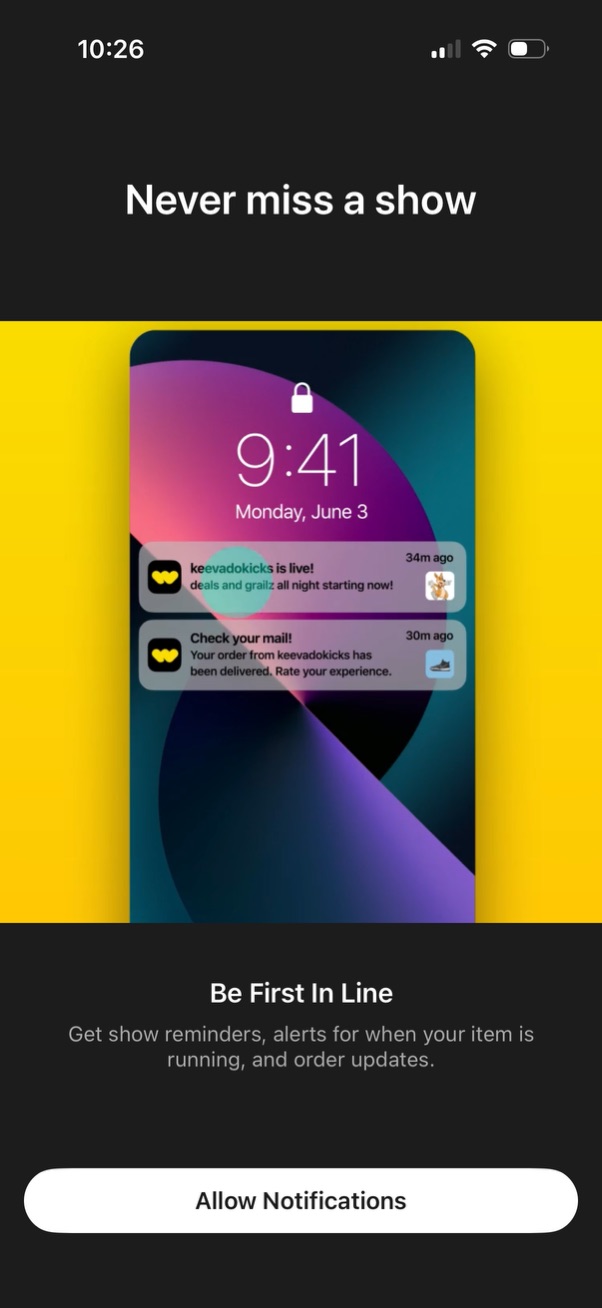
Onboarding permission screen prompting users to enable push notifications so they never miss a show, with a preview of lock screen alerts for live events and order updates. Primary action is a large “Allow Notifications” button explaining reminders, item-running alerts, and delivery updates.
Loading screen for a live shopping feature showing the status message “Finding Live Shows” with an animated progress indicator while the app searches for available livestreams to browse and shop. Indicates that users can tap a show once results load to start shopping.
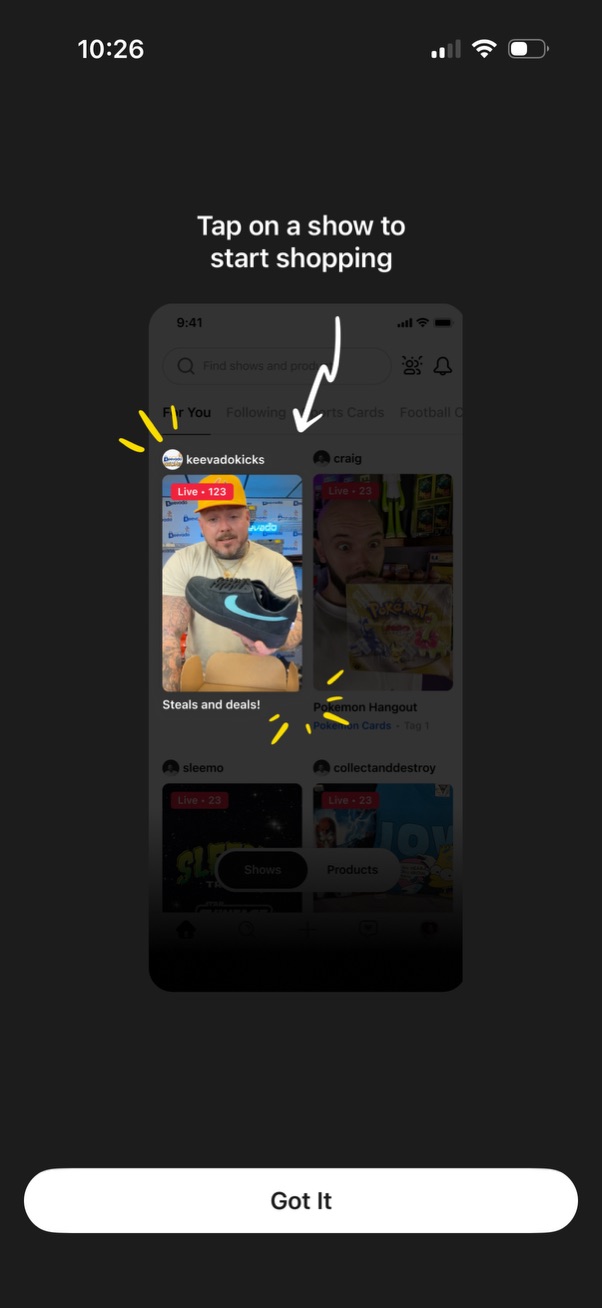
Onboarding tip screen explaining how to shop by tapping into a live show, showing a preview of the shows feed with live video tiles and category tabs. Includes a primary “Got It” button to dismiss and continue.
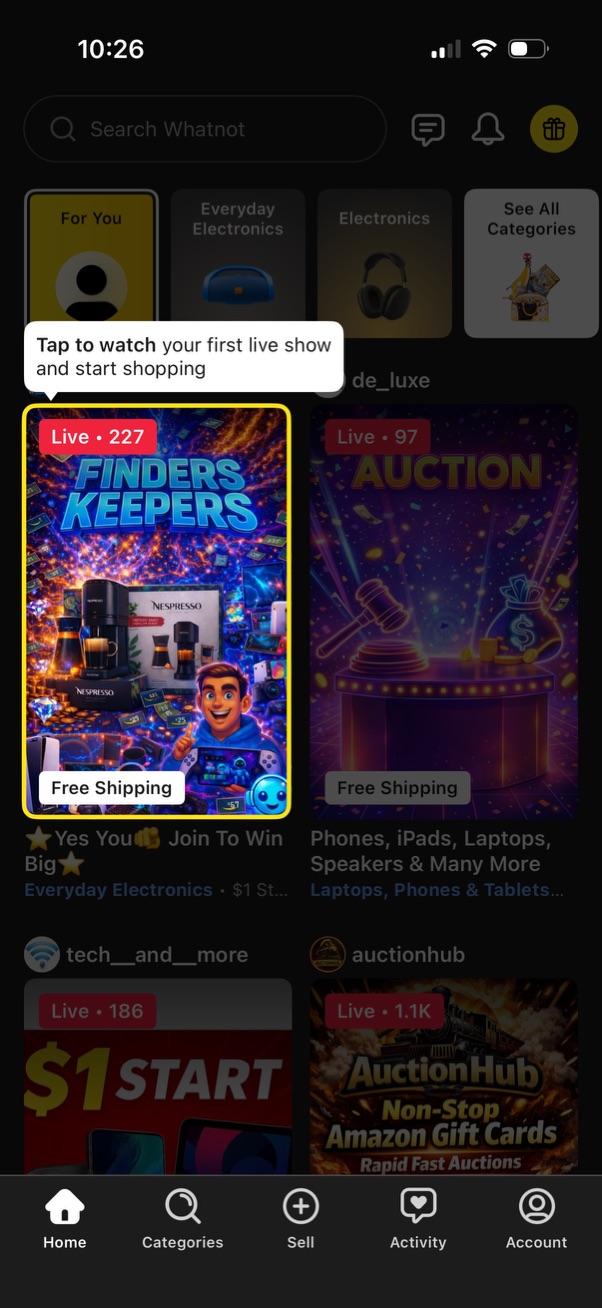
Home feed of a live shopping/auction app showing a search bar and category shortcuts at the top, with a grid of live show cards displaying viewer counts and promotions like free shipping. A tooltip onboarding prompt encourages the user to tap a live show to start shopping, with bottom navigation for Home, Categories, Sell, Activity, and Account.